
Convert Microsoft Entra ID User and Device Groups with PowerShell
Build corresponding Entra user and device groups with PowerShell and Microsoft Graph. Check membership mapping and test assignments before production use.

In your environment you have multiple groups to create assignments of an app or a configuration profile. If you later realize it would be better if this was not a device group but a user group, it is hard to change this without the user having an impact or you have big efforts. I have written a script that you can convert a user group into a device group or a device group into a user group based on the user assigned to a device or based on the devices assigned to the user.
How does it work
First of all the script read out all members of the defined Group and tag them as user, device or group. Then each group member is processed and in the case of a user to device migration it is checked which devices are assigned in Microsoft Entra ID (formerly Azure AD) to the respective user and in the case of a device to user migration it is checked who is the assigned owner in Microsoft Entra ID of this device. If it is a hybrid group in which user or device objects are already in it, these are also migrated. You can read more about how membership is evaluated in the official Microsoft Learn documentation on Entra ID groups:
function Get-MigrateGroupMember{
    param (
        [String]$migrationType,
        [array]$groupMember = $null,
        $windows = $true,
        $ios = $true,
        $macos = $true,
        $android = $true
    )

    $os = @()
    if($windows){$os += 'Windows'}
    if($macos){$os += 'MacMDM'}
    if($android){$os += 'Android'}
    if($ios){$os += 'IOS'}

    $newGroupMember = @()

    if($migrationType -eq 'User'){
        $groupMember | Where-Object {$_.ItemType -eq 'Device'} | Foreach-Object {
            $userId = (Get-MgDeviceRegisteredOwner -DeviceId $_.Id).Id
            if($userId){
                $newGroupMember += [PSCustomObject]@{
                    Uri = "https://graph.microsoft.com/v1.0/directoryObjects/" + $userId
                }
            }
        }
        $groupMember  | Where-Object {$_.ItemType -eq 'User'} | Foreach-Object {
            $newGroupMember += [PSCustomObject]@{
                Uri             = $_.Uri
            }
        }
    }elseif($migrationType -eq 'Device'){
        $groupMember  | Where-Object {$_.ItemType -eq 'User'} | Foreach-Object {

            (Get-MgUserOwnedDevice -UserId $_.Id) | ForEach-Object {
                $newGroupMember += [PSCustomObject]@{
                    Uri             = "https://graph.microsoft.com/v1.0/directoryObjects/" + $_.Id
                    OperatinSystem  = $_.AdditionalProperties.operatingSystem
                }
            }
        }
        $groupMember  | Where-Object {$_.ItemType -eq 'Device'} | Foreach-Object {
            $newGroupMember += [PSCustomObject]@{
                Uri             = $_.Uri
                OperatinSystem  = $_.OperatinSystem
            }
        }
        $newGroupMember = $newGroupMember | Where-Object {$_.OperatinSystem -in $os}
    }
    $newGroupMember = $newGroupMember | Sort-Object -Property uri -Uniqu
    return $newGroupMember
}
Before you run the script, make sure you are connected to Microsoft Graph with enough permissions. The script relies on the Microsoft Graph PowerShell SDK, so you need at least the Group.ReadWrite.All, Device.Read.All and User.Read.All scopes. Connect with Connect-MgGraph -Scopes "Group.ReadWrite.All","Device.Read.All","User.Read.All" first, otherwise the lookups for registered owners and owned devices will simply return nothing and your converted group will end up empty.
How to convert a user group to a device group
- Download the script from my GitHub repository
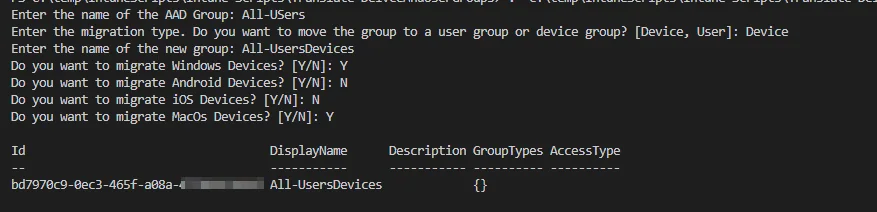
- Execute the script and enter the following information:
To user group:

To device group:
A few common pitfalls to watch out for:
- Devices without a registered owner in Entra ID are skipped during a device-to-user conversion, so double-check that your devices actually have a primary user assigned before you run it.
- The new group is populated based on the current membership, so the conversion is a snapshot in time and not a dynamic rule. If your source group changes afterwards, you will need to run the script again.
- Always test against a small pilot group first. Removing the original assignment before the new group has fully populated can briefly leave devices unmanaged for that policy.
Why does this matter? The choice between a user group and a device group is not just cosmetic. A device group is the right target when you want a configuration to follow the hardware regardless of who signs in, for example a kiosk profile, a security baseline or a Win32 app that must be present before any user logs on. A user group, on the other hand, follows the person across every device they use, which is what you want for things like Microsoft 365 license assignments, per-user app deployments or Conditional Access targeting.
Picking the wrong one early on means your assignment fires at the wrong moment, and untangling that later by hand is exactly the tedious work this script is meant to remove.
Conclusion
I hope I could help you to make the switch from a user group to a device group, or a device group back to a user group, much easier. For recurring tasks like this, an Azure Automation Runbook to automate tasks in Intune can also be a useful next step. Especially with large groups, converting a user assignment into a device group assignment can otherwise be a quite tedious task.
Stay healthy, Cheers
Jannik
Update 02.08.2022
You can also download my script from the PowerShell Gallery:
If you are looking for another way to automate Intune assignments, check out Automate Intune App Assignment Groups with Azure Runbooks.
For an updated approach using Microsoft Graph API, you can also check out Convert Intune Device Groups to User Groups via Graph API.
Install-Script -Name Translate-AadGroupUserDevice