
Create a Desktop Website Shortcut with Microsoft Intune
Create a desktop shortcut to any website with Intune in this easy step-by-step guide. Deploy intranet links to all users automatically. Try it now!

In this blog I want to explain how you can create a desktop shortcut to a website with the help of Intune. You can use this desktop shortcut for example to make the opening of your company’s intranet site or web application faster and easier for the users.
All the scripts I use in this blog can be found in my Git repository: Create-DesktopShortcut
Creating the desktop shortcut
With the following script you can create a desktop shortcut file: Create-ShortcutFile.ps1
Before you run this script you have to edit it. For this adjust the following variables:
#Name of the shortcut
$shortcutName = "Intranet Shortcut"
#Icon file best to use a website
$icon = "https://jannikreinhard.com/files/website.ico"
#Link of the webseite
$websiteUrl = "https://jannikreinhard.com/"
#OutputFolder
$outputFolder = "C:temp"
Hint: If you want to use the Windows shell icons you can do this with the following path in the icon variable.
%SystemRoot%System32SHELL32.dll,27Once you have adjusted these variables you can create the .lnk file by running the script. You will find this file in the path you specified in the $outputFolder variable.

Creating the needed Scripts
We need to create 3 scripts to deploy the desktop shortcut application through Intune. An installation, uninstallation and detection script is needed. Where you can find the scripts and how you need to customize them I will explain now.
Installation Script
To copy the shortcut to all users’ desktops we have to create the installation powershell script. This script can be found PowerShell script on GitHub.
#Name of the shortcut
$shortcutName = "Intranet Shortcut"

$ScriptPath = [System.IO.Path]::GetDirectoryName($MyInvocation.MyCommand.Definition)

Copy-Item -Path "$ScriptPath$shortcutName.lnk" -Destination "$Env:PublicDesktop"
Edit this script and insert the name you chose for the shortcut into the $shortcutName variable.
#Name of the shortcut
$shortcutName = "Intranet Shortcut"
Uninstallation Script
After this script is created we need an uninstallation script. You can also find this in my repository.
#Name of the shortcut
$shortcutName = "Intranet Shortcut"

Remove-Item -Path "$Env:PublicDesktop$shortcutName.lnk"
Also here the $shortcutName variable must be adjusted.
#Name of the shortcut
$shortcutName = "Intranet Shortcut"
Detection Script
Here you can find the detection script: Get-DesktopShortcut.ps1
#Name of the shortcut
$shortcutName = "Intranet Shortcut"

if (Test-Path -Path "$Env:PublicDesktop$shortcutName.lnk"){
    Write-Output "0"
}
The name of the shortcut must also be entered here.
#Name of the shortcut
$shortcutName = "Intranet Shortcut"
Creating the Intune application file
How to create an Intune Application (.intunewin file) I have explained in detail in Deploy a Win32 app with Intune (CMtrace) using the CMtrace example. You can also find more information in the Microsoft Docs.
- Create a folder in which you can place the shortcut and the installation and uninstallation scripts.
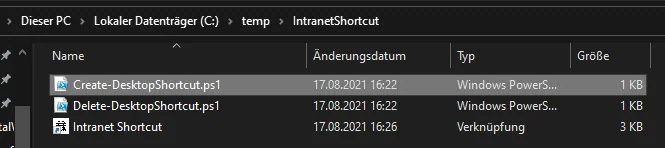
- Open a CMD as admin and run the following command:
.IntuneWinAppUtil -c C:tempIntranetShortcut -s C:tempIntranetShortcutCreate-DesktopShortcut.ps1 -o C:temp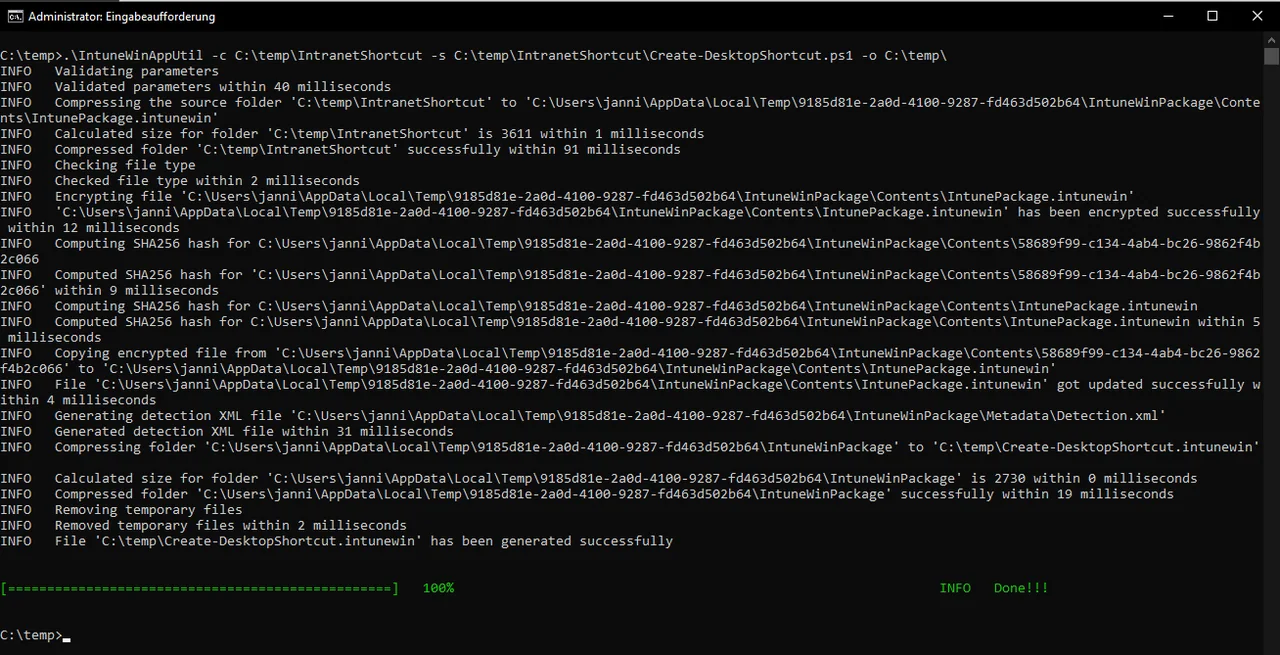
Creating the Win32 App in Intune
- Navigate to Apps -> Windows
- Click Add
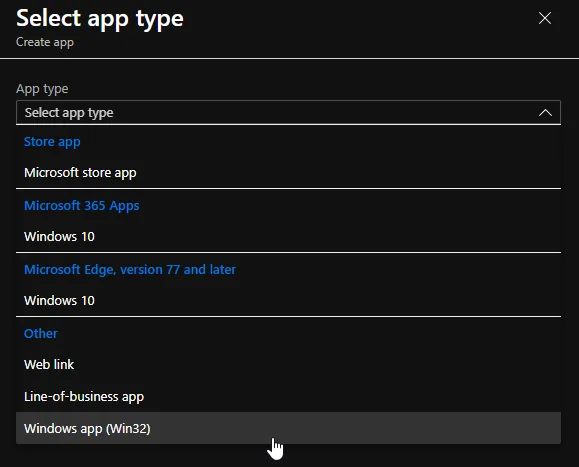
- Select Windows app (Win32) as App type
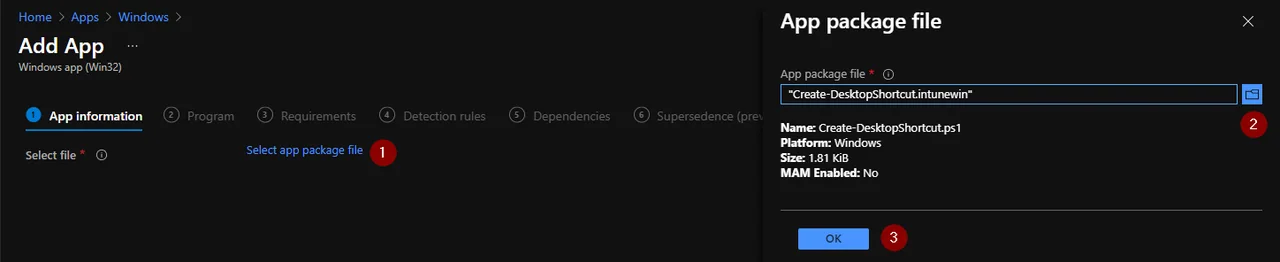
- Click Select app package file
- Click upload and select the .intunewin file
- Click OK
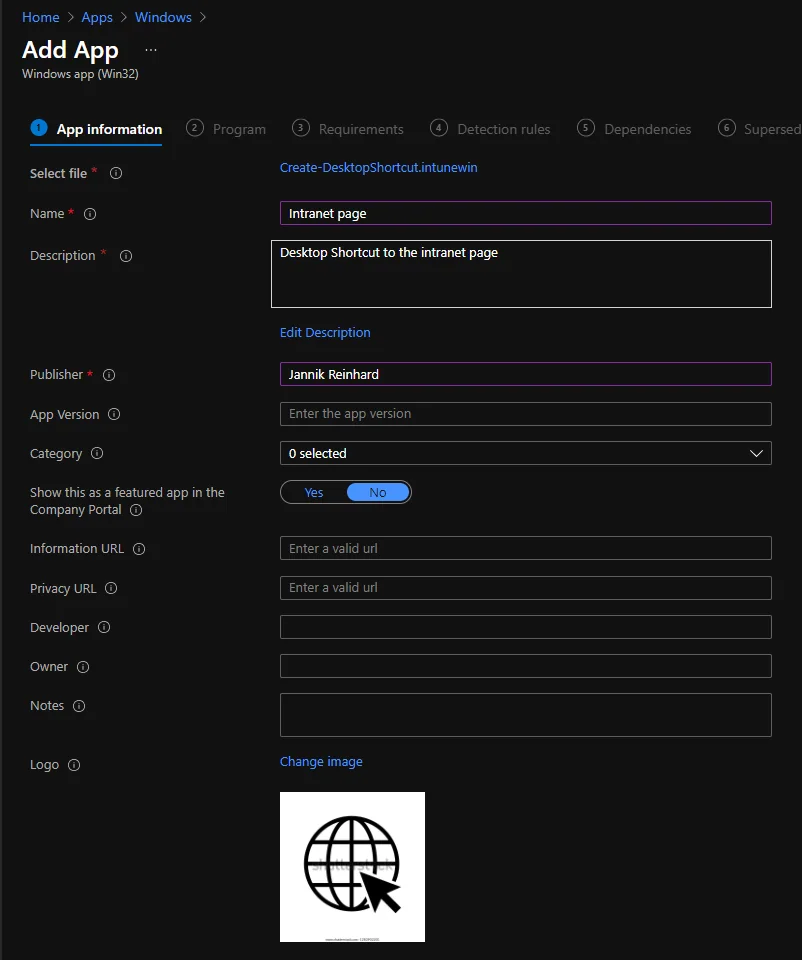
- Give the application a name and customize the app information.
- Click Next
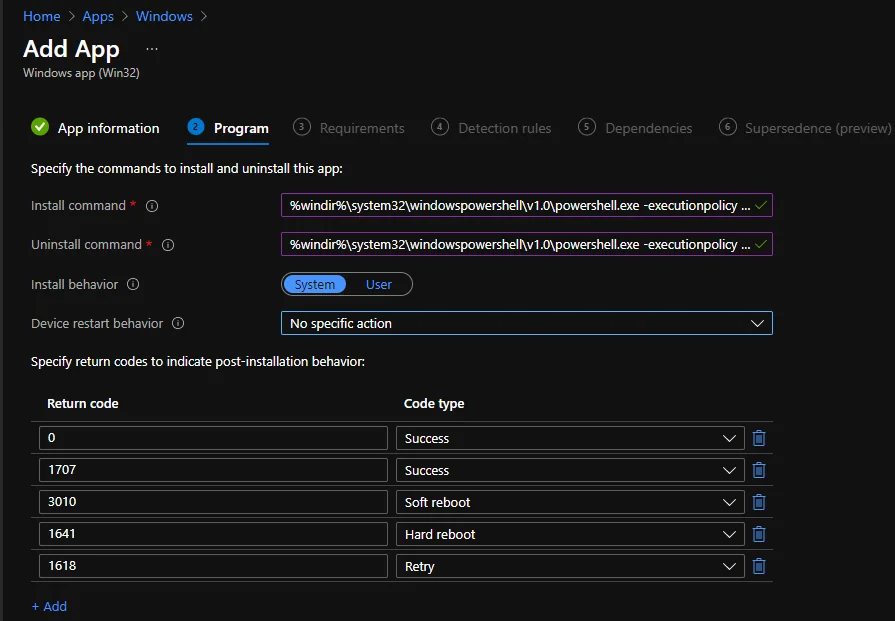
- Enter the following as installation and uninstallation command
Install Command:
%windir%system32windowspowershellv1.0powershell.exe -executionpolicy bypass -windowstyle hidden -file "Create-DesktopShortcut.ps1"Uninstall Command:
%windir%system32windowspowershellv1.0powershell.exe -executionpolicy bypass -windowstyle hidden -file "Delete-DesktopShortcut.ps1"- Change the Device restart behavior to No specific action
- Click Next
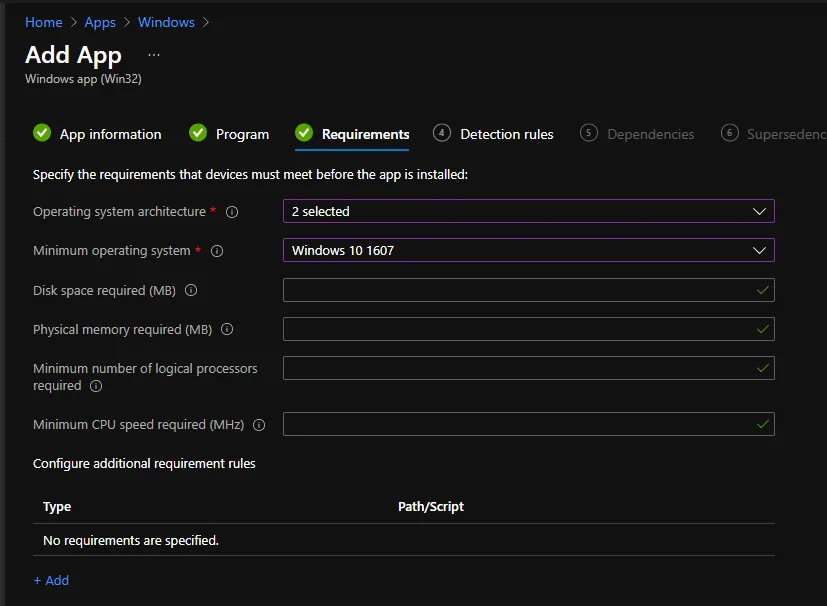
- Select 32-bit and 64-bit as Operation system architecture
- Select a minimum OS Version
Hints: If you want to specify further requirements, such as minimum free disk space, you can do this in this step.
It is also possible to specify a file, a registry value or a script as a requirement.
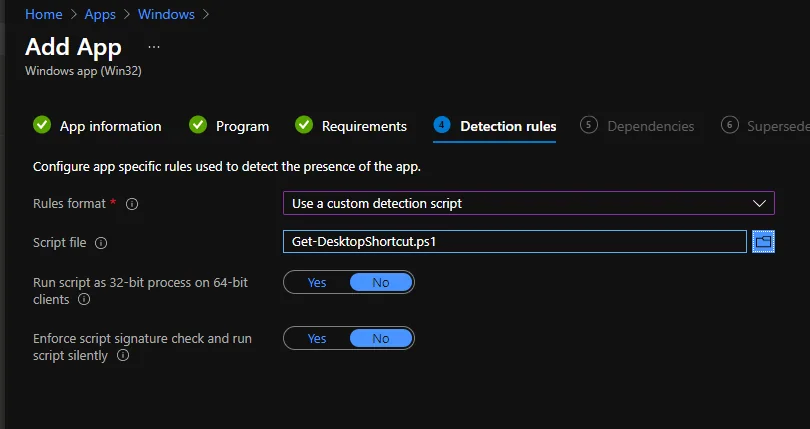
- Select Use a custom detection script as Rules format
- Upload the detection script
- Click Next
-
We can skip the dependencies and supersedence step click next.
-
Add an assignment. In my example I have selected all default devices.
-
Click Next > Create
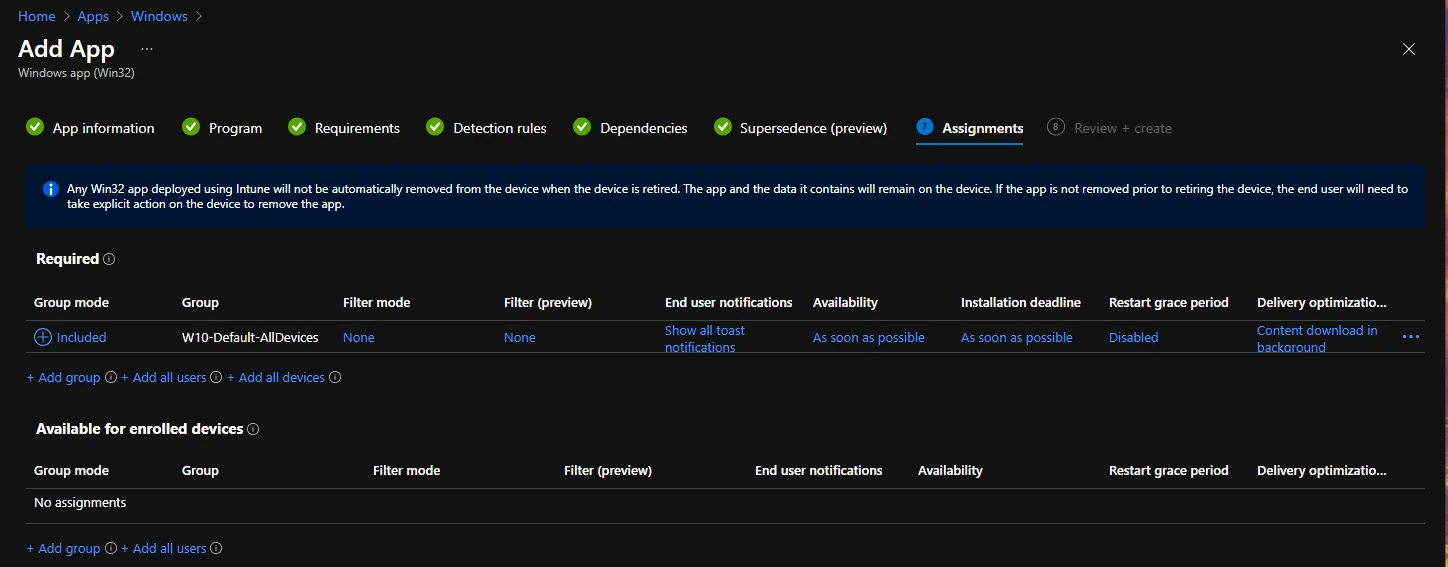
Now the desktop shortcut is distributed to all computers in the group. As soon as the application package has arrived and is installed on the computers, you should find the desktop shortcut on the desktop of every user.
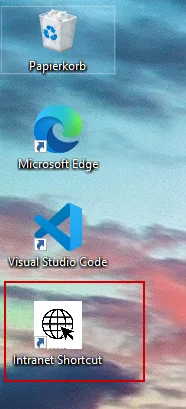
That is the whole process. With this Intune deployment your users get a desktop shortcut to your intranet or web app automatically, without any manual steps on their devices.
Stay healthy, Cheers
Jannik