
List All Intune Assignments of an Entra ID Group
Inspect Intune assignments that reference a Microsoft Entra group with PowerShell. Review supported object types and verify completeness before changing groups.

All assignments in Intune are based on Microsoft Entra ID (formerly Azure AD) groups. If you have ever needed to list all Intune assignments of an Azure AD Group, you already know the pain: you want to find out to which Intune object a certain Microsoft Entra ID group is assigned, but there is no built-in way in the portal to surface this. To solve this problem I have written a PowerShell script that gives you exactly this output, so you can list all Intune assignments of an Azure AD Group in seconds.
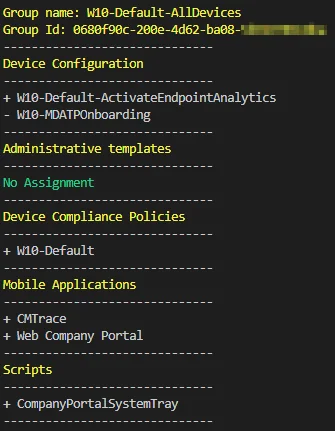
Why you need to list Intune assignments of an Azure AD Group
In a growing environment the number of configuration profiles, compliance policies, apps and scripts can quickly reach into the hundreds. Every one of those objects can target a different group. When you need to retire a group, audit access, or troubleshoot why a device received a certain policy, you have to know exactly where that group is used. Manually clicking through every object to list Intune assignments of an Azure AD Group is simply not realistic, and it is also error prone. Automating the lookup gives you a complete, repeatable picture every time.
How does it work
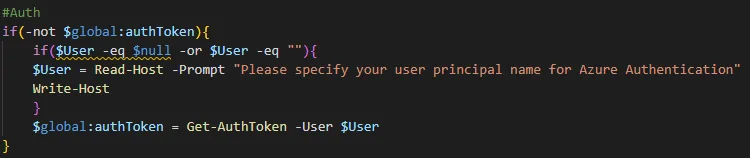
- First we authenticate to Microsoft Entra ID to get an authentication token.
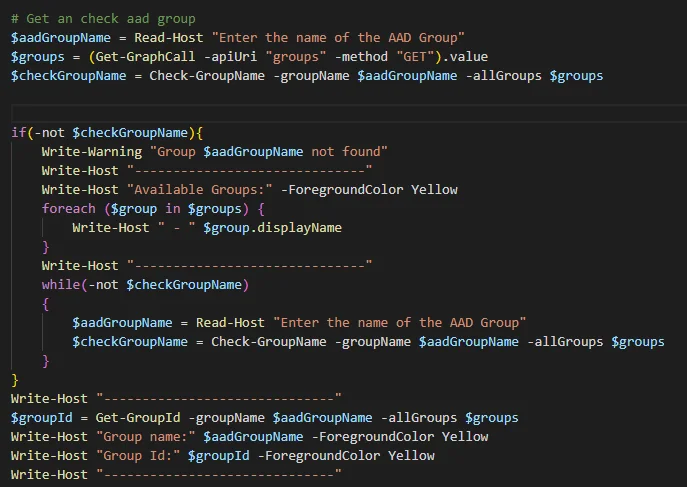
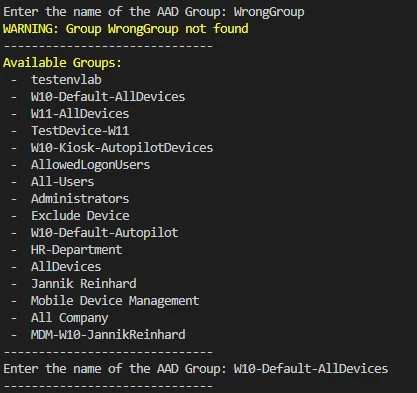
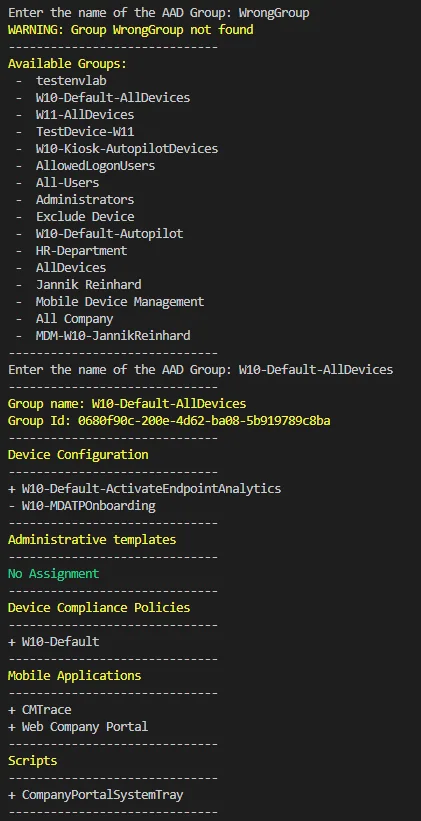
- After that we read in the group we want to search for and check if it exists. If the group exists we get the group ID. If the input does not exist, we list all groups and ask until the input is correct.
This validation step is important. Because the whole point is to list Intune assignments of an Azure AD Group accurately, the script makes sure you are targeting the right object before it starts scanning. The Microsoft Graph API is used under the hood to query each resource type, which keeps the script fast and future proof.
- After that we check all device configurations, ADMX, apps, compliance policies and scripts if there is an assignment or exclude for this group.

What you have to do to list Intune assignments of an Azure AD Group
- First you need to download my script from my GitHub repository.
- Run the script and enter your UPN with sufficient permissions.

- Enter the name of a Microsoft Entra ID group (if you want to list all groups press enter without content).
- That is it. Now you get all assignments and excludes of the group listed.
Permissions and prerequisites
To run the script you need an account with read access to Intune and to Microsoft Entra ID. The required Microsoft Graph permissions include DeviceManagementConfiguration.Read.All, DeviceManagementApps.Read.All and Group.Read.All. If you are unsure about the scopes, the official Microsoft Intune documentation on Microsoft Learn is a great reference. You can also review my other Intune content, such as my guide on device management automation, to combine this script with the rest of your tooling.
Conclusion
I hope I could help you to easily list all Intune assignments of an Azure AD Group whenever you need that overview in the future. If you are using the script in a larger environment it may take some time to run, as it has to go through all the objects and look at the assignments. If you are missing a category in the script then let me know so I can add it, and I will gladly extend the coverage.
Stay healthy, Cheers
Jannik
Update 02.08.2022
You can also download my script from the PowerShell Gallery:
Install-Script -Name Get-AllAadGroupAssignments