
Intune Wave Deployment: Create Smart Device Groups
Build device groups for phased Intune deployments with PowerShell. Review the grouping script, assignment strategy and validation before a wider rollout.

How do you distribute configuration profile, apps or other configurations in Intune today? In this guide to Intune Wave Deployment I want to explain and provide a script how you can easily roll out objects in Intune using waves. Here I will help you to create smart device groups defined by you that will pack a specified percentage of your devices into the groups so that you can perform a slow rollout and thus guarantee the quality.
The current script describes how you can create device groups. When you validate these rollout waves, it can also be helpful to get assignments of a device via PowerShell. If you are also interested in how to apply this to user groups or how to create a automation for the assignment, check out my new version of the Intune group assignment script.
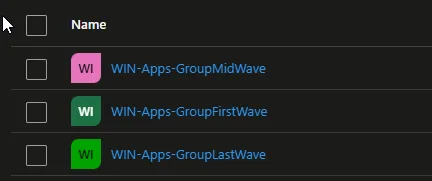
How can I get the script?
You can find the script in my GitHub repository.
What I have to do before running the script?
Before running the script you have to define the tenant Id, the client secret and the app Id from your app registration. How to create an app registration you can find below.
In addition to this you have to define the group names for the different waves and the percentage how many devices should be added to this group. If you want to have more groups you only have to add the following line:
$groups += '{"GroupName" : "NAME_OF_THE_GROUP" : "NUMBER_OF_PERCENTS"}' | ConvertFrom-JsonCurrently the script use all devices as scope. It is very important to add filters to get only the required devices. How to filter is explained below. If you are working with Intune app targeting, also keep the Applicability Rule behavior in mind.
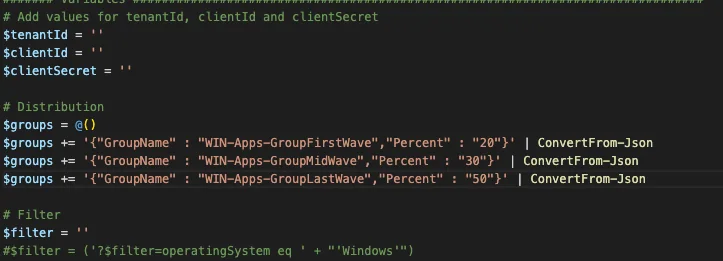
How to add filter to the call?
You can find in the script an example filter. But you can filter for more or less all attribute you have within the graph object.
The best way is to create the filter via the graph explorer. For this run a query for https://graph.microsoft.com/beta/devices and add ?$filter= and add your filter condition. More informations can be found the Microsoft documentation.
Example:
?$filter=operatingSystem eq 'Windows'How can I create an app registration?
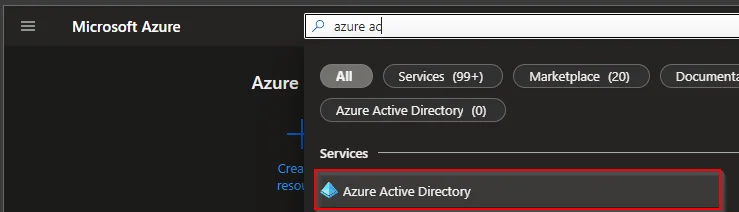
- Search for Microsoft Entra ID
- Select App registration
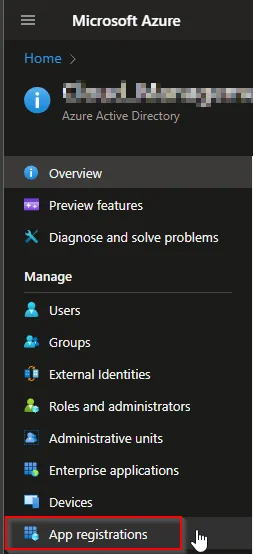
- Select +New registration
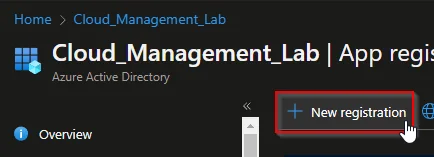
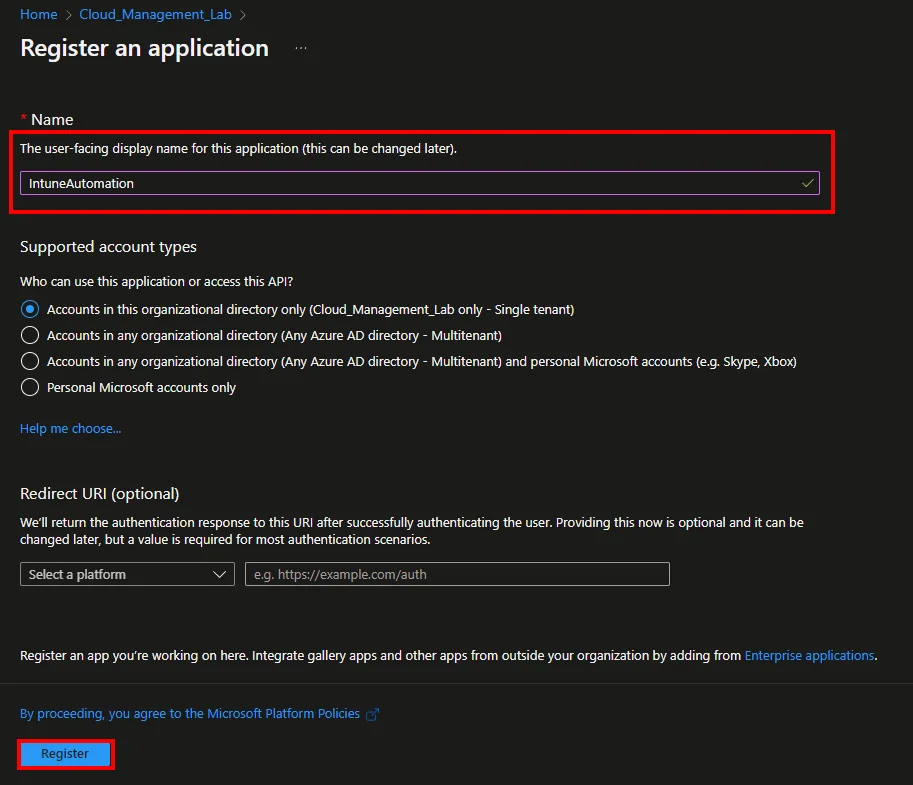
- Enter a Nameand click Register
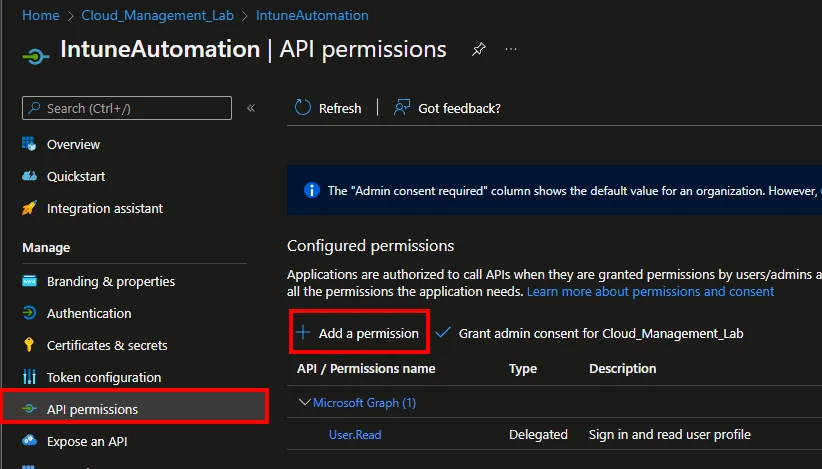
- Click API permissions and +Add a permission
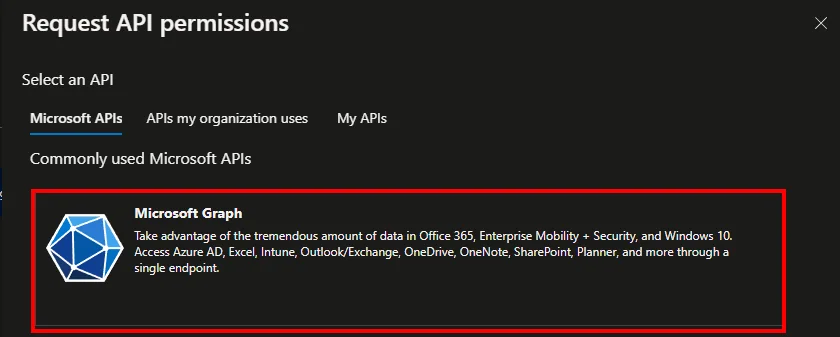
- Select Microsoft Graph
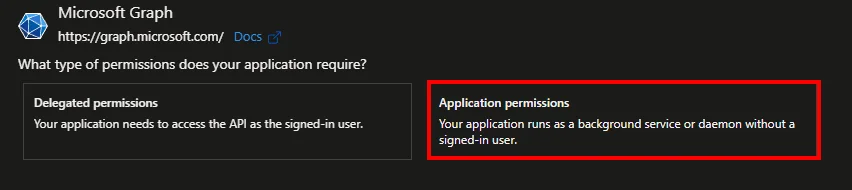
- Select Application permissions
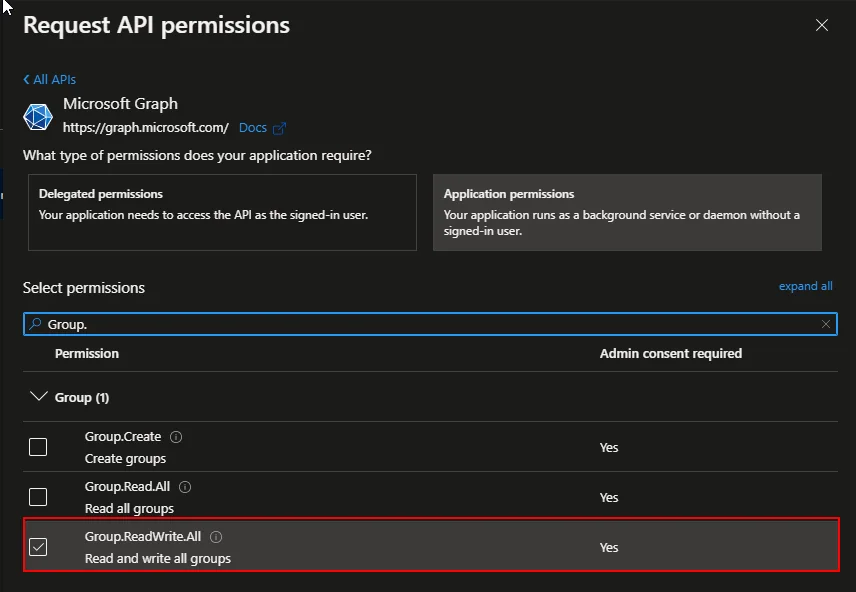
- Search for Group.ReadWrite.All and Device.Read.All
- Click Grant admin consent for *** and approve with Yes

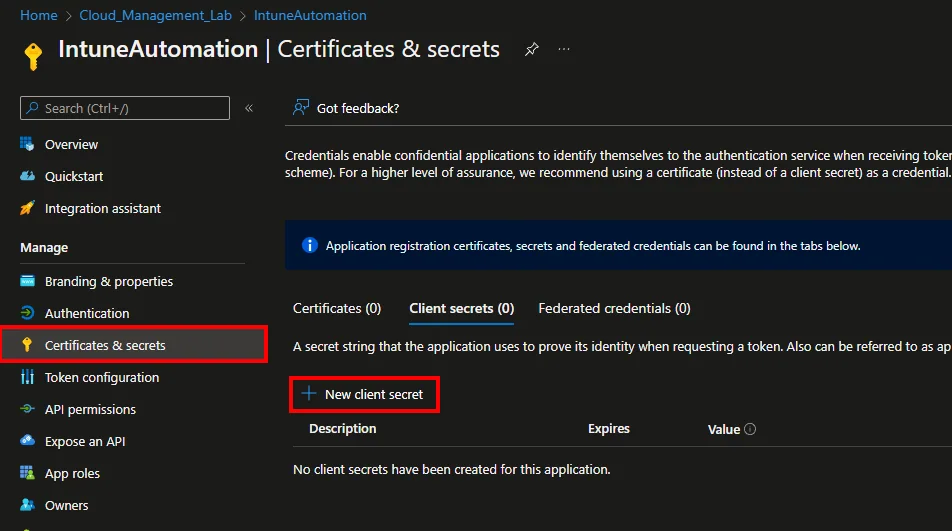
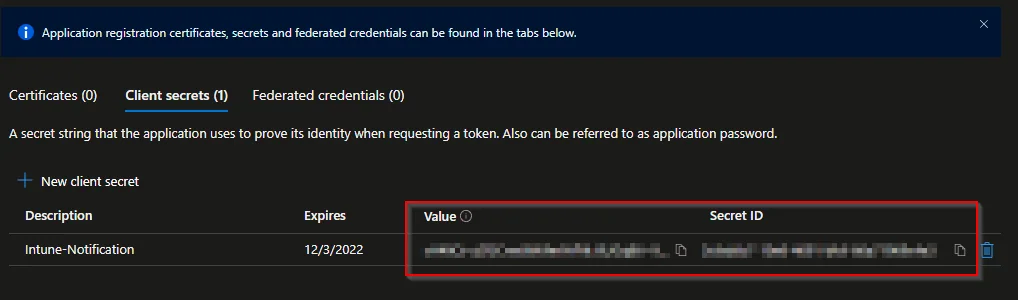
- Select Certificates & secrets and click +New client secret
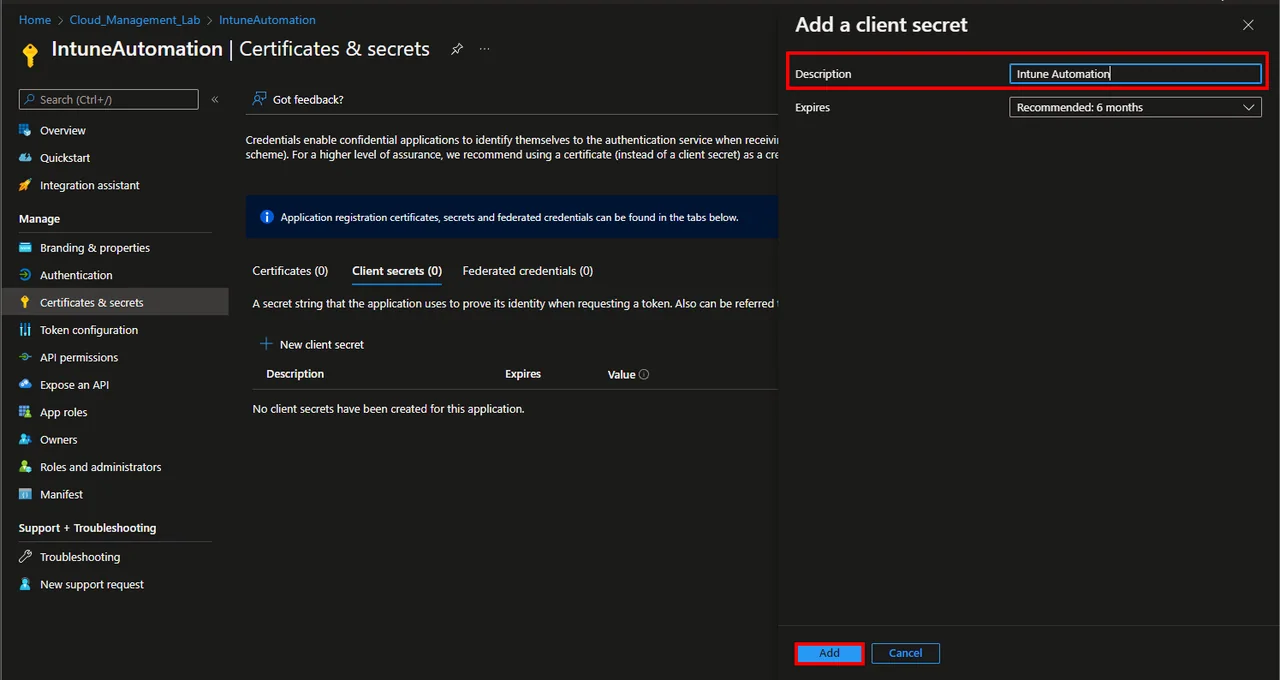
- Enter a Description and select a Expires time
- Click Add
- Copy and save the Value and the Secret ID
How Intune Wave Deployment groups work and how to use them
The script will create the smart device groups with the size defined by you.
You can attach these groups in newly created configuration profiles, apps and all other Intune objects. You can start with the first group to test your configuration on a few devices and attach the next group after one or two days. Finally, you can either append the last group or remove everything else and apply the configuration to all devices. Of course you can also use for the assignment filter.
Common pitfalls and practical tips
A few things are worth keeping in mind when you run waves in production. First, remember that dynamic group membership is evaluated by Entra ID on a schedule, so a device that matches your filter will not land in the wave group instantly. Plan for a short propagation delay before you expect assignments to apply, and do not assume an empty group means the rule is wrong. Second, make sure your waves do not overlap: if the same device qualifies for both wave one and wave two, it effectively jumps ahead of your rollout plan, which defeats the purpose of a phased deployment.
It also helps to pick a stable, predictable attribute for the percentage split, such as a hash of the device id, rather than something that changes often like the last sign-in time. That way a device stays in the same wave between runs instead of bouncing around. Finally, always keep a small canary wave of test devices that you control directly, so you can validate a change end to end before it reaches any real users.
This is the core idea behind Intune Wave Deployment: roll out changes gradually, catch issues early, and keep your fleet stable. If you want to continue with a related automation scenario, check out how to convert Intune device groups to user groups via Microsoft Graph API.