
Company Portal System Tray Icon
Build and deploy a Company Portal system tray icon with Intune so users can open support tools, sync devices and troubleshoot faster.
It is difficult for support engineers to guide users to the company portal because the company portal is called differently depending on the system language. In german, for example, the Company Portal is called “Unternehmensportal”. To simplify this and make access faster I have built a small Company Portal System Tray Icon. This icon is not only there to open the Company Portal, it also offers many other functions to simplify the troubleshooting process. You can learn more about managing devices in my other Intune articles.
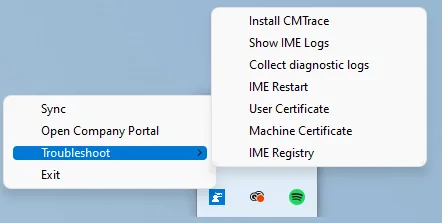
Functions of the Company Portal System Tray Icon
The System Tray tool provides the following functions:
Sync: When you select the Sync button, an IME sync (Intune Management Extension) is triggered.
$syncIme = New-Object -ComObject Shell.Application
$syncIme.open("intunemanagementextension://syncapp")
Open Company Portal: With this button you can open the Company Portal.
explorer.exe shell:appsFolder\Microsoft.CompanyPortal_8wekyb3d8bbwe!AppTroubleshoot: This menu contains various actions to troubleshoot the IME. This can be very helpful for support cases.
- Install CMTrace (Invoke-WebRequest -Uri $cmtraceSourceLink -OutFile $cmtracePath)
- You can specify the path in the $cmtraceSourceLink variable from where you want to download the CMTrace. Default is from my GitHub repository. The installation path is (C:\Windows\Temp).
- Show IME Logs (explorer c:\ProgramData\Microsoft\IntuneManagementExtension\Logs)
- Collect diagnostic logs (MdmDiagnosticsTool.exe -out c:\temp\diagnostic)
- IME Restart (Restart-Service -Name “IntuneManagementExtension”)
- User Certificate (Certmgr.msc)
- Machine Certificate (Certlm.msc)
- IME Registry (regedit + [System.Windows.MessageBox]::Show(‘Navigate to: “HKLM\SOFTWARE\Microsoft\IntuneManagementExtension”‘) )
Exit: Stop the Company Portal System Tray Icon.
Most of these actions normally require a support engineer to remember a registry path, an executable name, or a service name by heart. By putting them one click away, the tray icon turns a five-minute remote session full of copy-paste commands into a guided experience the end user can even run on their own while you stay on the call. That is especially valuable for the IME restart and the diagnostic log collection, which are usually the first two steps in any Intune troubleshooting workflow.
How to Deploy
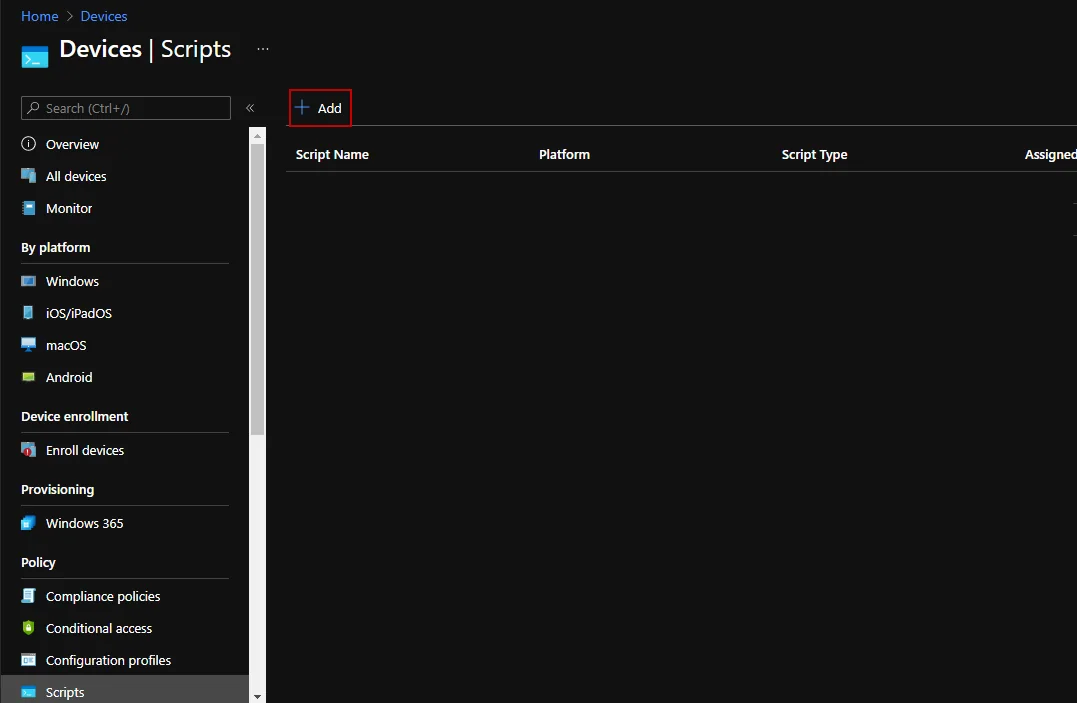
- Now we just need to deploy the scripts via Intune. To do this, we open the Intune admin center and navigate to Devices -> Scripts. You can read more about platform scripts on Microsoft Learn.
- Download the deployment script from my GitHub repository
- There are two scripts one for direct execution (Create-IntuneSystemtray.ps1) and one for the deployment via Intune (Deploy-IntuneSystemtrayScript.ps1)
- Click ADD
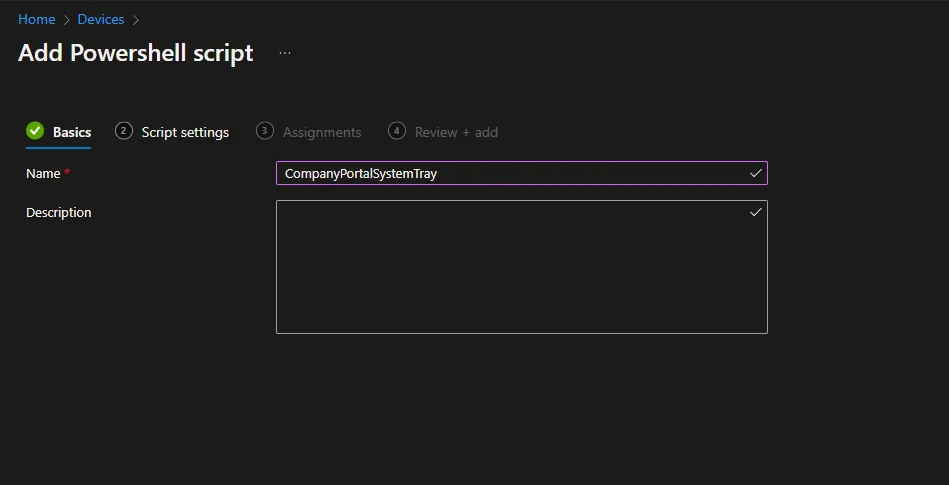
- Enter a name
- Click Next
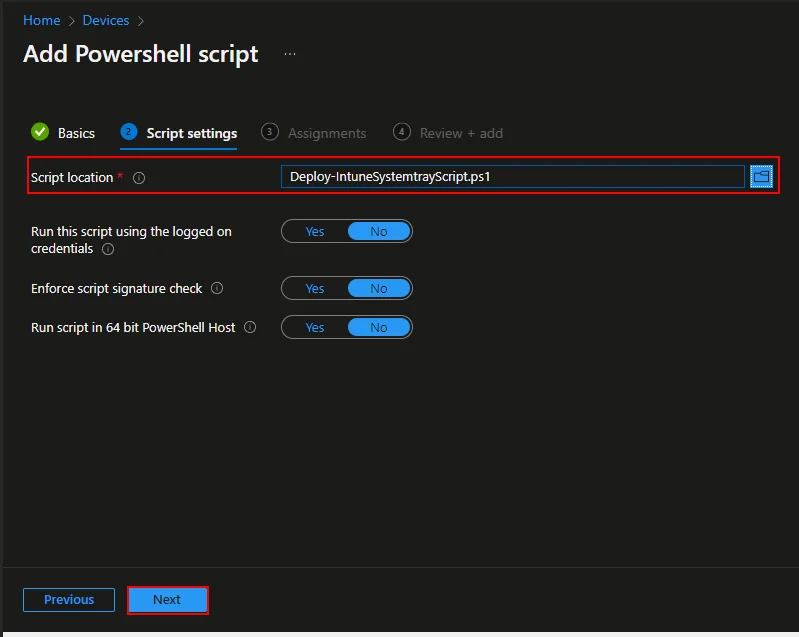
- Upload the Script
- Select Yes at “Run this script using the logged on credentials“
- Click Next
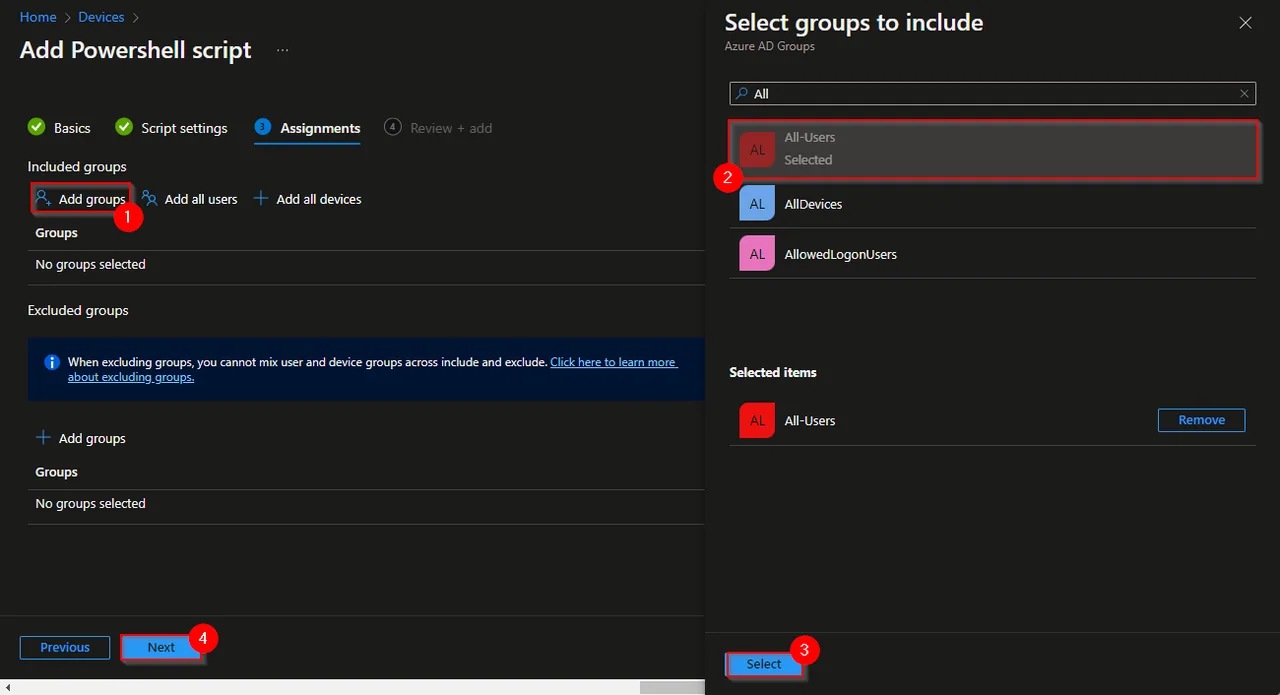
- Click Add Groups
- Select a Group and click Select
- Click Next
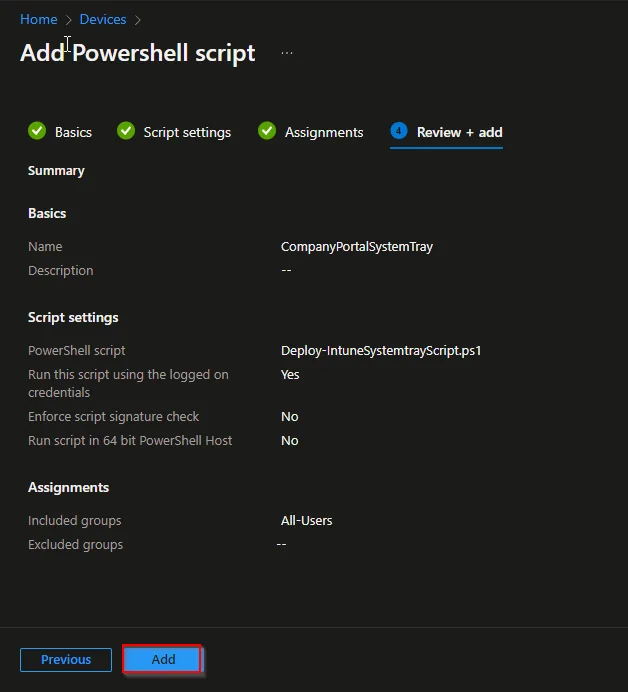
- Click Add
Customization and Common Pitfalls
Because the script runs in the user context, the most common pitfall is assignment scope. The platform script must be targeted at user groups, and the option Run this script using the logged on credentials has to be set to Yes. If you assign it to device groups or leave that toggle on the default, the tray icon either never appears or appears without the permissions it needs to open user-scoped tools like the user certificate store.
A second thing to watch for is persistence. Platform scripts run once and are then marked as completed, so if you want the tray icon to come back after every sign-in you should have the script register a small scheduled task or a Run key entry instead of relying on the script execution itself. That way a reboot or a new user session always restores the icon without waiting for the next Intune check-in.
Finally, treat the CMTrace download source as something you control. Pointing $cmtraceSourceLink at an internal share or your own repository rather than a public link keeps the tool working even if an external URL changes, and it gives your security team a single, reviewable source for the binary that lands on every managed device.
Conclusion
The script shows you how to create a Company Portal System Tray Icon and how to distribute it using Intune. You can customize the script to your needs. For example, you can add a button that uploads the logs to a customized storage. If you have any questions or need help then let me know.
Stay healthy, Cheers
Jannik