
Back Up and Restore Windows Registry Keys Safely
Back up Windows registry keys with RegEdit or reg.exe, check command results, and understand why importing a .reg file is not a complete system rollback.

Update 06.09.2026: Clarified the limits of registry exports and native-command error handling. The commands were reviewed, not executed against a Windows device.
Before changing the Windows registry, export the specific keys you intend to edit and plan how you will recover the device. This guide shows the RegEdit export/import steps and the equivalent commands. A .reg file is not a full system backup or a guaranteed rollback.
When I try something out or develop something new I don’t always do this in a VM, I use directly my productive system (I wouldn’t recommend it but I do it anyway). But changes in the registry can bring the PC into such a state that you have to set it up again. To avoid this, in this blog I look at a reliable way to backup and restore the registry so that any risky change can be rolled back at a later date.
What is the Windows Registry
The Windows Registry (RegEdit) is a storage that stores settings for the Windows OS as well as for apps. The Registry is a hierarchical database. The registry holds configuration used by services, kernel, device drivers, and others. Because so many components read from it at boot, a single bad value can stop a machine from starting cleanly — which is exactly why a tested rollback plan matters before you ever open the editor.
The registry is split into root hives such as HKEY_LOCAL_MACHINE (HKLM) for machine-wide settings and HKEY_CURRENT_USER (HKCU) for the signed-in user. Most Intune remediations and app fixes only touch a handful of keys, so you rarely need a full-system image. Knowing the exact hive you are about to change lets you work surgically — exporting just that branch instead of the entire database. You can read more about the structure in the official Microsoft Learn documentation on the registry structure.
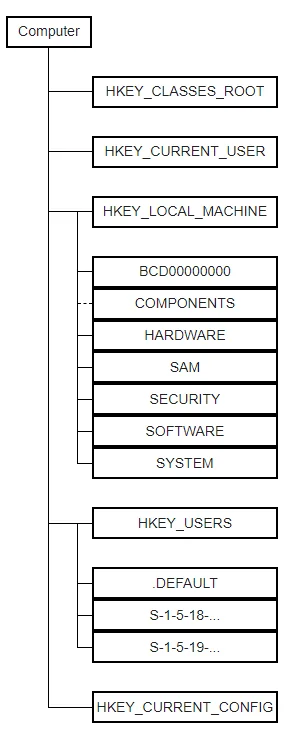
Source: Wikipedia
Why you should backup and restore the registry
There are a few recurring scenarios where the ability to backup and restore the registry has saved me real downtime. The first is testing remediation scripts: when you push a Proactive Remediation through Intune, it often writes to HKLM or HKCU, and getting a value wrong on a pilot device can break Explorer, Defender policy, or a line-of-business app. The second is troubleshooting legacy software that stores half its configuration in obscure registry keys. The third is simply experimenting — toggling an undocumented setting to see what happens.
In every one of those cases the workflow is the same: export the affected keys first, make your change, and if it goes wrong, import the backup to roll back. Treating “backup and restore the registry” as a single, repeatable habit — rather than something you remember to do only after a disaster — is what separates a five-minute recovery from a full device reimage.
Create a backup
- Open the Registry Editor via Start menu or Run and insert regedit
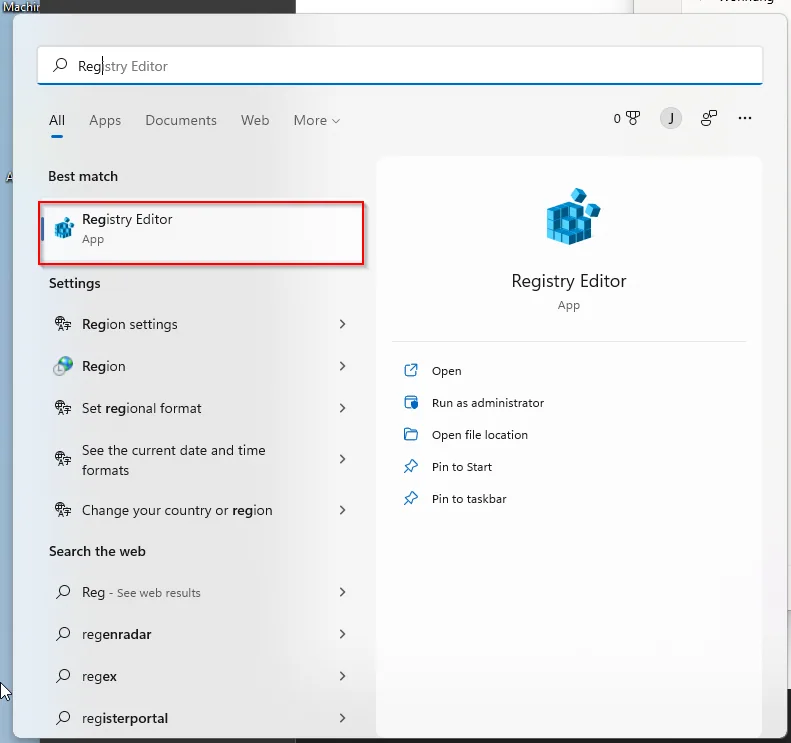 | 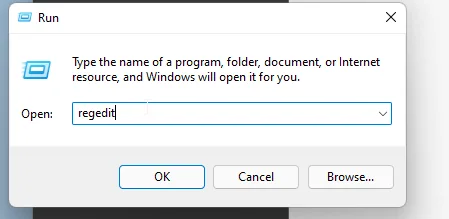 |
- Click File -> Export
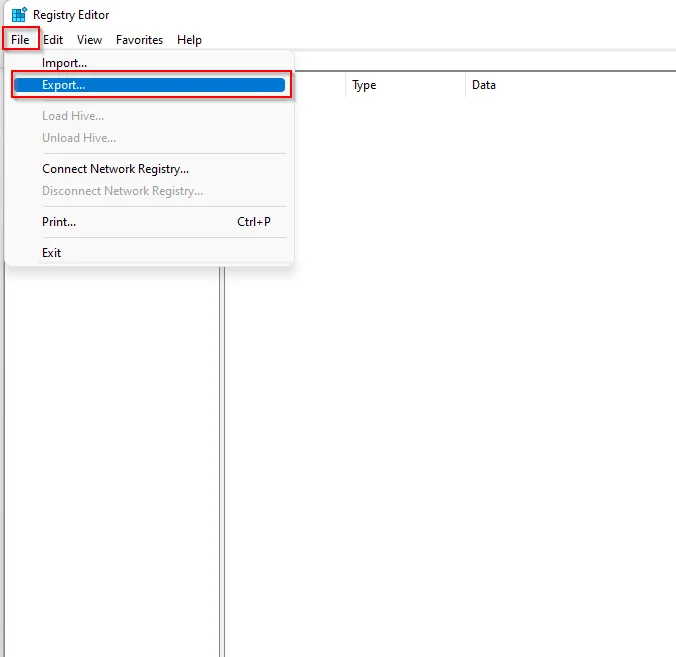
- Enter a file name and click Save to back up the registry in the selected location.
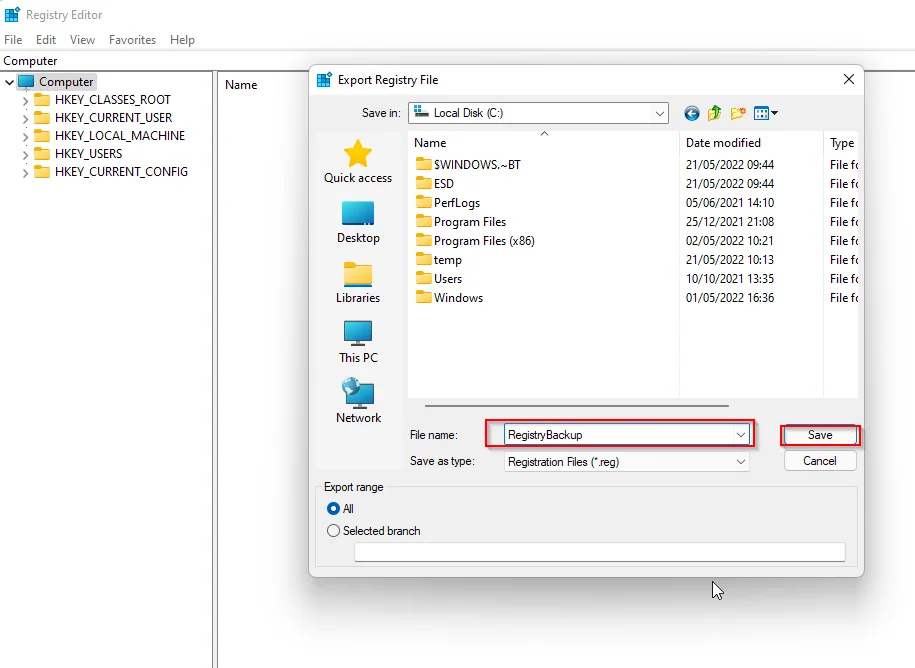
A small but important tip: in the Export dialog you can choose between All and Selected branch. For most fixes, pick the selected branch so the .reg file only contains the keys you care about. This keeps the file small and makes it far safer to re-import, because you won’t accidentally pull in hives you never intended to touch.
Restore from a backup
- Open the Registry Editor via Start menu or Run and insert regedit
| |
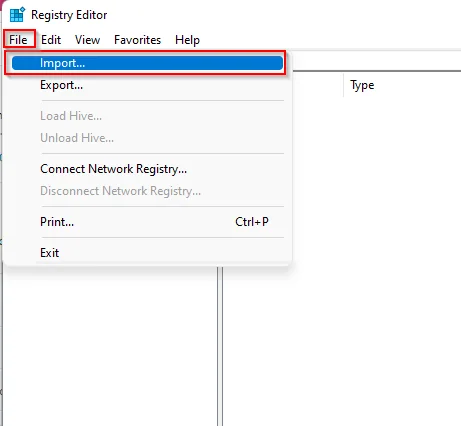
- Click File -> Import
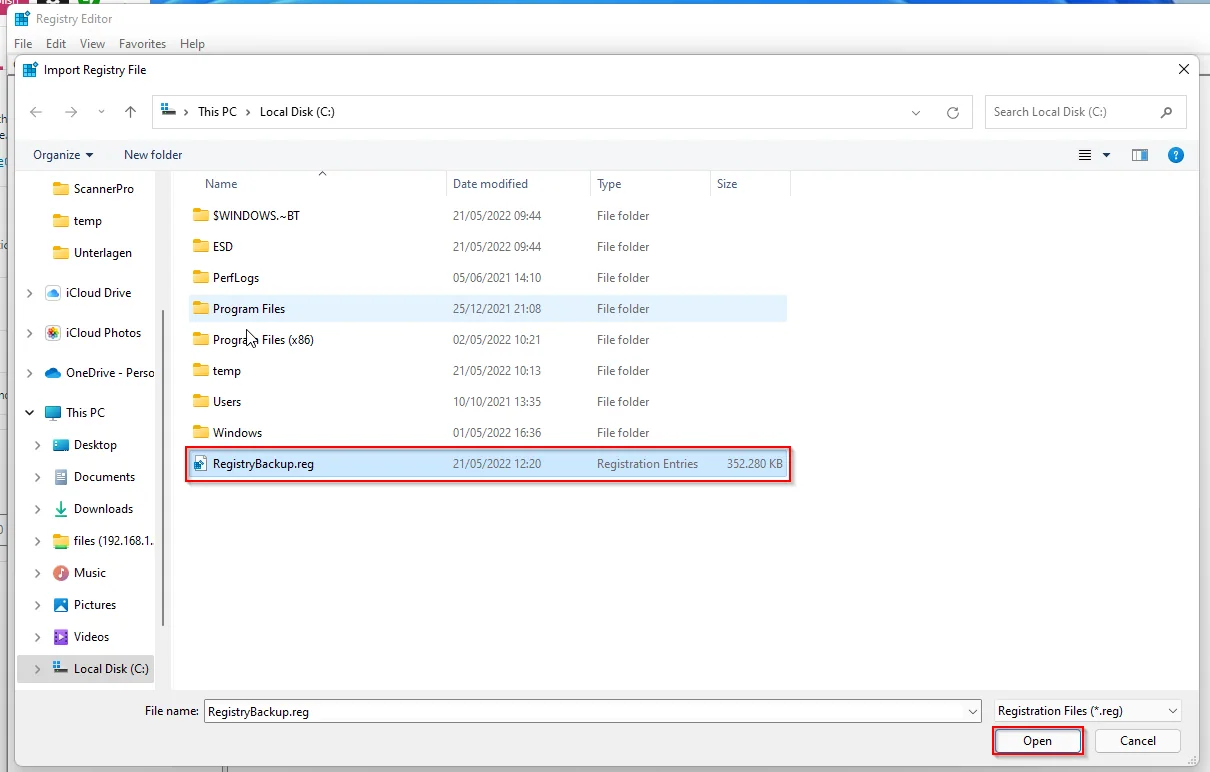
- Select the Backup and click Open
- Wait until the Import is done
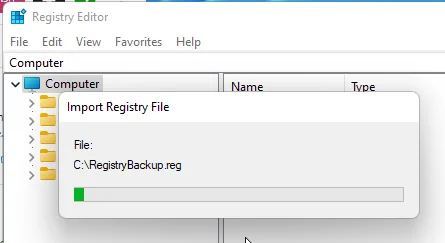
When you get this message, click OK, open RegEdit as Admin, and make sure that all applications are closed. Start a new import attempt.
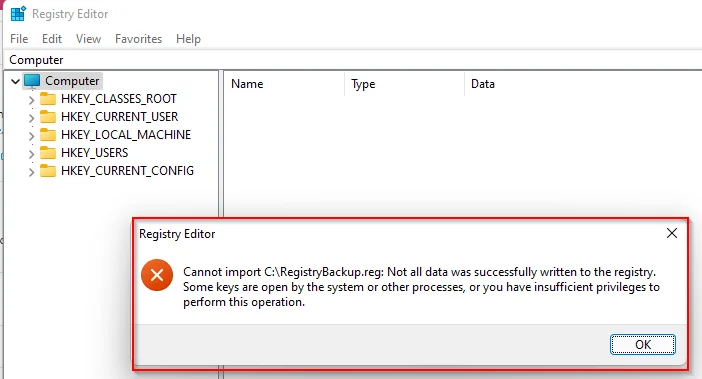
- When the import was successful, restart the device.
Automate the backup and restore with PowerShell
You can run the export/import commands from PowerShell too. Use a test device, an existing writable destination and the correct user or elevated context. An export is a separate preparation step; a detection script should not make changes merely to check application state.
For an example application key that exists, export with reg export "HKLM\SOFTWARE\MyApp" "C:\Temp\MyApp-backup.reg" /y. Import with reg import "C:\Temp\MyApp-backup.reg" only after reviewing the backup. Check $LASTEXITCODE immediately after each command: native command failures do not reliably become PowerShell exceptions for try/catch.
Choose a protected backup location and verify that the file is actually recoverable. A script running as SYSTEM cannot assume access to the signed-in user’s OneDrive or that a file has synced. Registry exports may contain sensitive configuration. See Microsoft’s reg export and reg import references.
Common pitfalls when you backup and restore the registry
A .reg import only adds and overwrites the values present in the file — it does not delete keys that were created after the export. So if your change added a brand-new key, importing the old backup won’t remove it; you have to delete it manually. Keep this in mind whenever you backup and restore the registry as a rollback strategy, because “restore” here means “merge”, not “wipe and replace”.
Two more things bite people: permissions and open handles. Importing into HKLM needs an elevated RegEdit, and if an application is holding a key open, the import can partially fail. Close the affected app first. Finally, label your exports clearly with the date and the key name — future you will thank present you when there are five .reg files in the temp folder and you need to roll back to the right point in time.
If you want to go deeper on automating endpoint fixes after you have your rollback in place, take a look at my other posts on the jannikreinhard.com blog where I cover Intune remediations end to end.
Conclusion
Especially when you want to try something on a system, it is sometimes good to be able to backup and restore the registry to jump back to the previous state. As you have seen, it is really easy and fast to create such a backup and restore it — whether you do it by hand in RegEdit or automate it with PowerShell. Make it a habit to backup and restore the registry before every risky change, and you turn the scariest part of Windows administration into a routine, low-stress step.
Stay healthy, Cheers
Jannik

New posts, straight to your inbox.
Hands-on guides on Intune, AI and Azure.