
Copy Intune Discovered Apps in Log Analytics Workspace
Learn to copy Intune Discovered Apps into Log Analytics with one easy script - build reports, spot rogue software, and master your app inventory fast.

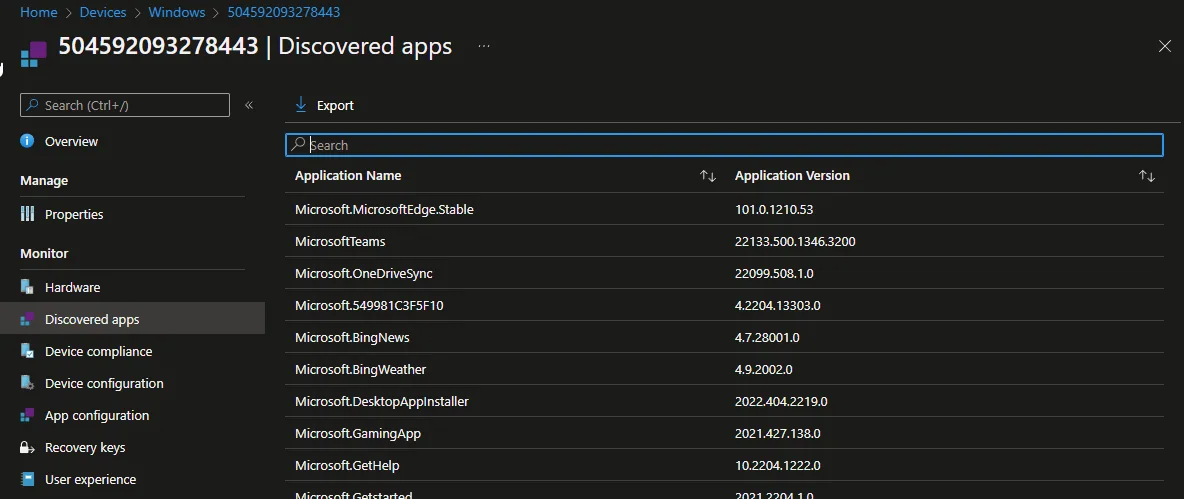
Working with Intune Discovered Apps is one of the easiest ways to understand what is really installed across your fleet. Intune offers the possibility to show per device not only the apps installed via Intune but also the apps discovered on the device (Control Panel apps). Since this view is relatively static and you only have a per device view here, it is difficult to make analyses of the complete environment, e.g.
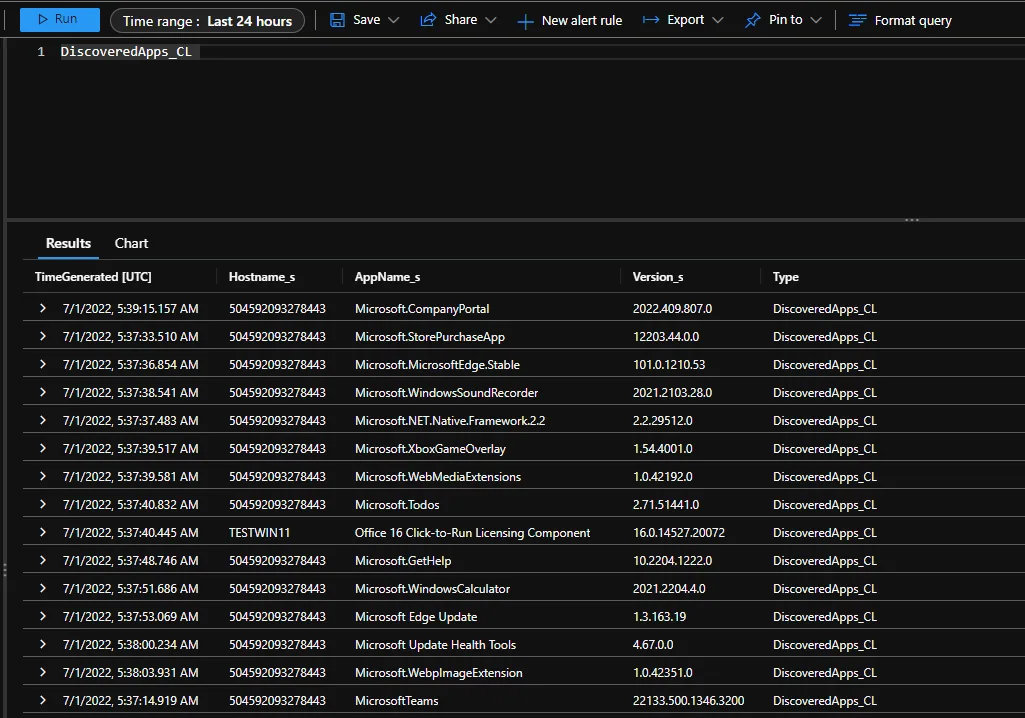
to see which app is missing in the portfolio, since this is often installed by users themselves. Why don’t we use Log Analytics to have more options to work with this information? In this blog I want to show you how you can copy the Intune Discovered Apps into a workspace easily with a script.
Why collect Intune Discovered Apps?
The discovered apps inventory is a hidden gem. It tells you exactly which software lives on a device, including programs that were never deployed through your management tooling. By moving this data out of the portal you gain real reporting power: you can spot unwanted software, track licensing exposure, and find gaps in your application portfolio. For background on what this inventory contains, see the official Microsoft Learn documentation on discovered apps.
Create Log Analytics Workspace
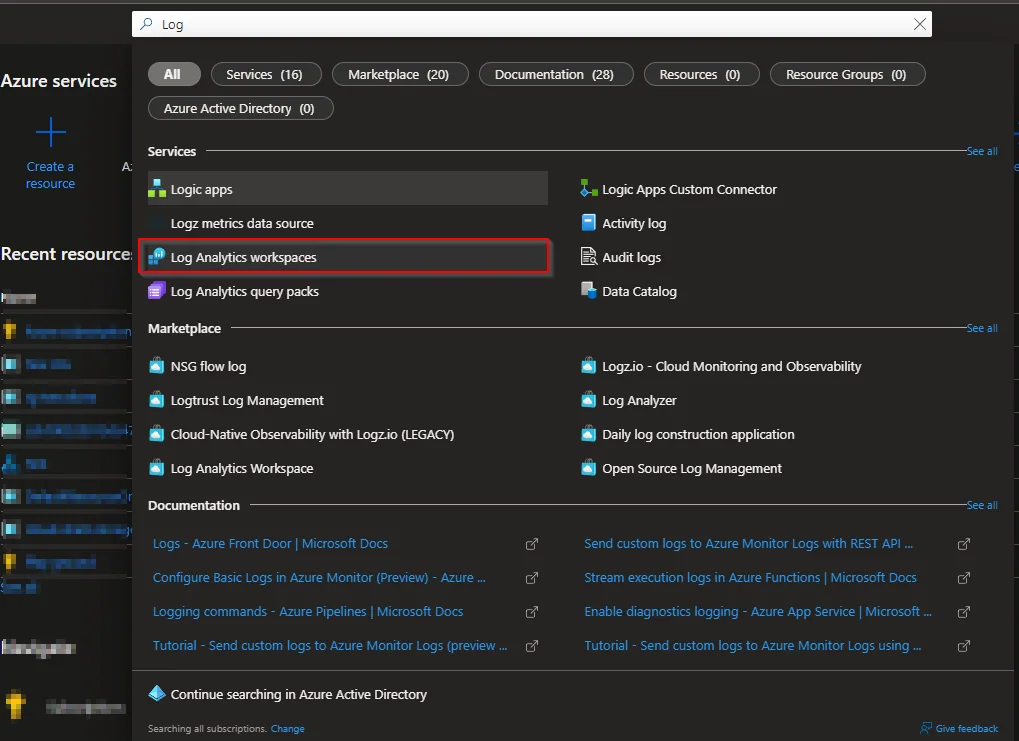
- Open the Azure Portal
- Search for Log Analytics workspace
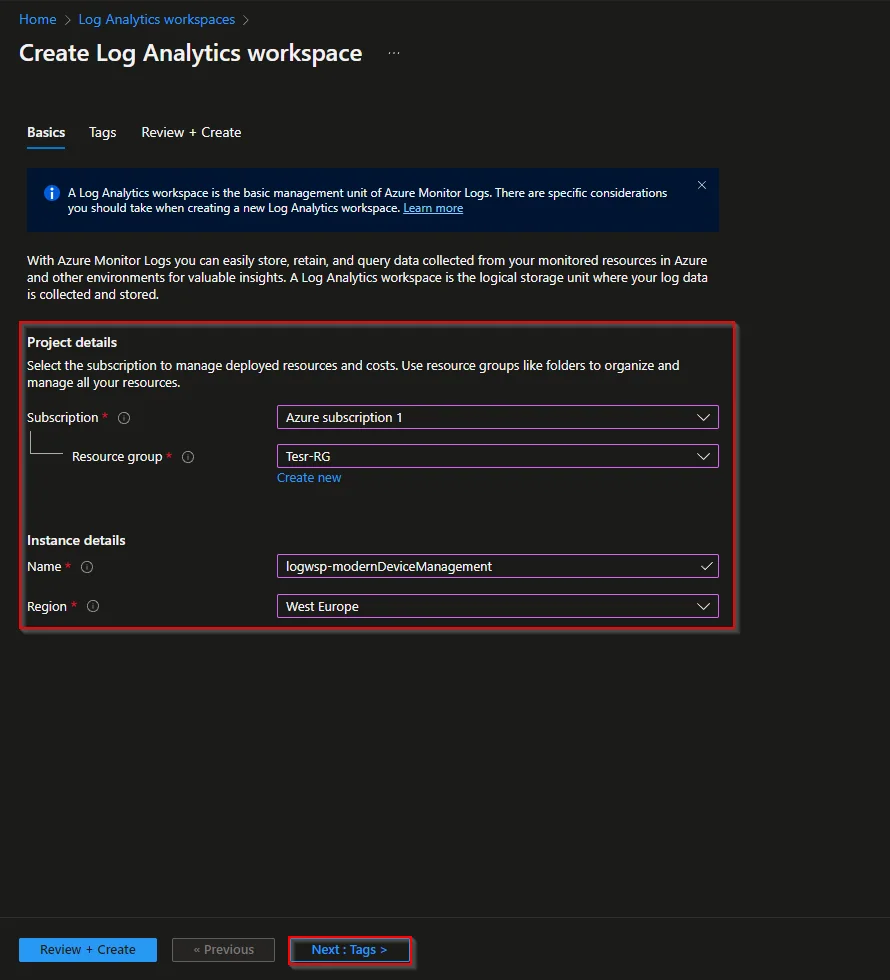
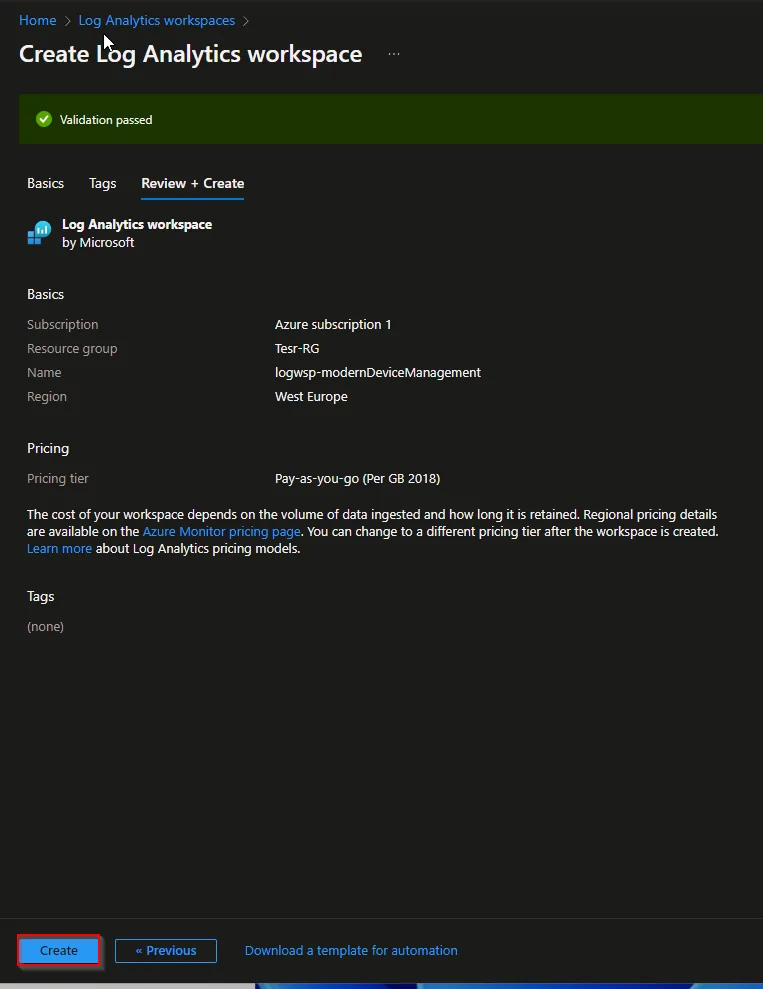
- Select the Subscription and the Resource group or create a new one
- Enter a name for the workspace
- Select the region
- Click Next: Tags >
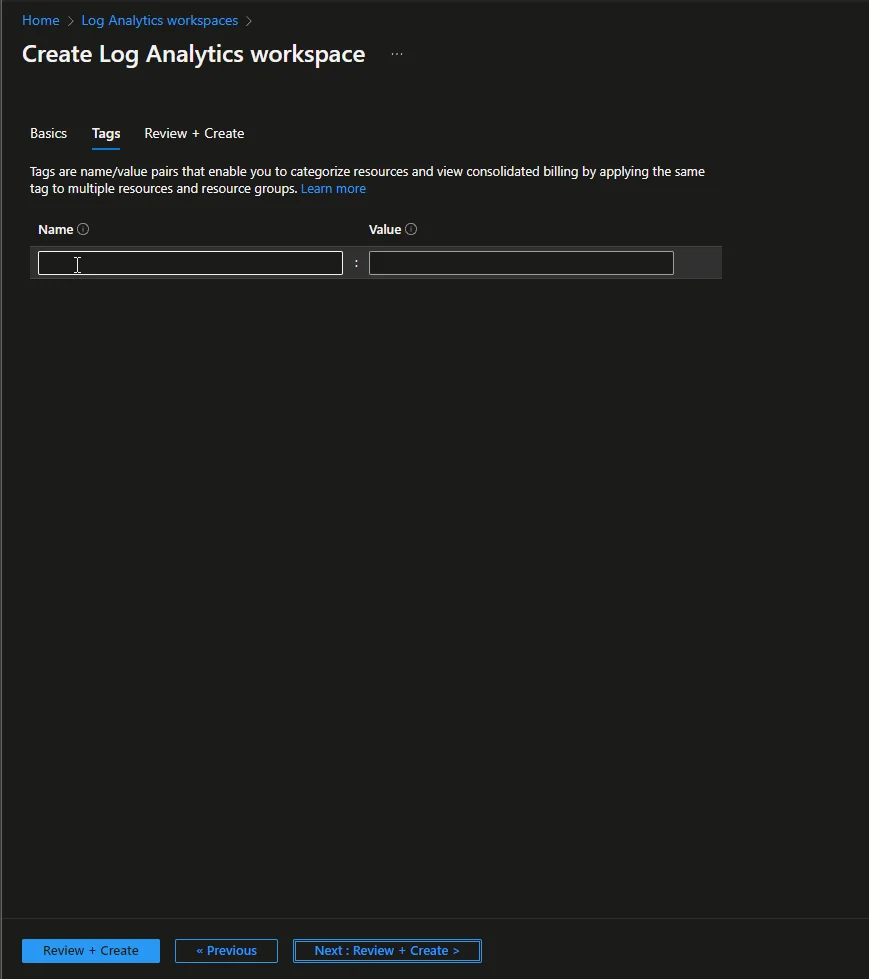
- Optional: Add Tags
- Click Next: Review + Create >
- Click Create
Get Workspace information
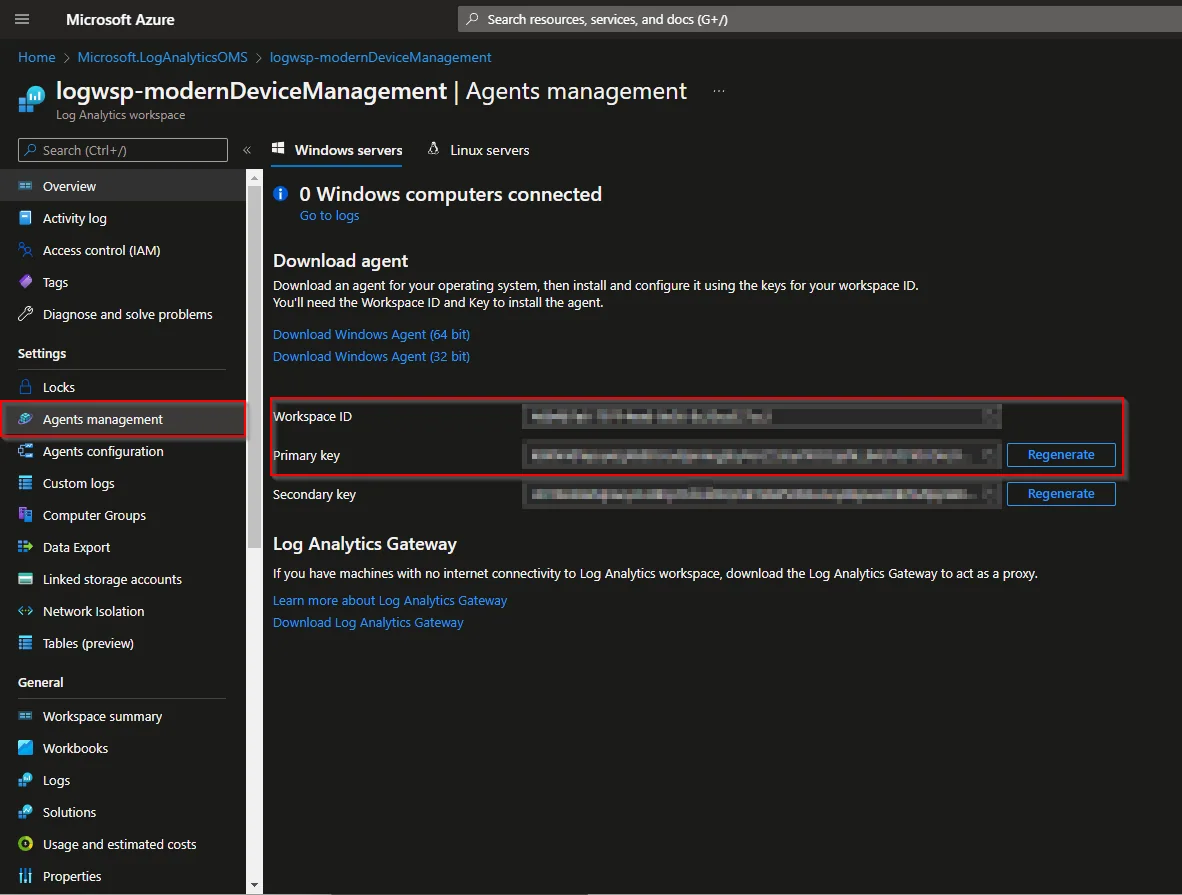
- Open the new Log Analytics Workspace
- Navigate to Agent management
- Use the workspace credential instructions to retrieve the workspace ID and primary key for the discovered-apps upload.
Write the Intune Discovered Apps inventory from all devices
You don’t have to do much. The script that does the work is already created. Currently, the script is written so that this looks at all devices and pushes every record of Intune Discovered Apps into the workspace. If you are only interested in collecting inventory from certain devices you can add a filter.
- Download the script from my GitHub repository
- Open the script and add the Workspace Id and the primary key

- Run the script
- Open the Log Analytics workspace and check if you can see all discovered apps from your devices
A practical tip before you run it at scale: trigger the script once against a small pilot group first. The Graph call that reads the discovered apps is paged, so on a large tenant the full export can take a while and it is far easier to confirm that the records land in the correct table while you are still working with a handful of devices. Once the pilot data looks right, remove the filter and let it run against the whole fleet.
Query the discovered apps in Log Analytics
Once the data is flowing into the workspace, the real value comes from querying it. The script writes the records to a custom log, so you can use Kusto Query Language (KQL) to answer the questions that the Intune portal cannot. A common first query is to find the most widely installed applications across your whole estate, which immediately surfaces the software you are managing without realising it.
DiscoveredApps_CL
| summarize DeviceCount = dcount(DeviceName_s) by AppName_s
| sort by DeviceCount desc
| take 25
From there it is a small step to track licensing exposure (filter on a vendor name and count distinct devices) or to find software that should not be present at all. Because the data sits in Log Analytics, you can pin any of these queries to an Azure dashboard or wire them into an alert rule, so a new occurrence of unwanted software notifies you automatically instead of waiting for someone to check the portal.
Common pitfalls
Two things trip people up most often. First, the custom log table only appears in the workspace after the first successful write, so do not panic if the table is missing immediately after running the script for the first time; give it a few minutes for ingestion to complete. Second, the discovered apps inventory in Intune itself only refreshes roughly once a day, which means the data you export is as fresh as Intune’s own collection cycle, not real time. Schedule the script to run after that refresh, for example as a daily Azure Automation runbook, so each export reflects the latest inventory rather than yesterday’s snapshot.
If you want to go further, you can combine this data with other reports. For example, my post on Intune automation and reporting shows additional ways to make the most of Log Analytics queries once your data is flowing.
Conclusion
I hope I could explain in this blog how you can copy the Intune Discovered Apps from Intune into a Log Analytics workspace to perform further analysis. Log analytics offers endless possibilities for what you can do with the data. You can build dashboards, create alerts, and enrich the data with further information to keep a clear view of every app in your environment.
Stay healthy, Cheers
Jannik