
Show user dialog with Endpoint Analytics (Smartphone Replacement Tool)
Endpoint Analytics makes it easy to reach users: trigger a smart, branded user dialog with a proactive remediation and target the right devices fast.
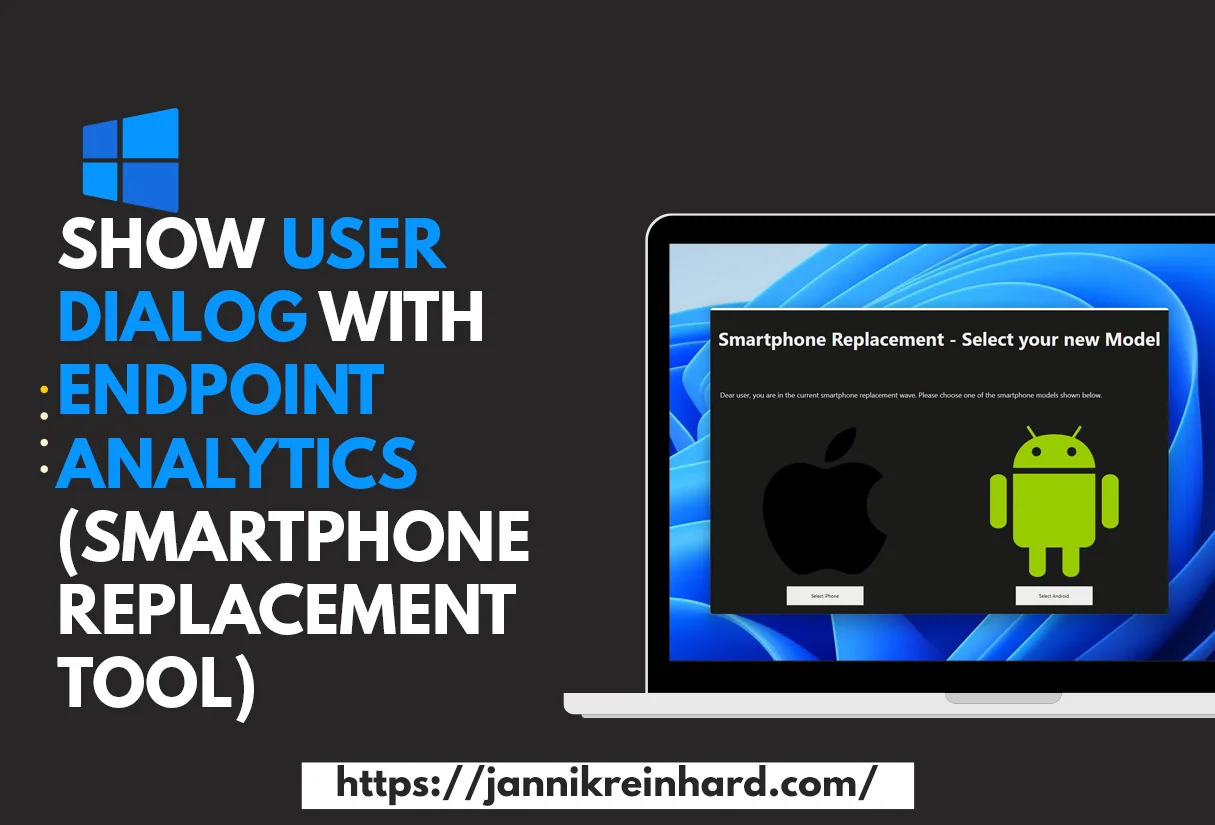
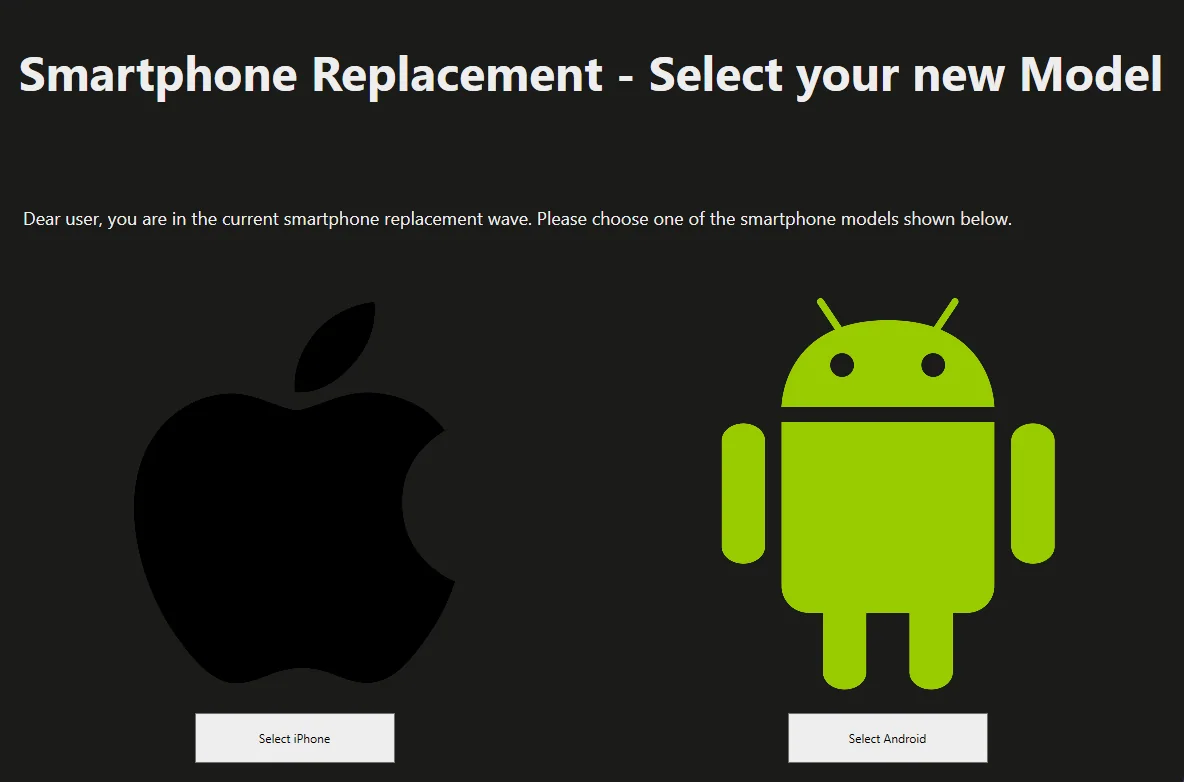
Sometimes the most underrated way to drive change in a fleet is to just talk to the user. Endpoint Analytics surfaces all kinds of useful insights — battery health, boot performance, application reliability — but those signals only become action when they reach the right person at the right moment. The Smartphone Replacement Tool is a small wrapper I built around that idea: trigger a clean, branded dialog on the user’s PC the next time they log on, with a contextual message and a clear next step. The technical scaffolding is intentionally simple: a Win32-deployed tool with a WPF frontend, an Intune Proactive Remediation that decides who sees the dialog, and an analytics-driven trigger.
It is not always easy to reach users via email or other channels. When there are projects running to exchange e.g. smartphones or migrations of files from a network drive to a SharePoint it is hard to reach the users and get an answer. Intune provides with Endpoint Analytics a very good on board tool to easily reach users via a user dialog. In this blog I will show how you can use this with the example of a smartphone exchange. The dialog and the method can be adapted to many other use cases.
Deploy an Endpoint Analytics Script to collect the value
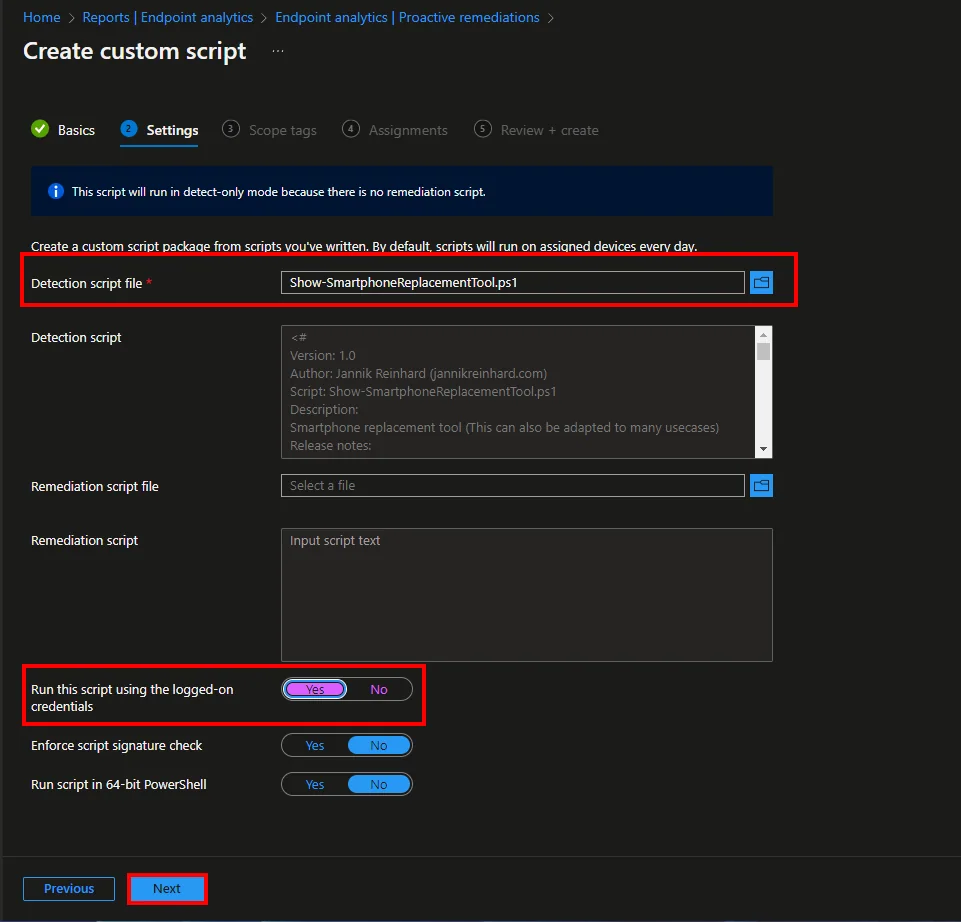
First we deploy a script to our clients to get the return value from the clients with the device manufacturer. This proactive remediation runs in the user context, which is exactly what we need to later show a dialog.
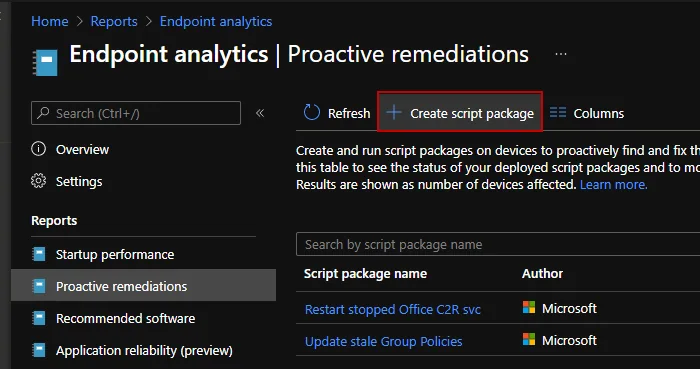
- Open Endpoint Analytics
- Click + Create script package
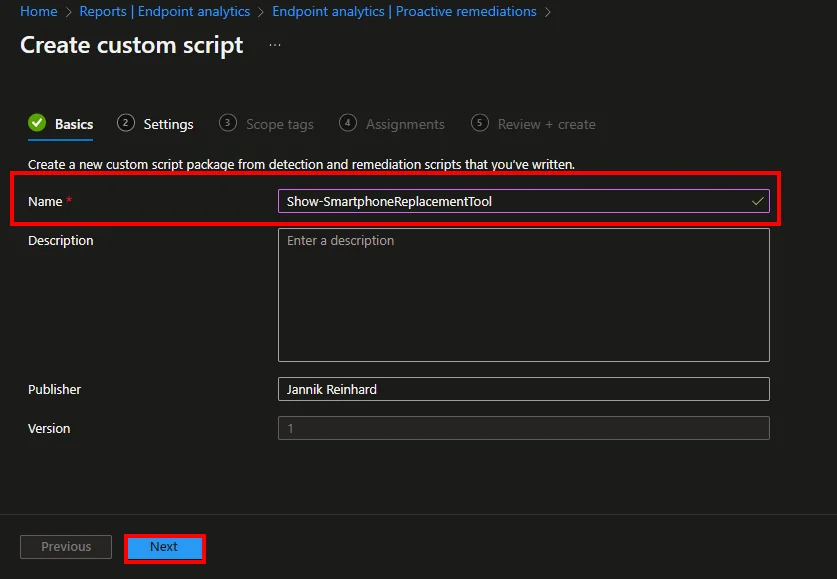
- Enter a nameand click Next
- Upload the Detection script. You can find the script in my GitHub repository.
- Select Run the script using the logged-on credentials
- Click Next > Next
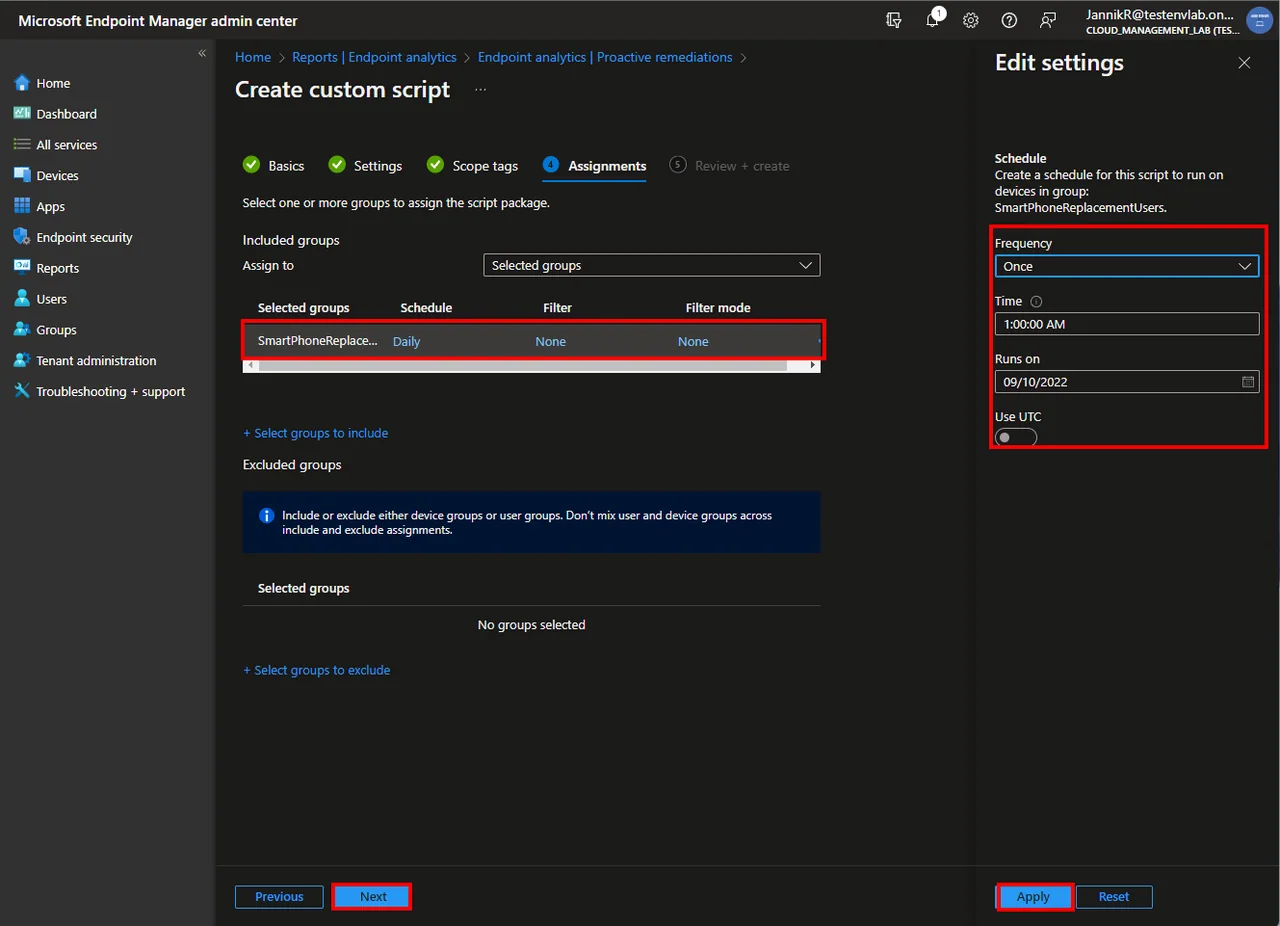
- Assign the script to a group
- Create a schedule and select as frequency once.
- Click Next > Create
Show the Endpoint Analytics results
You can get the script Id via the browser developer tools. Microsoft documents the underlying device health scripts API in detail on Microsoft Learn, which is handy when you build automation on top of these values.

You can see the results with the following Graph call:
https://graph.microsoft.com/beta/deviceManagement/deviceHealthScripts/**SCRIPT_ID**/deviceRunStates?$top=200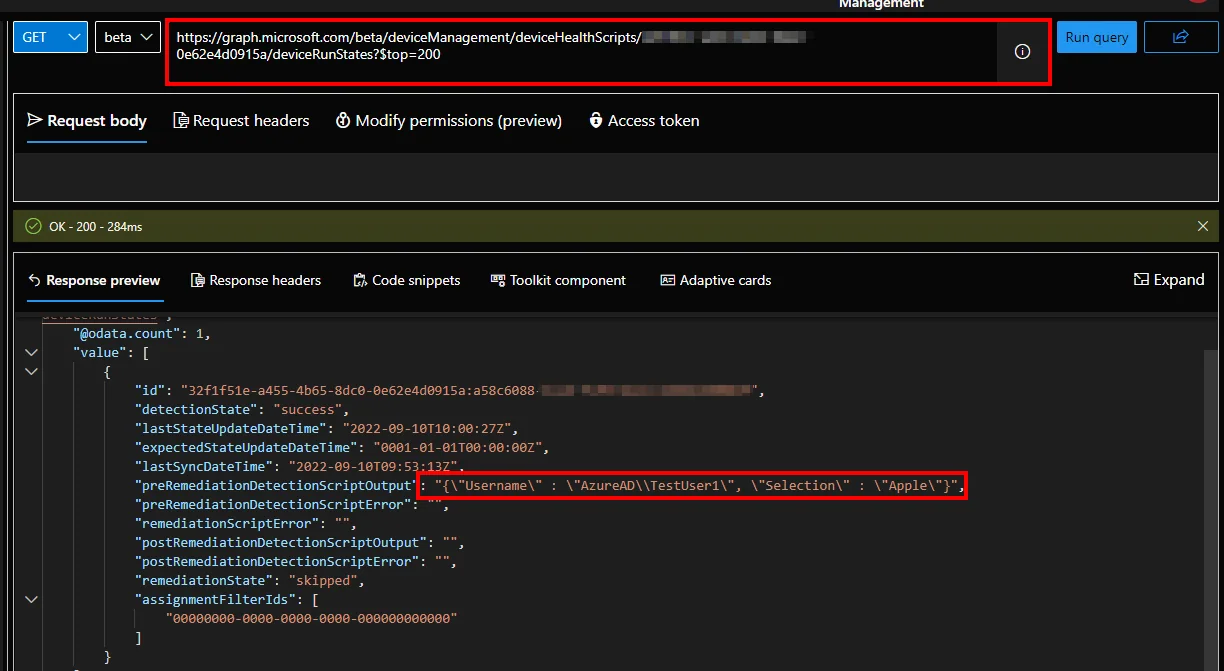
The output is a JSON string. You can use this solution described in the “Create and Fill Microsoft Entra ID Group based on local attributes” blog post to fill a Microsoft Entra ID group based on this Endpoint Analytics result. Once the group is populated, the user dialog can target exactly the right devices. If you need support adapting the script please let me know.
Build and deploy the WPF dialog as a Win32 app
Once the right devices are grouped, the dialog itself is what the user actually sees. I build it as a small WPF application and wrap it as a Win32 (.intunewin) package so it can be deployed through Intune like any other app. The reason for Win32 rather than a script-only approach is control: you get a proper install and uninstall command, a detection rule, and the ability to ship branded assets such as a logo or an icon alongside the executable. Keep the dialog focused on a single decision so the user is not overwhelmed.
- Package the WPF executable and its assets with the Microsoft Win32 Content Prep Tool into an
.intunewinfile. - Set the install command to launch the tool in the user context, and use a registry key or a marker file written by the tool as your detection rule.
- Assign the app to the same Microsoft Entra ID group you populated from the Endpoint Analytics result, so only affected users receive it.
Common pitfalls and why context matters
The single most common mistake is running the trigger in the wrong context. A Proactive Remediation that runs as SYSTEM cannot show a window on the user’s desktop, so the dialog never appears. Always select Run the script using the logged-on credentials for anything that interacts with the user. A second pitfall is firing the dialog too often: if there is no marker that records the user already responded, they will see the same prompt at every logon and quickly learn to dismiss it. Write a small flag once the dialog has been handled and check for it before showing anything.
It is also worth thinking about timing and tone. Showing the prompt right at logon, when the user is trying to start work, often gets it closed without reading. A short, friendly message that explains why the action matters — for example that their old smartphone is going out of support — gets far better response rates than a generic notice. The whole point of using Endpoint Analytics as the trigger is that you reach exactly the people who need the message, so make those few seconds of attention count.