
Create and Fill an Entra ID Group based on Local Attributes
Populate Microsoft Entra groups from local device signals using Intune scripts and Azure Automation. Review data collection, identity and membership updates.
There is often the need to create an Entra ID group (formerly Azure AD) based on a local registry key or another attribute to make more specific access decisions, to use this group for access rights to an application or many other use cases. Building an AAD group based on local attributes is the perfect way to do exactly that.
In this blog post I will show you how to create an AAD group based on local attributes with the help of Endpoint Analytics and Azure Automation. In my blog I show you how to do this with the example of device manufacturer; of course we already have this info in Intune, but it is just an example of how this works. Of course you can also do this with anything else you can read out on a client.
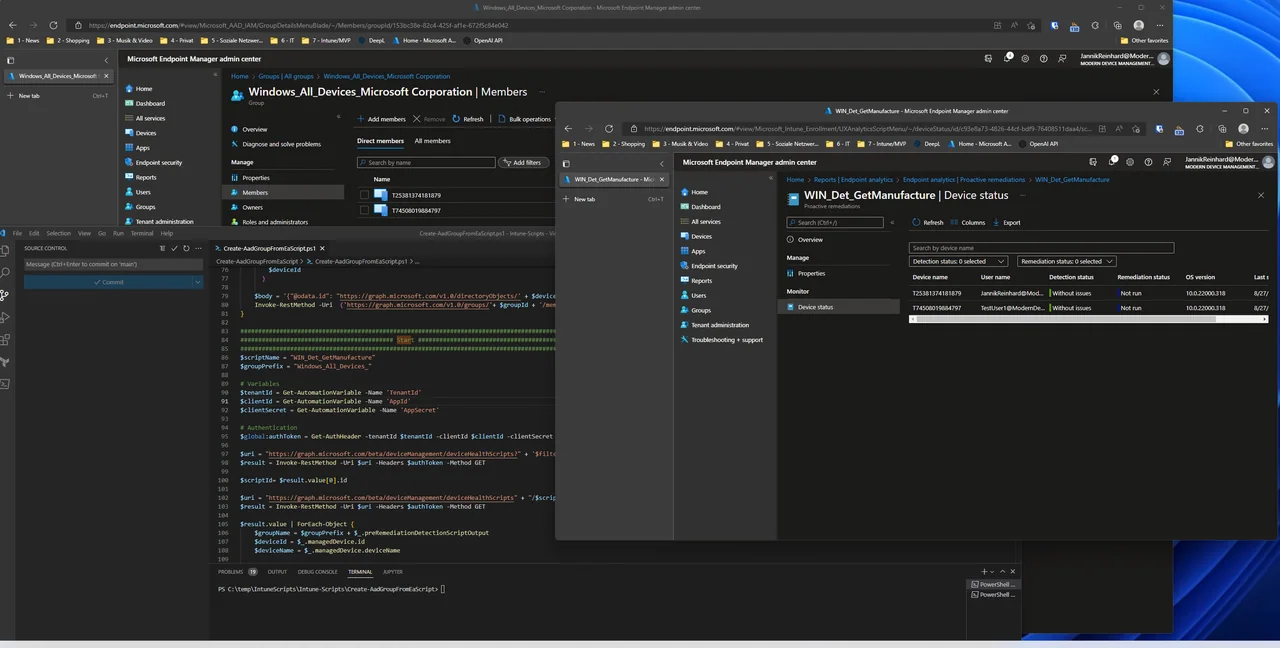
How the AAD group based on local attributes automation works
The value is collected with an Endpoint Analytics Detection script. The collection works by executing a write host.

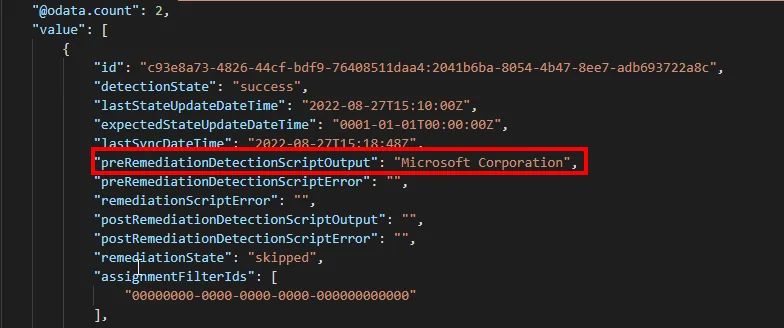
If we now look at the result of the remediation script with graph we see that the output of the write-host is also displayed (as far as I know this is only displayable with graph).
We query this value with an Azure Automation Runbook and check if there is already a group for this manufacturer; if not, the group will be created. After that, all PCs of the manufacturer are added to the group. This is the core logic that lets us build an AAD group based on local attributes fully automatically.
Deploy a Endpoint Analytics Script to collect the value
First we deploy an Endpoint Analytics script to our clients to get the return value with the device manufacturer. This collected value is the foundation for the AAD group based on local attributes that we will build later.
- Open Endpoint Analytics
- Click + Create script package
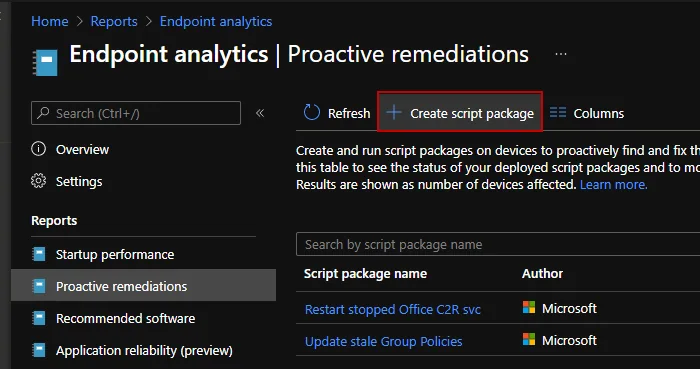
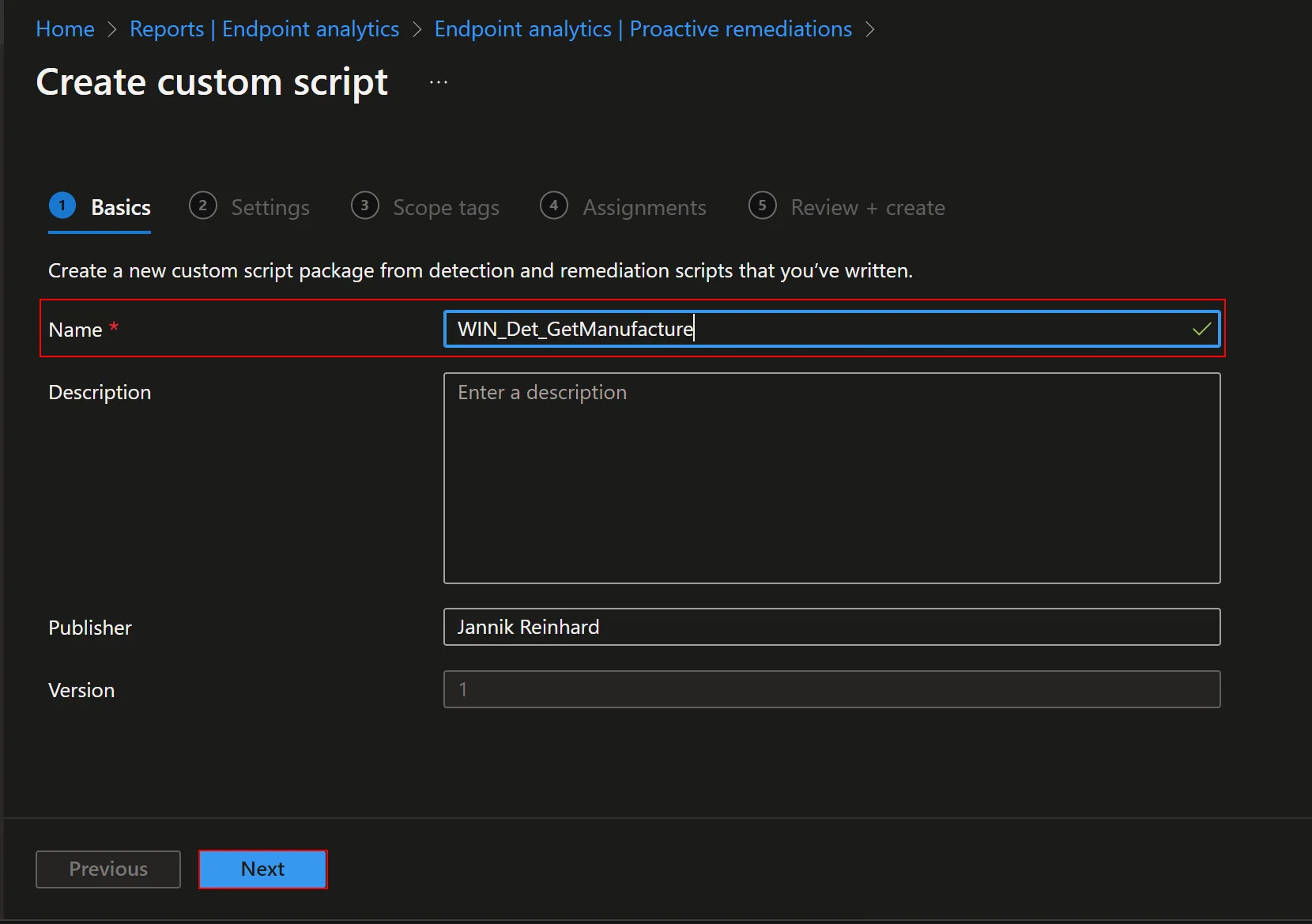
- Enter a nameand click Next
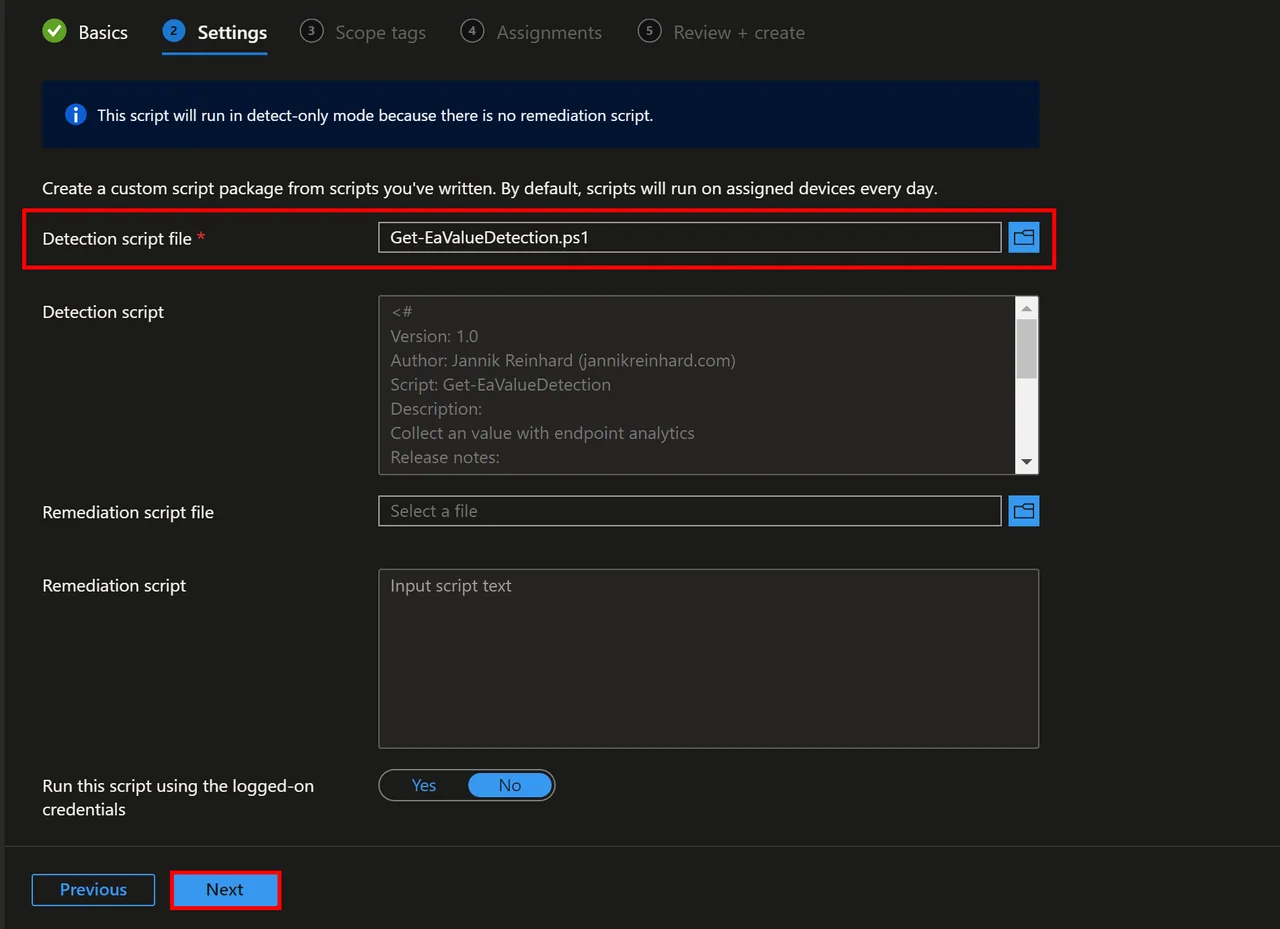
- Upload the Detectionscript. You can find this small script in my GitHub repository.
- Click Next > Next
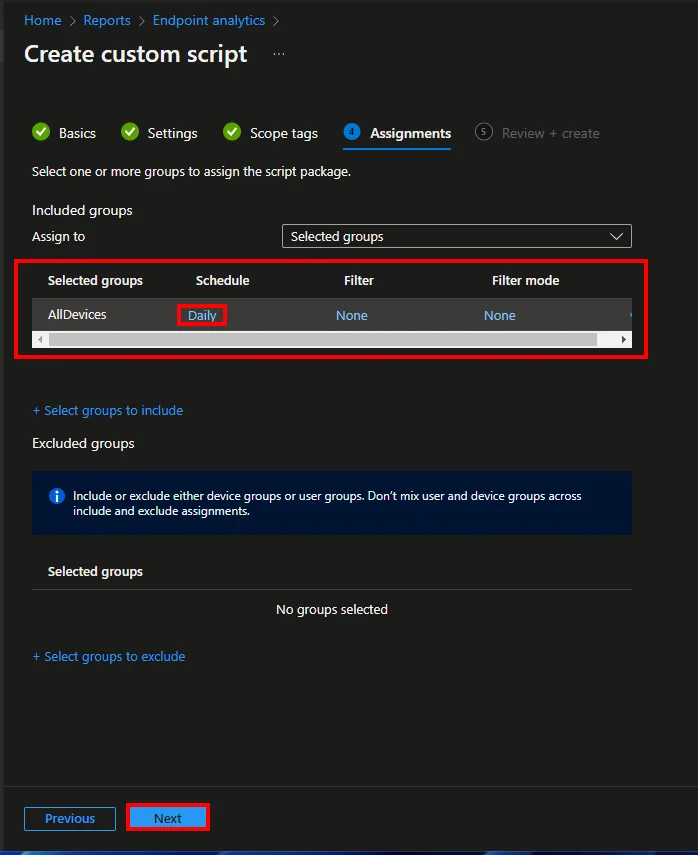
- Assign the script to a group
- Create a schedule. In my case I select daily.
- Click Next > Create
Create an App Registration
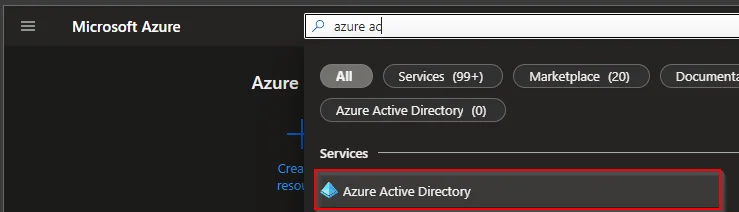
- Search for Microsoft Entra ID
- Select App registration
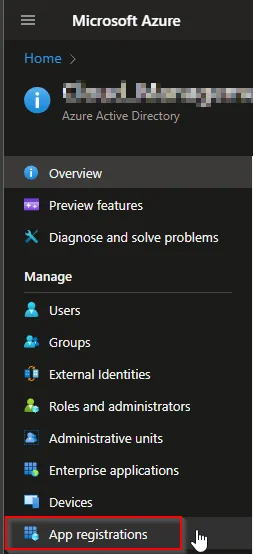
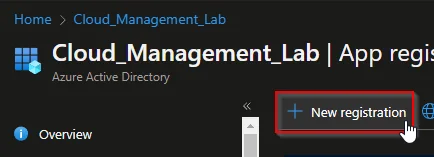
- Select +New registration
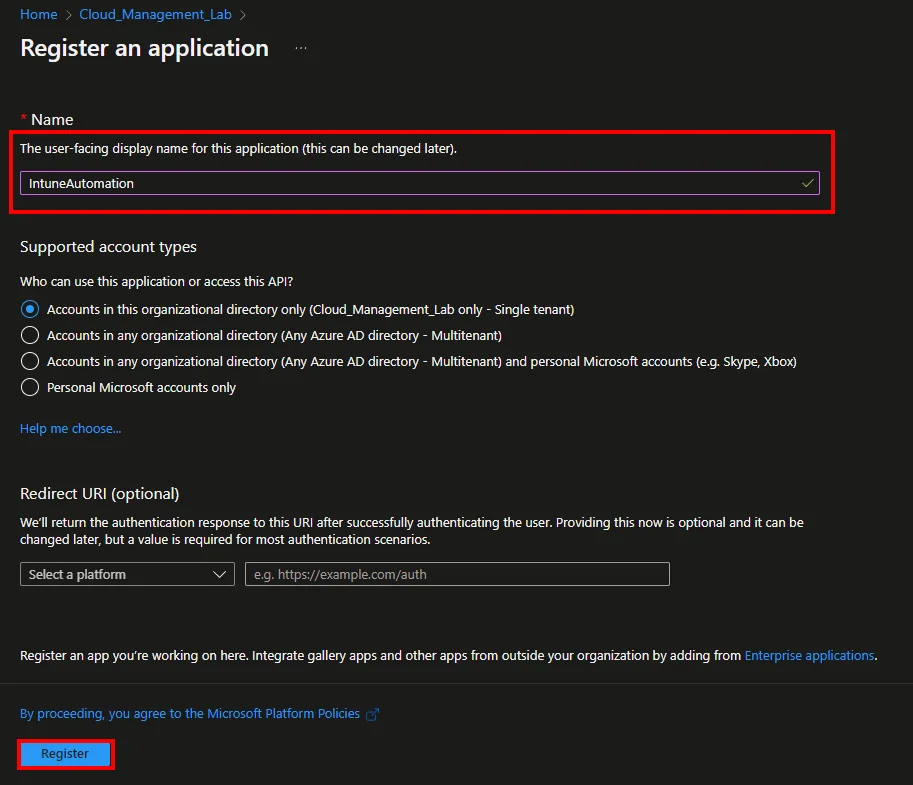
- Enter a Name and click Register
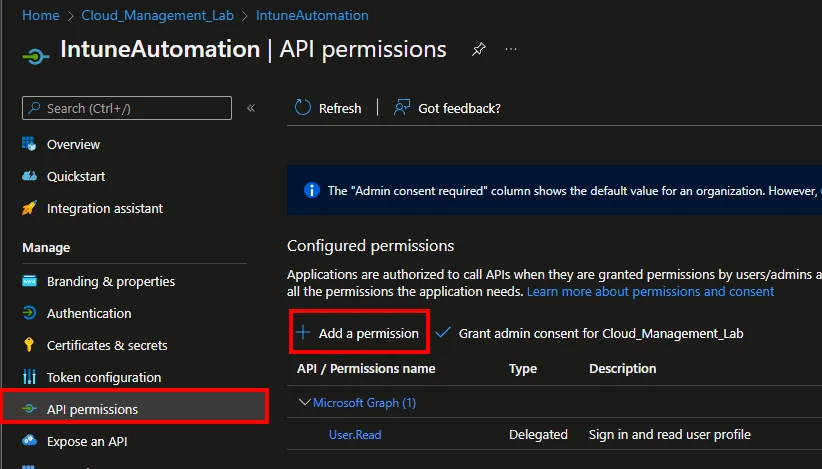
- Click API permissions and +Add a permission
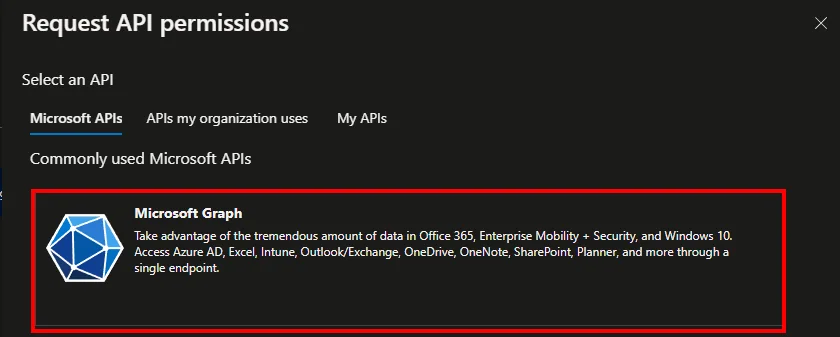
- Select Microsoft Graph
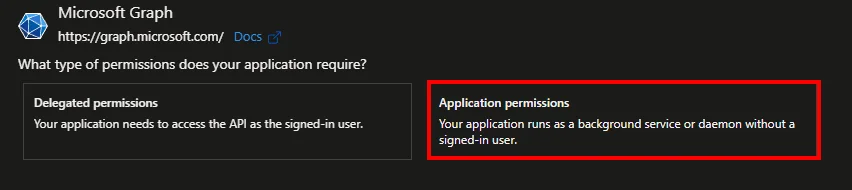
- Select Application permissions
-
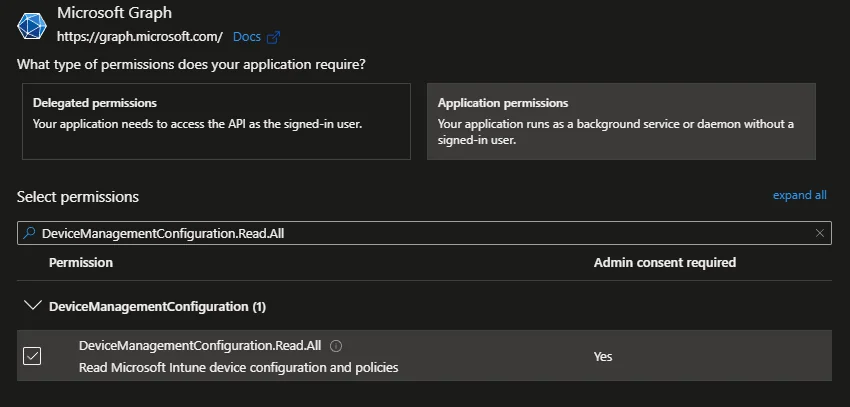
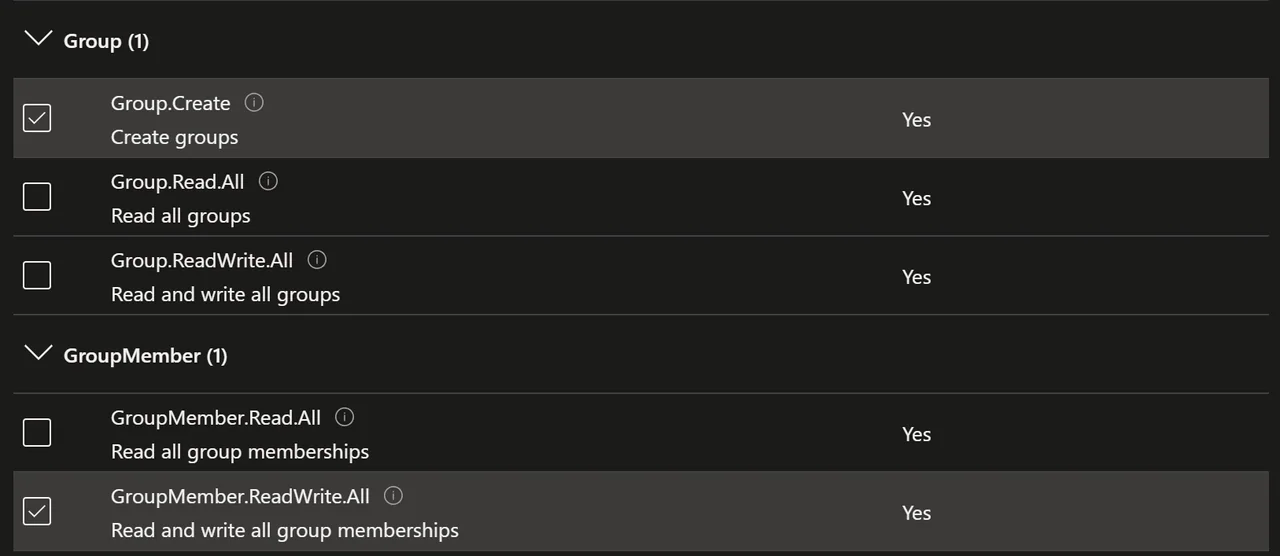
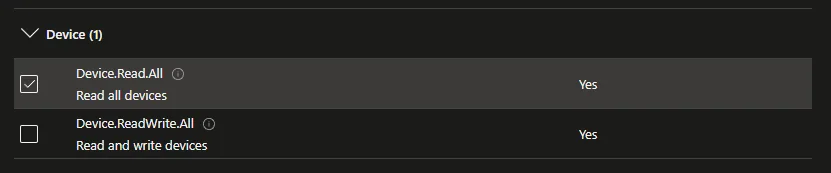
Search for DeviceManagementConfiguration.Read.All, Group.Create and GroupMember.ReadWriteAll
-
-
-
-
Click Grant admin consent for *** and approve with Yes

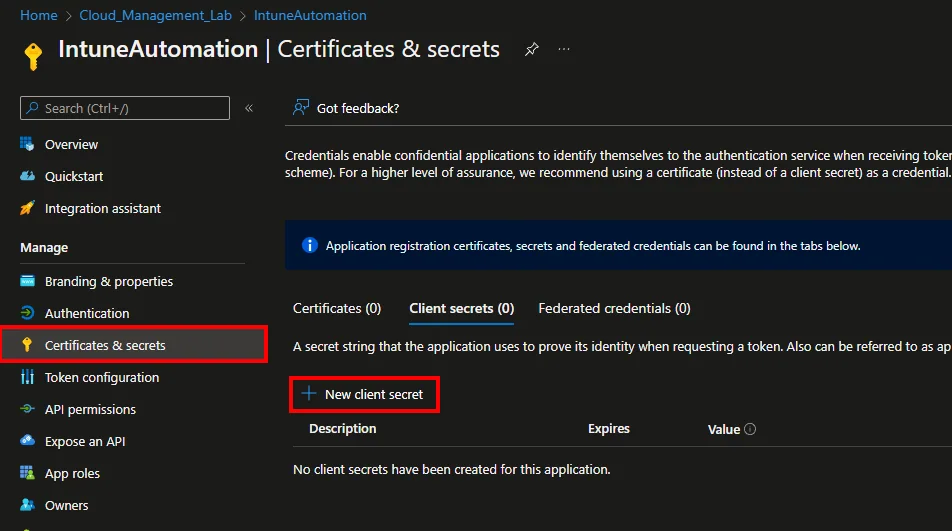
- Select Certificates & secrets and click +New client secret
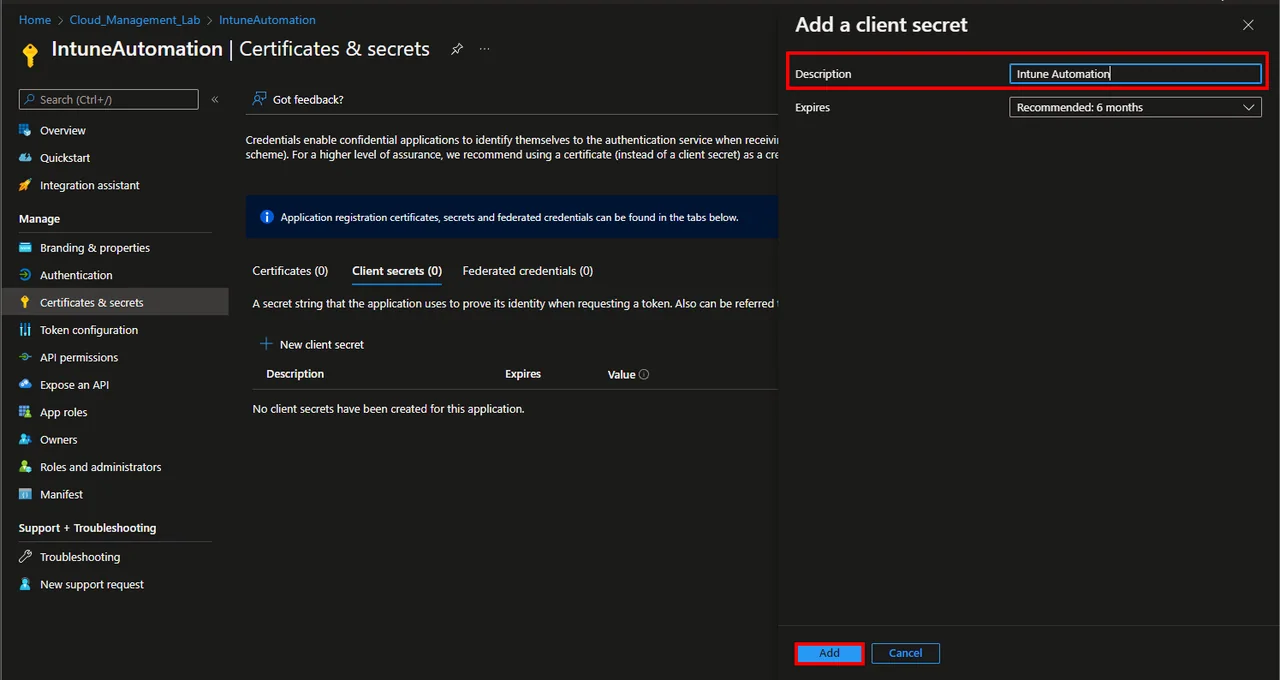
- Enter a Description and select a Expires time
- Click Add
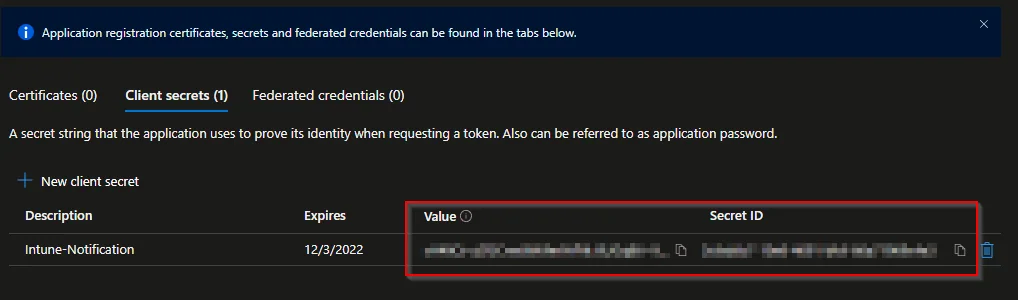
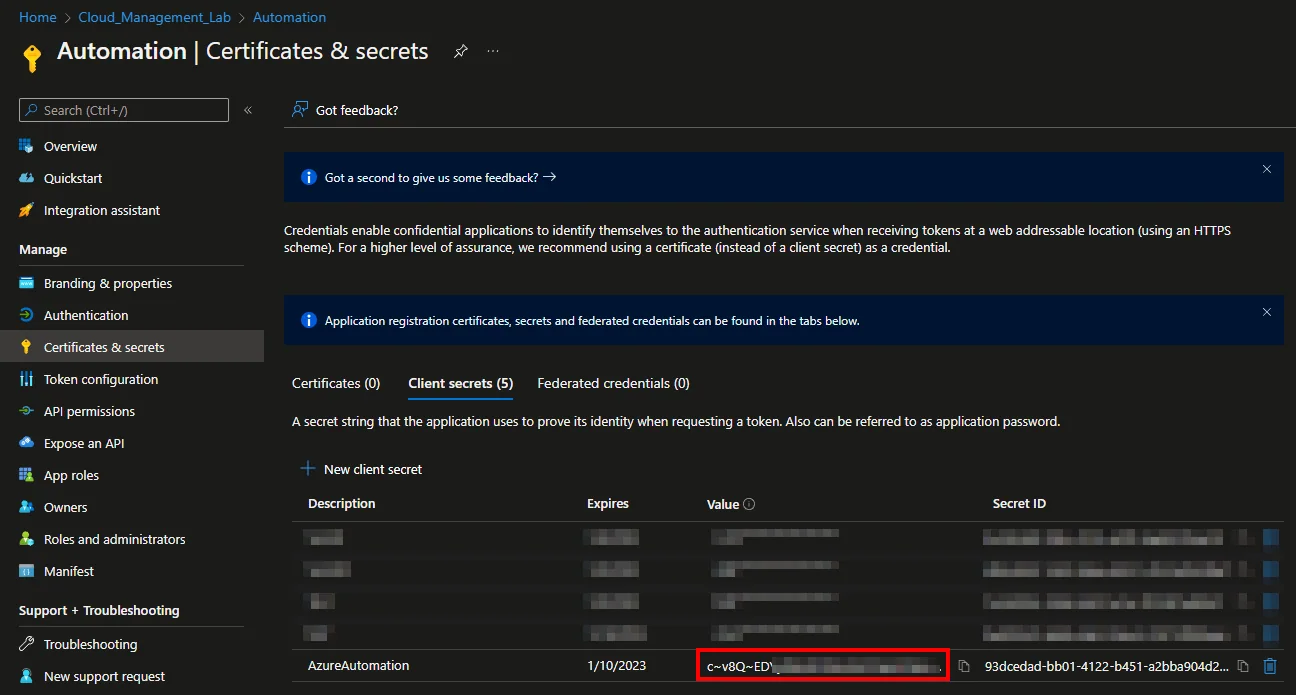
- Copy and save the Value and the Secret ID
Create Automation Account
- Search for Automation Accounts
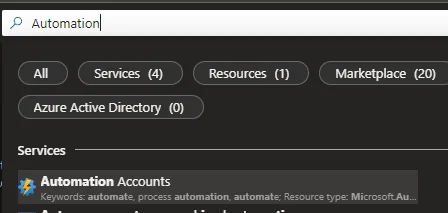
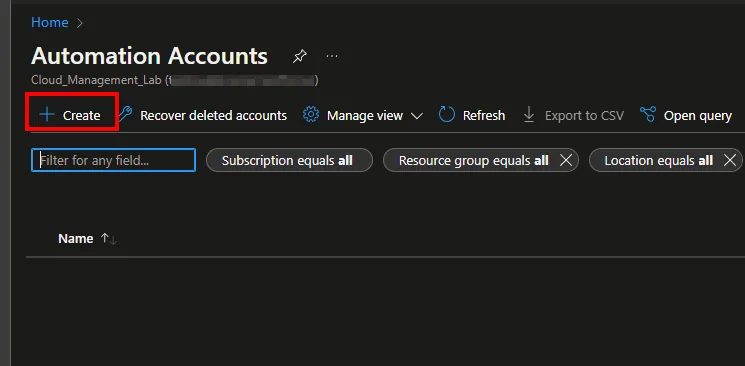
- Click + Create
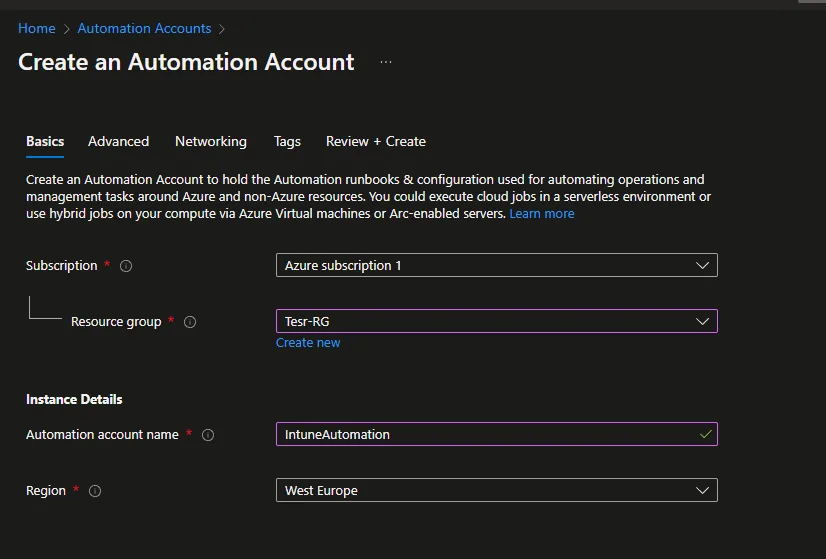
- Select a Subscription and a Resource group
- Enter an account name and select a Region
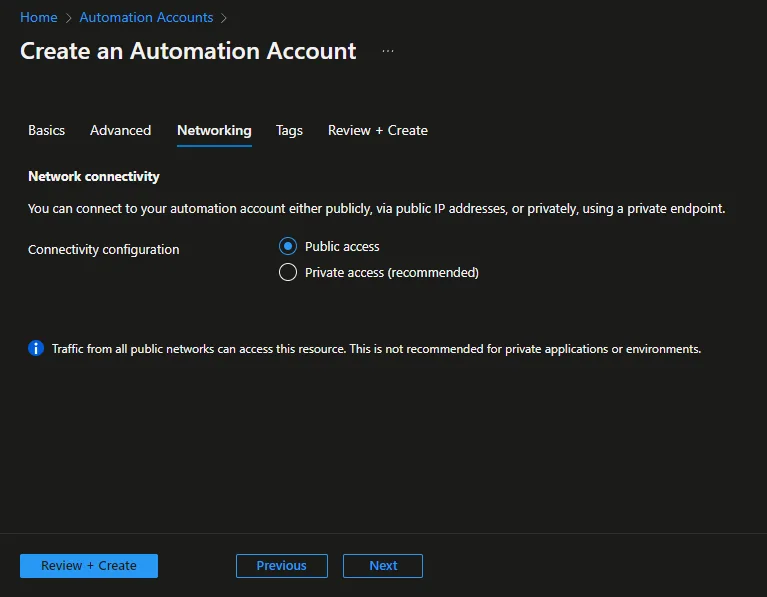
- Click Next
- Click Next
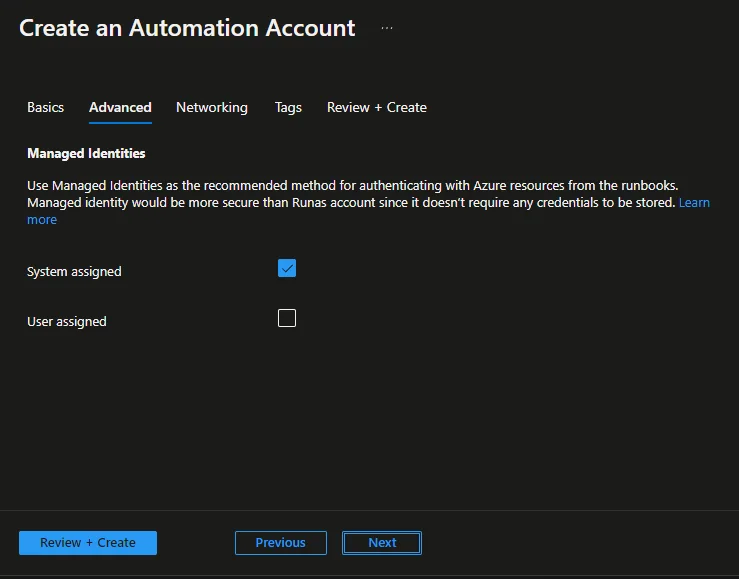
- Click Next -> Next -> Create
Create the Runbook
- Open the Automation Account
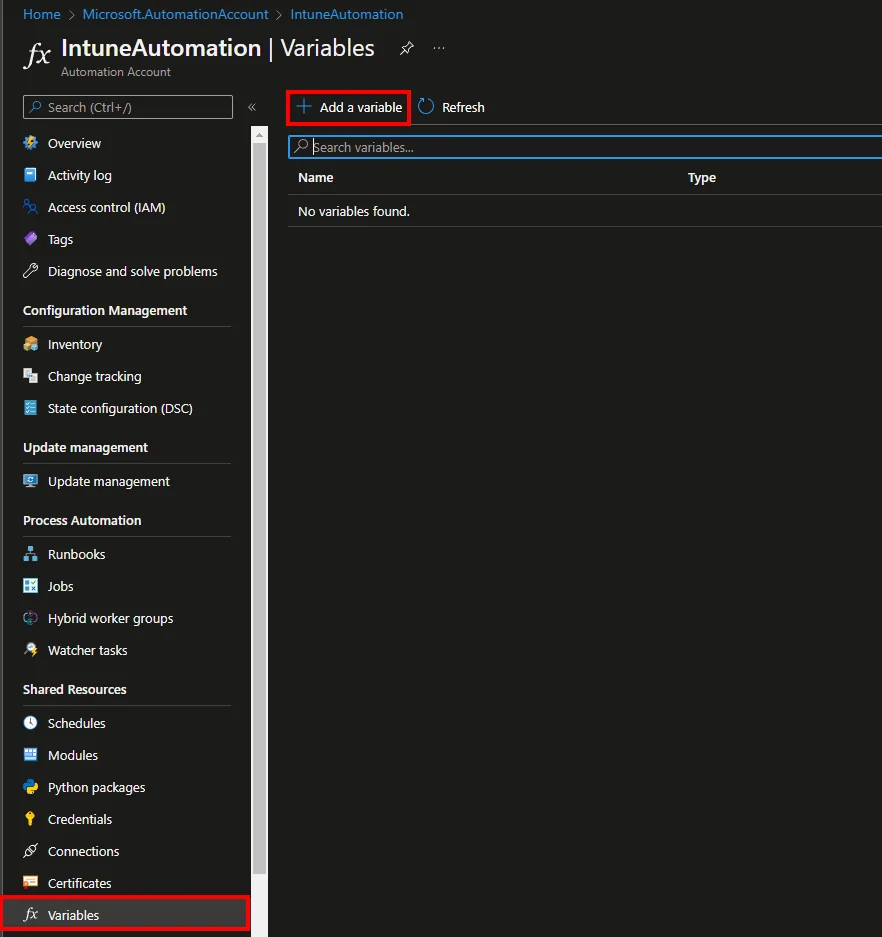
- Navigate to Variables and click + Add a variable
-
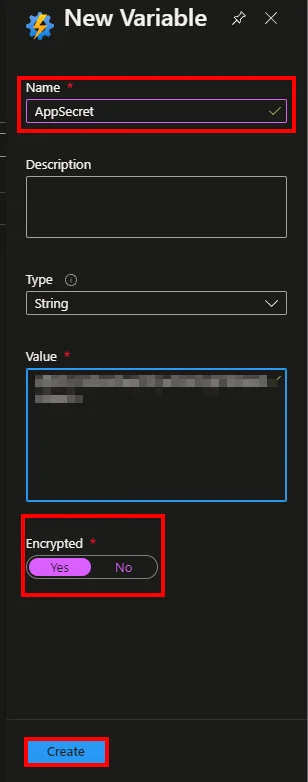
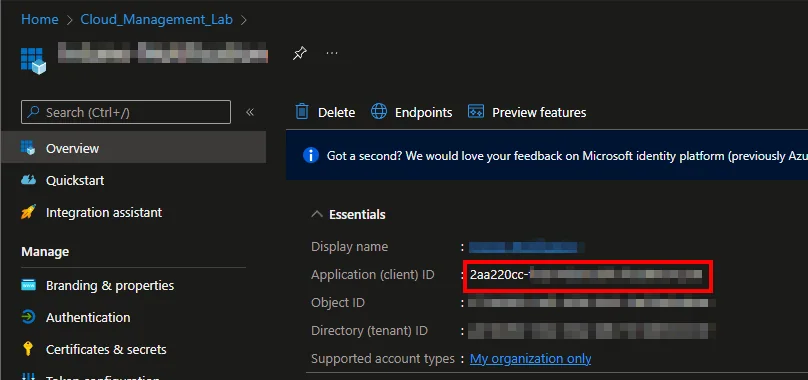
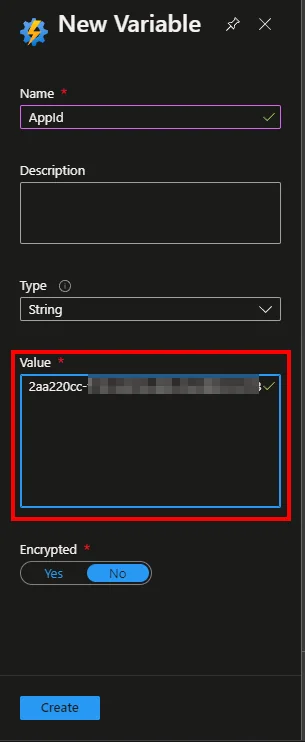
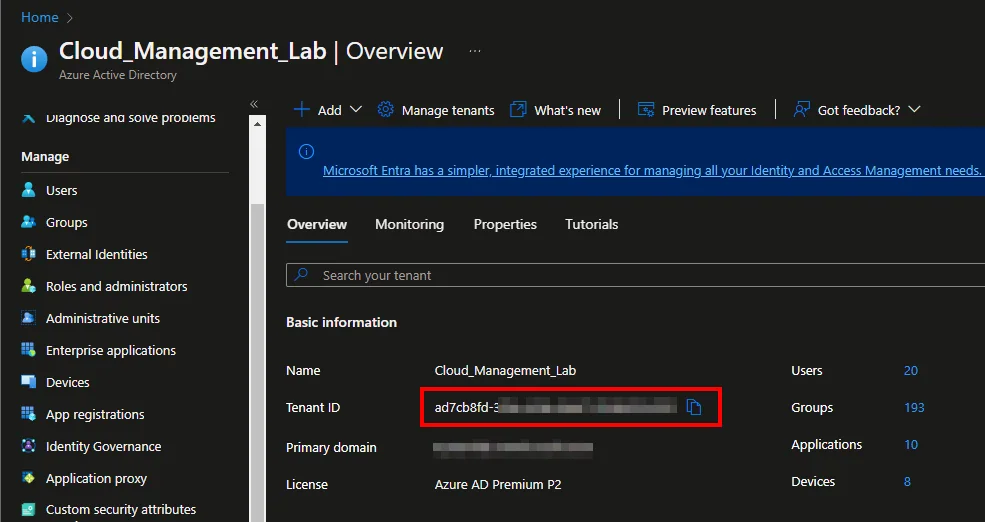
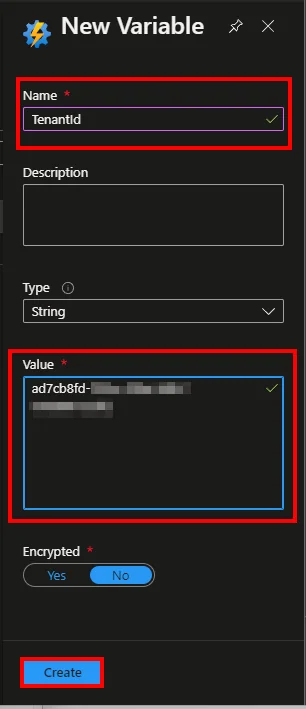
Add the Secret Value, TenantId and the App ID as Variable
-
-
-
-
-
-
-
Select Runbooks
-
Click + Create a runbook
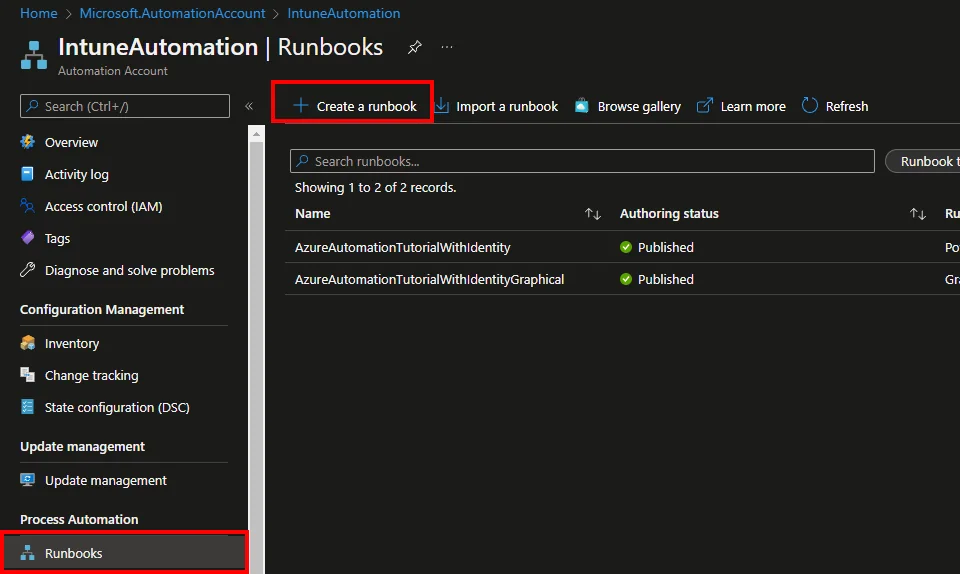
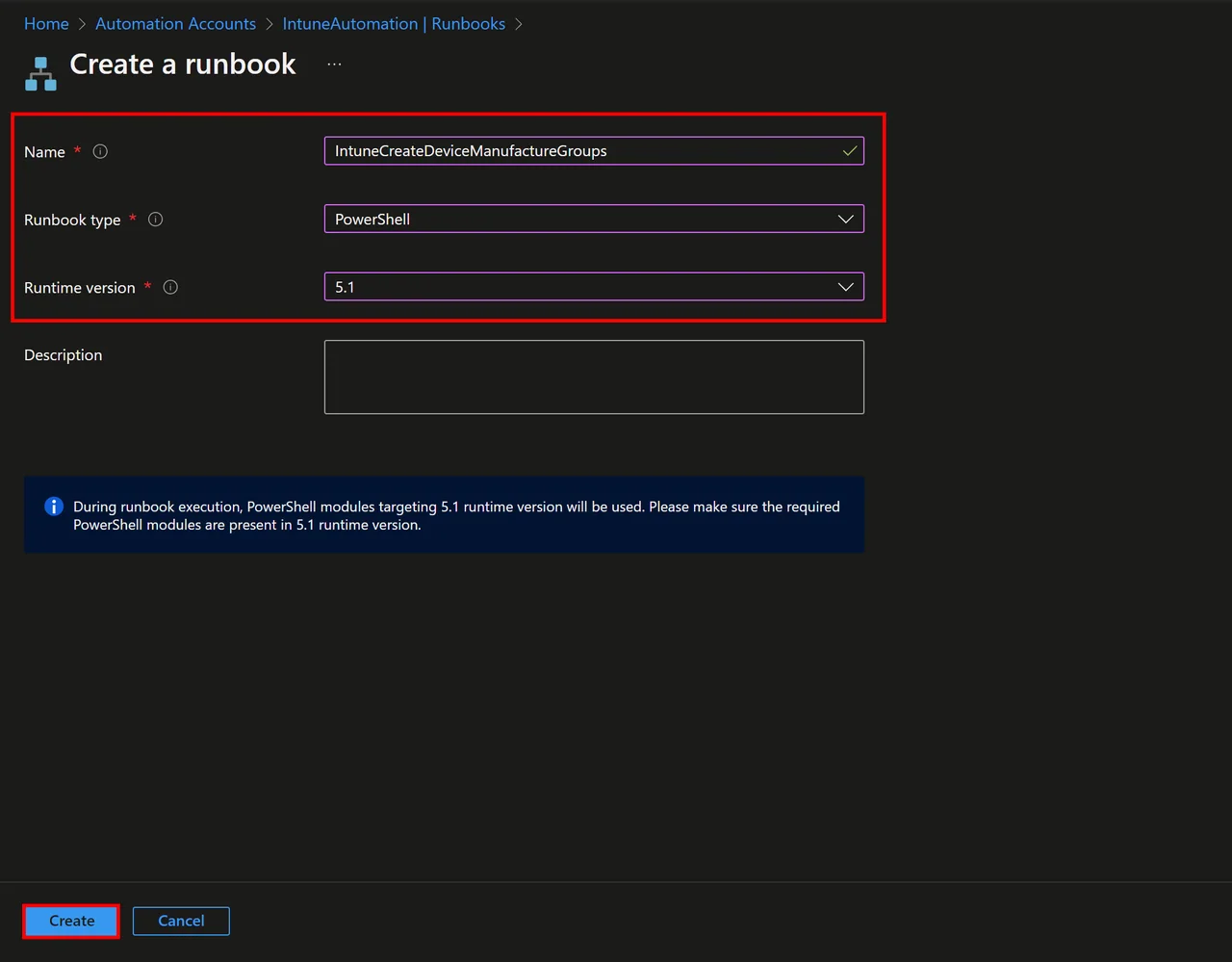
- Enter a Name
- Select PowerShell as Runbook type
- Select 5.1 as Runtime version
- Click Create
- Insert the script from my GitHub repository
- Change these variables:
- $scriptName: name of the Endpoint Analytics script
- $groupPrefix: prefix for the Microsoft Entra ID group

- Save and test the script

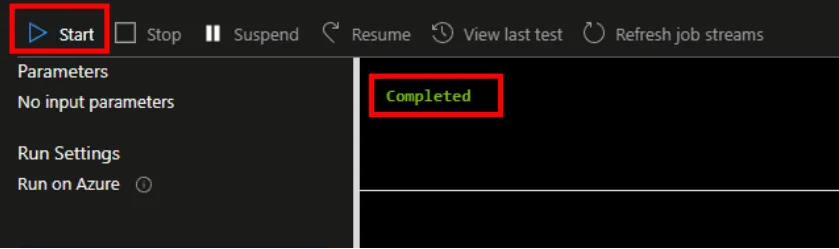
- Click Publish

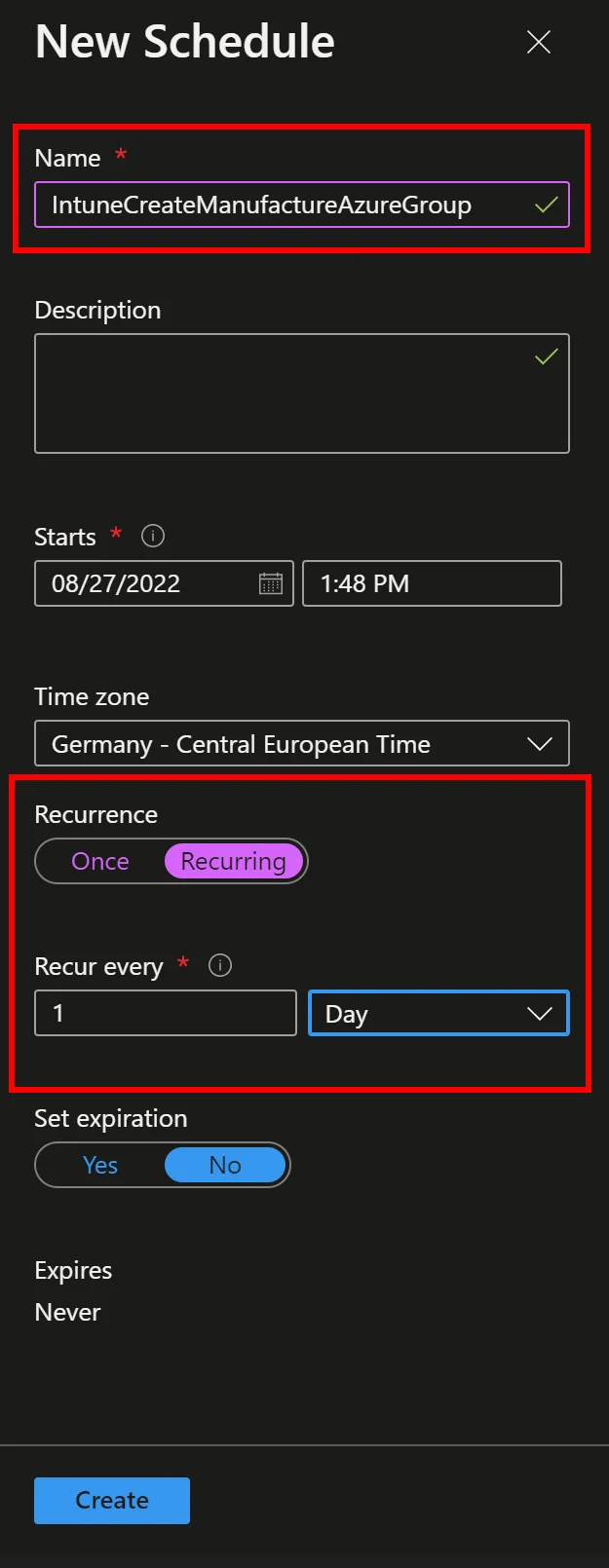
- Navigate to Schedules and click + Add a schedule
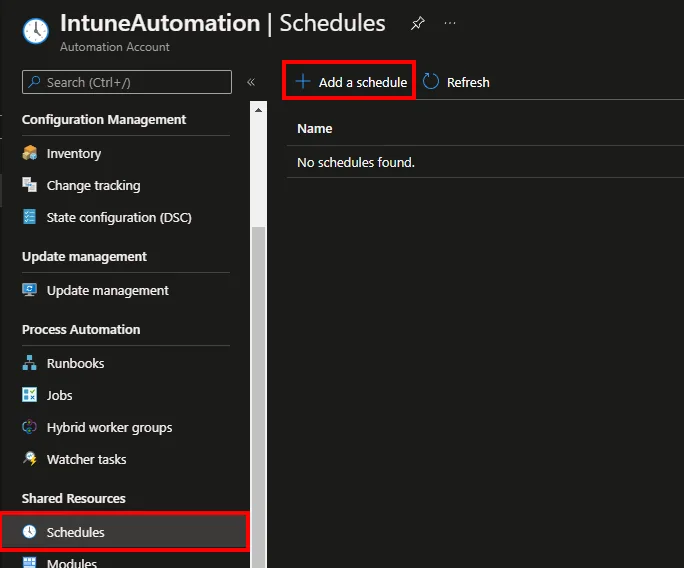
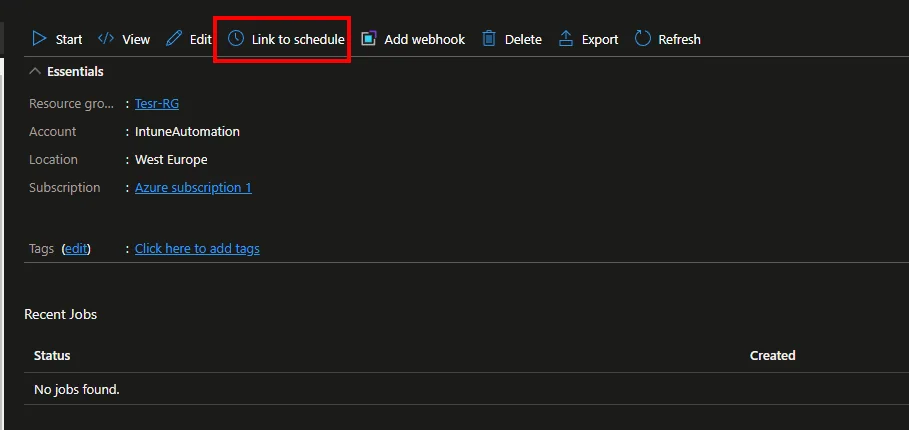
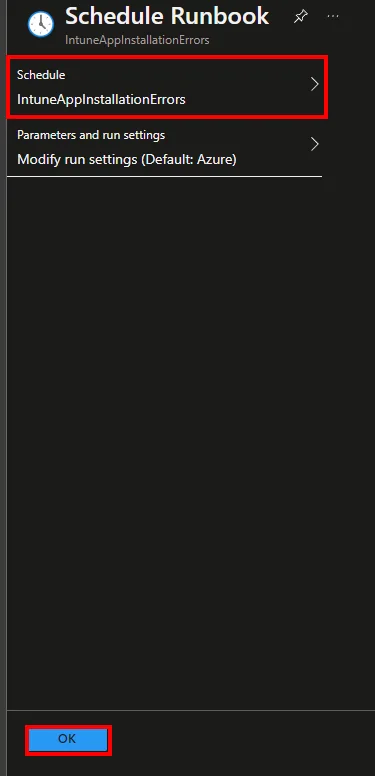
- Click Link to schedule and add the created schedule
Conclusion
This script helps to target clients more precisely in the future using local attributes. With an AAD group based on local attributes you can drive dynamic access decisions that would otherwise be impossible. Of course the Manufacturer value is not the best example, as it is already part of the Intune inventory, but it helps to show how the whole mechanism works. If you want to dig deeper into the Graph calls used here, check the official Microsoft Learn documentation, and for more automation ideas have a look at my other Intune automation posts.
Stay healthy, Cheers
Jannik