
Enable Passwordless Authentication with Microsoft Authenticator
Configure passwordless phone sign-in with Microsoft Authenticator. Review the identity settings, user registration and verification steps before rollout.
The best password is the password that is not needed. Statistics show that the more often you have to change the password, the more insecure it becomes. Users write down the password or simply increment it. How about a possibility that is secure but does not require a password, as one part of a broader Ultimate MEM Tour endpoint security guide strategy. In this blog I want to show you how easy it is to enable passwordless authentication for your organization.
Moving away from passwords is one of the most effective steps you can take to reduce account compromise, phishing and credential theft. Microsoft has invested heavily in this area, and you can read the official guidance on passwordless sign-in with Microsoft Entra ID on Microsoft Learn. In the next sections I will walk you through what the technology does, how the sign-in flow works behind the scenes, and the exact steps to roll it out for your users.
What is passwordless authentication
Passwordless authentication is a method where a user does not have to enter a password when logging in to authenticate to Windows or other Microsoft services. Microsoft Entra ID supports the following services for passwordless authentication:
- WHfB (Windows Hello for Business)
- Fido2
- Authenticator app
The easiest way is to use WhfB. But this only works if the logged in user is also the one accessing services. Administrators usually have their own privileged account with which they do not log in to Windows, but use it to access Intune or other services.
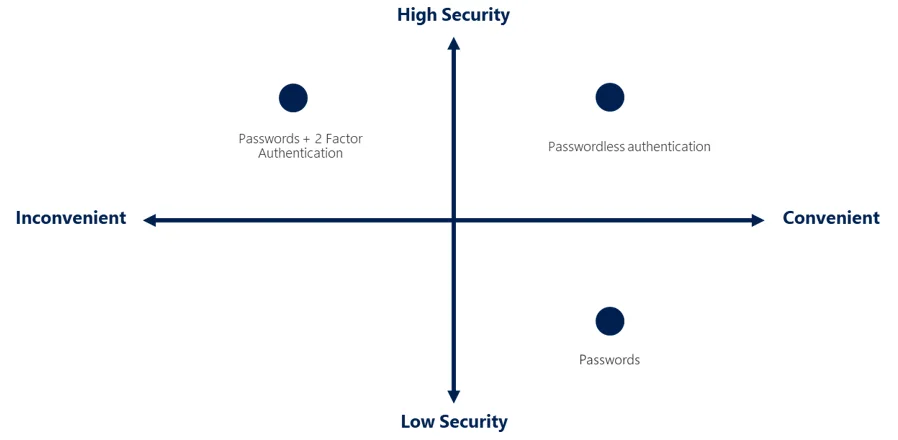
You can see in this picture that passwordless provides good convenience and high security.
In this blog I will show you how you can allow passwordless authentication with help of the authenticator app. For more background about managing users and groups in Intune, check out The ultimate MEM tour part 5 – User and Groups.
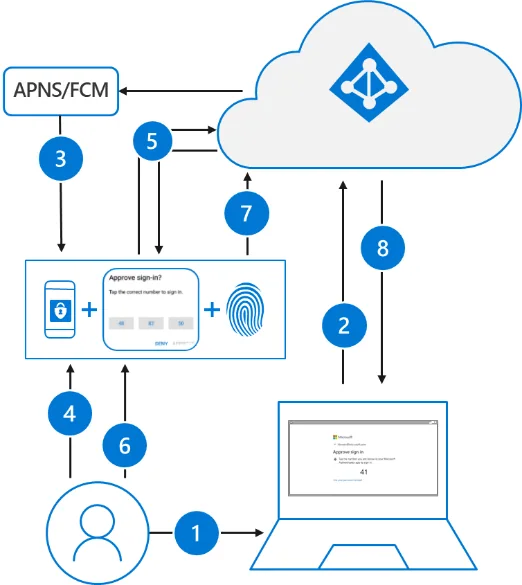
How does it work
- The user is asked to authenticate and enters their username
- Microsoft Entra ID detects that the user has strong credentials and starts the Strong Credential flow.
- Via a push notification service using the APNS (iOS) or FCM (android) a notification will be sent to the device of the user
- The user receives the notification and opens the Authenticator app
- The app calls Microsoft Entra ID and receives a proof-of-presence challenge and nonce.
- The user unlocks the private key via authentication with PIN or biometric
- The nonce is signed with the private key and sent to Microsoft Entra ID
- Microsoft Entra ID validates the private/public key and returns the token
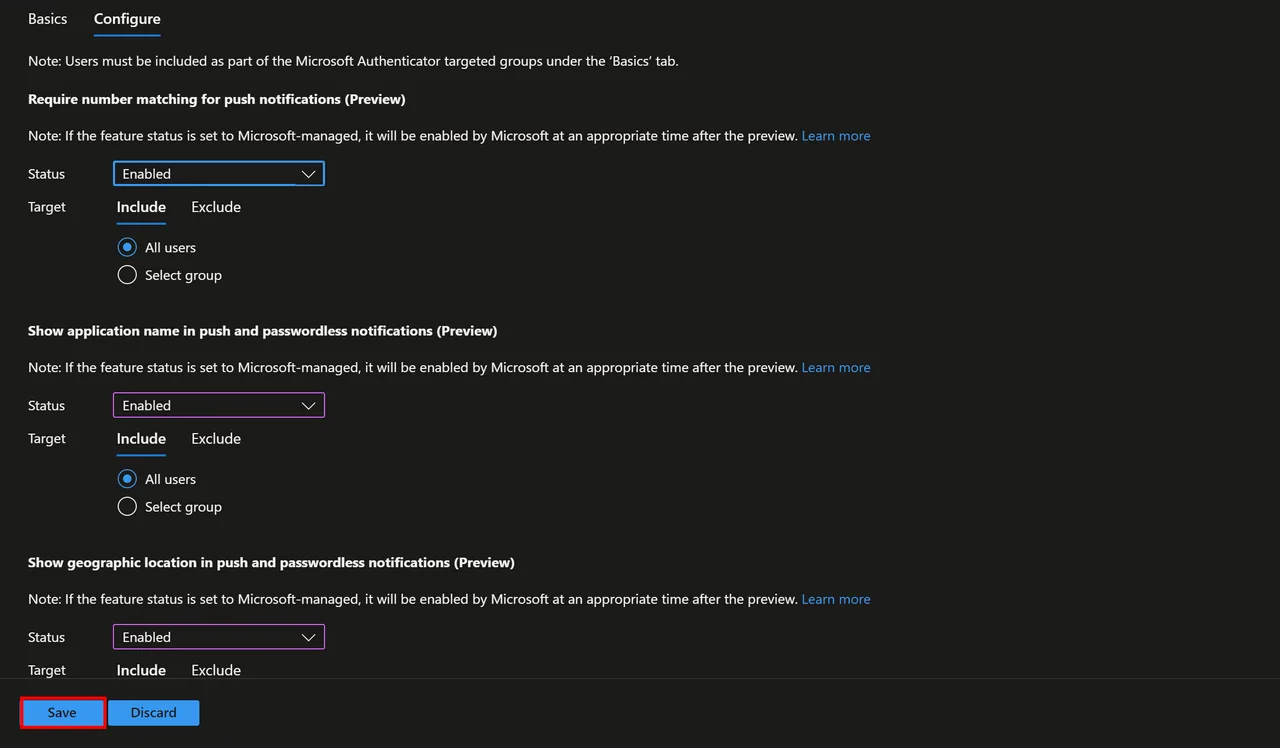
New Microsoft Managed options
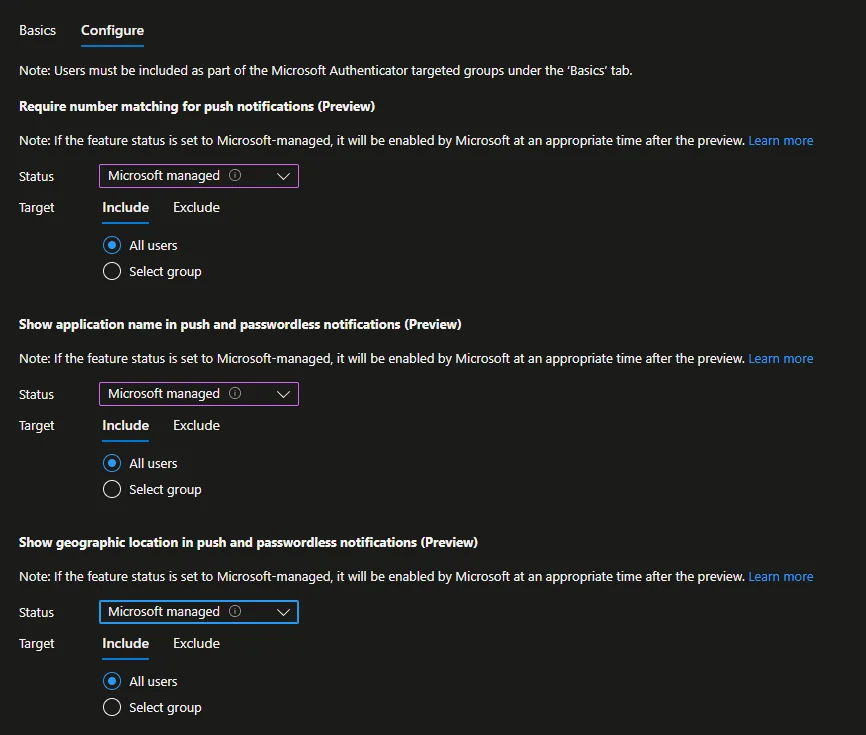
If the status of the feature is set to “Microsoft-managed”, Microsoft will activate it at an appropriate time after the preview period. Thus, this feature is managed by Microsoft unless it has been explicitly disabled by an administrator.
- Require number matching for push notification
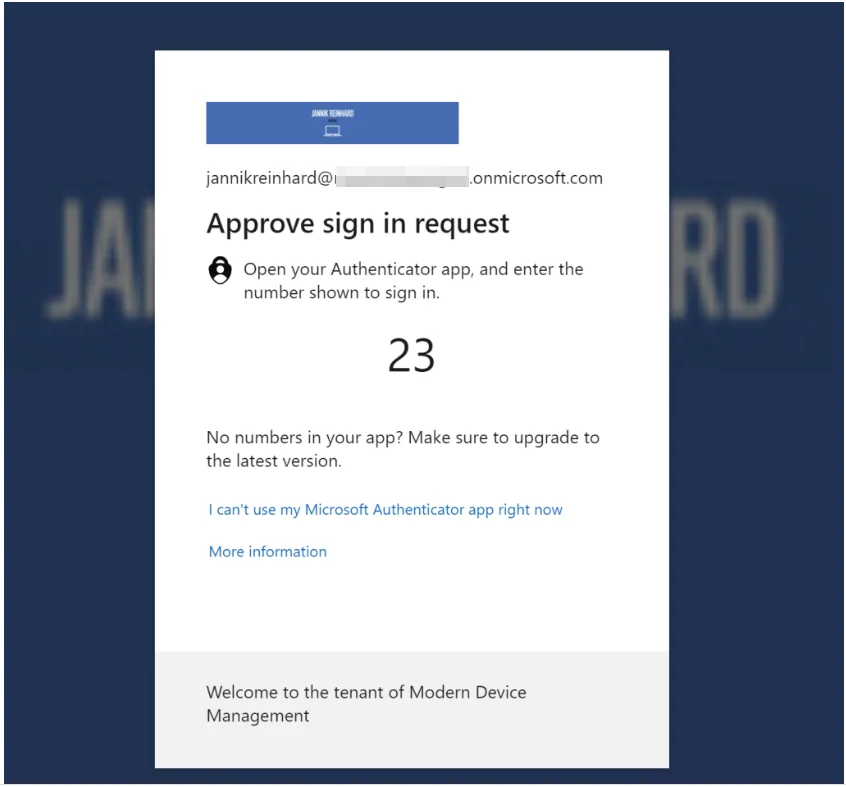
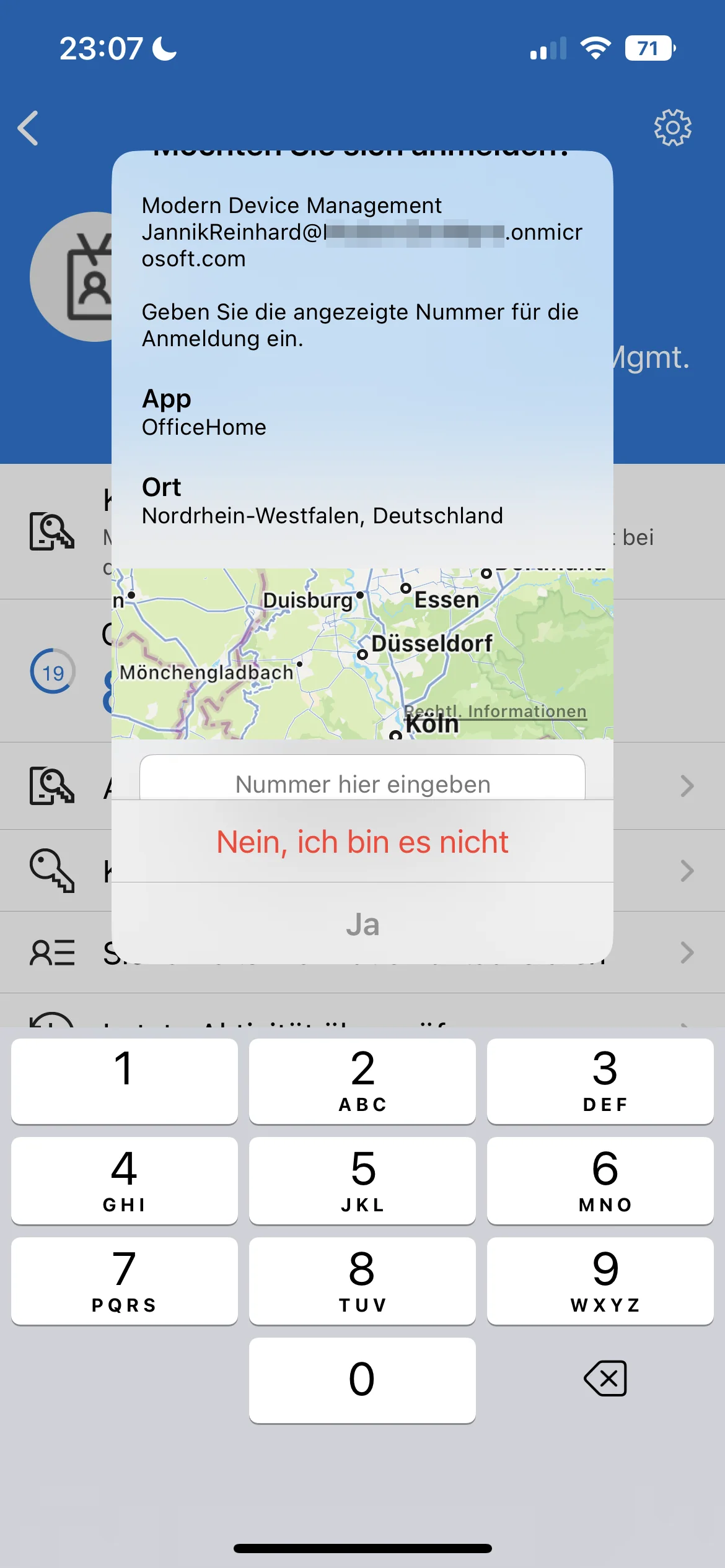
- A number is displayed that you must then enter in the app
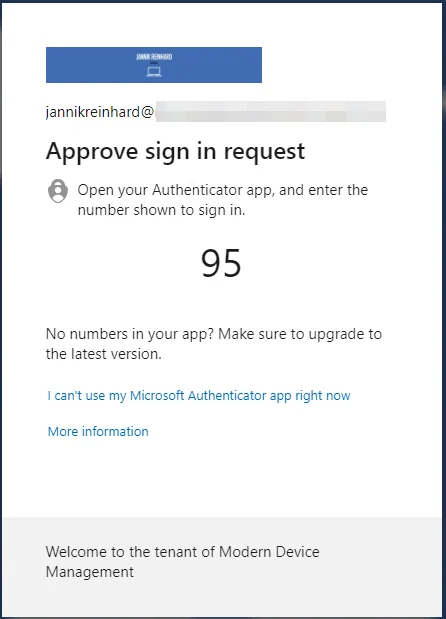
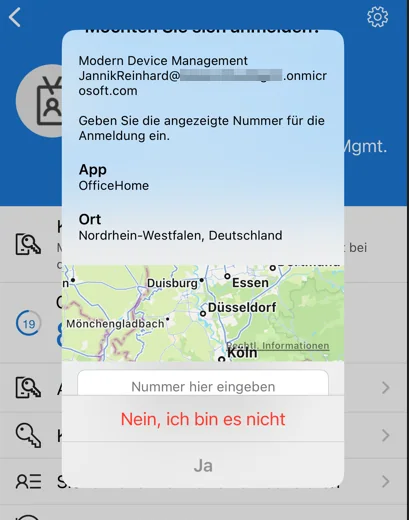
- Show application name in push and passwordless notification
- You see the app name in my case OfficeHome for office.com
- Show geographic location in push and passwordless notification
- You see a map where the authentication request come from
How to activate passwordless authentication
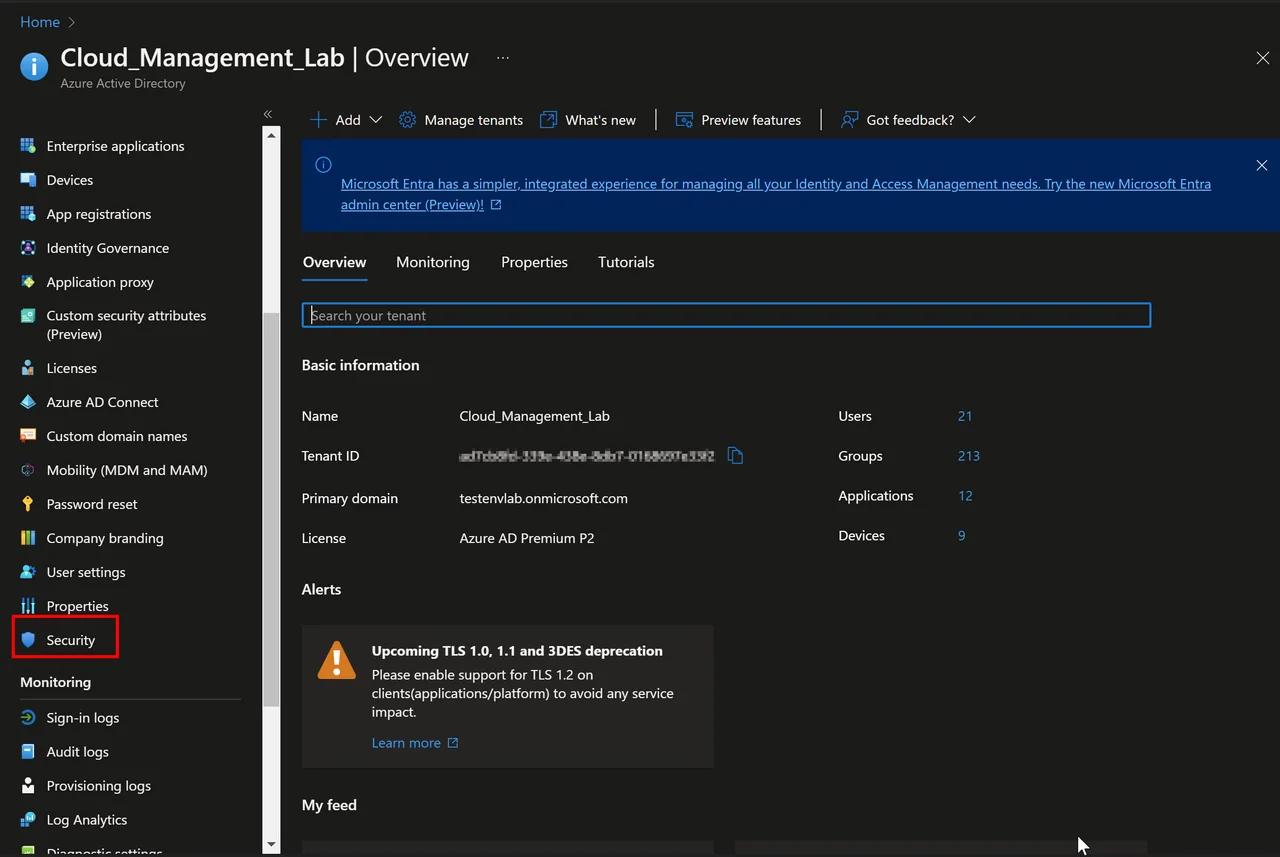
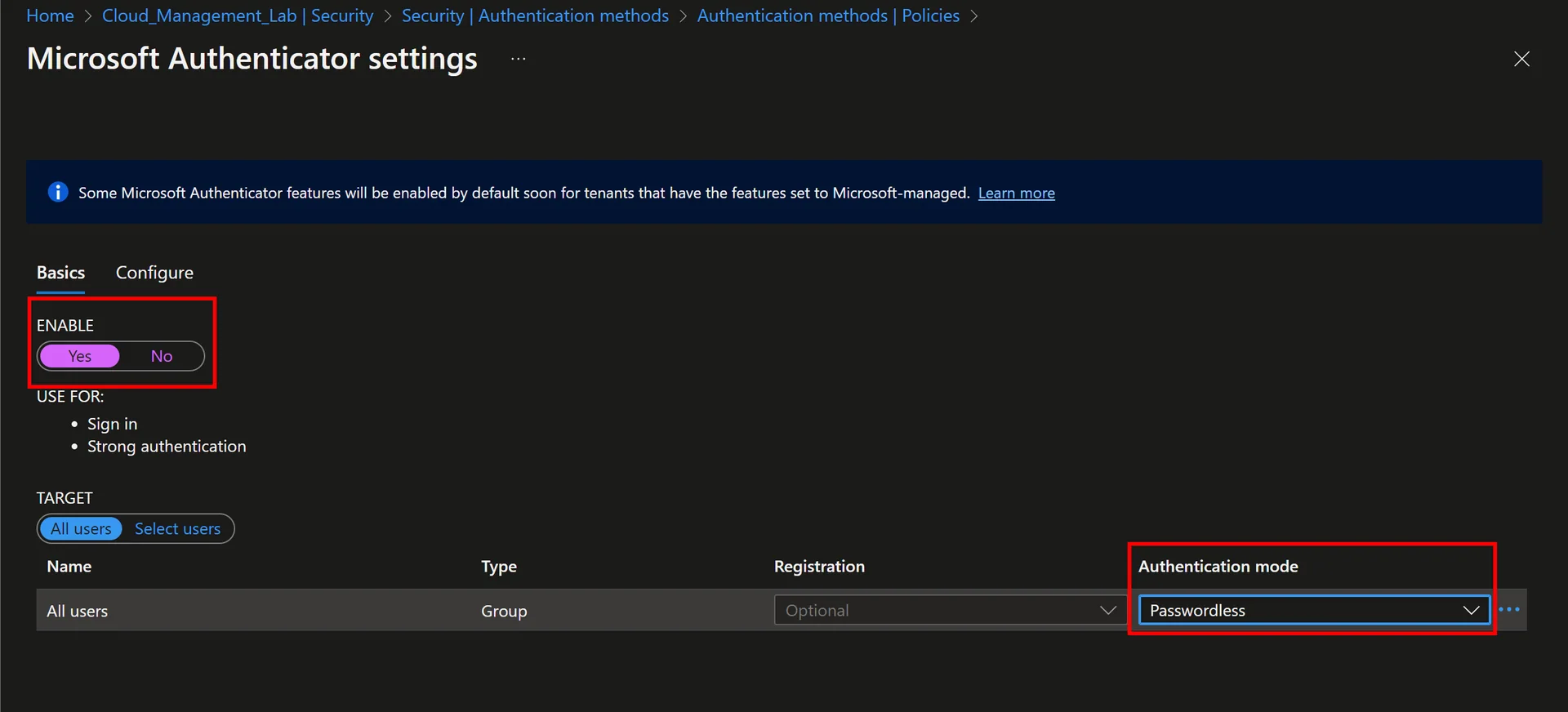
- Open the Microsoft Entra ID in the Browser
- Navigate to Security
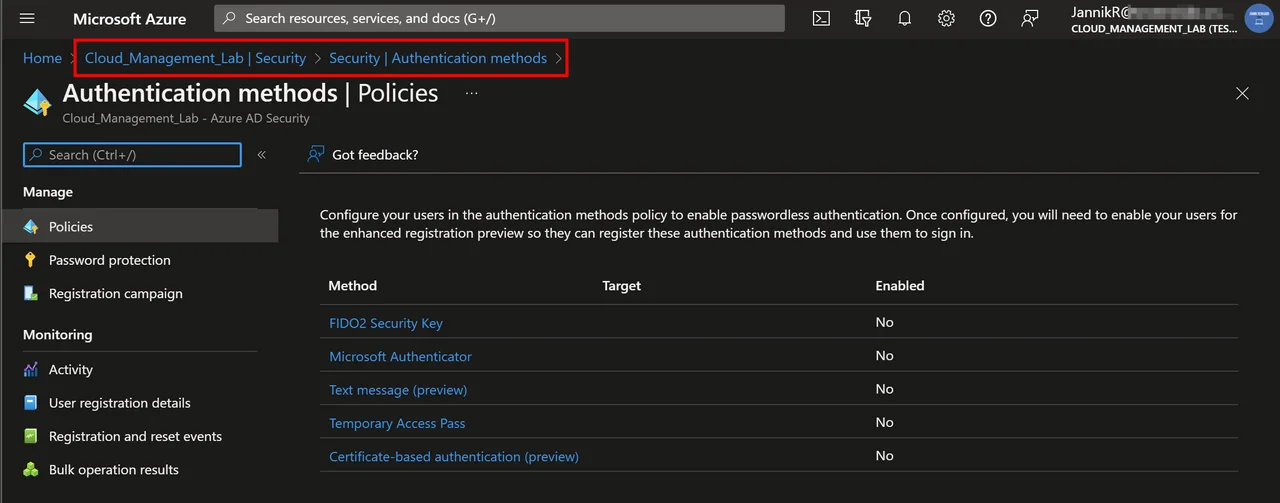
- Navigate to Authentication methods > Policies
- Select Microsoft Authenticator
- Enable the Option
- Select as Authentication mode Passwordless
- Click Configure
- Here you find some new options (described above)
- Click Save
Enable the Microsoft Authenticator passwordless policy
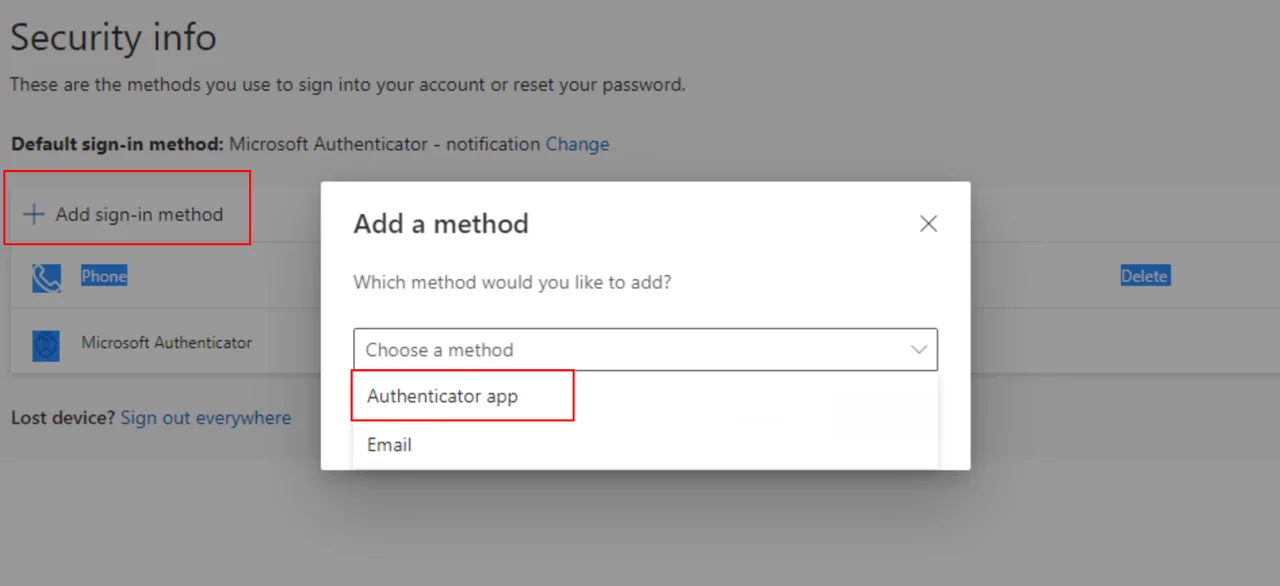
- Open https://aka.ms/mysecurityinfo
- Click +Add sign-in method
- Select Authenticator app
- Click Next
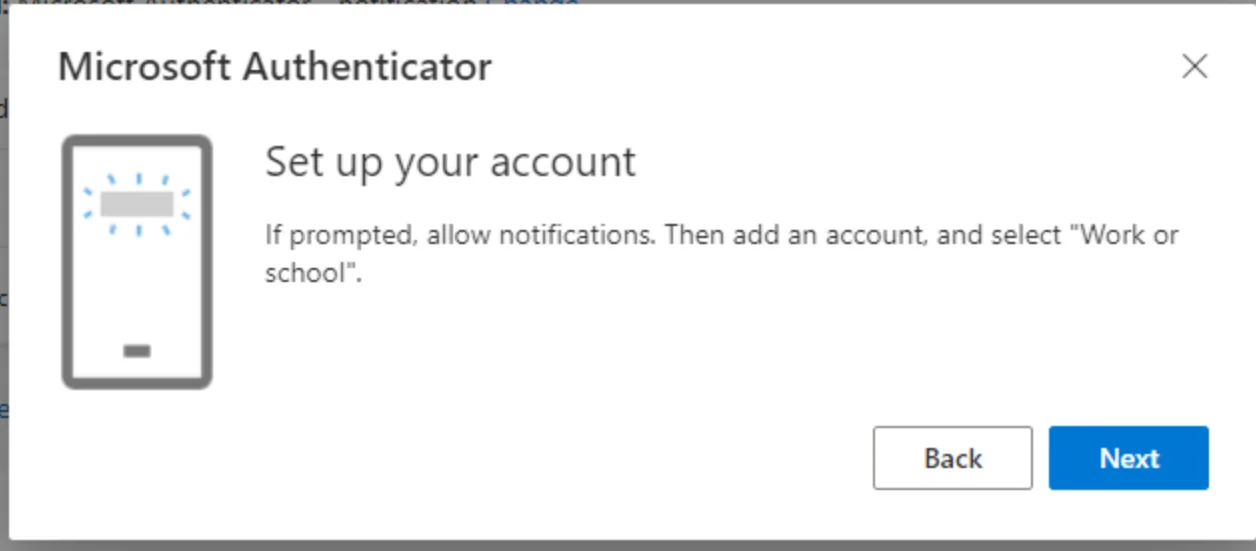
- Download the Authenticator App on your Smartphone
- Click Next
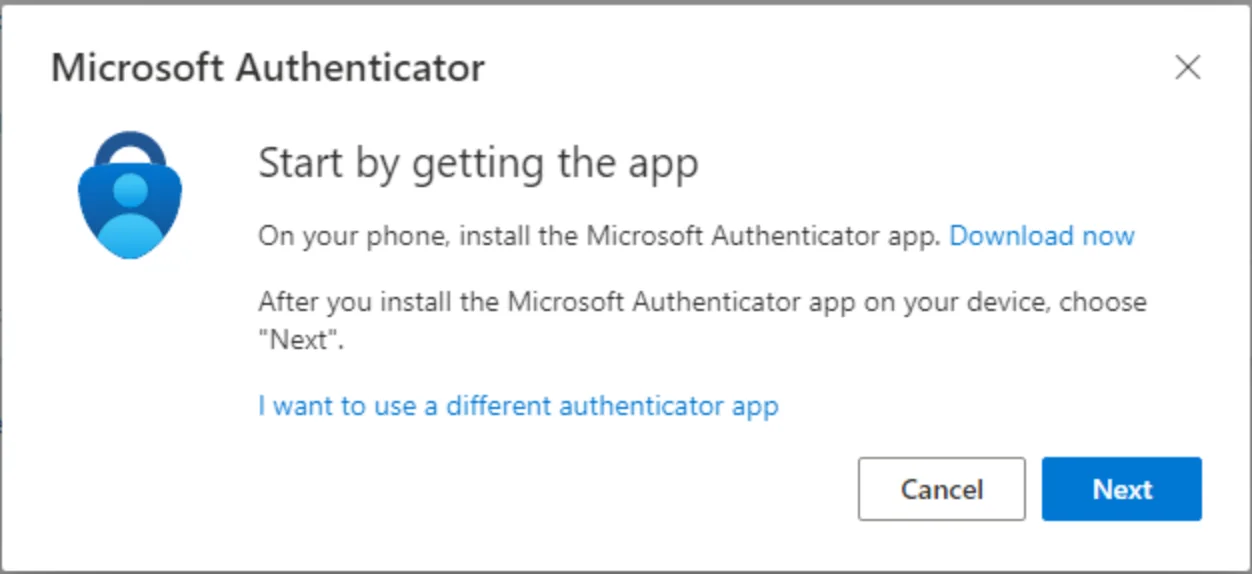
- Click Next
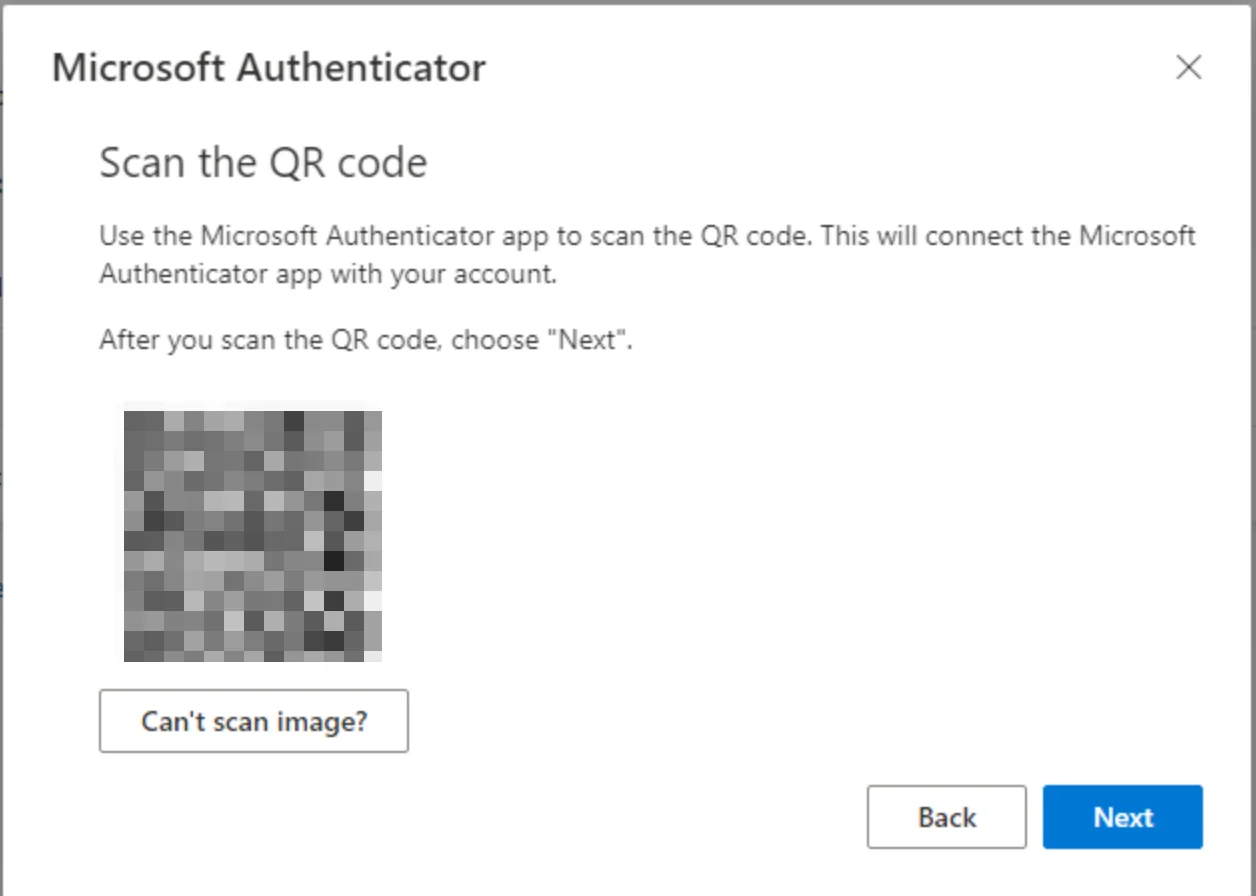
- Scan the code with the App
- Click Next
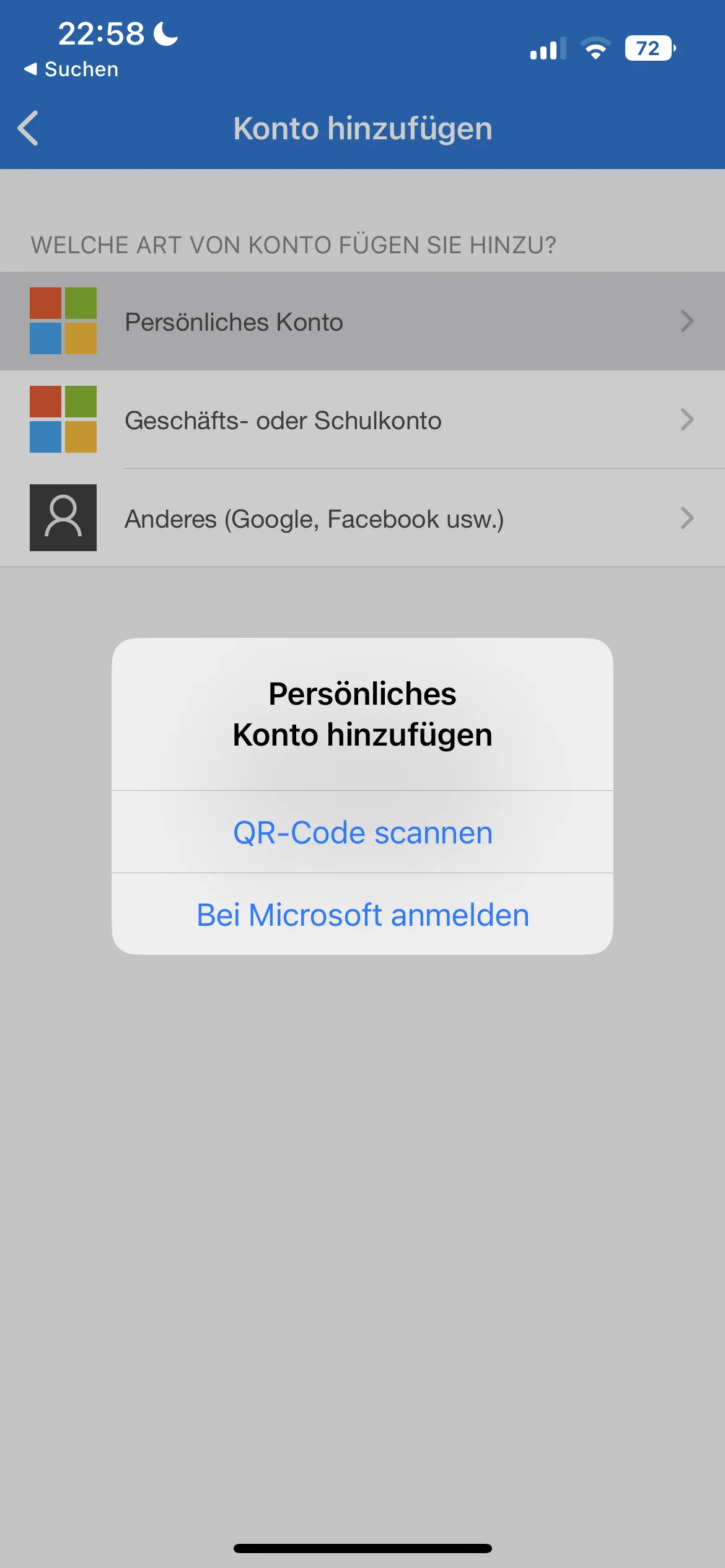
-
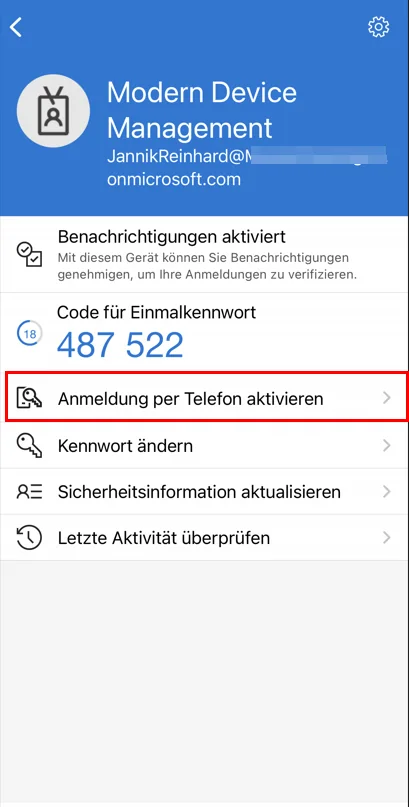
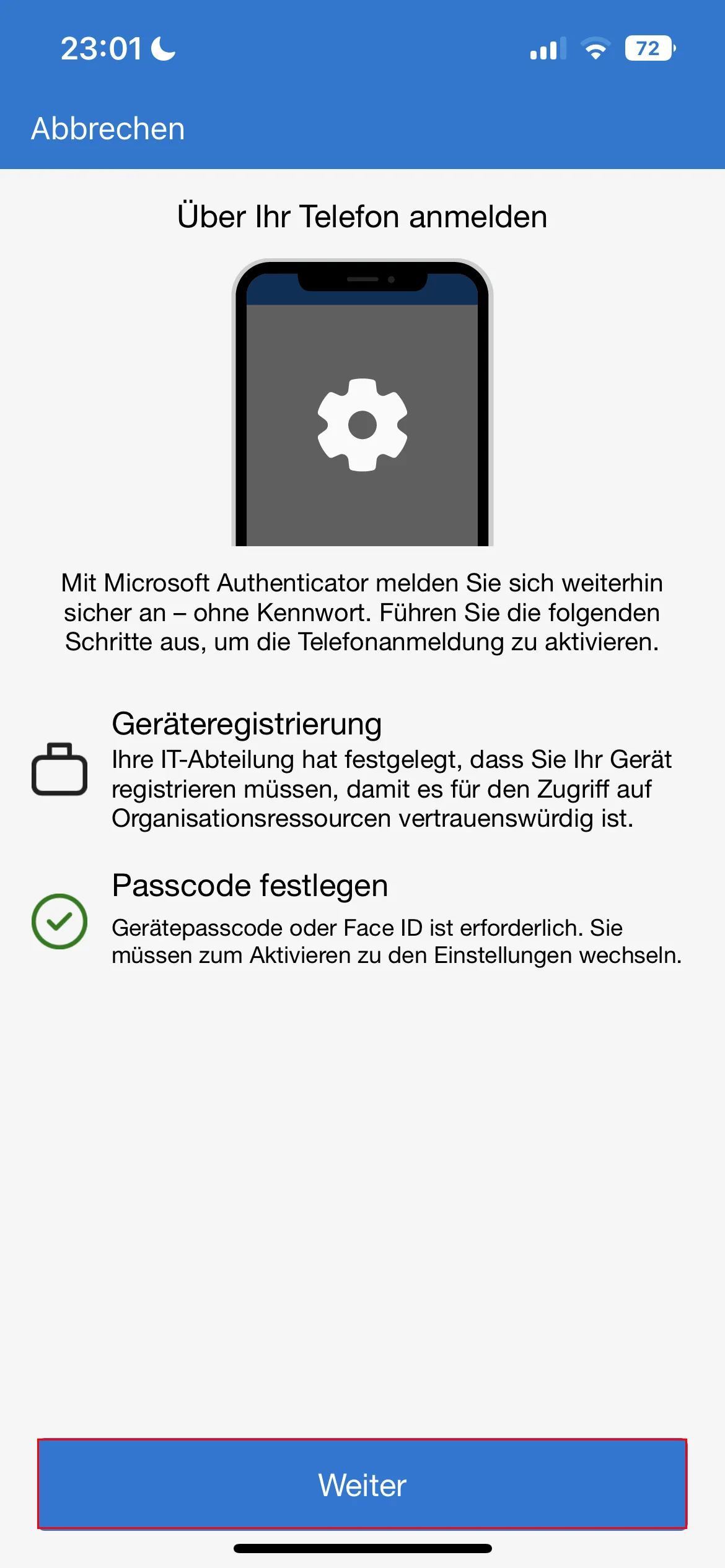
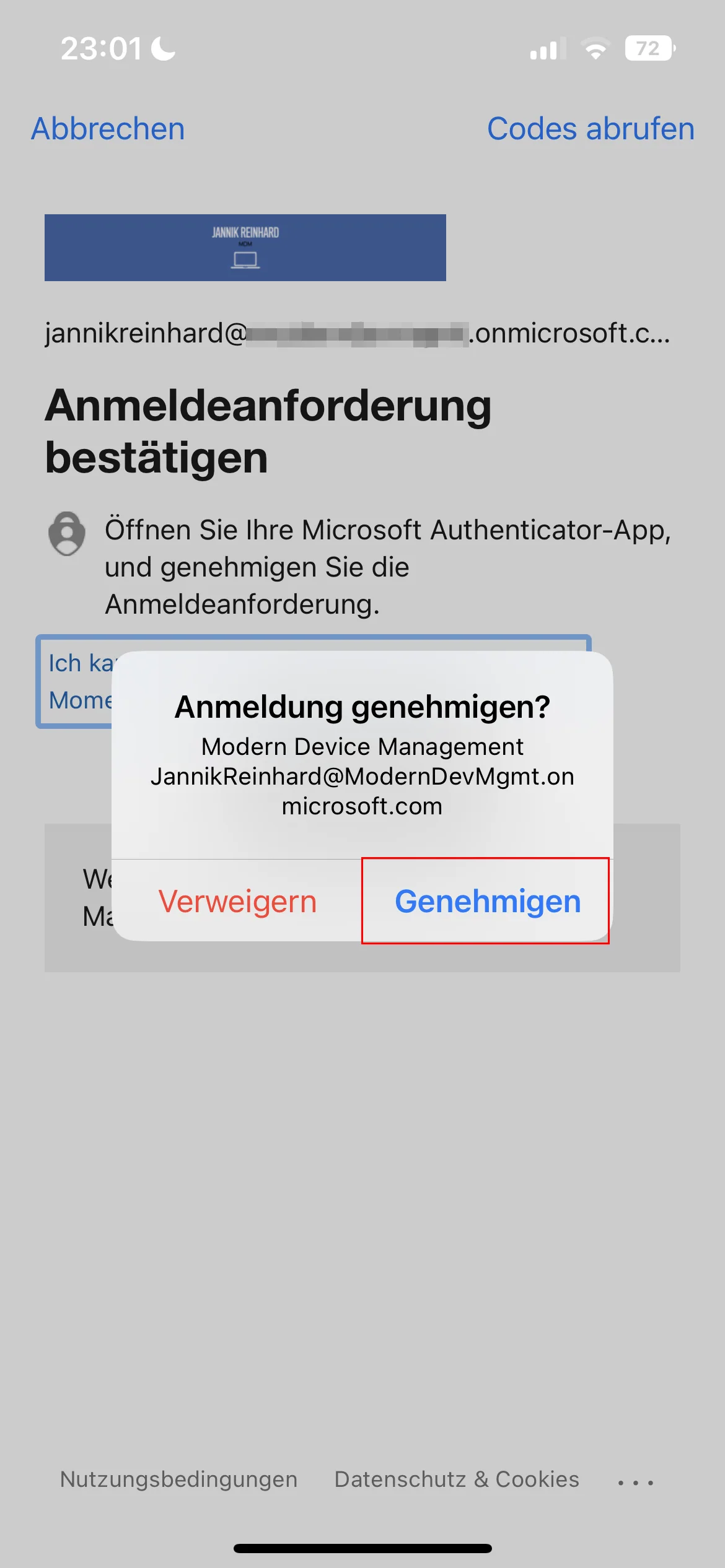
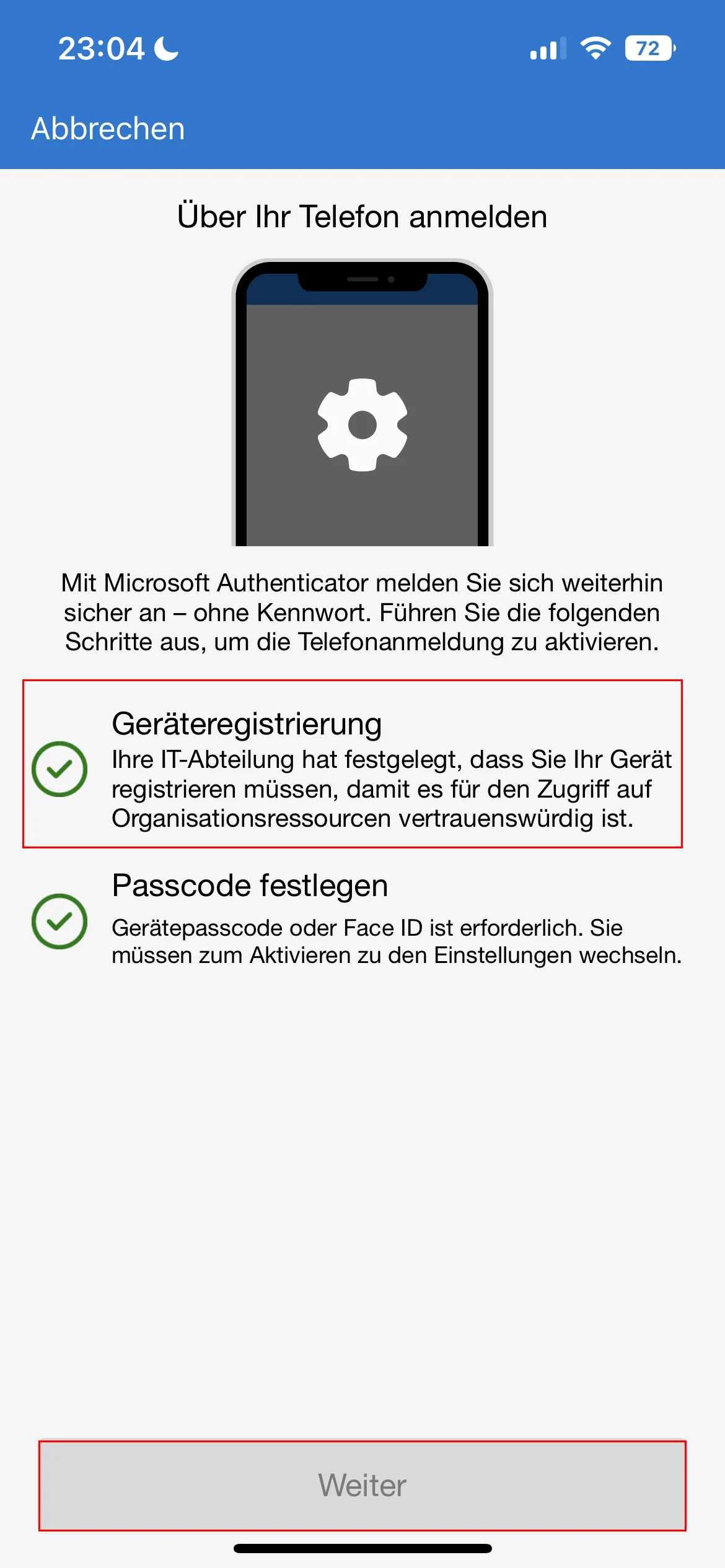
Select “Activate Login per Phone“
-
Follow the Steps
-
-
-
-
How does the authentication flow look like
- The user opens a page like office.com
- The user enters their email / UPN
- The user is shown a number which they must enter in the Authenticator app
Get the configuration via MS Graph
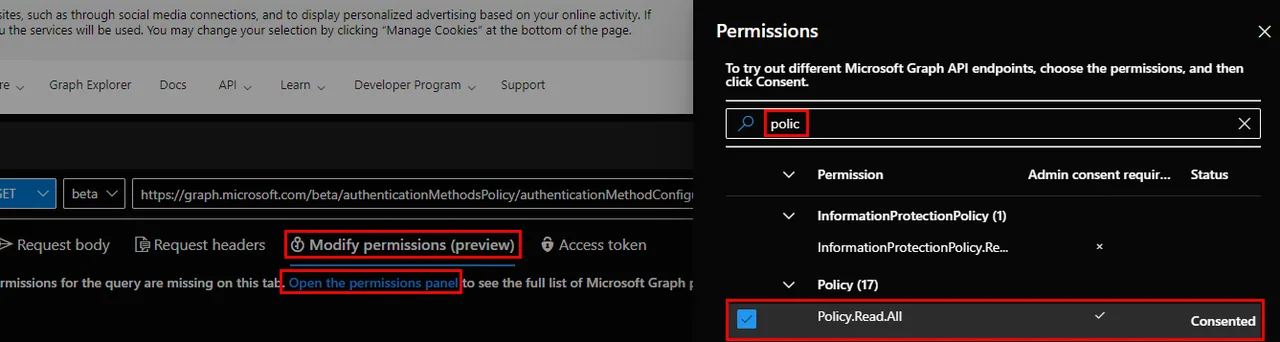
- Open the Graph Explorer
- Add the Policy.ReadAll permissions
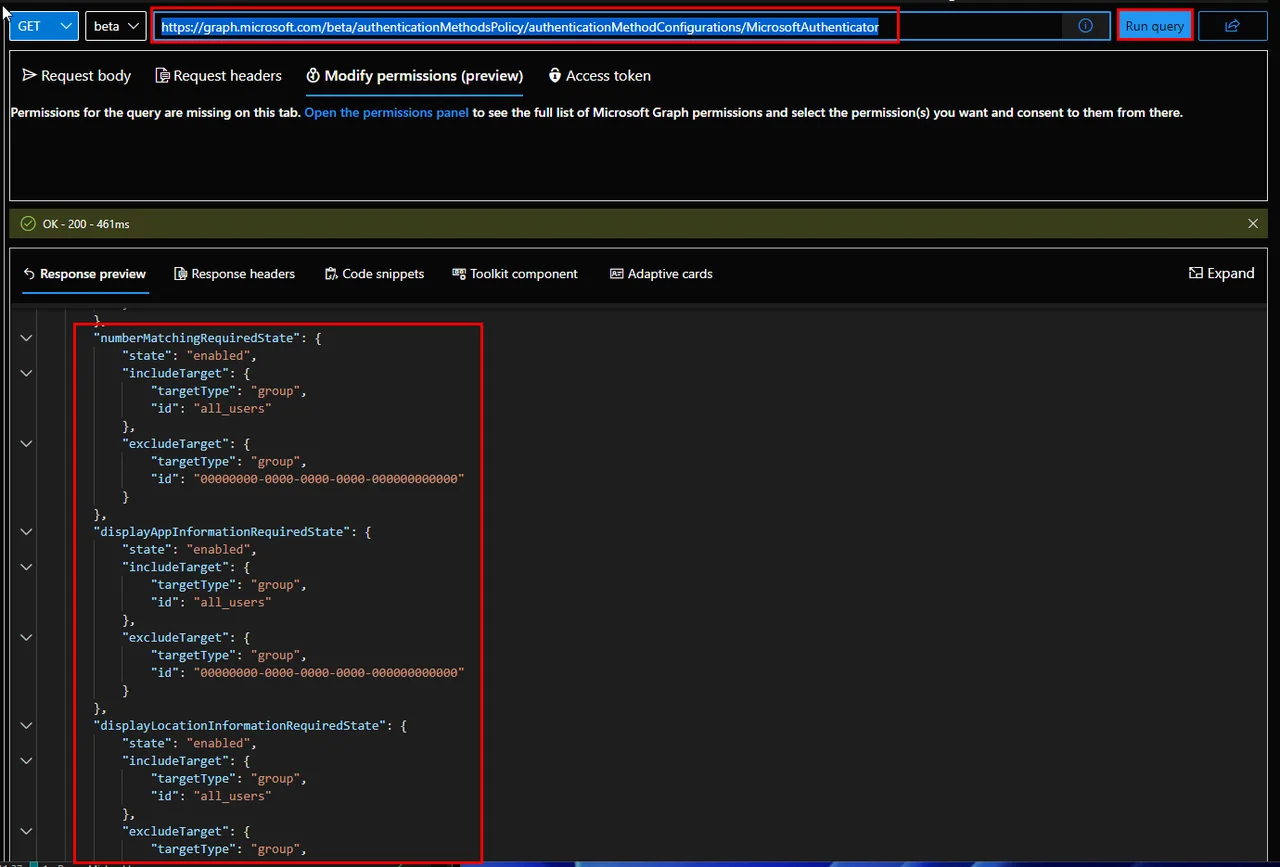
- Execute a GET call:
https://graph.microsoft.com/beta/authenticationMethodsPolicy/authenticationMethodConfigurations/MicrosoftAuthenticator
Conclusion and next steps
Rolling out passwordless authentication with the Microsoft Authenticator app gives your users a faster, phishing-resistant sign-in experience while removing the weakest link in most environments: the reusable password. Once the policy is enabled and your users have registered the app, you can combine it with Conditional Access and number matching to raise your security posture even further.
If you want to go fully passwordless, consider rolling out Windows Hello for Business and FIDO2 security keys alongside the Authenticator app so that every persona, from standard users to administrators, has a strong credential. For a deeper look at securing your endpoints end to end, have a look at my endpoint security guide. With a few clicks in the admin center you have laid the foundation for a modern, password-free identity strategy that scales with your organization.