
Intune Group Assignment Script: Find Policy and App Targets
Find Intune policy and app assignments for an Entra group. Review script permissions, inclusion and exclusion targets, and paging limits before making changes.

Update 06.09.2026: Checked the linked version 2.3 source. Corrected permission and completeness claims. This was a source review, not a tenant execution.
This Intune Group Assignment Script helps you inspect which supported configuration objects directly include or exclude a selected Microsoft Entra group. I explain how to run it, read the output and extend the object types it checks.
A few months ago I released a script which lists you all assignments of a Microsoft Entra ID group in Intune. With this blog post I will release a new version of this script which includes more configuration objects and improves a lot of the code parts. If you manage a large tenant, the Intune Group Assignment Script will save you hours of manual clicking in the portal.
What is the purpose of the Intune Group Assignment Script
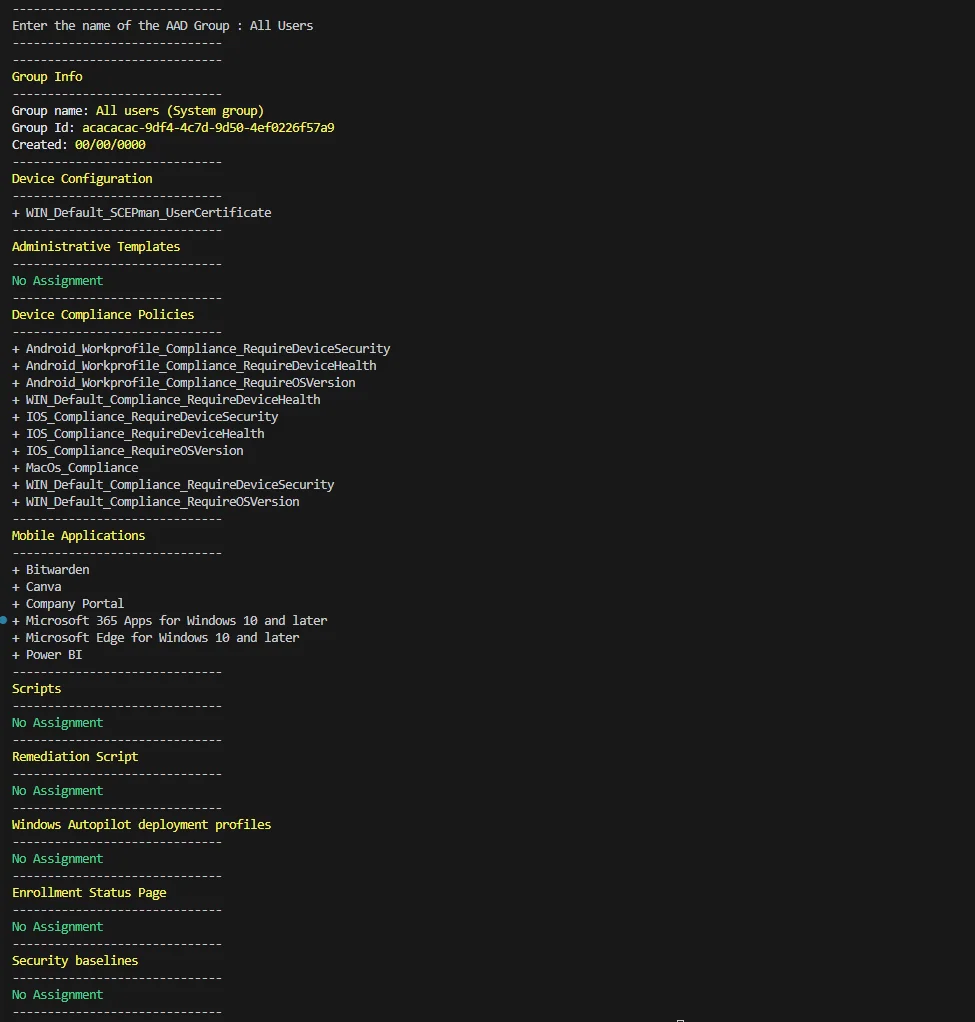
It is not possible via the UI or via a single graph call to get a list of all assignments of a specific Microsoft Entra ID group. For example if you are wondering if a group is still in use or if you want to troubleshoot a specific assignment. This script helps you to find exactly this out and get all configuration objects of a single group. The Intune Group Assignment Script queries Microsoft Graph for you and returns a clean, readable overview of every object a group is targeting.
Which objects are included
The script currently supports the following configuration objects in Intune:
- Device Configuration
- Administrative Templates
- Device Compliance Policies
- Mobile Applications
- Scripts
- Remediation Script
- Windows Autopilot deployment profiles
- Enrollment Status Page
- Security baselines
Because the Intune Group Assignment Script reads everything through Microsoft Graph, it always reflects the live state of your tenant. You can learn more about the underlying assignment model in the official Microsoft Learn documentation.
Prerequisites and permissions
Review the downloaded script before granting consent. Version 2.3 requests DeviceManagementConfiguration.Read.All and DeviceManagementApps.Read.All. Its group lookup also needs an appropriate delegated group-read permission and the account needs the relevant Intune role. Consent requirements depend on your tenant policy; an ordinary admin account does not automatically have consent authority.
A practical example
For example, investigate a group such as SEC-Win-Baseline-Pilot before changing it. Compare the reported assignments with the portal. The result is an investigation aid, not proof that a group is safe to delete: other workloads, unsupported object types, assignment filters and effective membership also matter.
How to get the script
You can find the script in my github repository or in the powershell gallery:
Install-Script -Name Get-AllAadGroupAssignments
Get-AllAadGroupAssignments
Once installed, running the Intune Group Assignment Script only requires you to authenticate against your tenant and pass the group you want to inspect. For more of my Intune tooling, check out my other posts on jannikreinhard.com.
How can I add new topics to the script
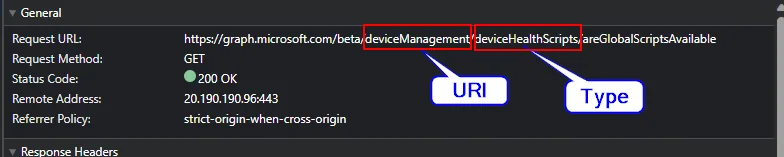
It is really easy. You only have to add this code block to end of the script:
Get-Topic -topicHeadline "Remediation Scripts" -groupId $group.id -uri "deviceManagement" -type "deviceHealthScripts" -uriAssignment "assignments"Add the name of the topic and set the graph uri and the type. You can find this via the graph explorer:
Common pitfalls
The script compares assignment targets with the selected group; it does not calculate every device’s effective policy. A dynamically populated group can still have a direct assignment. Also review paging: the linked version 2.3 helper reads one response’s value and does not follow @odata.nextLink. Large collections can therefore produce incomplete results. Validate completeness before relying on an empty report.
Final thoughts on the Intune Group Assignment Script
Use the script to make assignment investigations easier, then verify the result against the relevant configuration objects. Keep the script version and any local changes with your audit notes. Do not use its output alone to authorize deleting a group.