
Tracking Windows 11 Upgrades with Azure Automation and Intune
Tracking Windows 11 Upgrades made easy: build an automated Azure Automation and Intune report that emails your fleet status in just a few steps.
In today’s blog, I will address a question from one of our community members, who is looking to create a report for Tracking Windows 11 Upgrades via Azure Automation Runbook and Microsoft Intune. He has tried to gather enrolled devices details using a runbook but hasn’t found a solution yet. In this post, we will demonstrate how to generate a report on Tracking Windows 11 Upgrades with Intune and Azure Automation, so you always know exactly where your fleet stands during the migration.
Tracking Windows 11 Upgrades is one of the most important reporting tasks for any modern workplace team. Without a clear overview, it is hard to plan deployment rings, communicate progress to management, or spot devices that are stuck on Windows 10. By combining Azure Automation with Intune, you get a fully automated, scheduled report that keeps the whole process effortless and consistent across your entire device estate.
Content
- Content
- Why Tracking Windows 11 Upgrades matters
- How to create an azure automation account
- How to get the report
Why Tracking Windows 11 Upgrades matters
Tracking Windows 11 Upgrades gives administrators real, actionable data instead of guesswork. With Windows 10 reaching end of support, every organization needs a reliable way to prove compliance and prioritize the remaining devices. Microsoft documents the official end-of-support timeline on Microsoft Learn, which is a great reference when you build your reporting strategy around Tracking Windows 11 Upgrades.
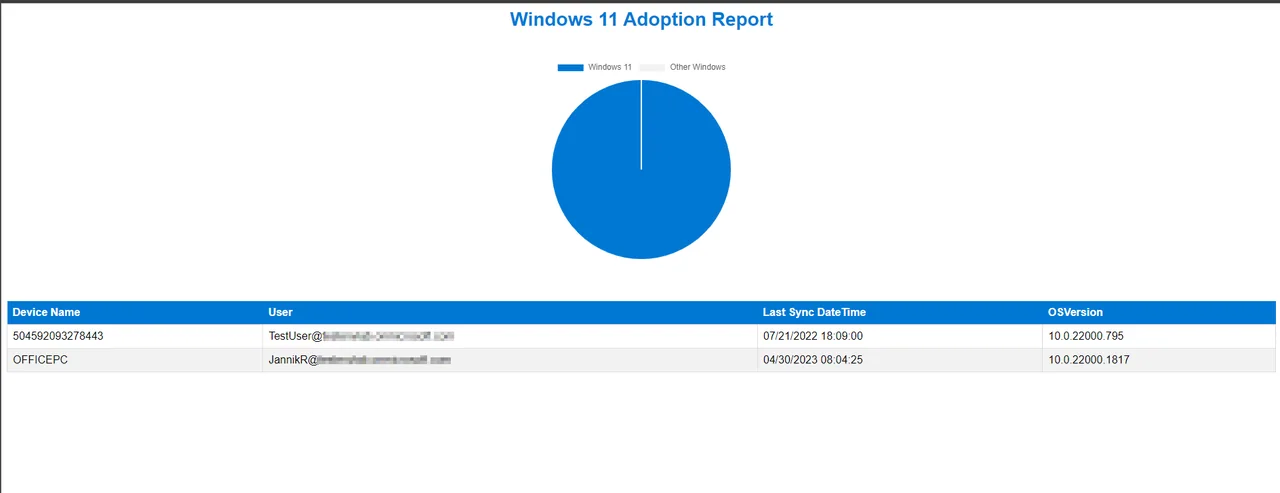
The approach below sends a scheduled email with a pie chart and a full device table, turning Tracking Windows 11 Upgrades into a hands-off process that runs on its own and lands in your inbox.
How to create an azure automation account
I have already written a very detailed blog on how to get started with Azure Automation and Runbooks. It’s best to read this blog first, because Tracking Windows 11 Upgrades relies on a working managed identity and the correct modules. You have to make sure that the Graph.Authentication module is installed and you need API graph permissions for:
- Mail.Send
- DeviceManagementManagedDevices.Read.All
How to get the report
You can find the script in my GitHub repository or here. You have to copy the script into your runbook:
# Variables
$MailTo = ""
$MailSender = ""

# Authenticate and connect to Microsoft Graph
Connect-AzAccount -Identity
$token = Get-AzAccessToken -ResourceUrl "https://graph.microsoft.com"

#Connect to Microsoft Graph API
Connect-MgGraph -AccessToken $token.Token

# Get Windows devices from Intune
$devices = Get-MgDeviceManagementManagedDevice -all -Filter "contains(operatingSystem,'Windows')"


# Filter Windows 11 devices
$windows11Devices = $devices | Where-Object { $_.OsVersion -ge "10.0.22000" }

# Calculate device counts
$totalDevices = $devices.Count
$windows11DevicesCount = $windows11Devices.Count

# Calculate pie chart percentages
$windows11Percentage = ($windows11DevicesCount / $totalDevices) * 100
$otherWindowsPercentage = 100 - $windows11Percentage


# Create HTML report
$html = @"
<style>
    body {
        font-family: Arial, sans-serif;
    }
    h1 {
        font-size: 28px;
        color: #0078d4;
        margin-top: 0;
        text-align: center;
    }
    .chart-container {
        display: flex;
        flex-wrap: wrap;
        justify-content: center;
    }
    .pie-chart {
        width: 300px;
        height: 300px;
        margin: 20px;
    }
    .device-list {
        margin-top: 40px;
    }
    table {
        border-collapse: collapse;
        width: 100%;
    }
    th {
        background-color: #0078d4;
        color: #fff;
        font-weight: bold;
        padding: 8px;
        text-align: left;
    }
    td {
        border: 1px solid #ddd;
        padding: 8px;
    }
    tr:nth-child(even) {
        background-color: #f2f2f2;
    }
</style>
<h1>Windows 11 Adoption Report</h1>
<div class="chart-container">
    <div class="pie-chart">
        <canvas id="chart"></canvas>
    </div>
</div>
<div class="device-list">
    <table>
        <thead>
            <tr>
                <th>Device Name</th>
                <th>User</th>
                <th>Last Sync DateTime</th>
                <th>OSVersion</th>
            </tr>
        </thead>
        <tbody>
"@
foreach ($device in $devices) {
    $html += "<tr><td>$($device.DeviceName)</td><td>$($device.EmailAddress)</td><td>$($device.LastSyncDateTime)</td><td>$($device.OSVersion)</td></tr>"
}
$html += @"
        </tbody>
    </table>
</div>
<script src="https://cdn.jsdelivr.net/npm/chart.js"></script>
<script>
    var ctx = document.getElementById('chart').getContext('2d');
    var chart = new Chart(ctx, {
        type: 'pie',
    data: {
            labels: ['Windows 11', 'Other Windows'],
            datasets: [{
            backgroundColor: ['#0078d4', '#f2f2f2'],
            data: [$windows11Percentage, $otherWindowsPercentage]
            }]
            },
            options: {
            legend: {
            display: true,
            position: 'bottom',
            labels: {
            fontColor: '#333',
            fontSize: 14,
            padding: 16
            }
            }
            }
            });
            </script>
"@

$html | Out-File -FilePath "Windows11AdoptionReport.html"
$base64 = [Convert]::ToBase64String([IO.File]::ReadAllBytes(".\Windows11AdoptionReport.html"))

#Send Mail
$URLsend = "https://graph.microsoft.com/v1.0/users/$MailSender/sendMail"
$BodyJsonsend = @"
{
    "message": {
      "subject": "Intune error report",
      "body": {
        "contentType": "Text",
        "content": "Dear Admin, this Mail contains the Windows 11 Adoption report"
      },
      "toRecipients": [
        {
          "emailAddress": {
            "address": "$MailTo"
          }
        }
      ],
      "attachments": [
        {
          "@odata.type": "#microsoft.graph.fileAttachment",
          "name": "Windows11AdoptionReport.html",
          "contentType": "text/plain",
          "contentBytes": "$base64"
        }
      ]
    }
  }
"@

$response = Invoke-MgRestMethod -Method POST -Uri $URLsend -Body $BodyJsonsend
A quick note on how the script decides what counts as Windows 11: it compares the OsVersion property against the build number 10.0.22000, which is the first Windows 11 release. Anything at or above that build is treated as Windows 11, and everything below it is still Windows 10. If you only want to track a specific feature update, such as 23H2, simply raise the threshold to the matching build number and the report will recalculate the percentages automatically.
You have to add the sender and receiver email into this variable:
$MailTo = ""
$MailSender = ""
That’s it. With this runbook scheduled to run daily or weekly, Tracking Windows 11 Upgrades becomes a fully automated routine that delivers a clear, visual report straight to your inbox. If you want to extend the solution, you could add filtering by group or push the data into a dashboard, but even in its simplest form this is a smart, reliable approach across your whole organization.
Common pitfalls to watch for: the most frequent issue is the managed identity missing one of the two Graph permissions, which makes the device query return empty or the mail send fail silently. Always confirm both DeviceManagementManagedDevices.Read.All and Mail.Send are granted and admin-consented. A second pitfall is a division-by-zero error when the tenant has no Windows devices yet, so during early testing it is worth wrapping the percentage calculation in a guard. Finally, remember that the runbook writes the HTML report to the temporary working directory, which is cleared after every job, so the file only needs to exist long enough to be attached to the email.