
System Information and Self Service Tool
Explore the Windows System Information and Self Service Tool. View device details and available support actions, then review deployment through Intune.
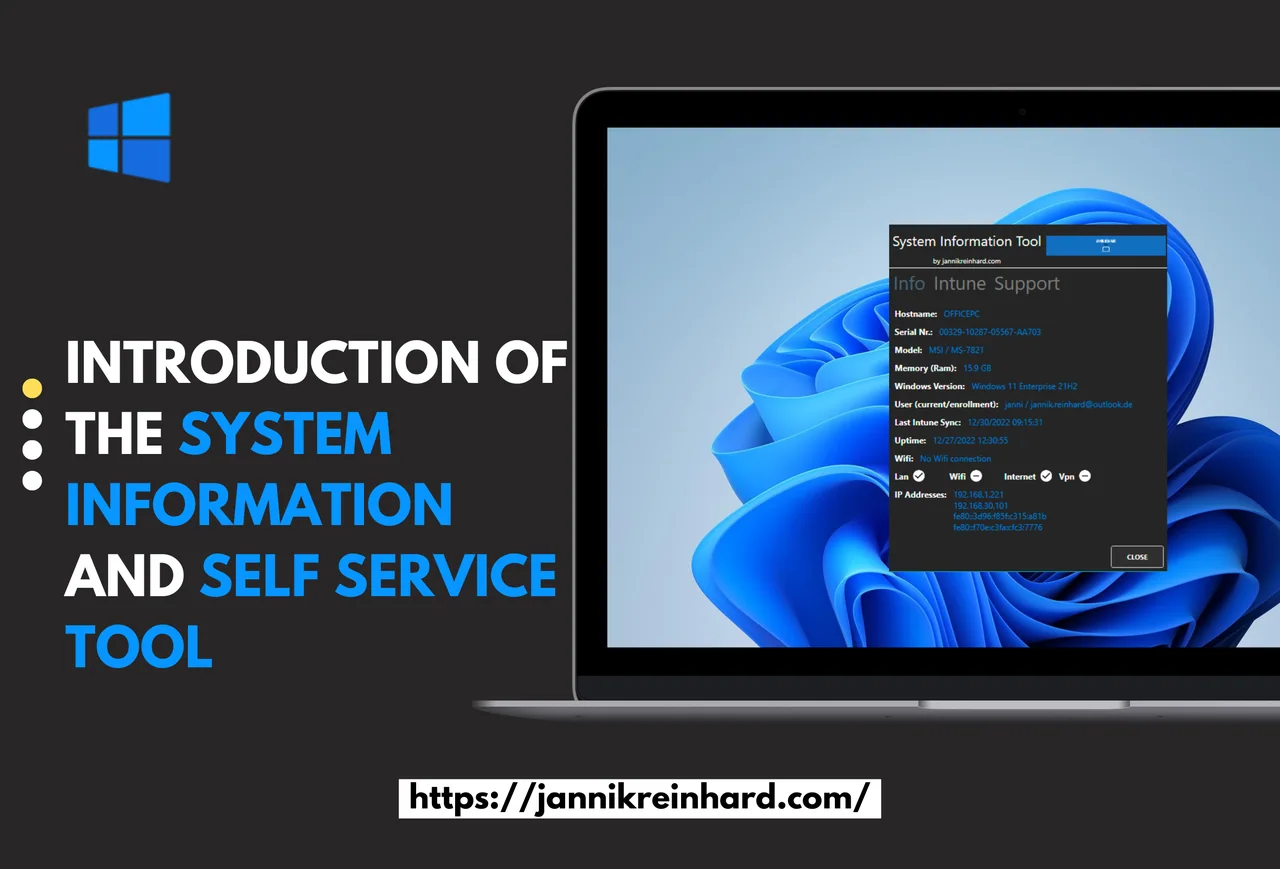
In this blog I would like to introduce you to my new System Information Tool. The System Information Tool is a software that displays various system information, such as the serial number, IP address, username and logged-in user, and many more. It also provides functions for troubleshooting and analysing problems with Intune Management and Intune Management Extension. In addition, custom scripts for self-service support can be added and provided to the user. The tool is thus a useful resource for users who need quick access to system information and assistance in troubleshooting problems.
Why use this tool?
For many support teams, gathering basic device details is a slow, manual task. The System Information Tool solves this by putting everything an admin or end user needs on a single screen. Instead of digging through multiple menus, you get the serial number, IP address and Intune status instantly. Because the tool also bundles self-service actions, it reduces the number of help desk tickets and empowers users to fix common issues on their own. If you manage devices with Microsoft Intune, this tool fits naturally into your existing workflow.
Where can I find the System Information Tool?
You can find the tool and all sources in my GitHub repository. If you want to learn more about how device management works behind the scenes, you can also read the official Microsoft Intune documentation on Microsoft Learn. For related content, check out my other posts on the jannikreinhard.com blog.
How can I install it?
In this repository there is a “Install-SystemInformationTool.ps1” script to install the tool on the device. Once the installation is done you can find the tool in the Start menu. You can use this also to package the application as Win32 app to distribute via Intune. If you don’t want to install the tool you can also use the “Start-SystemInformationTool.ps1” to execute the application. This flexibility makes the tool easy to roll out whether you are testing on a single machine or deploying to your whole fleet.
A practical tip when packaging it as a Win32 app: set the install command to run the PowerShell script with the execution policy bypassed, and use the presence of the Start menu shortcut as your detection rule. That way Intune reliably reports the install state without you having to write a custom detection script. If your tenant blocks unsigned scripts, sign the PS1 with your internal code-signing certificate before wrapping it into the .intunewin package.
Which features does the tool have?
Information View
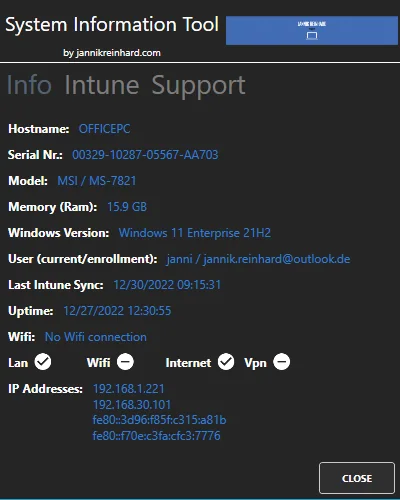
This view provides you an overview of different system attributes like Hostname, IPs, SerialNr., Ram and many more. You can also include more information here for your needs, so the tool can be tailored to exactly the data your organisation cares about.
Intune and support actions
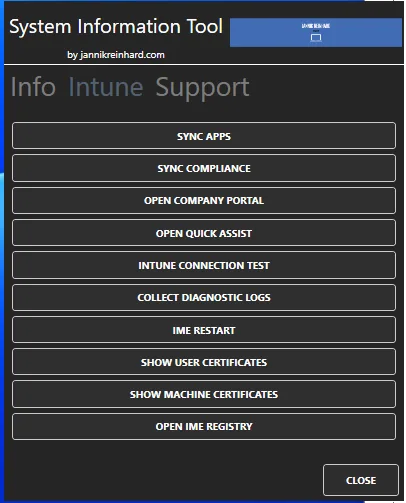
This feature provides you different actions to troubleshoot and fix the Intune management extension.
Trigger device action
You can include your custom script and self service actions in a really easy way to this tool.
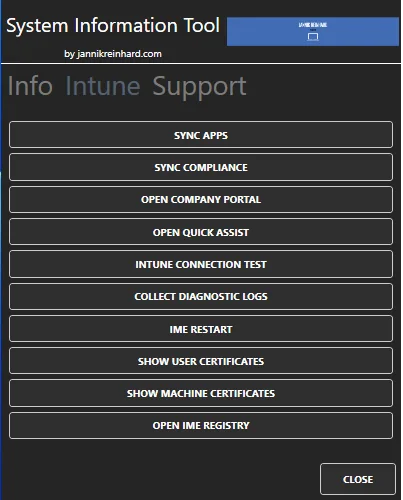
To add self service actions you have to place the PowerShell script in the script folder and add to the “_actions.json” the action name and the script name.
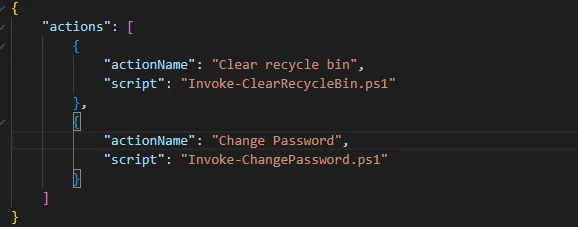
One common pitfall is forgetting that self-service actions run in the user context by default, so a script that needs elevation will silently fail for standard users. If an action requires admin rights, make sure your packaging or your script handles the elevation explicitly. It is also worth keeping the “_actions.json” file under version control, because a small typo in an action name is the most frequent reason an entry does not show up in the tool.
Conclusion
The System Information Tool is a lightweight yet powerful companion for anyone managing Windows devices with Intune. It speeds up troubleshooting, surfaces key system data at a glance and lets users run safe self-service actions. Give the System Information Tool a try in your environment and let me know how it works for you.