
The new multiple administrative approvals (MAAs)
Set up multiple administrative approvals in Microsoft Intune with this easy guide. Add a second-admin approval to protect apps and scripts fast.
2026 status update: Multi Admin Approval is a current Intune capability, not a public preview. Use this article as historical context and the current Microsoft Learn page for configuration details. Current documentation
Are you looking to add an extra layer of security to your device configurations in Microsoft Intune? The new multiple administrative approvals (MAAs) feature, introduced in the November 2211 service release, may be just what you need. In this blog post, we’ll walk you through the process of setting up and using MAAs to protect specific configurations like apps or scripts for devices. Multiple administrative approval (MAA) helps to protect in large environments with many administrators by requiring a second administrative account to approve changes before they are applied.
Currently in public preview, you can try out this new feature in your Intune tenant and provide feedback to Microsoft. Keep an eye out for updates on the general availability of MAAs, which will be announced by Microsoft in the near future. You can read the official guidance on Microsoft Learn for the latest supported scenarios.
Why use multiple administrative approvals
The multiple administrative approvals model adds a built-in four-eyes check to high-impact Intune actions. By requiring a second admin to review and approve a change to apps or scripts, you reduce the risk of accidental or malicious configuration changes reaching your managed devices. If you also manage Conditional Access, take a look at my other Intune deep dives on this blog for related hardening tips.
How to configure MAA
To configure MAA you need Intune Service Administrator or Azure Global Administrator role.
- Open the Intune Portal in the Browser
- Navigate to Tenant administration -> Multi-Admin Approval
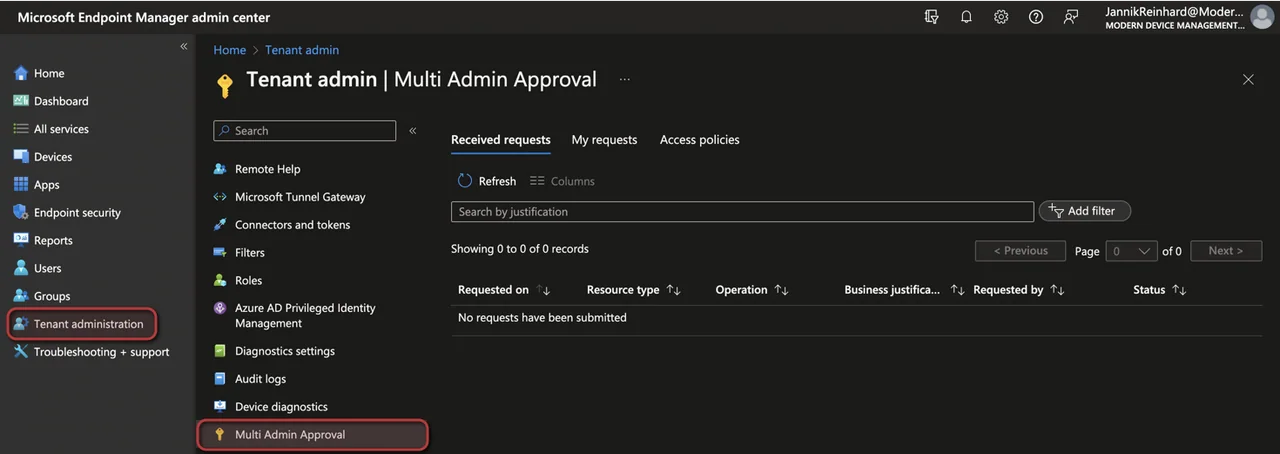
- Select Access policies
- Click + Create
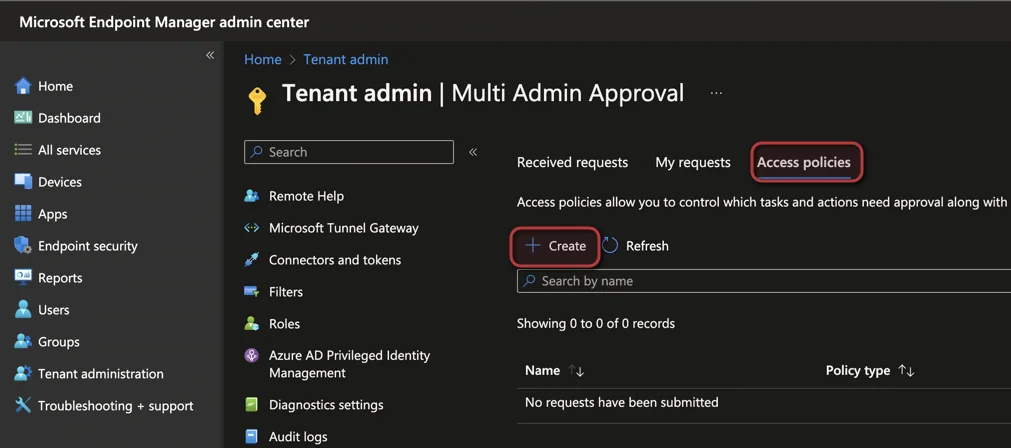
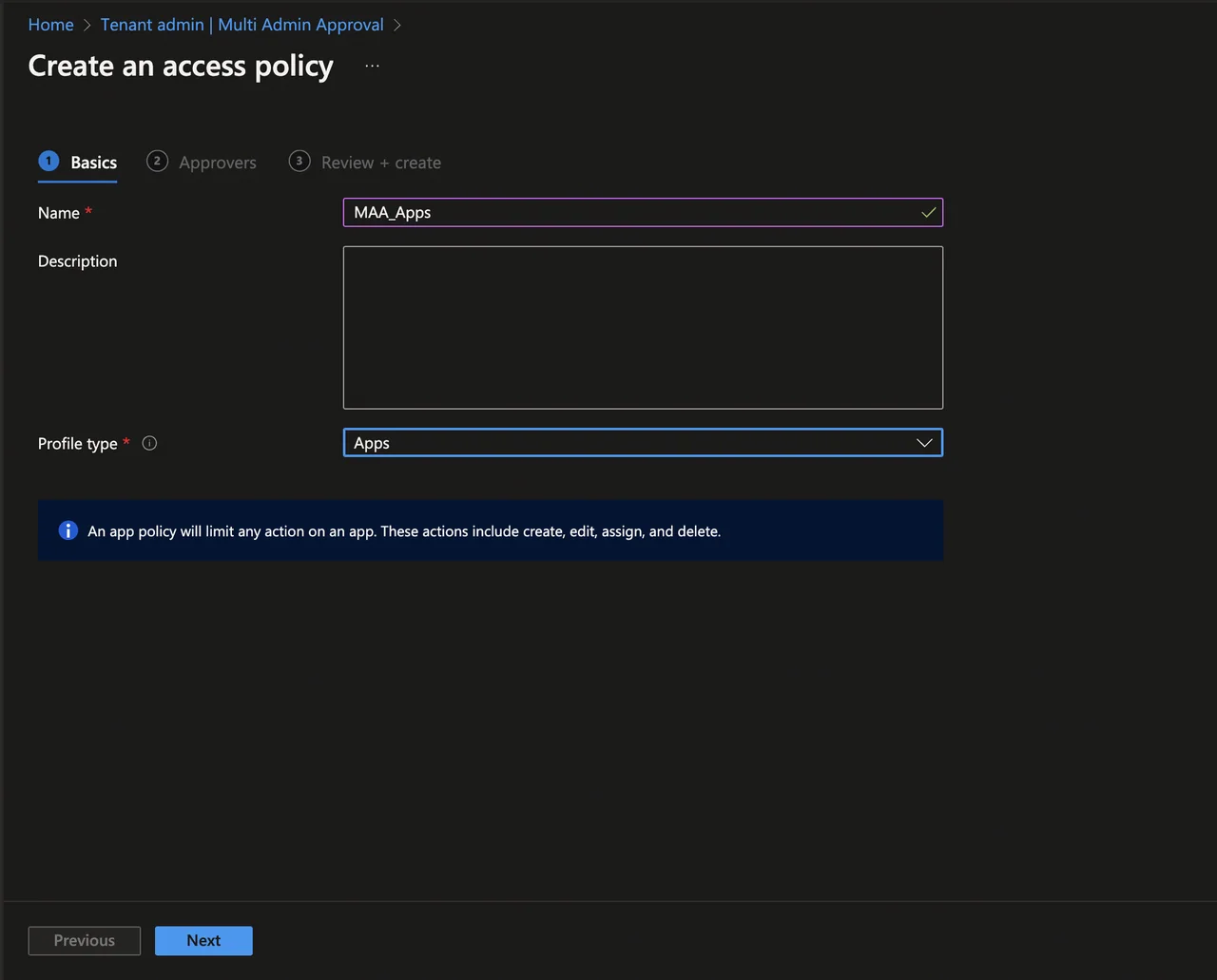
- Enter a Name and select the Profile type (Apps or Scripts)
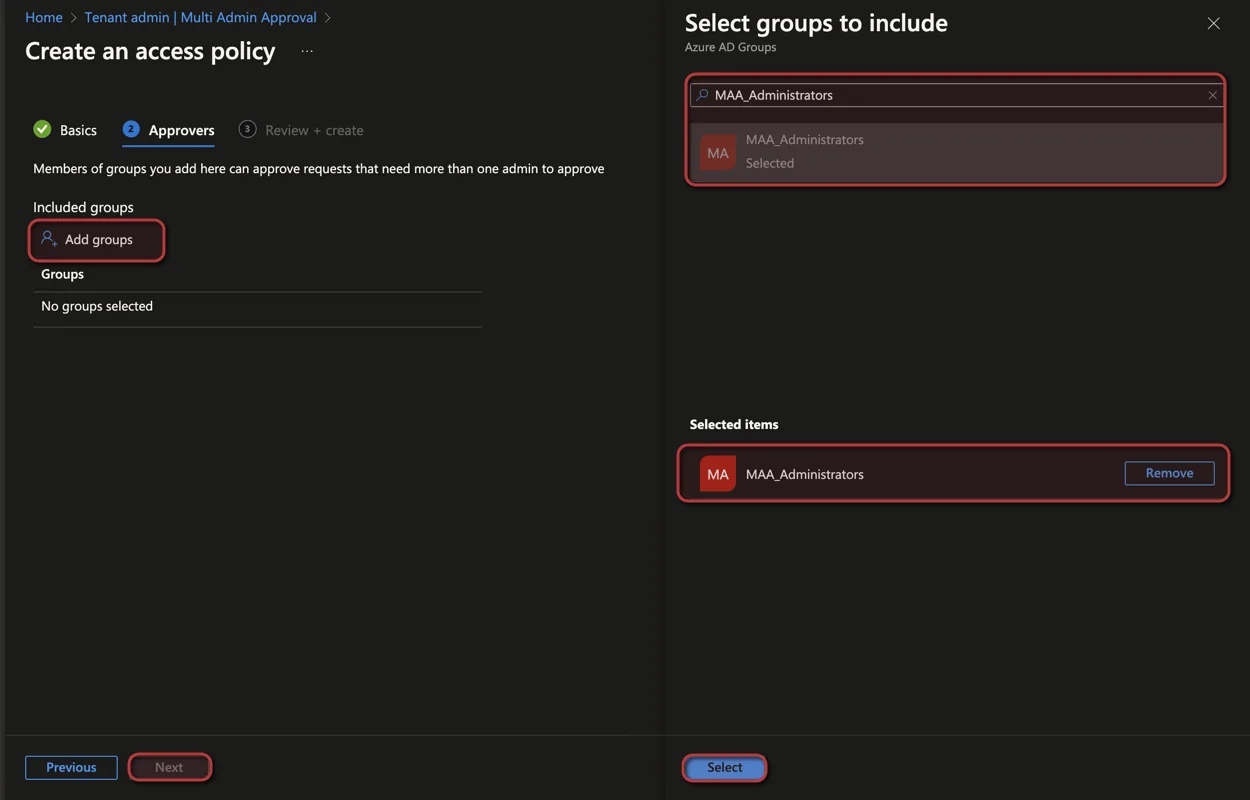
- Select the group of MAA Admins which can approve requests
- Click Next
- Click Create
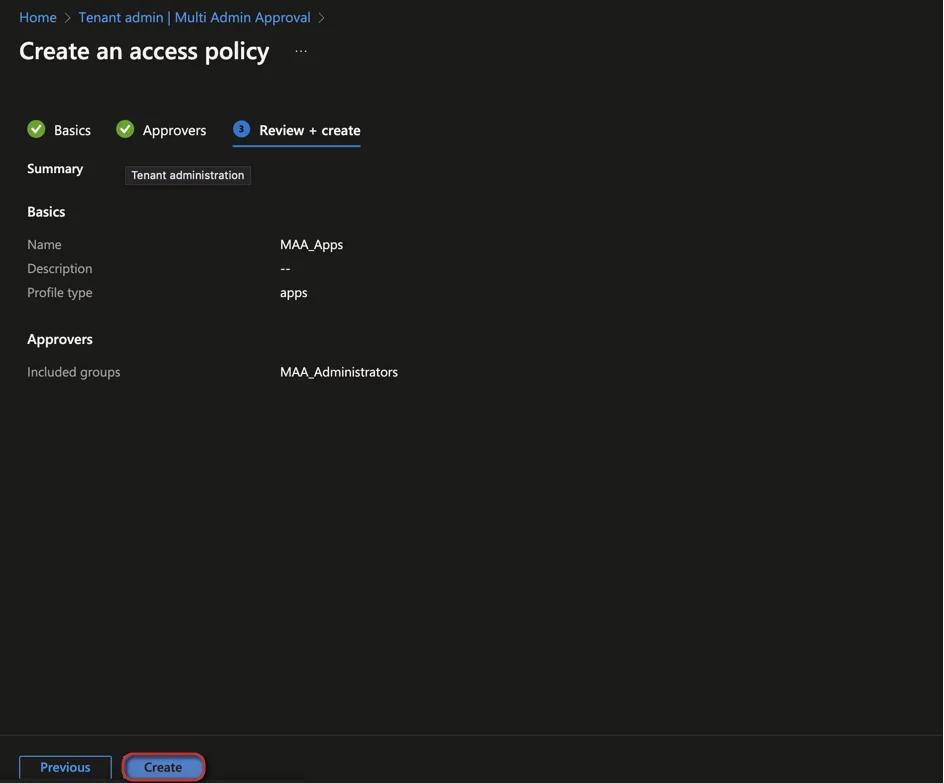
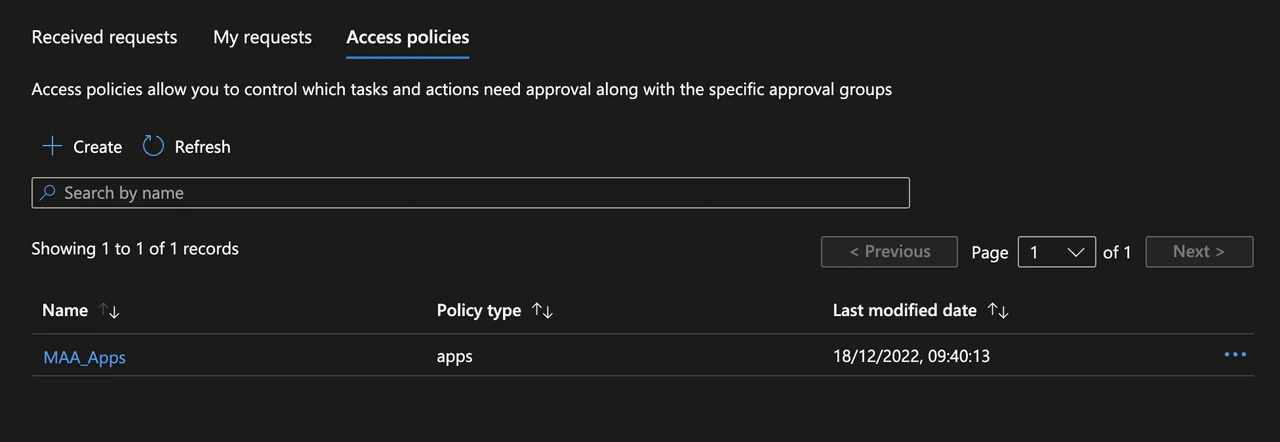
- The creation of the Access policy is done
Create a request
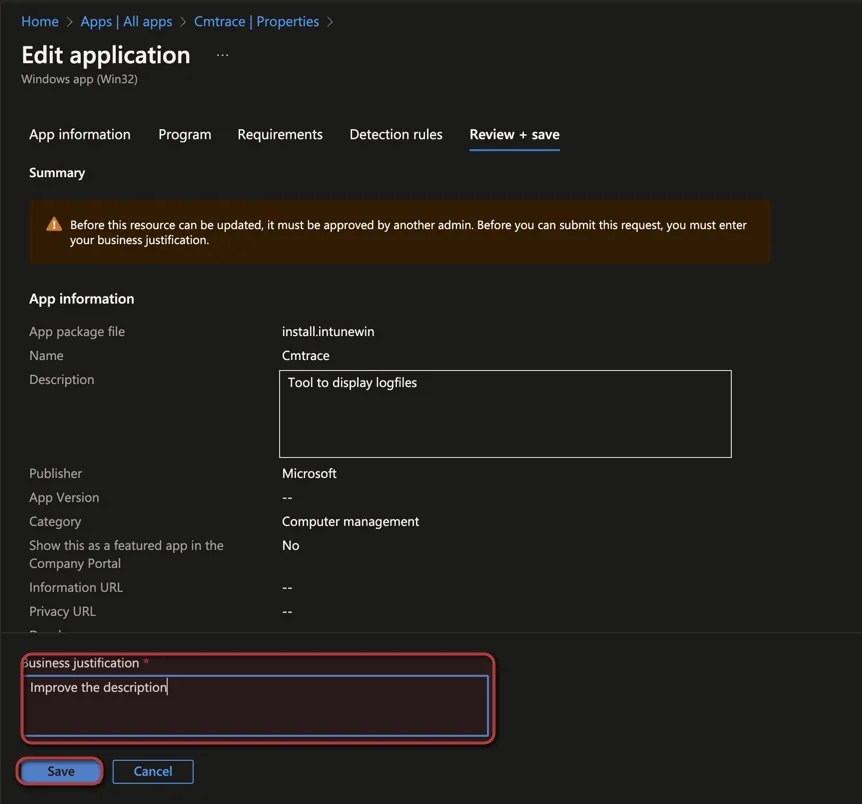
Once an access policy for MAA has been created, it becomes active immediately. When an administrator edits or creates a new object in a protected area, they will see an option on the Save + Review page to enter a description of the change as a business justification. This is required for any changes made to apps, including adding or modifying existing apps or adding new ones. The requester can include additional notes on the changes made and the reasoning behind them. Only after the business justification has been provided can the approver approve or reject the request. Then let’s test this.
- Open the Intune Portal in the Browser
- Navigate to Apps -> All Apps
- Select an app for testing (In my case CMTrace)
- Go to Properties and click Edit
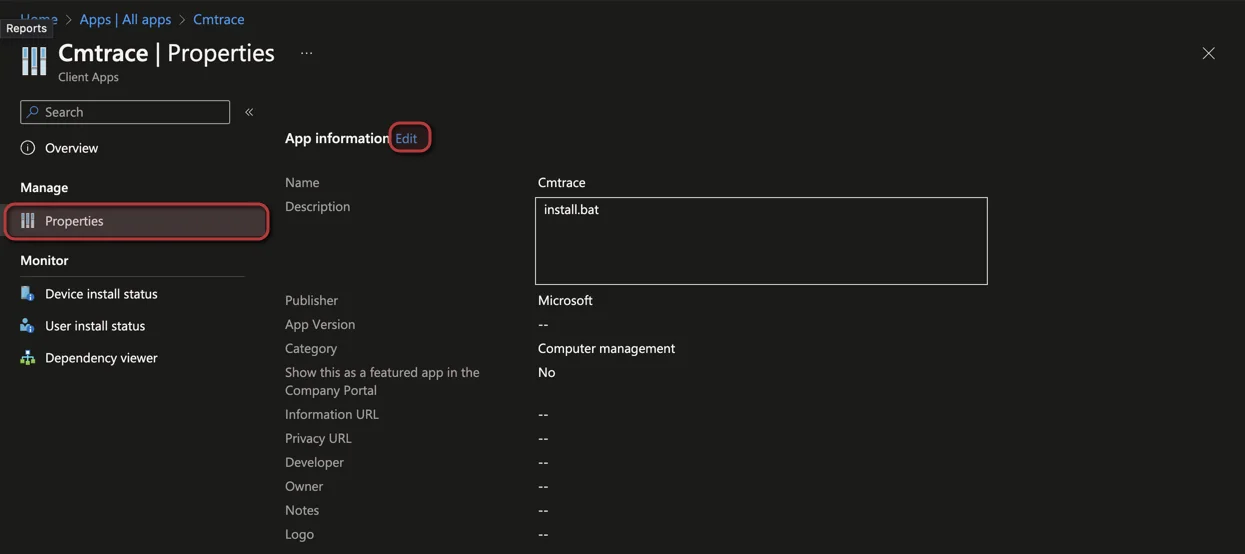
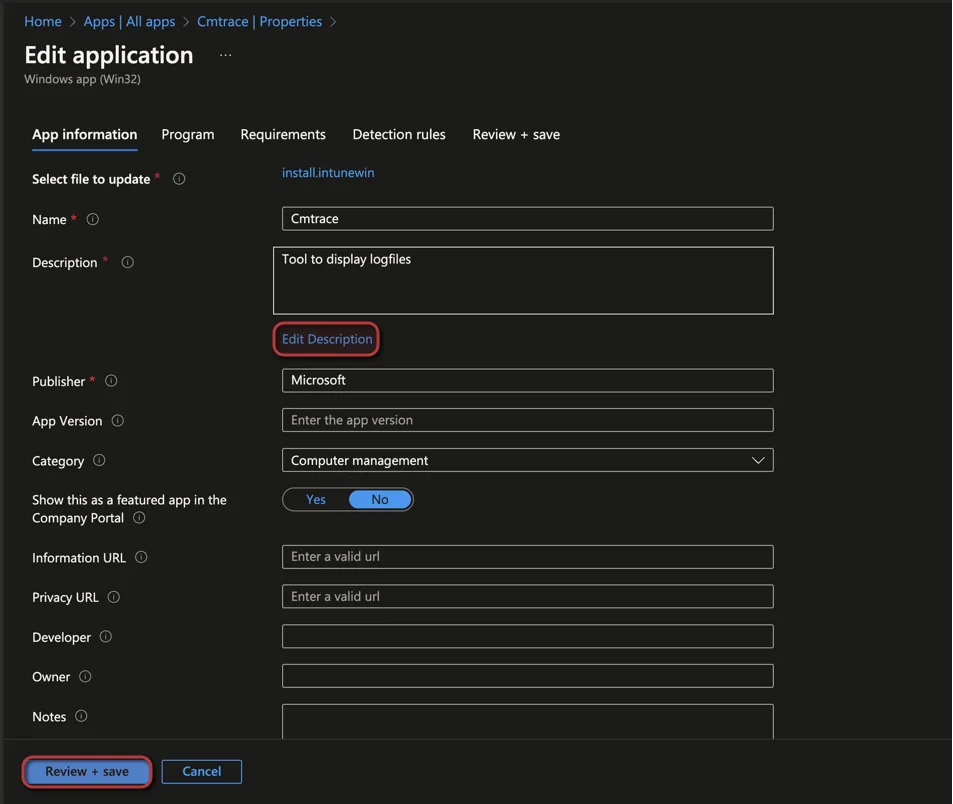
- Click Edit Description and change the description
- Click Review + Save multiple times until you are on the Review + save page
- To create an approval request you have to insert a Business justification
- Click Save
Approve the request
- Go back to the Multi-Admin Approval menu in the Tenant administration
- Here you will see your request
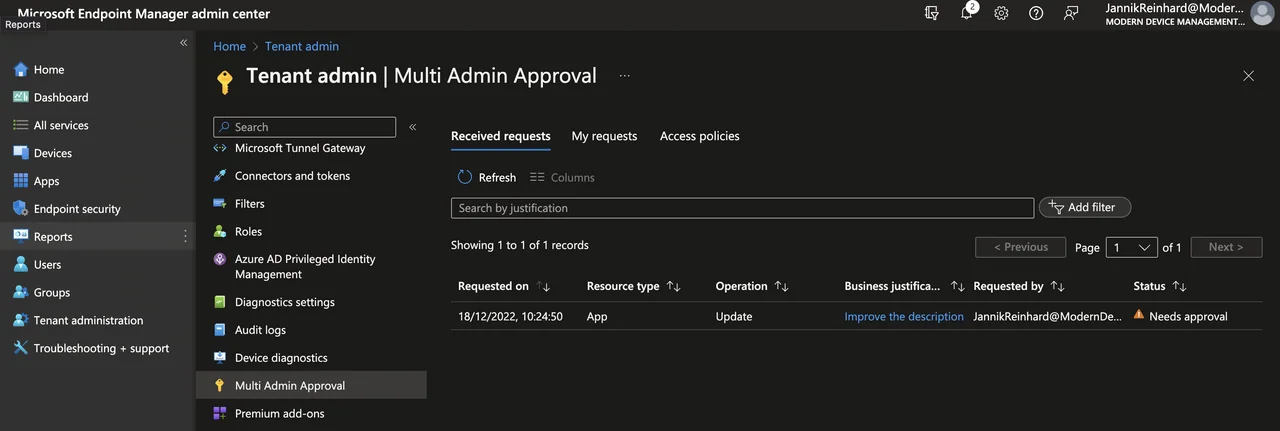
- Click in the Business justification.
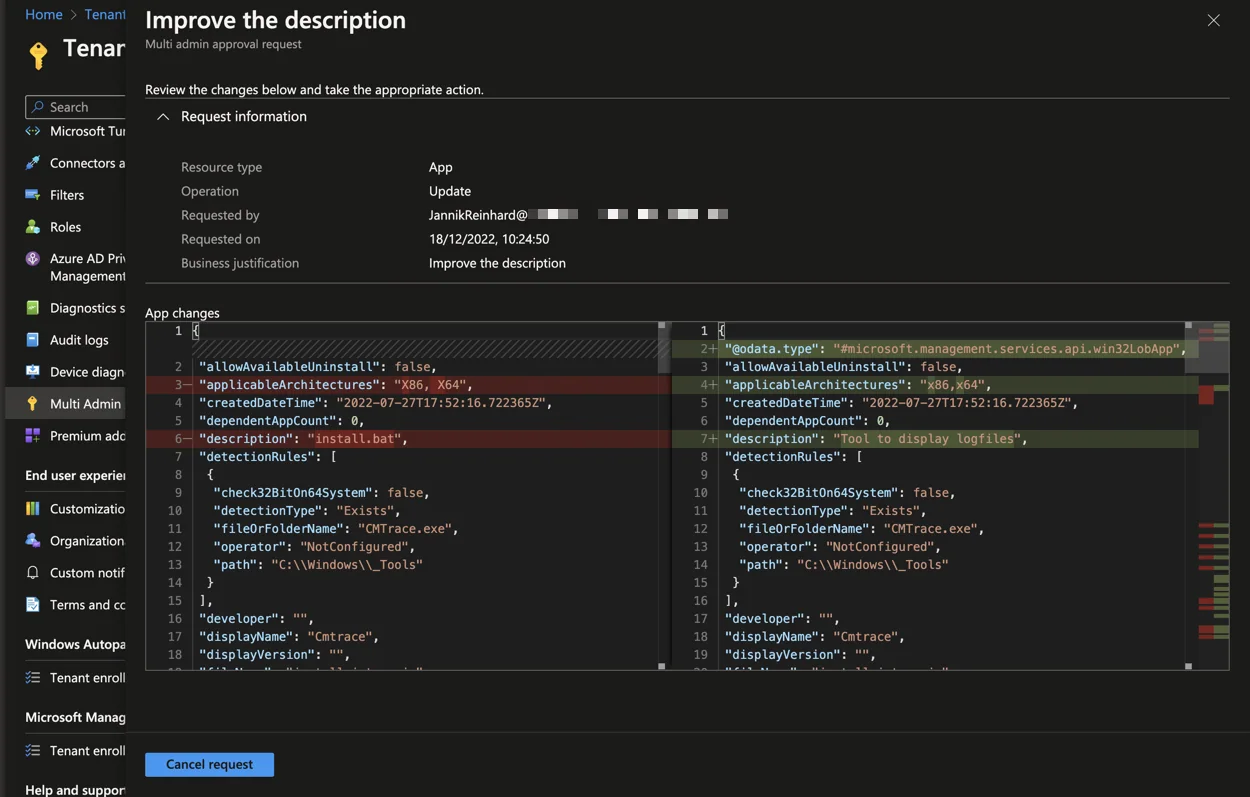
- Here you will see all the changes that were made (interesting part is that we also see some changes which are not related to the description change)
- In this case I saw my own request. To approve, I have to log in with another MAA user.
A few practical notes before you roll this out. MAA only covers the object types you explicitly target with an access policy – today that is apps and scripts – so do not assume it protects every change in the tenant. Also make sure the approver group contains more than one active admin: if the only approver is unavailable, legitimate changes can sit blocked until someone signs off. Finally, remember that the requester and the approver must be different people, so plan your on-call rotation accordingly to avoid a self-approval dead end during incidents.
That’s the full workflow. With multiple administrative approvals in place, no single admin can silently push an app or script change to your fleet, which makes your Intune environment noticeably safer and your change process easier to audit.