
Synchronize kiosk profile membership with PowerShell
Learn how to Sync Azure AD Group members with a kiosk config profile in Intune using Azure Automation, so logon lists stay current without manual edits.
To Sync Azure AD Group membership with a kiosk configuration profile is mainly about keeping the assignment target reliable. When you Sync Azure AD Group objects to the kiosk policy, the group should clearly describe the kiosk scenario, the device ownership model, and the config profile it belongs to.
Before using the approach in production, validate the group membership, profile assignment, and device check-in behavior on a small number of test devices. This makes it easier to separate assignment problems from kiosk shell or application configuration problems. The goal of this guide is to Sync Azure AD Group members automatically so the kiosk logon list always stays current.
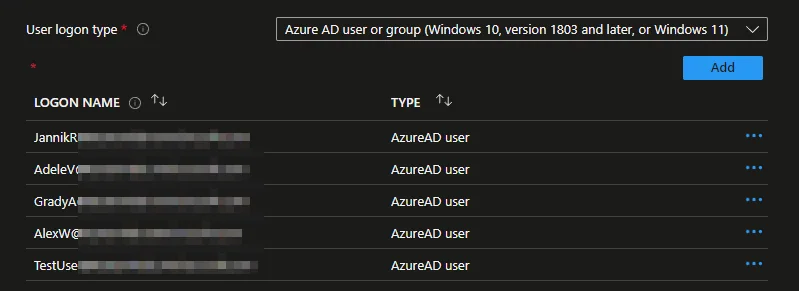
I have already described in a previous blog how to deploy a device as a kiosk device using Intune. This actually works really well. There is only one small thing that is really inconvenient. If a Microsoft Entra ID (formerly Azure AD) user or group is selected as the logon type (only specific users are allowed to log on to these devices), this policy must not only be assigned to a group, but the allowed users must also be defined in the profile.
The option also allows you to add Microsoft Entra ID users and groups, and the SIDs of these objects are written to the local group, but Windows cannot resolve the Microsoft Entra ID groups (bug or feature?). The resolution of whether the user who is trying to log in is a member of one of the groups is done by Windows via Graph; when MFA is disabled, it works. But if MFA is enabled, Windows fails to get the token.
In this blog I want to show you how you can easily work around this and Sync Azure AD Group members with this configuration profile automatically.
Create a App Registration
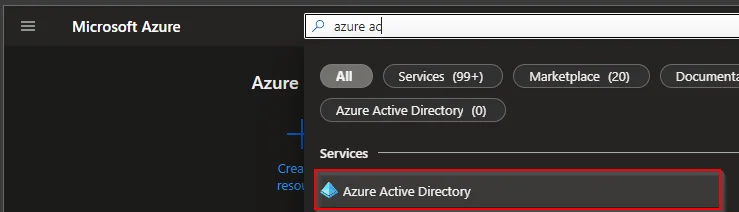
- Search for Microsoft Entra ID
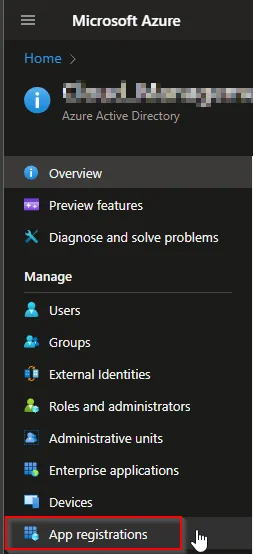
- Select App registration
- Select +New registration
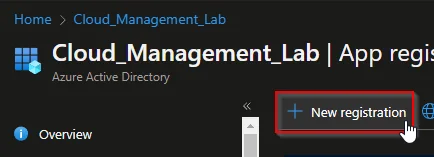
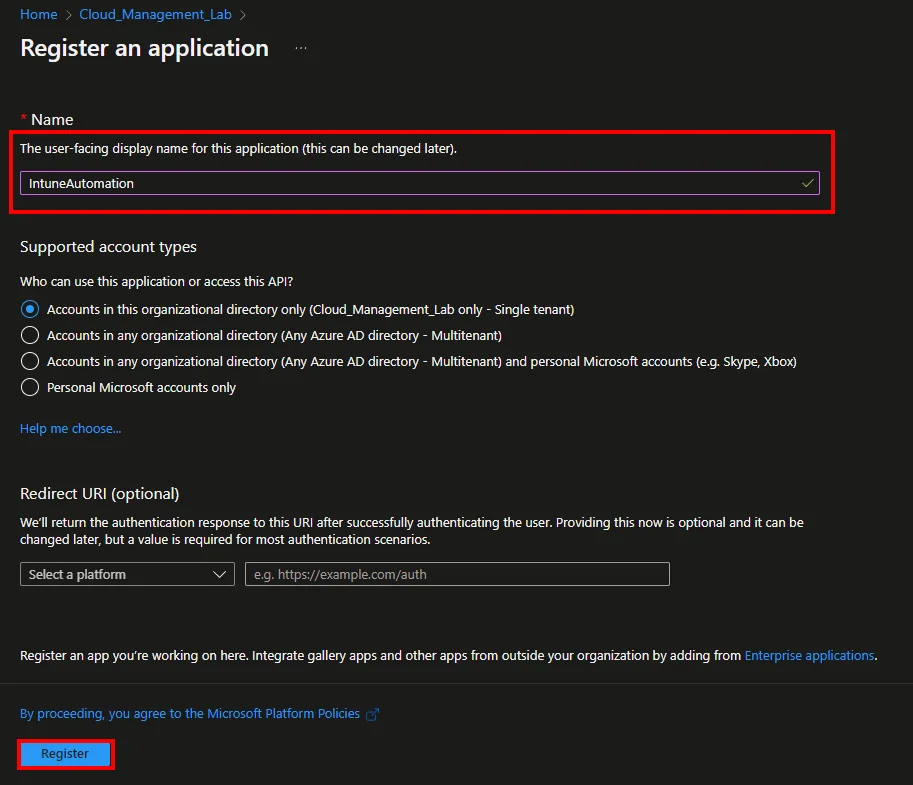
- Enter a Nameand click Register
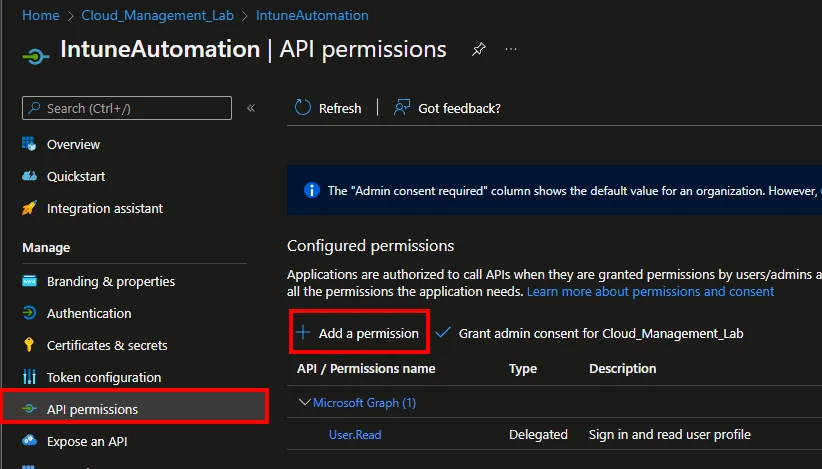
- Click API permissions and +Add a permission
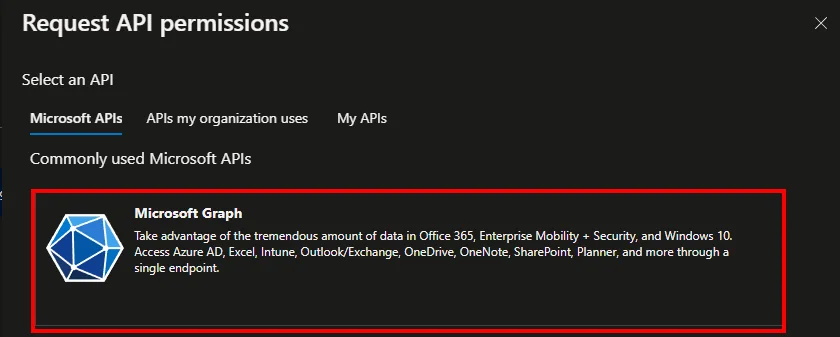
- Select Microsoft Graph
- Select Application permissions
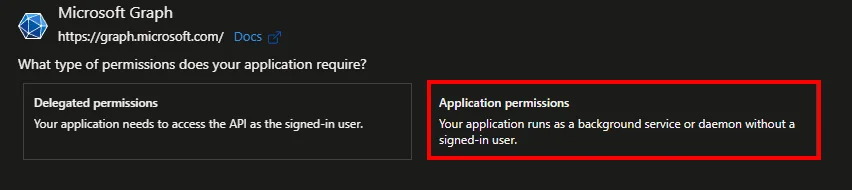
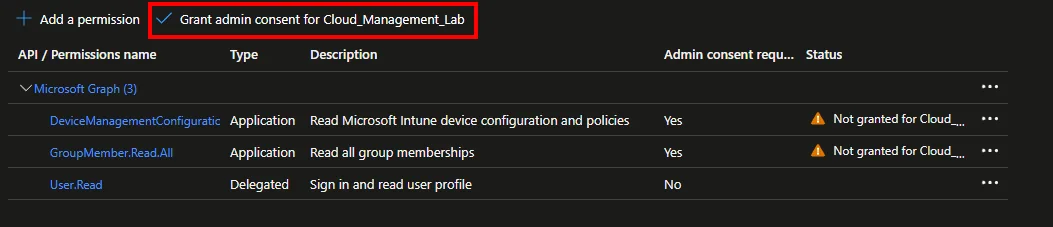
- Search for DeviceManagementManagedDevices.Read.All and GroupMember.Read.All
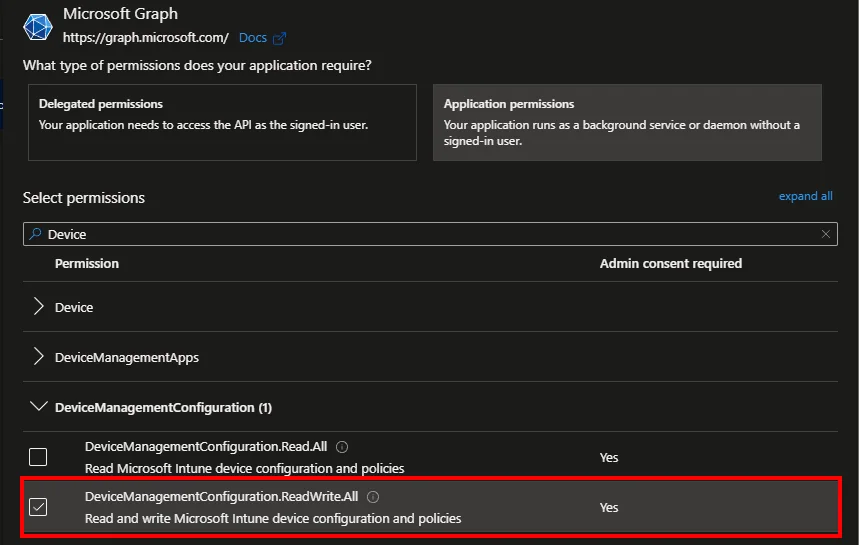
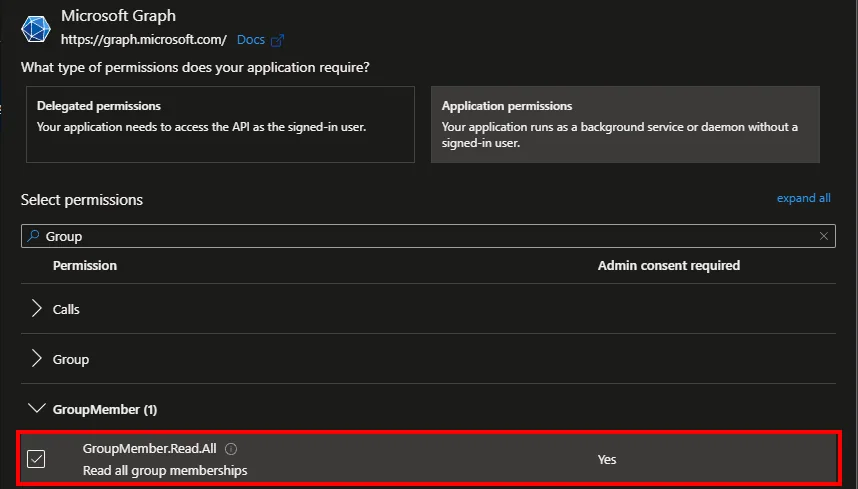
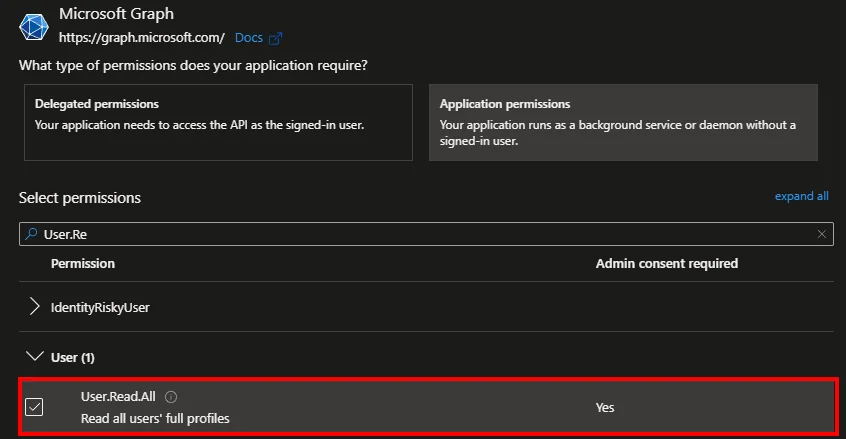
- Click Grant admin consent for *** and approve with Yes
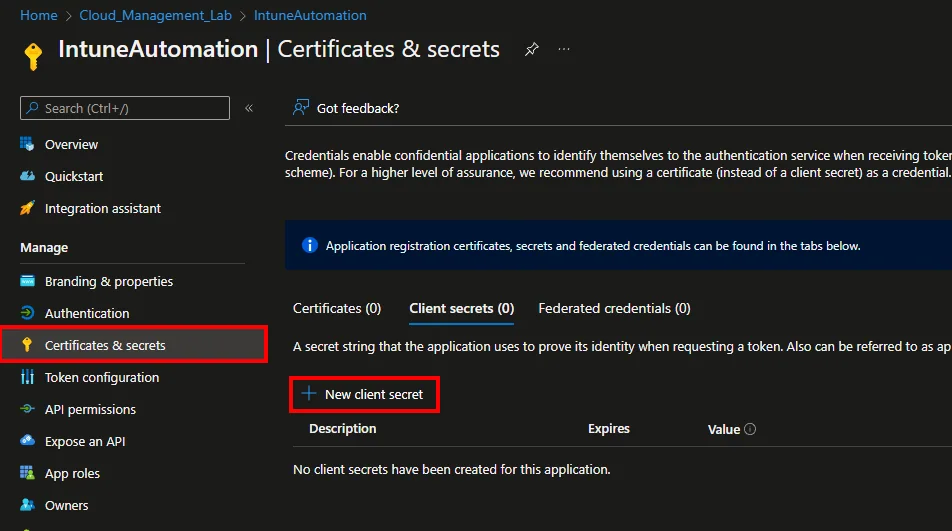
- Select Certificates & secrets and click +New client secret
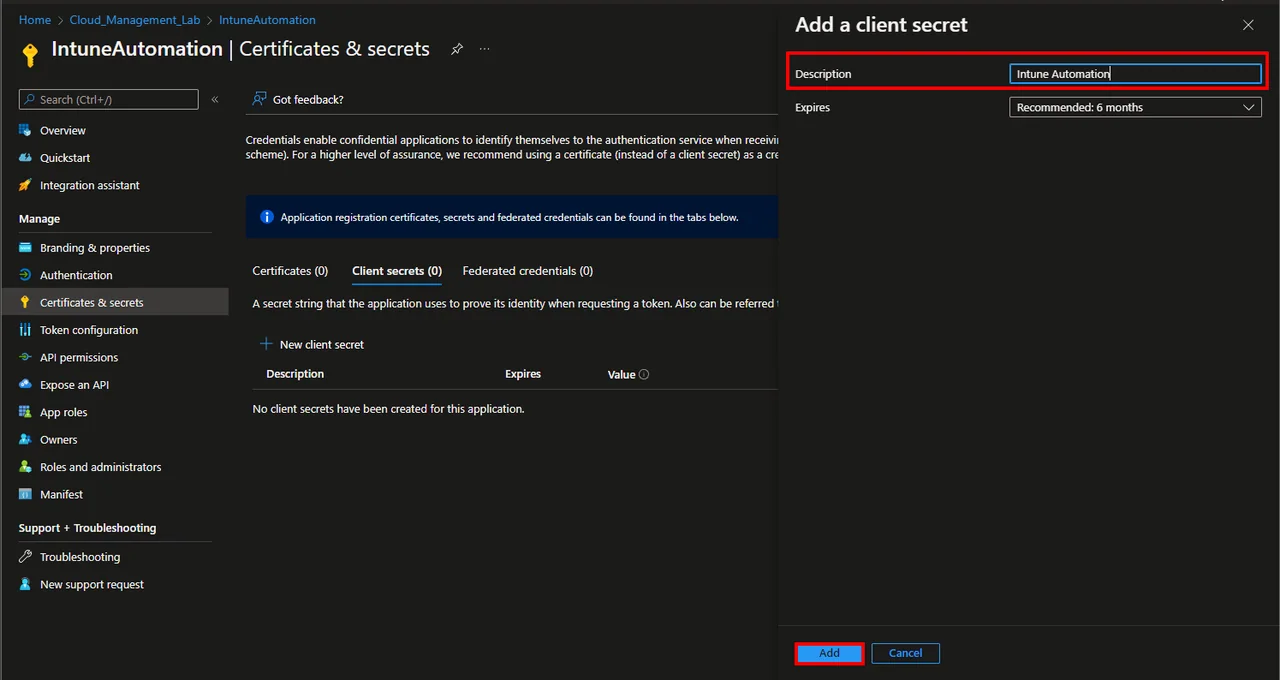
- Enter a Description and select a Expires time
- Click Add
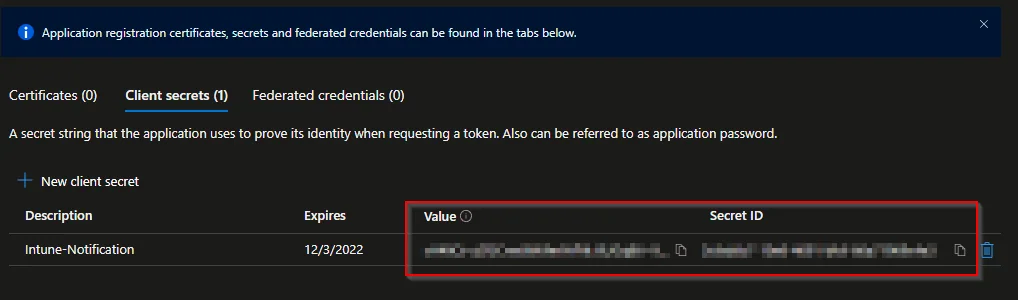
- Copy and save the Value and the Secret ID
Create Automation Account
- Search for Automation Accounts
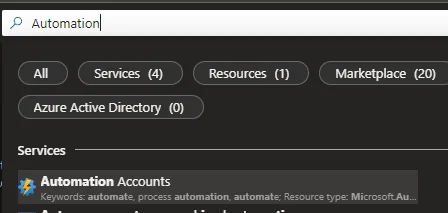
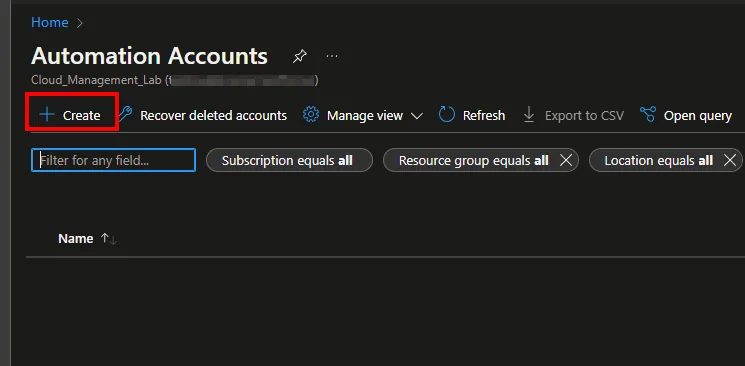
- Click + Create
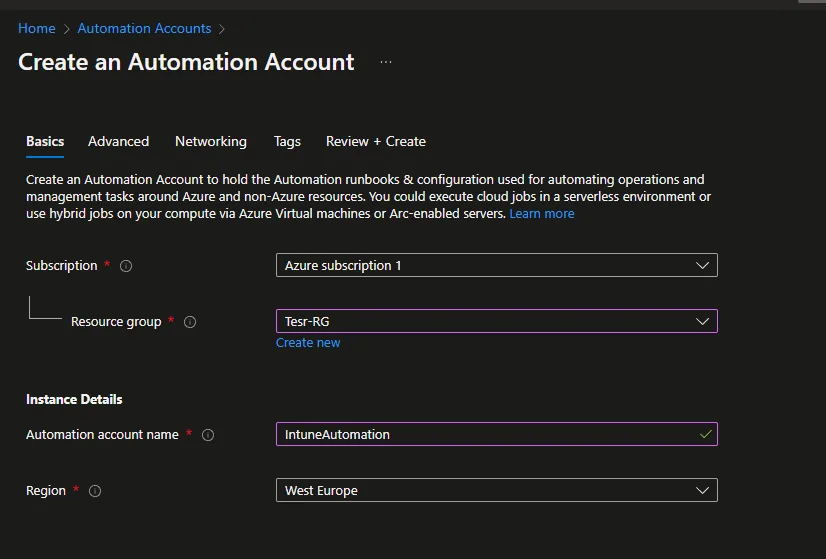
- Select a Subscription and a Resource group
- Enter an account name and select a Region
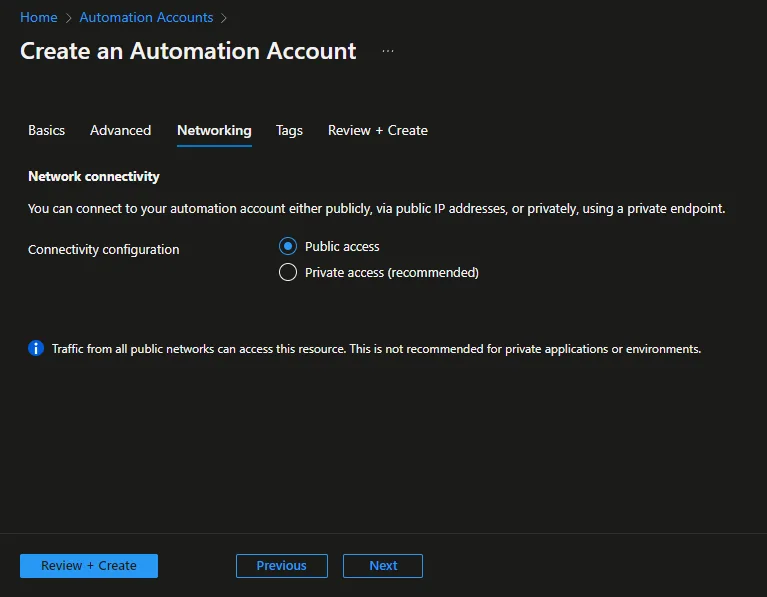
- Click Next
- Click Next
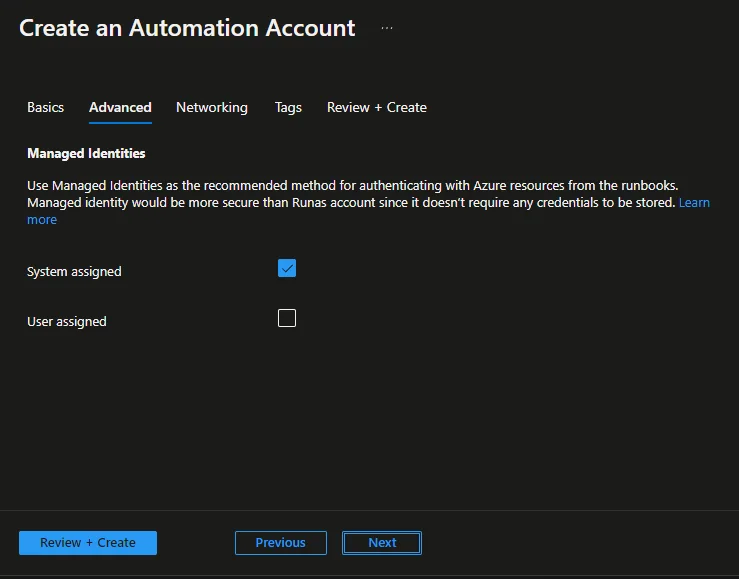
- Click Next -> Next -> Create
Create the Runbook to Sync Azure AD Group Members
- Open the Automation Account
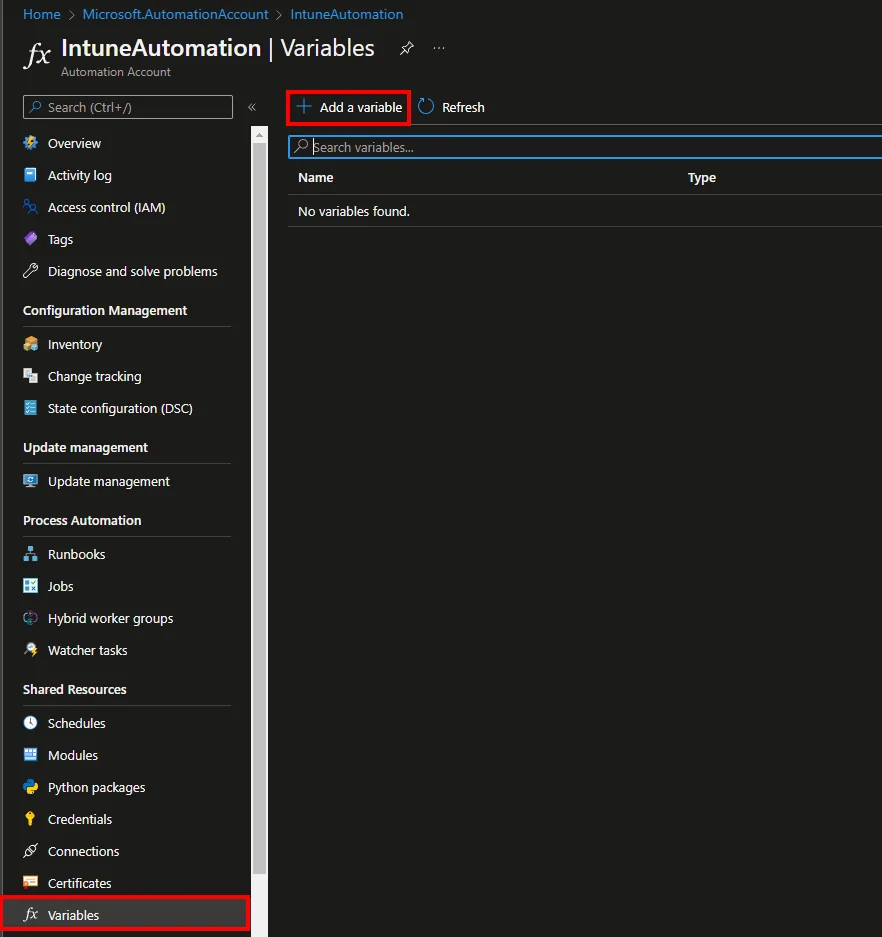
- Navigate to Variables and click + Add a variable
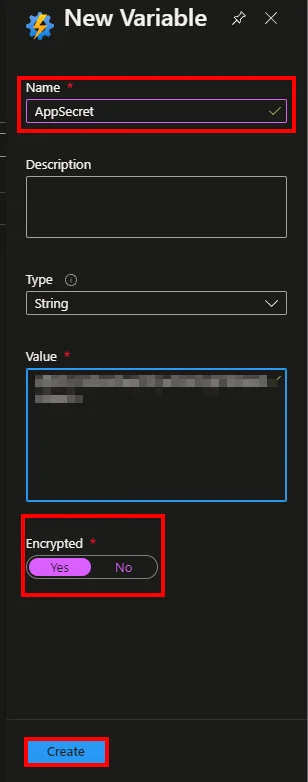
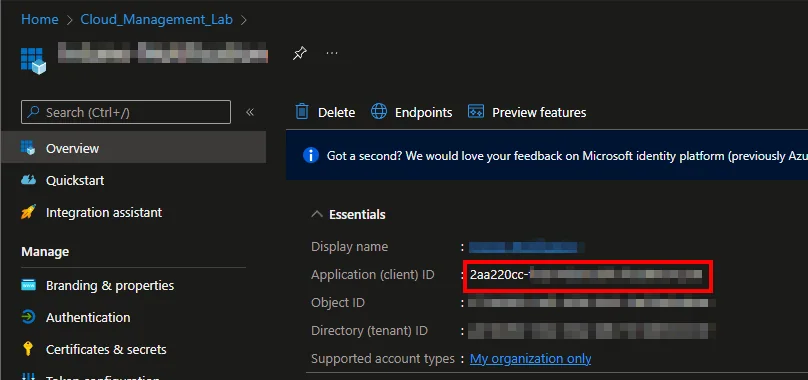
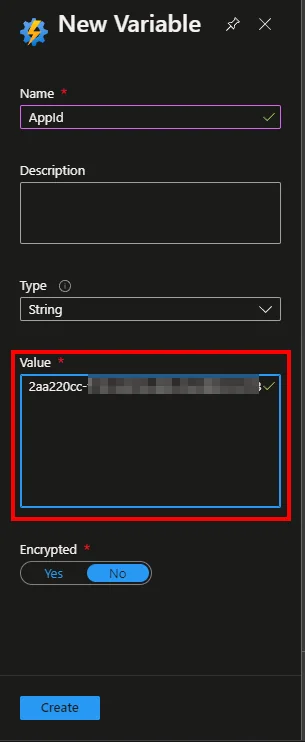
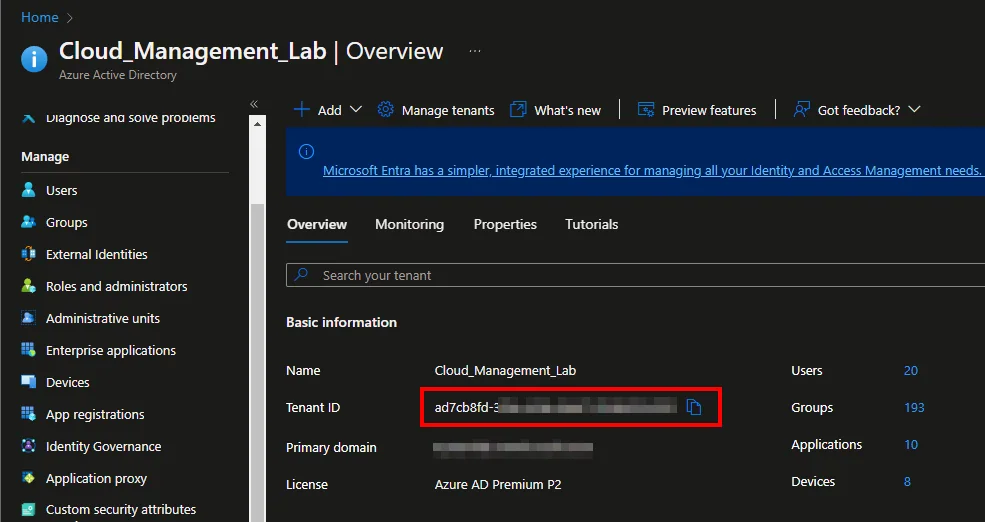
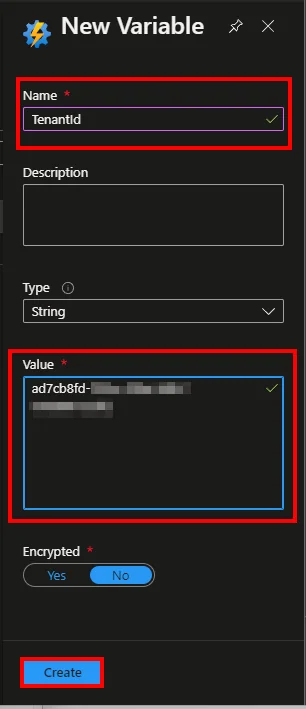
- Add the Secret Value and the App ID as Variable
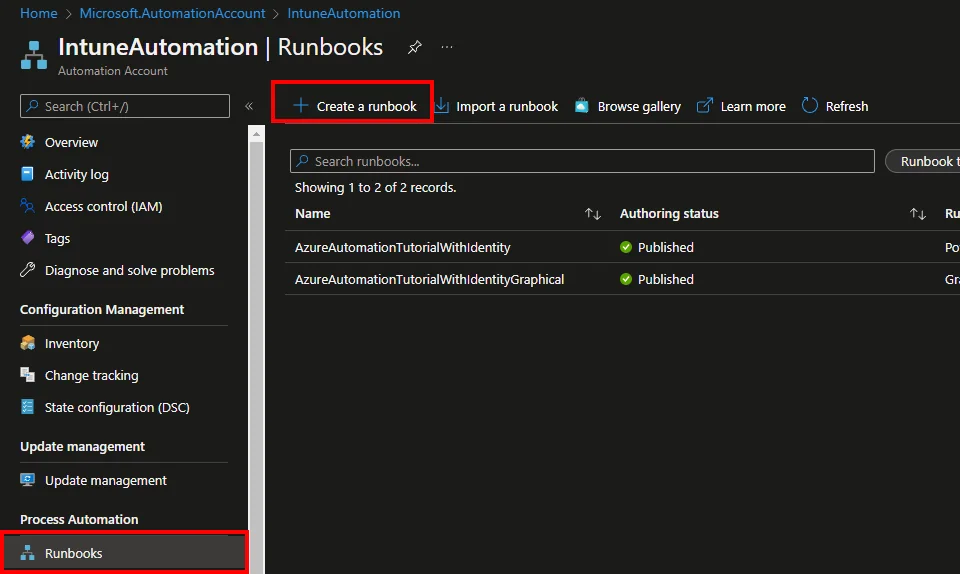
- Select Runbooks
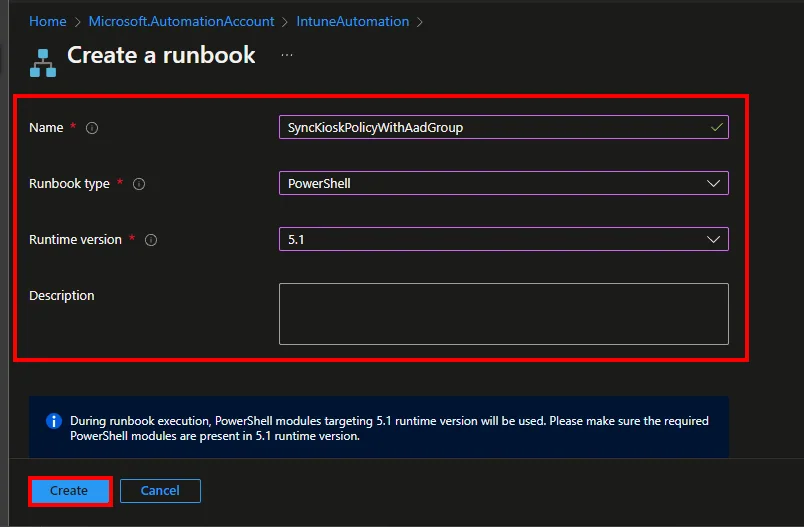
- Click + Create a runbook
- Enter a Name
- Select PowerShell as Runbook type
- Select 5.1 as Runtime version
- Click Create
- Insert the script that will Sync Azure AD Group members to the kiosk profile from my Github repository
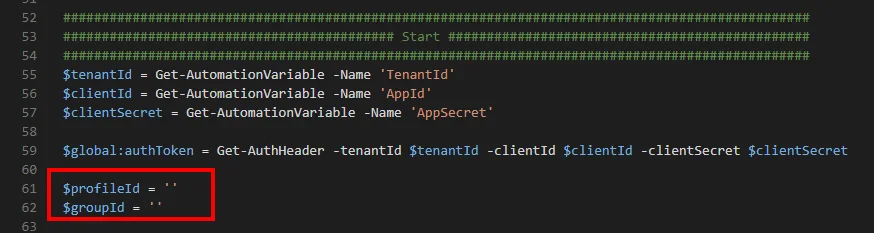
- Enter the profileId and groupId
- Save and test the script
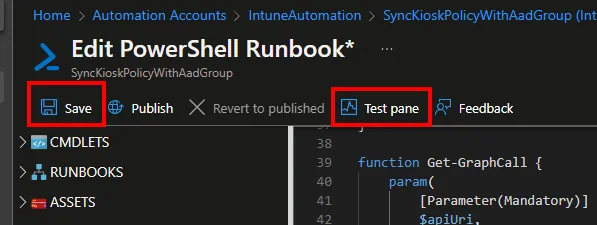
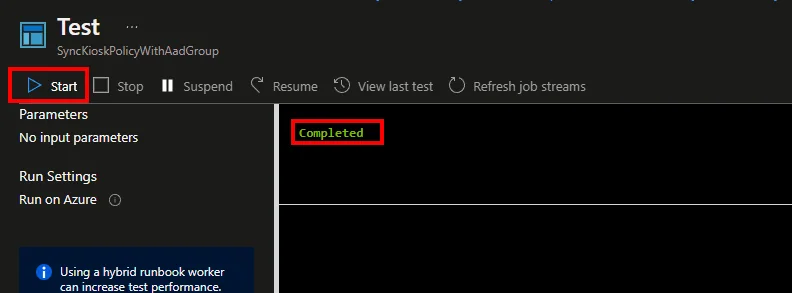
- Click Publish

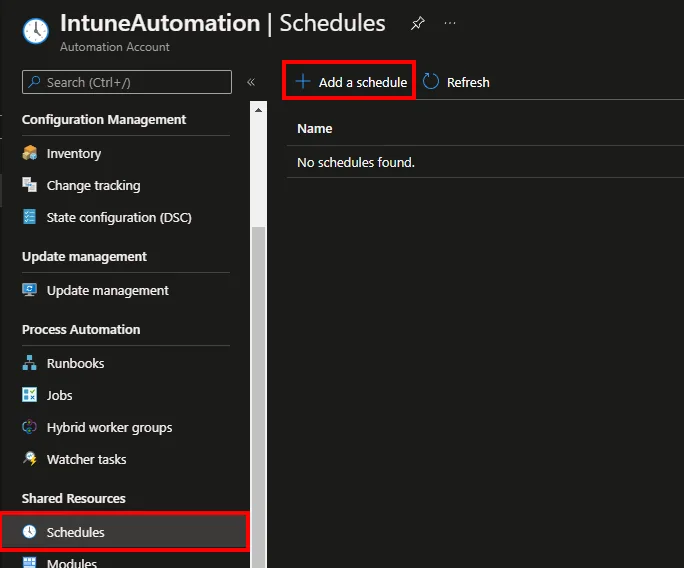
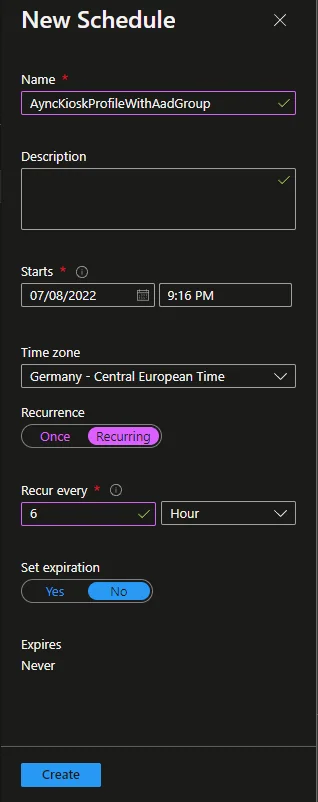
- Navigate to Schedules and click + Add a schedule
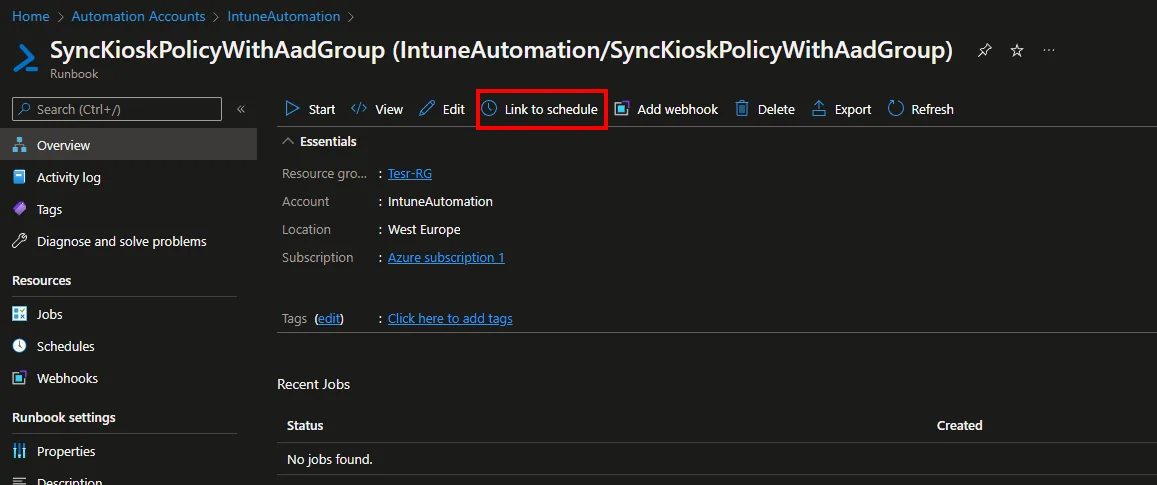
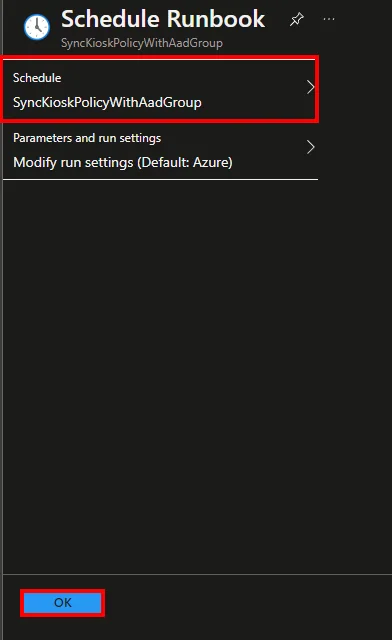
- Click Link to schedule and add the created schedule
Common pitfalls
A few things tend to trip people up the first time they set this up. The most common one is granting delegated instead of application permissions on the app registration: because the runbook runs without a signed-in user, only application permissions with admin consent will work. Double-check that both DeviceManagementManagedDevices.Read.All and GroupMember.Read.All show a green consent status.
The second pitfall is using the wrong identifier in the script. The profileId must be the ID of the kiosk device configuration profile, not the policy assignment, and the groupId must point to the Microsoft Entra ID group whose members should be allowed to sign in. Finally, remember that the change is only as current as your schedule: if you run the runbook once a day, a newly added user may have to wait until the next run before they can log on, so pick an interval that matches how quickly your team onboards people.
Conclusion
Azure Automation is a very cool service for automating tasks in Intune/Azure via a script. With this runbook you can Sync Azure AD Group members to a kiosk policy on a schedule, so you never have to add users manually again. I hope this blog explained how Azure Automation works and helped you Sync Azure AD Group membership with a kiosk policy reliably. For more details on the underlying service, see the official Microsoft Learn Azure Automation overview.
Stay healthy, Cheers
Jannik