
Intune Tool Box – Rebuild of Intune in PowerShell
Explore Intune Tool Box, a PowerShell WPF interface for device-management tasks. Review the available actions, prerequisites and authentication workflow.

This post introduces the Intune Tool Box — my open-source attempt at Rebuilding Intune in PowerShell. It is a modular collection of PowerShell scripts that wrap the most common Intune admin operations (devices, apps, policies, assignments) so you can run them from your terminal instead of clicking through the admin centre.
I think everyone who works with Intune on a daily basis knows the situation that they would like to have a simple feature that would simplify their daily work. In order to close exactly these gaps I decided to code my own tool with many small features that would make the life for Intune admins easier. This was the birth of the Intune Tool Box. This tool is a WPF application that is written in PowerShell. The app has the same design as Intune but offers small helpers for the daily work.
The good thing is that this app is built in such a way that it can be easily extended at any time. If you have any features in your mind that you are missing in Intune console but is possible to solve this via graph so let me know that I can add this to the app. My plan is to develop the app step by step and bring in new cool features.
Features
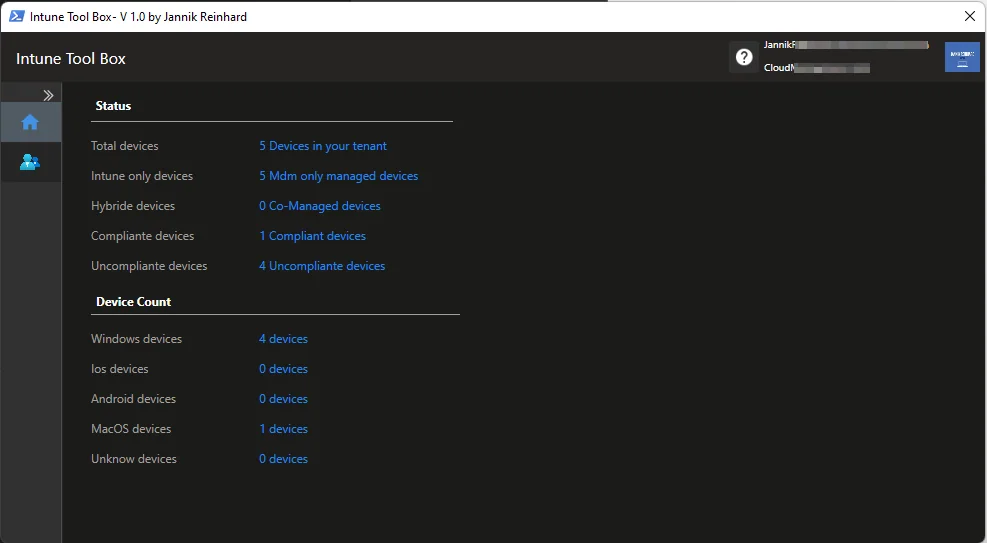
Overall Environment View:
On the start page you can get an overview of your complete environment and see how many clients are enrolled per OS. Additionally you see the count how many devices are compliant or not compliant and the count how many mdm only or hybrid enrolled devices are in your environment.
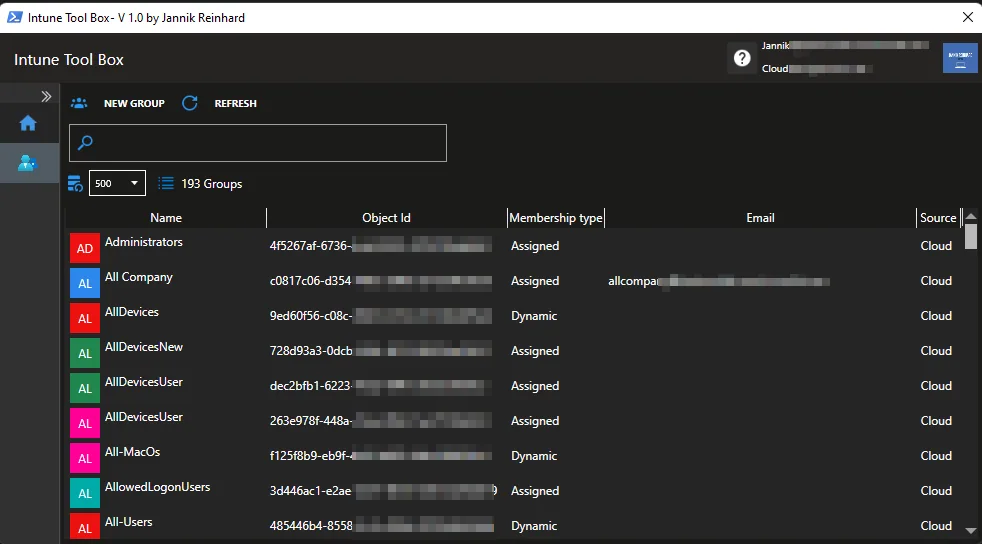
Group View:
In this view you get an overview of all groups in your environment with all the features known from the portal.
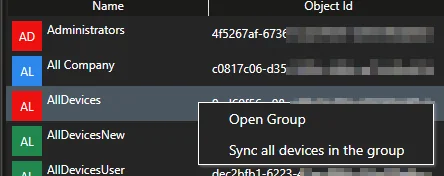
Sync all devices:
This feature helps you sync all devices in a specific group. This could be helpful to shorten the time until a configuration change is effective on all devices in a group. You only need one click and the sync will be triggered on all devices in the group.
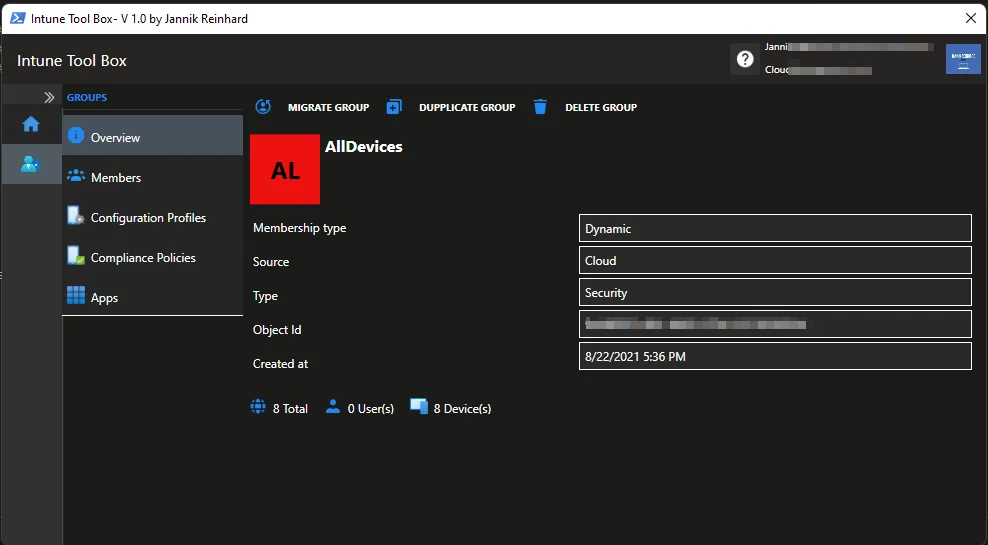
Group Overview:
I think you have often been in a situation where you wanted to see what is assigned to a group. Now you can easily see this in the overview.
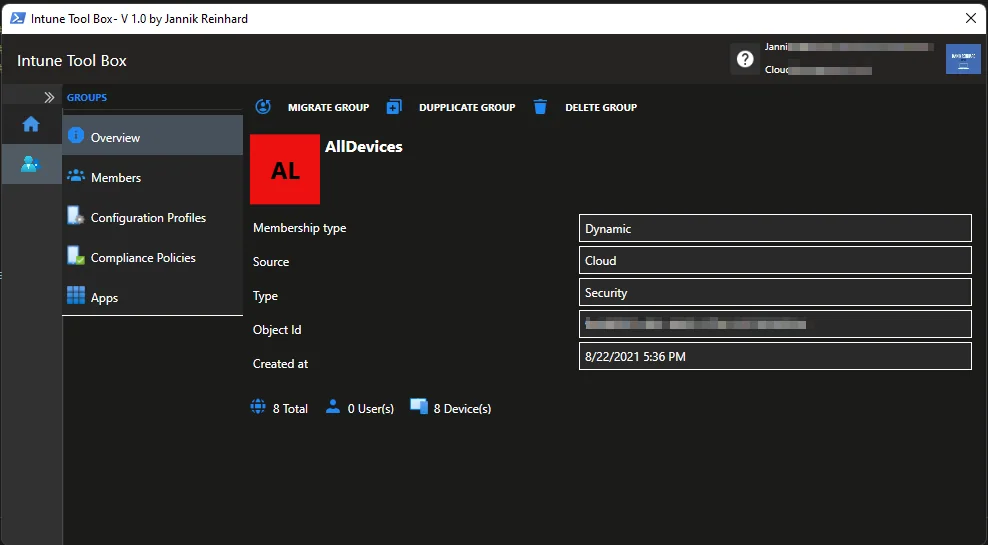
Migrate Group:
In your environment you have multiple groups to create assignments of an app or a configuration profile. If you later realize it would be better if this was not a device group but a user group, it is hard to change this without impacting the user or requiring significant effort. With this function you can convert a user group into a device group or a device group into a user group based on the user assigned to a device or based on the devices assigned to the user. If you select migrate to device group you can also choose the operation systems you want to consider.
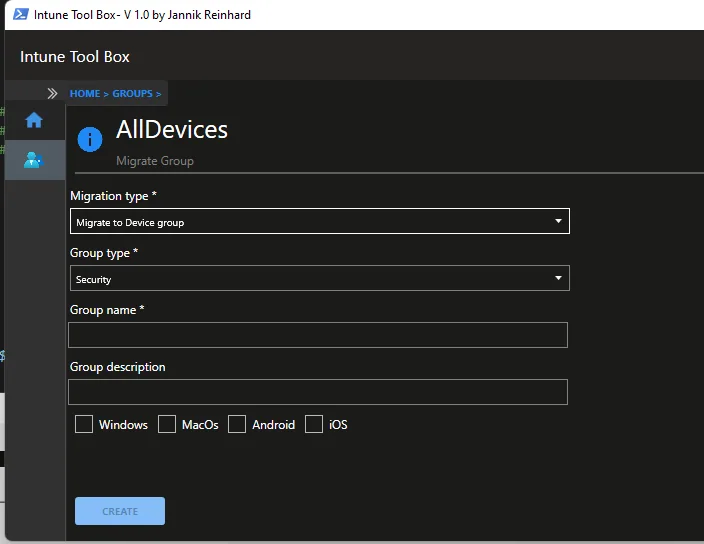
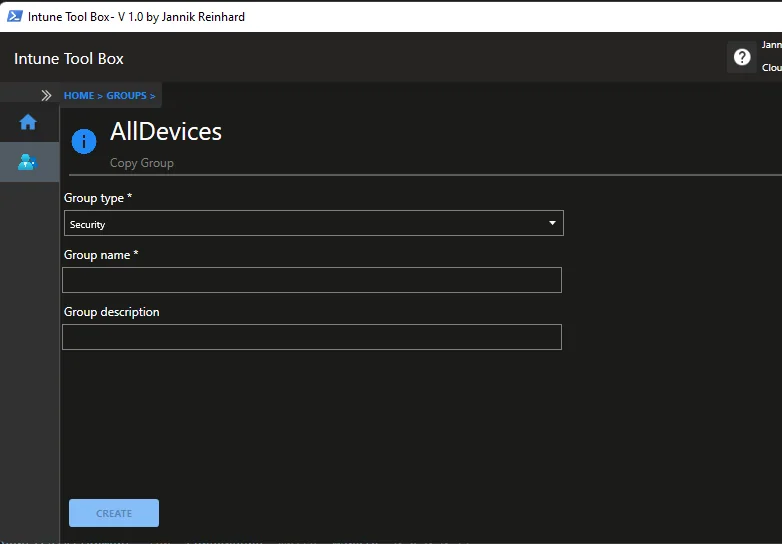
Duplicate Group:
Sometimes you need exactly the same group but with small adjustments. In the Intune console there is no feature to copy a group with the same members. This feature provides you exactly this possibility.
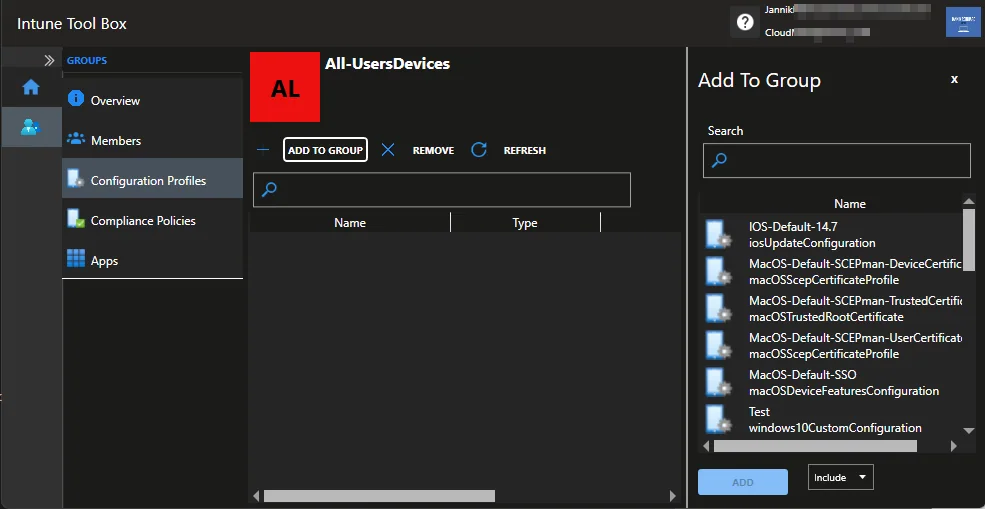
Assign Items:
You know the situation you have a new group and want to assign them to different items. What you need to do is open each individual configuration profile, app, etc. and add the assignment. With the Intune Tool Box this is much faster. You select the group and assign everything you need very easily in the group view.
How does it work
This application is a WPF XAML application. That means the complete GUI is written in XAML. For this I have taken Visual Studio because the editor in Visual Studio offers a preview to see directly how the change looks. But what I learned is that it doesn’t always look good in the app if it looks good in the editor.
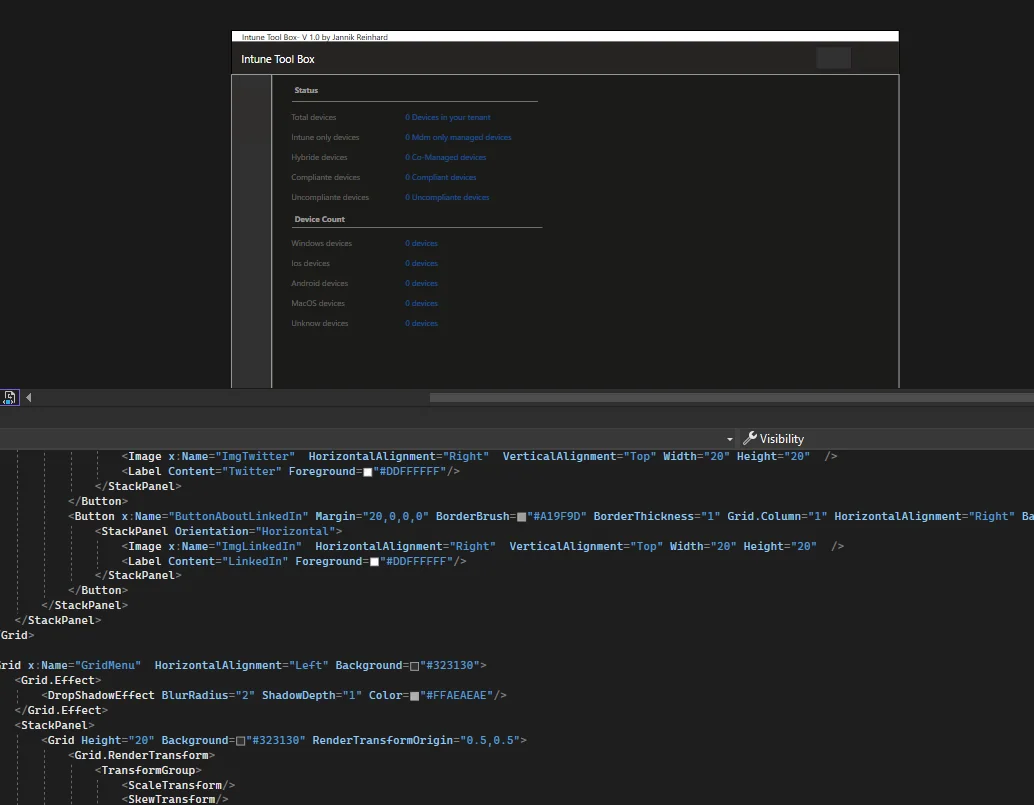
How can you use the Intune Tool Box
- Open the GitHub repository
- Download and unzip the whole folder
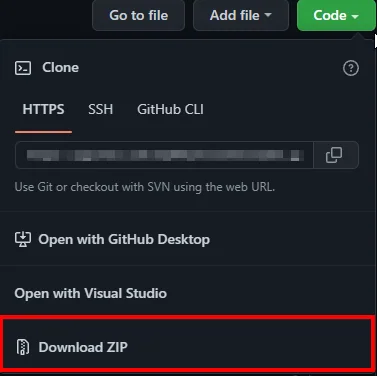
- Install the Microsoft Graph PowerShell SDK for the Intune Toolbox:
Install-Module Microsoft.Graph -Scope CurrentUser- Execute the Start-IntuneToolBox.ps1
- Have fun
Conclusion
I am happy that after hours of development I can release the first version of the Intune Tool Box. I am happy for everyone who tests my tool and gives me feedback and reports possible bugs. I am also happy about every idea how I can develop my tool further. I hope I can simplify your daily work with this tool. Have fun testing the Intune Tool Box. For more Intune tips and tools, check out my other Intune posts.
Update 15.07.2022
If you get the following error on your system when executing the Intune Tool Box:

You have to unblock the DLLs. Navigate to the libraries folder and click Unblock in the properties of each DLL.
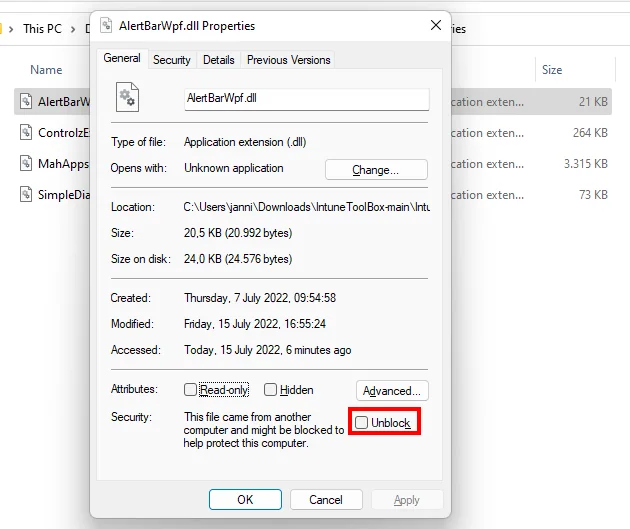
It may be that you need to restart your PowerShell session to get the error message gone.