
Intune mass export with the Graph Report API
Explore a historical Intune report-export script using Microsoft Graph. Read the authentication compatibility note before reusing the export workflow.

Important 2026 compatibility note: The AzureAD/AzureADPreview and ADAL authentication code in this historical article is retired. Do not reuse it unchanged; migrate authentication to Microsoft Graph PowerShell and MSAL. Current documentation
There are many ways to do an Intune mass export of your data. For example, you can use Log Analytics, the Data Warehouse or the Graph API. But if you want to export several thousand devices or apps via Graph, it can happen that Graph has a paging. Paging means that you only get a certain number of entries with one call and then you have to make another call for the next range. This means for you that you have to write a script that loops through the pages.
Another problem if you want to export e.g. all Discovered apps you have to loop through all devices because this attribute is not shared in list calls. But if you have several 10k or 100k devices this takes a long time, which is exactly why an Intune mass export approach saves you so much effort.
But there is a Graph Report API that is designed for an Intune mass export of large amounts of data and provides it to you as a CSV in a really easy way. How you can use this Intune mass export method I will explain in this blog.
How does the Intune mass export work
- Open the Graph Explorer
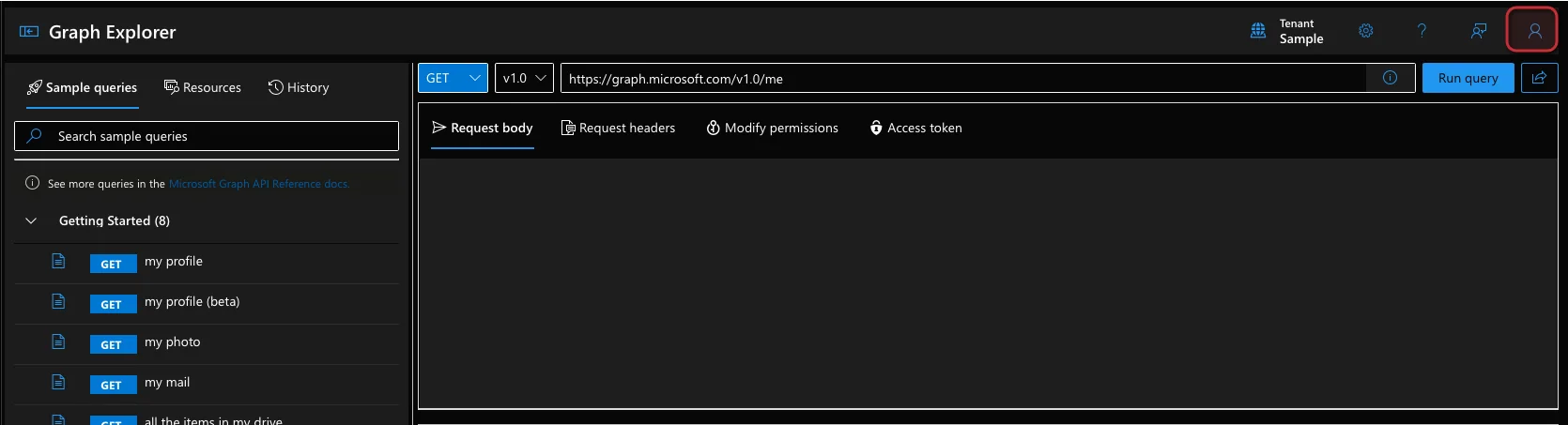
- Click on the right top to login
- Change the method to POST
- Copy the following URL in the address bar
https://graph.microsoft.com/beta/deviceManagement/reports/exportJobs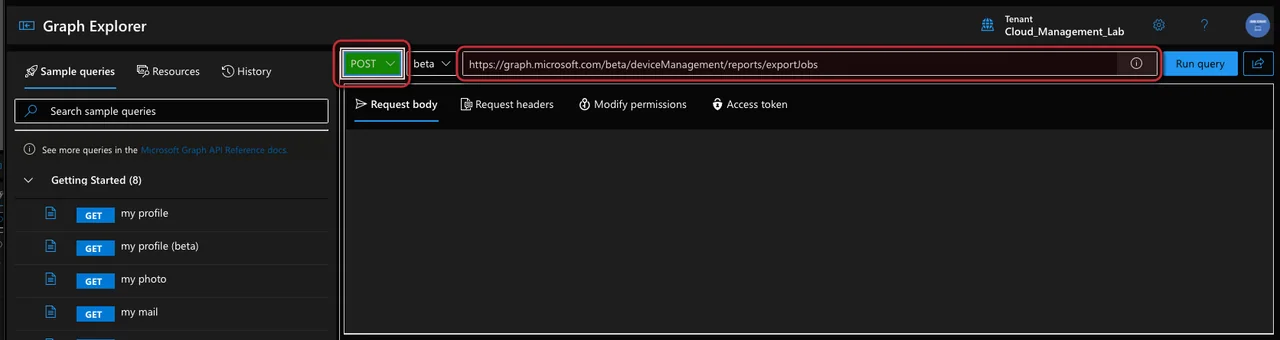
- Now we have to build the body. Here it depends on what you want to export.
| ReportName (Export Parameter) |
|---|
| DeviceCompliance |
| DeviceNonCompliance |
| Devices |
| DetectedAppsAggregate |
| FeatureUpdatePolicyFailuresAggregate |
| DeviceFailuresByFeatureUpdatePolicy |
| DetectedAppsRawData |
| FeatureUpdateDeviceState |
| UnhealthyDefenderAgents |
| DefenderAgents |
| ActiveMalware |
| Malware |
| AllAppsList |
| AppInstallStatusAggregate |
| DeviceInstallStatusByApp |
| UserInstallStatusAggregateByApp |
| ComanagedDeviceWorkloads |
| ComanagementEligibilityTenantAttachedDevices |
| DeviceRunStatesByProactiveRemediation |
| DevicesWithInventory |
| FirewallStatus |
| GPAnalyticsSettingMigrationReadiness |
| QualityUpdateDeviceErrorsByPolicy |
| QualityUpdateDeviceStatusByPolicy |
| MAMAppProtectionStatus |
| MAMAppConfigurationStatus |
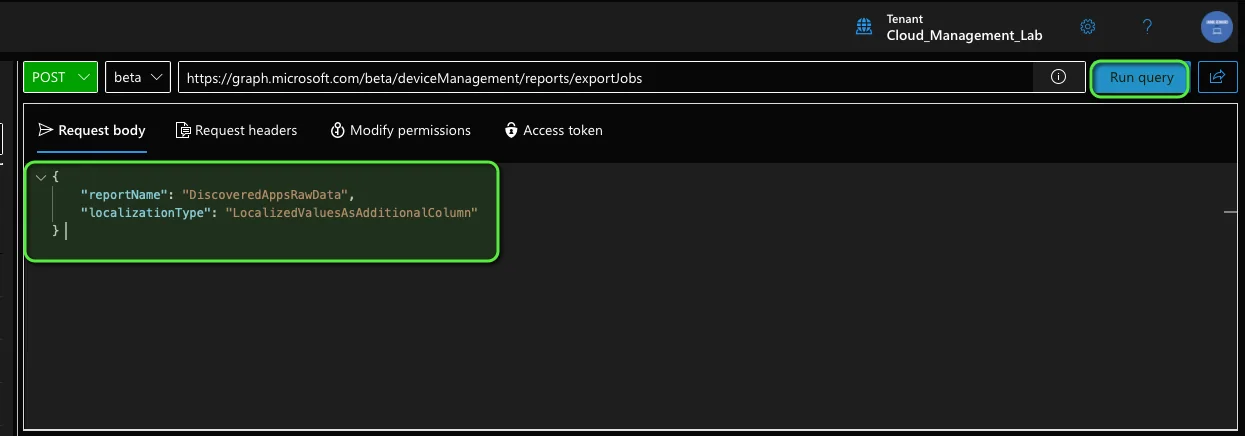
- In this example we export all discovered apps
{
    "reportName": "DetectedAppsRawData",
    "localizationType": "LocalizedValuesAsAdditionalColumn"
}- In this example we export all devices with a filter for OwnerType and select only the DeviceName
{
    "reportName": "Devices",
    "filter":"(OwnerType eq '1')",
    "localizationType": "LocalizedValuesAsAdditionalColumn",
    "select": [
        "DeviceName"
    ]
}- You have to copy this body in the request body field in the graph explorer
- Click Run query to request the report
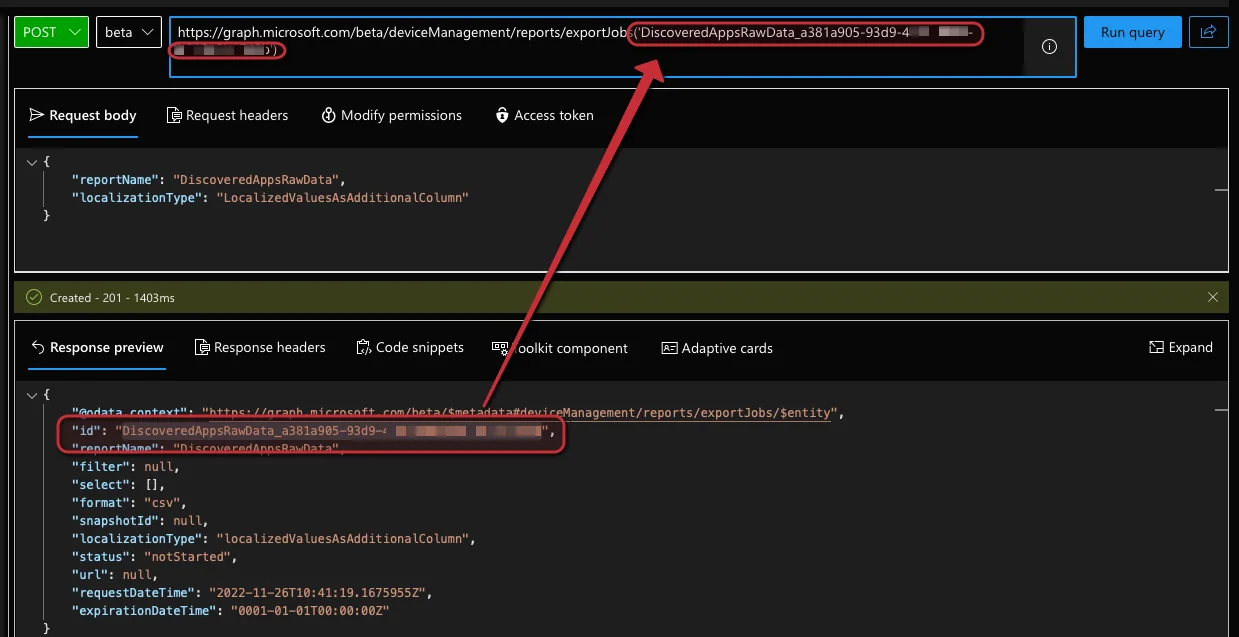
- Now you have to append the value in id to the url. This must look like this:
https://graph.microsoft.com/beta/deviceManagement/reports/exportJobs('DetectedAppsRawData_xxxxxxxx-xxxx-xxxx-xxxx-xxxxxxxxxx')
- Change the method to GET
- Clean the request body field
- Click Run query to trigger the report creation
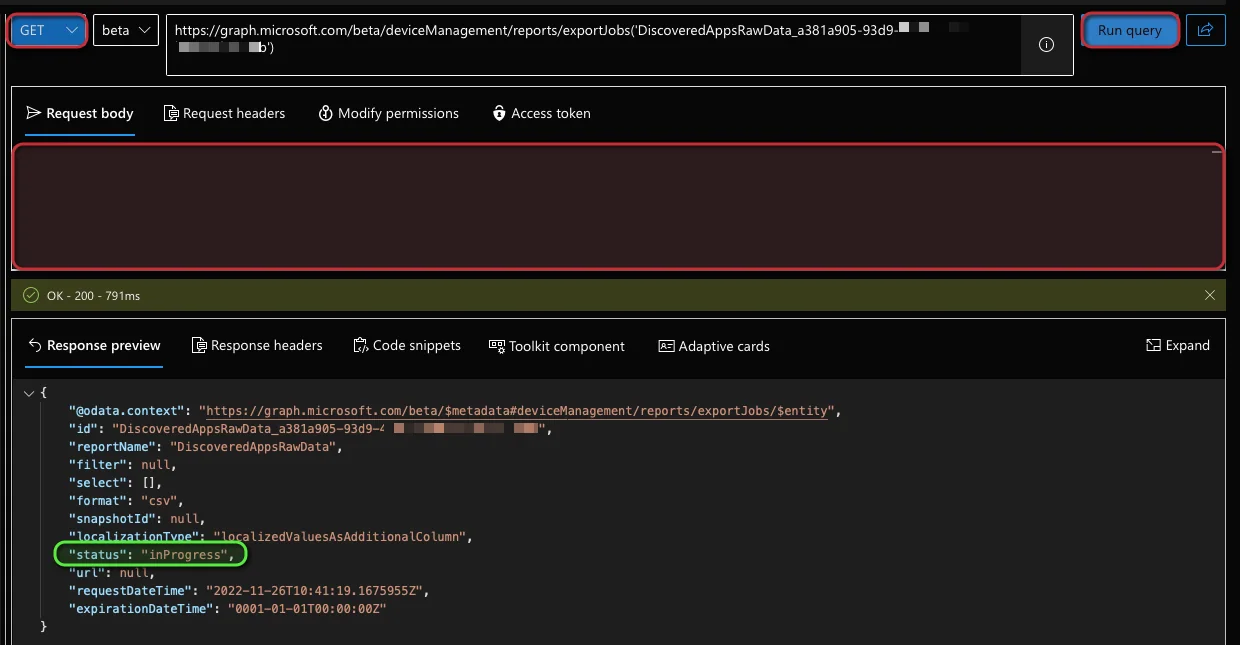
- Now you have triggered the report creation. The report will be generated in the backend. You have to run the same query in a few seconds or minutes again (depending on the size)
- Click Run Query to get the download URL
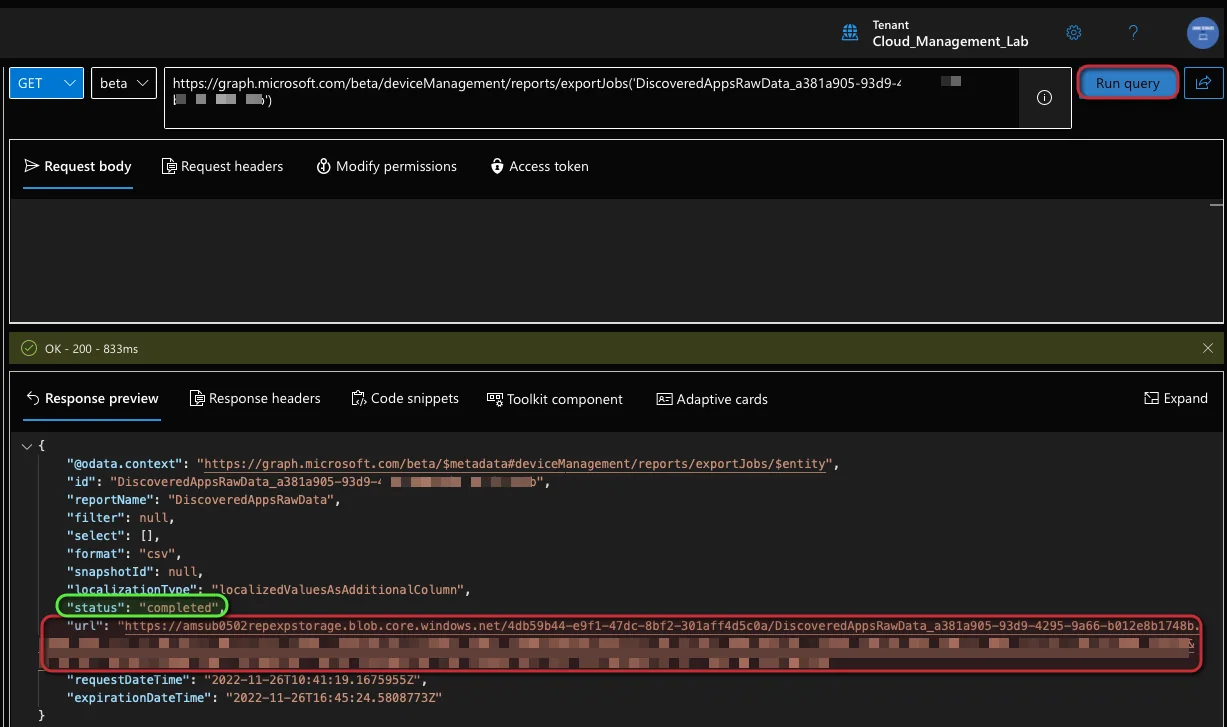
- Copy the value in the url tag (Download URL) into the browser address bar to download the CSV report.
- The download of the CSV will start (file is zipped)
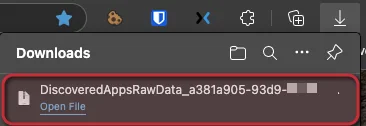
With these steps you have completed a full Intune mass export directly from the Graph Explorer. If you want to learn more about working with Microsoft Endpoint Manager data, check out the official Microsoft Learn documentation on the Intune reporting export APIs.
How to automate the Intune mass export via PowerShell
To automate and make the process easier I have written a PowerShell script which inits and starts the Intune mass export and waits until the export is completed. After that it downloads the zip file and unpacks it to provide the CSV. To use this script follow these steps
- You can find a script in my GitHub repository or in this post to export the CSV via PowerShell
<#
Version: 1.0
Author: Jannik Reinhard (jannikreinhard.com)
Script: Get-GraphExportApiReport
Description:
Get an CSV Report from the Graph API
Release notes:
Version 1.0: Init
#>
function Get-AuthToken {
    [cmdletbinding()]
    param
    (
        [Parameter(Mandatory=$true)]
        $User
    )

    $userUpn = New-Object "System.Net.Mail.MailAddress" -ArgumentList $User
    $tenant = $userUpn.Host
    $AadModule = Get-Module -Name "AzureAD" -ListAvailable
    if ($AadModule -eq $null) {
        Write-Host "AzureAD PowerShell module not found, looking for AzureADPreview"
        $AadModule = Get-Module -Name "AzureADPreview" -ListAvailable
    }

    $adal = Join-Path $AadModule.ModuleBase "Microsoft.IdentityModel.Clients.ActiveDirectory.dll"
    $adalforms = Join-Path $AadModule.ModuleBase "Microsoft.IdentityModel.Clients.ActiveDirectory.Platform.dll"

    Add-Type -Path $adal
    Add-Type -Path $adalforms
    $clientId = "d1ddf0e4-d672-4dae-b554-9d5bdfd93547"
    $redirectUri = "urn:ietf:wg:oauth:2.0:oob"
    $resourceAppIdURI = "https://graph.microsoft.com"
    $authority = "https://login.microsoftonline.com/$Tenant"

    $authContext = New-Object "Microsoft.IdentityModel.Clients.ActiveDirectory.AuthenticationContext" -ArgumentList $authority
    $platformParameters = New-Object "Microsoft.IdentityModel.Clients.ActiveDirectory.PlatformParameters" -ArgumentList "Auto"
    $userId = New-Object "Microsoft.IdentityModel.Clients.ActiveDirectory.UserIdentifier" -ArgumentList ($User, "OptionalDisplayableId")
    $authResult = $authContext.AcquireTokenAsync($resourceAppIdURI,$clientId,$redirectUri,$platformParameters,$userId).Result


    $authHeader = @{
        'Content-Type'='application/json'
        'Authorization'="Bearer " + $authResult.AccessToken
        'ExpiresOn'=$authResult.ExpiresOn
        }

    return $authHeader
}

#################################################################################################
########################################### Start ###############################################
#################################################################################################
$reportName = 'DetectedAppsRawData'


#Get auth took
if(-not $global:authToken.Authorization){
    if($User -eq $null -or $User -eq ""){
    $User = Read-Host -Prompt "Please specify your user principal name for Azure Authentication"
    Write-Host
    }
    $global:authToken = Get-AuthToken -User $User
}

$body = @"
{
    "reportName": "$reportName",
    "localizationType": "LocalizedValuesAsAdditionalColumn"
}
"@


$id = (Invoke-RestMethod -Uri https://graph.microsoft.com/beta/deviceManagement/reports/exportJobs -Headers $authToken -Method POST -Body $body).id
$status = (Invoke-RestMethod -Uri "https://graph.microsoft.com/beta/deviceManagement/reports/exportJobs('$id')" -Headers $authToken -Method GET).status

while (-not ($status -eq 'completed')) {
    $response = Invoke-RestMethod -Uri "https://graph.microsoft.com/beta/deviceManagement/reports/exportJobs('$id')" -Headers $authToken -Method Get
    $status = ($response).status
}

Invoke-WebRequest -Uri $response.url -OutFile "./intuneExport.zip"
Expand-Archive "./intuneExport.zip" -DestinationPath "./intuneExport"

## Copy the file to an storage or do some actions- Download the script and insert the report you want to have in the $reportName variable

- Run the script and you get the unzipped CSV file as output
That is the complete Intune mass export workflow, from triggering the job in Graph Explorer to a fully automated PowerShell run. For more Intune and Graph tips, browse the other guides on jannikreinhard.com.