
How to setup Organizational messages
Explore the original Intune organizational-messages workflow and screenshots. Follow the current Microsoft 365 documentation linked in the update note.
2026 status update: Organizational messages are no longer the private/public preview described in this 2022 article. Check the current Microsoft 365 documentation before using the configuration steps below. Current documentation
With the service release 2211, microsoft has brought a cool new feature called organizational messages. These are different ways to contact users via different good looking messages to improve end-user communication and experience. This guide shows how to setup organizational messages step by step, offering additional possibilities to the existing Notification Bar messages from Windows 10 and older.
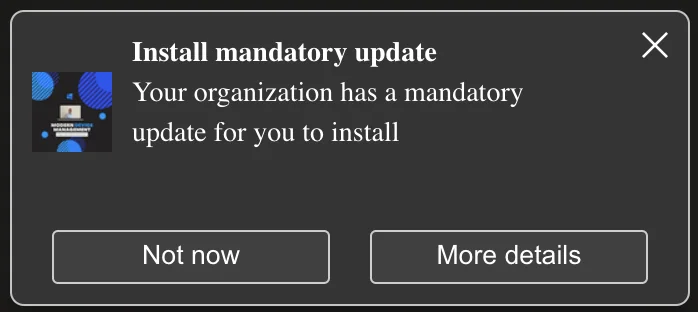
These messages can be delivered as a popup above the taskbar, in the notification area or in the Get Started app.
A small disadvantage is that this feature is currently only supported for Windows 11 devices. You can read the official guidance about organizational messages on Microsoft Learn.
Information in advance
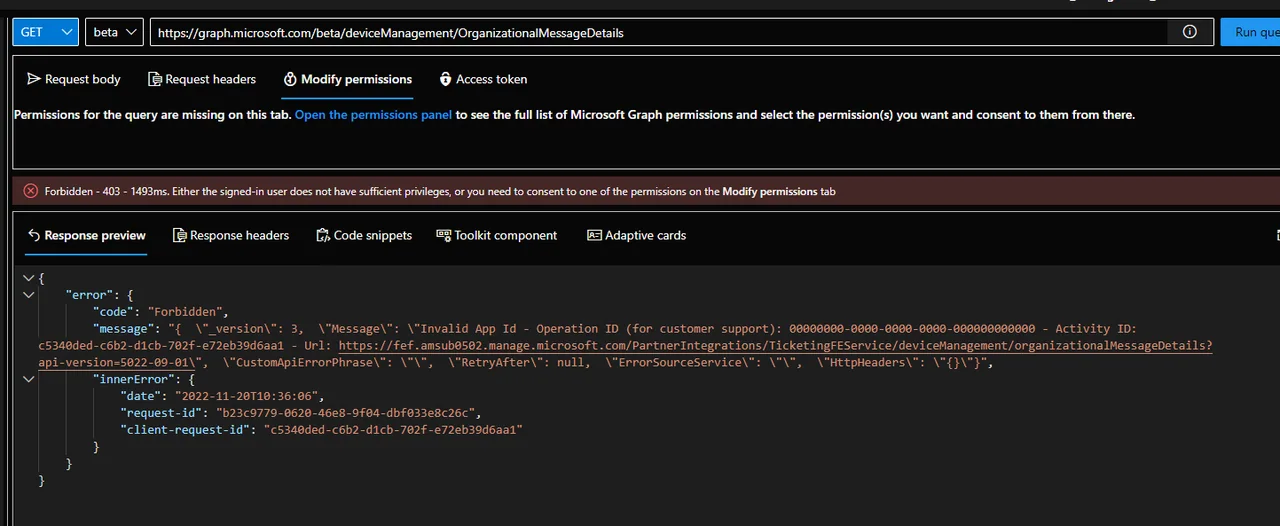
This feature is currently in private preview and all configurations have to be done via the Intune admin center. In the doc it is listed that the Graph API is currently not available for this feature but there is a Graph endpoint (“https://graph.microsoft.com/beta/deviceManagement/OrganizationalMessageDetails“) but when you run a query you get a forbidden response:
During public preview, you can:
- Select from a variety of preconfigured, common messages to assign to Microsoft Entra ID user groups.
- Add your organization’s logo.
- Include a custom destination URL in the message that redirects device users to a specific place.
- Preview messages in 15 supported languages, in dark and light theme.
- Schedule a delivery window and message frequency.
- Track the status of messages and the number of views and clicks they receive. Views and clicks are aggregated by messages.
- Cancel scheduled or active messages.
- Configure a new built-in role in Intune called Organizational Messages Manager, which allows assigned admins to view and configure messages.
Prerequisites
- Windows 11 22H2 or later
- “Microsoft 365 E3/E5” or “Enterprise Mobility + Security E3/E5 and Windows Enterprise E3/E5” License
- “Global Admin” / “Intune Admin” / “Organizational message manager” / “Organizational message writer” Role
- Png Logo file (Taskbar 64×64, Notification area 48×48, get started 50×50-100)
- Url must be added to the Microsoft Entra ID custom domain names
How to setup Organizational messages in Intune
Before you can send anything, you first need to enable the feature. The steps below walk through how to setup organizational messages delivery via a Settings catalog configuration profile.
- Open the Intune console
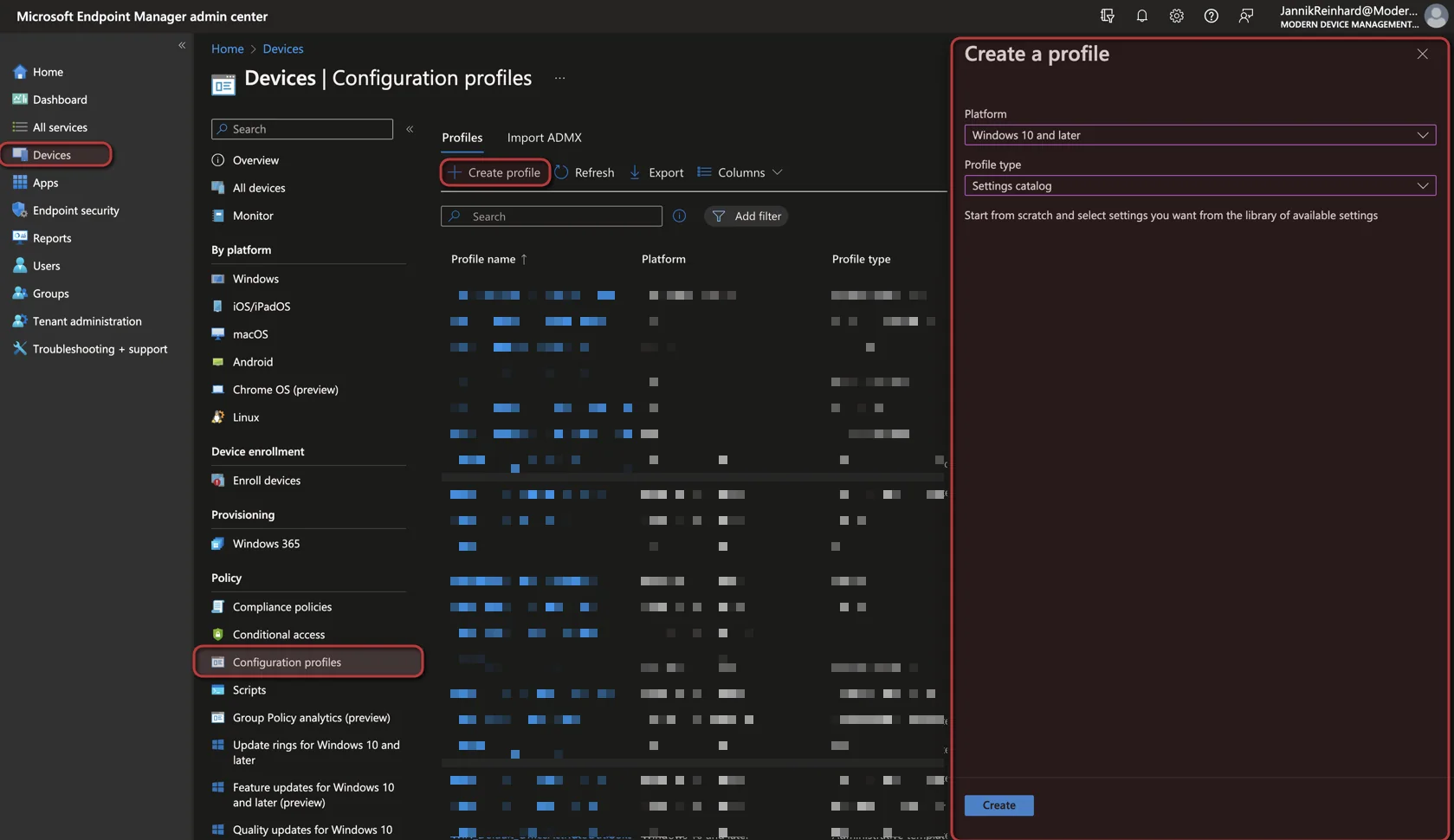
- Navigate to Devices -> Configuration profiles
- Click + Create Profile
- Select Windows 10 and later as Platform and Settings catalog as Profile type
- Click Create
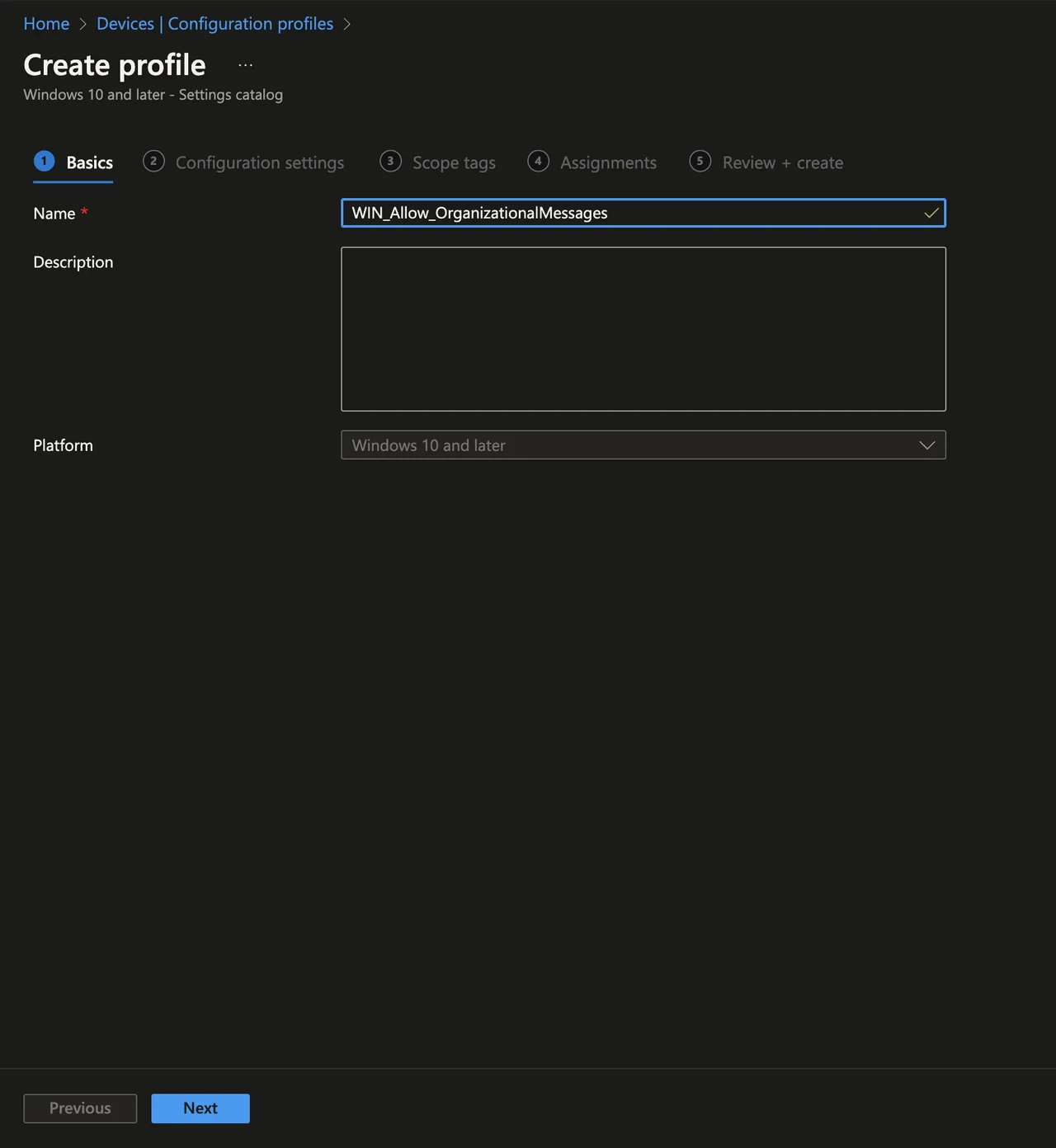
- Enter a Name
- Click Next
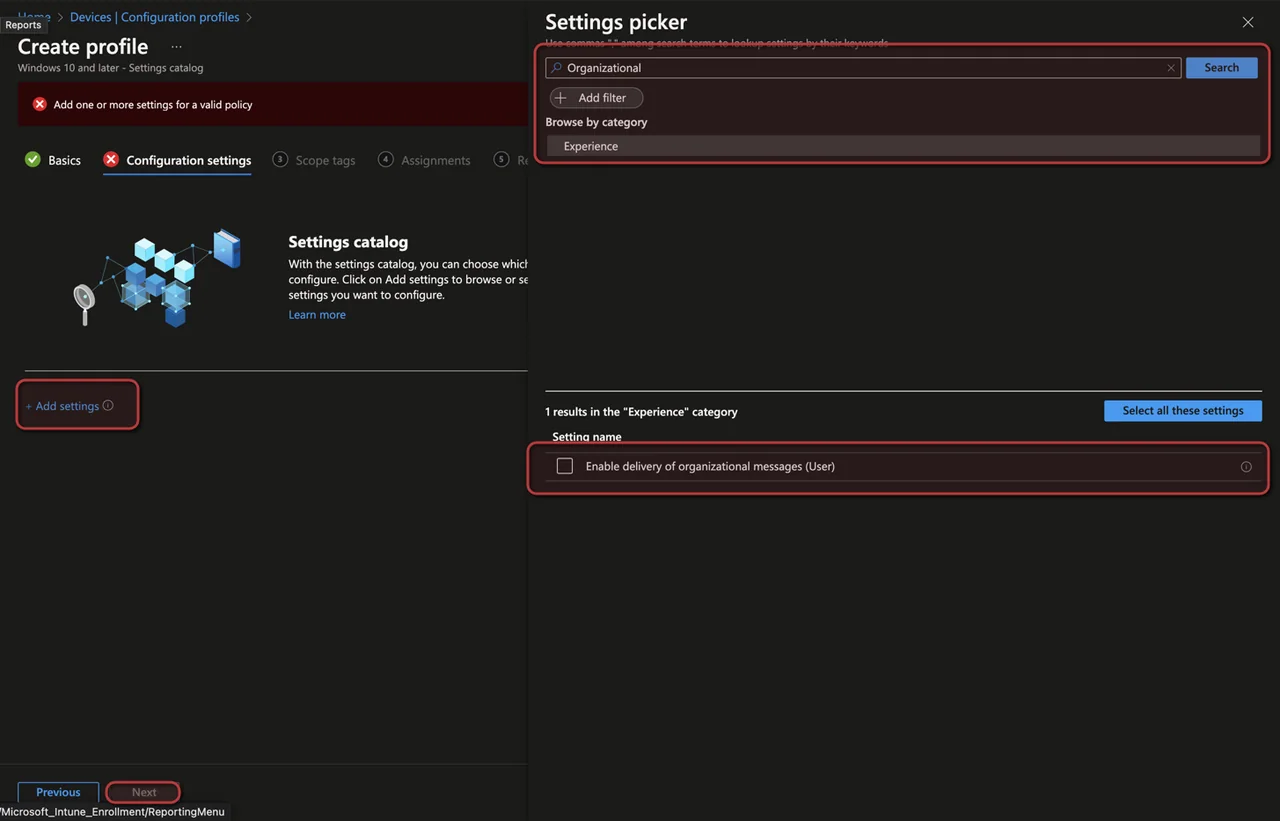
- Click + Add settings
- Search for organizational messages
- Check the Enable delivery of organizational messages (User)
- Click Next -> Next
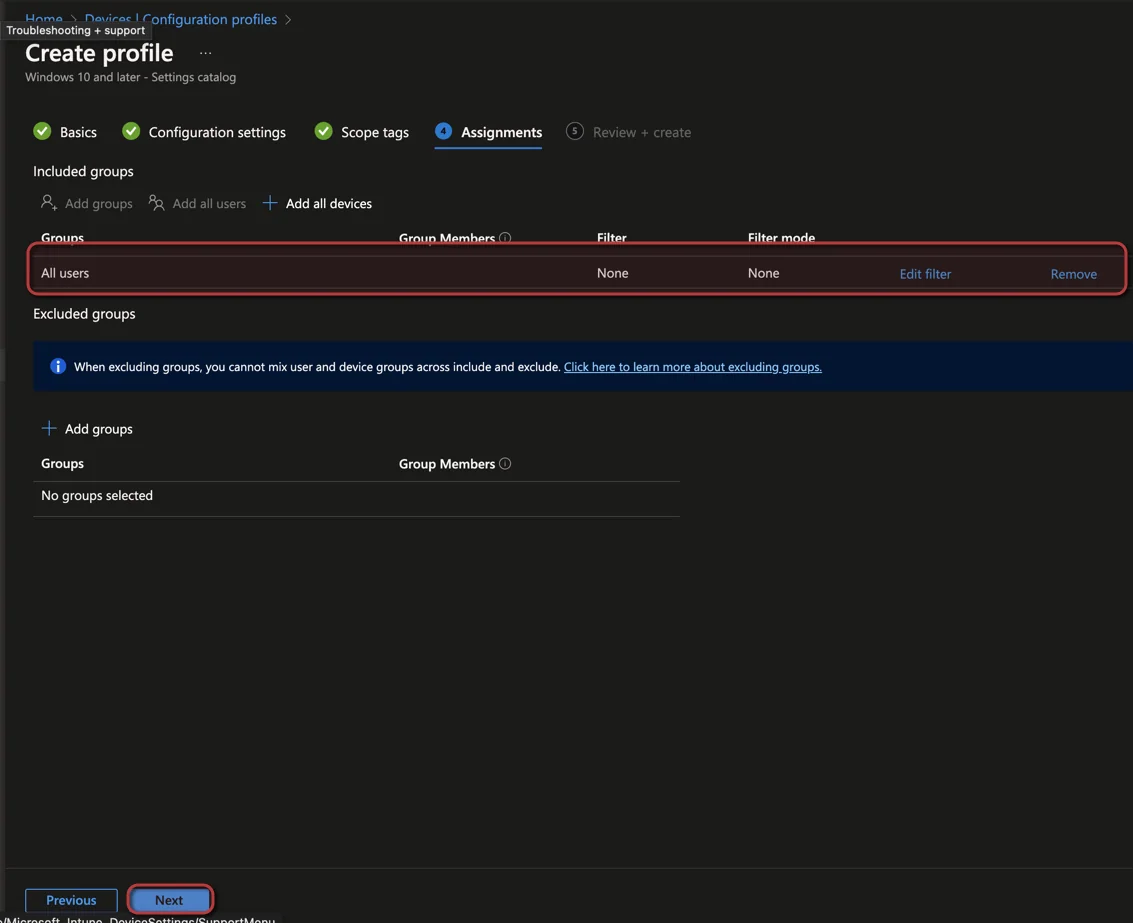
- Assign the config profile to a user group
- Click Next -> Create
How to configure Organizational Messages
With the feature enabled, you can now create the actual message. This is the part where you setup organizational messages content, the destination URL and the delivery schedule.
- Open the Intune console
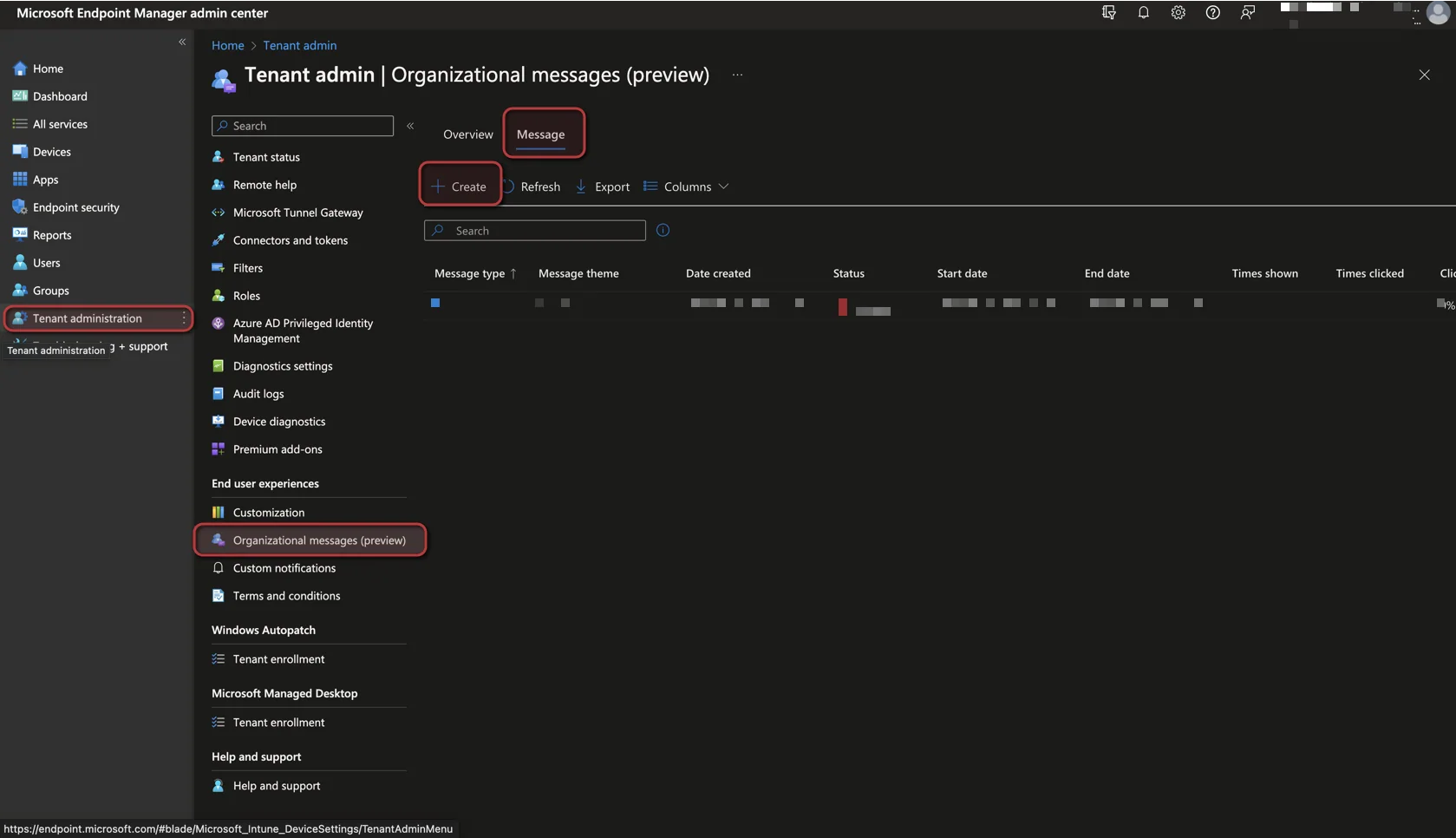
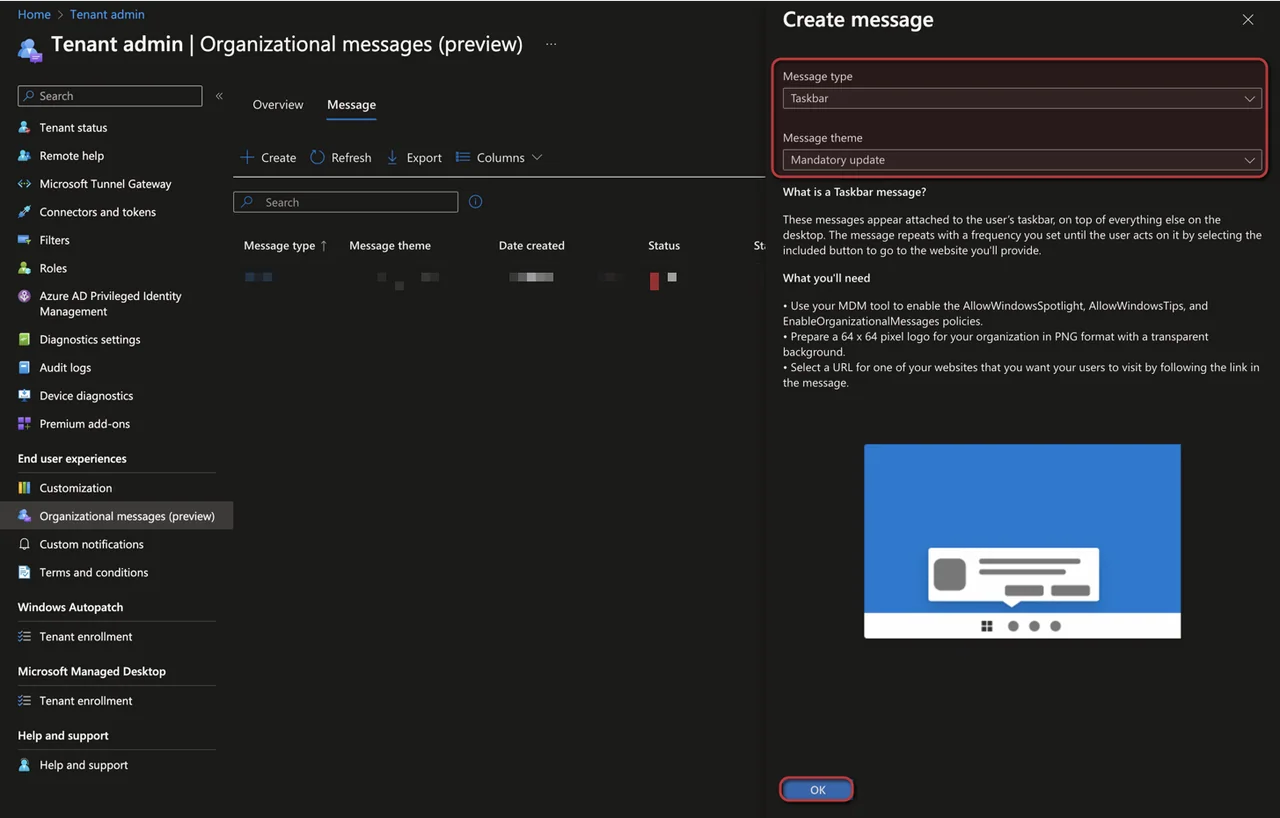
- Navigate to Tenant admin -> Organizational messages (preview)
- Select Messages
- Click + Create
- Now you can select different types of Notifications:
Taskbar:
Notification Area:
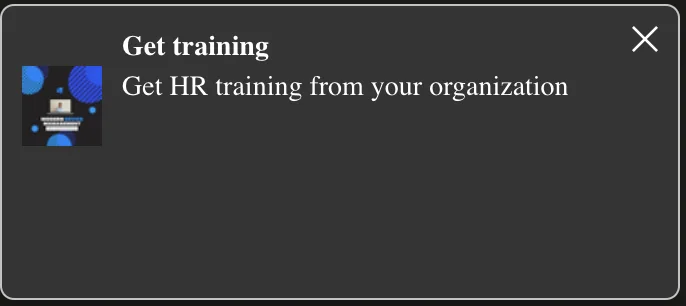
Get started app:
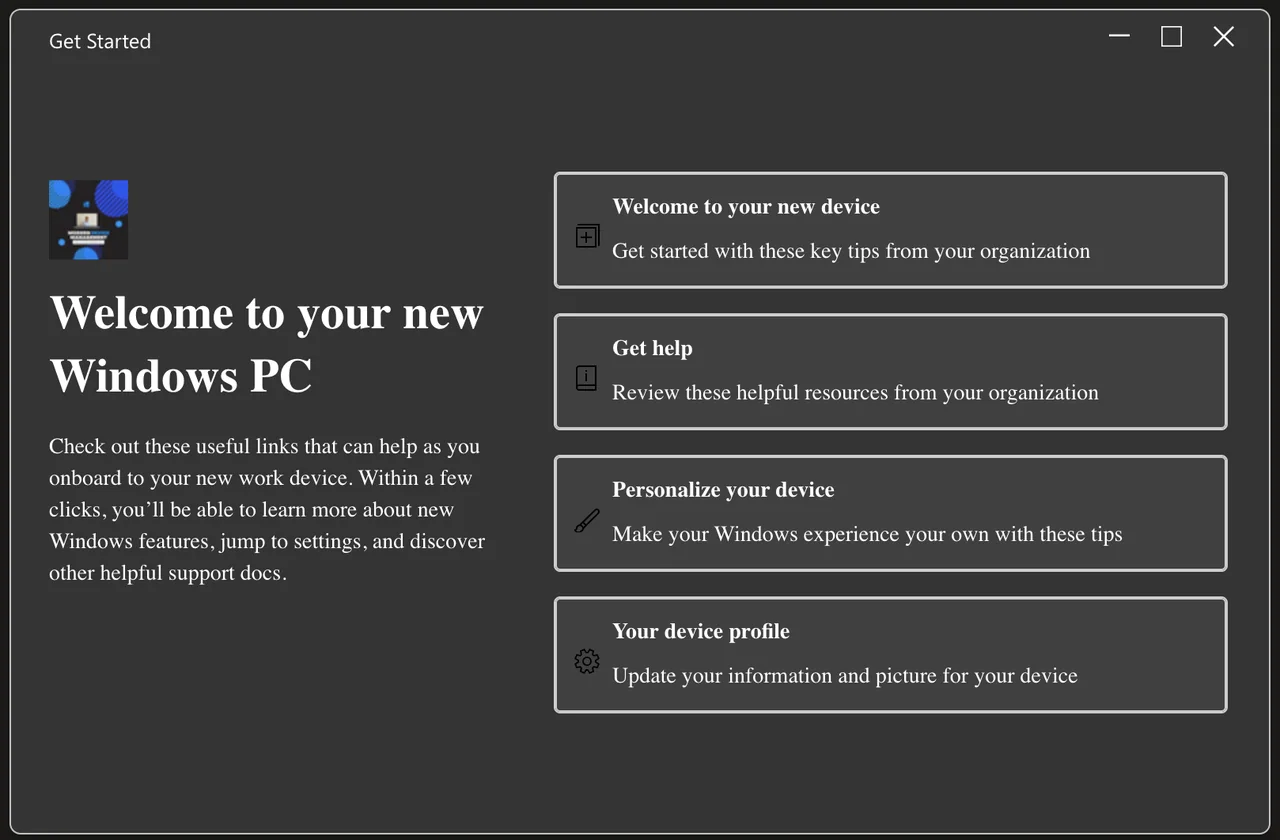
- In our case we select the Taskbar notification
- For the taskbar notification there is currently only one template
- Click OK
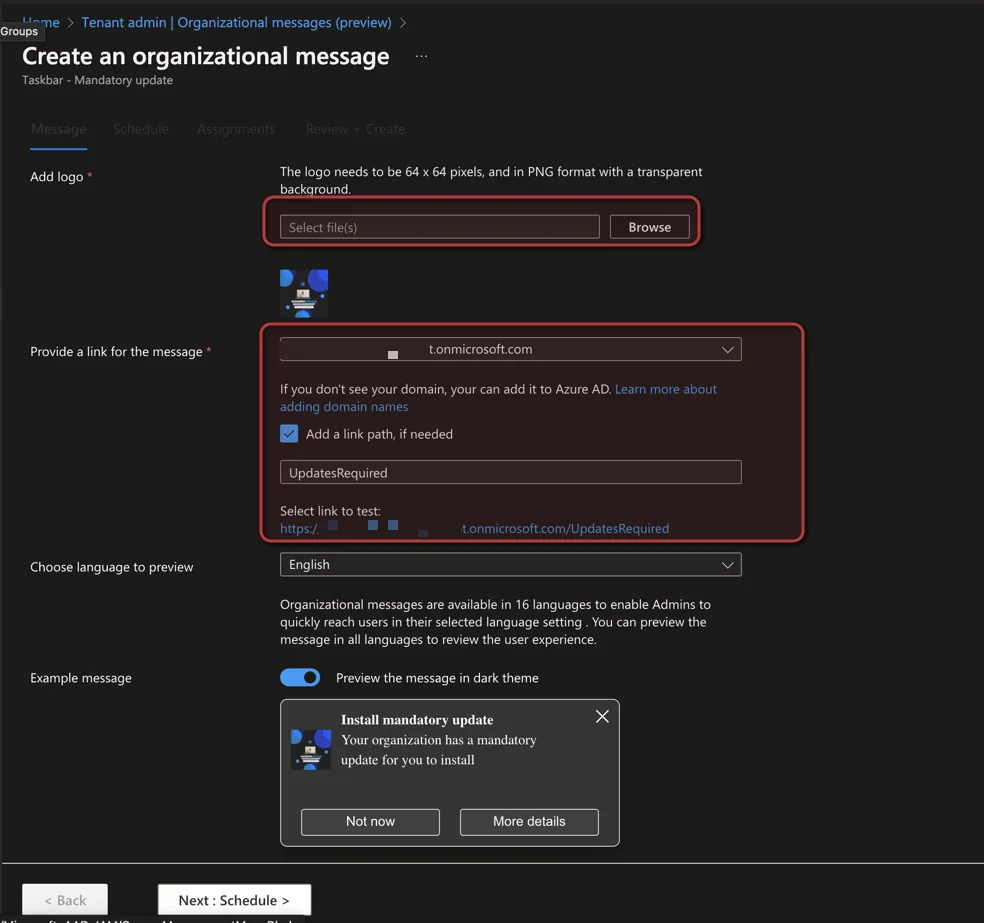
- Upload a picture in the 64 x 64 pixels formate
- Select your custom domain and the path to the required site
- Select the Language
- Click Next: Schedule
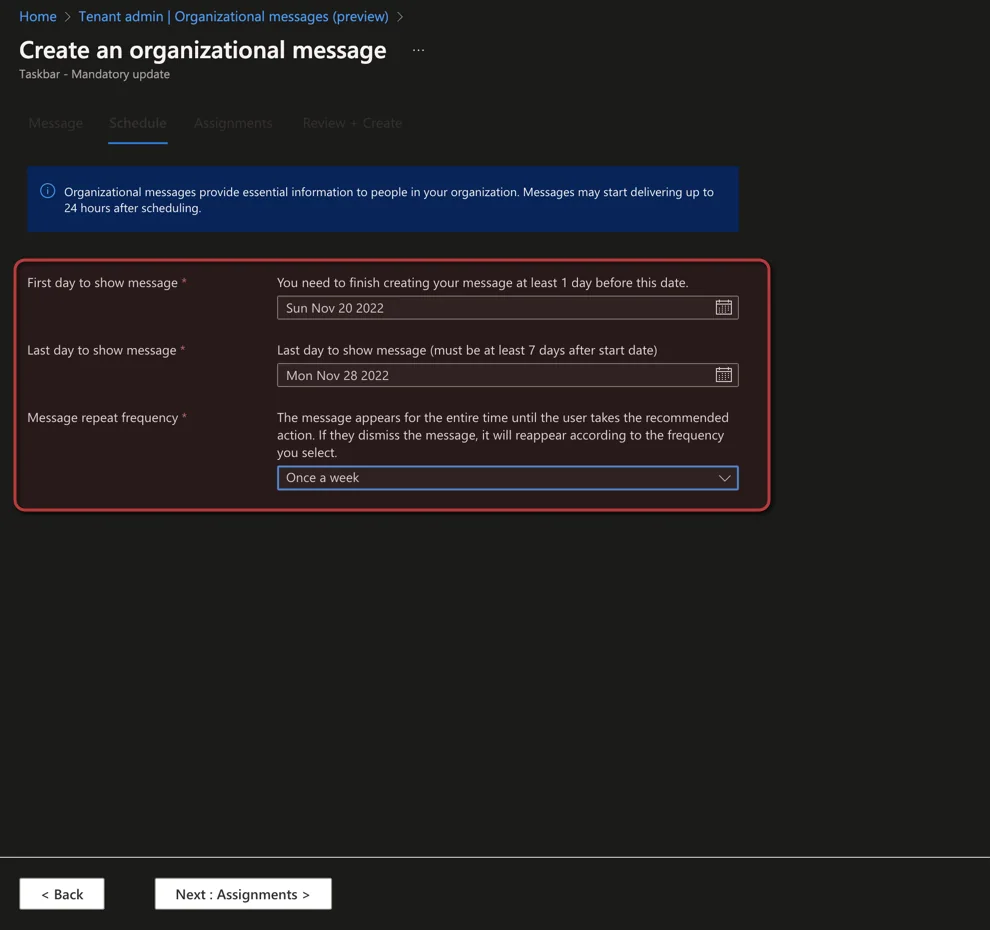
- Select the first and last day of the message and the frequency of how often the message should be shown to the user until they click on the link.
- Click Next: Assignments
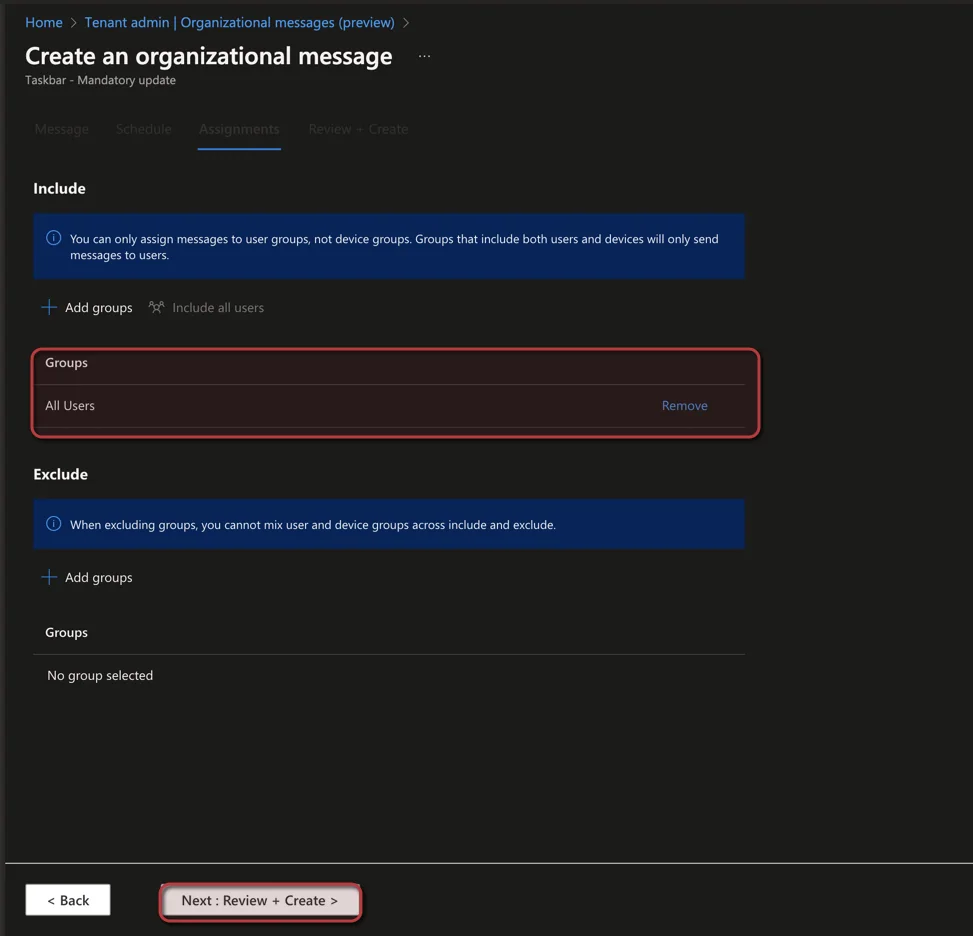
- Create a user assignment
- Click Next: Review + Create
- Click Create
Conclusion
Once you know how to setup organizational messages, you have a powerful, native way to reach Windows 11 users without third-party tooling. Start with a single taskbar message, validate the views and clicks reporting, and then expand to the notification area and Get Started app. If you want more Intune deployment tips, check out the other guides on jannikreinhard.com, and keep an eye on the feature as it moves out of preview so your organizational messages stay supported and reliable.

New posts, straight to your inbox.
Hands-on guides on Intune, AI and Azure.