
PowerShell diagnostics for Intune: status and remote actions
Inspect device status in the Intune Device Troubleshooter PowerShell UI. Review recommendations, remote actions and on-demand remediation scripts.
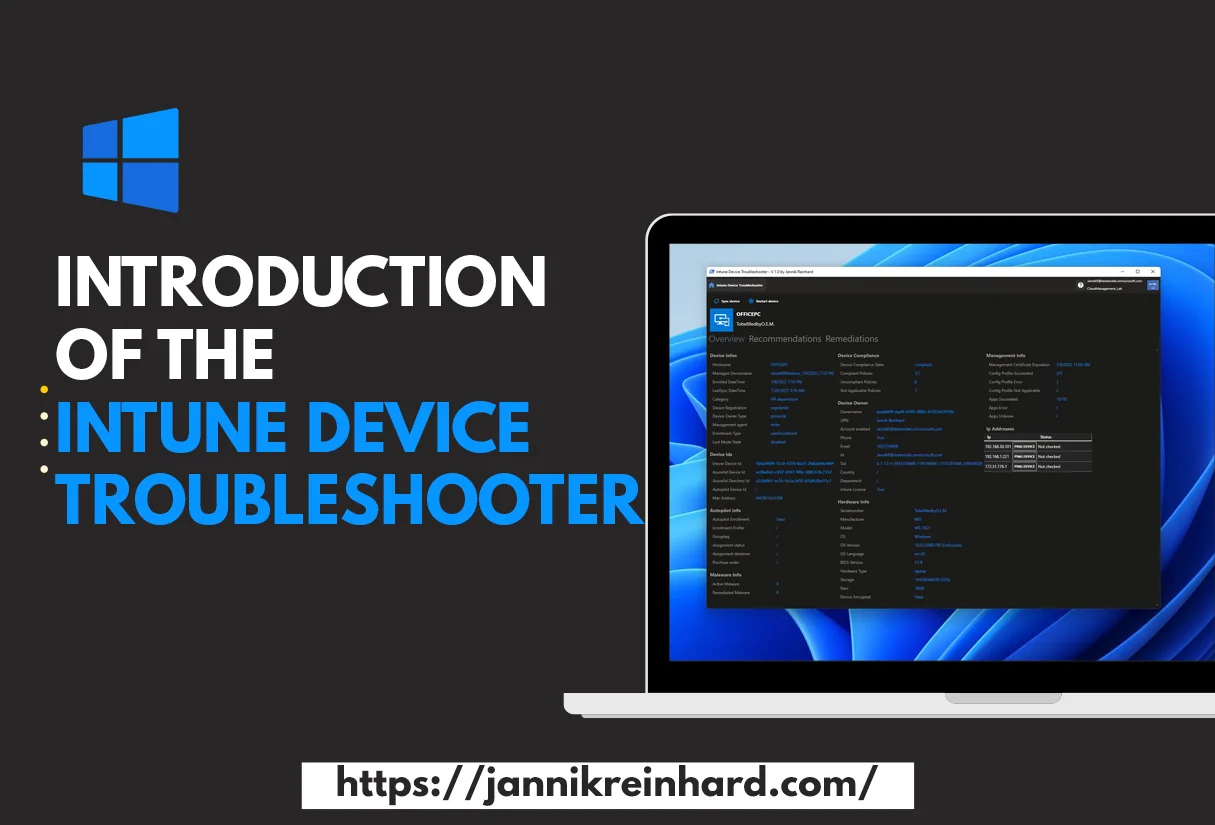
This guide covers the PowerShell UI, device status and actions of the original Intune Device Troubleshooter. For the separate chat application, follow GPT Intune Device Troubleshooter setup.
If you follow my blog, you know that there are two things I really like: helping people with their problems, and automating or simplifying processes. In this blog, I want to introduce you to my new tool, the Intune Device Troubleshooter. This is a PowerShell UI application that will help you to check the status of your devices, as well as help you trigger remediation scripts to fix issues ad-hoc on single devices. It also provides you with intelligent recommendations on what to check on a single device to determine any possible issues. So let’s get started and look at the features of the tool.
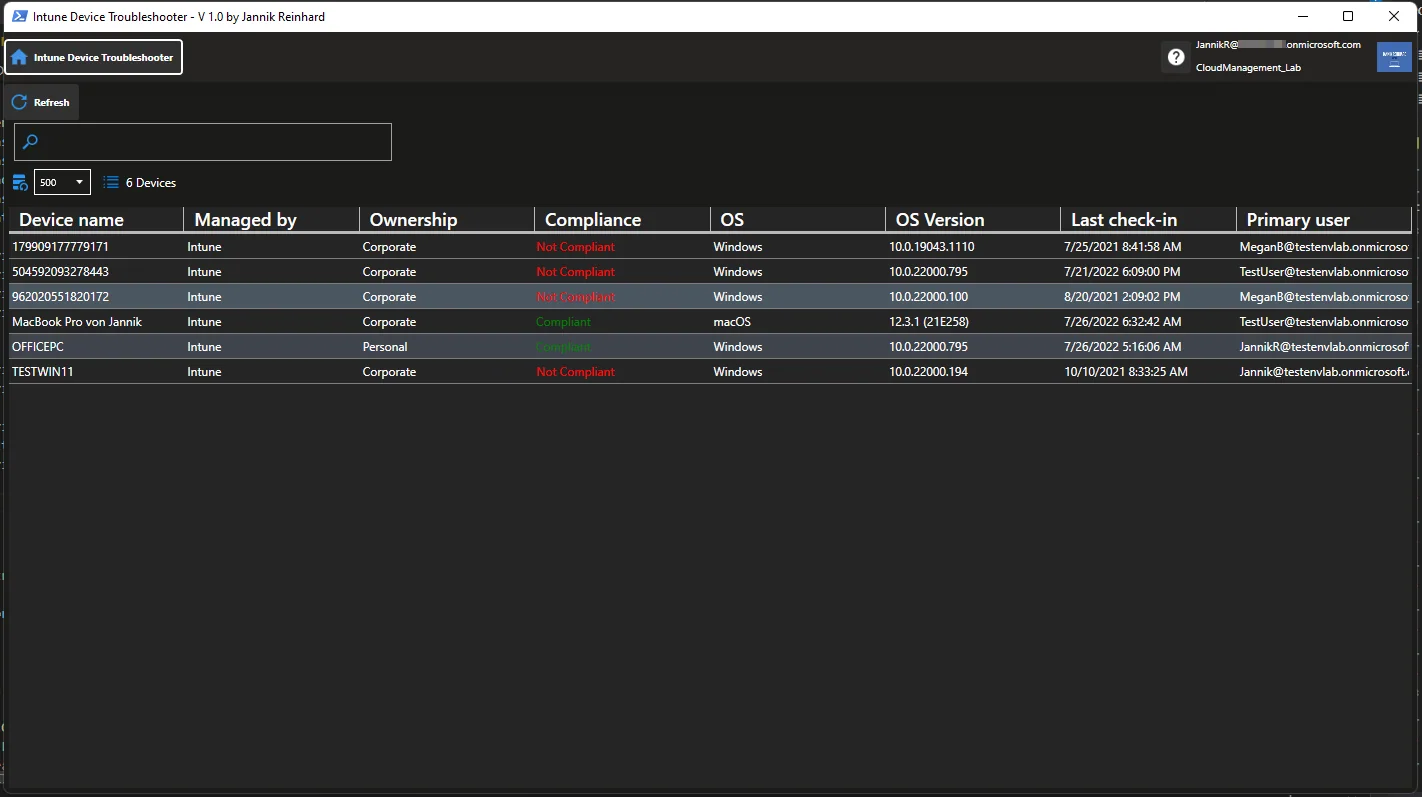
The features of the Intune Device Troubleshooter
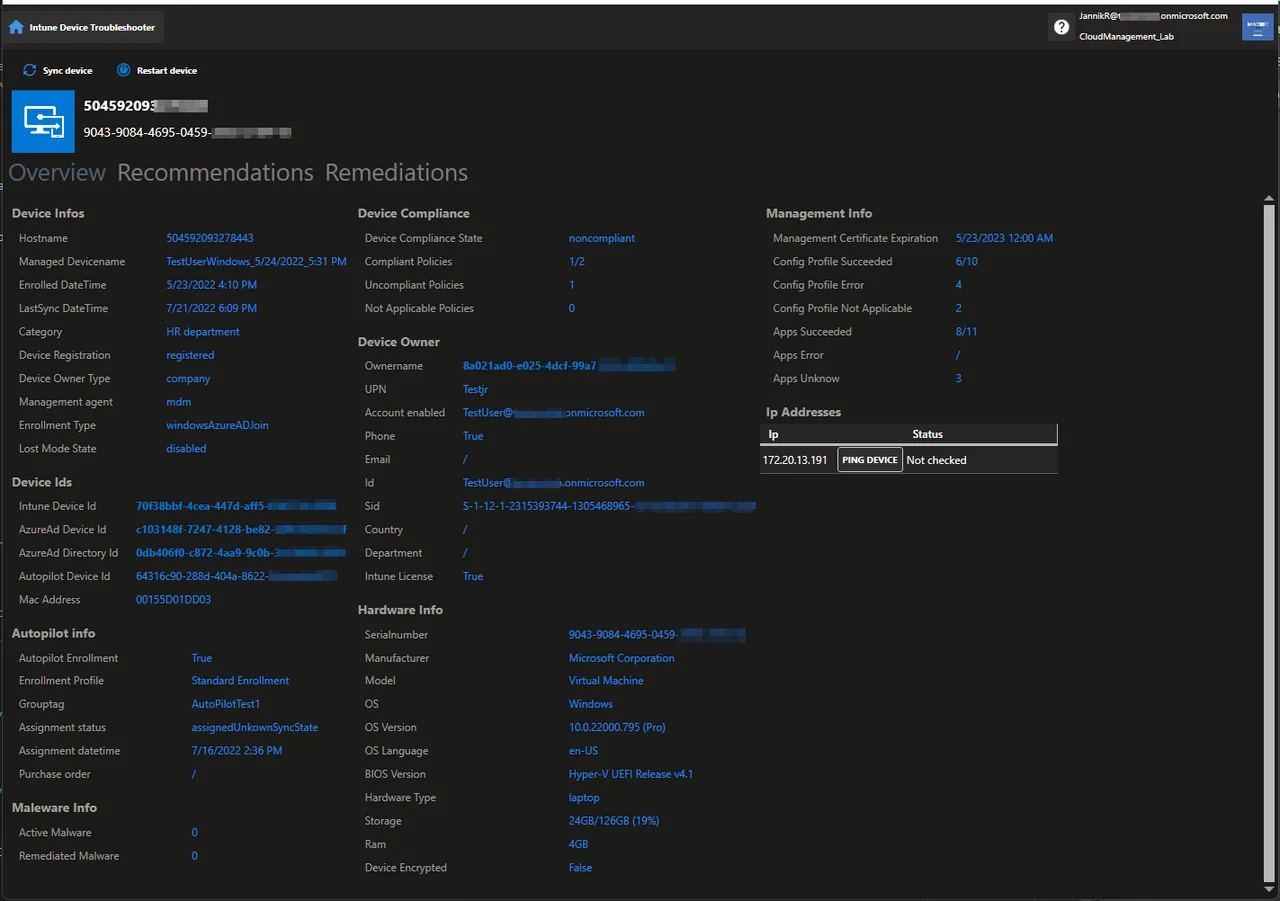
Device Overview
The Intune Device Troubleshooter provides you with a great overview of a lot of data around a single device that you wouldn’t normally be able to get through the Intune admin center. The data is prepared and gives you a very clear view of the status of the device. If you double-click on the IDs of the devices, it will open up the Intune admin center or Microsoft Entra ID directly, where you can make changes as well.
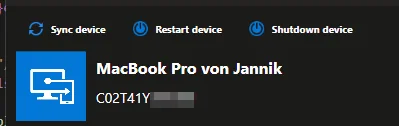
Trigger Action
You can perform actions directly through the tool, such as syncing the device or restarting it. This saves you the round trip to the Intune admin center when you just need to push a quick sync after assigning a policy. A typical example: you have just changed a compliance setting and want it to apply right away instead of waiting for the next check-in. Trigger a sync from the tool and the device will pick up the new configuration in the next cycle.
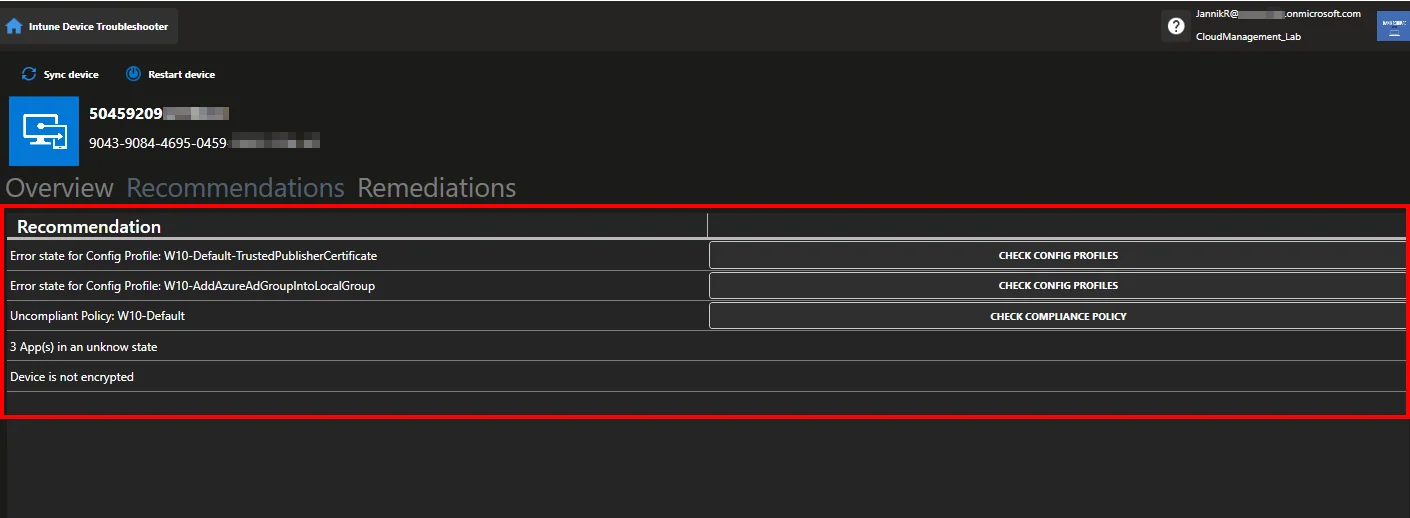
Recommendations
All the data that is accessible for this device is intelligently analysed and suggestions are made to quickly see what might be wrong with the device so that you can check or fix it. This speeds up your troubleshooting process and prevents you from missing anything.
To give you a concrete example: if a device has not checked in for several days, the tool will flag it so you can investigate connectivity or whether the device is still in use, instead of scrolling through endless property pages yourself. The goal is to surface the obvious problems first, so you spend your time fixing rather than searching. If you have any further ideas for checks, please let me know so that I can include them.
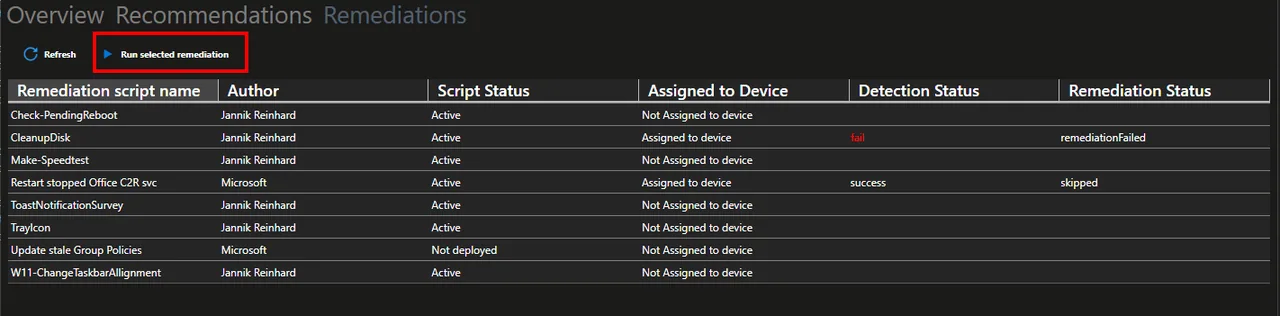
Remediation Scripts Trigger
This is a feature that can really help you with the solving of errors. In the Intune admin center, you can only assign remediation scripts to a group but you can’t trigger them on an individual device. That’s exactly what I did with the Intune Device Troubleshooter.
If you want to run an action on a single device, you can trigger the script and I’ll create a group in the background (if it doesn’t already exist) with the name “MDM-Remediation-Trigger-{ScriptName}” which you can of course change, and add the device to it. So the remediation action will be performed on the device in a timely manner. You can learn more about how remediations work in the official Microsoft Learn documentation.
How can you get the Intune Device Troubleshooter Tool
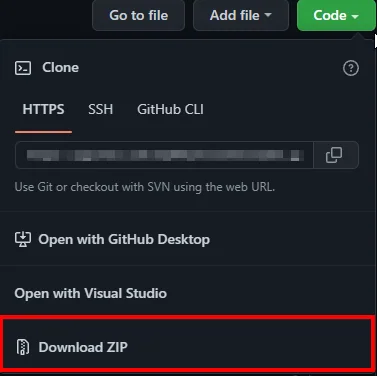
- Open my GitHub repository
- Download and unzip the whole folder
A quick word on prerequisites before you run the tool: you need an account with the right Intune permissions, and the Microsoft Graph PowerShell SDK installed locally. The first time you connect you will be asked to consent to the required Graph scopes, so make sure you are allowed to grant or request that consent in your tenant.
- Make sure that the PowerShell SDK is installed on your system. If not install the SDK using the following command:
Install-Module Microsoft.Graph -Scope CurrentUser- Execute the Start-DeviceTroubleshooter.ps1
- Have fun
Note
If you get the following error on your system when executing the Intune Device Troubleshooter:

You have to unblock the DLLs. Navigate for this to the libraries folder and click Unblock in the properties on each DLL.
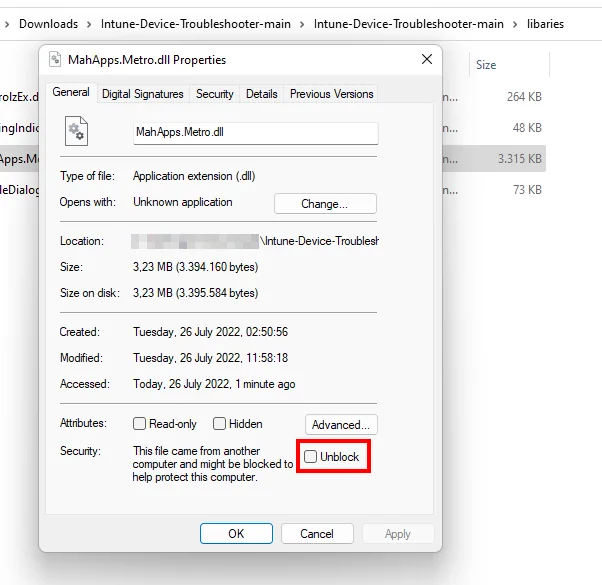
You may need to restart your PowerShell session to make the error message disappear. For more device management ideas, take a look at my other Intune blog posts.
Conclusion
I hope you like the Intune Device Troubleshooter and I was able to simplify your troubleshooting workflow with it. The Intune Device Troubleshooter is meant to save you time on day-to-day support, and I’m very happy about your feedback and your ideas for further development. I’m also happy for anyone who shares the tool with others on Twitter or other networks. Have fun with it 🙂
Stay healthy, Cheers
Jannik