
Detect Slow Internet Breakouts with Endpoint Analytics
Endpoint Analytics makes it easy to detect slow internet breakouts per device. Follow this proven step-by-step guide to catch degraded sites fast.
This post shows how to detect slow internet breakouts with Microsoft Endpoint Analytics. By collecting per-device internet performance data with Endpoint Analytics and correlating it with location and ISP, you can spot the offices and remote locations where the user experience is silently degraded — long before the support tickets start.
Users always complain that the network is slow. This can also be measured centrally using various network monitoring tools, and for a broader view on reporting options you can also take a look at Mastering Intune Reporting and Analytics. However, this monitoring can only provide complete insight if the user is actually onsite in the corporate network.
If the user is sitting in the home office and is connected to the internet via his own router, this is not always so easy. But there are also many other reasons why a user has a slow connection. It is not always due to the network. In this block I want to show you how you can test the speed of all clients regularly with a simple remediation script and upload it to a log analytics workspace to do some analysis.
If you want the official background, the Microsoft Learn Endpoint Analytics overview is a great starting point.
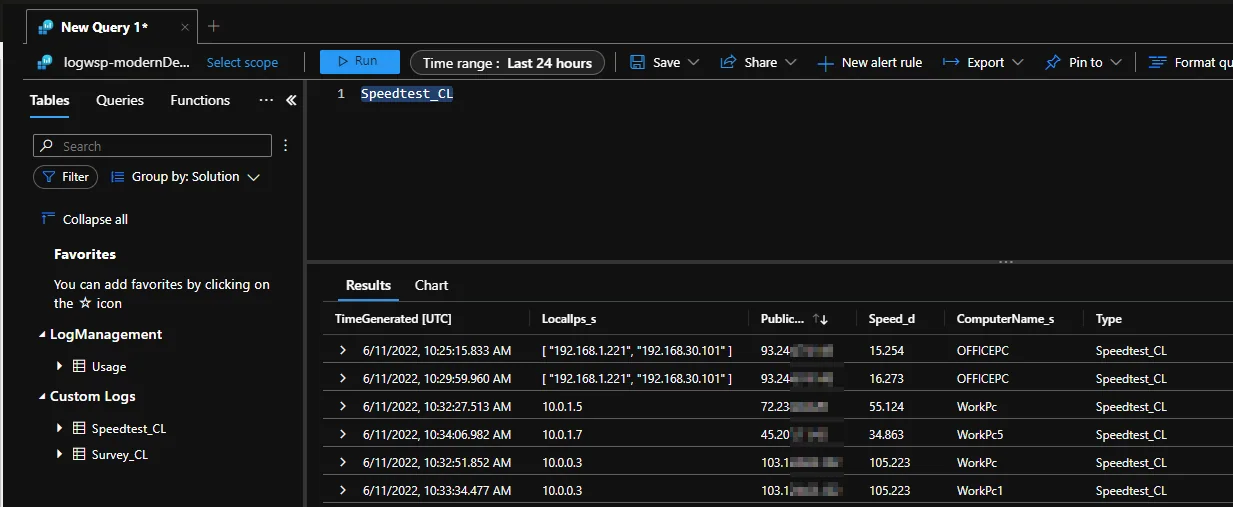
How Endpoint Analytics speed testing works
The whole thing works very simply: on my GitHub repository there is a 5MB file that consists only of “aaaaaaaa” characters. This Endpoint Analytics approach turns a basic download into a repeatable speed test.

The script downloads this file several times and the time is measured.

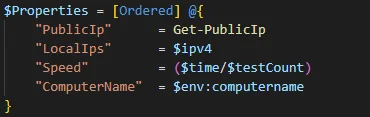
From this time an average is calculated and uploaded together with the local IPs and the public IP into the log analytics workspace.
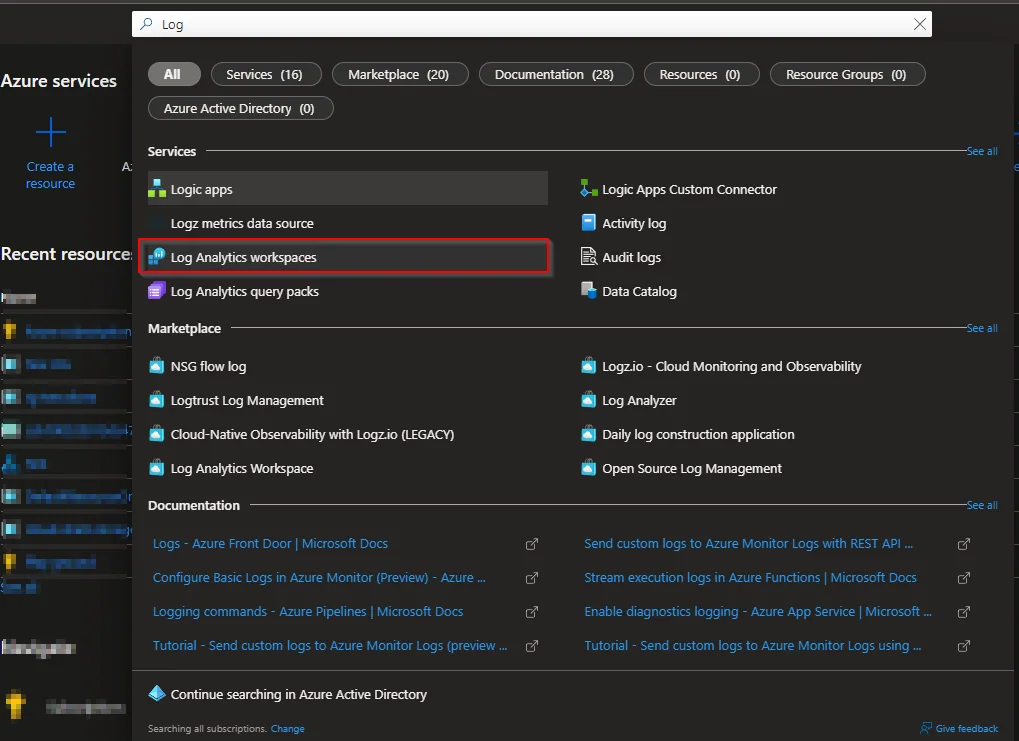
Create a Log Analytics Workspace
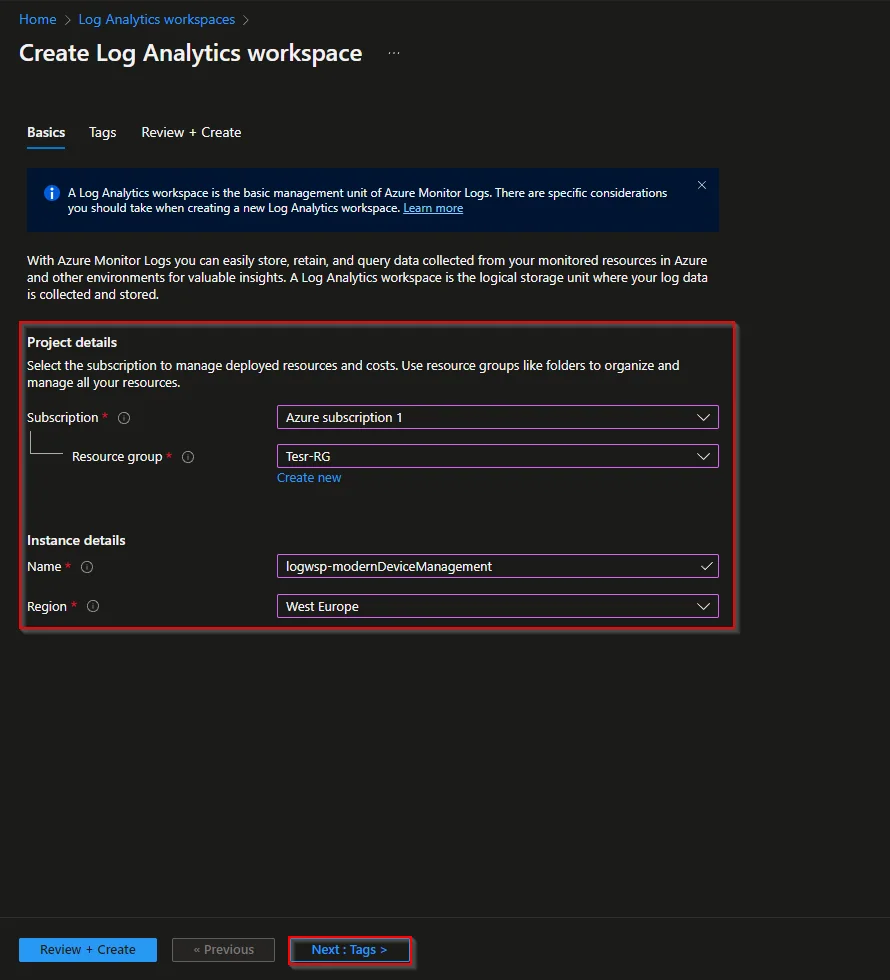
- Open the Azure Portal
- Search for Log Analytics workspace
- Select the Subscription and the Resource group or create a new one
- Enter a name for the workspace
- Select the region
- Click Next: Tags >
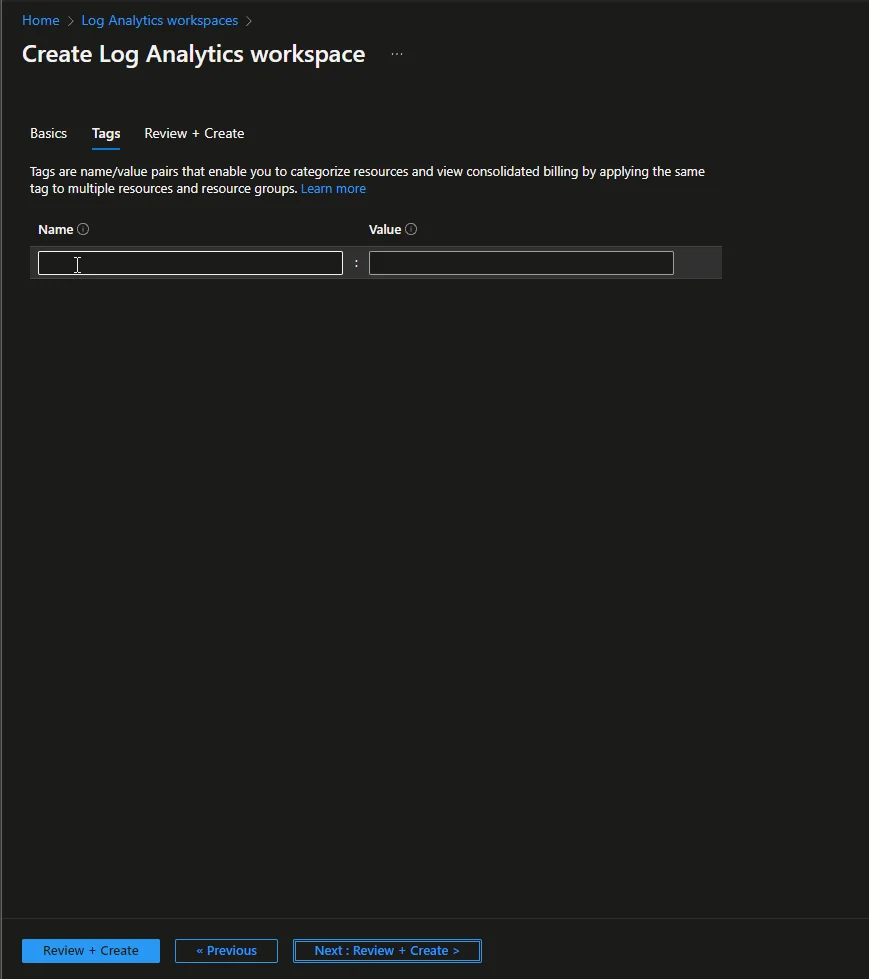
- Optional: Add Tags
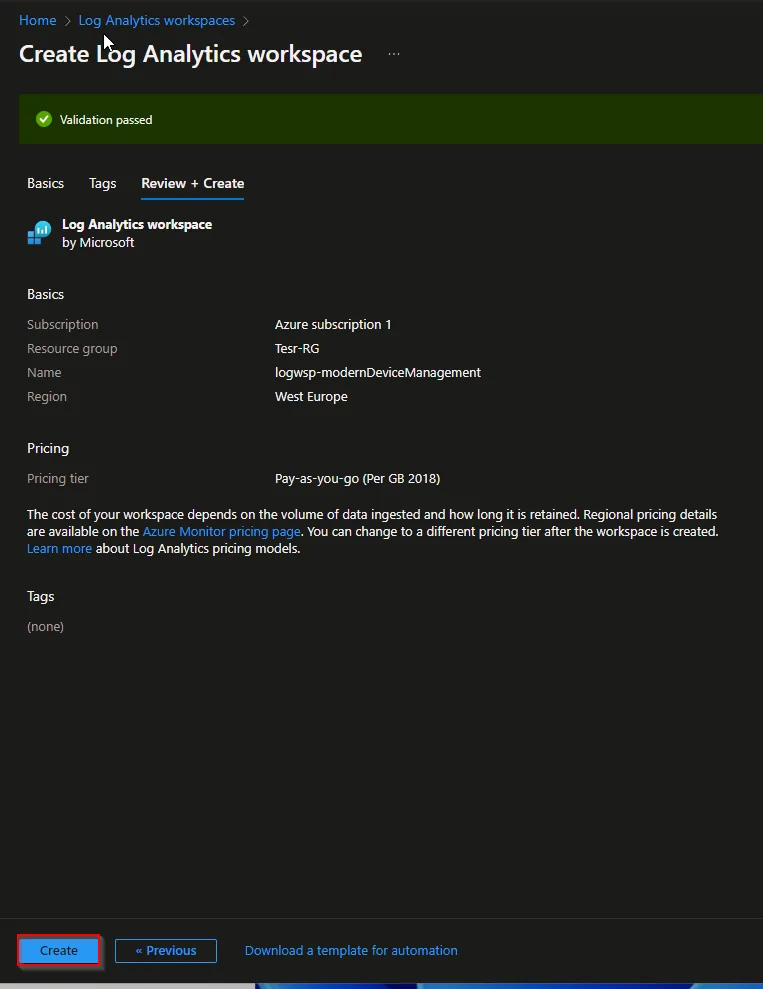
- Click Next: Review + Create >
- Click Create
Get Workspace information
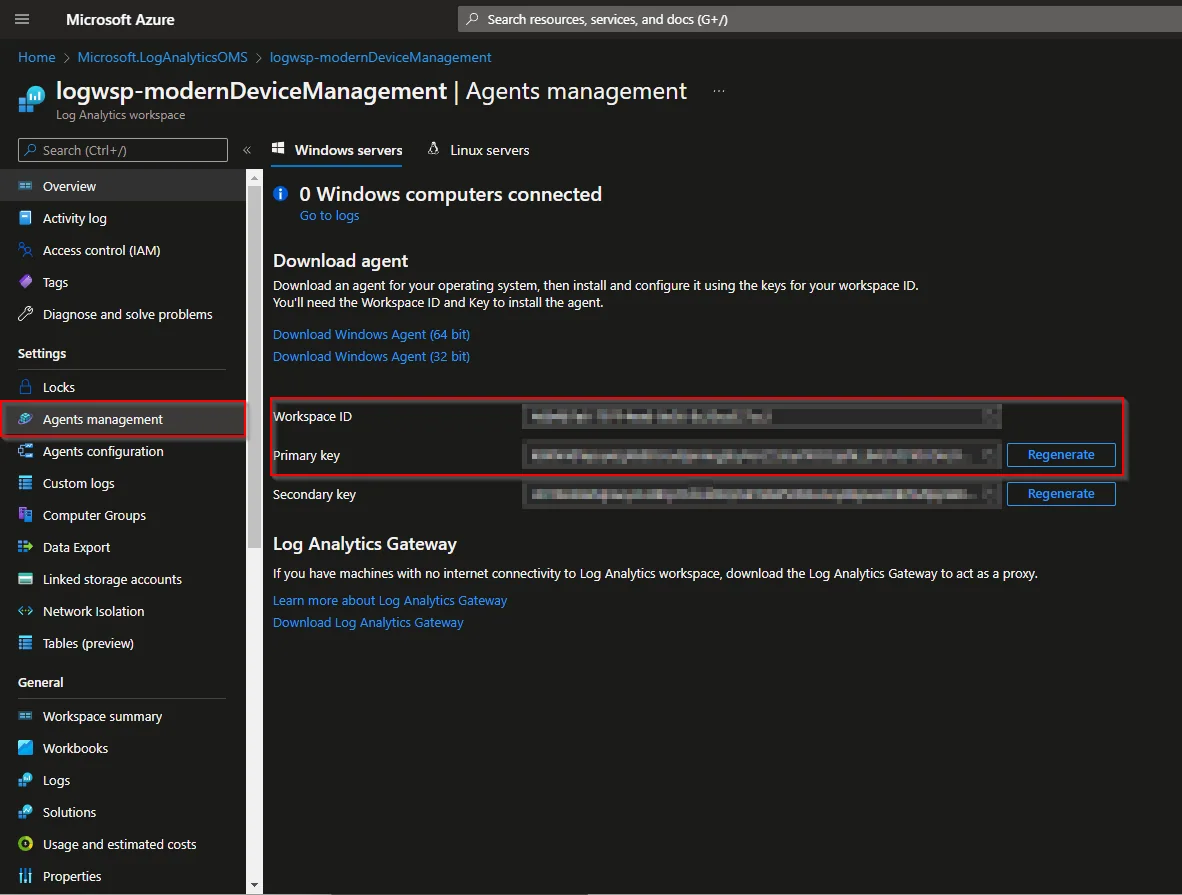
- Open the new Log Analytics Workspace
- Navigate to Agent management
- Copy the two values for this speed-test upload. The workspace credential walkthrough shows where the workspace ID and primary key are displayed.
How to collect the Endpoint Analytics data
- As with many of my blogs, it starts with a script on my GitHub repository. So download this script first.
- Insert the Workspace ID and the log analytics primary key. Optionally, you can also make the speedtest with another file on your own blob storage.
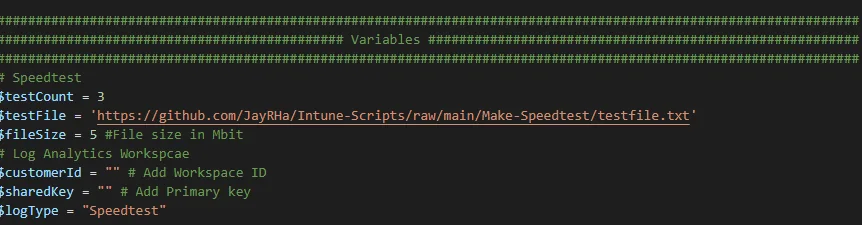
- Package the speed-test script using the remediation deployment workflow, then apply the measurement schedule and settings below.
- Click Create script package
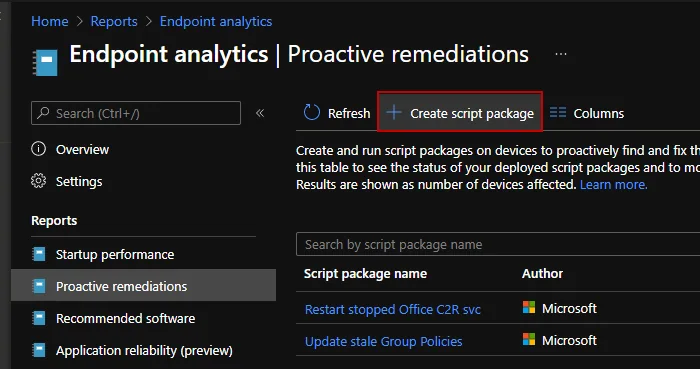
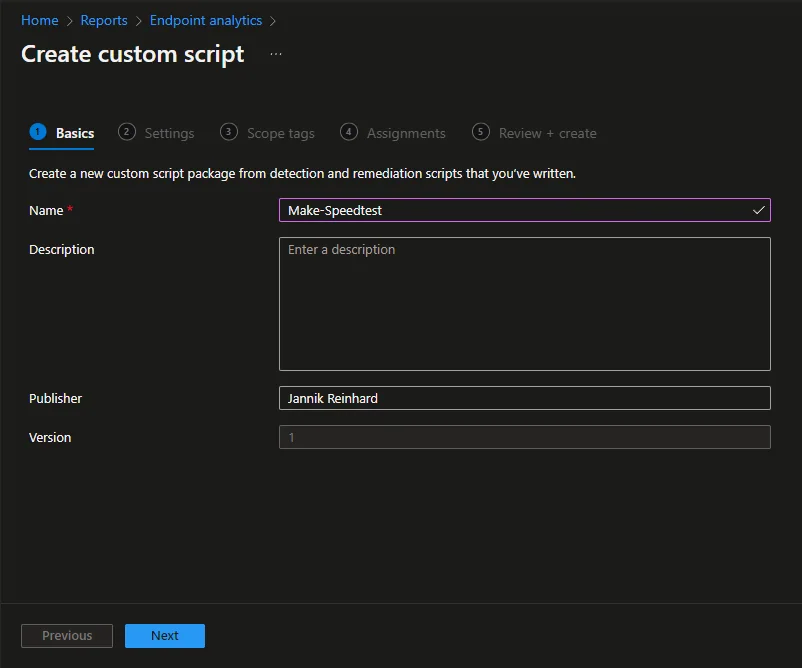
- Enter a name
- Click Next
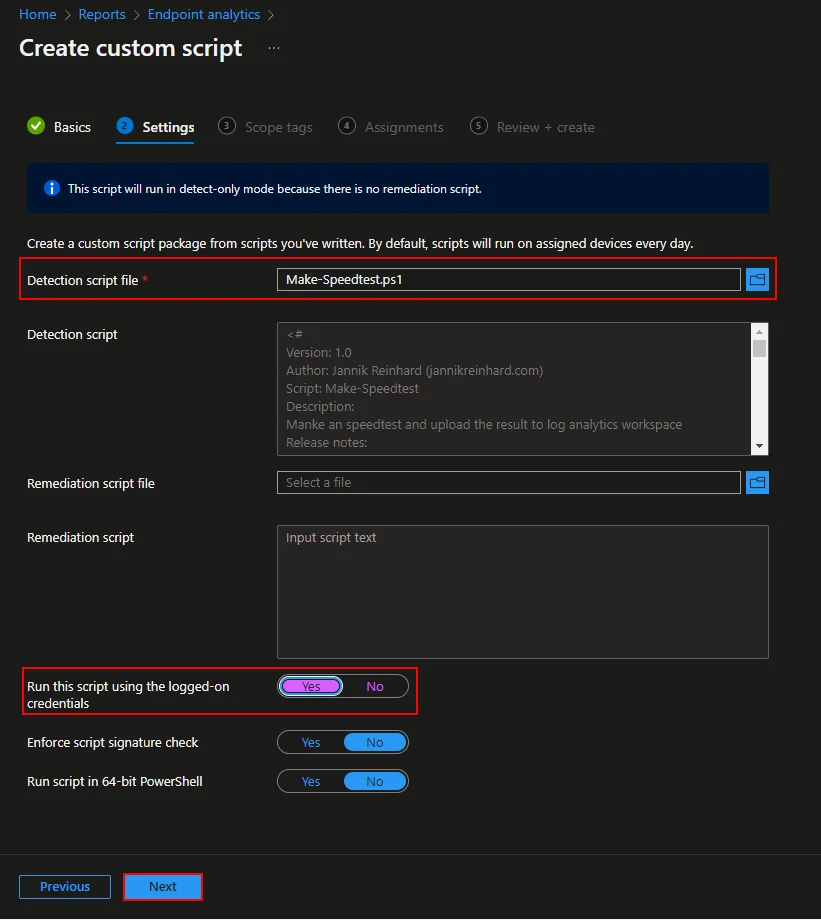
- Upload the script as detection script and the remediation script
- Select Yes for Run this script using the logged on credentials
- Click Next
- Click Next
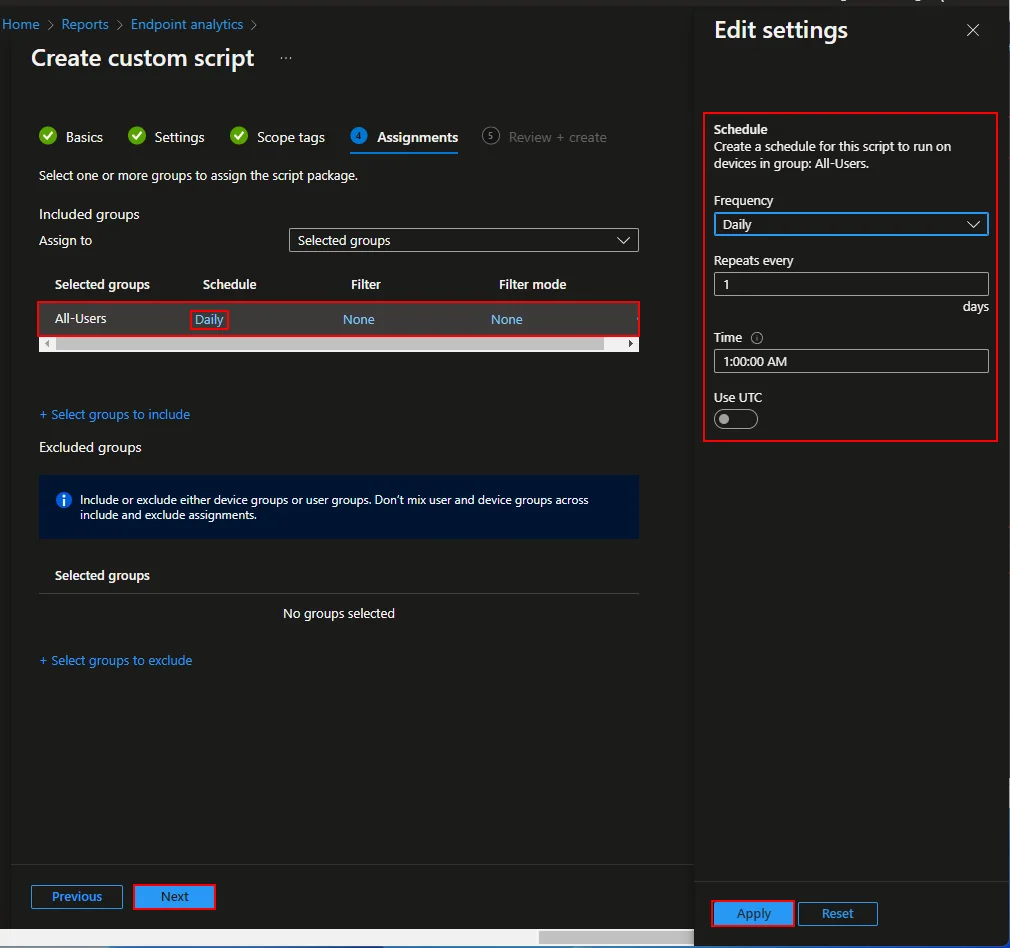
- Assign the Script to a group and click on Daily
- In my case I select a Daily schedule(You can also select a other schedule) and click apply
- Click Next
- Click Create
Check if everything works
- Open the Log analytics workspace here you should have a logfile with the name Speedtest_CL.
- If you see some entries of your clients in the workspace then everything works and Endpoint Analytics is collecting your speed data.
This is a very simple method to get an overview of the speed by downloading a simple file from the Internet. Of course the script can be extended to download larger files or files from different regions. You can also do a lot with the Endpoint Analytics data. Through KQL and Workbooks you can create dashboards or e.g.
display an average over time via public IP or local subnet. You can also send alerts if you see a strong negative trend in a site. The possibilities here are great. If you also want to collect and monitor more data from Windows clients, check out my post about the Azure Monitor Agent setup.
If you want to get a broader overview of built-in endpoint insights, you can also check out my post about the analytics capabilities in Intune. If you want to go deeper into Endpoint Analytics, check out Intune Suite Part 3: Advanced Endpoint Analytics.
Stay healthy, Cheers
Jannik