
Easy way to analyse MDM Diagnostic data on the client
Analyze Windows MDM diagnostic data with PowerShell. Inspect the report and client-side information to investigate Intune configuration and enrollment issues.

When an Intune-managed device misbehaves — a policy doesn’t apply, an app refuses to install, BitLocker silently fails — the truth lives on the client itself. Microsoft’s MDM Diagnostic Report bundles all of that into a single ZIP that contains everything from MDM event logs to current policy values. The problem is that browsing through the raw HTML, EVTX and registry exports is painful, and most admins never make it past the cover page. This post shows the simplest practical workflow I use to analyse MDM Diagnostic data on real client devices, extract the answers fast, and pick the few files you should open first to answer 80 % of all support questions.
In this blog I would like to give you a helpful tool to analyse MDM Diagnostic data directly on the client with the help of PowerShell, and how you can process the content in a simple way to implement remediations or to build a monitoring solution. The MDM Diagnostic data is the single richest source of truth for enrollment, policy and app state, so learning to read it quickly pays off on every support ticket. In the following sections I will explain step by step how you can use this script.
Why analyse MDM Diagnostic data on the client?
The portal in Intune only tells you part of the story. Reporting is delayed, aggregated and sometimes simply wrong because the device has not checked in yet. When you analyse MDM Diagnostic data on the client itself you see the real, current state: which enrollment is active, which policies actually landed, and where a configuration service provider returned an error. That is why the MDM Diagnostic data on the box beats anything the cloud reports show you, and it is the first place I look when a device is stuck.
Where can you find the script?
You can find the script in my GitHub repository.
https://github.com/JayRHa/intune-scripts/tree/main/Get-MdmDiagnostigLogs
How does the MDM Diagnostic data script work?
Under the hood the script triggers the same mechanism that Microsoft documents for the MDM Diagnostic Report, then parses the resulting collection into a clean PowerShell object. Instead of clicking through the generated HTML you get the MDM Diagnostic data as structured properties you can filter, export or feed straight into a remediation. The steps below walk through a full run end to end.
How can I call the script?
The script has three different parameters:
| Parameter | Description |
| collectNew | (Switch) Create a new mdm log or use the existing one (If not exist a new one will be created) |
| returnonly | (Switch) Returns an object of not set the object will printed out in the console |
| output | (List) Define the output information you want to have. If you want all you can specify ‘All’ Supported values: ‘All’,’ActiveSync’,’DeviceManageabilityProviderInfo’,’DeviceManagementAccount’,’Diagnostics’,’EAS’,’Enrollments’,’EnterpriseDesktopAppManagementinfo’,’FirstSyncData’,’MdmWinsOverGp’,’PolicyManager’,’PolicyManagerMeta’,’ProvisioningResults’,’Resources’,’SCEP’,’SystemInformation’,’Version’,’WAP’ |
Here are some examples of how you can call the script:
Get ‘FirstSyncData’, ‘SystemInformation’ as output in the terminal
Get-MdmDiagnosticLogObject -output @('FirstSyncData', 'SystemInformation')Get ‘FirstSyncData’, ‘SystemInformation’ as a return value into a variable
$mdmDiagnostic = Get-MdmDiagnosticLogObject -returnonly -output @('FirstSyncData', 'SystemInformation')Generate a new logfile and get ‘FirstSyncData’, ‘SystemInformation’ as a return value into a variable
$mdmDiagnostic = Get-MdmDiagnosticLogObject -returnonly -collectNew -output @('FirstSyncData', 'SystemInformation')Get all device configuration object metadata
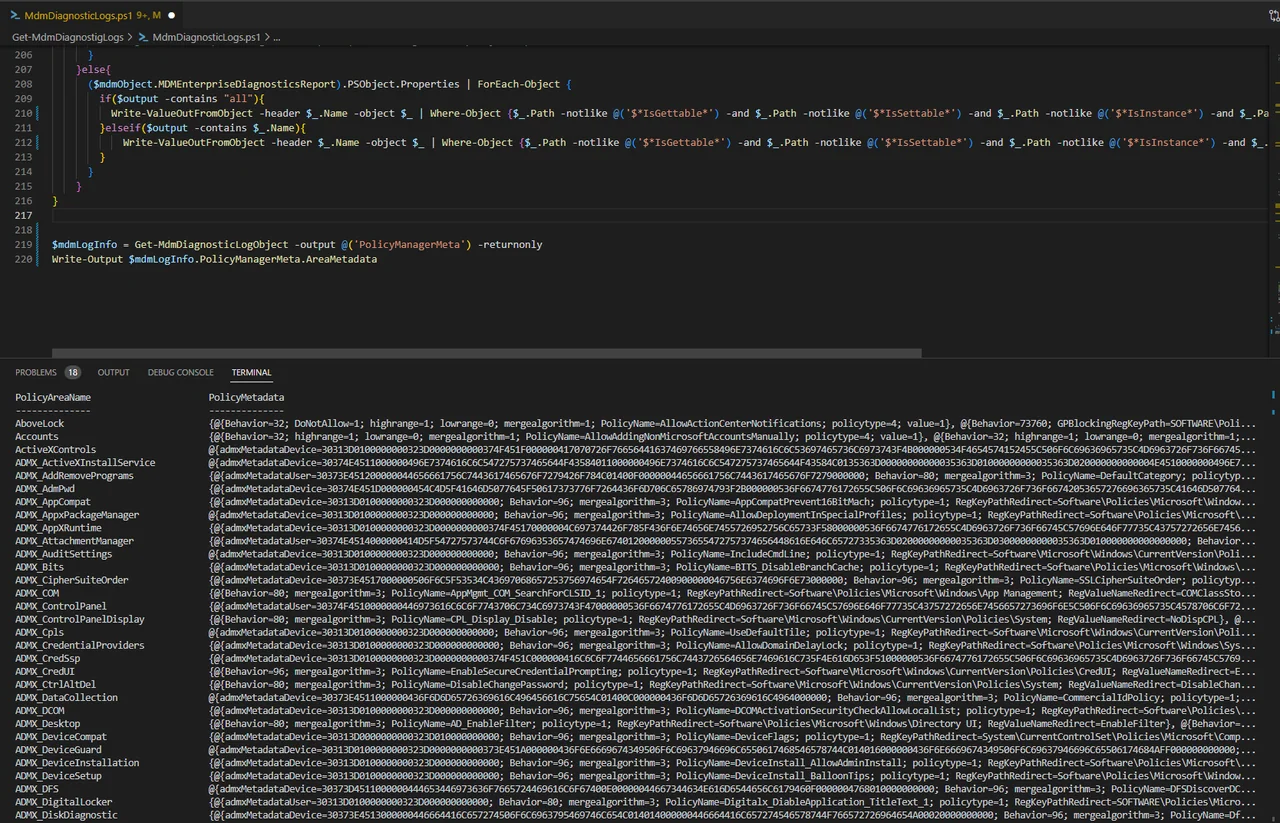
$mdmLogInfo = Get-MdmDiagnosticLogObject -output @('PolicyManagerMeta') -returnonly
Write-Output $mdmLogInfo.PolicyManagerMeta.AreaMetadata
Turning MDM Diagnostic data into automated checks
Because the script returns a real object, you can wire the MDM Diagnostic data into an Intune remediation or a custom monitoring dashboard. Read a policy value, compare it against your baseline, and either report or auto-fix the drift — all without a human ever opening the ZIP. If you want to go further with this approach, take a look at my other Intune automation posts, where I use the same pattern to keep fleets healthy. Once you start treating MDM Diagnostic data as code rather than as a report, client-side troubleshooting becomes fast, repeatable and genuinely enjoyable.