
Intune Scope Tags: Delegate Administration and Limit Visibility
Intune scope tags make delegated admin simple: learn how to create groups, tags, and custom roles in a few proven steps to secure your tenant fast.

Intune scope tags allow you to manage a large organization’s IT infrastructure while giving each department/region/sub company/… the flexibility to configure their own settings. Scope tags in Microsoft Intune allow administrators to divide devices in their organization into logical groups. These groups, also known as tags, can be used to make certain settings, applications, and policies available only to specific users or devices. By using Intune scope tags, you can streamline your IT infrastructure, improve security and make your life easier.
In this practical, step-by-step guide we will look at how Intune scope tags work in the real world and why they are essential for delegated administration. If you run a distributed environment, Intune scope tags give you a clean, secure way to separate responsibilities without spinning up multiple tenants. You can read more background on tenant strategy in my other posts on jannikreinhard.com, and the official documentation is available on Microsoft Learn.
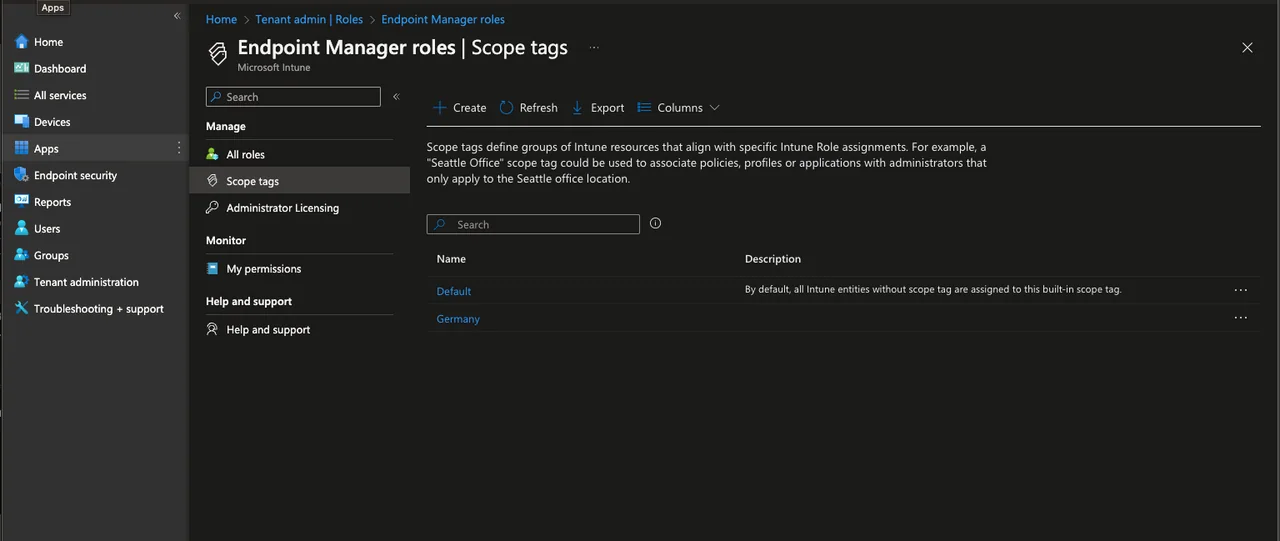
What are Intune scope tags?
Intune scope tags are labels you assign to objects such as configuration profiles, applications, and compliance policies. When you combine Intune scope tags with role-based access control, each administrator only sees and manages the objects that carry their assigned tag. This means a regional admin in Germany never touches the policies that belong to a team in another country, which dramatically reduces the risk of accidental changes.
Create a group of devices for a specific area
Uploading a device hash to Intune and creating a dynamic group based on this tag can be done in a few simple steps:
-
Collect the device hash: Use the PowerShell script “get-windowsautopilotinfo.ps1 -grouptag Germany -online” to collect the device hash of the device you want to upload to Intune.
-
When this is done we have to create a dynamic group based on this attribute
-
Select Groupsfrom the left menu bar
-
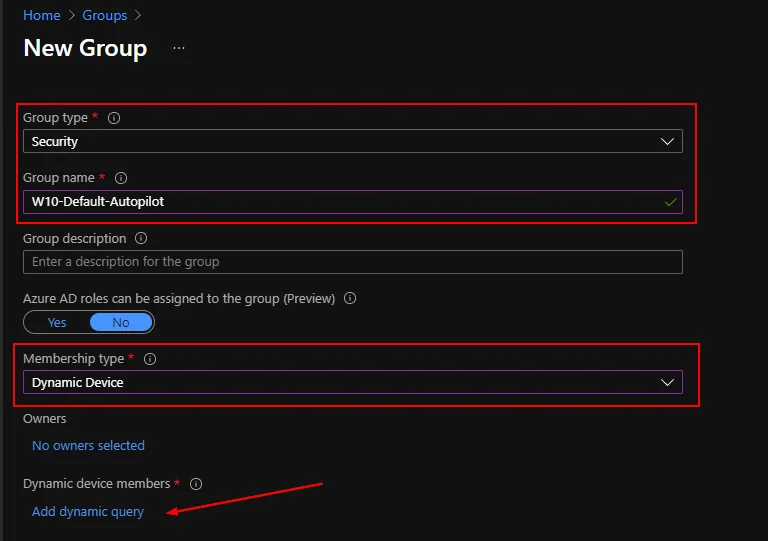
Click New group
-
Select Securityas Group type, enter a group name and select Dynamic Device as Membership type
-
Click on Add dynamic query
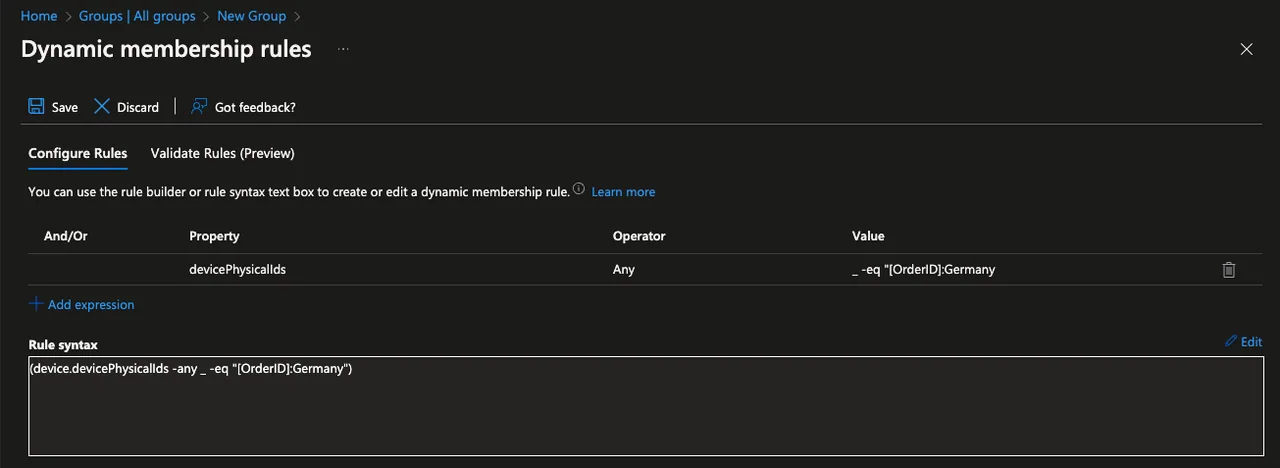
- Click Edit and enter the following filter
- The OrderID can be freely defined (in my example: “AutoPilotTest1”).
| 1 | (device.devicePhysicalIds -any _ -eq "[OrderID]:Germany") |
- Click Create
Unlocking the power of Intune scope tags
Now that the device group is ready, we can put Intune scope tags to work. The next steps show how to create a scope tag, attach it to a group, and bind it to a custom role so that delegated admins only manage what belongs to them.
- In the first step we have to create a new scope Tag.
- Open the Intune console and navigate to Tenant admin > Roles > Scope tags
- Click + Create
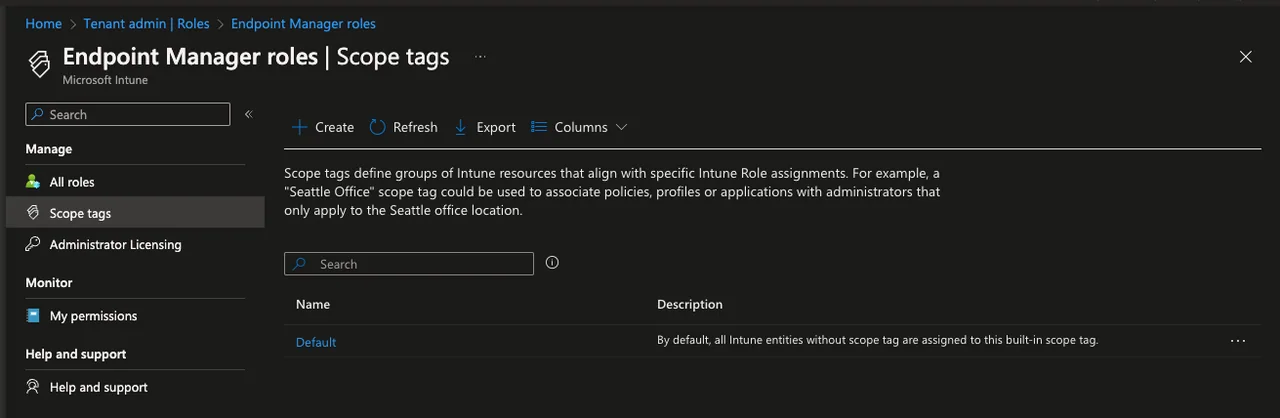
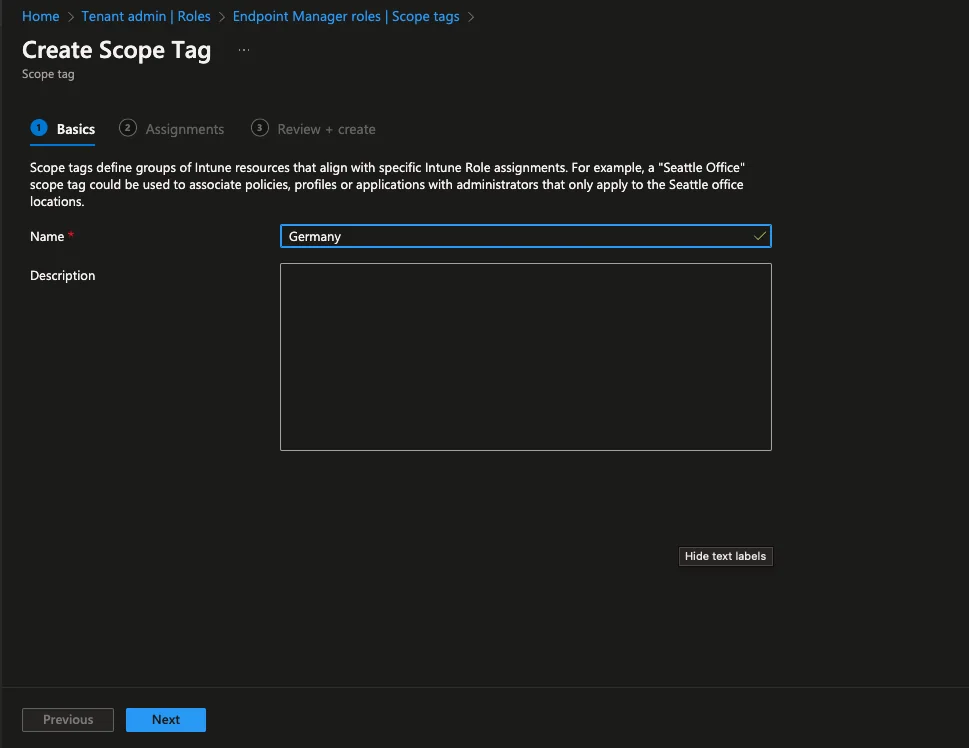
- Enter a Name and click Next
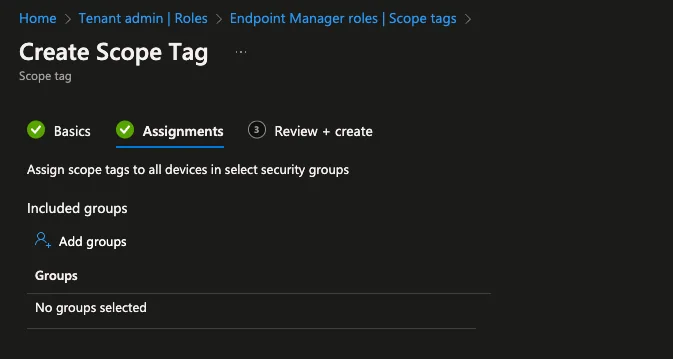
- Select the previous created group and select Next > Create
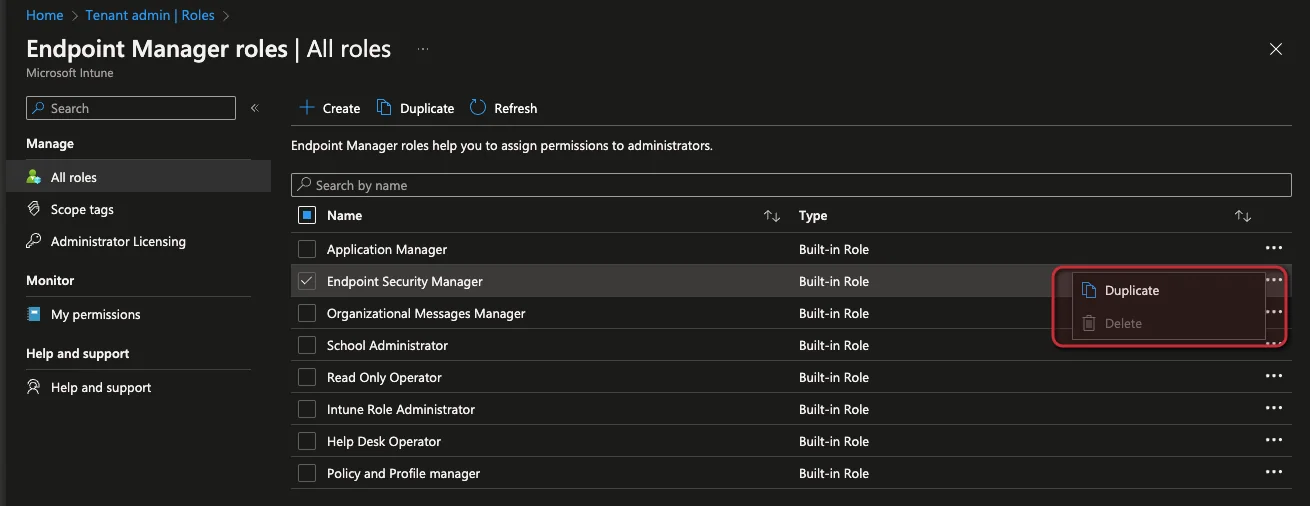
- In the next step we have to create a custom role for this scope tag. For this select the All roles menu
- Select a role and click Duplicate or create a new one with + Create
- Enter a name and click Next > Next
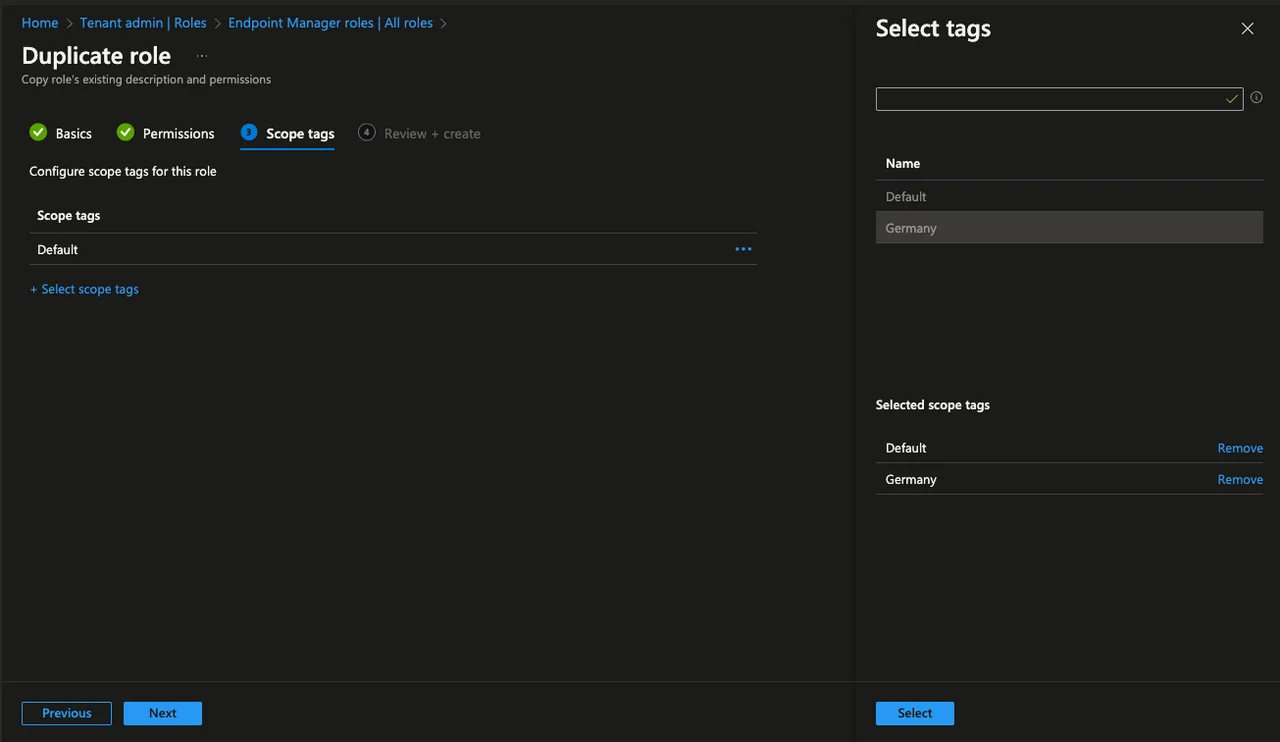
- Select the previous created scope tag and click Next > Create
- When you now create a new configuration in Intune, you can attach the new scope tag.
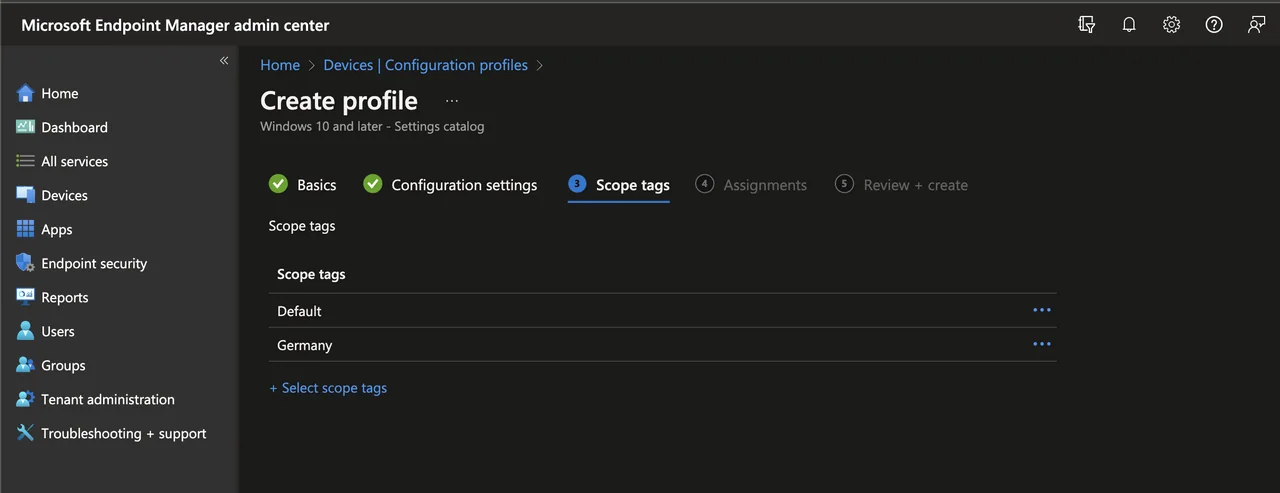
A common pitfall is forgetting that the default scope tag is automatically applied to every object that does not carry an explicit tag. If a delegated admin cannot see an object they expect, check whether that object still only has the default tag instead of the regional one. Another frequent mistake is assigning the scope tag to the role but not to the underlying device or user group, which leaves admins able to see policies but unable to target any real devices. Always test a new role with a pilot account before handing it over to the regional team, so you catch missing assignments before they become a support ticket.
Conclusion
Intune scope tags are one of the simplest yet most powerful ways to scale delegated administration in Microsoft Intune. By grouping devices, creating scope tags, and binding them to custom roles, you keep every team focused on their own objects while protecting the rest of the tenant. Start small with a single region, validate the workflow, and then roll out Intune scope tags across your whole organization for cleaner, safer management.