
Check Autopilot enrollment prerequisite
Check Windows Autopilot enrollment prerequisites with a PowerShell script. Use the results to investigate setup issues and validate the target environment.
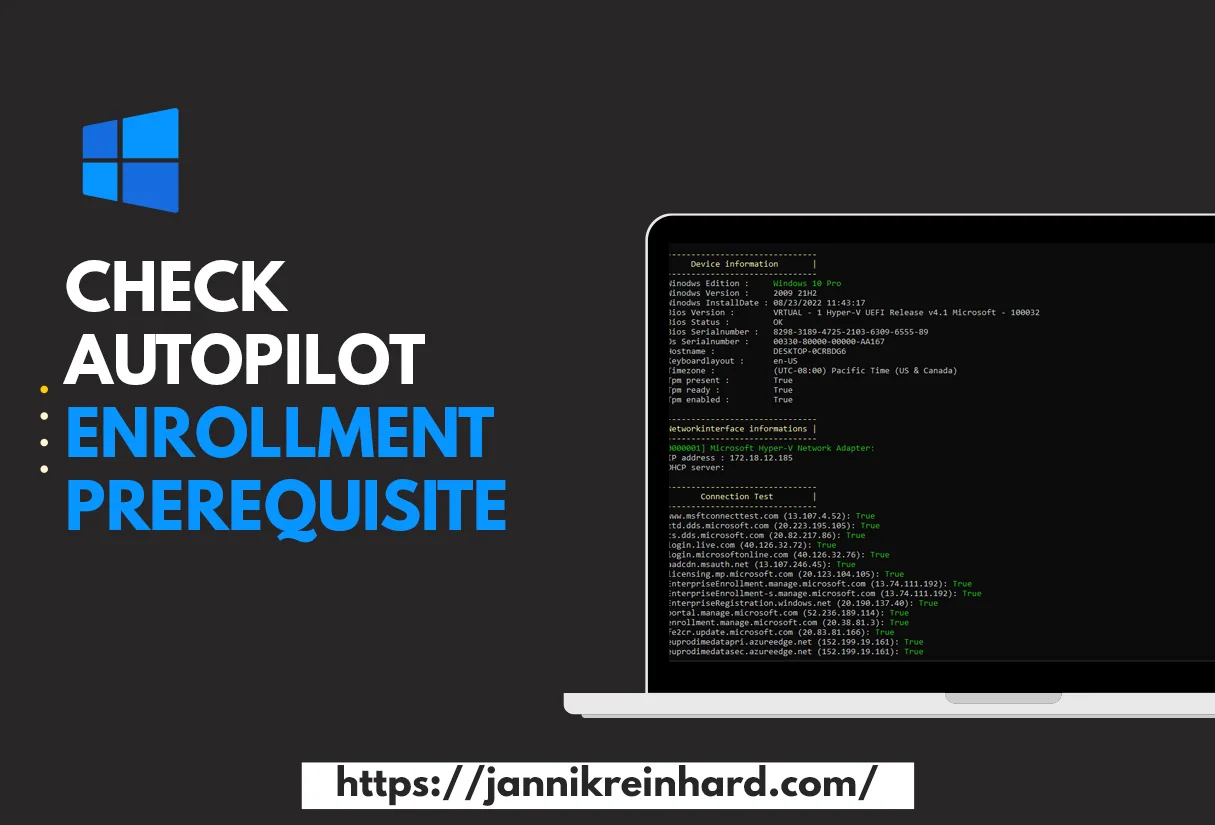
Everyone who has enrolled a few devices with Autopilot and has encountered errors knows the problem: it can quickly become very cumbersome to find out why an enrollment fails. Checking the Autopilot enrollment prerequisite for each device up front saves hours of troubleshooting, especially when network endpoints that are not reachable are the cause. To enroll a device with Autopilot there are also some requirements that have to be fulfilled. To check this before the enrollment I have created a script that helps you validate every Autopilot enrollment prerequisite in one run.
Why every Autopilot enrollment prerequisite matters
Windows Autopilot relies on a chain of services in the cloud and on the device itself. If a single Autopilot enrollment prerequisite is missing, the whole Out-of-Box Experience (OOBE) can stall with a misleading error code. Common pain points are blocked firewall rules, an unsupported Windows edition, a missing or disabled TPM, and proxy configurations that silently drop traffic to Microsoft services. Validating each requirement before you start means you no longer have to reset the device, dig through the event log, and start over. Instead you get a clear, repeatable checklist that tells you exactly what is healthy and what needs attention.
Prerequisites
There is a very long Microsoft docs article that explains which network endpoints need to be reachable to enroll a device, but also to use services like delivery optimization and more. You can find the article at the following link. Reachability of those endpoints is the most frequently overlooked Autopilot enrollment prerequisite in restricted corporate networks. In addition to this, Autopilot is only supported on the following Windows versions:
- Windows 10 Pro
- Windows 10 Pro Education
- Windows 10 Pro for Workstations
- Windows 10 Enterprise
- Windows 10 Education
Beyond the supported edition, make sure the device has a working TPM 2.0 chip when you plan to use features that depend on it, that the system clock and time zone are correct, and that DNS resolution works on the active network adapter. Each of these points is a small but essential Autopilot enrollment prerequisite that the script verifies for you automatically.
What does the script provide?
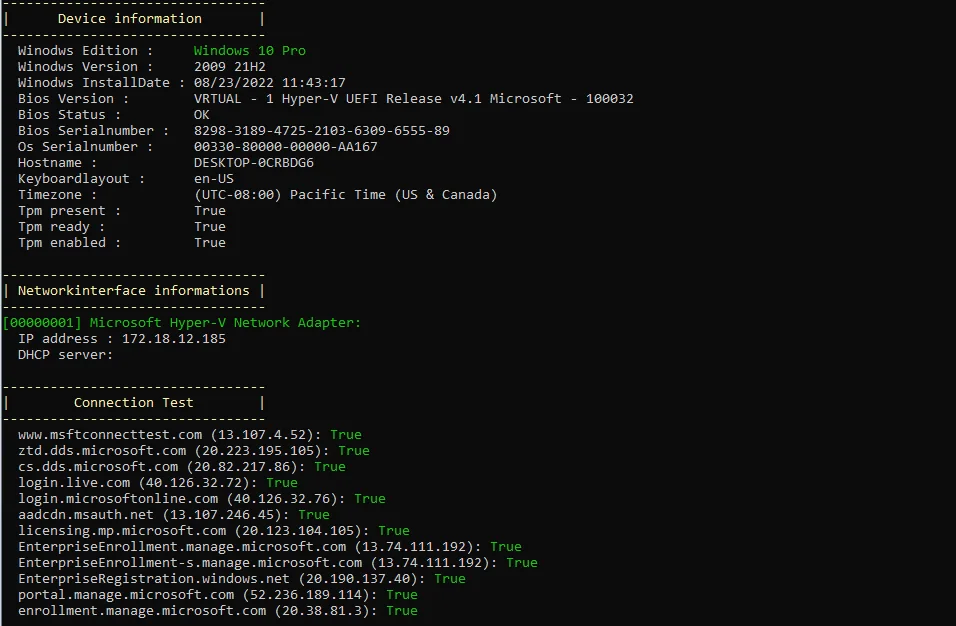
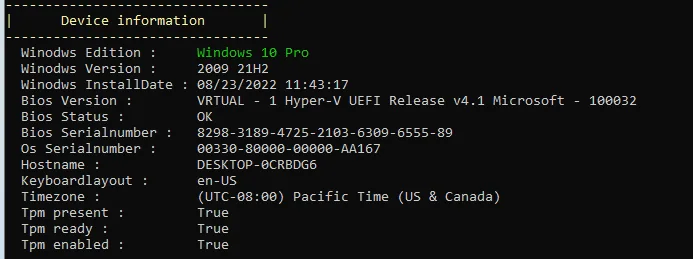
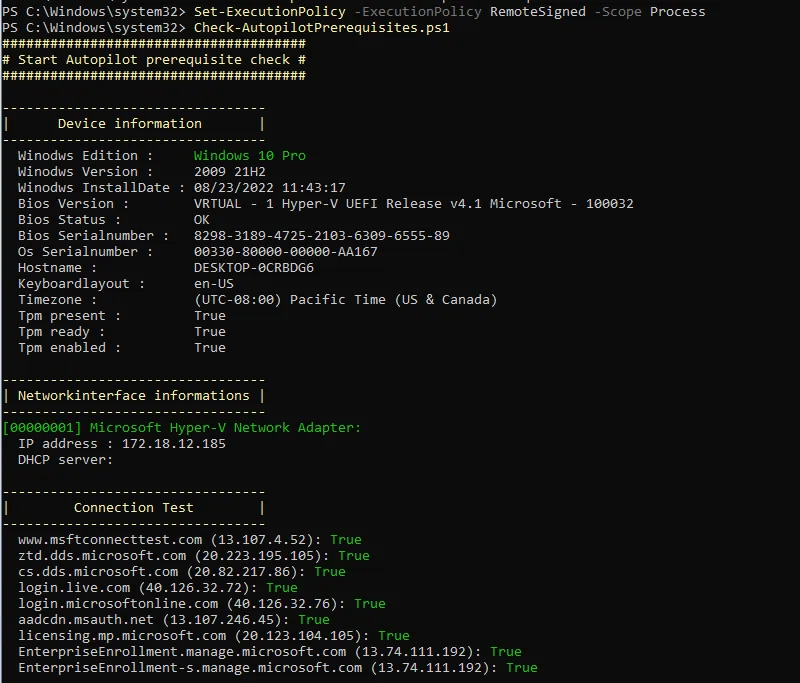
You will get an overview of various attributes that are worth looking at before enrollment. First you get general device info to check, for example, which Windows edition is installed or whether the device has a TPM. This is the first Autopilot enrollment prerequisite the script reports on.
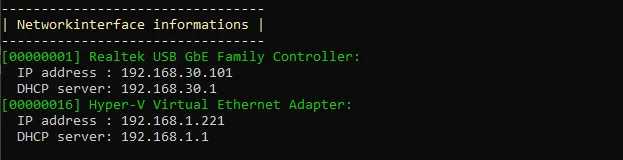
Next you get adapter information to see which NIC is installed on the device and which IP address it has. A correctly configured network adapter is the foundation for every connectivity check that follows.
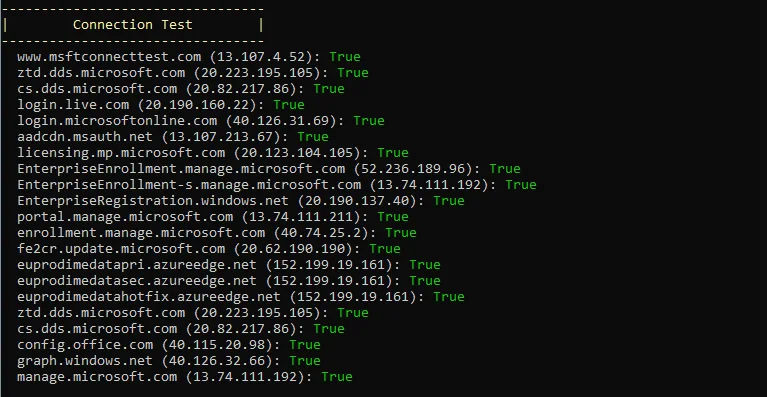
Now comes the exciting part. In this section the script makes connection tests against the different URLs which are important for an Autopilot enrollment. For each URL you will get a status, so you can immediately see whether a blocked endpoint is the failing Autopilot enrollment prerequisite on this particular device.
How to run the Autopilot enrollment prerequisite check
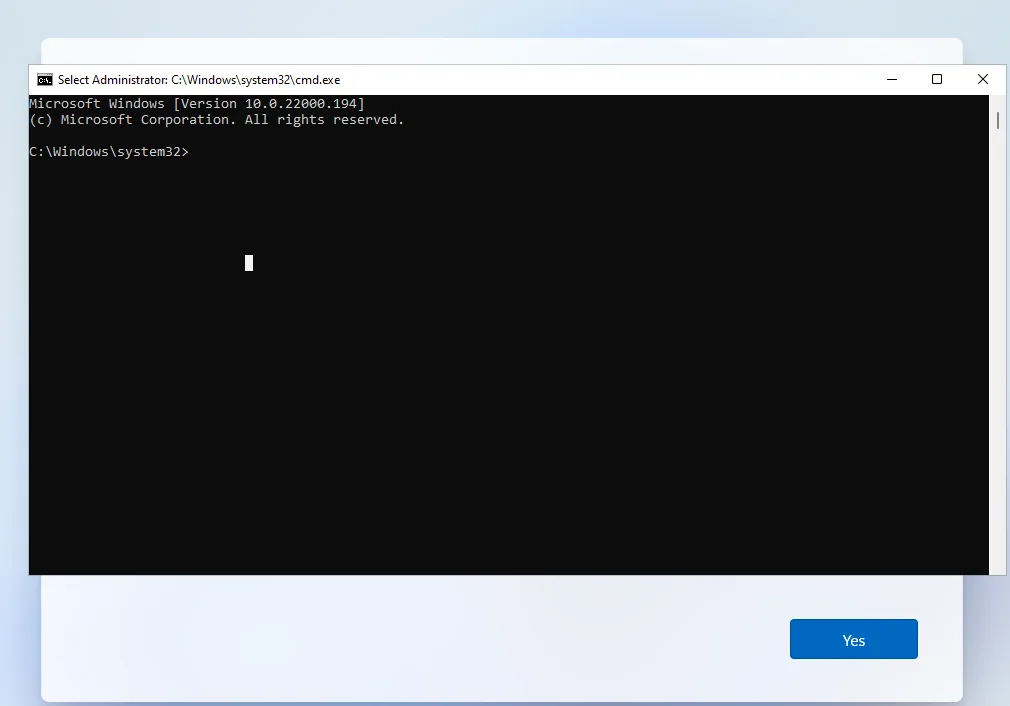
- Press Shift + F10 during the OOBE phase to open a CMD (in most cases you have to press the fn key as well)
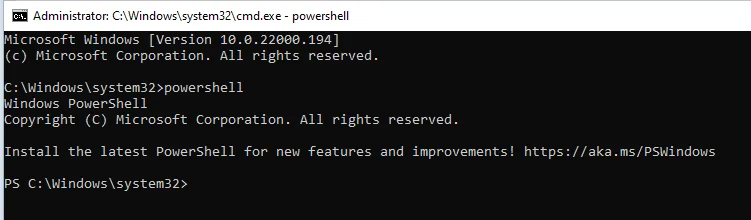
- Type in powershell
- Run the following command and approve with Y/A:
Install-Script -Name Check-AutopilotPrerequisites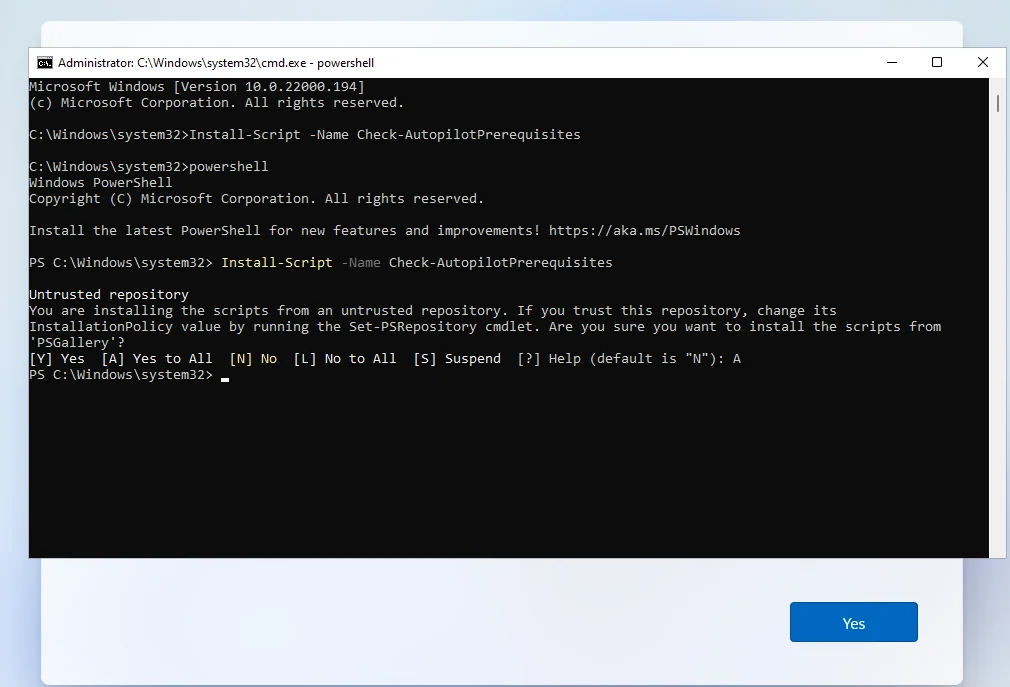
- Change the execution policy so that you can run the script:
Set-ExecutionPolicy -Scope Process -ExecutionPolicy RemoteSigned- Run the script with Check-AutopilotPrerequisites.ps1
Tips for reading the results
When the script finishes, work through the output from top to bottom. A red or failed status next to an endpoint usually points to a firewall or proxy rule that needs to be opened. If you manage many devices, consider running the check as part of your imaging process so that no device leaves the bench without a passing report. You can also combine the results with the official Microsoft networking guidance to map each failing item back to the exact URL that needs allow-listing. For deeper background on the cloud side, the Microsoft Learn Autopilot documentation is the best reference. If you want more Intune and device management content, have a look at the other articles on jannikreinhard.com.
Conclusion
Validating the Autopilot enrollment prerequisite list before you start an enrollment is one of the simplest ways to cut down on failed deployments and frustrated end users. If you have any ideas how I can extend or improve the script then let me know and I’ll be more than happy to incorporate them. You can find the source code at the following link. Hope I could help you with this script. Have fun with it.
Stay healthy, Cheers
Jannik

New posts, straight to your inbox.
Hands-on guides on Intune, AI and Azure.