
Intune DevOps Pipeline: Move Objects from Dev to Prod Tenant
Intune DevOps made easy: move objects from your Dev tenant to Prod with a proven CI pipeline. A practical step-by-step guide every admin should follow.
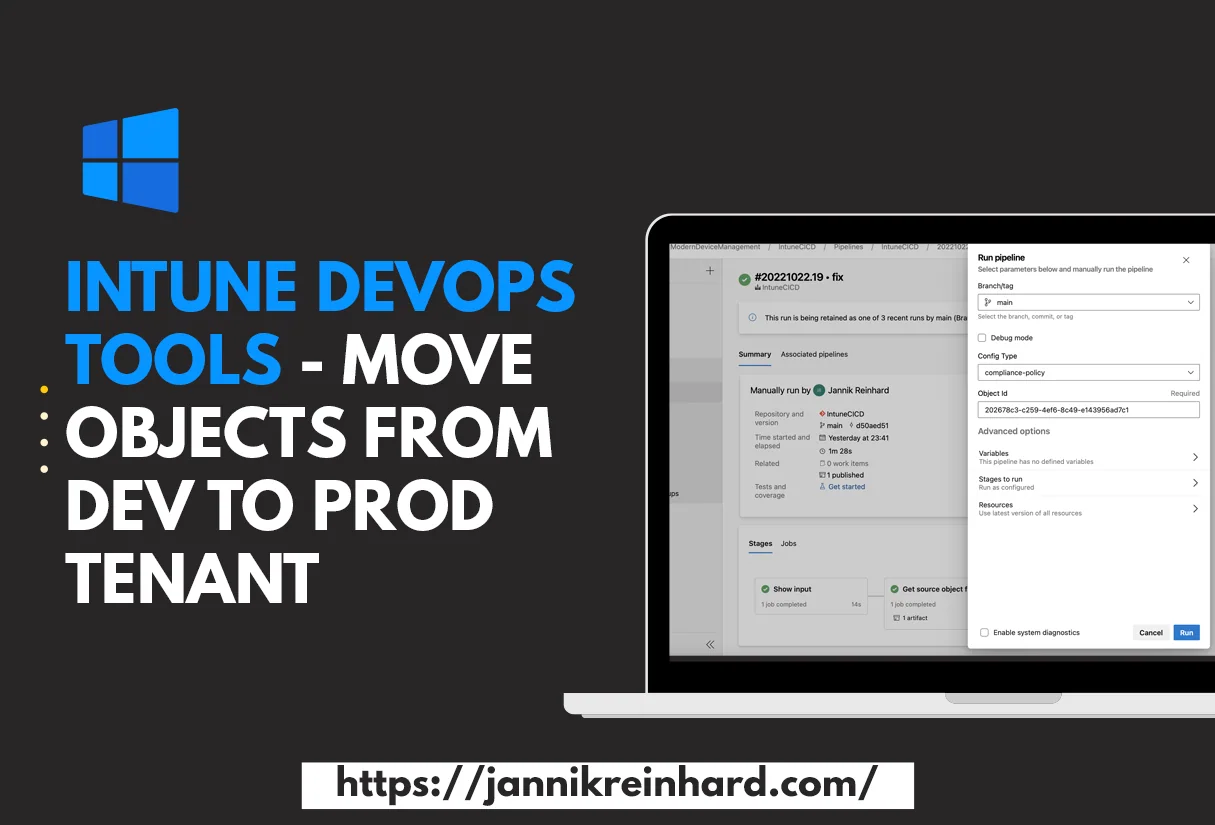
The more clients are managed in your tenant and the more people have contributor rights in your tenant, the more important it becomes to have good release management processes. In this blog post I would like to introduce you to my Intune DevOps pipeline that allows you to transfer configurations from one tenant to another. This Intune DevOps approach offers the possibility that only a small number of administrators have access in the Prod tenant and all others create configurations in a Dev tenant and these are then transferred to the Prod tenant via a DevOps pipeline.
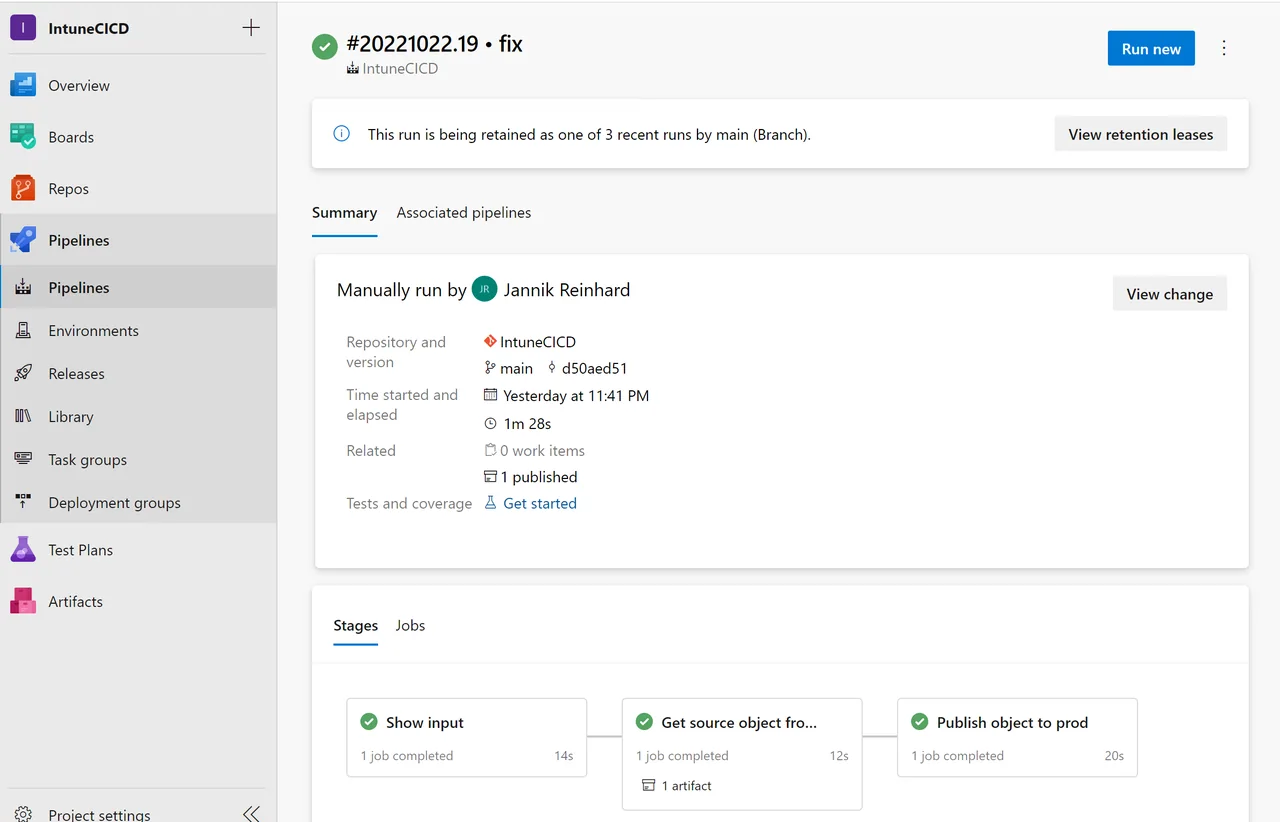
Create a Service Principle
The first building block of the Intune DevOps pipeline is a service principal that authenticates against Microsoft Graph. You can read more about app registrations on Microsoft Learn if you want the background details.
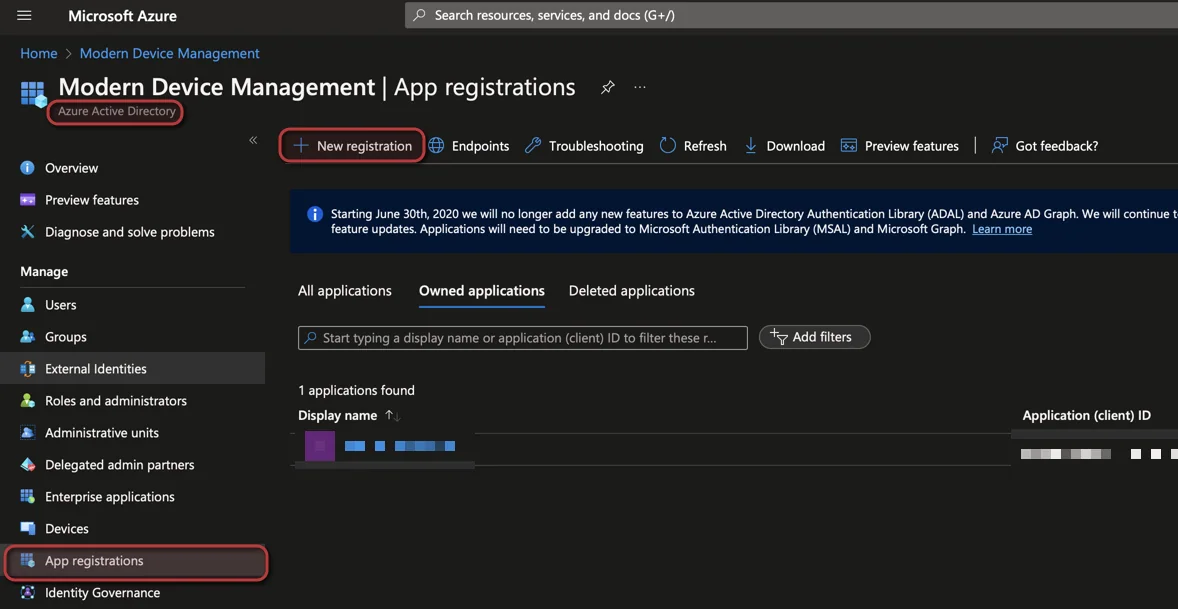
- Open the Azure Portal
- Search for Microsoft Entra ID
- Select App registration -> + New registration
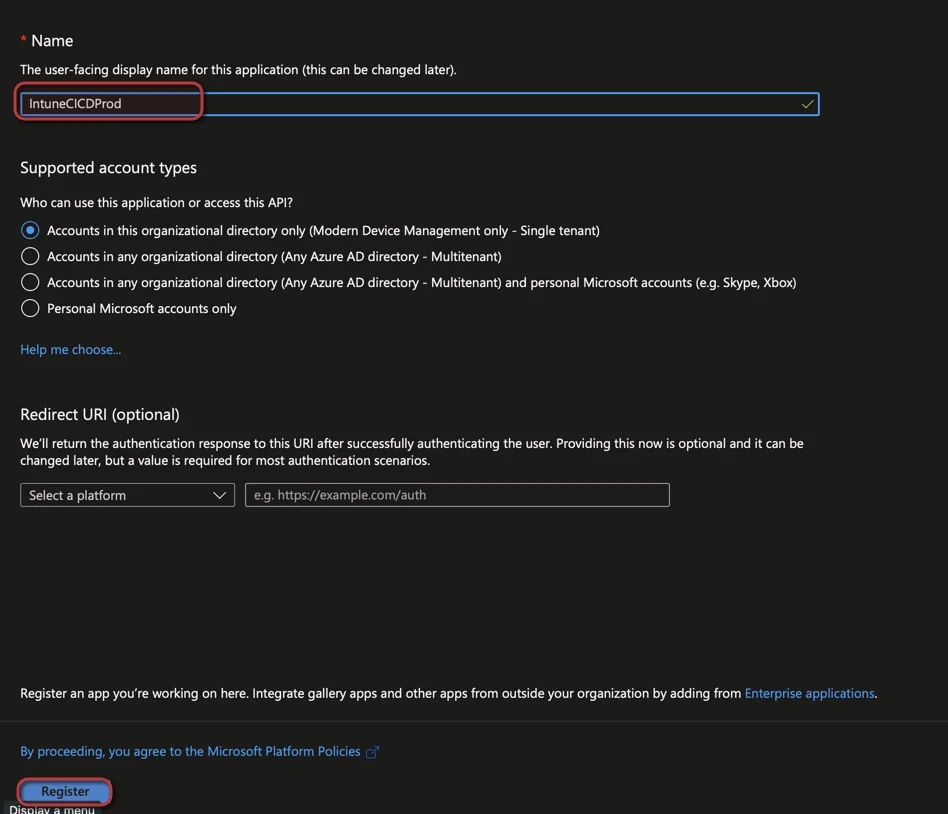
- Enter a Name
- Click Register
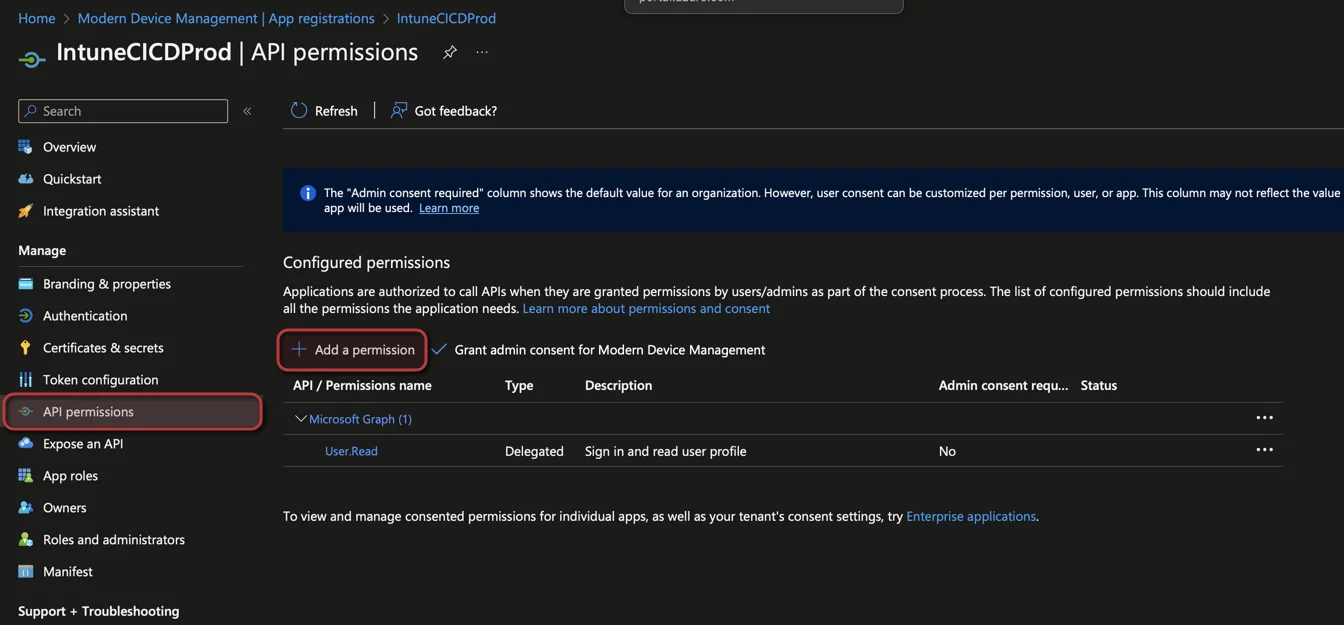
- Select API permissions
- Click + Add a permission
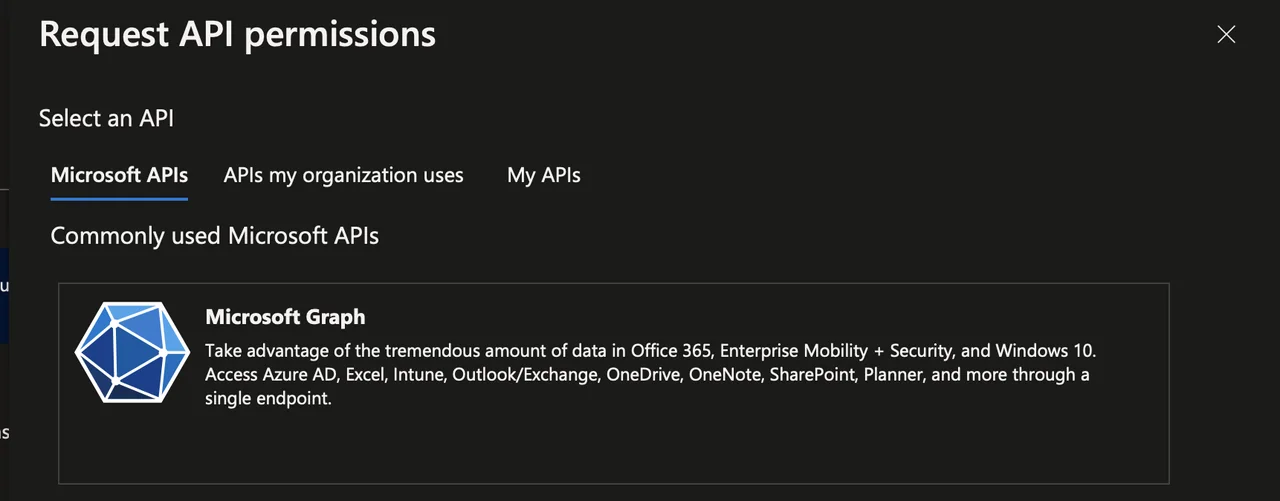
- Select Microsoft Graph
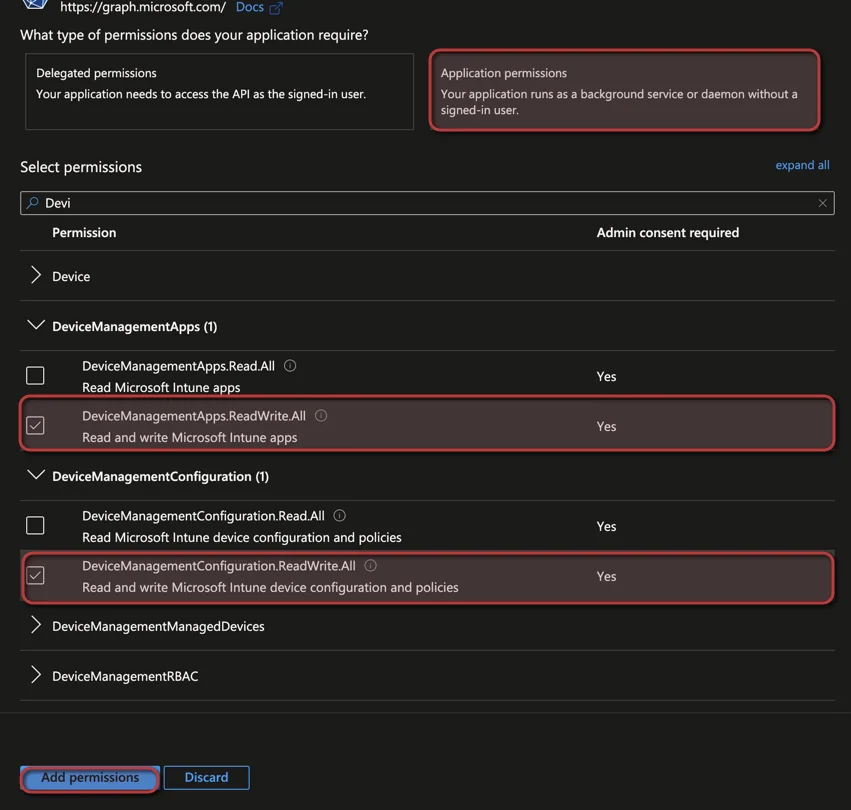
- Select Application permissions
- Select the following Graph permissions:
- DeviceManagementConfiguration.ReadWrite.All
- DeviceManagementApps.ReadWrite.All
- Click App permissions
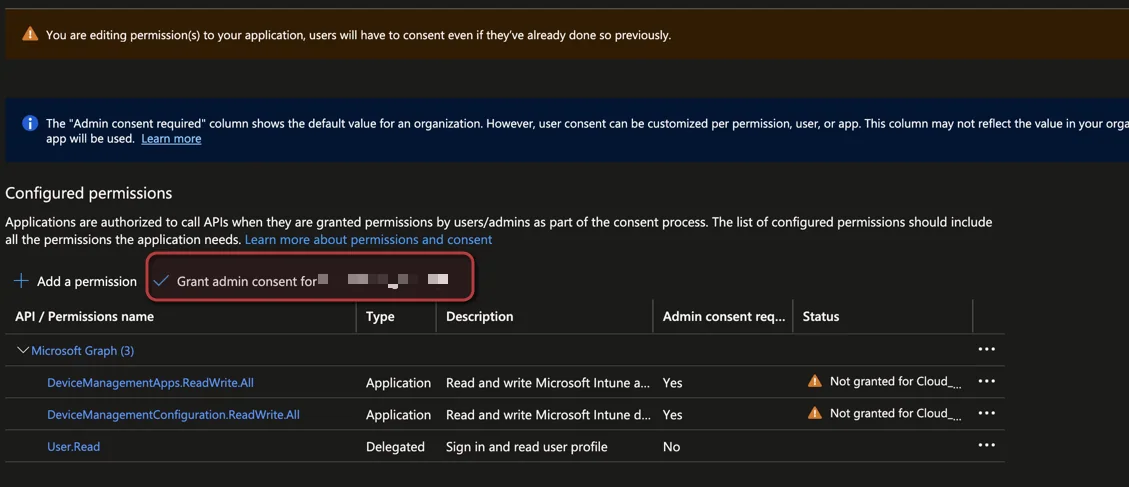
- Click Grant admin consent
- Confirm with Yes
- Keep the browser tab open we need this again soon
Add Subscription to the Azure DevOps Pipeline
- Open Azure DevOps in a new tab
- Create a new Organization and Project
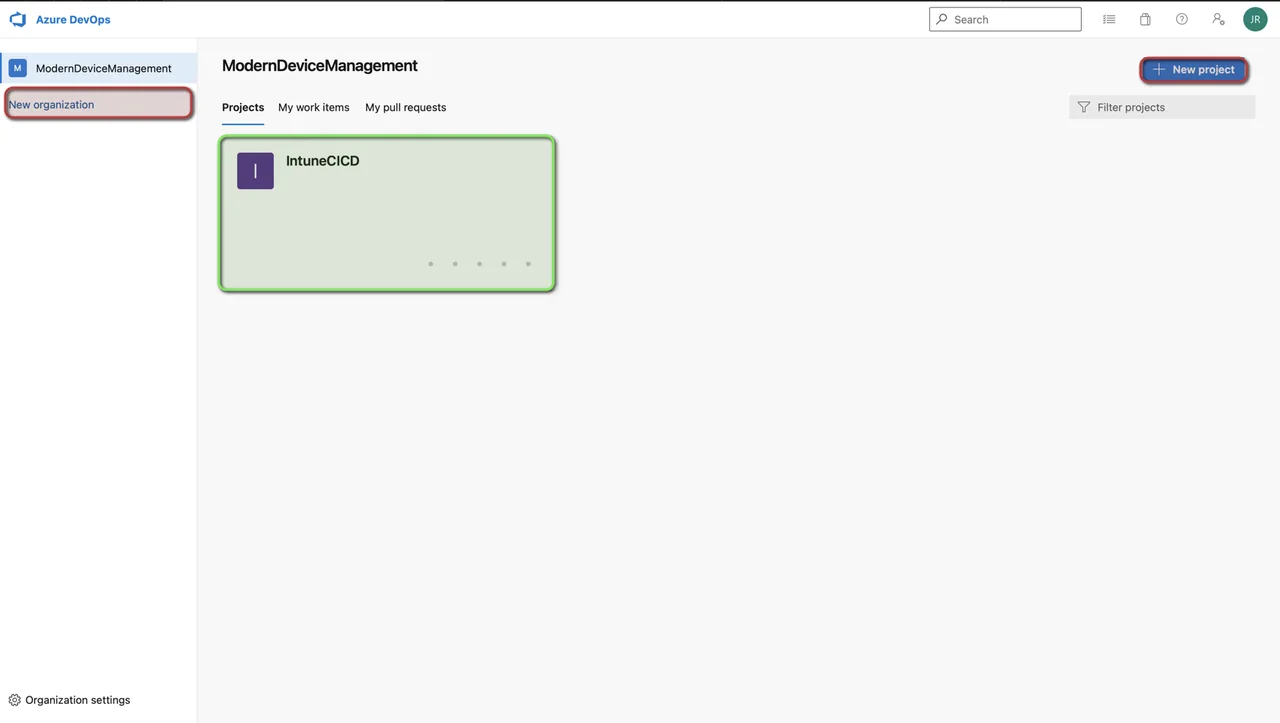
- Open the Project
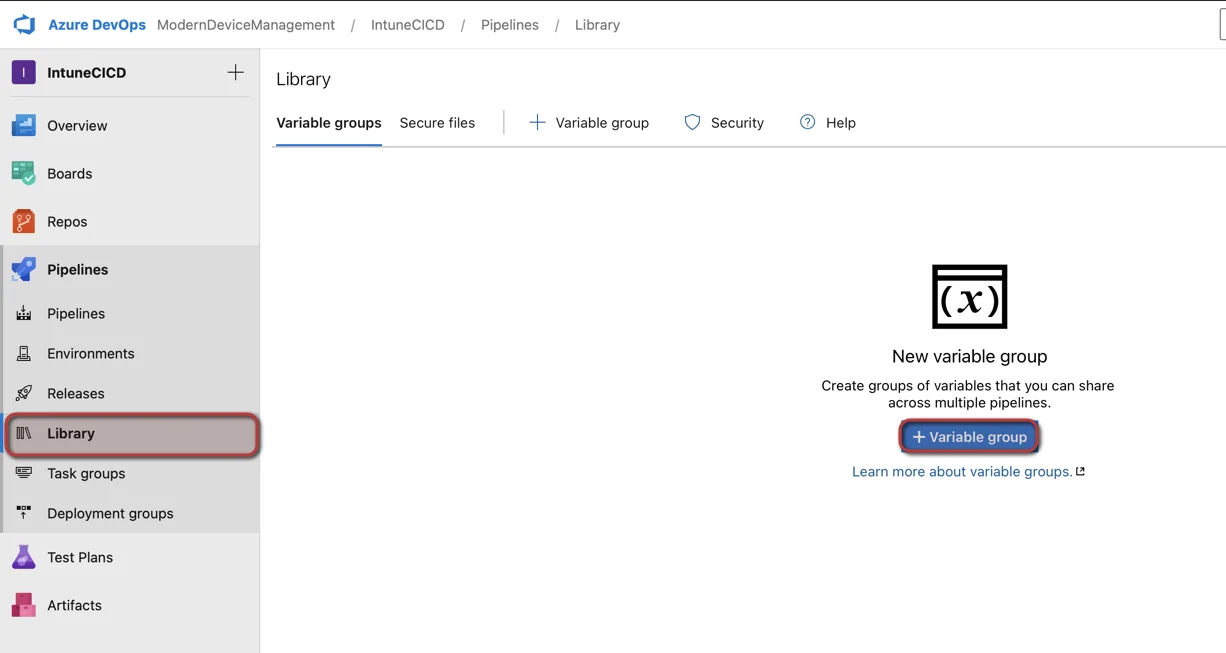
- Select Pipelines and Library
- Click +Variable group
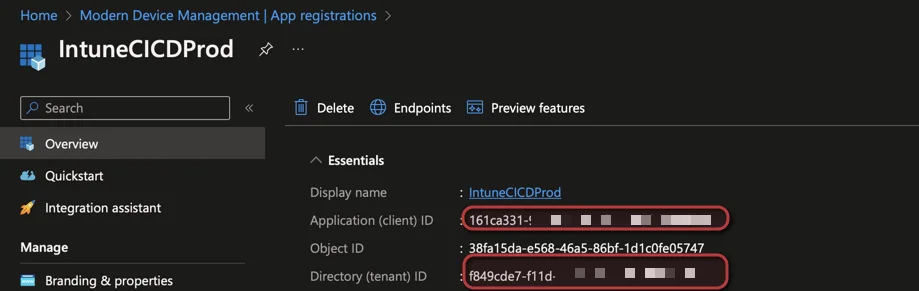
- Go back to the App Registration and copy the AppId, TenantId and create a secret
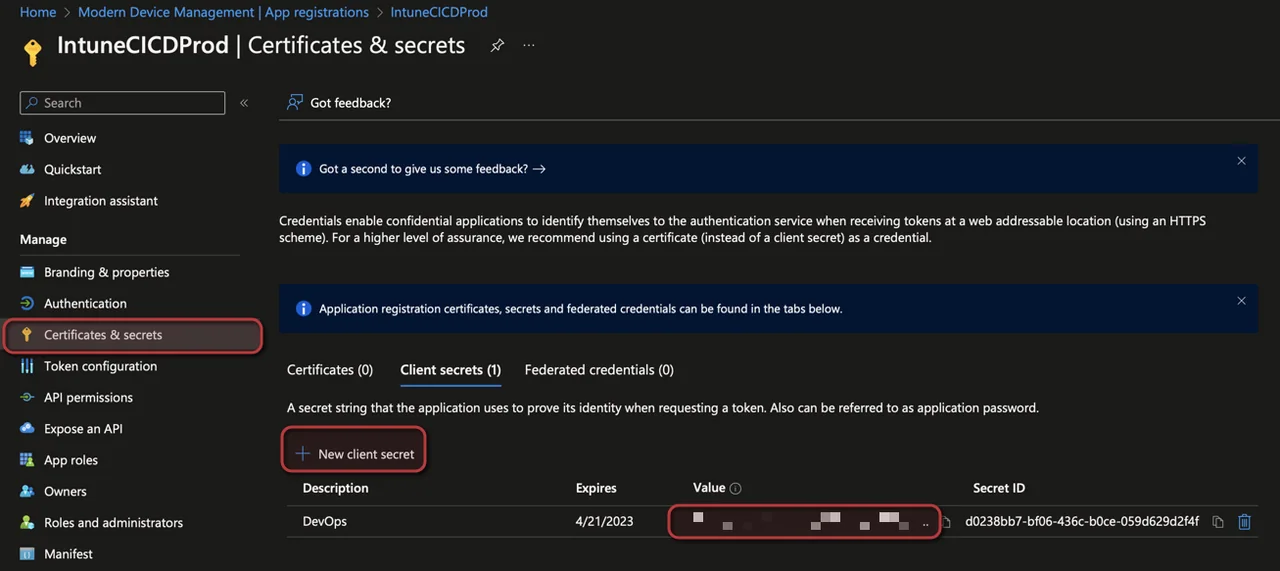
- Navigate to Certificates & secrets
- Click + New client secret
- Add a Description and Expires date
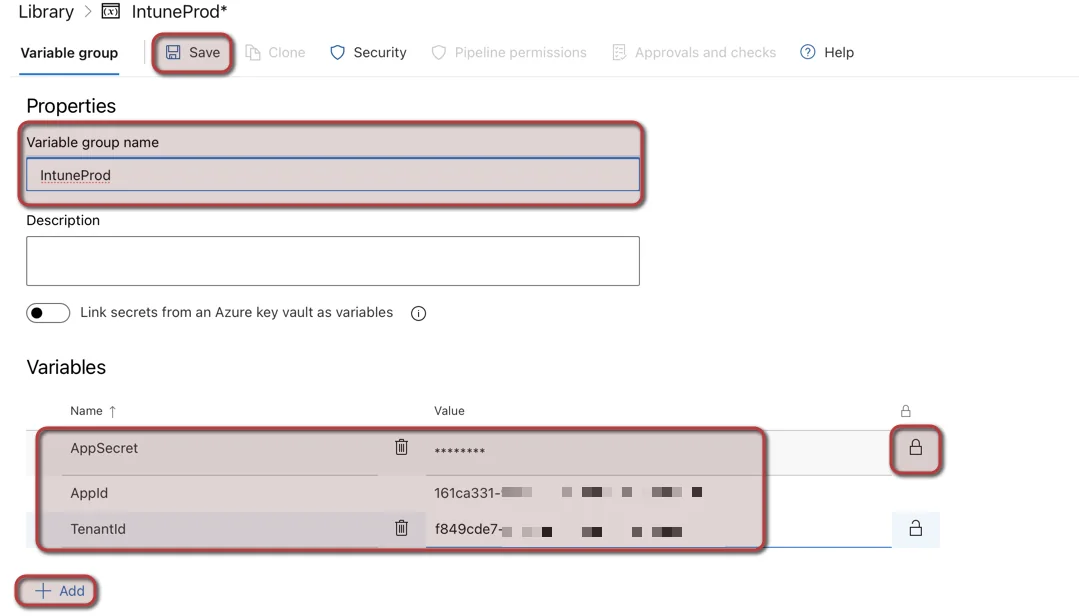
- Enter IntuneProd as name for the variable group
- Create three variables (ProdAppSecret, ProdAppId, ProdTenantId) and insert the values from the App Registration
- Select secure variable for the AppSecret
- Click Save
Setup the Dev Environment
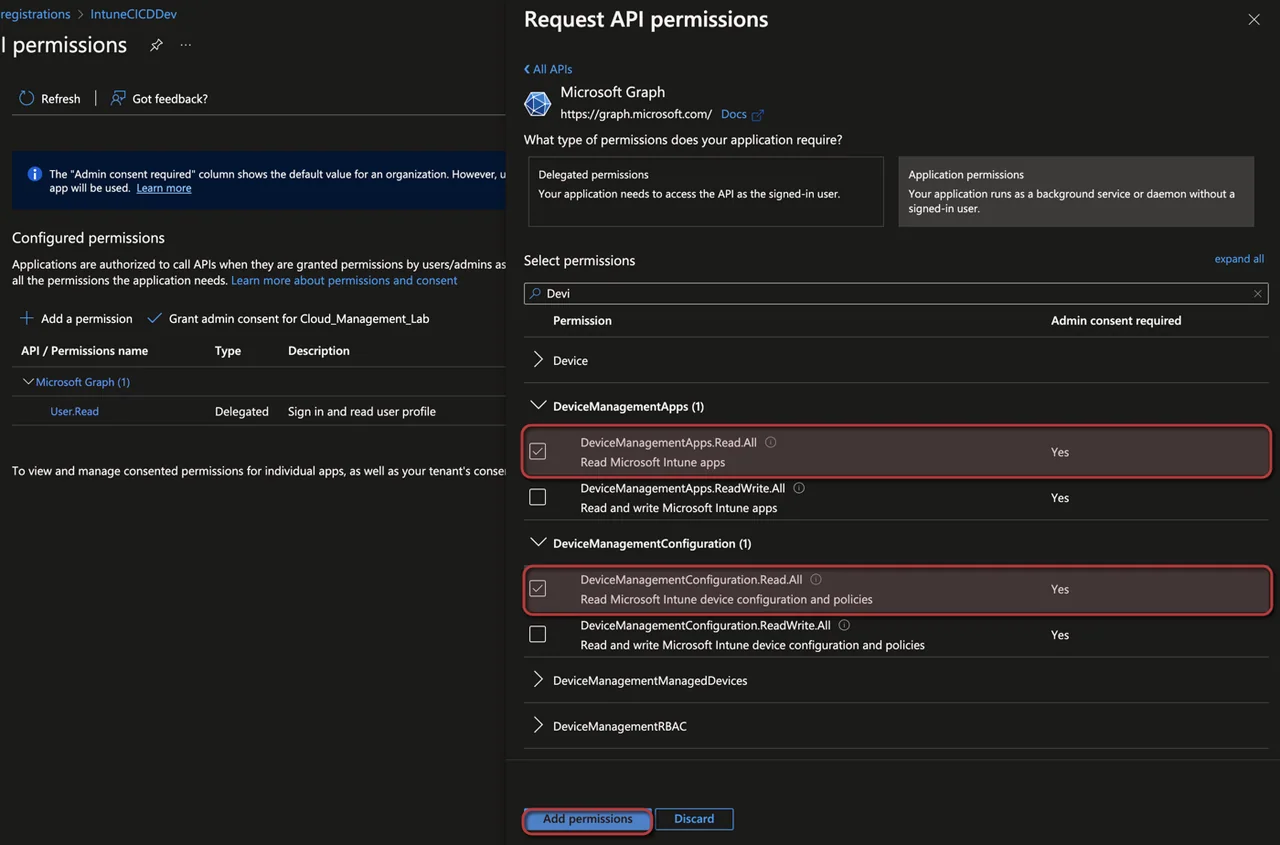
Repeat the same steps for your Dev Environment so the Intune DevOps pipeline can read the source configurations, but select the following read-only permissions:
- DeviceManagementApps.Read.All
- DeviceManagementConfiguration.Read.All
Setup the Intune DevOps Pipeline
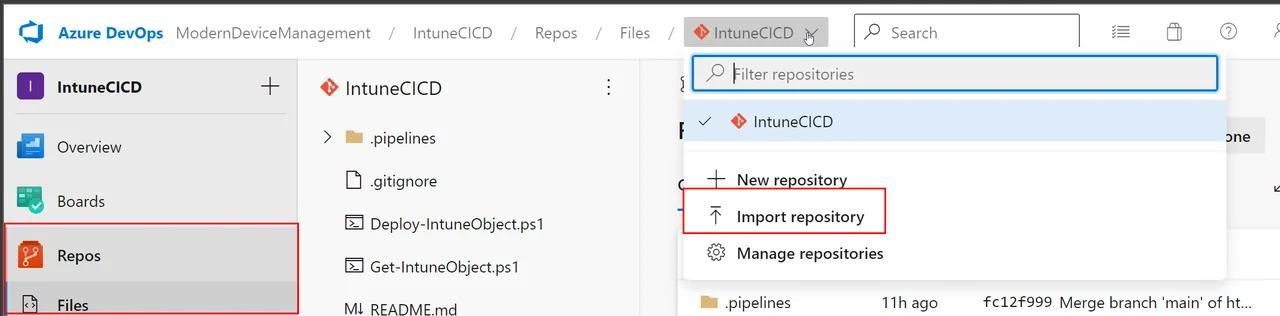
- Navigate to Repos -> Files
- Select Import repository
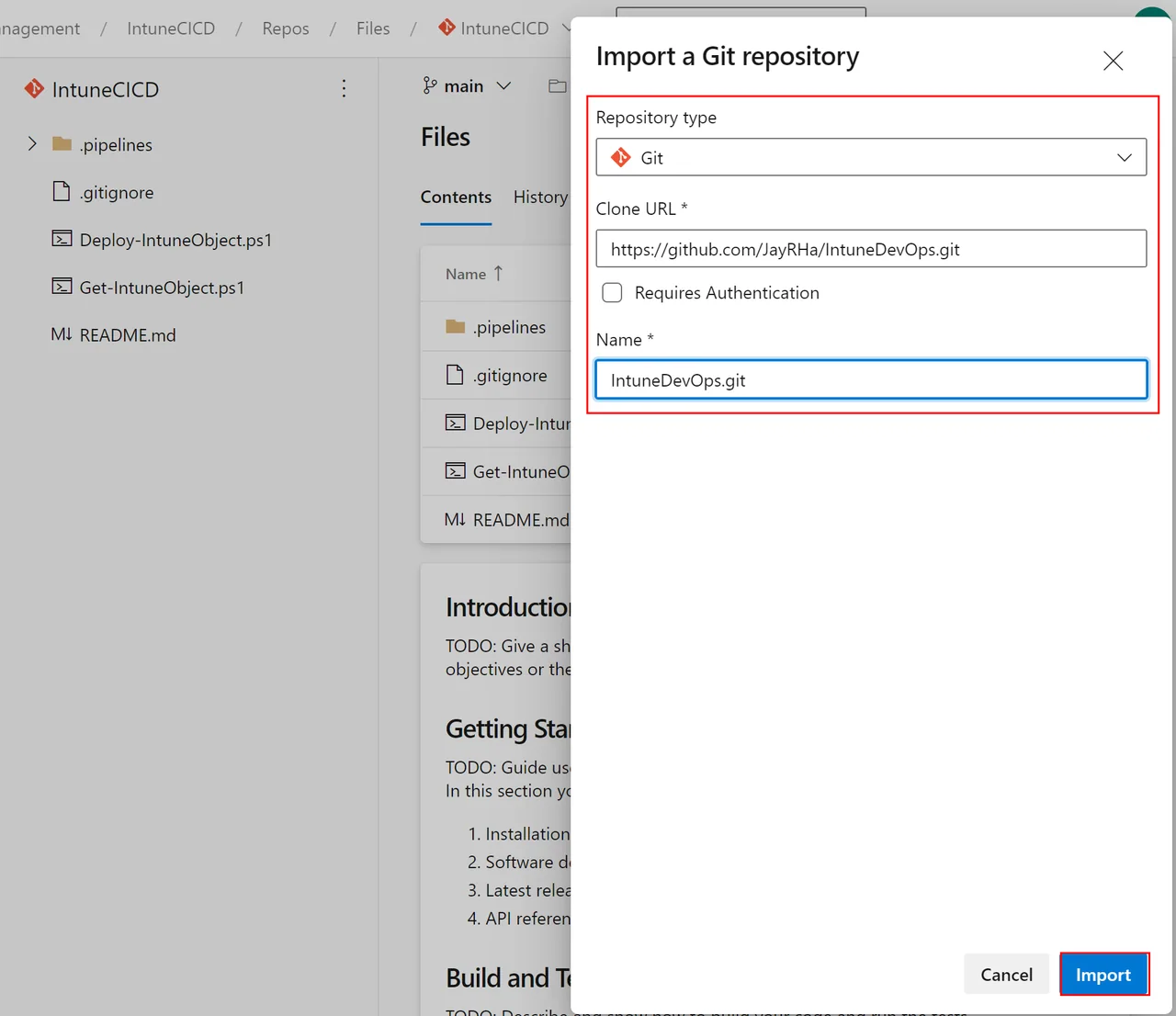
- Enter the URL from my GitHub repository:
https://github.com/JayRHa/intune-devops.git- Enter a Name and click Import
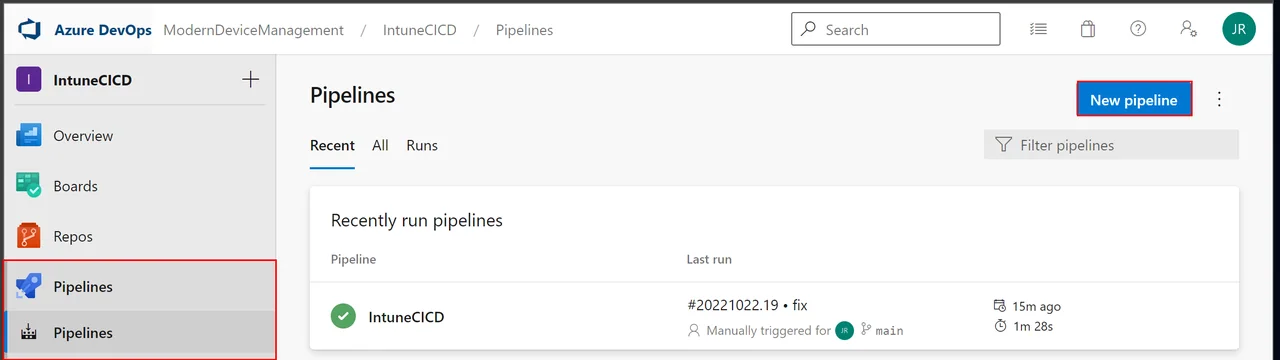
- Navigate to Pipelines
- Click New pipeline
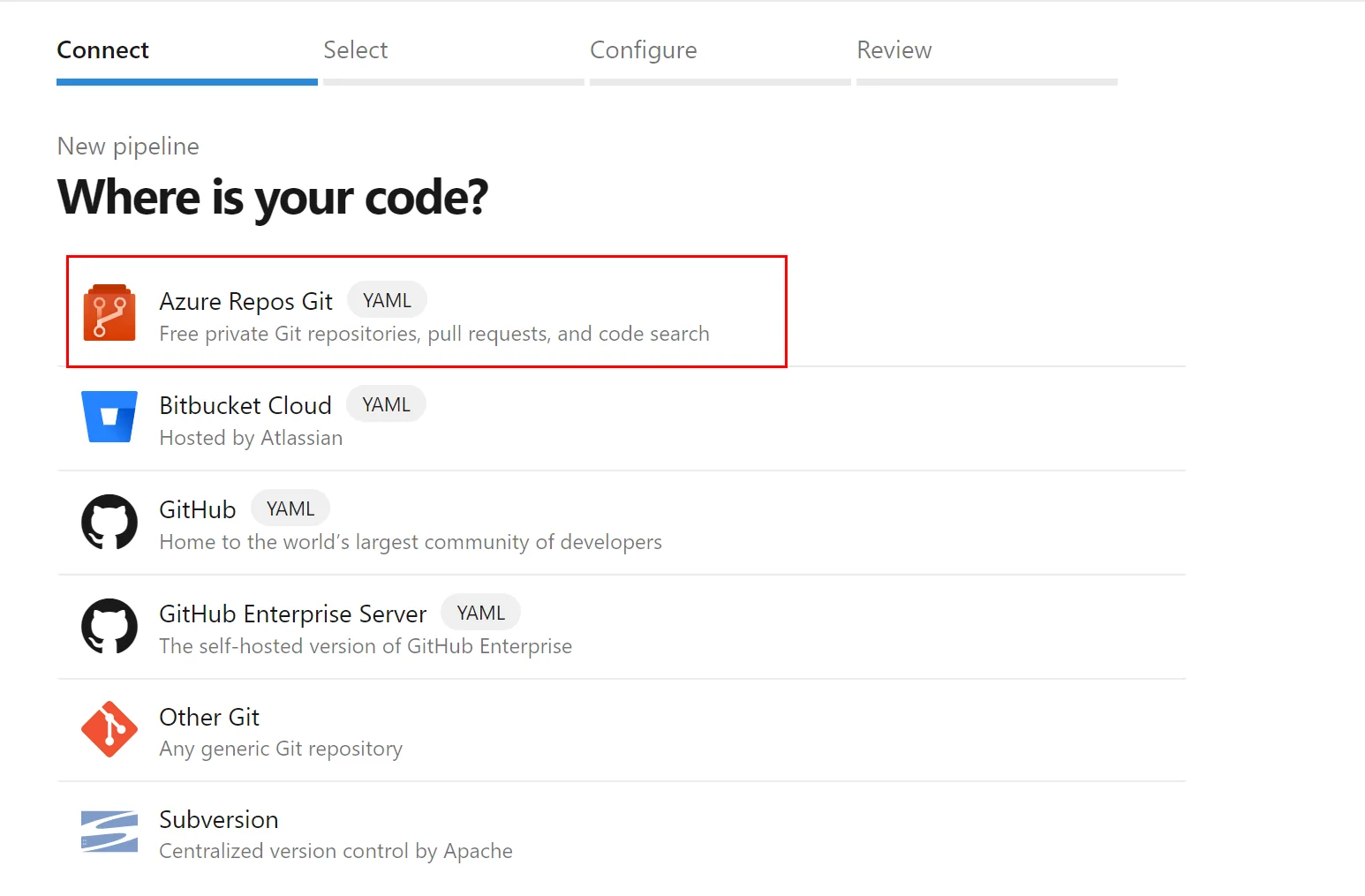
- Select Azure Repos Git
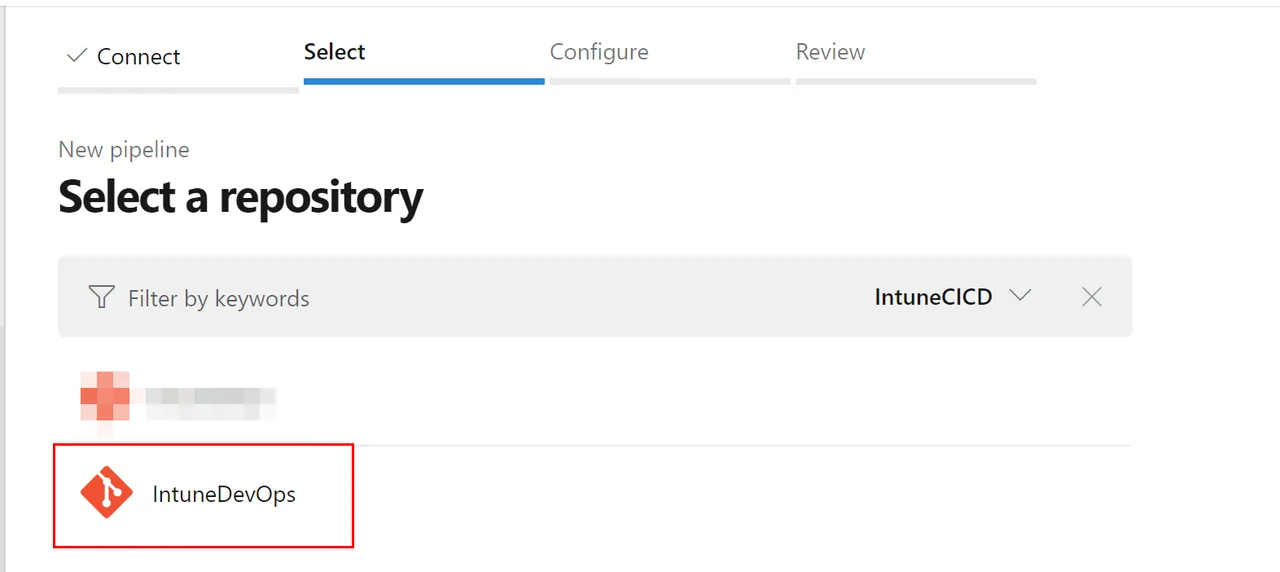
- Select the imported Repository
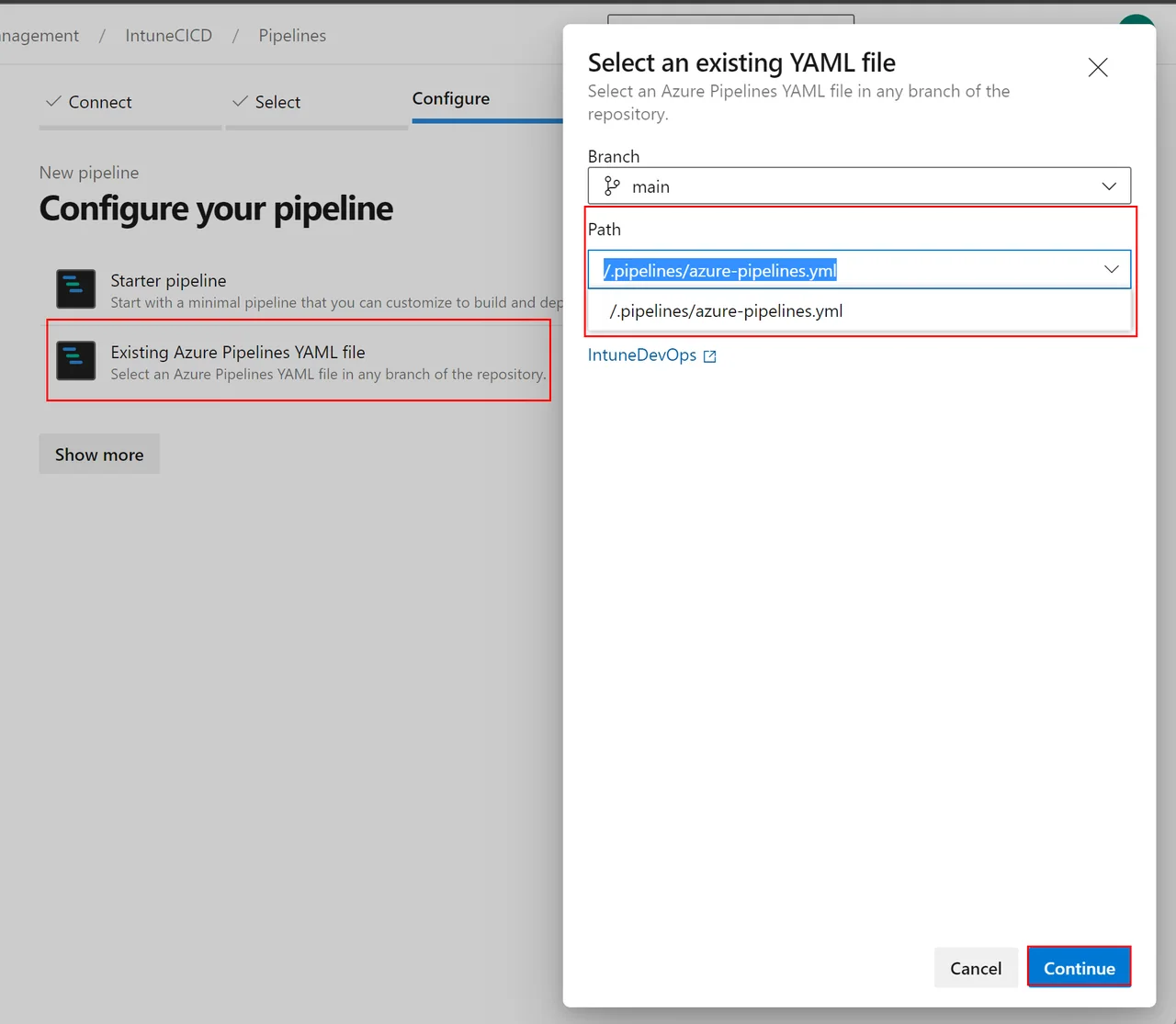
- Select Existing Azure Pipeline YAML file
- Select the azure-pipelines.yaml
- Click Continue
- Click Save
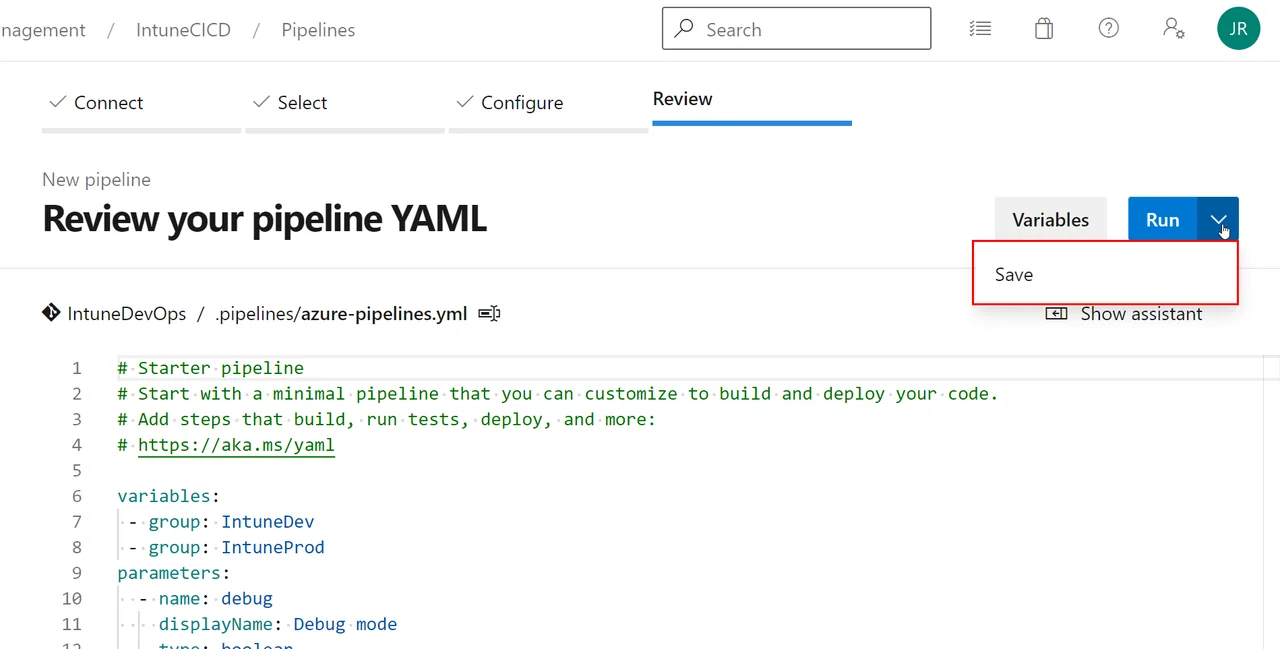
How does the Intune DevOps Pipeline work
Once everything is wired up, running the Intune DevOps pipeline is straightforward. You simply point it at the object you want to promote from Dev to Prod.
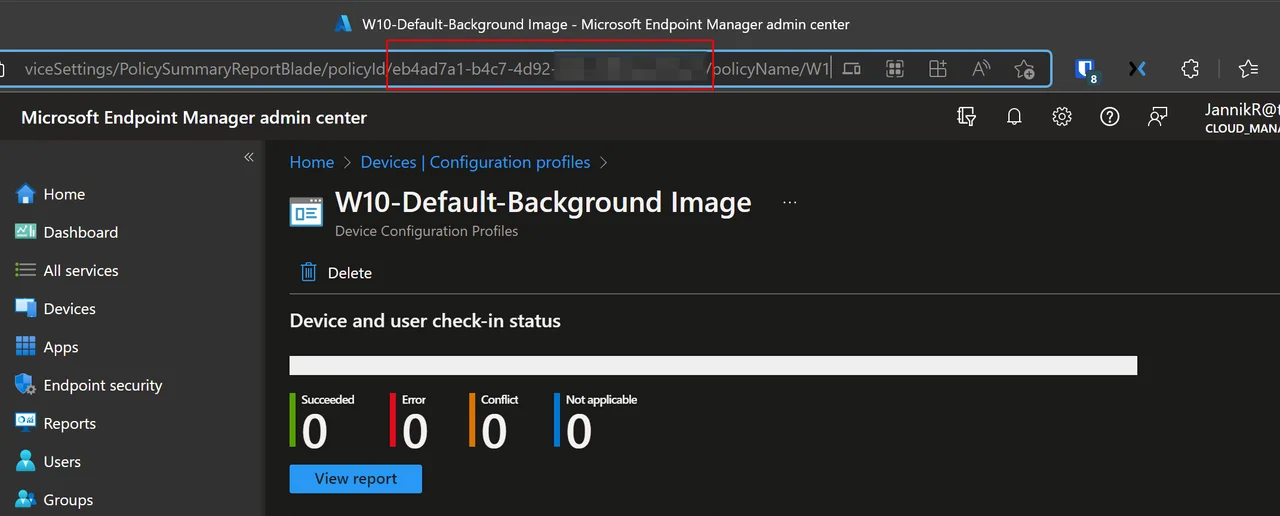
- Copy the object id from the object you want to copy on the dev tenant. You can get the Id from the URL.
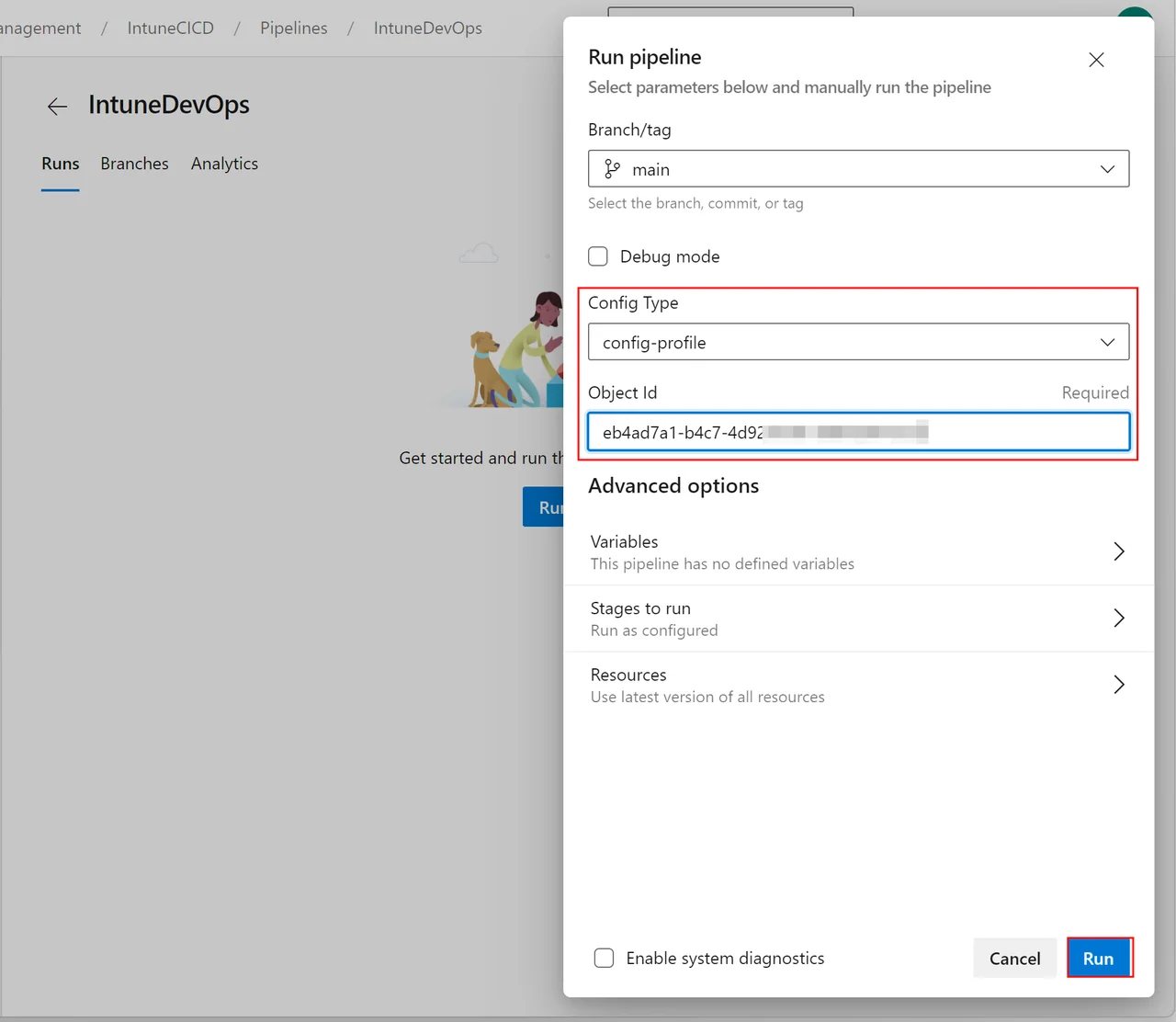
- Enter the Object type and the Object Id in the Pipeline
- Click Run
Get DevOps Runner
When you start the Intune DevOps pipeline without purchasing a DevOps runner you will get the following error message.
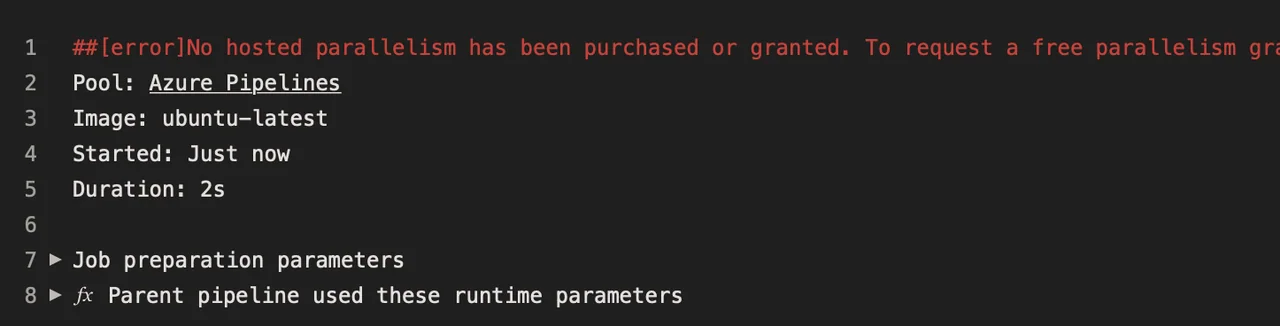
- Fill out the form under https://aka.ms/azpipelines-parallelism-request to get a free trial license (can take 2-3 days)
- You can also install a runner on your PC or on a server in your organization
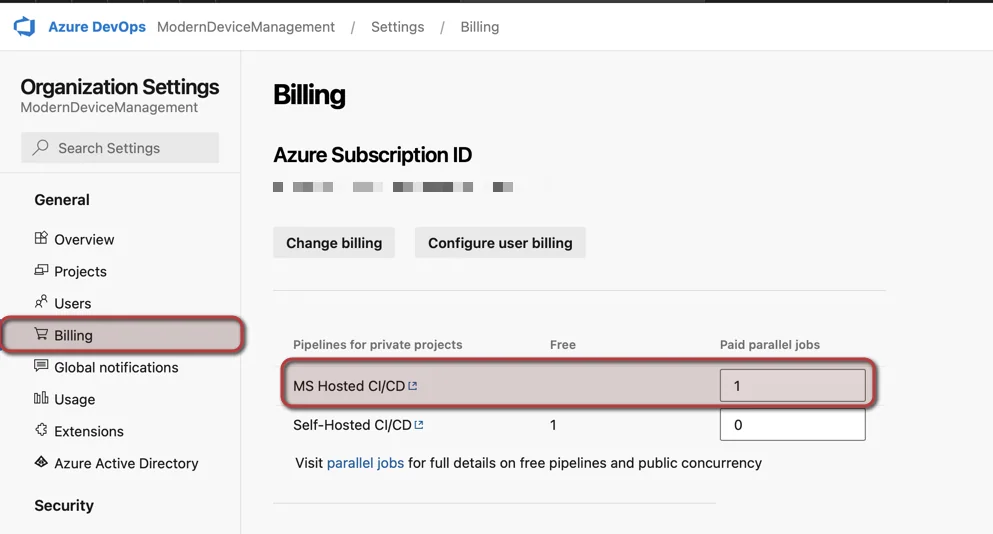
- You can also add a Billing in the Billing section in the Project settings
Conclusion
I hope that this Intune DevOps pipeline can help you to simplify the transfer of configurations from a Dev to the Prod tenant. If you enjoyed this, you might also like how to create PowerShell script to automate tasks in Intune. I appreciate any testers and feedback on my Intune DevOps pipeline so that I can include it in one of the next versions. Enclosed are the features I plan for the next releases:
- Include Debug option
- Include more Object types
- Add naming convention check
- Include Assignments
- Include approval process

New posts, straight to your inbox.
Hands-on guides on Intune, AI and Azure.