
How to Restrict the Login to Dedicated Users with Intune – Part 1
Learn how to restrict the login to dedicated users with Intune using a custom OMA-URI profile, so only approved accounts can sign in to your Windows devices.
In the Active Directory it was possible to allow a user to log in only to certain computers. This is no longer so easy with Microsoft Entra ID and Intune. In this blog we would like to look at how you can restrict the login to dedicated users with Intune using a custom profile, so that only approved accounts can sign in to a device.
How to restrict the login to dedicated users with Intune via a custom profile
The cleanest way to restrict the login to dedicated users with Intune is to push an AllowLocalLogOn policy through a custom configuration profile. You can read more about this CSP on Microsoft Learn before you start.
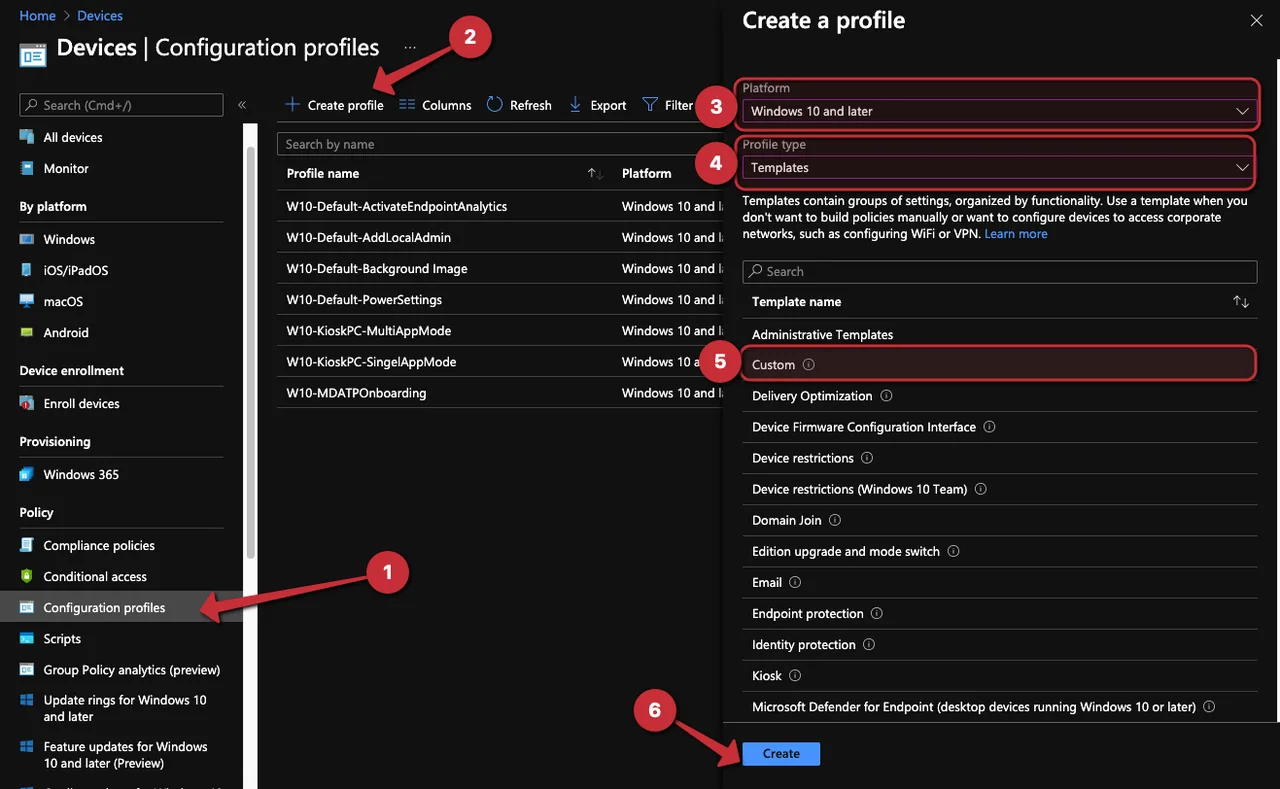
- Open the Intune admin center
- Navigate to Devices -> Configuration Profile
- Click + Create profile
- Select Windows 10 and later as Platform
- Select Template -> Custom as Profile type
- Click Create
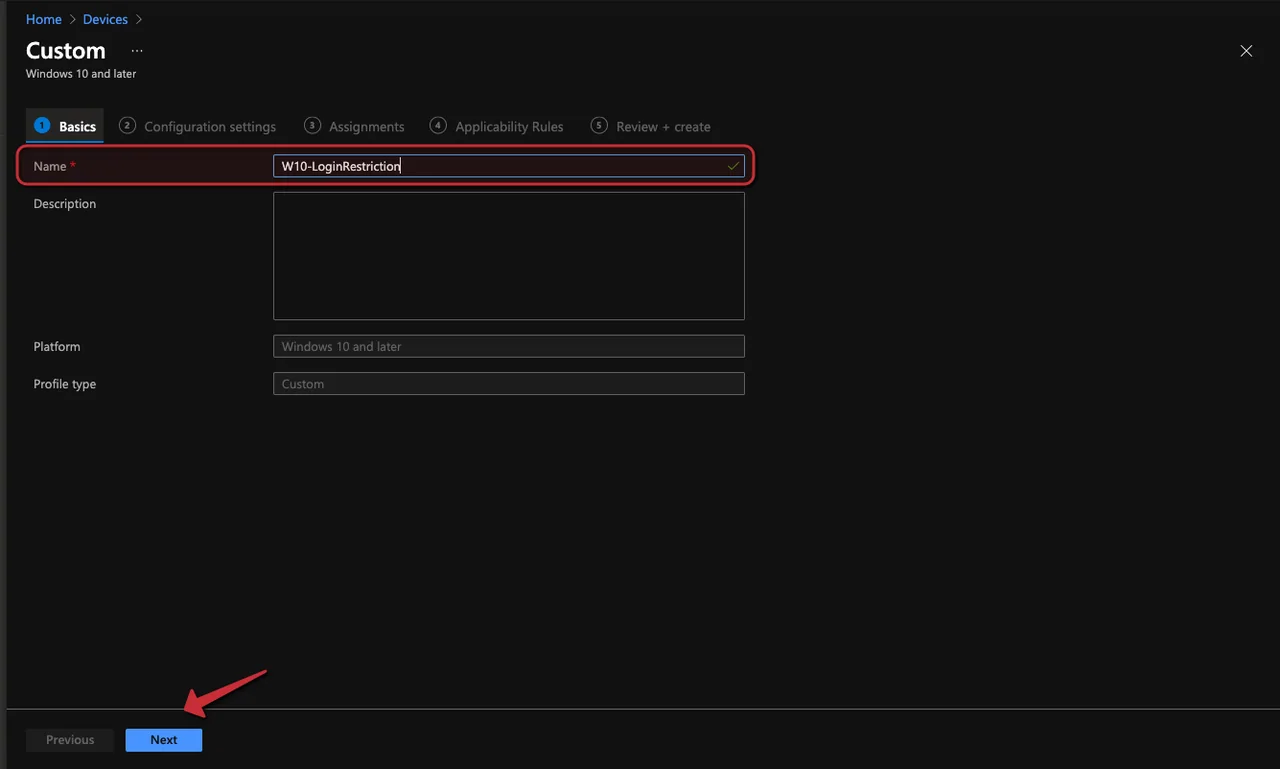
- Enter a Name and click Next
-
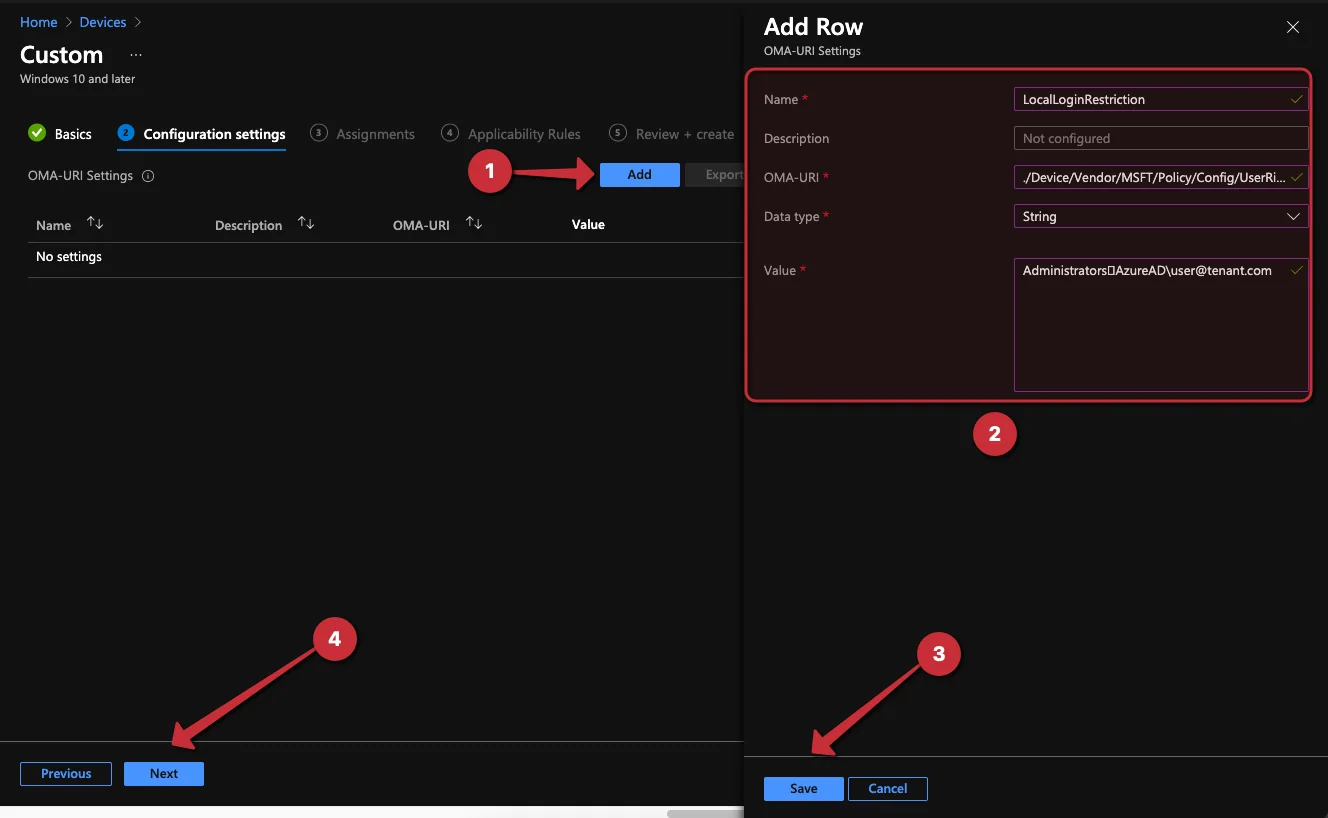
Click Add
-
Enter the following information:
-
Name: LocalLoginRestriction
-
OMA-URI: ./Device/Vendor/MSFT/Policy/Config/UserRights/AllowLocalLogOn
-
Data Type: String
-
Value:
As Value you have to specify the account you want to use. It is also possible to specify multiple accounts, but you must use the following tag to separate them:
& #xF000; (Without Space between & and #)But you can’t use the tag just like that. This must be converted via an XML decoder. There are tools for this on the internet or you can copy the ascii key from her:
Here are a few examples that you can specify as value when you restrict the login to dedicated users with Intune:
Allow login only for local accounts:
<![CDATA[*S-1-5-113]]>All users who have already logged on locally:
<![CDATA[*S-1-2-0]]>Add the Administrators group and a Microsoft Entra ID user
AdministratorsAzureAD\user@tenant.com- Click Save
- Click Next
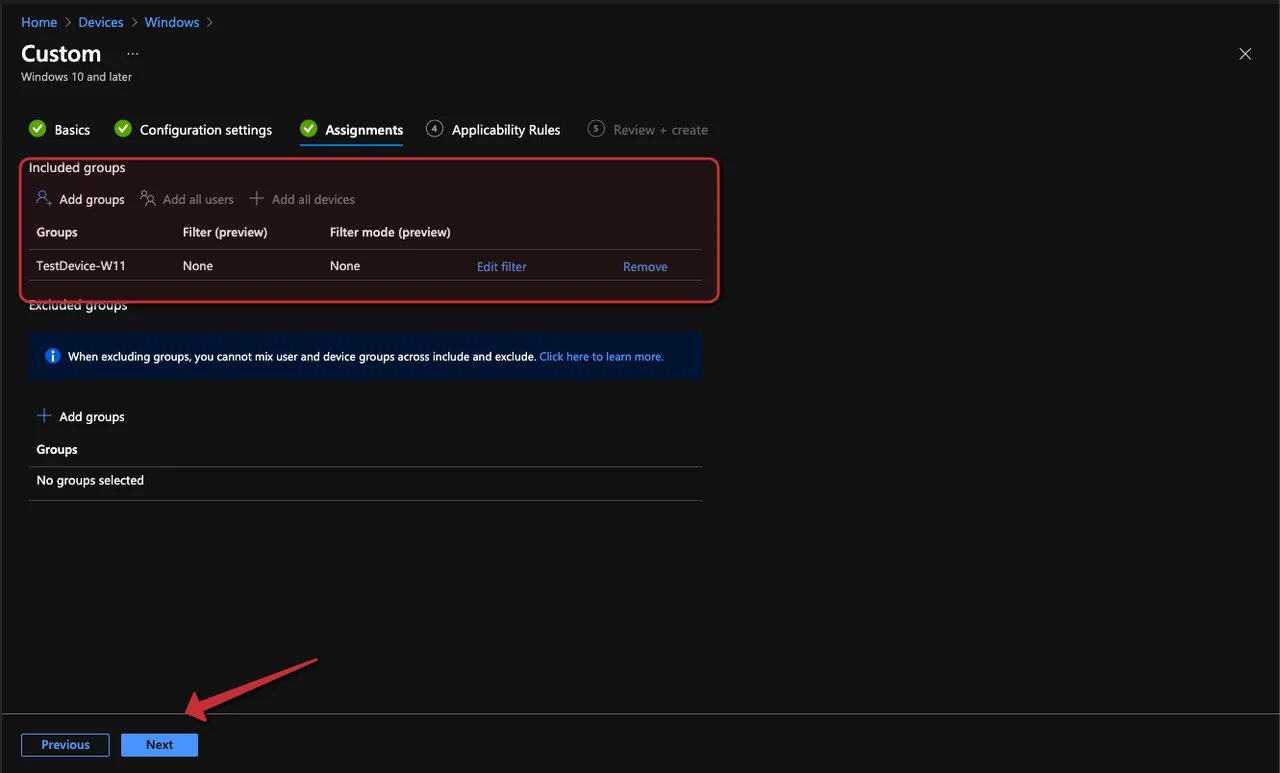
- Assign the Policy to a group
- Click Next
- Click Next
- Click Create
Testing the policy after you restrict the login to dedicated users with Intune
So now let’s test this out. I am trying to log in with a user that is not allowed, to confirm that the rule to restrict the login to dedicated users with Intune is actually being enforced on the device.
This is how the screen looks like when a user tries to log in who is not in the list.

Before you roll this out widely, it is worth understanding what AllowLocalLogOn actually does. The policy defines the complete allow-list of accounts that may sign in interactively at the device. It is not additive on top of the Windows default rights, it replaces them. That means the moment you assign a value, every account that is not explicitly listed loses the ability to log on locally, even members of the local Administrators group, unless you include them in the value yourself.
A practical example helps here. Imagine you scope the profile to a kiosk device and set the value to a single Microsoft Entra ID user. After the policy applies, that user can sign in, but your local break-glass admin can no longer reach the desktop. For that reason I always recommend keeping the local Administrators group in the list while you are testing, so you keep a way back into the machine if something goes wrong.
Common pitfalls when you restrict the login
- Locking yourself out: always include a recovery account, such as the local Administrators group, until you have confirmed the policy behaves as expected.
- Wrong separator: the value is one string and multiple accounts must be joined with the decoded
character, not a comma, semicolon or new line. - Format of the account name: Microsoft Entra ID accounts must be written as
AzureAD\user@tenant.com, while local accounts and well-known SIDs use their own notation. - Assignment scope: assign the profile to a device group rather than a user group, because the right is configured per device.
If you ever need to undo the restriction, simply remove the profile assignment or delete the profile. The device will fall back to the default Windows logon rights on the next sync, and the previously blocked accounts will be able to sign in again. It is a good idea to validate this rollback path in your test ring so you know exactly how long the change takes to take effect.
Conclusion
Being able to restrict the login to dedicated users with Intune may be required for special use cases. Unfortunately, this is currently only possible with local and Microsoft Entra ID users or local groups. Central management via a Microsoft Entra ID group is not currently possible. For more Intune guides, check out the other posts on jannikreinhard.com, and a separate blog post covers a possible workaround.
Stay healthy, Cheers
Jannik