
Group Windows 11 Devices with Intune
Create a dynamic Microsoft Entra group for Windows 11 devices. Review the membership rule and validate the resulting device list before assigning policies.
Once you start treating Windows 11 as a different deployment ring than Windows 10, you’ll need a clean way to Group Windows 11 Devices with Intune so you can scope policies, applications and Conditional Access to “all Windows 11 devices in the tenant” — without manually maintaining a static group. The good news is that Entra ID supports a Windows 11 dynamic group with rich rule syntax, and you can target Windows 11 by OS version, build number or device-category attribute with a single line of dynamic-membership rule. This post lays out the membership rules I use in production tenants, with examples for Windows 11 21H2 through 23H2 and beyond.
With Windows 11 widely deployed across enterprise estates, you might want to test configurations or apps specifically on Windows 11 devices. For that testing you need a group in Microsoft Entra ID. In this blog I want to show you how to create a dynamic group that contains all Windows 11 devices. I also want to show you how to create a device filter for Windows 11. By the end you will be able to Group Windows 11 Devices with Intune confidently and repeatably.
Why you should Group Windows 11 Devices with Intune
Before we jump into the steps, it helps to understand why it is worth the effort to Group Windows 11 Devices with Intune in the first place. A dynamic group gives you a stable assignment target that updates itself as new machines enroll or upgrade. It means you never have to remember to add a device by hand — Entra ID evaluates the membership rule and keeps the group in sync. That is the foundation of a clean ring-based rollout strategy, and it is exactly why so many admins choose to Group Windows 11 Devices with Intune rather than rely on static groups.
- Pilot new feature updates on Windows 11 only, before they reach Windows 10.
- Assign Windows 11-specific configuration profiles and Settings Catalog policies.
- Scope Conditional Access and compliance policies to the correct OS generation.
- Deploy applications that are only supported on Windows 11.
Create a Windows 11 dynamic group in Microsoft Entra ID
We will now start with the creation of a dynamic Microsoft Entra ID group. Of course you can use this procedure for other groupings based on other attributes. Open the Microsoft Entra admin center to begin.
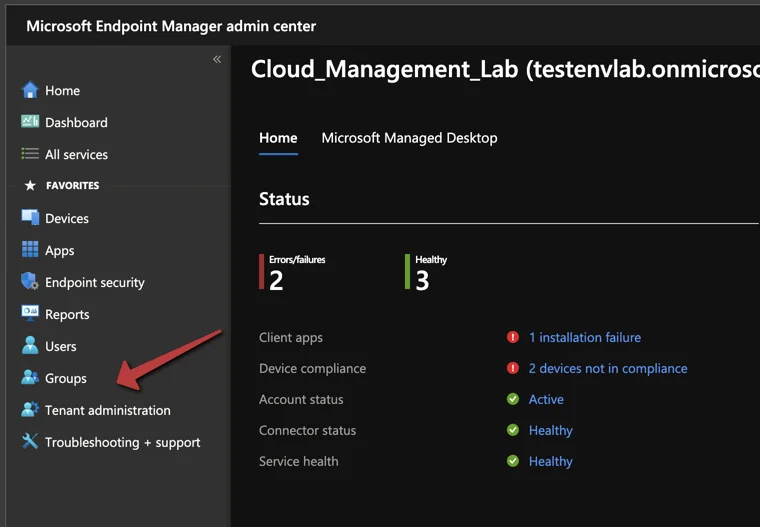
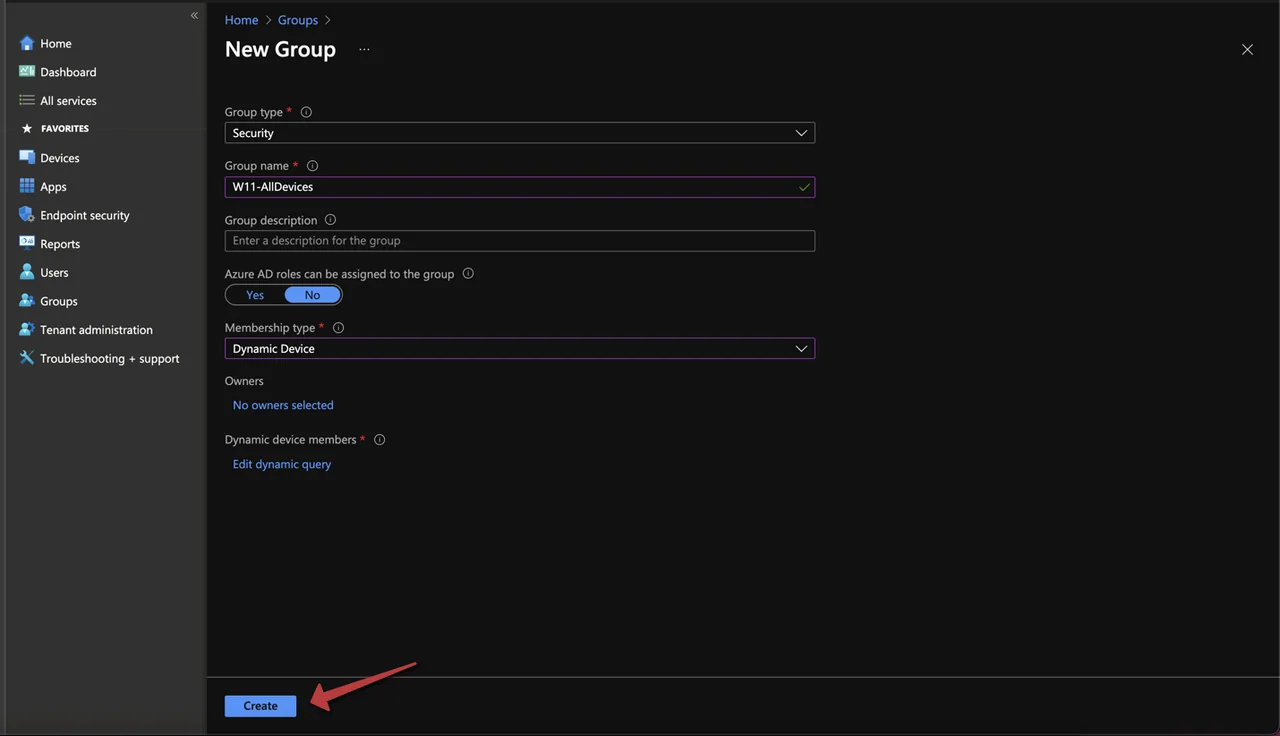
- Select Groups
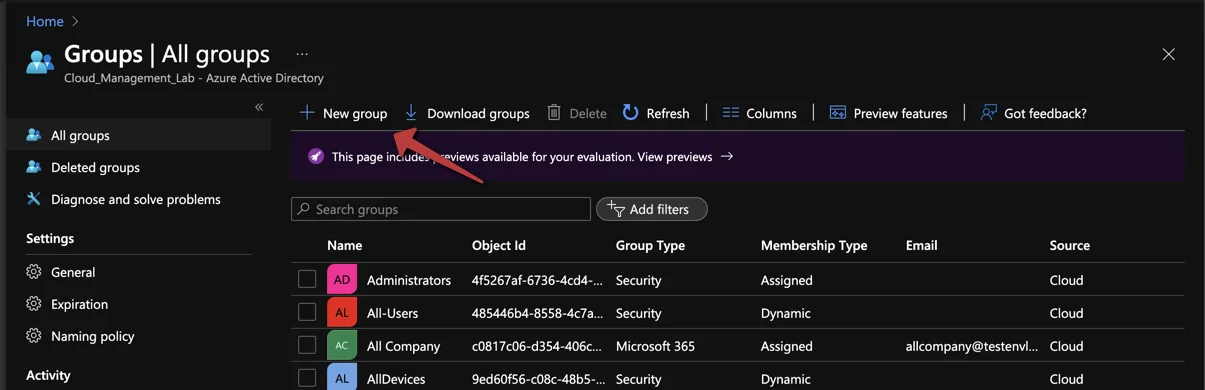
- Click + New group
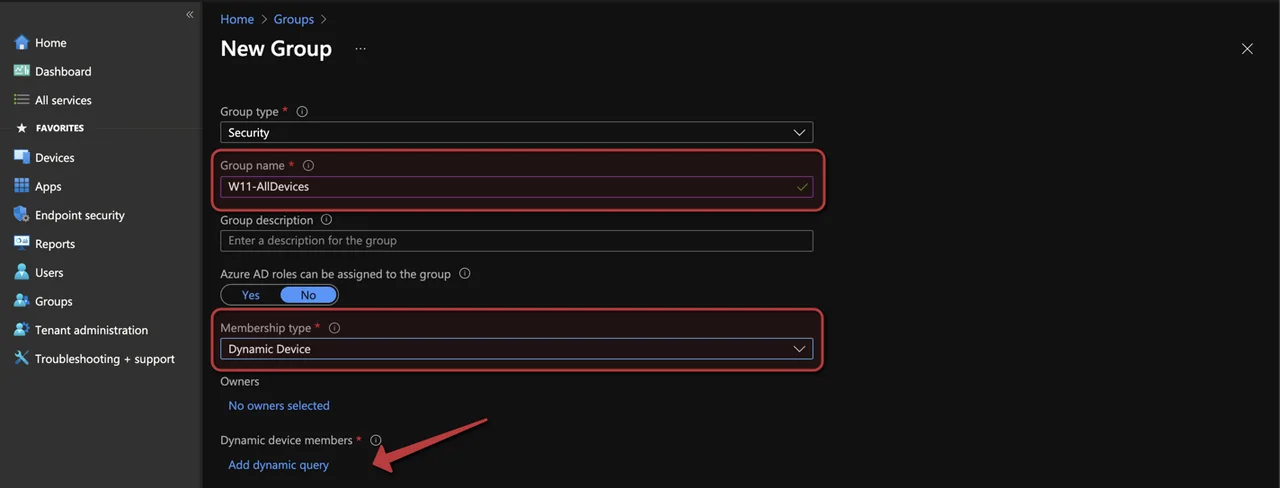
- Enter a Group name
- Select Dynamic Device as Membership type
- Click Add dynamic query under Dynamic Device Members.
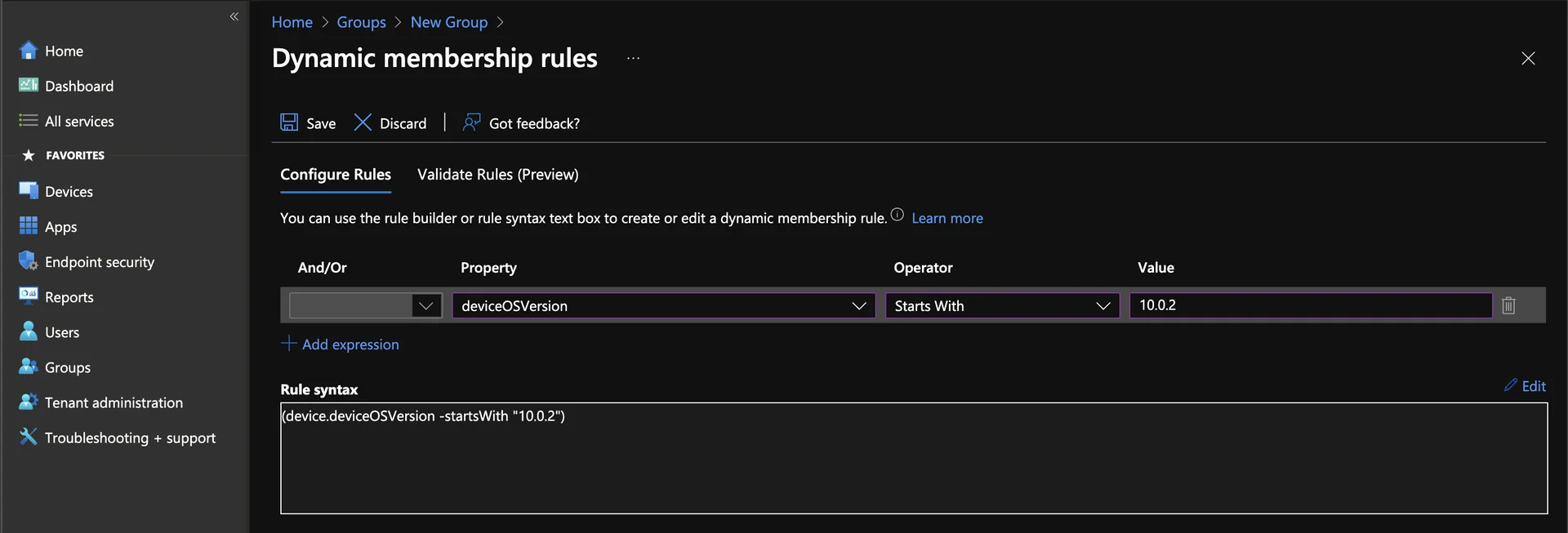
- Create the following rule:
(device.deviceOSVersion -startsWith "10.0.2")This single rule is the core of how you Group Windows 11 Devices with Intune. Because Microsoft kept the underlying build numbering as 10.0.2XXXX, every Windows 11 release — 21H2, 22H2 and 23H2 — starts with 10.0.22 or higher, while Windows 10 stays on 10.0.19. The -startsWith "10.0.2" condition therefore catches all current Windows 11 builds while excluding Windows 10. If you want to be stricter you can use 10.0.22 as the prefix instead.
-
Select “deviceOSVersion” as Property
-
Select “Starts With” as Operator
-
Insert “10.0.2” as Value
-
Click Save
- Click Create
Validate the rule when you Group Windows 11 Devices with Intune
Whenever you Group Windows 11 Devices with Intune, always validate the rule before you rely on it for production assignments. Entra ID offers a built-in validation tool so you can confirm a known Windows 11 device is matched and a Windows 10 device is excluded.
- Create the following rule:
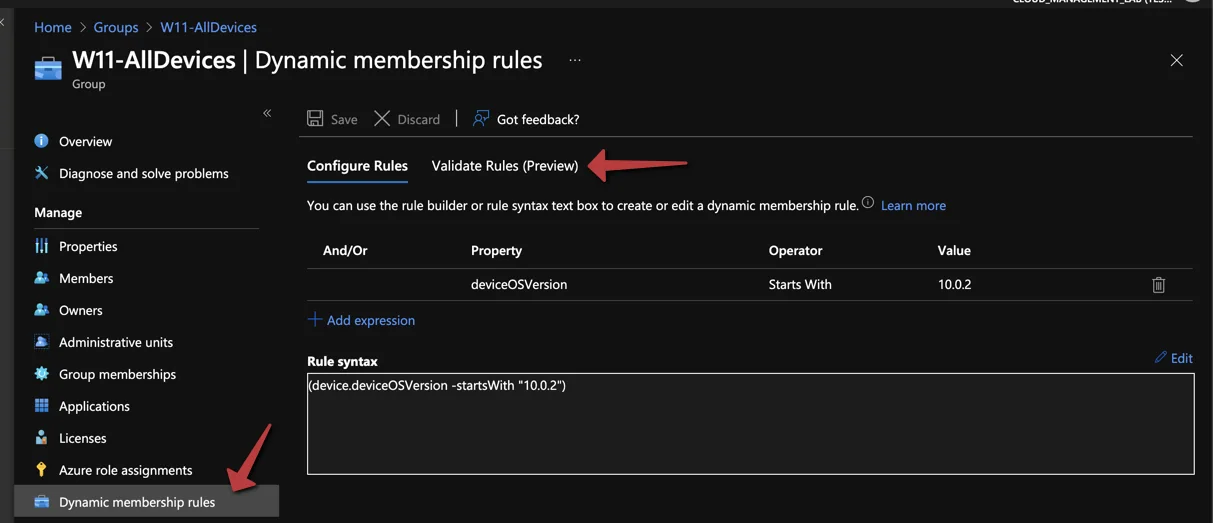
(device.deviceOSVersion -startsWith "10.0.2")- Open the Group
- Click Dynamic membership rules
- Click Validate Rules (Preview)
- Click Add devices
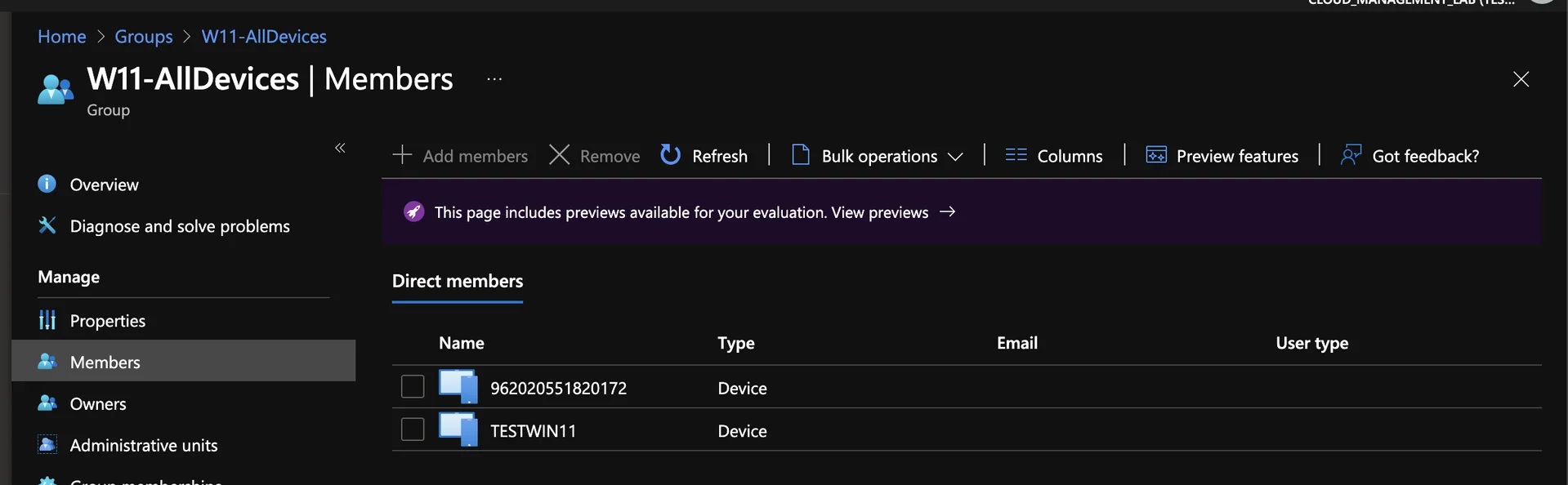
- Select a Windows 11 device
- Check if the filter fits for the device. You can check this by the green checkmark.
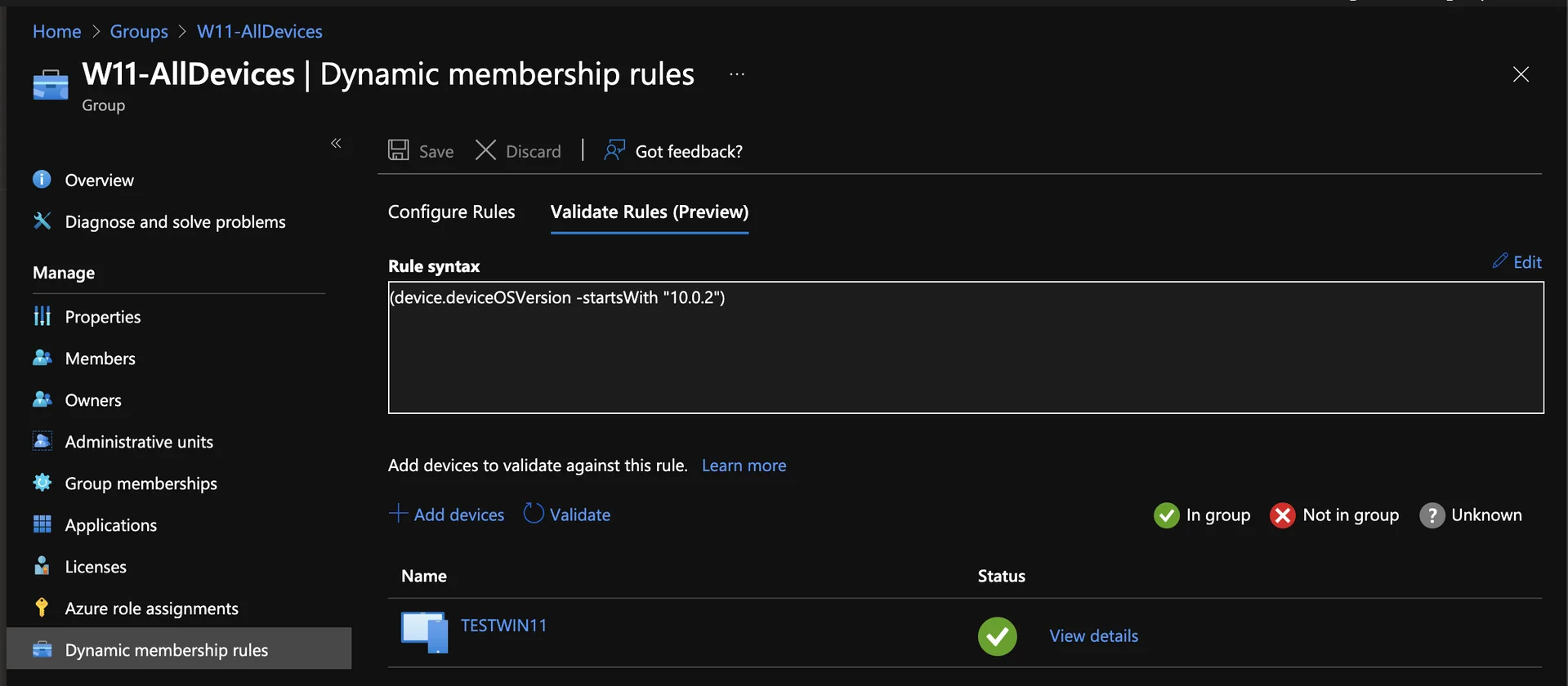
After a short delay, the devices should appear in the group as members. Dynamic membership processing can take a few minutes for the first evaluation, so do not panic if the count is empty immediately after you Group Windows 11 Devices with Intune.
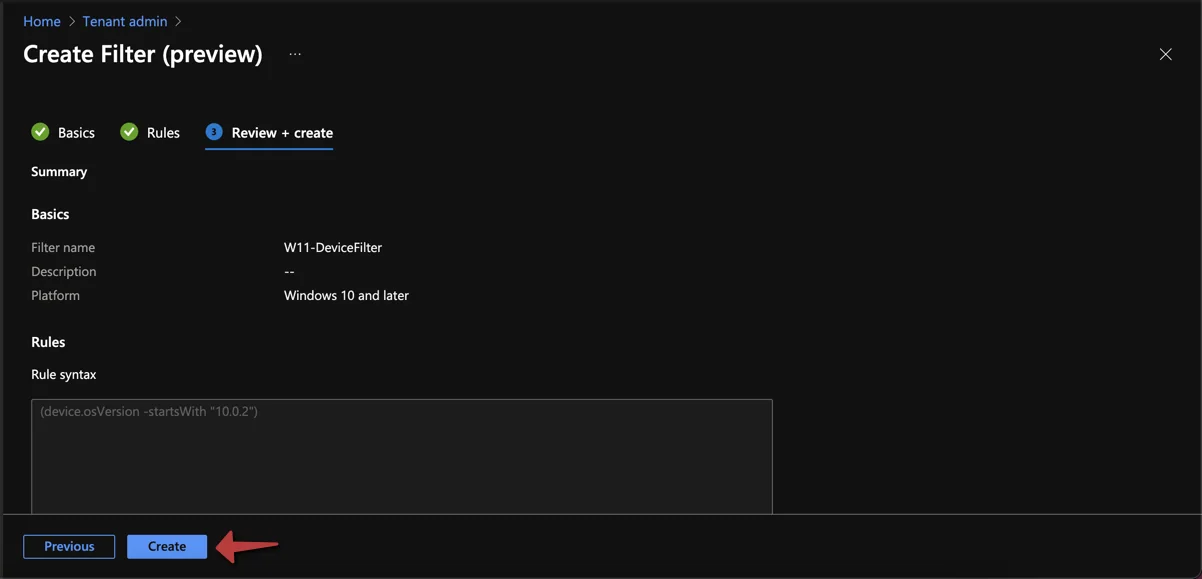
Create a Windows 11 device filter
After creating the dynamic Microsoft Entra ID group we will look at how you can create a filter. This can be useful for user assignments for example. Filters are a great companion when you Group Windows 11 Devices with Intune, because they let you refine an assignment at the policy level without creating a separate group for every variation.
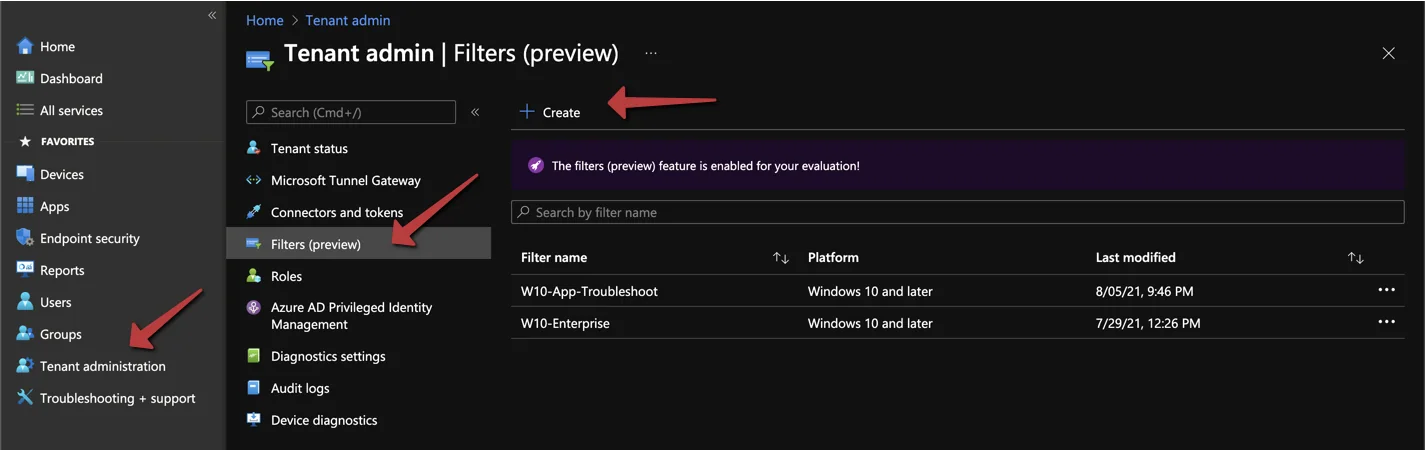
- Select Tenant administration
- Select Filter (Preview)
- Click + Create
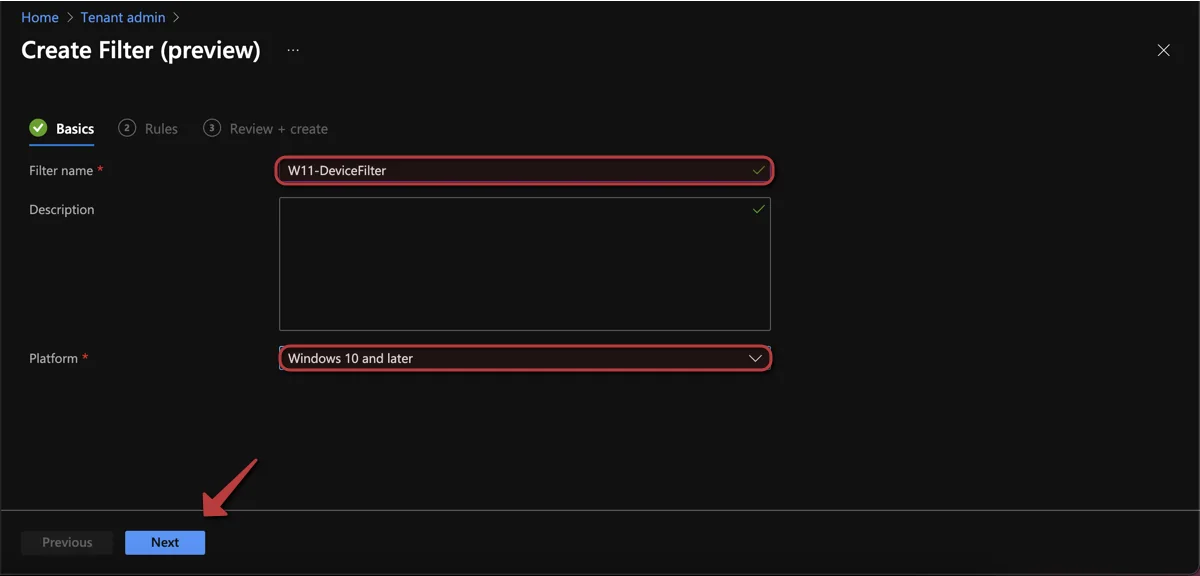
- Insert a Name for the filter
- Click Next
- Select Windows 10 and later as platform
-
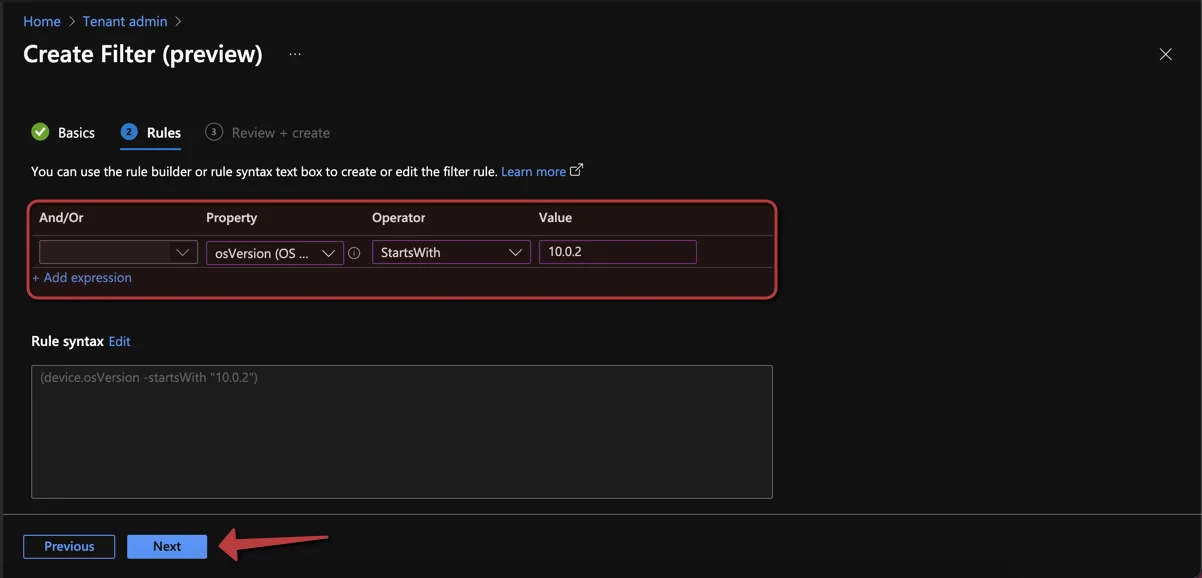
Select “deviceOSVersion” as Property
-
Select “Starts With” as Operator
-
Insert “10.0.2” as Value
-
Click Next
- Click Create
Group vs. filter: which should you choose?
A common question is whether to use a dynamic group or a filter. Both approaches help you Group Windows 11 Devices with Intune, but they solve slightly different problems. Use a dynamic group when you need a reusable assignment target across many policies and apps. Use a filter when you want to include or exclude Windows 11 devices on an existing broad assignment without spinning up extra groups.
In practice many teams combine the two: a dynamic group for broad targeting, plus filters for fine-grained exceptions. For more detail on syntax and supported properties, the official Microsoft Learn documentation on Intune filters is the authoritative reference. You may also like my guide on more Intune and Entra ID topics on the blog.
Conclusion
Although Microsoft kept the underlying version scheme as 10.0.2XXXX rather than switching to 11.X.X, this blog will help you Group Windows 11 Devices with Intune so you can target them with policies, apps and Conditional Access. Once you create and validate the membership rule, the group maintains itself and becomes the backbone of a clean, ring-based deployment strategy. Pair it with a filter for the edge cases and you have a flexible, future-proof setup.
Stay healthy, Cheers
Jannik