
Manage Local Windows Groups with Intune: Account Protection
Manage Windows local groups with Intune Account protection. Compare Add, Remove and Replace, protect recovery access, and understand sign-in limitations.
Update 06.09.2026: Clarified the scope and lockout risk of local group replacement. This is not a verified tenant-wide sign-in policy.
This second part shows how to manage local Windows group membership with an Intune Account protection policy. It covers Add, Remove and Replace actions. Local group membership is only one part of Windows sign-in authorization; test the effective user rights before treating this as a complete login restriction.
Hello everyone, after several months of inactivity I would like to post regularly new content here on my blog. I start here with a topic which I have already blogged last year. This post is about how to restrict the login to dedicated users with Intune so that only approved accounts can sign in to Windows. Intune has a cool new feature that allows you to manage the members of local groups.
In how to restrict the login to dedicated users with intune I did this restriction with a configuration profile and put a Microsoft Entra ID user into the local group via a custom profile and an OMA-URI. Now Microsoft has added a new CSP that allows you to do this in a much more elegant way. How to use this I explain now in this blog post.
Why You Should Restrict the Login to Dedicated Users with Intune
Before we dive into the configuration, it is worth understanding the reasoning. In many organizations, shared and kiosk-style devices, frontline worker laptops, and high-security workstations should only be accessible to a specific set of people. The ability to restrict the login to dedicated users with Intune gives you a clean, policy-driven way to enforce this without touching Active Directory or running brittle logon scripts. Instead of relying on local accounts, you control exactly which Microsoft Entra ID users or groups end up in the local Users or Administrators group.
This approach also scales nicely. Because the policy is assigned to Intune groups, you can target thousands of devices with a single configuration, and the membership stays consistent even as people join or leave a team. When you restrict the login to dedicated users with Intune the result is a predictable, auditable security baseline that survives reboots, reimaging, and Autopilot resets.
Create Account Protection Policy
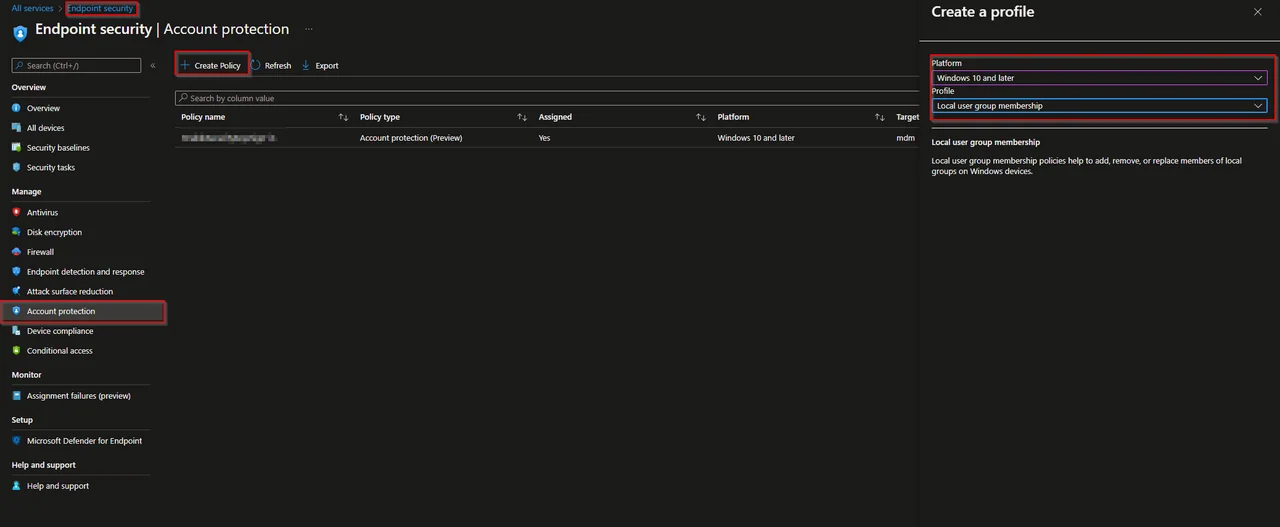
- Open the Intune admin center
- Click Endpoint security -> Account protection
- Click + Create Policy
- Select Windows 10 and later as Platform and Local user group membership as Profile
- Click Create
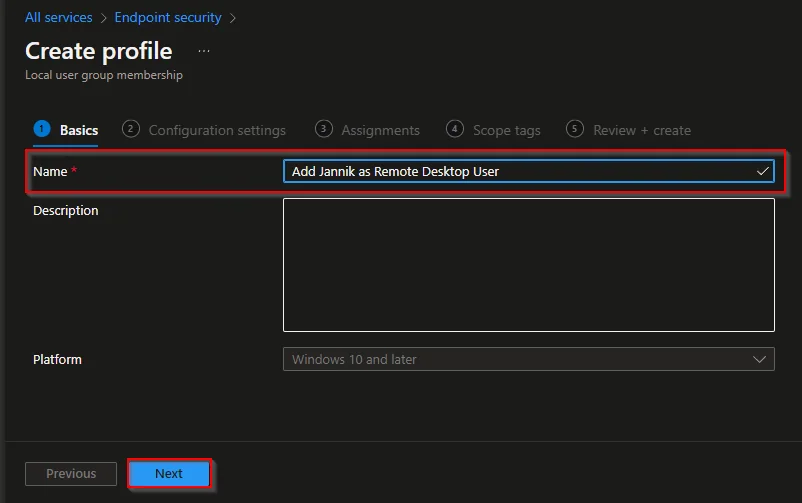
- Enter a Name and click Next.
- Select the local group you want to manage.
- Select the Action you want to do:
- Add (Update): Adds the user/s or group/s to the group and keep the current group memberships.
- Remove (Update): Removes the user/s or group/s of the group and keep the current group membership.
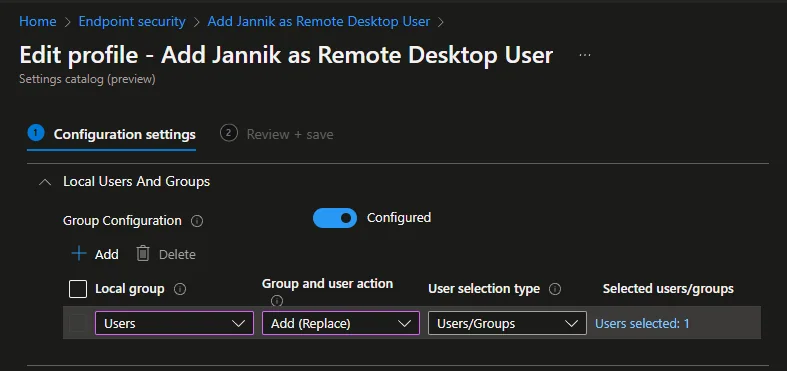
- Add (Replace): Replaces the current group membership with the user/s or group/s you selected.
- Select the User/s or the Group/s.
- Click Next.
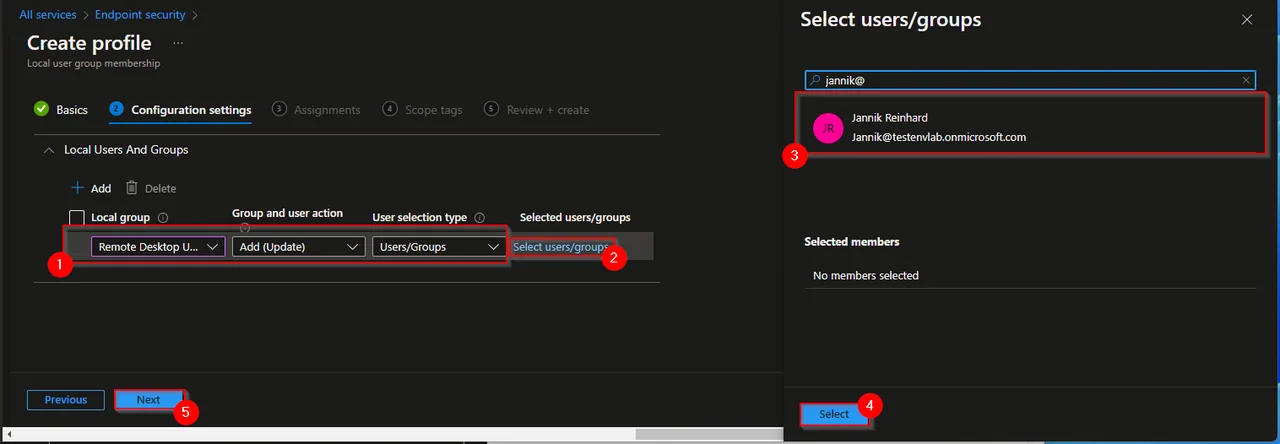
| If you want to regulate that only a certain user can log on to the PC you have to select the following settings: – Local Group: Users – Group and user action: Add (Replace) – User selection type: Users/Groups – Selected users/group: Select the user or group you want to add |
 |
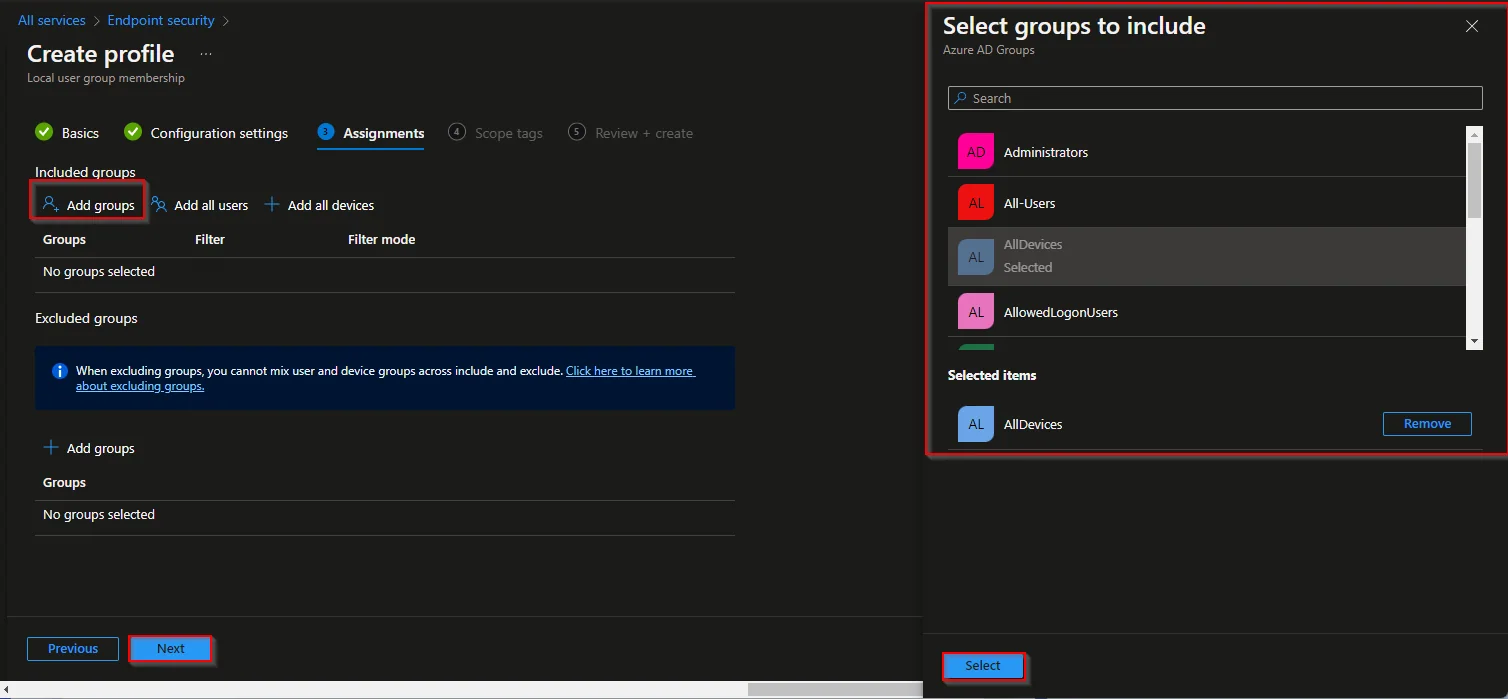
- Assign the policy.
- Click Next and again Next in the scope Tags section.
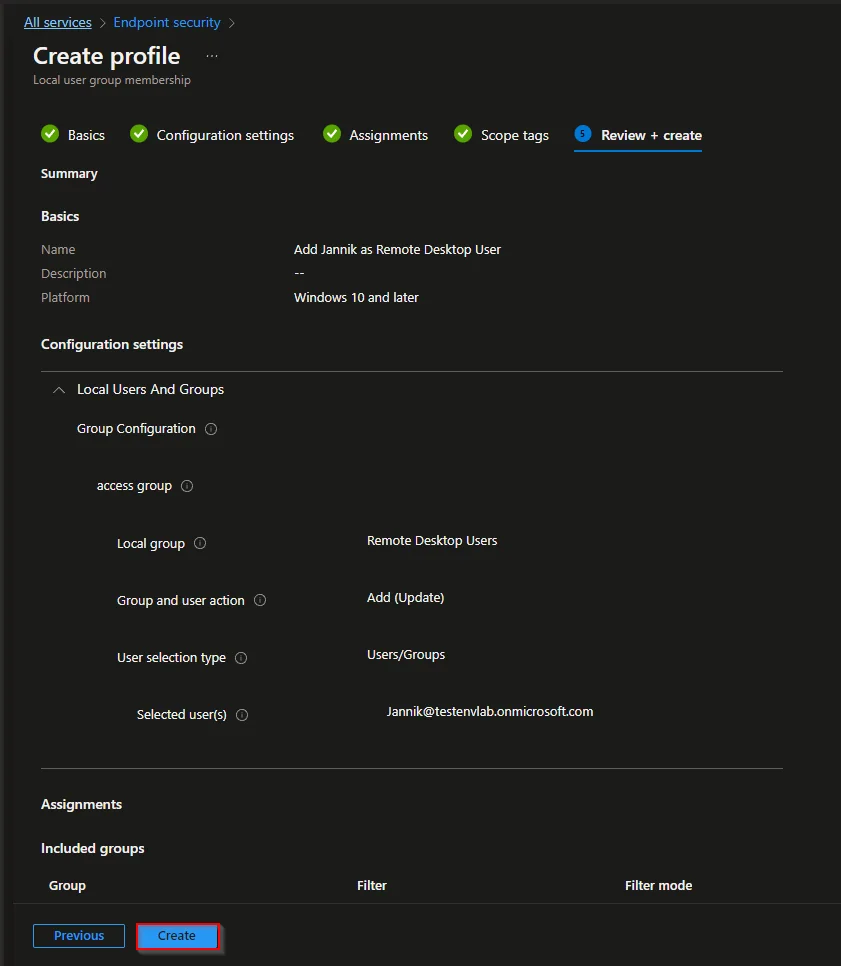
- Click Create
Advanced Tips and Common Pitfalls
Treat Add (Replace) as a potentially disruptive action for both Users and Administrators. It removes members not listed in the policy. Test on a pilot device, preserve required recovery access, inspect the resulting membership and verify sign-in for allowed and denied test accounts.
Second, remember that the policy works with the Microsoft Entra ID security identifier (SID) of the selected users and groups. If a device is not yet fully joined and synced, the membership may not apply on the first sync cycle. Give it time, or trigger a manual sync, and confirm the result with net localgroup Users from an elevated command prompt.
Conditional Access controls access to cloud resources; it is not a substitute for Windows local sign-in rights. Review the effective allow/deny logon policies separately. See the LocalUsersAndGroups CSP before replacing group membership.
This way is much easier and more elegant than the way I used last year. If you need more info on this topic, you can also find it in MS tech community. Hope this blog post helps you answer the question how you can manage local groups and restrict the login to dedicated users with Intune.
Stay healthy, Cheers
Jannik