
Delay Windows Update pending reboot with toast notification
Configure Windows Update reboot timing and use toast notifications to inform users. Review deadlines, restart behavior and the limits of postponing a reboot.
Who does not know the situation when you come back from vacation and the computer wants to reboot after an update installation. However, it is extremely important from a security point of view that the system is always up to date. The goal here is to delay Windows Update pending reboot behavior so that updates are still installed directly, but the user gets a little more time to read emails and reboot the device only when it fits them.
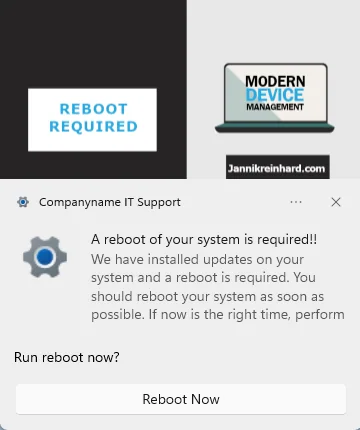
Another example is when a measurement or other process is running on the computer for several hours or days. Also here it would be really bad if a reboot interrupts this measurement. In this blog I show how you can delay Windows Update pending reboot prompts but still remind the user of the reboot and give him the chance to do it when it suits him.
Before we begin, it helps to understand why the option to delay Windows Update pending reboot is so valuable in a managed environment. Windows enforces a reboot after patching to finish servicing, and you can read the official background on the Windows Update restart documentation on Microsoft Learn. If you also manage update rings broadly, see my related post on jannikreinhard.com for more Intune automation tips.
Modify the Update Ring to delay Windows Update pending reboot
- Open the Intune admin center
- Navigate to Devices -> Update rings for Windows 10 and later
- Create or open an existing update ring
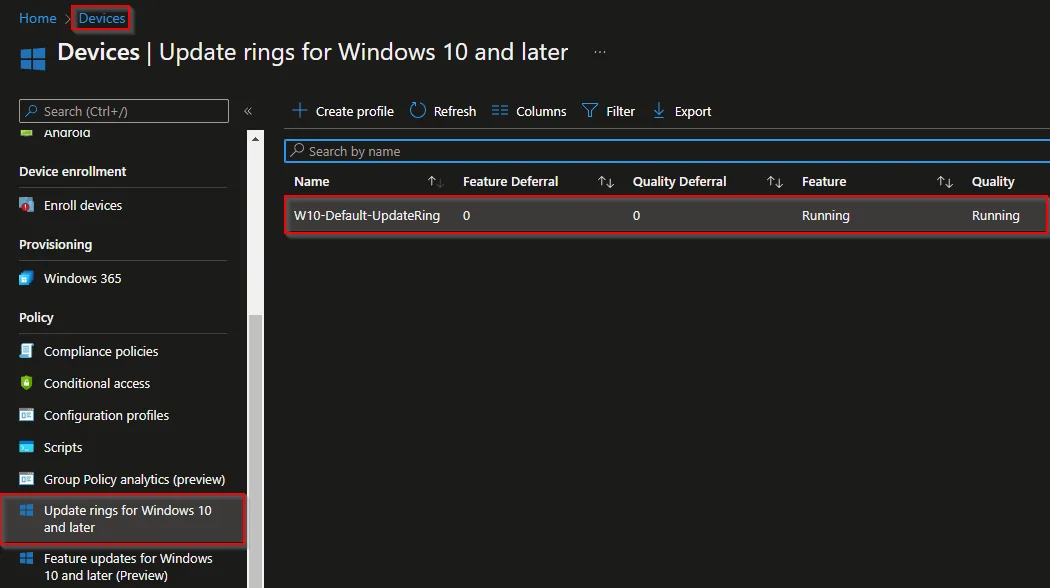
- Click Properties
- Click Edit
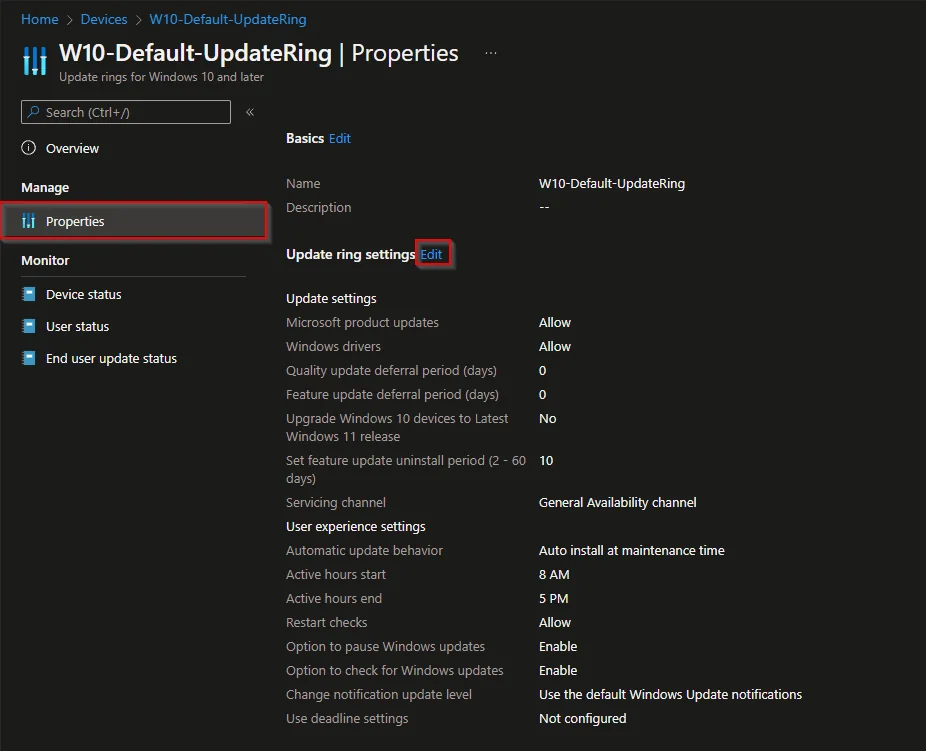
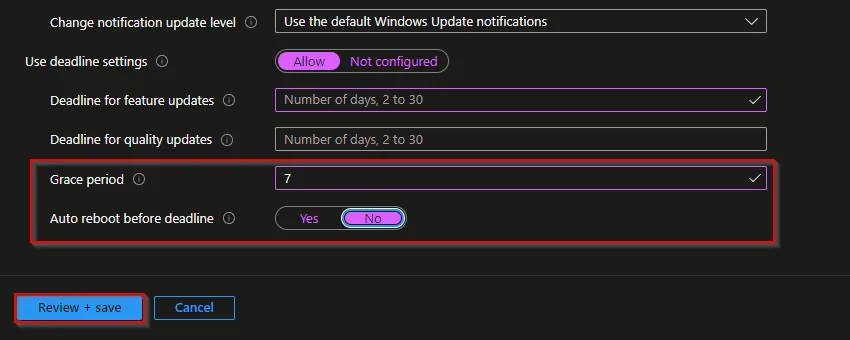
- Grace period: Here you can define the time how long you want to postpone the reboot after an update installation. This grace period is exactly what lets you delay Windows Update pending reboot actions for up to a week. It is possible to select a period between 0 and 7 days. If this setting is set, it also makes sense to set the setting Auto reboot before deadline to No.
- Click Review + save
Create Notification for the next reboot
I have written a script which checks if there is a reboot pending and if this is the case it brings up a toast notification. Because the grace period alone will delay Windows Update pending reboot prompts silently, this notification makes sure the user is still actively reminded. This includes a Detection script which makes the check for a pending reboot and a Remediation script which brings the toast notification message. You can find these two scripts in my Git repository.
- Download the scripts and open the Get-PendingRebootNotificationRemediation.ps1 to customize it
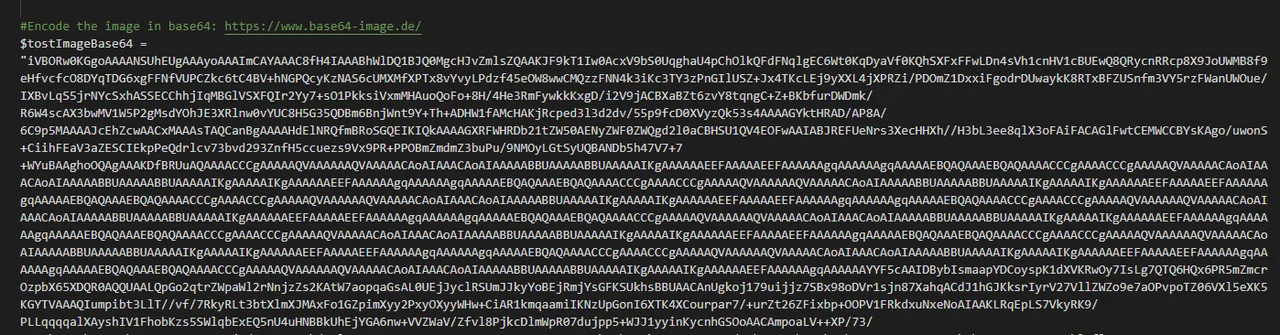
- First you need an Image for the toast header. To add this image into the powershell script you have to encode this to base64. I use the following tool for the encoding: https://www.base64-image.de/
When the picture is encoded, you can paste the base64 string into the $tostImageBase64 Variable in the script
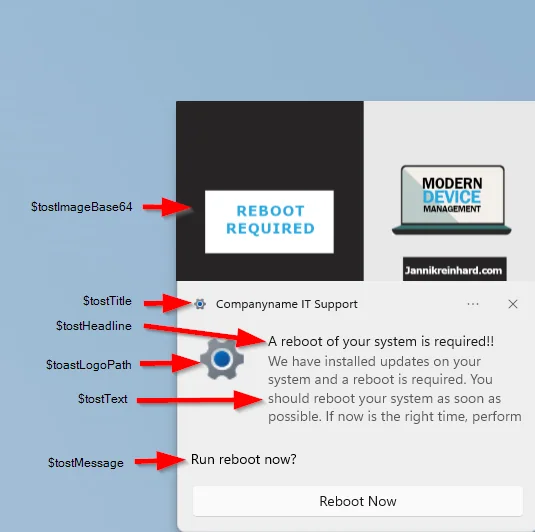
- Next we have to adapt the following variables with the content you want to show:

Deploy Script via Endpoint Analytics
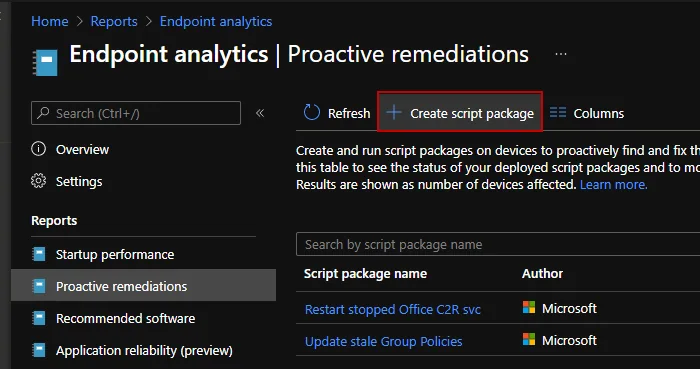
- To deploy this toast menu to the clients, we open the Intune admin center and navigate to Reports -> Endpoint analytics -> Proactive remediations
- Click Create script package
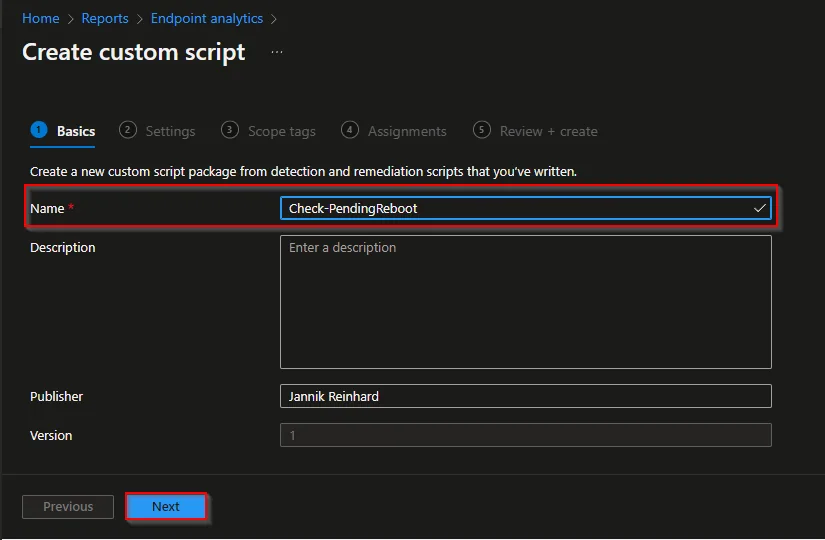
- Enter a name
- Click Next
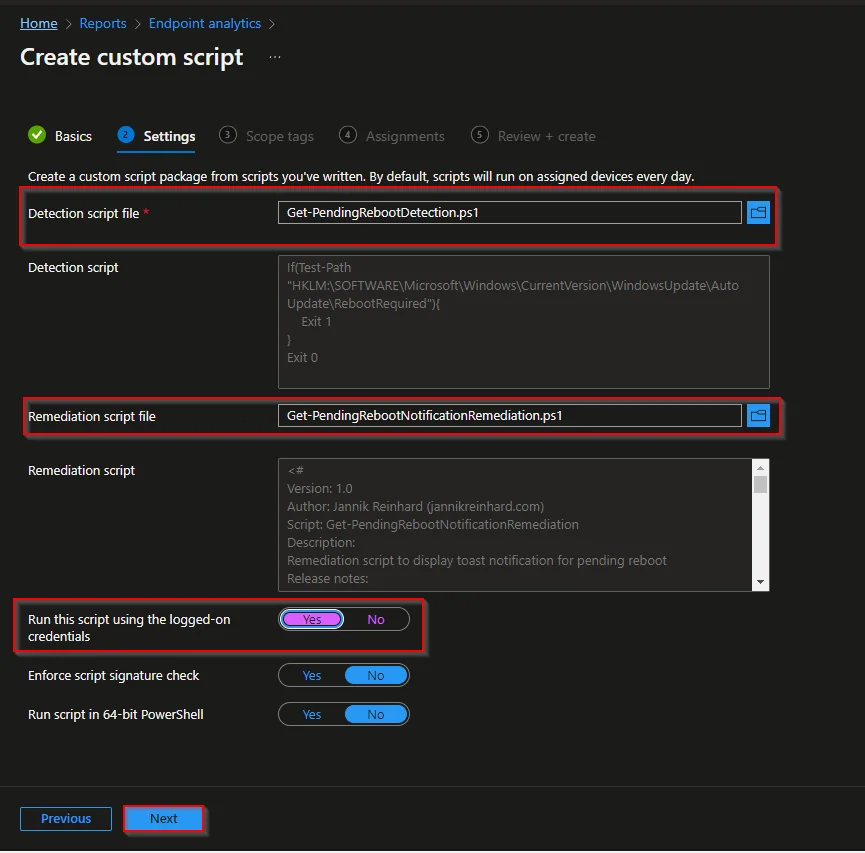
- Upload the script as detection script and the remediation script
- Select Yes for Run this script using the logged on credentials
- Click Next
- Click Next
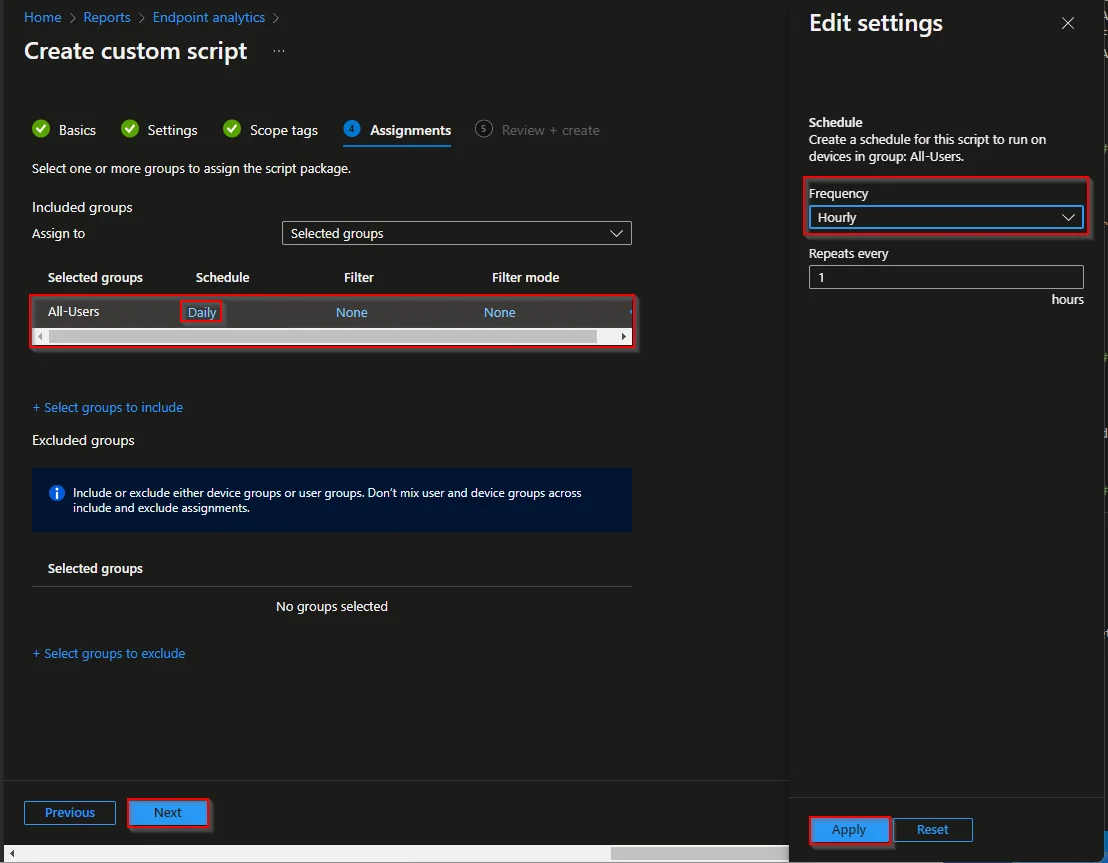
- Assign the Script to a group and click on Daily
- Change the Schedule to Hourly (You can also select another schedule like daily) and click apply
- Click Next
- Click Create
Conclusion
With this implementation you give the user enough flexibility to finish his work until the pending reboot is executed, but you still remind him every hour that he has to execute the reboot as soon as possible. The ability to delay Windows Update pending reboot actions brings a good mix between flexibility and security compliance.
Also, there are many ways to customize this message so that it is either more noticeable or gives the user even more information. One could also further develop the remediation script and include a check whether a program is open on the device, and depending on this automatically trigger the reboot. With these settings in place you can confidently delay Windows Update pending reboot prompts without ever putting patch compliance at risk.
Stay healthy, Cheers
Jannik