
Configure Device Categories in Microsoft Intune
Configure device categories in Microsoft Intune and review how they support device organization and dynamic groups. Follow the setup and assignment workflow.
To group devices of certain departments or areas, Intune provides a function called Intune device categories. These device categories have been available in Intune for a long time but are not really known by many. In this blog post we will take a closer look at what is behind this function and what possibilities device categories offer.
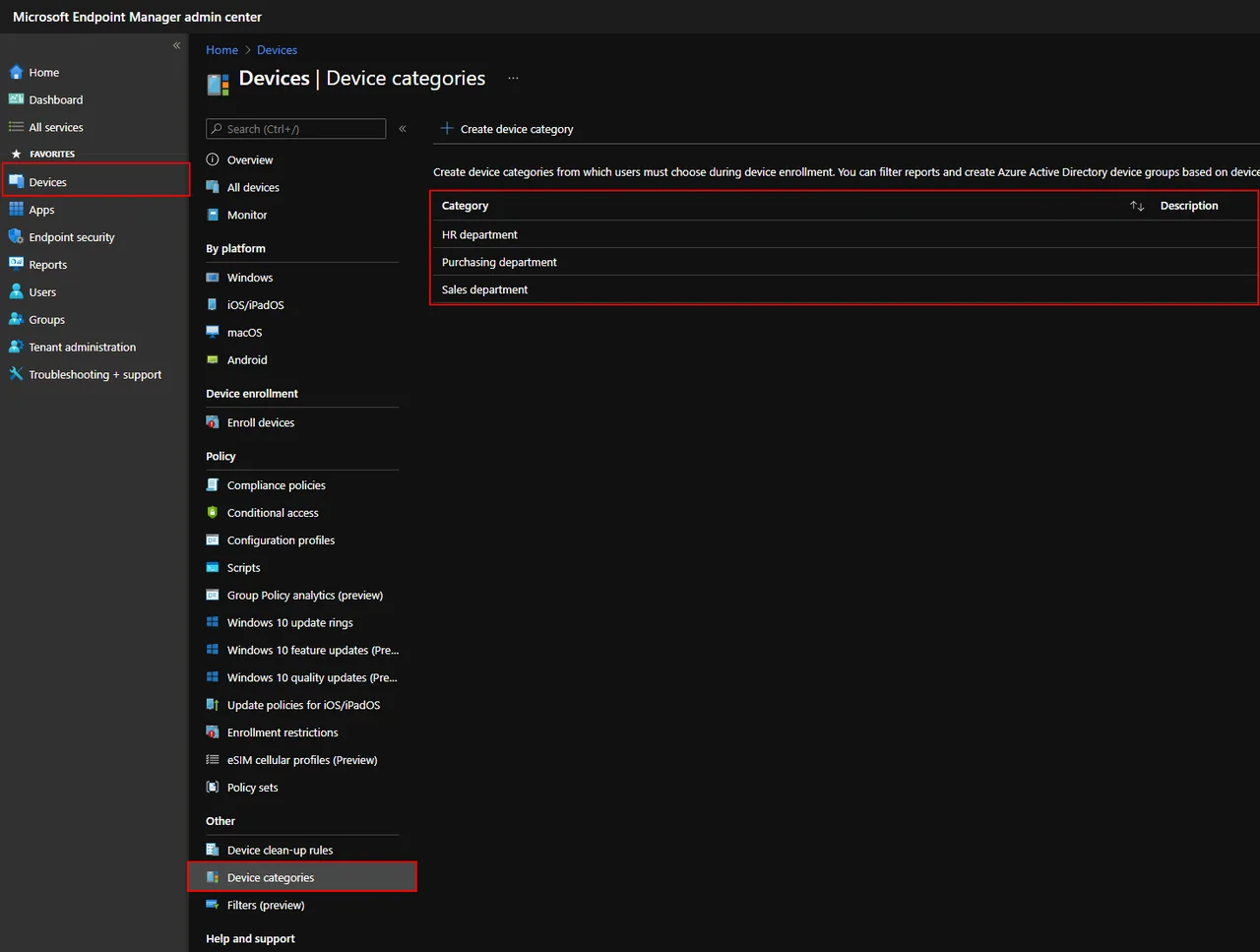
Where to find device categories in Intune
The device categories function can be found in Microsoft Intune in the Devices menu. In the screenshot you can see 3 sample entries that I created for our tests. For the creation of a category only a name and optionally a description is needed. You can read more about the official behaviour on Microsoft Learn.
Before we dive in, it is worth understanding why this small feature is useful. Without categories you usually rely on naming conventions or manual group membership to tell devices apart, which quickly becomes hard to maintain. Device categories give you a clean, user-driven attribute that you can build dynamic groups, filters and assignments on top of, so the right apps and policies follow the right people automatically.
Note: When you configure a device category, the user is prompted to enter the device category each time he enrolls a device and opens the Company Portal.
This setting applies to all device types (Mobile and Workplace). Unfortunately it is not possible to attach this selection to a device type or group. I hope that this will be changed in the future.
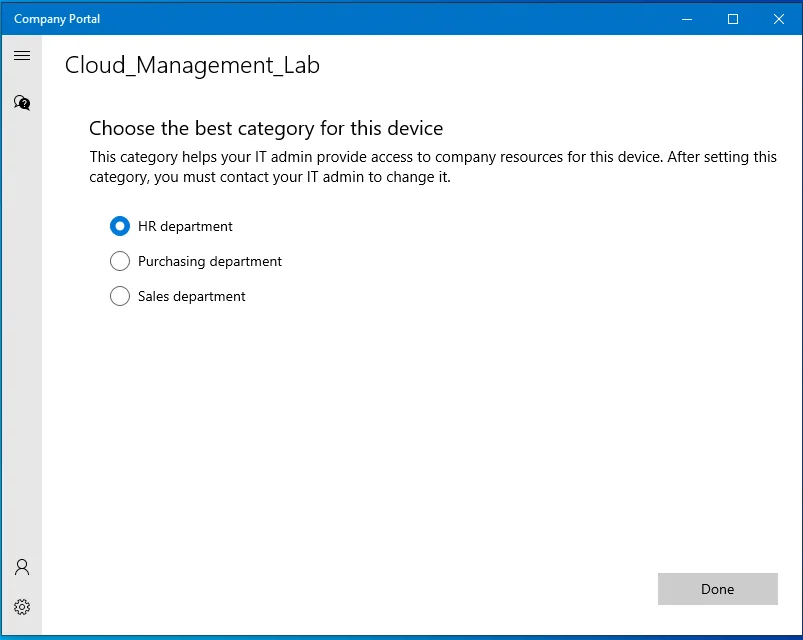
How users select device categories
After we set up a new device and start the Company Portal for the first time, we have the option to select a device category. This selection is mandatory. After a selection has been made, the other functions are displayed in the Company portal. The selection can no longer be changed in the Company Portal, so plan your categories carefully before rollout.
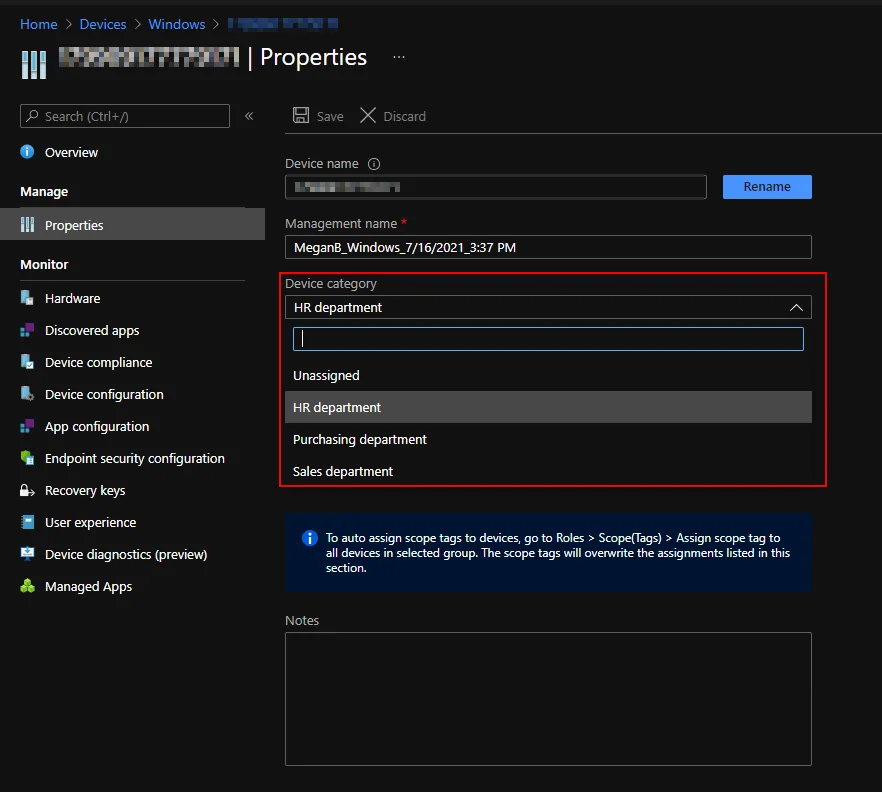
When we open the Intune device object in the Intune admin center we can see the category in the properties. It is also possible to change the category there manually. This is handy when a user picks the wrong category during enrollment: instead of re-enrolling the device, an admin can simply correct the value, and the dynamic group membership will update on the next evaluation cycle.
Use device categories for dynamic groups
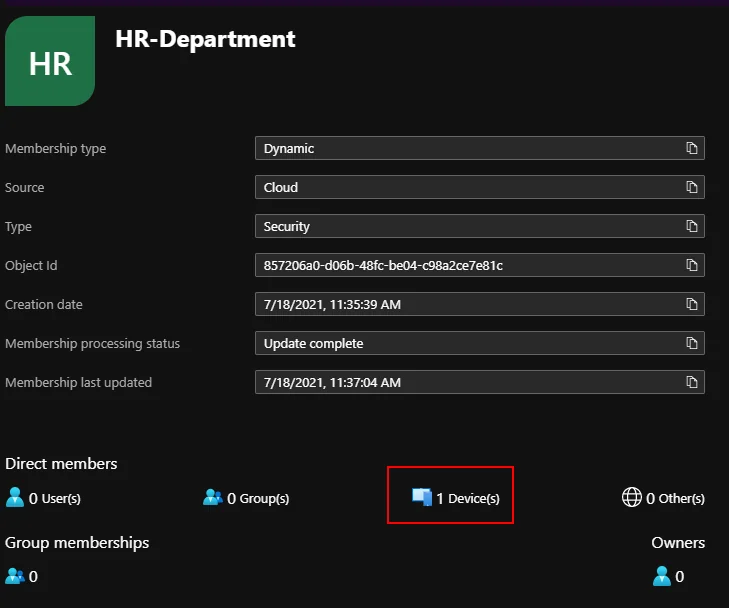
But what is the advantage of device categories? We can use this category to fill dynamic groups and use them for assignment. For example, if someone selects the category HR Department, he will get all the required applications as required assigned. But how can we do this?
We create a group with the membership type Dynamic device. To collect the devices of HR department category in this group, we create the following filter:
device.deviceCategory -eq "HR department"The device appears in the group so this has worked and we can now use this group for assignments. If you want to dive deeper into dynamic grouping, check out my other posts on jannikreinhard.com.
A practical example makes this clearer. Imagine you have separate app packages for HR, Finance and Field Service. You create one dynamic group per category, each with the matching device.deviceCategory -eq "..." rule, and assign the relevant apps and compliance policies to those groups. From that point on the workflow is fully hands-off: a new HR laptop only needs the user to pick “HR Department” during enrollment, and the payroll and onboarding apps land on the device without any manual targeting from your side.
Automate device categories with PowerShell
I have created a small script to change the device category via PowerShell. You can find this on my Git repository: Change-DeviceCategory.ps1
To get the IDs of the device categories you can use the following graph call in the graph explorer:
https://graph.microsoft.com/beta/deviceManagement/deviceCategoriesCommon pitfalls to watch out for
A few things tend to trip people up in real deployments. First, the category name in your dynamic membership rule must match the configured category exactly, including capitalisation and spaces, otherwise the device will silently never join the group. Second, remember that the prompt appears for every platform, so communicate the available categories to your users in advance to avoid wrong selections. Finally, plan a small, stable set of categories from the start. Renaming or deleting a category later breaks the dynamic rules that depend on it, and re-targeting a large fleet is far more work than getting the structure right on day one.
That is everything you need to configure device categories and put them to work in dynamic groups. Stay healthy, Cheers
Jannik