
Data Science with Microsoft Intune — Quick Start
Data science with Intune made simple: pull device data into Python, run Sweetviz, and turn raw Graph signals into clear, shareable insight in minutes.
This is a Quick Start to data science with Intune. The post walks through how to pull Intune data into a notebook, do meaningful exploratory analysis on devices, apps, and compliance, and turn the result into something an admin team can actually act on. If you have ever wanted to do real data science with Intune without building a heavy reporting pipeline, this is the fastest path I know.
As you know I like everything what is related to data science and Intune. In this blog I will show you a solution how you can get some insights about your Intune environment you did not have before. The goal is simple: take the raw signals Microsoft already collects and make them easy to understand at a glance.
Content
- Content
- Prerequisites
- How the solution works
- What is sweetviz
- How to run the solution
- How does it look like
Why data science with Intune matters
Most Intune admins live inside the portal blades, but the portal only shows you one device or one policy at a time. Applying data science with Intune lets you zoom out and look at the whole fleet at once: which manufacturers dominate, where OS versions cluster, how compliance correlates with enrollment type, and which fields are simply missing. These are the patterns you cannot see in a list view, and they are exactly where good decisions start.
Prerequisites
The prerequisites to use the solutions are really low. The only thing what you need is python installed on your device. You can install python from this link. In addition to this you have to make sure that sweetviz is installed on your device. You can to this with the following command:
pip install sweetvizYou will also need an Entra ID app registration with the right Microsoft Graph permissions so the script can read your tenant data. If you are new to Graph scopes, the official Microsoft Graph permissions reference on Microsoft Learn is the best place to confirm what each scope grants before you start doing data science with Intune.
How the solution works
It is really simple. The first step is to download data from graph like all managed devices. Then this json will be converted into a pandas dataframe and then the sweetviz will be called. That three-step flow is the entire engine behind doing data science with Intune here: pull, shape, and visualize. Because everything runs locally in Python, you stay in full control of the data and you can iterate on a new question in seconds.
What is sweetviz
Sweetviz is an open-source Python library used for performing data analysis. It’s designed to help data scientists understand the structure of a dataset, detect relationships between variables, and identify potential issues like missing values or inconsistent data types. That makes it a perfect companion for data science with Intune, because device data is messy and full of nested fields.
One of the key features of Sweetviz is its ability to generate attractive and detailed visualizations in the form of interactive HTML reports. These reports can provide insights into the distribution of individual variables, comparisons between different subsets of data (such as training vs. test datasets), and much more.
With Sweetviz, you can:
- Create detailed visualizations of data distributions and interactions.
- Compare datasets, such as training vs. test data.
- Analyze the distribution of target variables in classification or regression tasks.
- Assess the balance of classes in classification tasks.
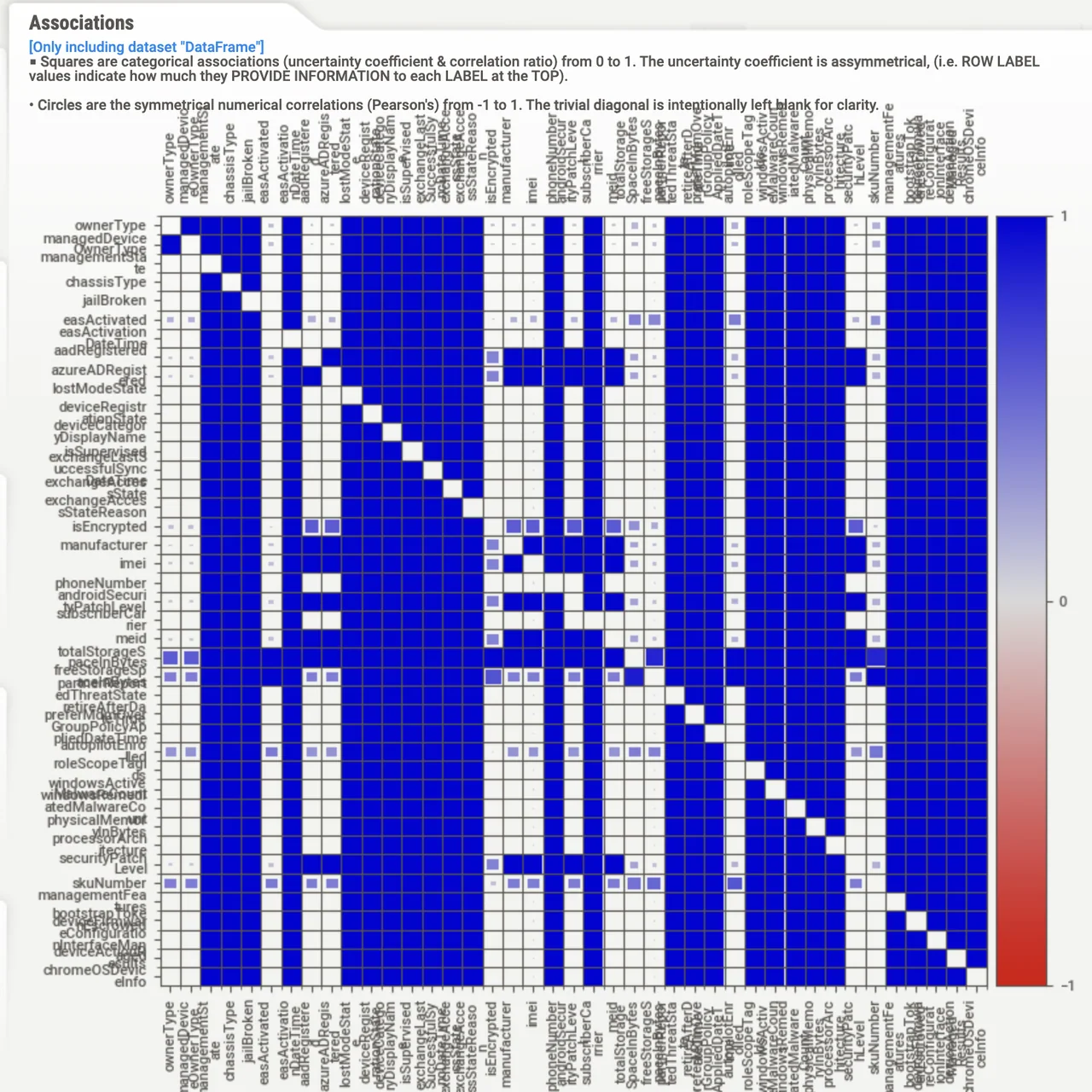
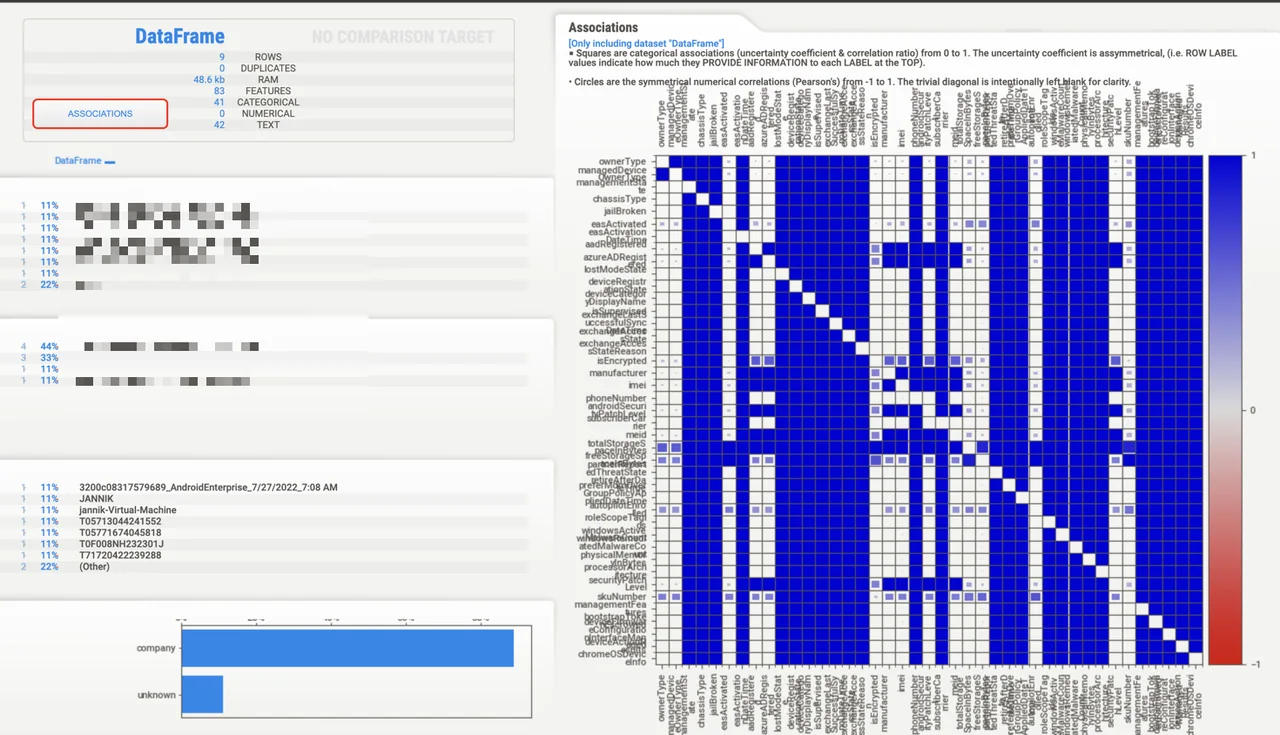
- Identify and visualize feature associations and correlations.
- Detect and report missing values, duplicate entries, or outlier data.
Sweetviz is often used in the early stages of a data science project to perform quick and efficient EDA, which can help guide subsequent data cleaning, feature engineering, and modeling decisions. It’s praised for its ease of use and the comprehensiveness of the reports it generates. In practice this means you get a full association matrix and per-field summaries without writing a single chart by hand.
How to run the solution
You can download the script from my github repository. The only thing what you have to do is to fill out the TENANT_ID variable and to run this script. This script will then generate a HTML page with an overview of your devices / users or some other graph calls you specify. In just a few minutes you have a complete data science with Intune report sitting in your browser, ready to share with your team.
For more advanced calls or use cases you have to extract values from jsons or lists. You can do this like this:
df['serialNumber'] = df['hardwareInformation'].apply(lambda x: x.get('serialNumber') if isinstance(x, dict) else None).astype(str)
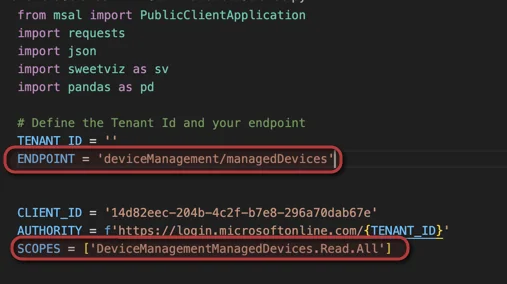
You can also change the graph endpoint when you change it here:
If you want to go deeper into Intune automation and reporting, you can also browse my other Intune and Microsoft 365 articles where I cover related Graph and PowerShell tricks that pair nicely with this approach.
How does it look like
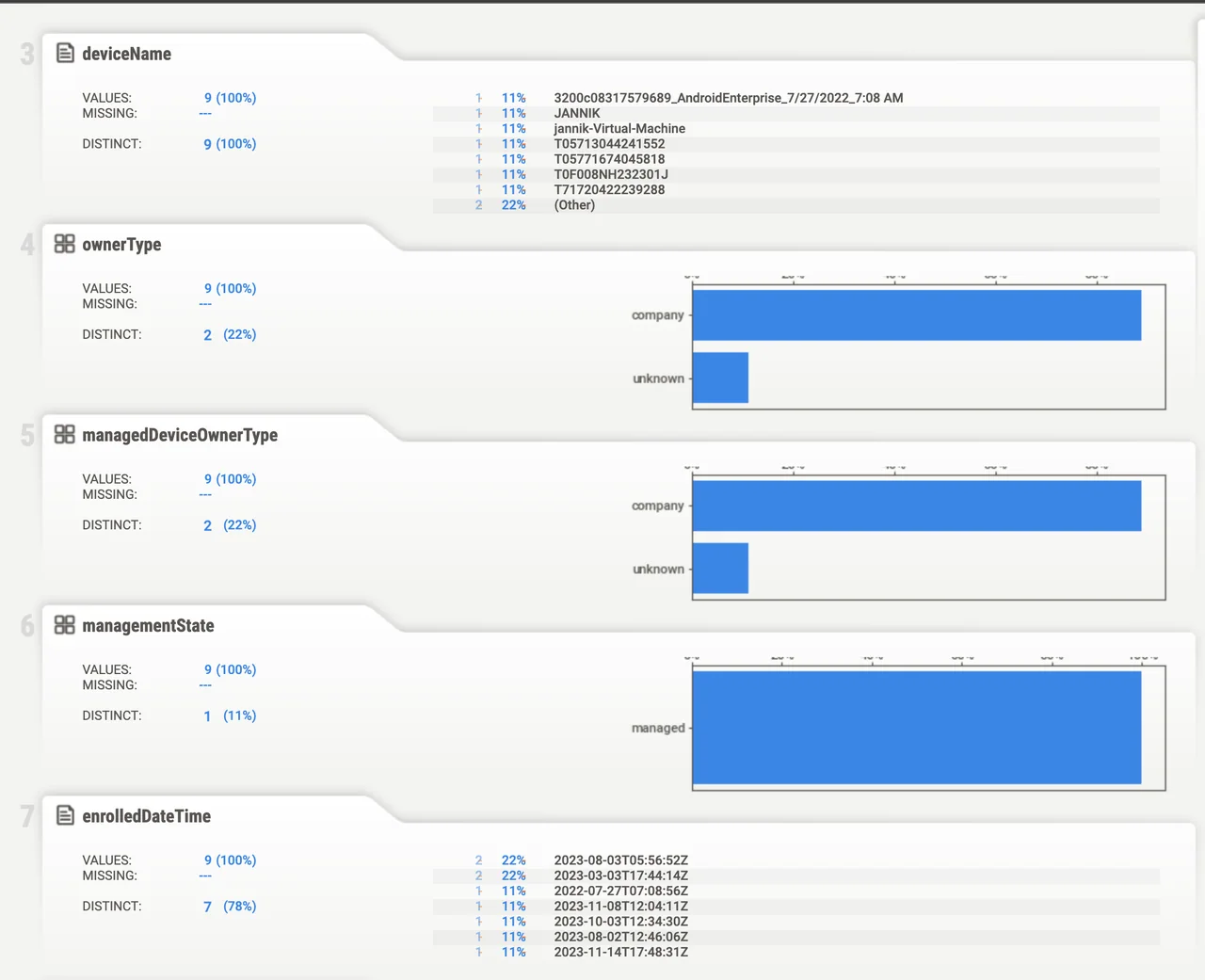
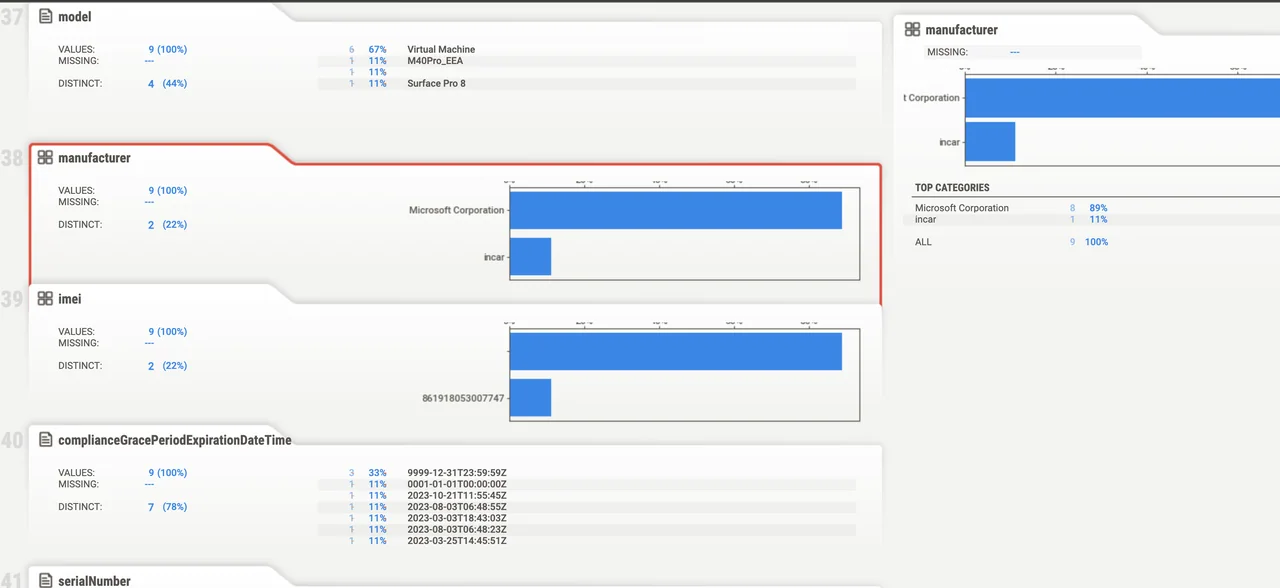
Here you can find an overview how the output looks like. Each report from your data science with Intune run gives you a dataset summary, per-field breakdowns, and an associations view so you can instantly spot anomalies in your fleet.
Conclusion
That is all it takes to get started with data science with Intune. With nothing more than Python, Sweetviz, and a Graph token, you can turn raw device data into clear, shareable insight in minutes. Once you are comfortable with this workflow, you can extend it to apps, compliance policies, and configuration profiles to make data science with Intune a regular part of how you run your environment.