
How to skip the ESP for a single app installation
Learn how to skip the ESP for a single app in Intune. Use a simple Boolean requirement script to delay one app install without slowing Autopilot.
Unfortunately, there is no native setting in Intune that lets you decide whether an app should be installed during the ESP (Enrollment Status Page) or only after it. In most cases it is a huge advantage to install as many apps as possible during the ESP, or even better during the white glove phase, so that you hand over a ready to use device after enrollment.
But there are situations where you need to skip the ESP for a single app, for example when the installation routine requires user interaction. In this guide I will show you exactly how to skip the ESP for one specific application without affecting the rest of your Autopilot Enrollment Status Page configuration.
How can I detect if I am in the ESP?
Before you can skip the ESP for an app, you first have to reliably detect whether the device is currently running inside the Enrollment Status Page. The trick is to use a requirement script that returns a Boolean value. When the script tells Intune that the device is still in the Enrollment Status Page, the app installation is held back, which is exactly how we skip the ESP for that single app. There are two solid options to detect this state, and you can pick whichever fits your environment best.
Option 1: Skip the ESP via the explorer process
This is actually quite simple. During ESP the processes are executed with the “defaultuser0”. What we need to do now is simply check under which user the explorer process is running. If it is running under “defaultuser0” then we are in the ESP. If it is another user then it is after the ESP. Sometimes the process also creates a “defaultuser1”. To make it more resistant we also check for this user, so the logic to skip the ESP stays reliable across builds.
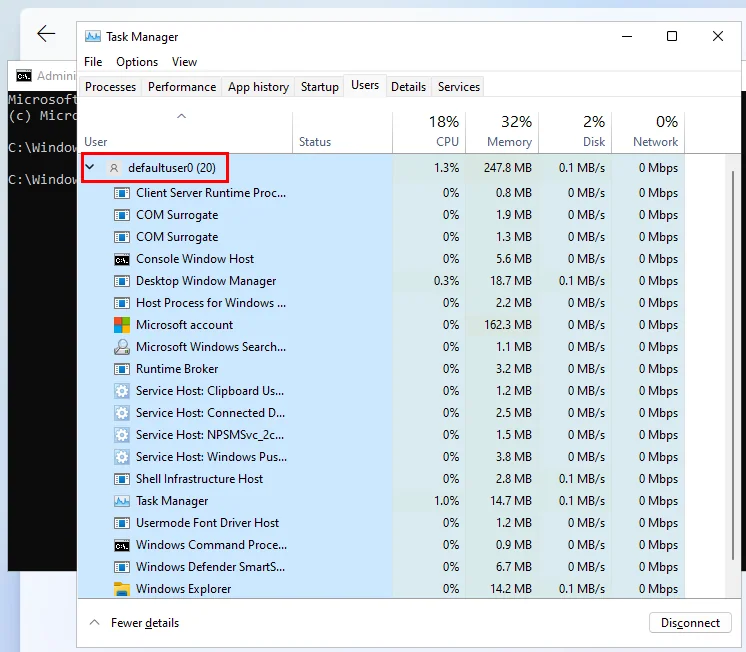
To check this I wrote a little requirement script:
<#
Version: 1.0
Author: Jannik Reinhard (jannikreinhard.com)
Script: Get-EspDetection
Description:
Skip the ESP for app installation
Release notes:
Version 1.0: Init
#>

$processesExplorer = @(Get-CimInstance -ClassName 'Win32_Process' -Filter "Name like 'explorer.exe'" -ErrorAction 'Ignore')
$esp = $false
foreach ($processExplorer in $processesExplorer) {
    $user = (Invoke-CimMethod -InputObject $processExplorer -MethodName GetOwner).User
    if ($user -eq 'defaultuser0' -or $user -eq 'defaultuser1') {$esp = $true}
}

Write-Host $esp
Option 2: Skip the ESP via registry status keys
There is a second option. For each ESP phase (Device preparation, Device setup and Account setup) registry keys are written regarding the status. You can find this key in the following path: “Computer\HKEY_LOCAL_MACHINE\SOFTWARE\Microsoft\Provisioning\AutopilotSettings”. By evaluating these keys you can precisely decide when to skip the ESP and when the app is allowed to install.

When we check for this status we also know if we are in the ESP or if the ESP is completed. Also for this I have written a script:
Also for this I wrote a script:
<#
Version: 1.0
Author: Jannik Reinhard (jannikreinhard.com)
Script: Get-EspDetection
Description:
Skip the ESP for app installation
Release notes:
Version 1.0: Init
#>


[bool]$DevicePrepComplete = $false
[bool]$DeviceSetupComplete = $false
[bool]$AccountSetupComplete = $false

$regPath = 'HKLM:\SOFTWARE\Microsoft\Provisioning\AutopilotSettings'
$esp = $true

try{
    $devicePreperationCategory = (Get-ItemProperty -Path $regPath -Name 'DevicePreparationCategory.Status' -ErrorAction 'Ignore').'DevicePreparationCategory.Status'
    $deviceSetupCategory = (Get-ItemProperty -Path $regPath -Name 'DeviceSetupCategory.Status' -ErrorAction 'Ignore').'DeviceSetupCategory.Status'
    $sccountSetupCategory = (Get-ItemProperty -Path $regPath -Name 'AccountSetupCategory.Status' -ErrorAction 'Ignore').'AccountSetupCategory.Status'

}catch{
    $esp = $false
}

if (-not (($devicePreperationCategory.categorySucceeded -eq 'True') -or ($devicePreperationCategory.categoryState -eq 'succeeded'))) {$esp = $false}
if (-not (($deviceSetupCategory.categorySucceeded -eq 'True') -or ($deviceSetupCategory.categoryState -eq 'succeeded'))) {$esp = $false}
if (-not (($sccountSetupCategory.categorySucceeded -eq 'True') -or ($sccountSetupCategory.categoryState -eq 'succeeded'))) {$esp = $false}


Write-Host $esp
How to add the requirements script to skip the ESP
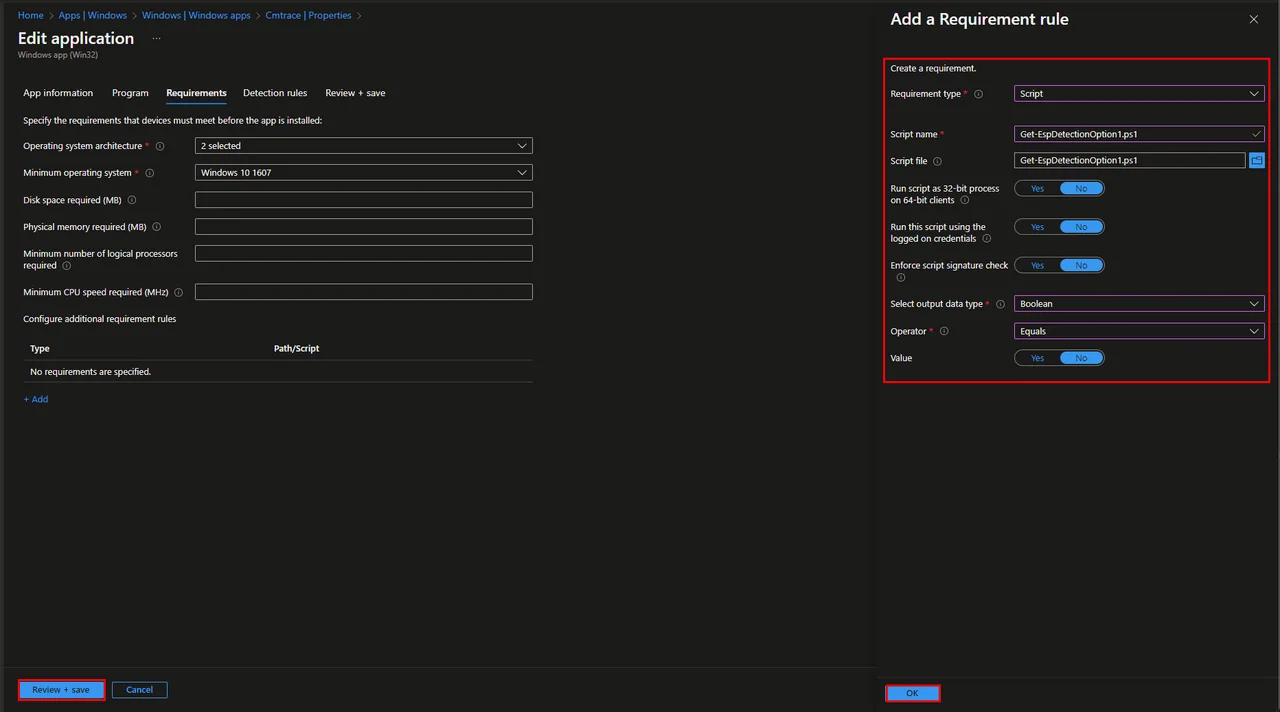
- Open the Intune admin center and navigate to the app you want to skip the ESP
- Click Edit and Requirements
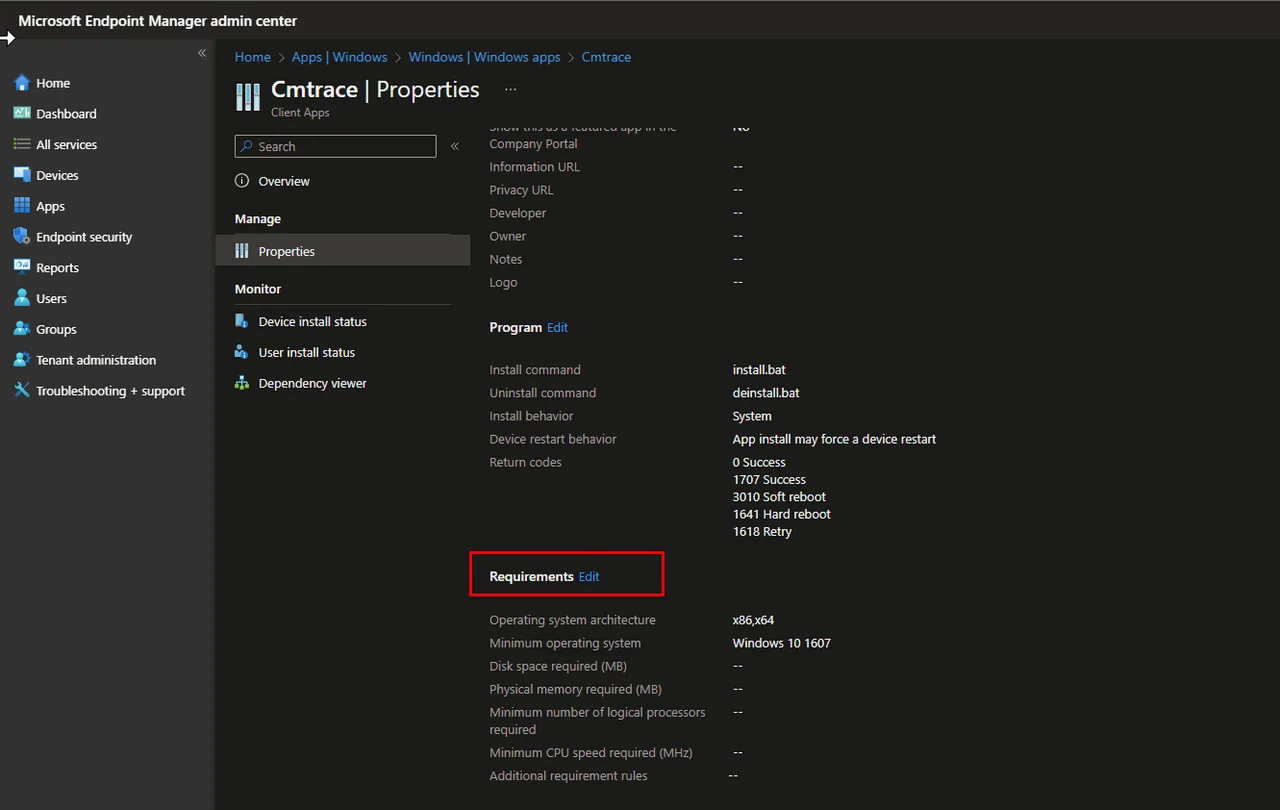
- Click +Add for Configure additional requirement rules
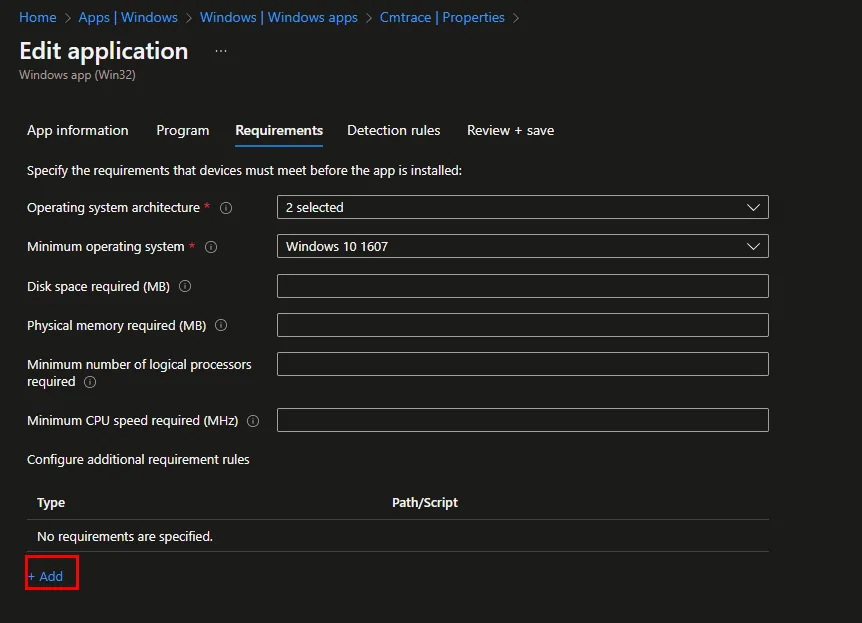
- Select the following settings:
- Select Script
- Upload the Requirement script
- Select Boolean as “Select output data type“
- Operator: Equals
- Value: No
- Click OK and save the settings
Conclusion: when to skip the ESP for a single app
With this requirement rule in place, Intune will only install the application once the device has left the Enrollment Status Page, which means you effectively skip the ESP for that single app while every other app continues to install as usual. This approach keeps your enrollment fast and reliable, and it is especially useful for apps that need a logged-in user, show pop-ups, or depend on the desktop being available.
If you want to skip the ESP for several apps, simply reuse the same requirement script across each app assignment. For more Intune and Autopilot tips, have a look at my other guides on jannikreinhard.com, and check the official Microsoft Intune documentation for the latest details on requirement rules.