
How to Get a Report of All New Enrolled Devices
Report newly enrolled Intune devices with PowerShell and Azure Automation. Review the reporting window, authentication, schedule and email delivery.
Keeping track of newly enrolled devices in your organization can be a challenging task when relying solely on the Intune console. Wouldn’t it be awesome to receive a complete report with all new enrolled devices automatically via email? As you know, I love automating things. In this blog post, we’ll explore a simple and efficient way to generate a weekly report with all new enrolled devices using PowerShell, Azure Automation Runbooks, and Microsoft Graph API. This automated solution will save you time and effort, allowing you to focus on more important tasks in managing your organization’s devices. So, let’s dive in and learn how to create this valuable report with all new enrolled devices!
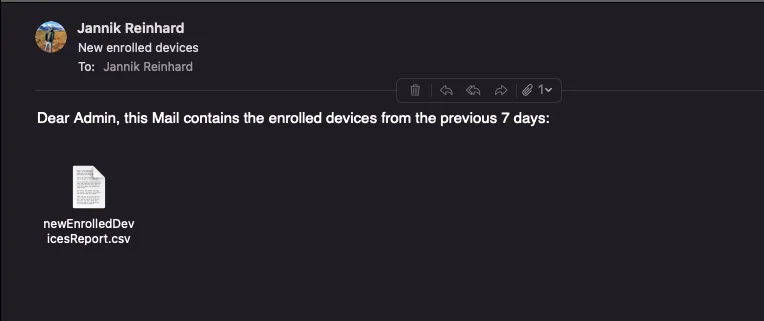
How to get the script for the report with all new enrolled devices
You can find the script that builds the report with all new enrolled devices in my GitHub repository, before running the script you have to adapt the from and to email address. If you enjoy automations like this, check out more of my Intune and automation guides:

What is the purpose of the script?
This PowerShell script builds the report with all new enrolled devices by retrieving every device enrolled in the last 7 days, creating a CSV from them, and attaching the CSV to an email.
How can I schedule the Report?
To schedule the report with all new enrolled devices, you can create an Azure Automation Runbook and authenticate via an App Registration. The only thing that you have to do is to paste the content of the script into the runbook.
How to create the Automation?
Create an App Registration
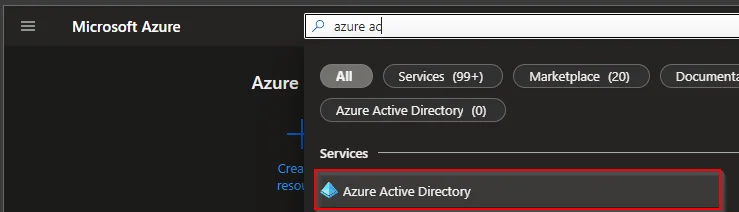
- Search for Microsoft Entra ID
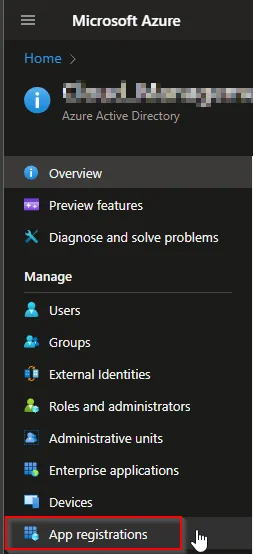
- Select App registration
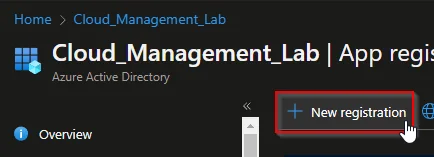
- Select +New registration
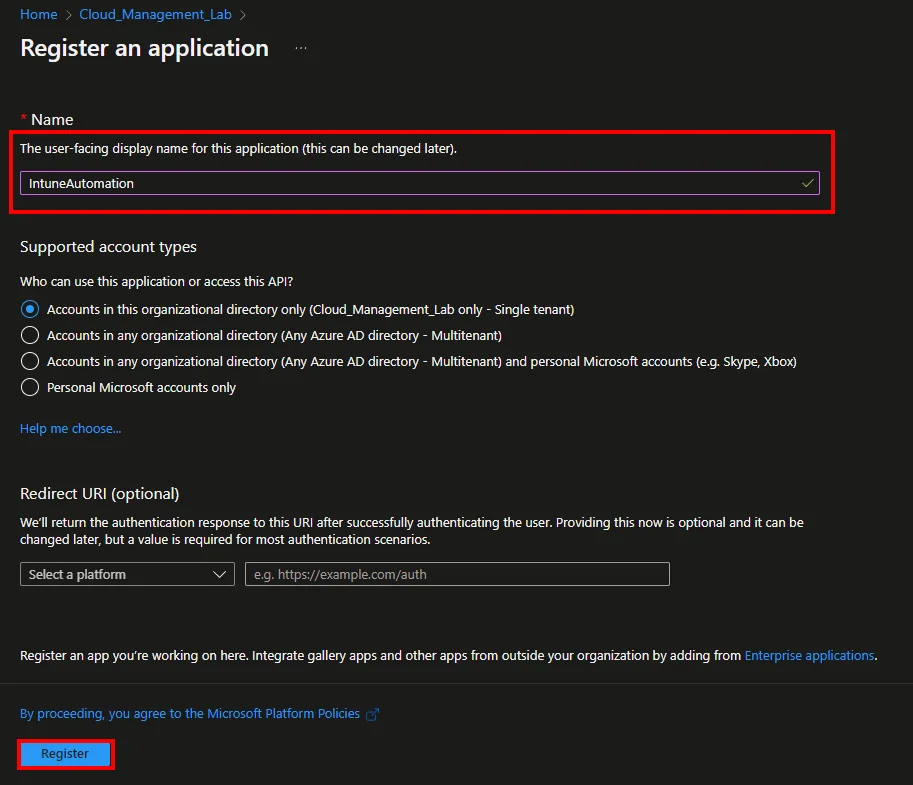
- Enter a Nameand click Register
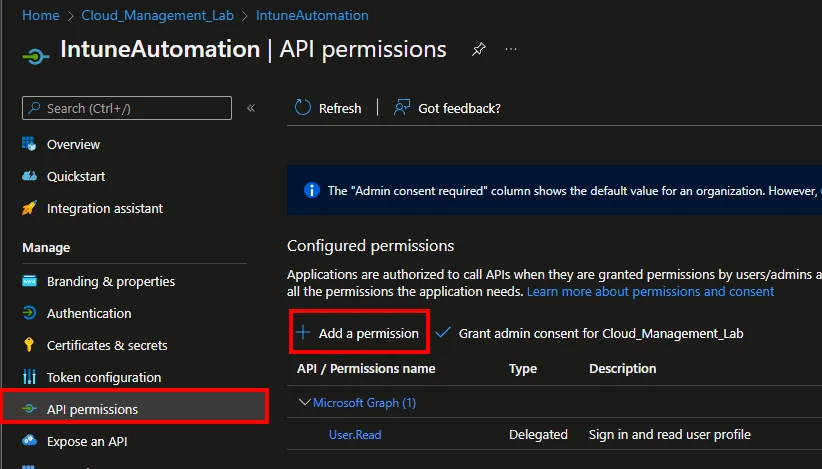
- Click API permissions and +Add a permission
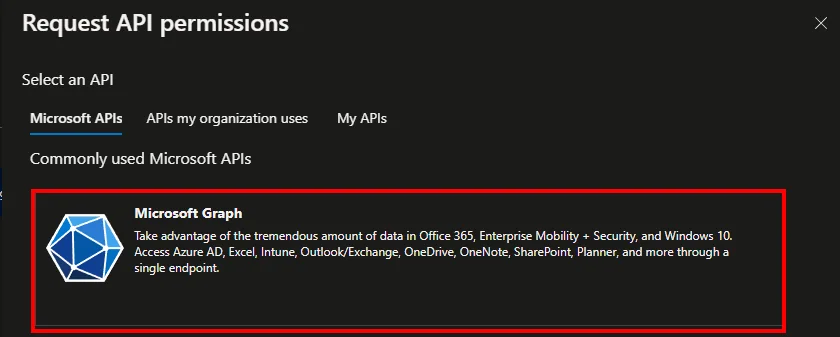
- Select Microsoft Graph
- Select Application permissions
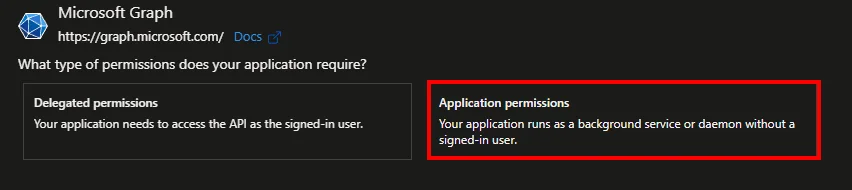
- Search forDeviceManagementApps.Read.All & Mail.Send
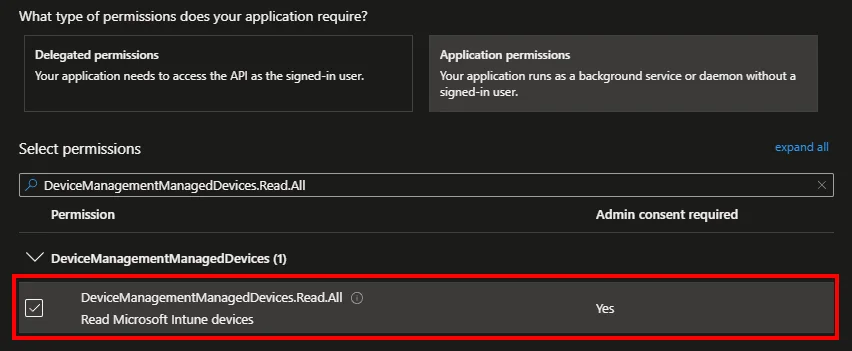
- Click Grant admin consent for *** and approve with Yes

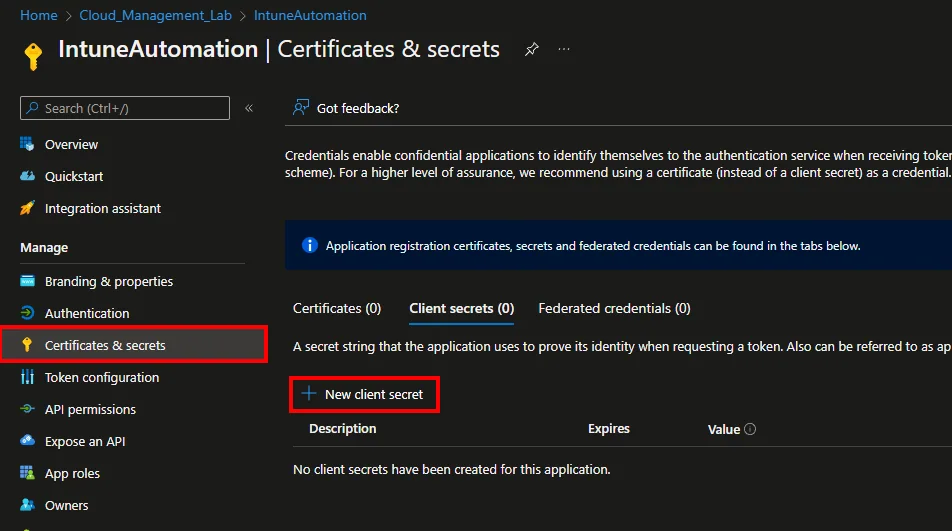
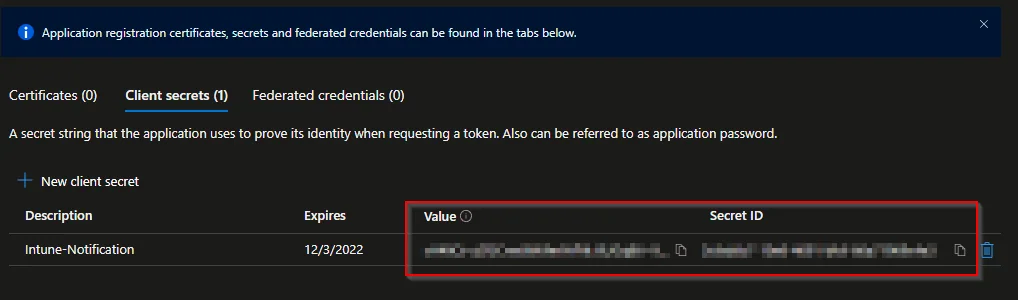
- Select Certificates & secrets and click +New client secret
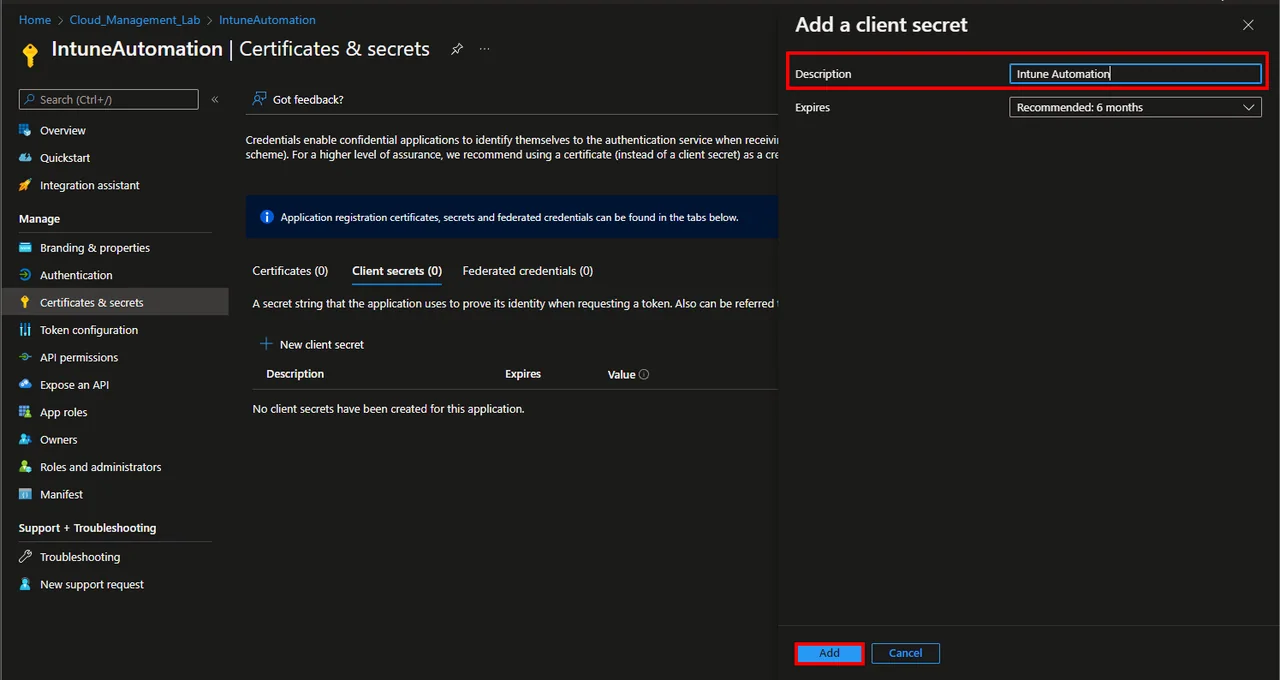
- Enter a Description and select a Expires time
- Click Add
- Copy and save the Value and the Secret ID
Create Automation Account
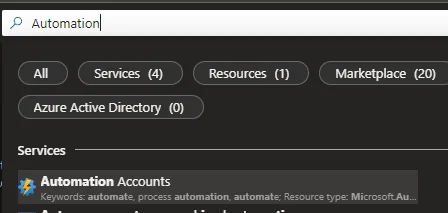
- Search for Automation Accounts
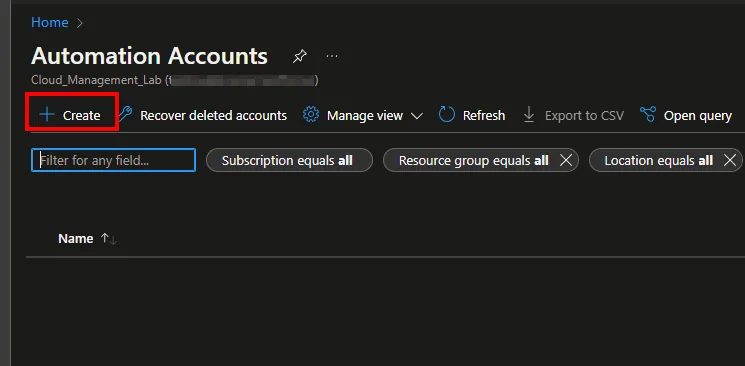
- Click + Create
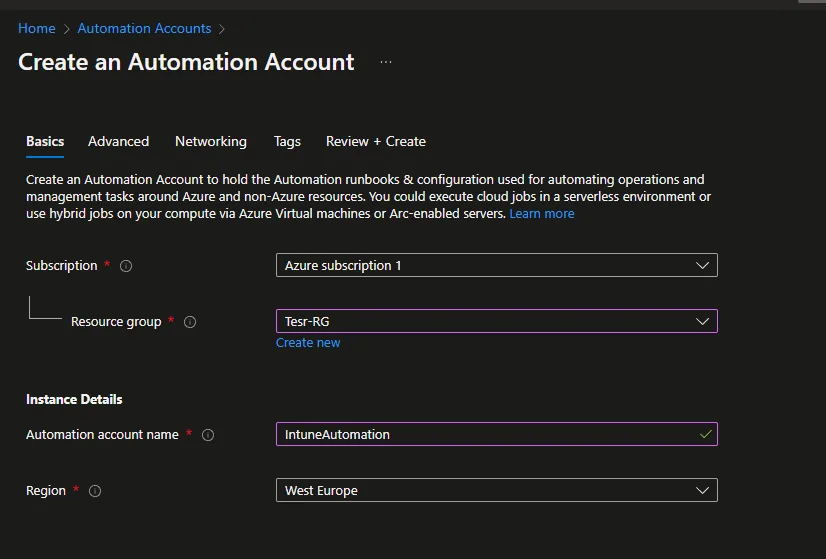
- Select a Subscription and a Resource group
- Enter an account name and select a Region
- Click Next
- Click Next
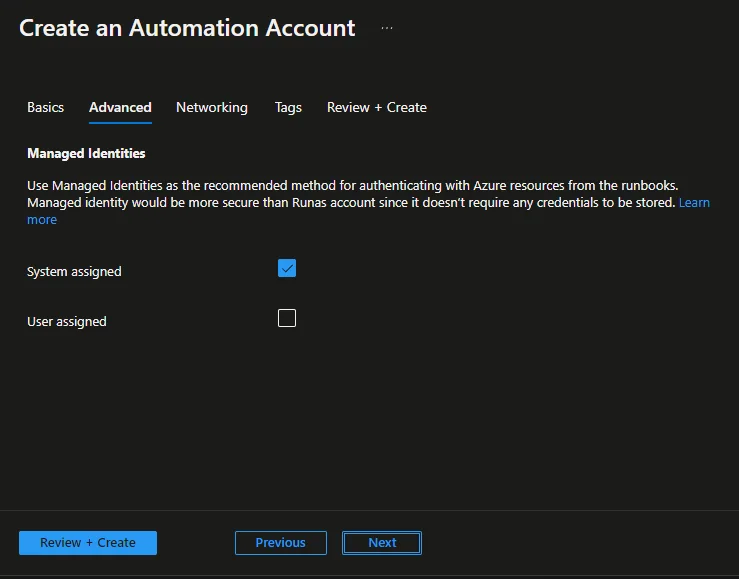
- Click Next -> Next -> Create
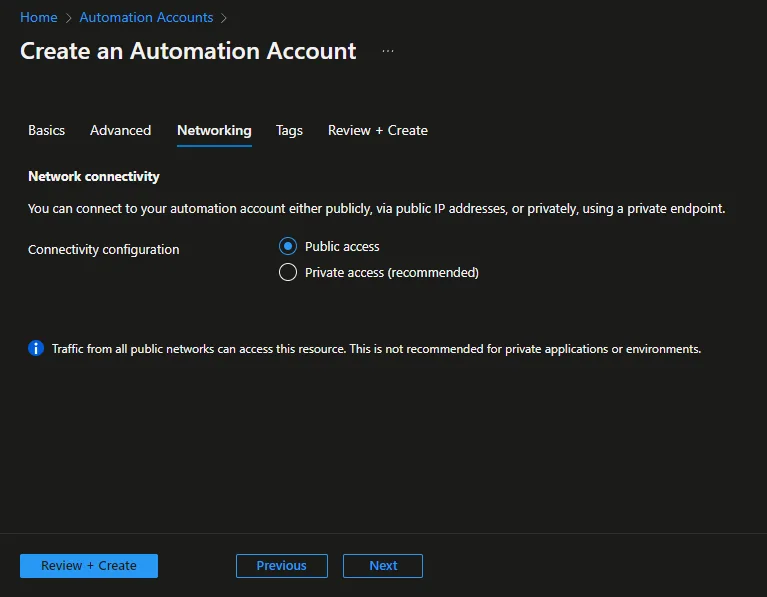
Create the Runbook
- Open the Automation Account
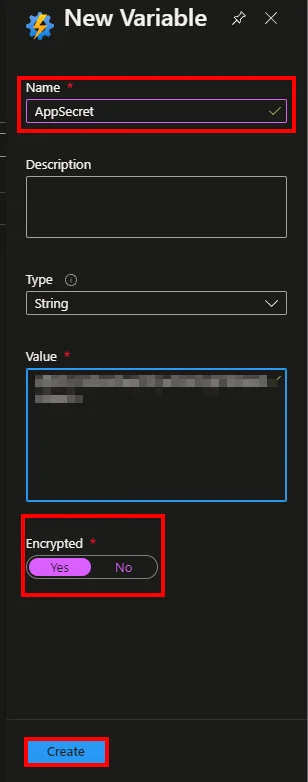
- Navigate to Variables and click + Add a variable
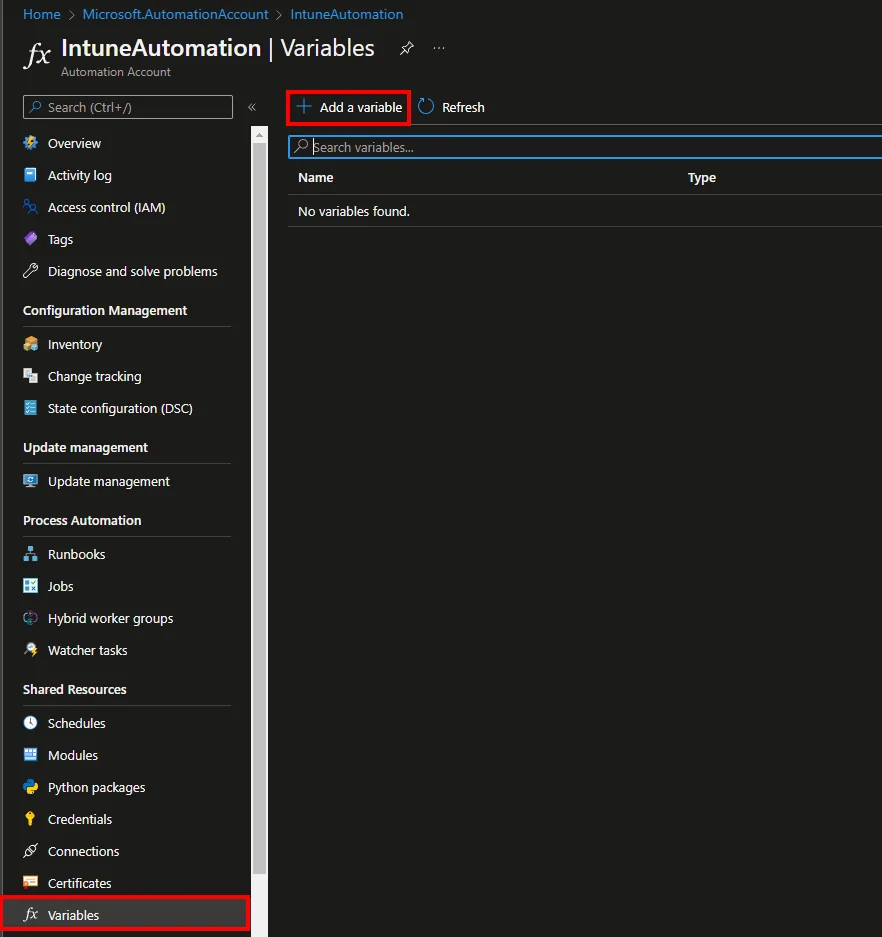
-
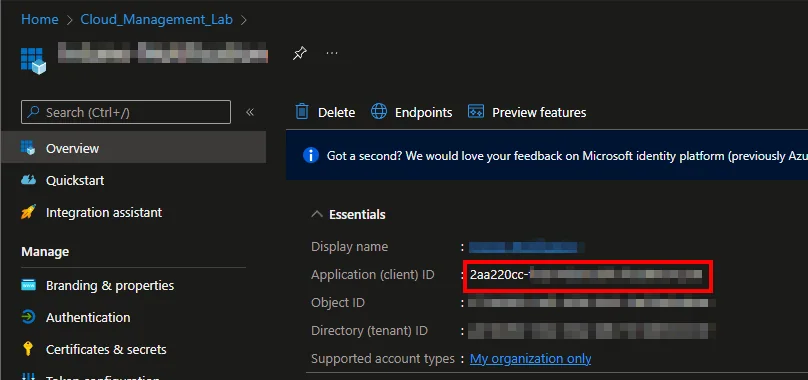
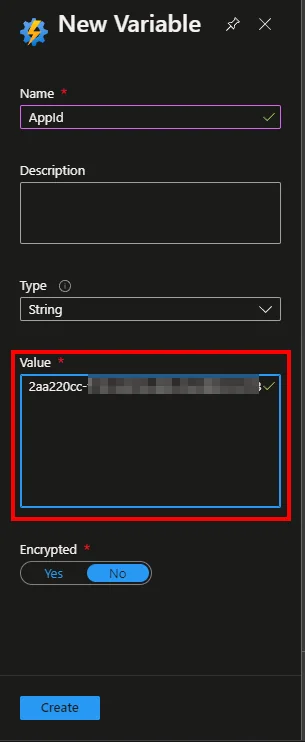
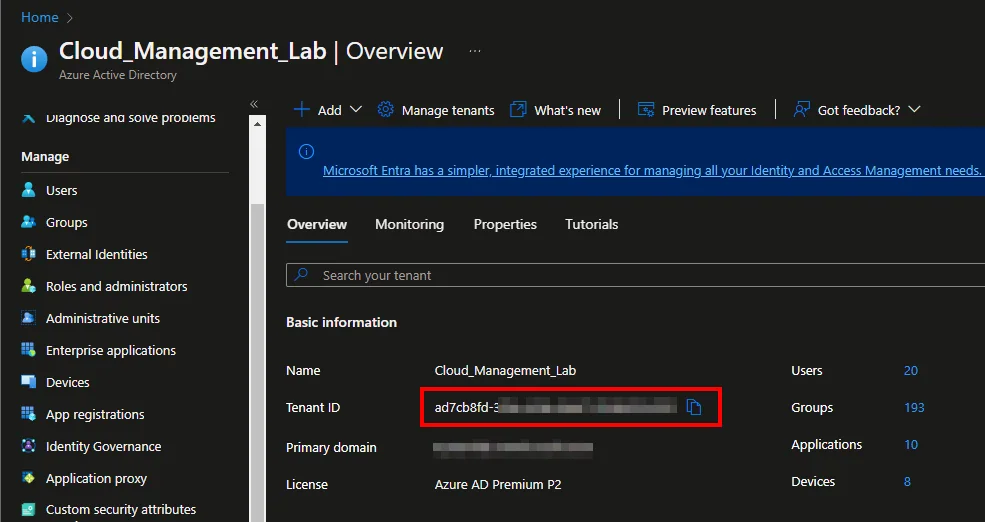
Add the Secret Value, TenantId, and the App ID as Variable
-
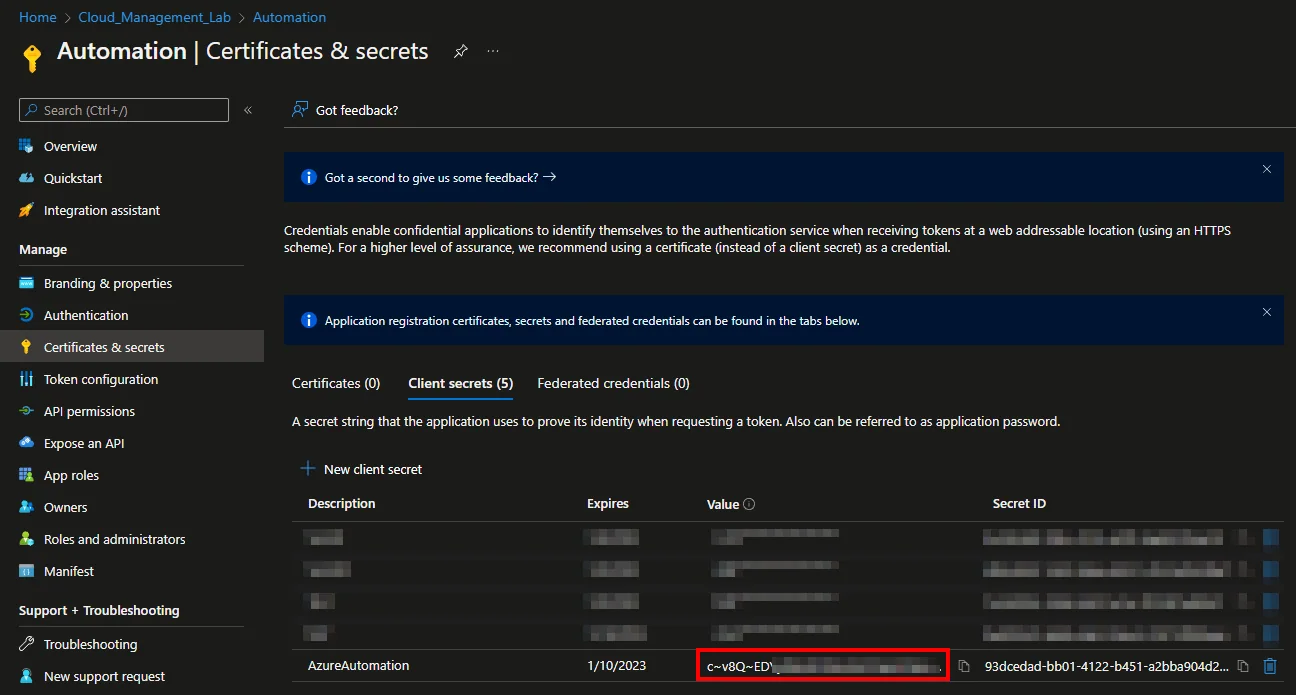
-
-
-
-
-
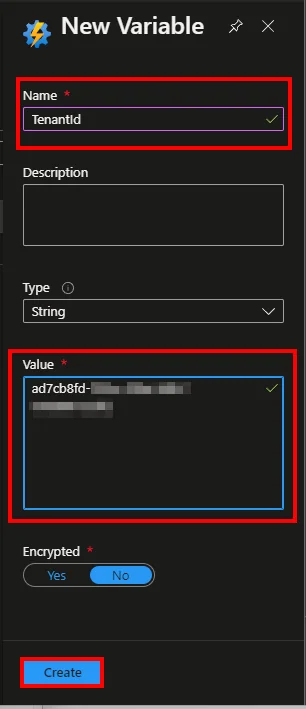
-
Select Runbooks
-
Click + Create a runbook
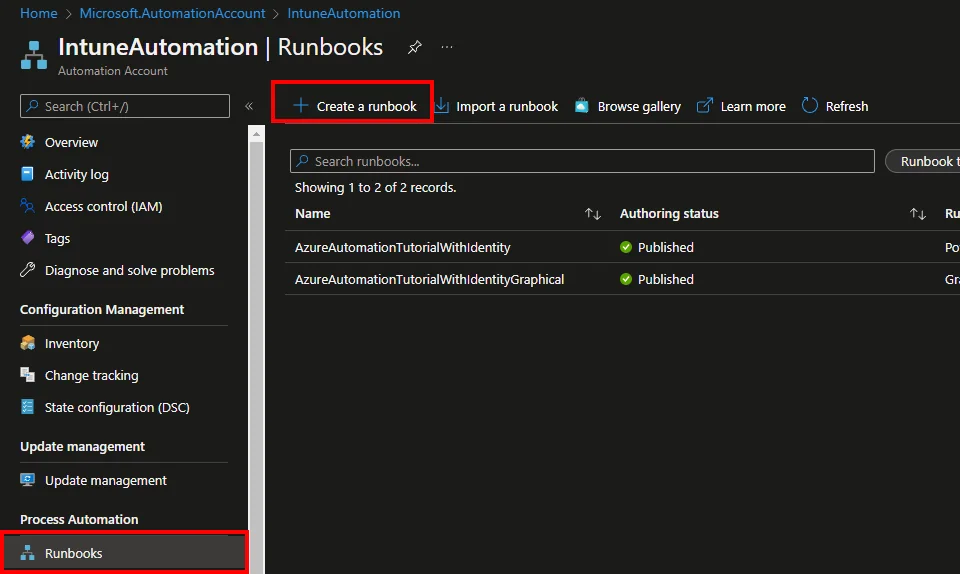
- Enter a Name
- Select PowerShell as Runbook type
- Select 5.1 as Runtime version
- Click Create
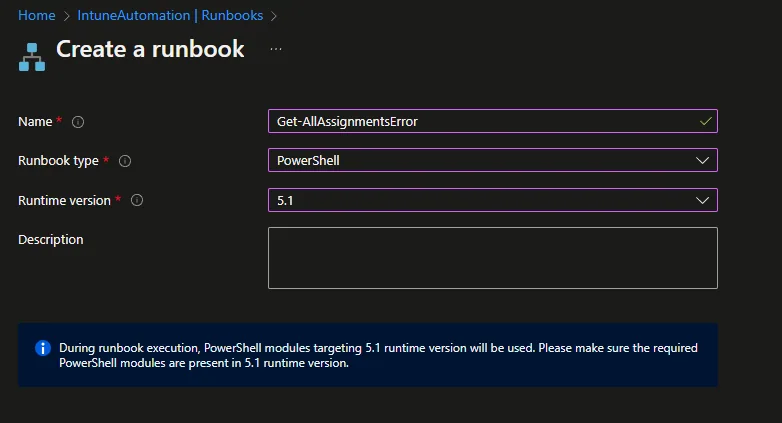
- Insert the Script from my Github repository
- Add the sender and receiver email, in the script

- Save and test the script

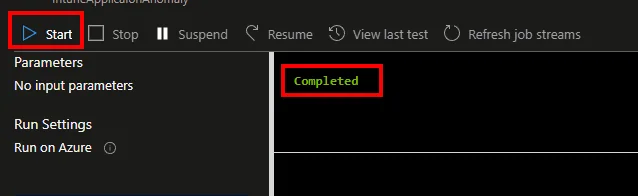
- Click Publish

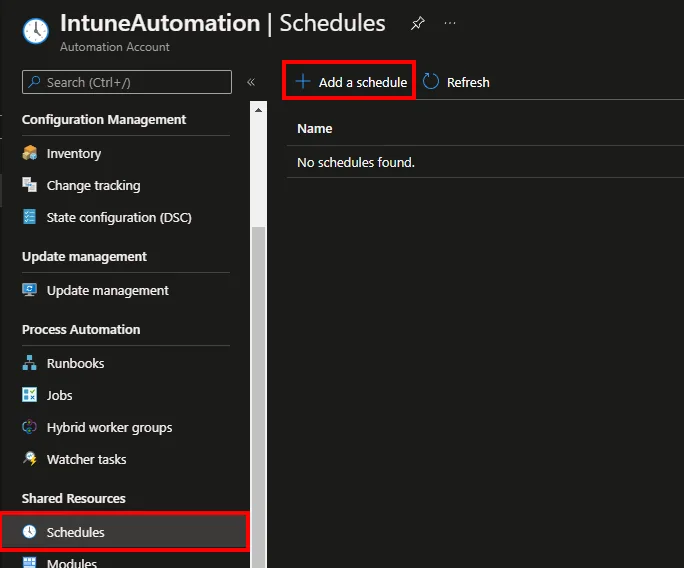
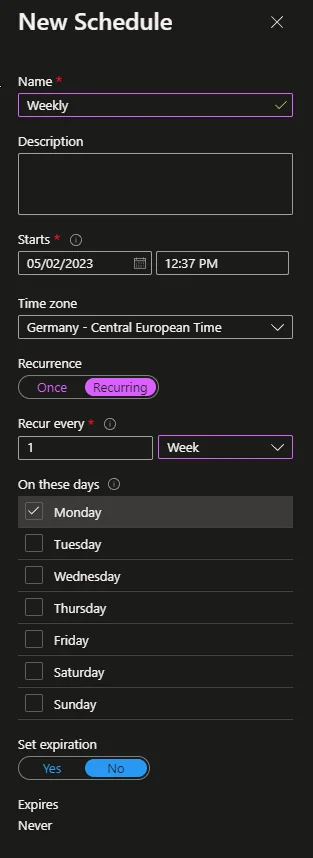
- Navigate to Schedules and click + Add a schedule
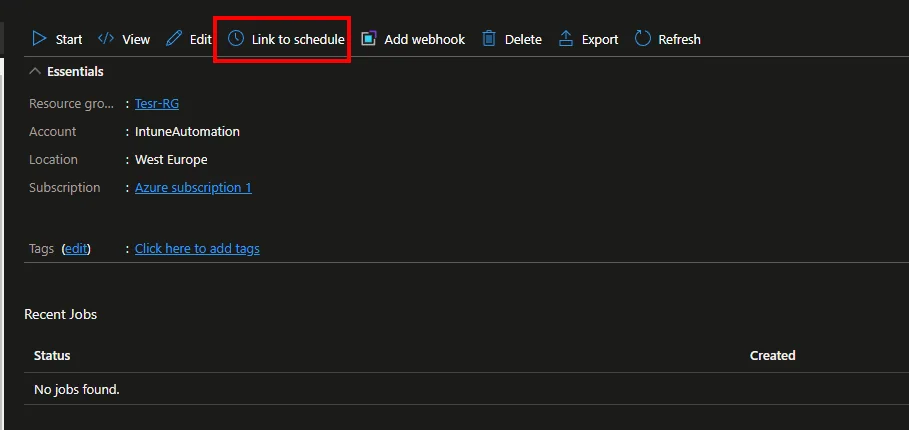
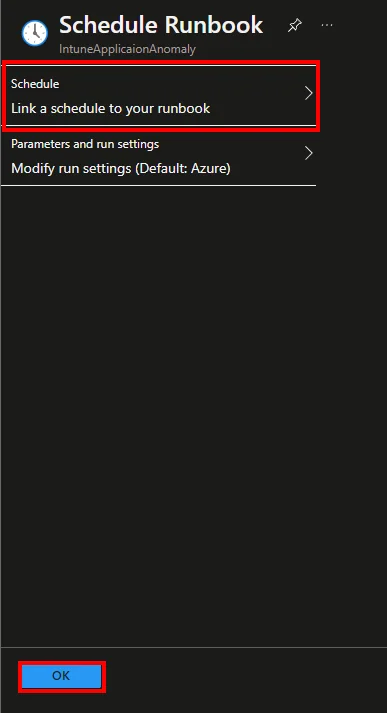
- Click Link to schedule and add the created schedule
Script
<#
Version: 1.0
Author: Jannik Reinhard (jannikreinhard.com)
Script: Get-NewEnrolledDevicesReport
Description:
Get Email with new enrolled devices
Release notes:
Version 1.0: Init
#>


function Get-AuthHeader{
    param (
        [parameter(Mandatory=$true)]$tenantId,
        [parameter(Mandatory=$true)]$clientId,
        [parameter(Mandatory=$true)]$clientSecret
       )

    $authBody=@{
        client_id=$clientId
        client_secret=$clientSecret
        scope="https://graph.microsoft.com/.default"
        grant_type="client_credentials"
    }

    $uri="https://login.microsoftonline.com/$tenantId/oauth2/v2.0/token"
    $accessToken=Invoke-WebRequest -Uri $uri -ContentType "application/x-www-form-urlencoded" -Body $authBody -Method Post -ErrorAction Stop -UseBasicParsing
    $accessToken=$accessToken.content | ConvertFrom-Json

    $authHeader = @{
        'Content-Type'='application/json'
        'Authorization'="Bearer " + $accessToken.access_token
        'ExpiresOn'=$accessToken.expires_in
    }

    return $authHeader
}

#################################################################################################
########################################### Start ###############################################
#################################################################################################
# Variables
$MailSender = "mail@abc.onmicrosoft.com"
$MailTo = "mail@abc.onmicrosoft.com"

# Automation Secrets
$tenantId = Get-AutomationVariable -Name 'TenantId'
$clientId = Get-AutomationVariable -Name 'AppId'
$clientSecret = Get-AutomationVariable -Name 'AppSecret'


$global:authToken = Get-AuthHeader -tenantId $tenantId -clientId $clientId -clientSecret $clientSecret

# Define the time range
$endDate = Get-Date
$startDate = $endDate.AddDays(-7)
$filter = "enrolledDateTime gt $($startDate.ToString("yyyy-MM-ddTHH:mm:ssZ"))&enrolledDateTime le $($endDate.ToString("yyyy-MM-ddTHH:mm:ssZ"))"

# Query Intune devices enrolled in the past week
$graphApiUrl = "https://graph.microsoft.com/v1.0/deviceManagement/managedDevices"
$graphApiQuery = "?`$filter=$filter&`$select=id,deviceName,operatingSystem,enrolledDateTime,userPrincipalName,model"
$uri = $graphApiUrl + $graphApiQuery
$response = Invoke-RestMethod -Method Get -Uri $uri -Headers $global:authToken

# Generate CSV report
$reportPath = "NewEnrolledDevicesReport.csv"
$response.value | Select-Object id,deviceName,operatingSystem,enrolledDateTime,userPrincipalName,model | Export-Csv -Path $reportPath -NoTypeInformation
$csv = [Convert]::ToBase64String([IO.File]::ReadAllBytes(".\$reportPath"))

#Send Mail
$URLsend = "https://graph.microsoft.com/v1.0/users/$MailSender/sendMail"
$BodyJsonsend = @"
{
    "message": {
      "subject": "New enrolled devices",
      "body": {
        "contentType": "Text",
        "content": "Dear Admin, this Mail contains the enrolled devices from the previous 7 days"
      },
      "toRecipients": [
        {
          "emailAddress": {
            "address": "$MailTo"
          }
        }
      ],
      "attachments": [
        {
          "@odata.type": "#microsoft.graph.fileAttachment",
          "name": "newEnrolledDevicesReport.csv",
          "contentType": "text/plain",
          "contentBytes": "$csv"
        }
      ]
    }
  }
"@


Invoke-RestMethod -Method POST -Uri $URLsend -Headers $global:authToken -Body $BodyJsonsend
Common pitfalls and tips
When you set up the report with all new enrolled devices for the first time, a few small details tend to cause the most trouble. The first one is the API permission. The script reads managed devices, so the app registration needs DeviceManagementManagedDevices.Read.All in addition to Mail.Send, and you have to click Grant admin consent afterwards. If you skip the consent step, the token is issued but every Graph call returns a 403, which can be confusing because authentication itself looks successful.
The second pitfall is the client secret. Secrets expire, so pick a realistic lifetime and add a reminder to rotate it before the expiry date. If your weekly report suddenly stops arriving, an expired secret is the most likely reason. A good practice is to store the secret as an encrypted Automation variable rather than hard-coding it into the runbook, exactly as shown above, so you can update it in one place without editing the script.
Finally, test the runbook manually once before you link it to a schedule. Use the Test pane in the Automation Account to confirm the email is delivered and the CSV attachment opens correctly. Once that works, the weekly schedule is fire-and-forget. If you manage several tenants, simply clone the runbook per Automation Account and adjust the three variables, and you have a clean, repeatable report with all new enrolled devices across your whole estate.
Conclusion
In conclusion, automating the report with all new enrolled devices can save time and effort, ensuring that you stay up-to-date with device management. By following the steps outlined in this post, you can easily set up an automated report with all new enrolled devices that keeps you informed about device enrollment in your organization. Give it a try and experience the benefits of automation firsthand.
Feel free to modify the conclusion as you see fit or let me know if you would like further assistance.