
Company Portal System Tray Icon: New Intune Features
Explore the updated Company Portal system tray tool with device sync, Quick Assist, system information, password change and Intune deployment.
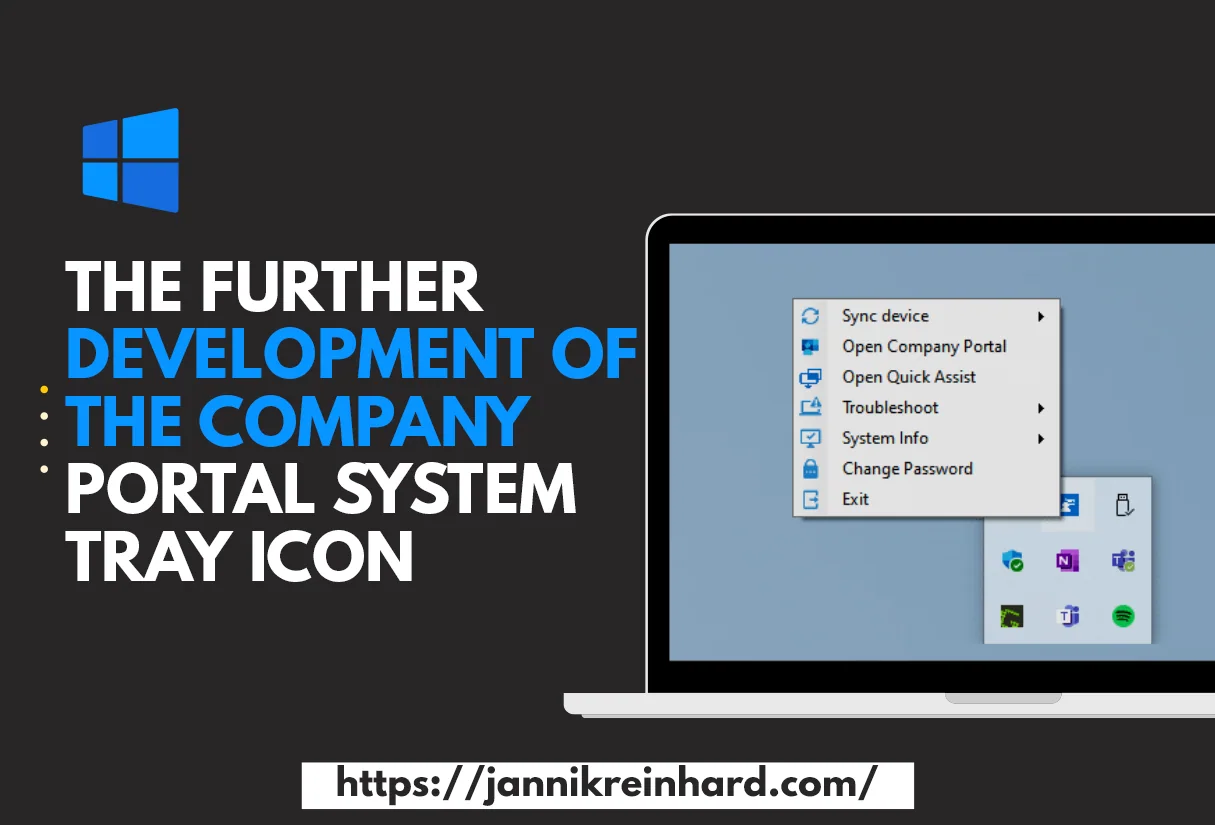
A few weeks ago I released the Company Portal System Tray tool. The post has received very good feedback and the tool was tested by some and also used productively. I have been working on developing the tool further and integrating more useful functions that can help with troubleshooting. The first version of the Company Portal system tray icon has many quick access possibilities to system tools or logs that are important for troubleshooting an Intune managed device. In addition, this tool has a quick access to open the Company Portal.
In this blog I want to introduce the new version of the Company Portal System Tray Icon and walk through every new feature.
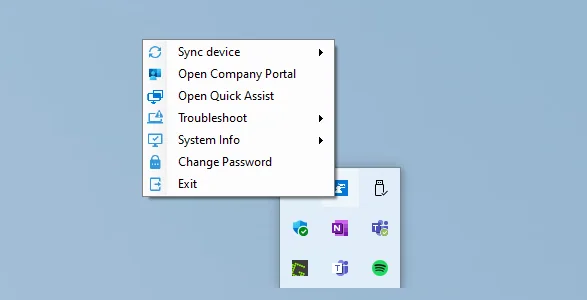
The new Company Portal System Tray Icon Features
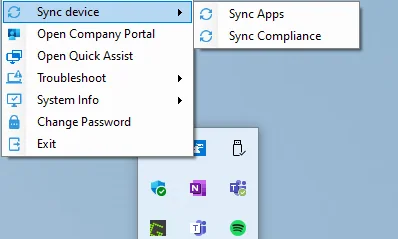
Sync device
In the previous version there was only the possibility to sync apps. In this version there is also the possibility to sync the device compliance state.
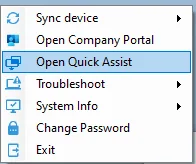
Open Quick Assist
There is a button to open quick assist to connect remotely to the device. If you use another remote support tool you can also change this to TeamViewer or AnyDesk.
Get System Info
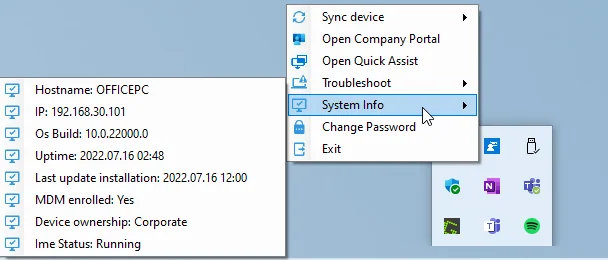
In this version is a menu with all important system information that can be important for supporting the device. You can see here for example the hostname, the IP, if the device is MDM managed and much more information. It is also not a big deal to add here more important information.
Change the Password of the login user
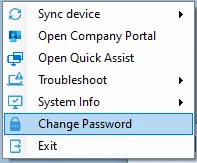
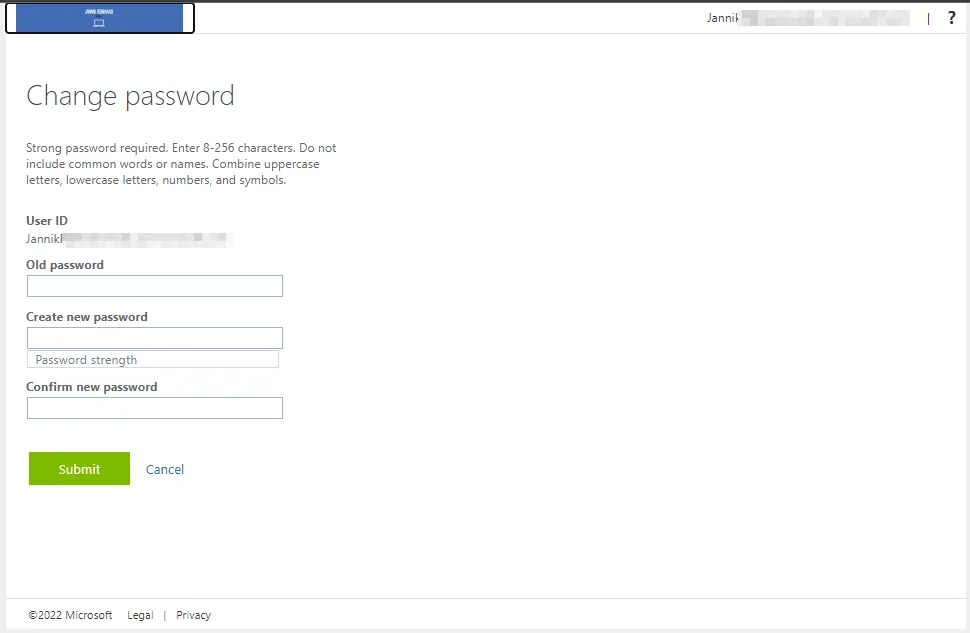
You will also find in the company portal system tray tool a quick access to change the password of the logged in user.
How to deploy the tool
In the version 1.0 of the Company Portal System Tray Icon the tool was deployed via a PowerShell script. In V2 I have decided to deploy the Company Portal System Tray Icon via a Win32 app because it is better located in Apps as in scripts. This also simplifies the integration into your environment. If you are new to packaging Win32 apps, the official Microsoft Learn Win32 app documentation is a great reference. Now I will explain how you can deploy the app:
-
Download the intune.win file from my repository or create your own intune.win file based on the files in my repository. How to create an intune.win file is explained in deploy a Win32 app with intune cmtrace.
-
Open the Intune admin center
-
Navigate to Apps -> Windows
-
Click Add
-
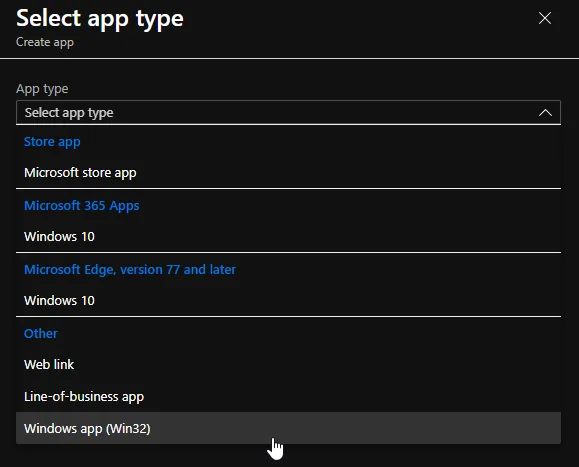
Select Windows app (Win32) as App type
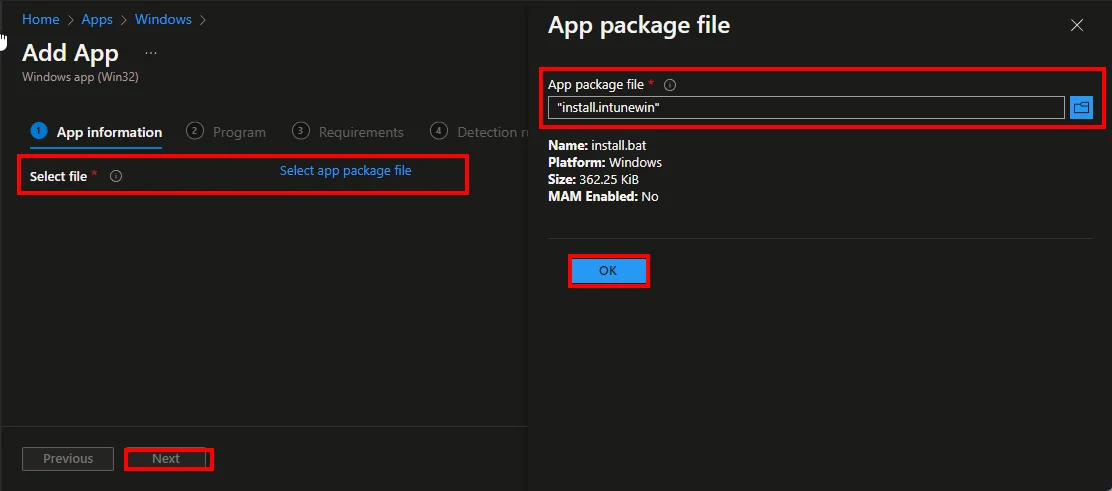
- Click Select app package file
- Click Upload and select the .intunewin file
- Click OK
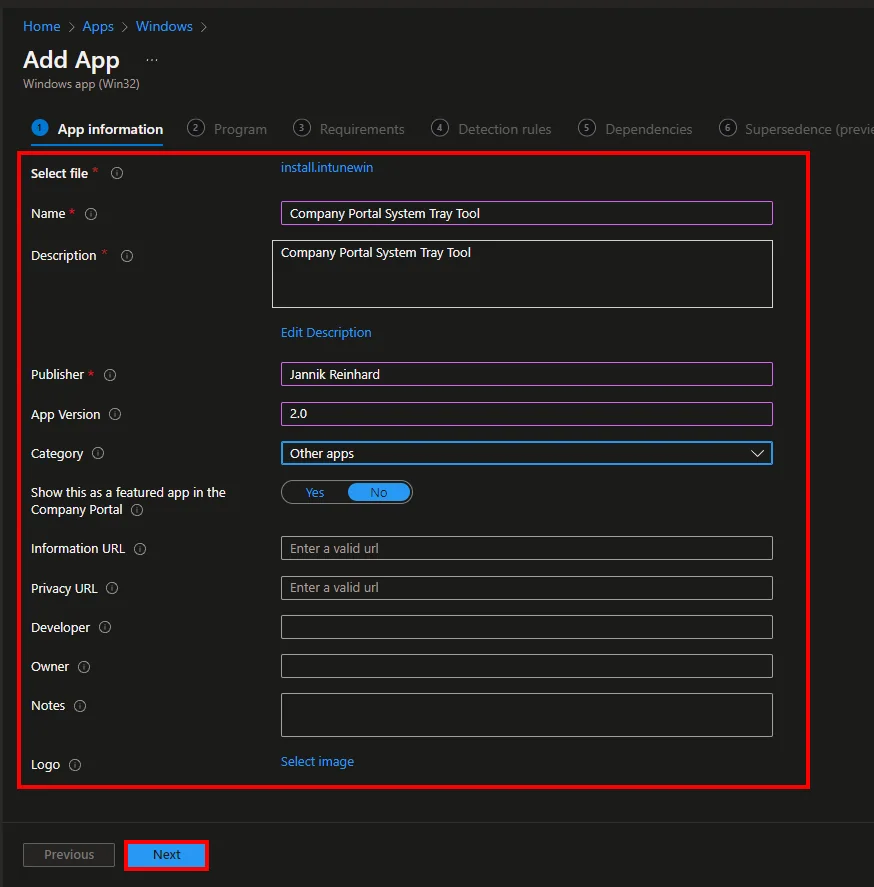
- Give the application a name and customize the app information.
- Click Next
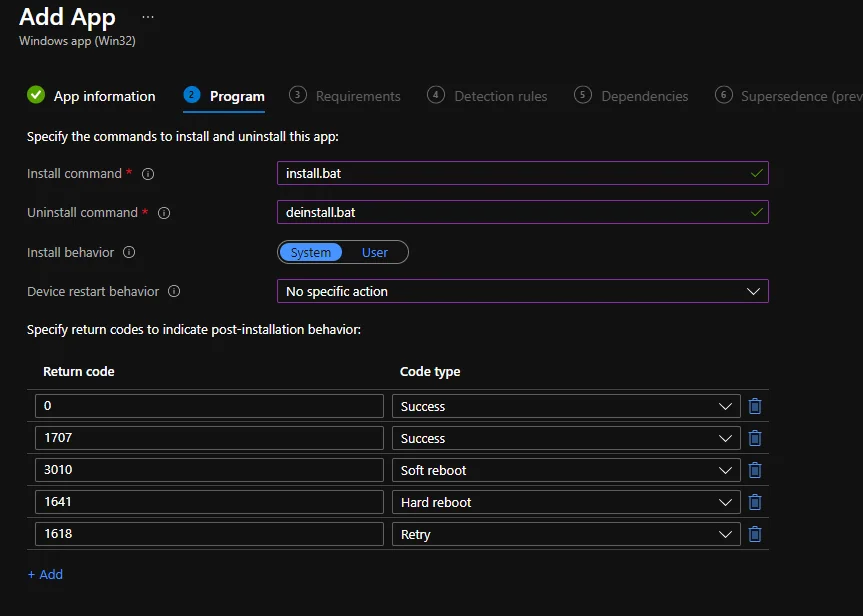
- Enter install.bat and deinstall.bat as install/uninstall command
- Change the Device restart behavior to No specific action
- Click Next
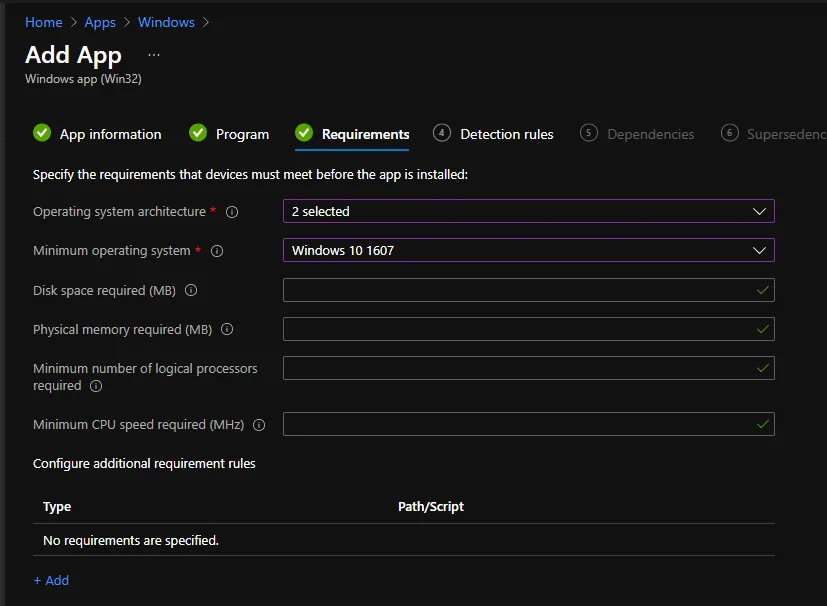
- Select 32-bit and 64-bit as operating system architecture
- Select a minimum OS Version
Hints: If you want to specify further requirements, such as minimum free disk space, you can do this in this step.
It is also possible to specify a file, a registry value or a script as a requirement.
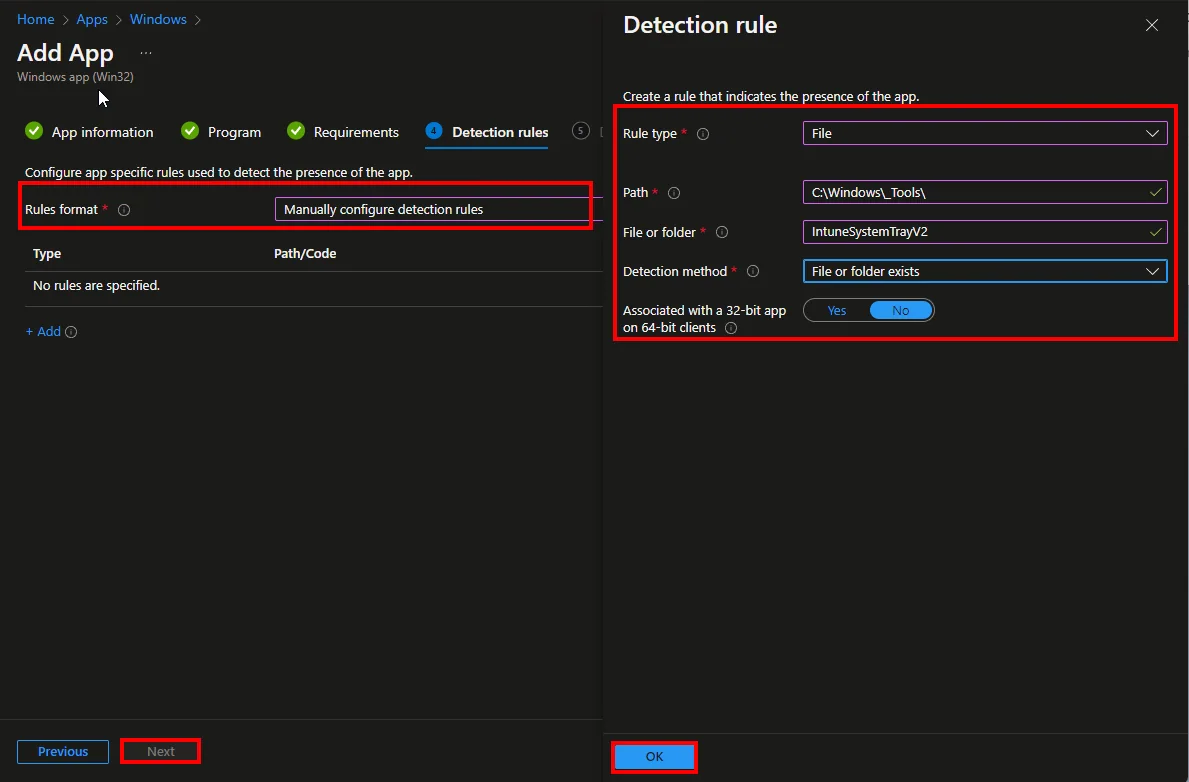
- Select Manually configure detection rules as Rules format
- Click Add
- Select File as Rule type
- Enter “C:\Windows_Tools” as file path and “IntuneSystemTrayV2” as folder.
- The detection method is File or folder exists
- Click Next
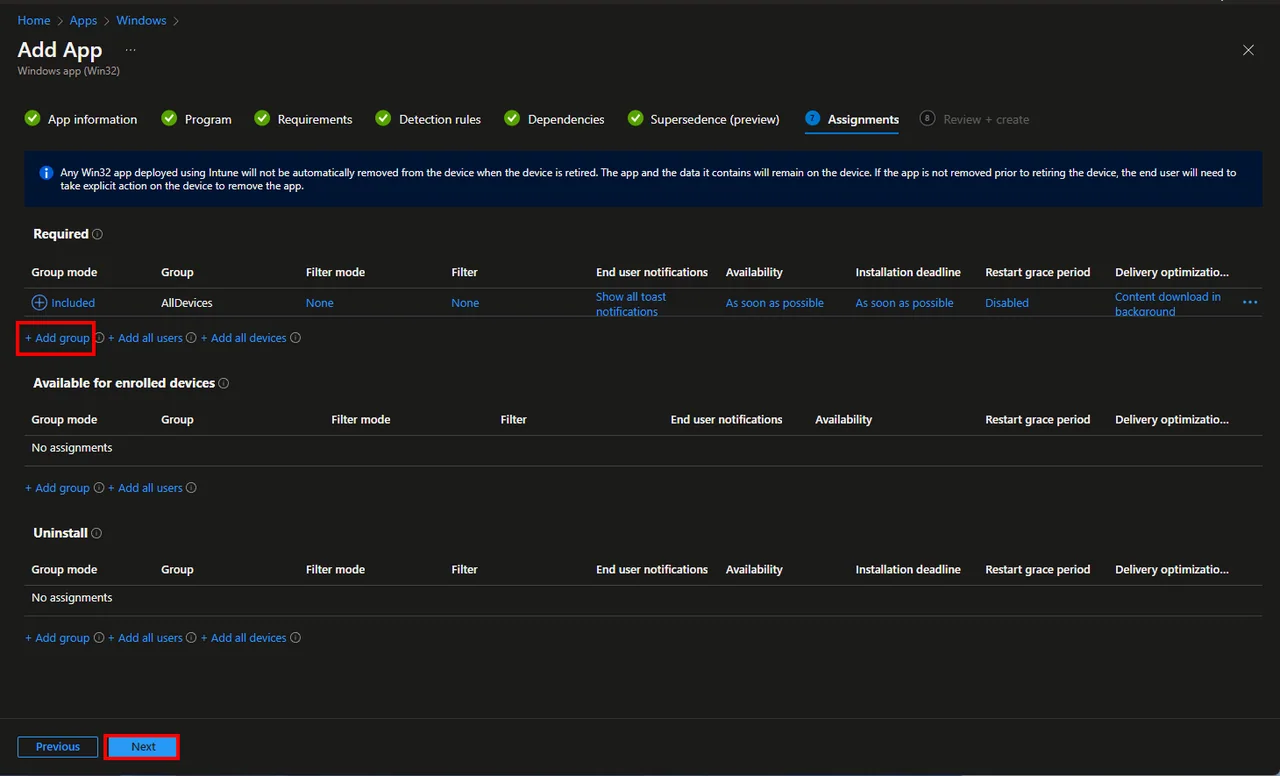
- Skip the dependencies and supersedence step and click Next.
- Click Next
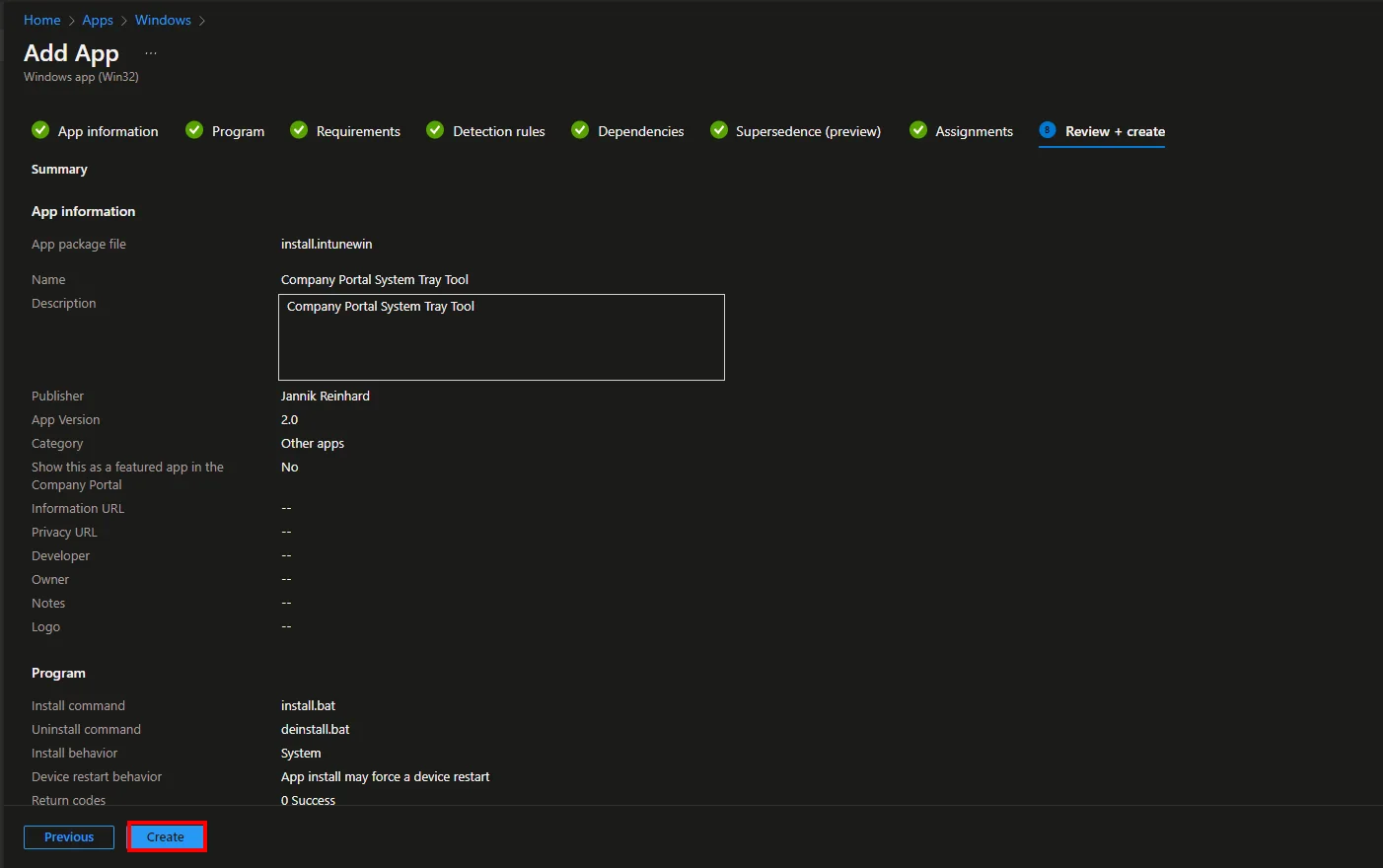
- Click Create
Conclusion
I hope the new Company Portal System Tray Icon can help you simplify the troubleshooting process for the end user or enable the end user who calls the support hotline to give more specific checks and answers. If you have ideas what I can add to the tool then let me know, I’m happy about any idea. You also have the possibility to add your own actions or checks that are specific to your environment.
Stay healthy, Cheers
Jannik