
Dive deeper into the IME log with a simple change of the log level
Learn how to change the IME log level with a simple PowerShell script and dive deeper into Intune Management Extension logs for faster troubleshooting.

For troubleshooting purposes it is helpful to change the IME log level of the Intune Management Extension. Since this has to be done in an XML config file of the IME, and inserting a wrong value can affect the function of the IME, I wrote a script which makes changing the IME log level easy.
How to change the IME log level
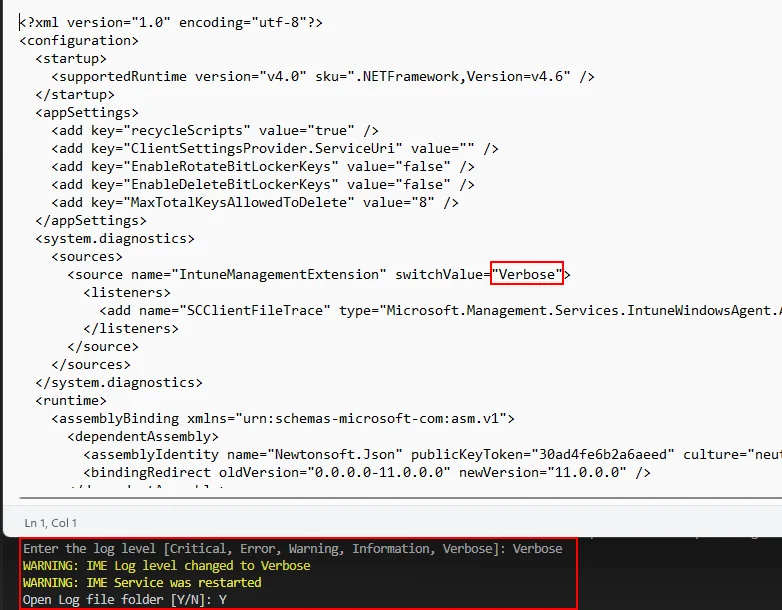
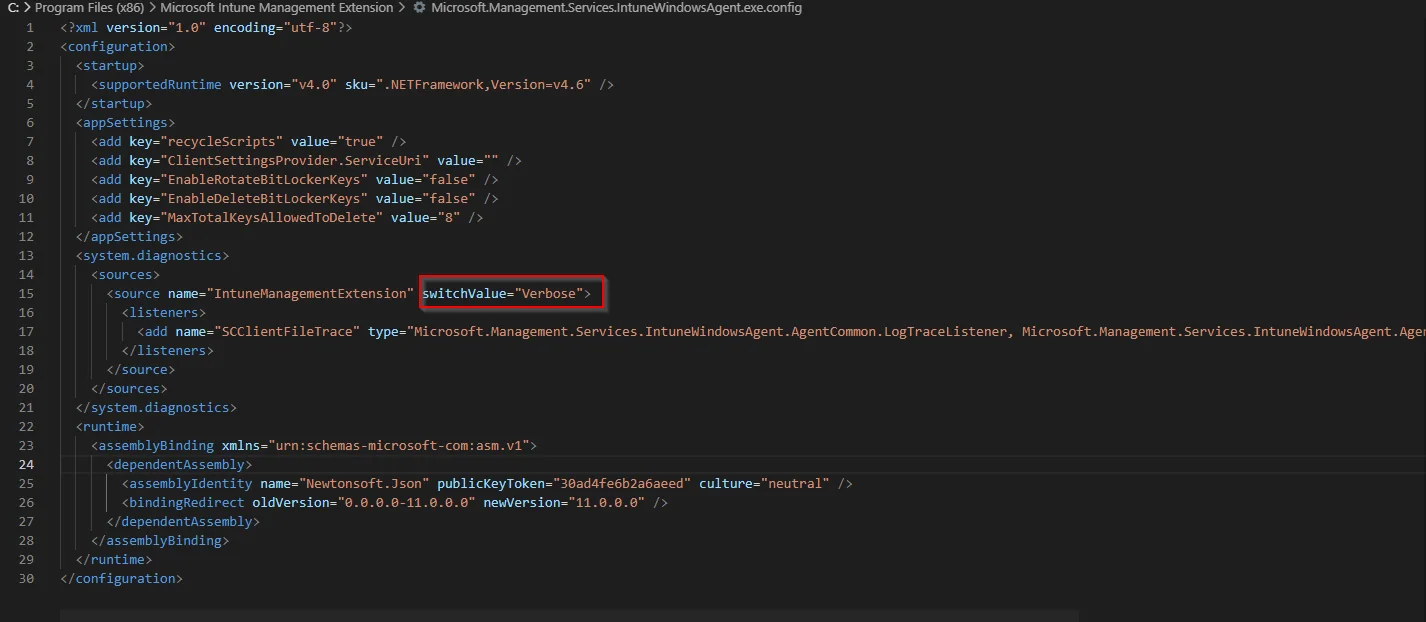
To change the IME log level you have to open the config file. You can find it under the following path: C:\Program Files (x86)\Microsoft Intune Management Extension\Microsoft.Management.Services.IntuneWindowsAgent.exe.config
In this file you will find the system.diagnostics setting. Here there is the attribute switchValue, with which you define the IME log level. If you want to read more about how Intune diagnostics work, the official Microsoft Learn documentation is a great starting point.
The switchValue uses the standard .NET trace levels, and it helps to know what each one actually controls. Critical only records failures that stop the agent, Error adds regular errors, Warning includes recoverable issues, Information is the default and logs normal activity such as policy and app processing, and Verbose writes everything including detailed step-by-step trace output. Each level includes all the levels above it, so Verbose is by far the most detailed and also the noisiest.
Get the different log values
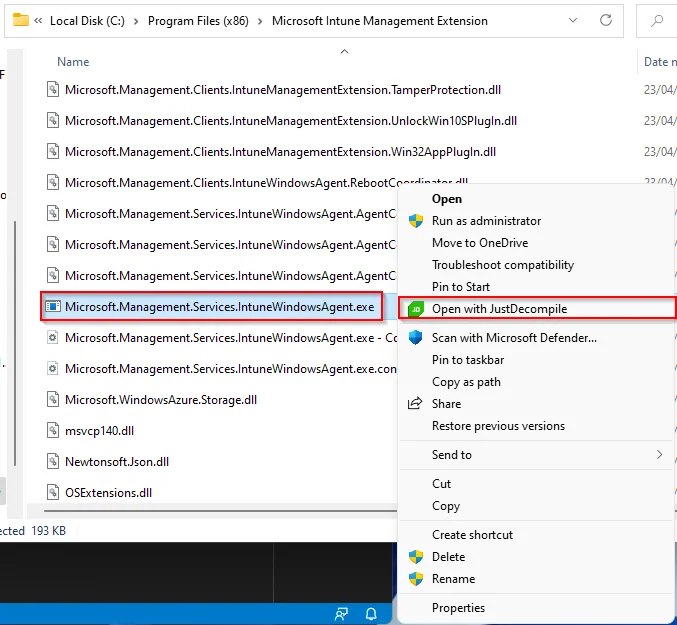
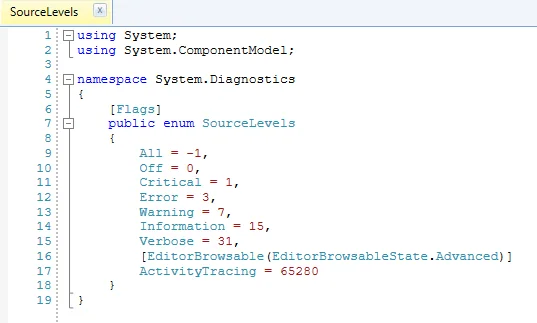
To write the script I first have to find out what logging values actually exist. Since there is no documentation for this, let alone this is self-explanatory, I have to find a way to get to the values. Where better to find this information than directly in the code of the IME. The IME is C# compiled code, so I started looking for a C# decompiler and found it with JustDecompile. I downloaded this and installed it on my system.
How does decompiling the IME work now? This is actually really simple. I navigated to the path of the IME (C:\Program Files (x86)\Microsoft Intune Management Extension) and can easily decompile it with a right click:
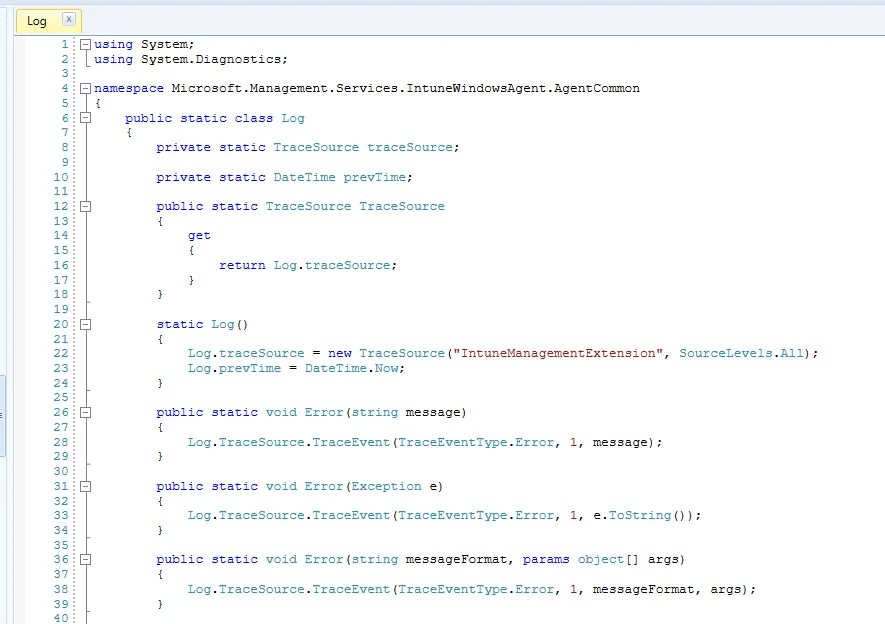
After that I searched for the function that writes the logs and found the different event types that map to each IME log level.
The script to set the level
With this information I wrote a script which changes the IME log level in the XML and restarts the service. You can find the script in my GitHub repository. If you are new to the extension, you may also like my other Intune troubleshooting posts.
<#
Version: 1.0
Author: Jannik Reinhard (jannikreinhard.com)
Script: Change-ImeLogLevel
Description:
Change the loglevel from the Intune management extension
Release notes:
Version 1.0: Init
#>

$logLevelSelection = Read-Host "Enter the log level [Critical, Error, Warning, Information, Verbose]"
while("Critical", "Error", "Warning", "Information", "Verbose" -notcontains $logLevelSelection )
{
    $logLevelSelection = Read-Host "Enter the log level [Critical, Error, Warning, Information, Verbose]"
}

$imeConfFile = "C:\Program Files (x86)\Microsoft Intune Management Extension\Microsoft.Management.Services.IntuneWindowsAgent.exe.config"

$configFile = New-Object System.XML.XMLDocument
$configFile.Load($imeConfFile)

$logLevel = $configFile.configuration.'system.diagnostics'.sources.source
$logLevel.switchValue = "$logLevelSelection"
$configFile.Save($imeConfFile)

Restart-Service -DisplayName "Microsoft Intune Management Extension"

Write-Host "IME Log level changed to $logLevelSelection"
You only have to run the script, select the IME log level you need and that’s it. After the service restart the new value takes effect immediately, so you can reproduce your issue and the extra detail will already be in the log.
A practical tip from the field: set the level to Verbose only for the short window in which you are actively reproducing a problem. Verbose can generate a large amount of data very quickly, and the IME rotates its log files, so older entries may be overwritten before you get to read them.
The logs you want are IntuneManagementExtension.log and AgentExecutor.log under C:\ProgramData\Microsoft\IntuneManagementExtension\Logs, and they open nicely in CMTrace. A common pitfall is leaving the agent on Verbose permanently – this bloats the disk and makes the logs harder to read, not easier, because the signal gets buried in noise.

Conclusion
Sometimes it is really a big help to read more from a log file to understand the IME better or to simplify troubleshooting. Raising the IME log level gives you far more detail when something goes wrong. I hope I could help you with my blog so you can get more out of the IME log.
When you are done with troubleshooting or testing, always reset the level to the information state and delete the log file as it may contain sensitive information.
Stay healthy, Cheers
Jannik
Update 02.08.2022
You can also download my script from the PowerShell Gallery:
Install-Script -Name Change-ImeLogLevel