
Deep dive into the IME Health check
Understand the Intune Management Extension health check, its logs and remediation behavior. Use the findings to investigate agent problems on Windows.
In one of my last posts we took a closer look at how the Intune Management extension works and even looked behind the scenes directly into the code. In this post I would like to go deep into the IME Health check, because the ClientHealthEval.exe that drives it is one of the most underrated components of the Intune Management Extension. If you manage Windows endpoints with Microsoft Intune, understanding the IME Health check helps you keep the agent healthy and your deployments reliable.
What is the ClientHealthEval.exe behind the IME Health check
This is a small tool designed to monitor and restore the health of the Intune Management Extension. In addition to the ClientHealthEval.exe there is also the HealthCheck.xml which is a config file for the ClientHealthEval and shows very nicely which functions are in. Together these two files define exactly what is verified and remediated on the client. You can read more about how the agent itself is structured in the official Microsoft Learn documentation for the Intune Management Extension. I would like to go more into the detail now.
What are the different features of the ClientHealthEval.exe
The IME Health check is split into several independent checks. Some of them only verify a condition and write to a log, while others can also remediate the problem automatically. Let us walk through each feature so you know exactly what runs on every check.
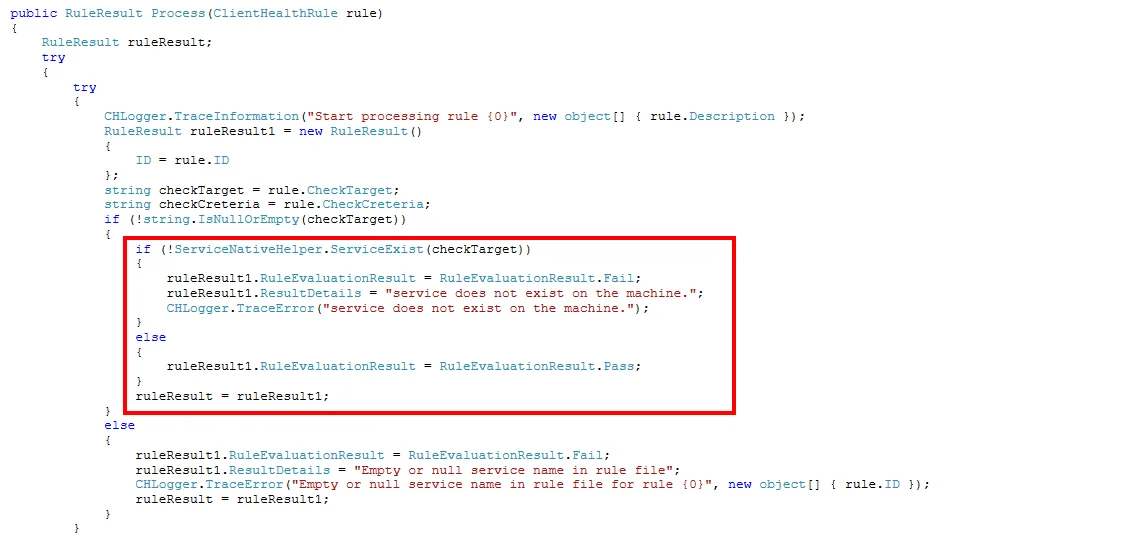
Verify Intune Management Extension service exists
As the name suggests, this checks whether the Intune management service exists. This is unfortunately only a check but not a remediation. If the service does not exist, only an entry is written to a logfile, so this part is purely informational.

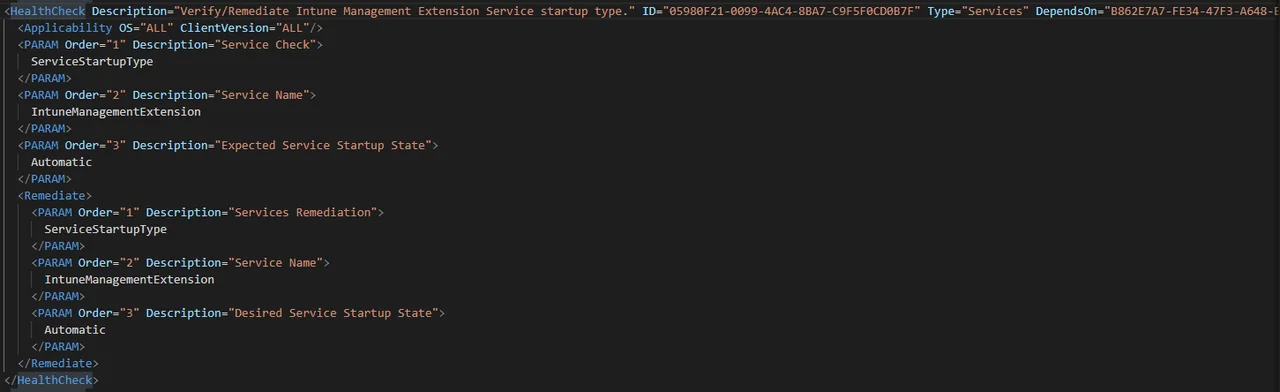
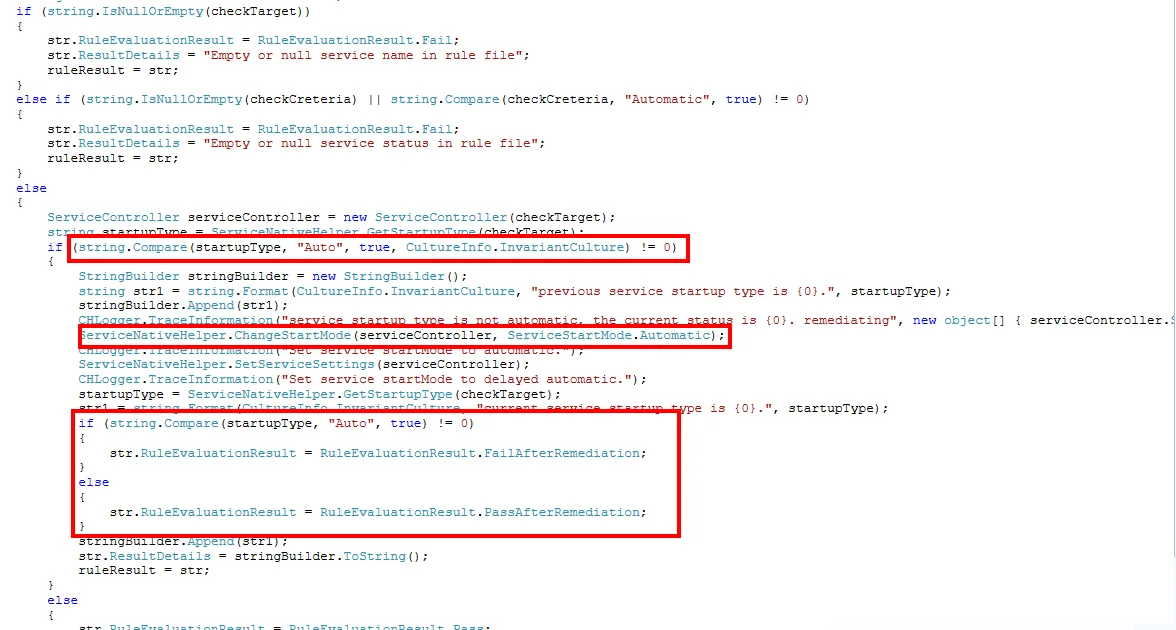
Verify/Remediate Intune Management Extension Service startup type.
The health check is whether the service IntuneManagementExtension has as StartupType Automatic. If this is not the case, this is noted in the log and the state is set to Automatic as remediation. This is one of the more useful parts of the IME Health check, because a wrong startup type can silently stop the agent from launching after a reboot.
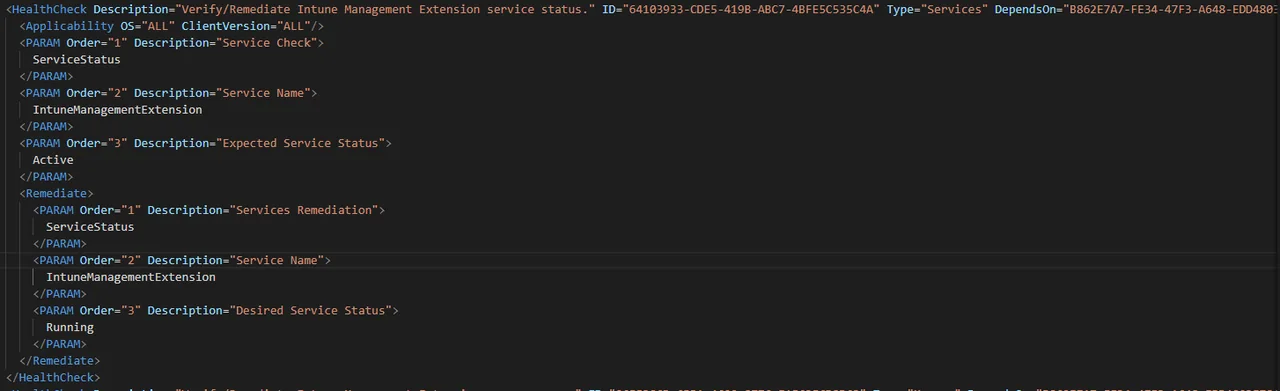
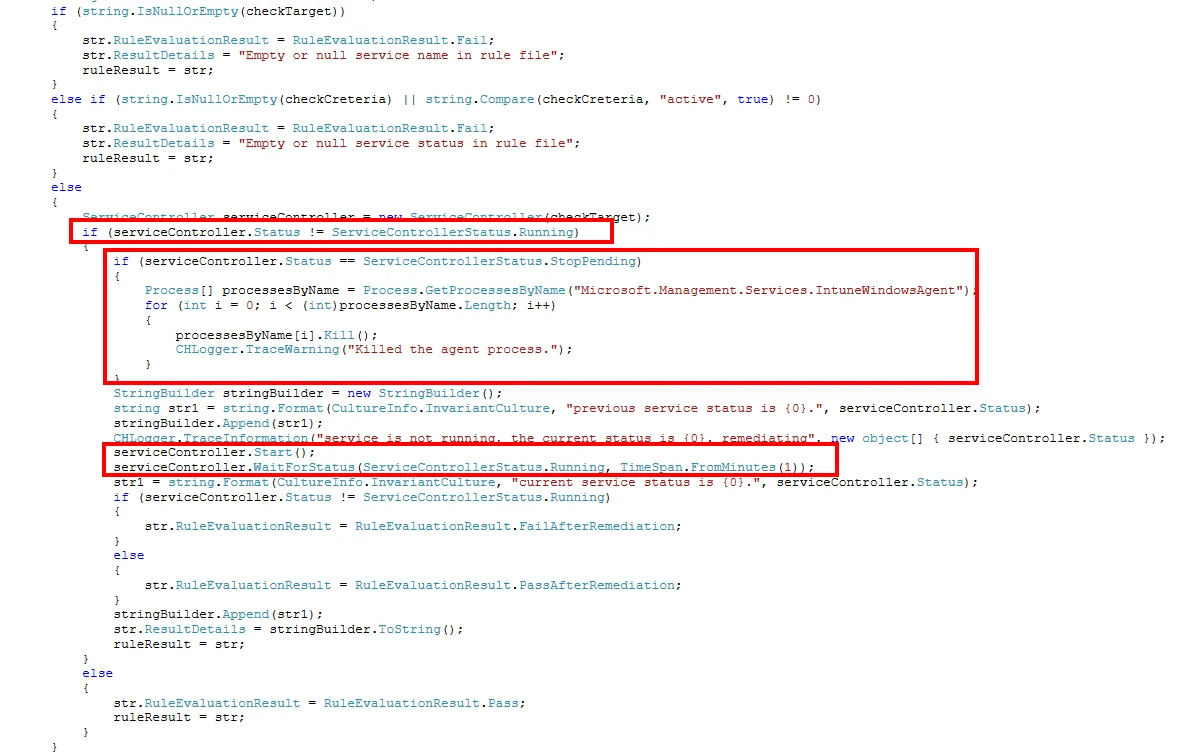
Verify/Remediate Intune Management Extension service status
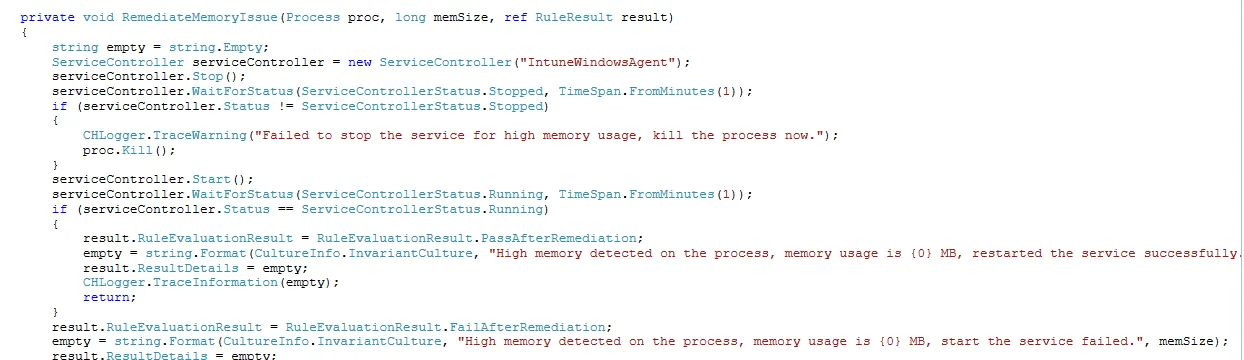
Verify/Remediate Intune Management Extension service status checks if the service is running or stopped. If the service does not have the Active status, it will be started via Remediation. If the status is Stopped pending the process is killed so that it can be restarted. This makes it a good first line of defense against a hung agent.
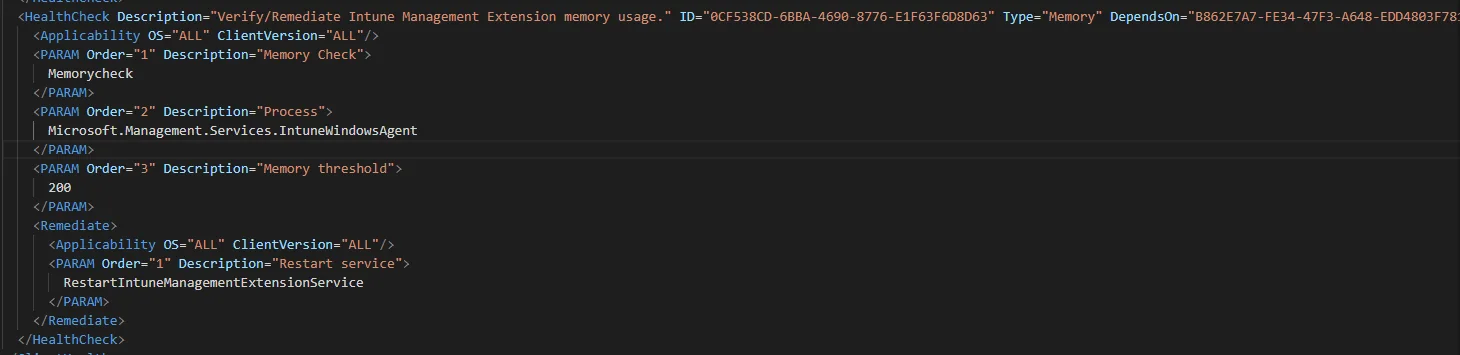
Verify/Remediate Intune Management Extension memory usage
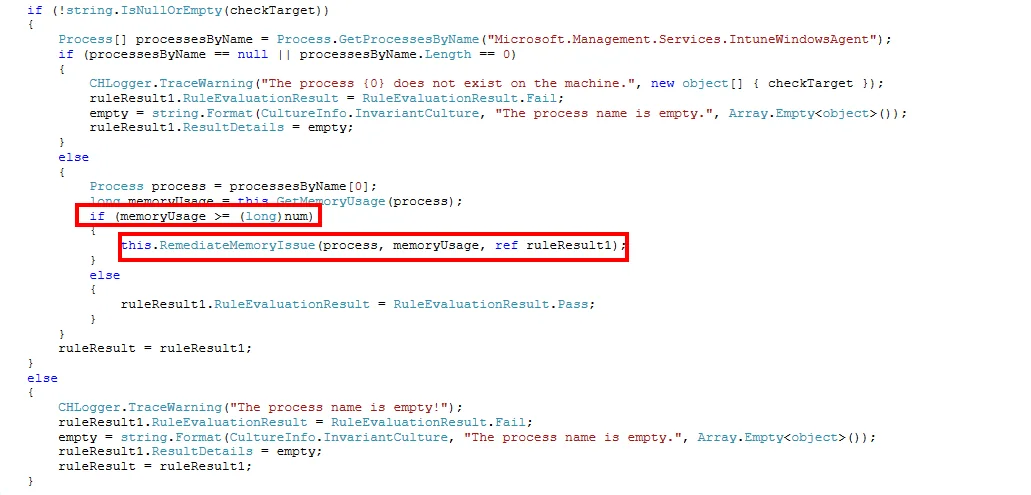
The last check verifies if the memory of the Microsoft.Management.Services.IntuneWindowsAgent service is more than 200 MB. If this is the case, the service is restarted and hopefully recovers afterwards. A memory leak is a classic cause of a stuck agent, so it is great that this is watched automatically.
Where can I find the IME Health check log file
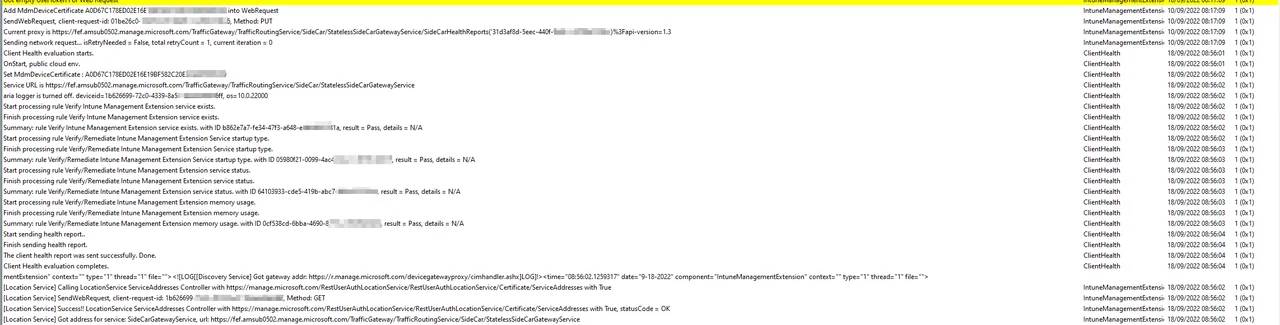
The logfile can be found in the following location: C:\ProgramData\Microsoft\IntuneManagementExtension\Logs. This is the first place to look whenever you want to review what the IME Health check did during its last run.
How often does the health check run?
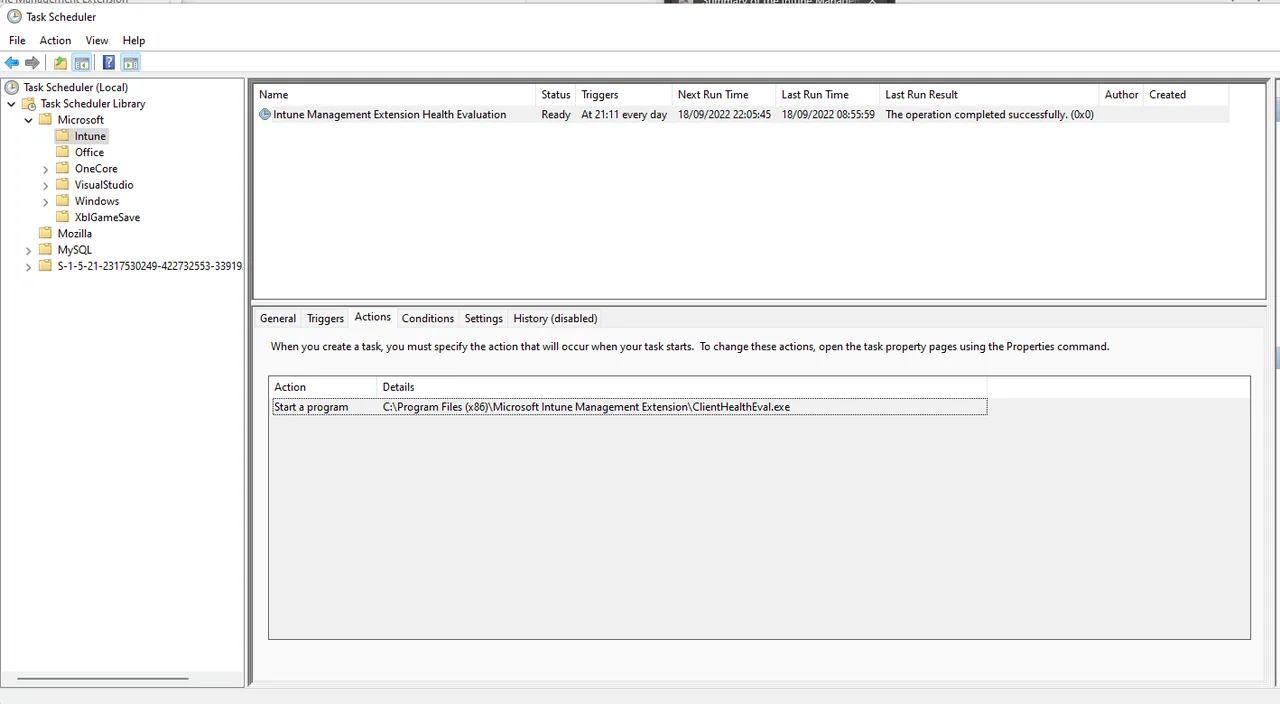
The IME has created a scheduled task in the task scheduler that runs once a day in the system context and triggers the Health.exe. Because the IME Health check runs only once per day, a broken agent can stay broken for up to 24 hours before any remediation kicks in.
Conclusion on the IME Health check
In my opinion, the checks that are made are very basic. It would be good if it also checks if the connection to the Intune service is working or if there was a crash event since the last run. In the log you can see that the process sends the HealthReport to the backend. But it would be great to have a report here where you can monitor the state of the IME and troubleshoot problems that occur often.
Overall the IME Health check is a solid safety net, and knowing how it works makes troubleshooting the Intune Management Extension far easier. I hope I could give you with this blog an insight into the ClientHealthEval.exe and the IME Health check.

New posts, straight to your inbox.
Hands-on guides on Intune, AI and Azure.