
Decode a Windows Autopilot Hardware Hash
Learn how to decode an Autopilot hash with the Windows ADK and oa3tool. A simple, proven step-by-step guide to reveal what is inside the device hash.

You may have noticed that an Autopilot hash looks a little different every time you create it. In this blog post, I want to show you how to encode an Autopilot hash and display its content.
What is a hardware hash
To enroll a device as an Autopilot device, you need a hardware hash. The hardware hash is an encoded XML that contains information about the device, especially about the hardware. This hash is needed to uniquely link the device to the tenant of a company. To generate and upload the hash you can use the following Powershell script: Get-WindowsAutoPilotInfo.ps1
It helps to think of the hash as a fingerprint of the machine rather than a secret. It is built from stable hardware identifiers such as the TPM endorsement key, the disk serial and the network adapter, combined with a few volatile values like the current time. That mix is exactly why the string changes on every run, even on the same device, and it is also why you should always capture the hash on the physical machine you intend to enrol rather than copy one between devices.
Install the deployment tools from the Windows ADK
We need a tool that helps us decode the hardware hash. For this we need to install the Windows ADK.
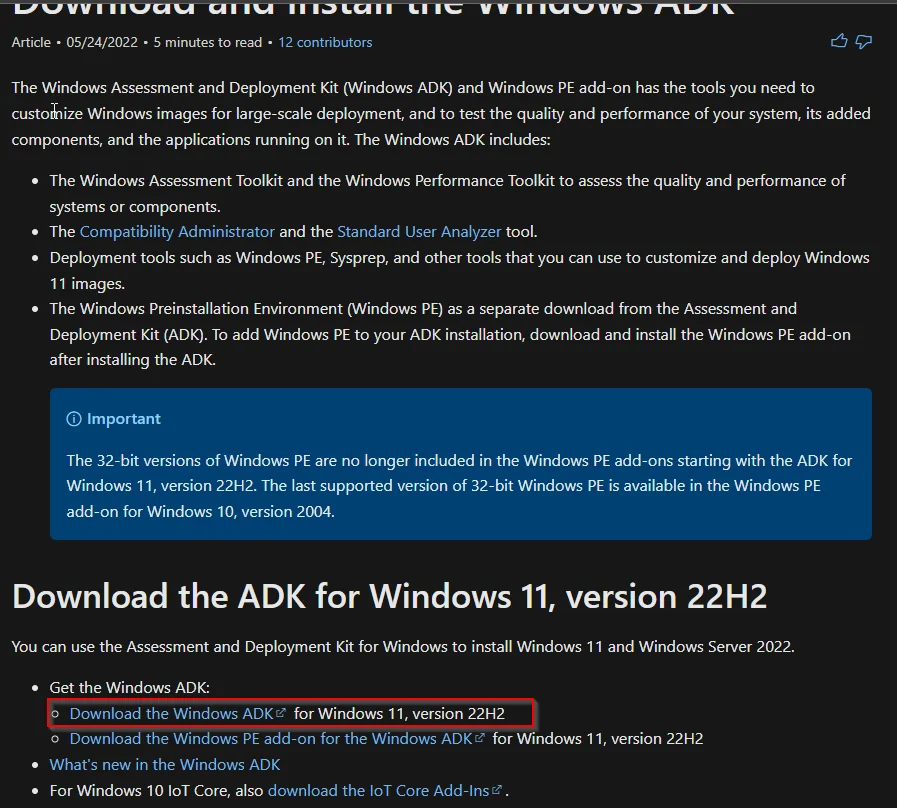
- Download the Windows SDK from the following page.
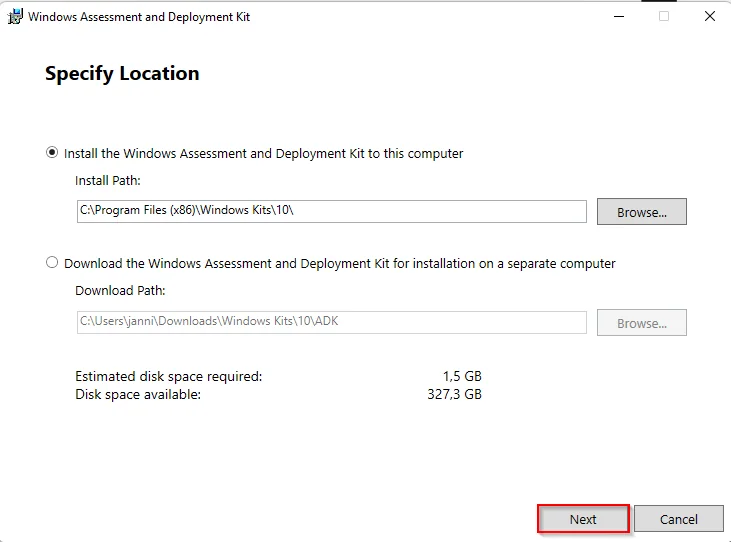
- Install the Windows SDK.
- Click Next
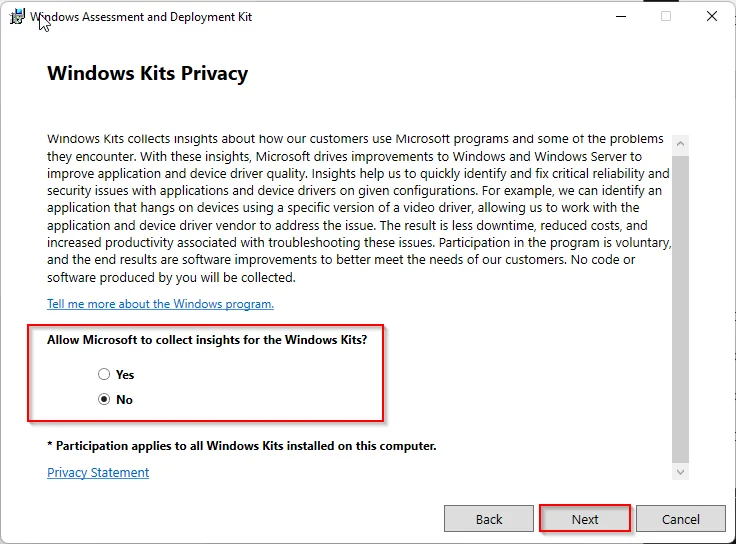
- Select No and click Next
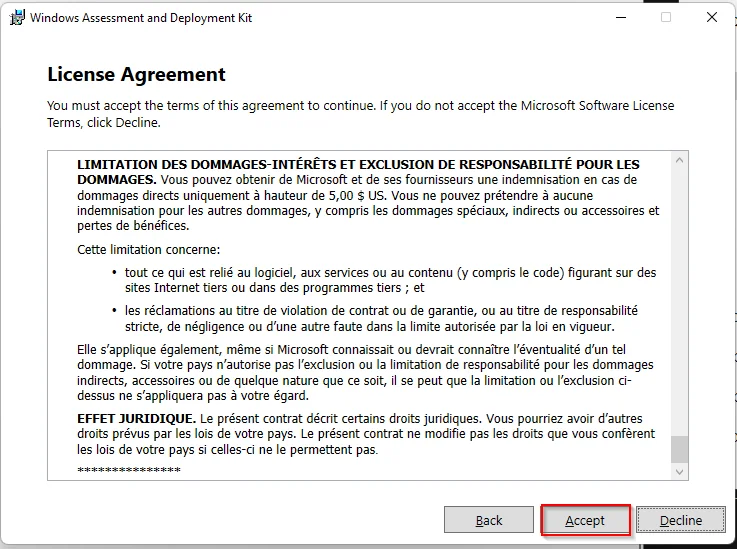
- Accept the License Agreement
- Select only the Deployment Tools and click Install
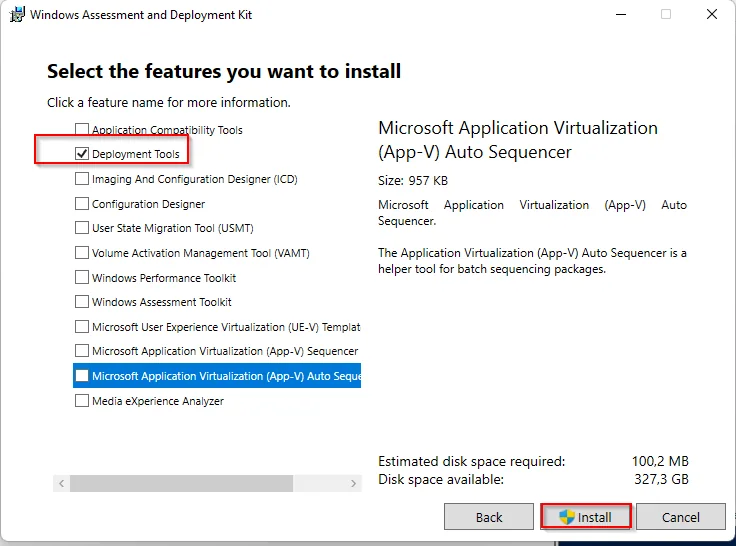
You only need the Deployment Tools feature, so there is no reason to install the full ADK and wait for several gigabytes to download. Selecting just that component keeps the footprint small and gives you the oa3tool.exe binary we rely on in the next step.
Generate the Autopilot hash
If you look into the Get-WindowsAutoPilotInfo.ps1 script, the creation of the hardware hash is quite simple:
$session = New-CimSession
$devDetail = (Get-CimInstance -CimSession $session -Namespace root/cimv2/mdm/dmmap -Class MDM_DevDetail_Ext01 -Filter "InstanceID='Ext' AND ParentID='./DevDetail'")
$hash = $devDetail.DeviceHardwareData
Write-Host $hash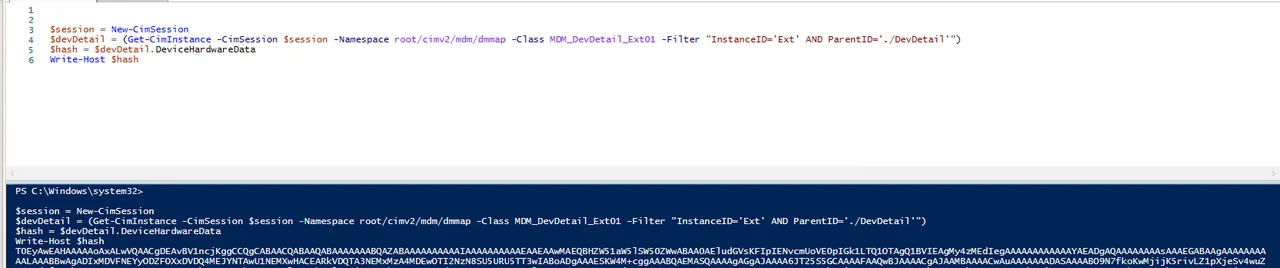
Now we just need to pass the $devDetail to the deployment tool oa3tool.exe to convert the hash into XML. You can find it at the following path: ‘C:\Program Files (x86)\Windows Kits\10\Assessment and Deployment Kit\Deployment Tools\amd64\Licensing\OA30\oa3tool.exe’.
The final script to encode an Autopilot hash looks like this:
$session = New-CimSession
$devDetail = (Get-CimInstance -CimSession $session -Namespace root/cimv2/mdm/dmmap -Class MDM_DevDetail_Ext01 -Filter "InstanceID='Ext' AND ParentID='./DevDetail'")
$hash = $devDetail.DeviceHardwareData
Write-Host $hash
& 'C:\Program Files (x86)\Windows Kits\10\Assessment and Deployment Kit\Deployment Tools\amd64\Licensing\OA30\oa3tool.exe' /DecodeHwHash="$($devDetail.DeviceHardwareData)"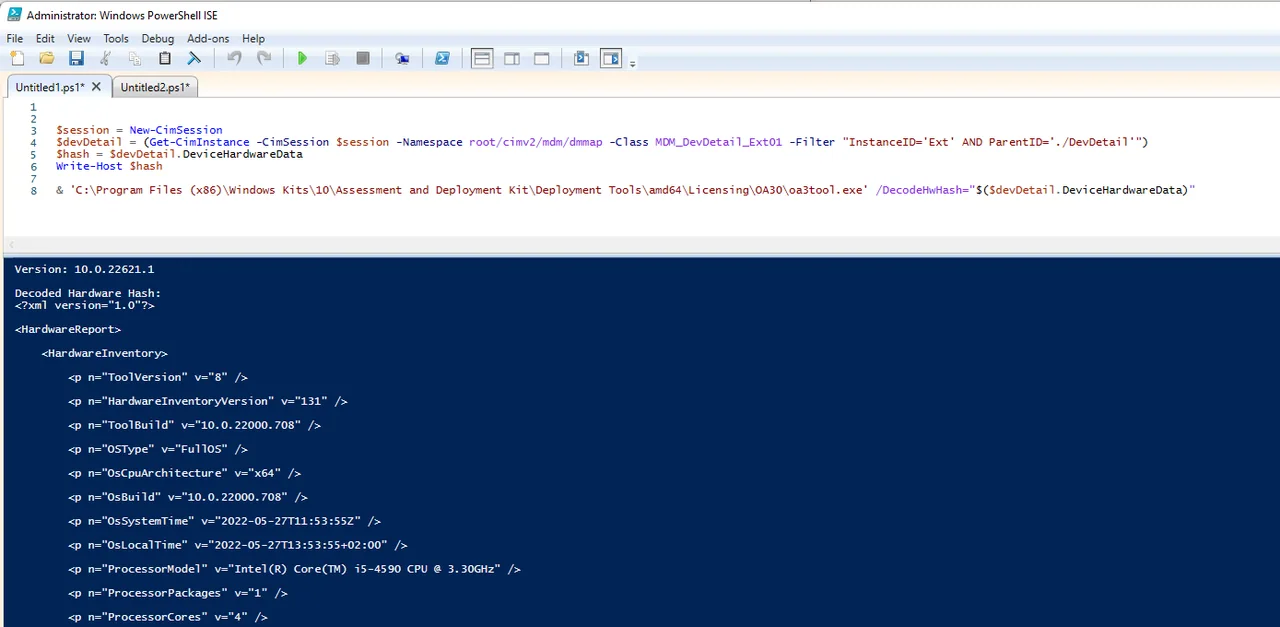
A couple of common pitfalls are worth calling out here. The CIM query only returns the DeviceHardwareData when it runs in a full Windows session with administrative rights, so an elevated PowerShell prompt is required. If you run it inside the Out-of-Box Experience, press Shift + F10 first to open a command prompt. And because oa3tool.exe expects the raw Base64 string, make sure you do not let the console wrap or truncate the value before you pass it in.
Conclusion
The reason the hash looks different for each execution is the timestamp inside the hash.
    <p n="OsSystemTime" v="2022-05-27T11:53:55Z" />
    <p n="OsLocalTime" v="2022-05-27T13:53:55+02:00" />
In the end, the hardware hash is an encoding of several different values. Inside, the hardware hash always looks the same, apart from the time. However, this leads to the fact that the hash is always different. Decoding it like this is also a handy troubleshooting trick: if an enrolment fails, you can confirm the captured device really matches the model, serial and TPM you expect before you blame the Autopilot profile.
If you want to dive deeper into Autopilot, check out my other Intune and Autopilot guides, and read the official Windows Autopilot documentation on Microsoft Learn. I hope this script gives you an insight behind the scenes of the Autopilot hash.
Stay healthy, Cheers
Jannik