
V2 – Get a Daily Device Report via Email or Teams with Logic Apps (Step by Step)
Build a daily device report with Logic Apps and Managed Identity to email or Teams your Intune compliance stats automatically every morning.
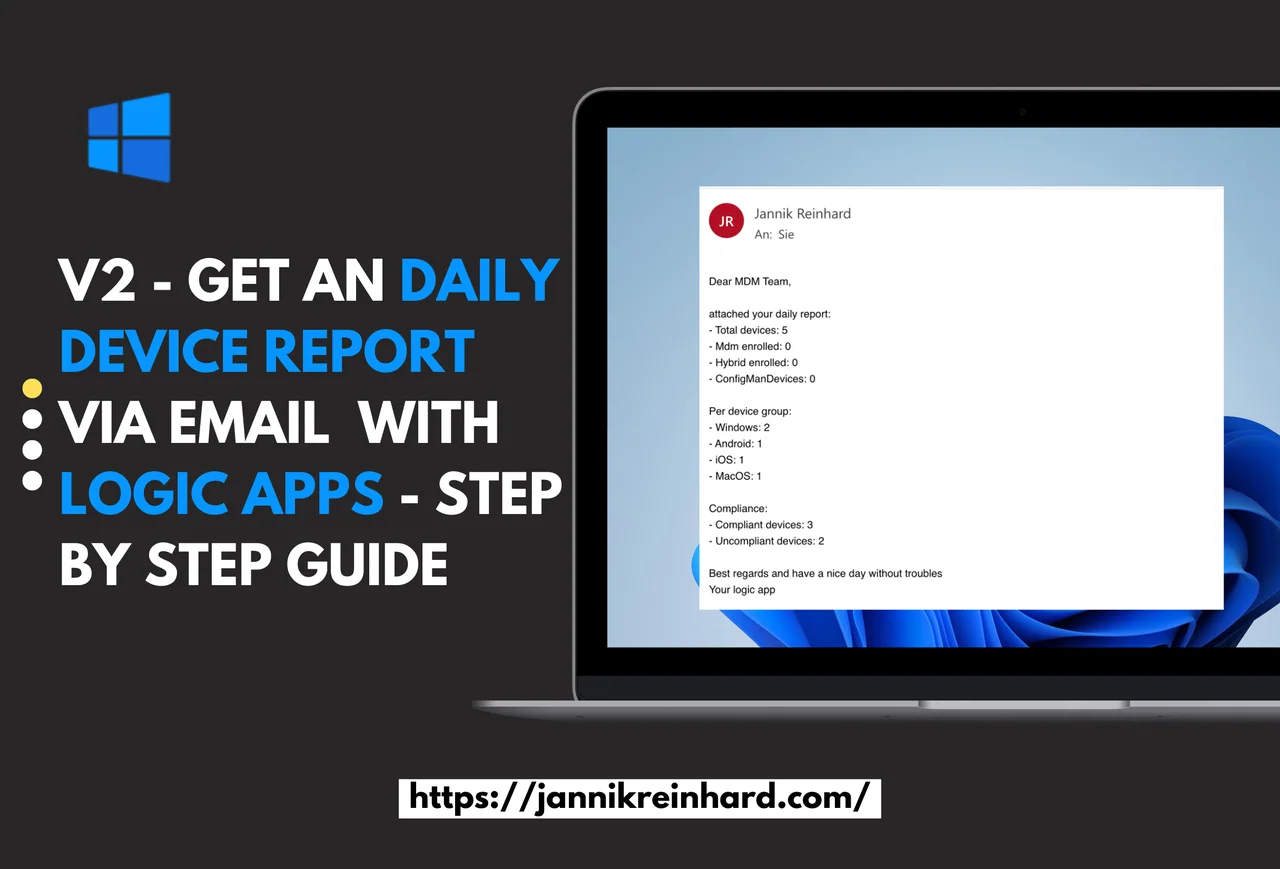
This daily Intune device report uses Logic Apps and a Managed Identity to collect device data and send the result by email or to Teams. Version 2 also covers co-managed devices.
I have already written a blog about how to send a message using Logic Apps to generate a daily device report. After a presentation about automation with Intune and Graph I got good feedback asking if I can do a variant with Co-Managed devices. So I decided to write a V2 of this guide that delivers a complete daily device report and also updates the authentication with a Managed Identity. If you are interested in more blogs around the topic of Logic Apps, let me know and I will be happy to do a deep dive on Logic Apps.
- What are the prerequisites?
- How to Create a Logic App?
- How to grant the necessary permissions to the logic app?
- How to create the Logic App?
- Send status via Email
Prerequisites for the daily device report
The prerequisites for this daily device report are not really high. You only need permissions to create resources in an Azure subscription and to grant API permissions to a managed identity. Once that is in place, the Logic App can run completely unattended and send your daily device report on a fixed schedule. For more background on the API used here, see the official Microsoft Learn documentation and my earlier device report guide.
How to Create a Logic App?
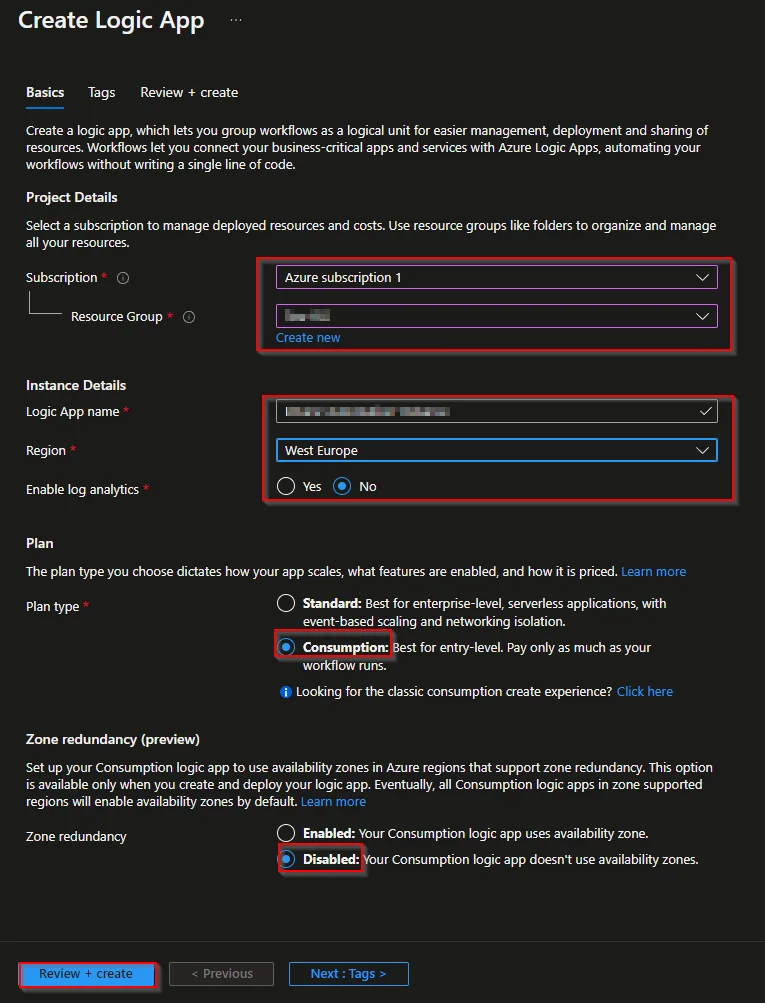
- Open the Azure Portal
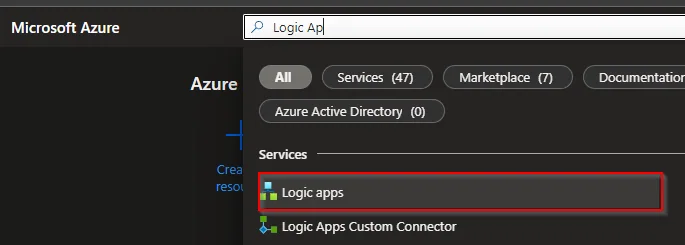
- Search for Logic apps
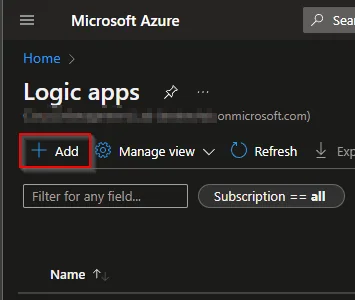
- Click + Add
- Select the Subscription
- Select or create a Resource Group
- Enter an unique name of the logic app
- Select a region
- Select no for log analytics unless you want to activate this
- Select Consumption as plan type
- Select Disabled for Zone redundancy
- Click Review + create
- Add tags if you want and click Review + create
- Click Create
How to grant the necessary permissions to the logic app?
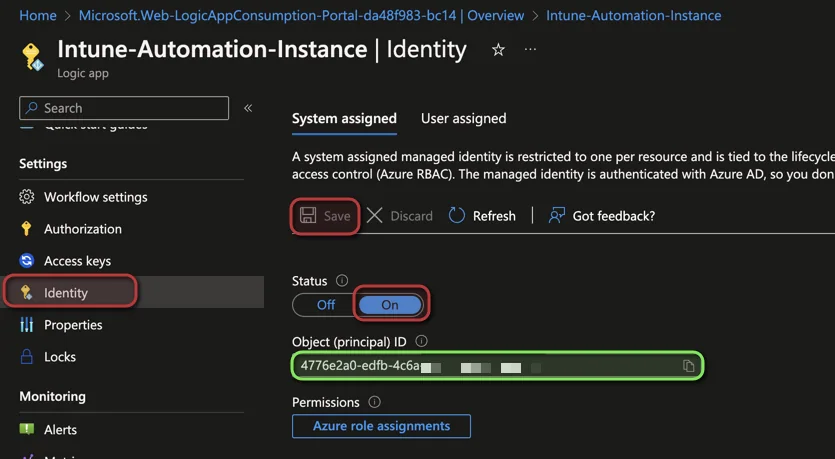
- First of all you have to make sure that the managed identity of your logic app is activated
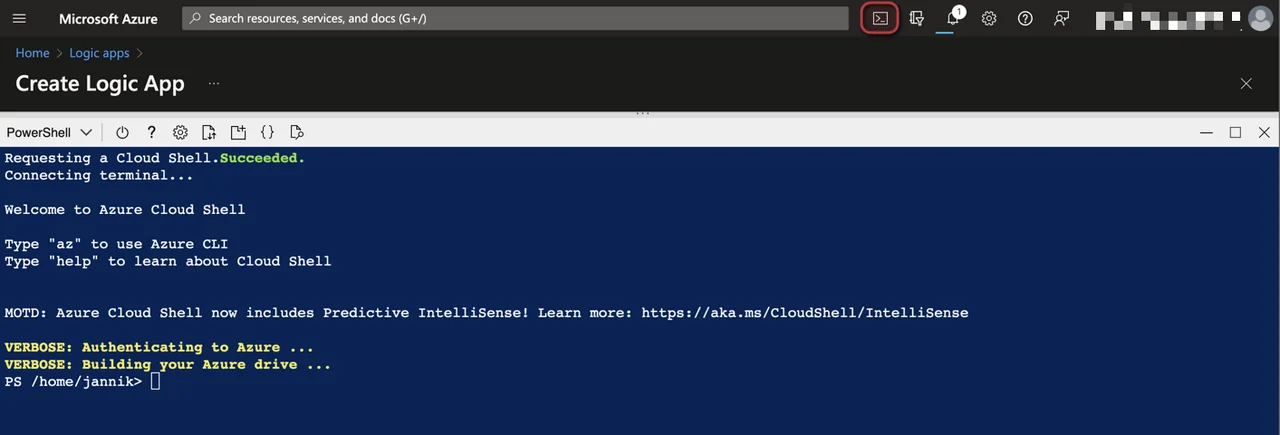
- Open an Azure PowerShell or a PowerShell local on your device
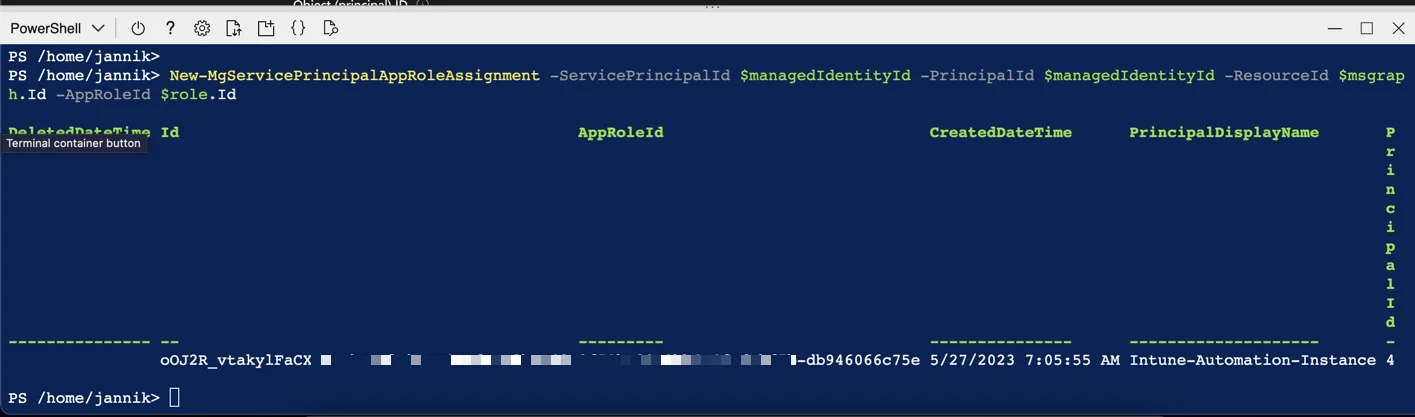
- Execute the following code (Insert the ID of your managed identity):
Install-Module Microsoft.Graph -Scope CurrentUser

Connect-MgGraph -Scopes Application.Read.All, AppRoleAssignment.ReadWrite.All, RoleManagement.ReadWrite.Directory

$managedIdentityId = "Managed Identity Object ID"
$roleName = "DeviceManagementManagedDevices.Read.All"

$msgraph = Get-MgServicePrincipal -Filter "AppId eq '00000003-0000-0000-c000-000000000000'"
$role = $Msgraph.AppRoles| Where-Object {$_.Value -eq $roleName}

New-MgServicePrincipalAppRoleAssignment -ServicePrincipalId $managedIdentityId -PrincipalId $managedIdentityId -ResourceId $msgraph.Id -AppRoleId $role.Id

Disconnect-MgGraph- Do the same also for DeviceManagementConfiguration.Read.All
How to build the daily device report Logic App?
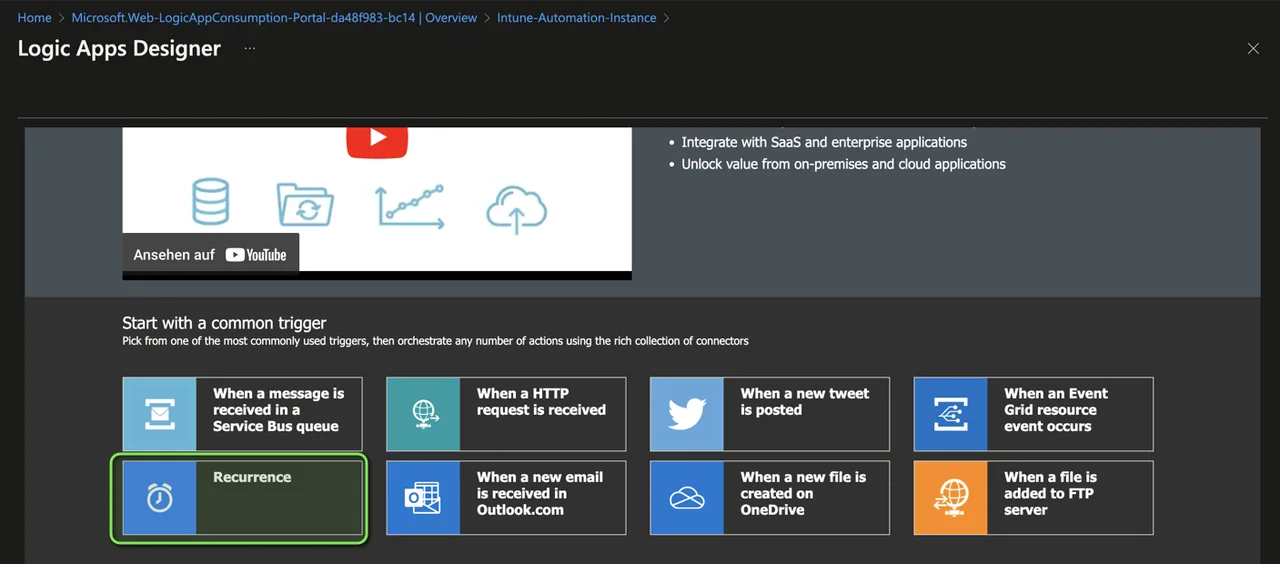
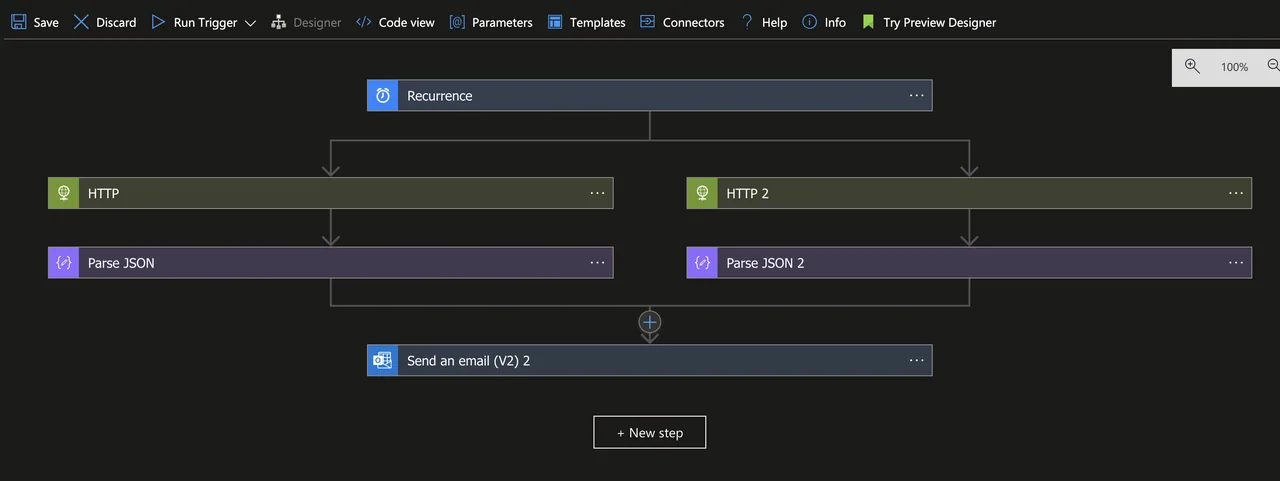
- We want to build our daily device report flow with a Recurrence trigger. For this select recurrence.
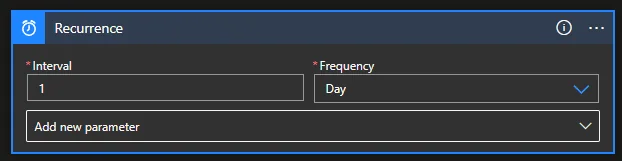
- Set the schedule to once a day.
-
Add a HTTP Action
-
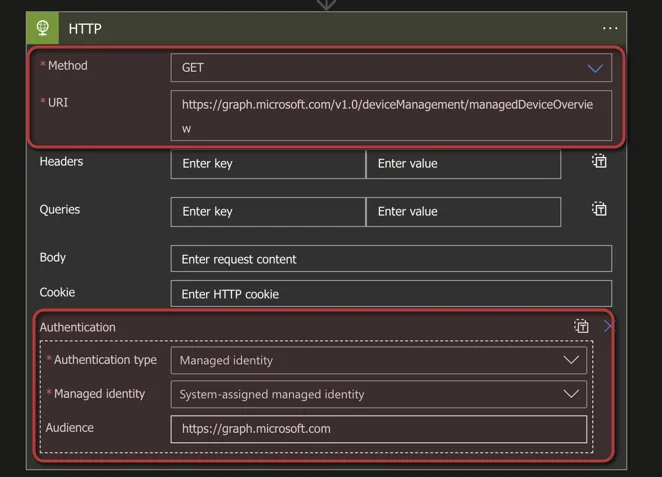
Fill in the following attributes:
- Method: GET
- URI:
https://graph.microsoft.com/v1.0/deviceManagement/managedDeviceOverview
-
Click add new Parameter and select Authentication
-
Select Authentication Type as Managed Identity
-
Enter
https://graph.microsoft.comas audience
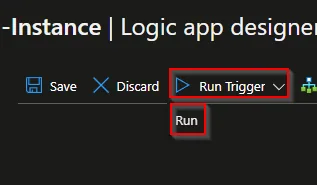
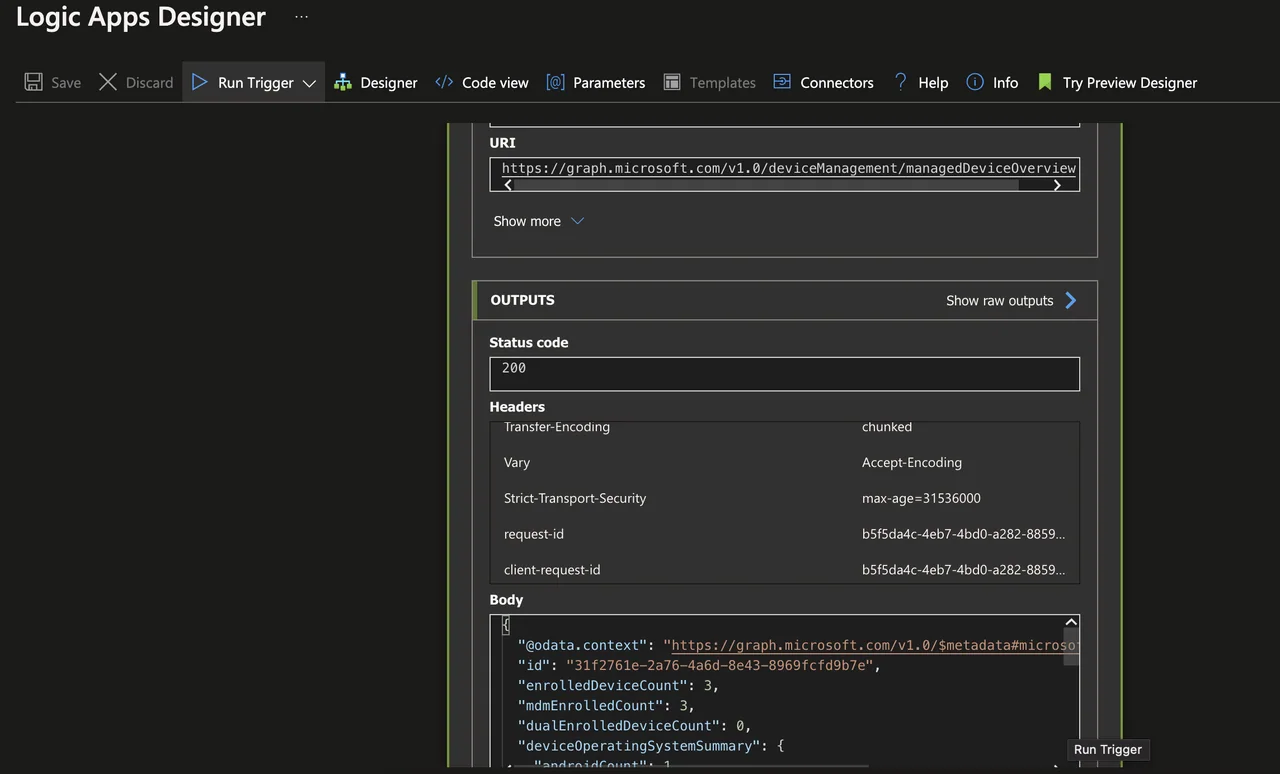
- Run the first test
- Check the body if you can see device data
- Add a Parse JSON Action
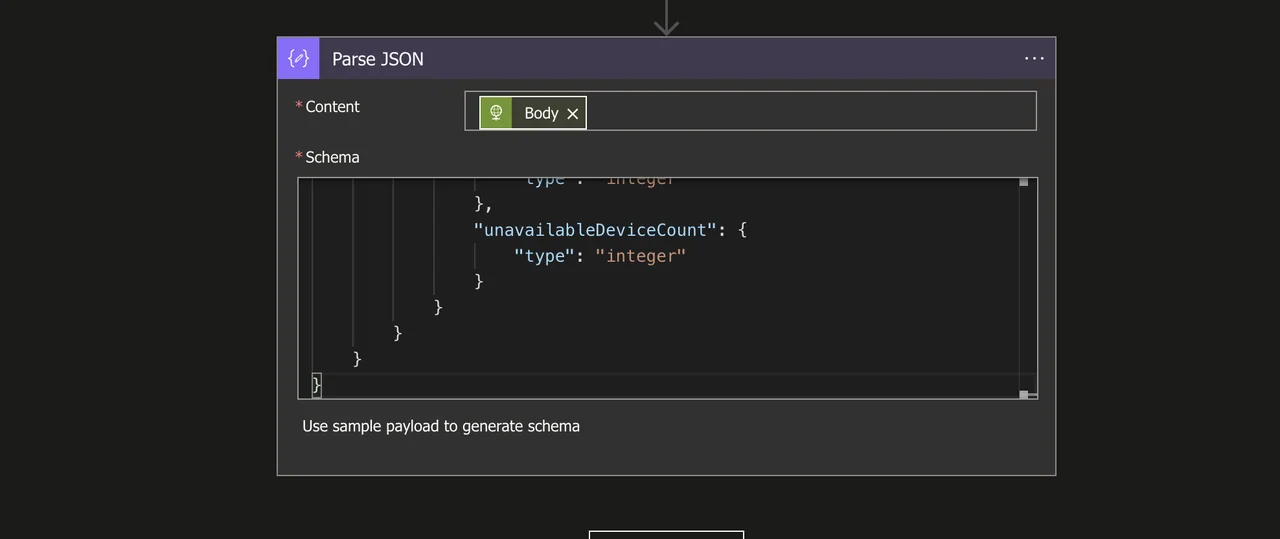
- Select Body as Content and add the following content as Schema:
{
    "type": "object",
    "properties": {
        "@@odata.context": {
            "type": "string"
        },
        "id": {
            "type": "string"
        },
        "enrolledDeviceCount": {
            "type": "integer"
        },
        "mdmEnrolledCount": {
            "type": "integer"
        },
        "dualEnrolledDeviceCount": {
            "type": "integer"
        },
        "deviceOperatingSystemSummary": {
            "type": "object",
            "properties": {
                "androidCount": {
                    "type": "integer"
                },
                "iosCount": {
                    "type": "integer"
                },
                "macOSCount": {
                    "type": "integer"
                },
                "windowsMobileCount": {
                    "type": "integer"
                },
                "windowsCount": {
                    "type": "integer"
                },
                "unknownCount": {
                    "type": "integer"
                },
                "androidDedicatedCount": {
                    "type": "integer"
                },
                "androidDeviceAdminCount": {
                    "type": "integer"
                },
                "androidFullyManagedCount": {
                    "type": "integer"
                },
                "androidWorkProfileCount": {
                    "type": "integer"
                },
                "androidCorporateWorkProfileCount": {
                    "type": "integer"
                },
                "configMgrDeviceCount": {
                    "type": "integer"
                }
            }
        },
        "deviceExchangeAccessStateSummary": {
            "type": "object",
            "properties": {
                "allowedDeviceCount": {
                    "type": "integer"
                },
                "blockedDeviceCount": {
                    "type": "integer"
                },
                "quarantinedDeviceCount": {
                    "type": "integer"
                },
                "unknownDeviceCount": {
                    "type": "integer"
                },
                "unavailableDeviceCount": {
                    "type": "integer"
                }
            }
        }
    }
}
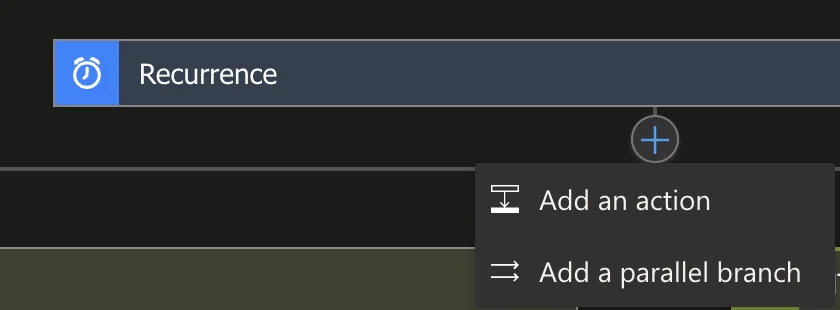
- To also get the compliance state we do basically the same in a second branch:
- Add a HTTP Action
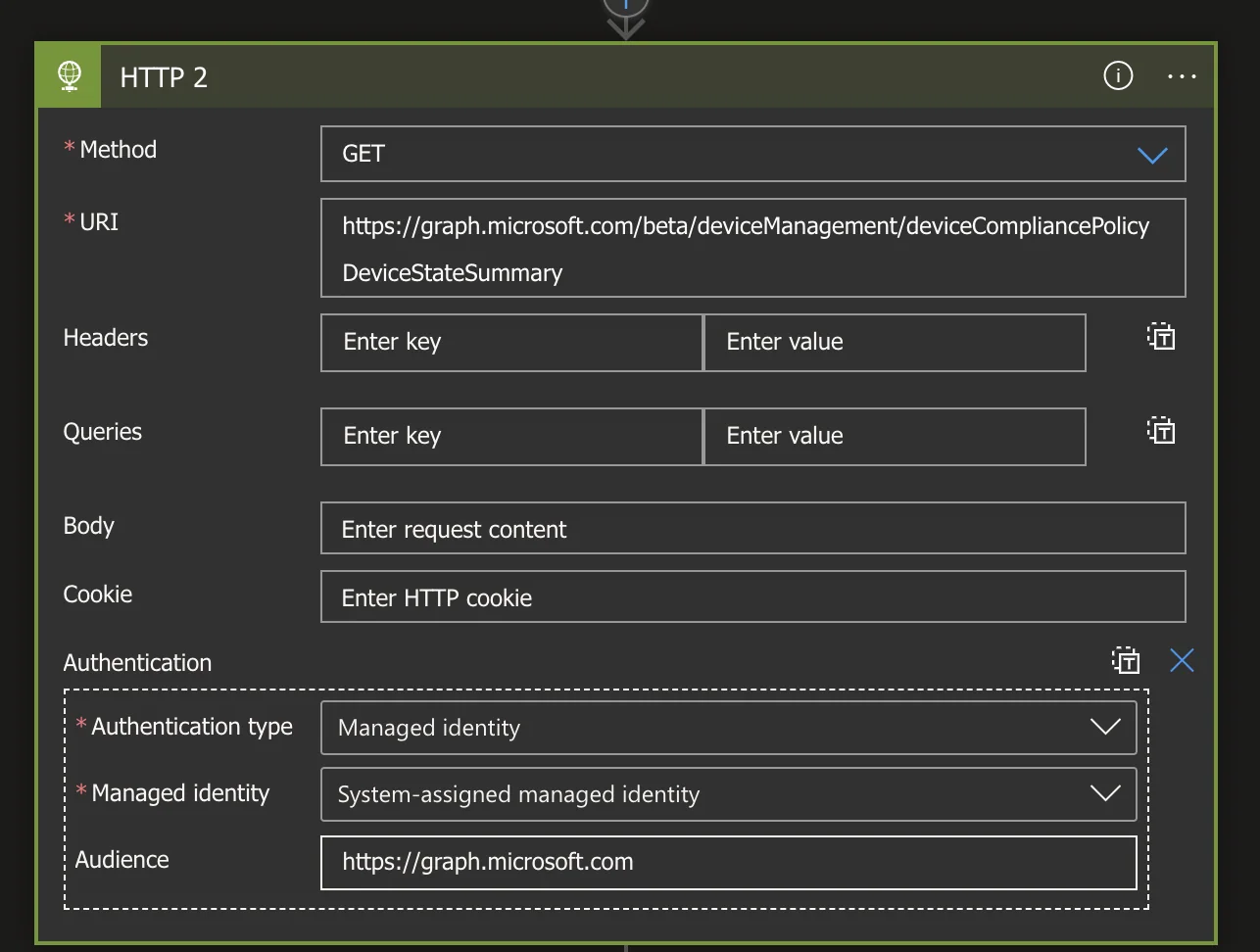
- Fill in the following attributes:
- Method: GET
- URI:
https://graph.microsoft.com/beta/deviceManagement/deviceCompliancePolicyDeviceStateSummary
- Click add new Parameter and select Authentication
- Select Authentication Type as Managed Identity
- Enter
https://graph.microsoft.comas audience
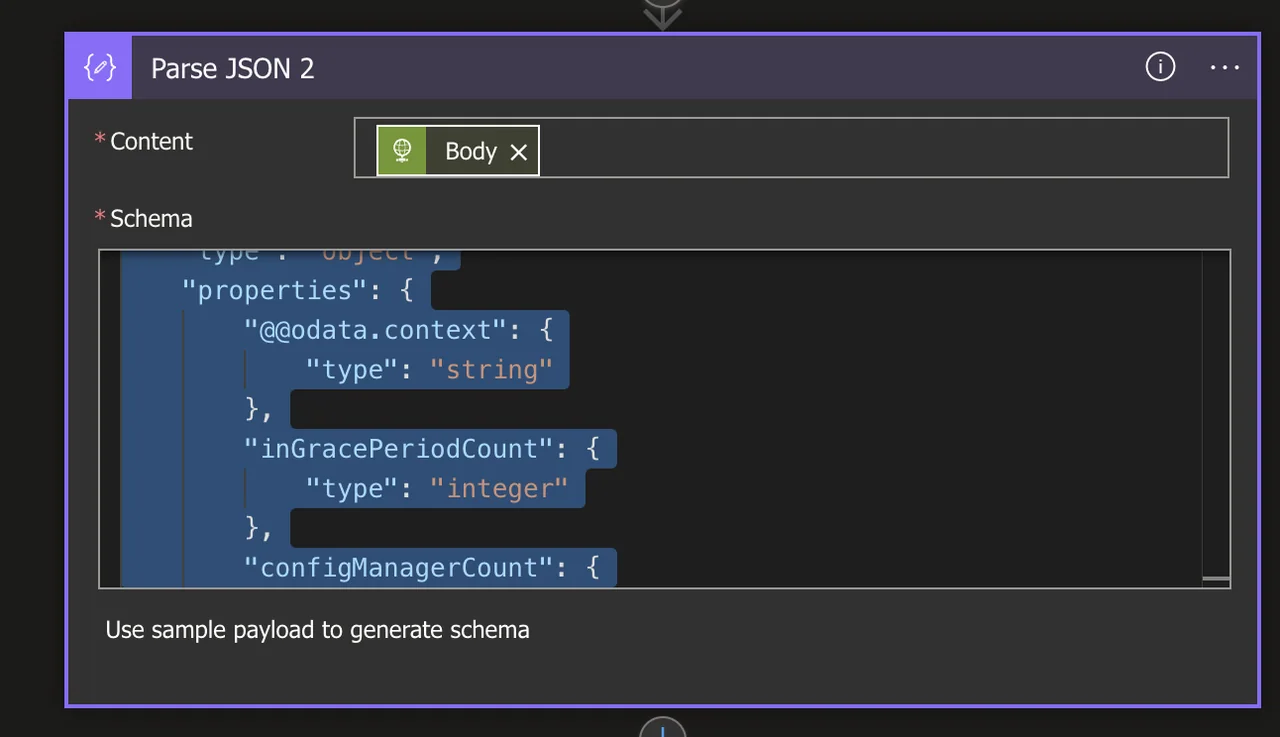
- Add again a Parse JSON block and add the following content
{
    "type": "object",
    "properties": {
        "@@odata.context": {
            "type": "string"
        },
        "inGracePeriodCount": {
            "type": "integer"
        },
        "configManagerCount": {
            "type": "integer"
        },
        "id": {
            "type": "string"
        },
        "unknownDeviceCount": {
            "type": "integer"
        },
        "notApplicableDeviceCount": {
            "type": "integer"
        },
        "compliantDeviceCount": {
            "type": "integer"
        },
        "remediatedDeviceCount": {
            "type": "integer"
        },
        "nonCompliantDeviceCount": {
            "type": "integer"
        },
        "errorDeviceCount": {
            "type": "integer"
        },
        "conflictDeviceCount": {
            "type": "integer"
        }
    }
}
Send status via Email
- Add an Outlook Send an Email (V2) action
- Sign in with an account
- Add the Receiver in the To column
- Add an Subject
- If you want to add a date to the subject add the following expression:
string(utcNow('yyyyMMdd'))- Add the following in the Body column. (You can modify the text as you want)
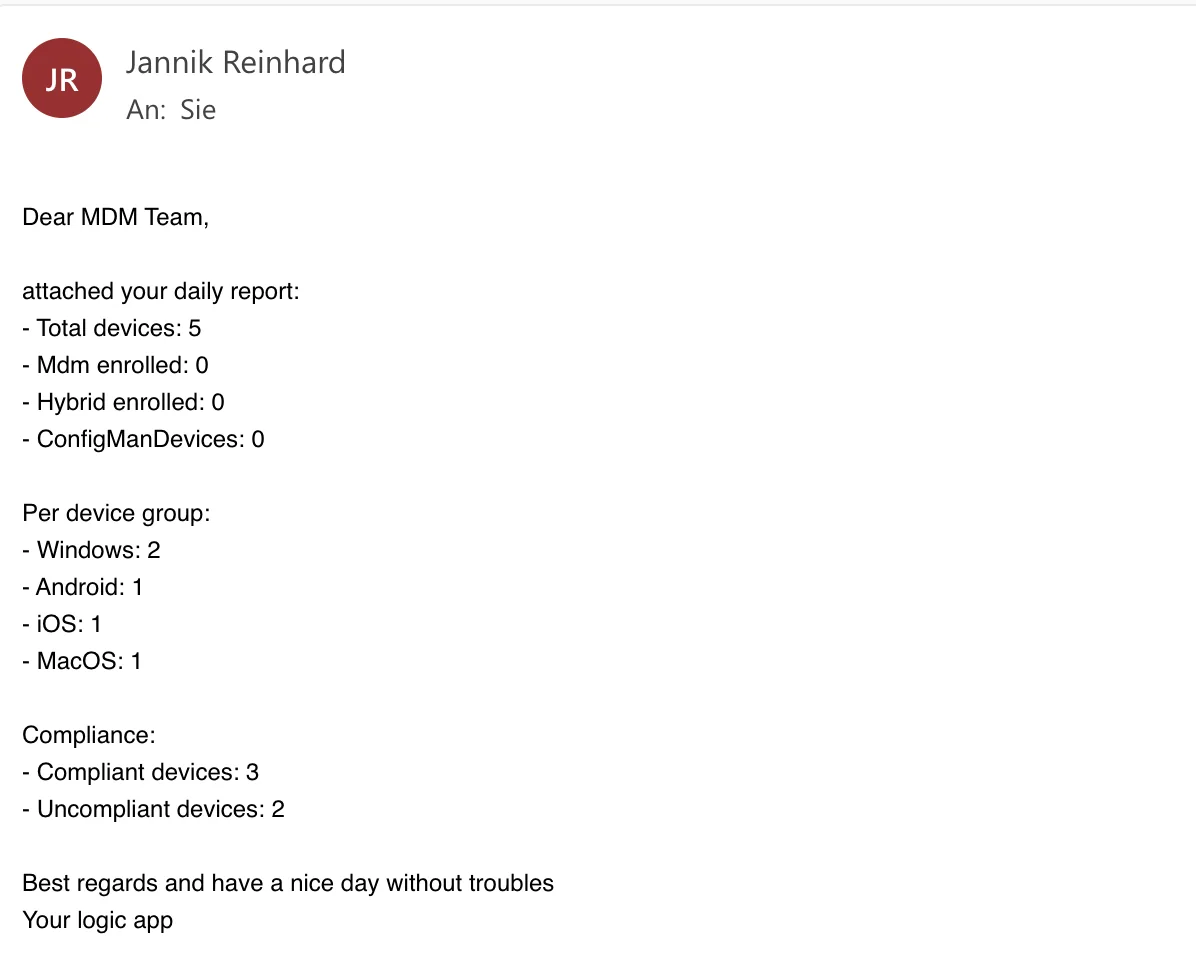
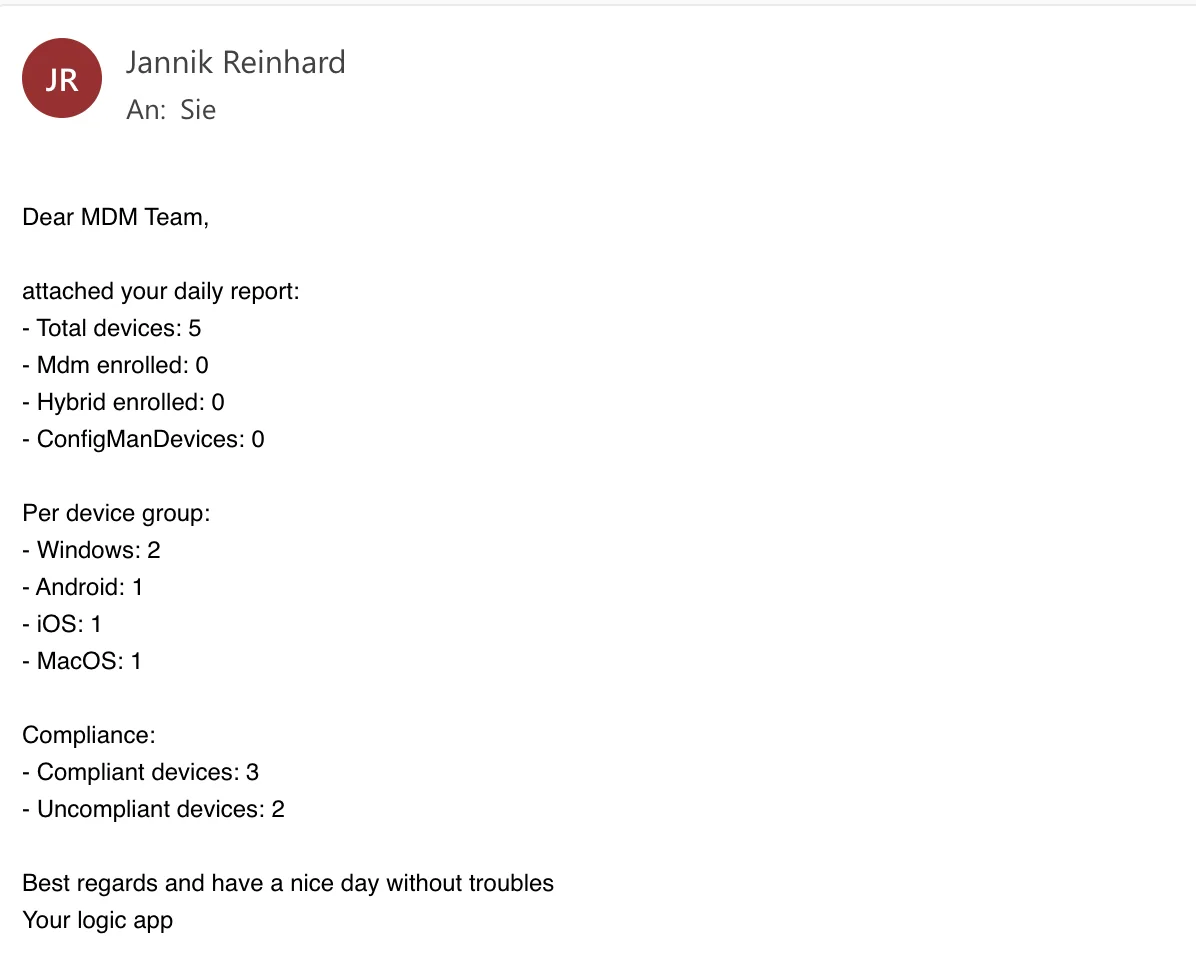
Dear MDM Team,

attached your daily report:
- Total devices: @{body('Parse_JSON')?['properties']?['enrolledDeviceCount']}
- Mdm enrolled: @{body('Parse_JSON')?['properties']?['mdmEnrolledCount']}
- Hybrid enrolled: @{body('Parse_JSON')?['properties']?['dualEnrolledDeviceCount']}
- ConfigManDevices: @{body('Parse_JSON')?['deviceOperatingSystemSummary']?['configMgrDeviceCount']}

Per device group:
- Windows: @{body('Parse_JSON')?['properties']?['deviceOperatingSystemSummary']?['properties']?['windowsCount']}
- Android: @{body('Parse_JSON')?['properties']?['deviceOperatingSystemSummary']?['properties']?['androidCount']}
- iOS: @{body('Parse_JSON')?['properties']?['deviceOperatingSystemSummary']?['properties']?['iosCount']}
- MacOS: @{body('Parse_JSON')?['properties']?['deviceOperatingSystemSummary']?['properties']?['macOSCount']}

Compliance:
- Compliant devices: @{body('Parse_JSON_2')?['compliantDeviceCount']}
- Uncompliant devices: @{body('Parse_JSON_2')?['nonCompliantDeviceCount']}

Best regards and have a nice day without troubles
Your logic app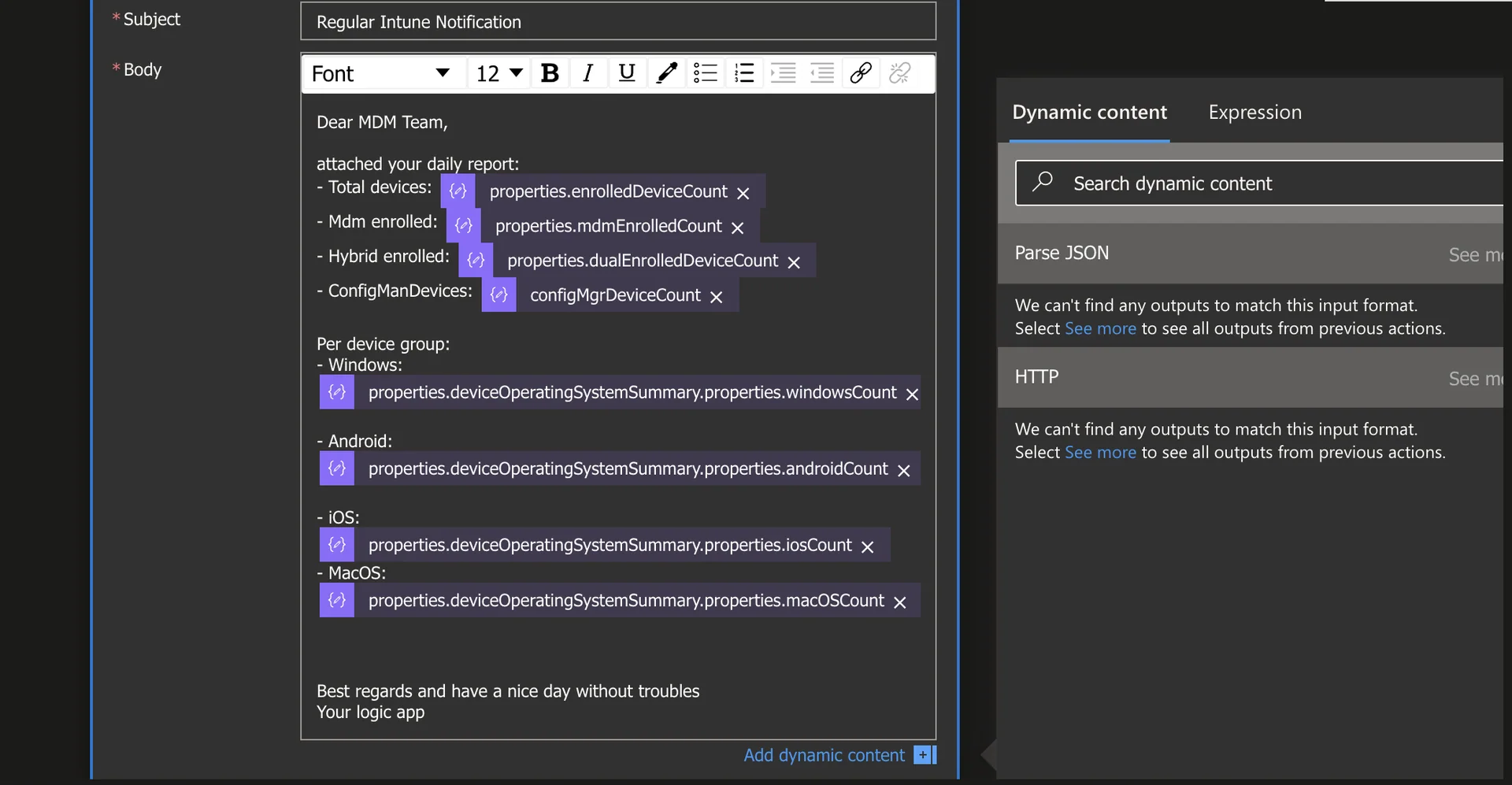
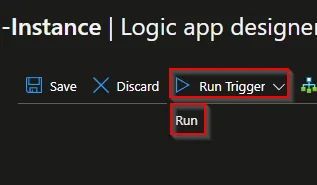
- Now we can make a test run to check if everything works
- Check you inbox
Conclusion: your automated daily device report
That is it. With this V2 setup you now have a fully automated daily device report that pulls enrollment and compliance data straight from Microsoft Graph and delivers it to your inbox or Teams every morning. Because the flow uses a Managed Identity, there are no secrets to rotate and it keeps running securely without any maintenance. Feel free to extend the report with extra metrics, swap the Outlook action for a Teams message, or adapt the schedule to your needs. If you found this guide useful, let me know and I will cover more Logic Apps automation scenarios.