
Management of external devices (peripherals) with Intune
Manage peripherals with Microsoft Intune Device Control. Explore USB, Bluetooth and removable-storage settings and test their effect on approved devices.
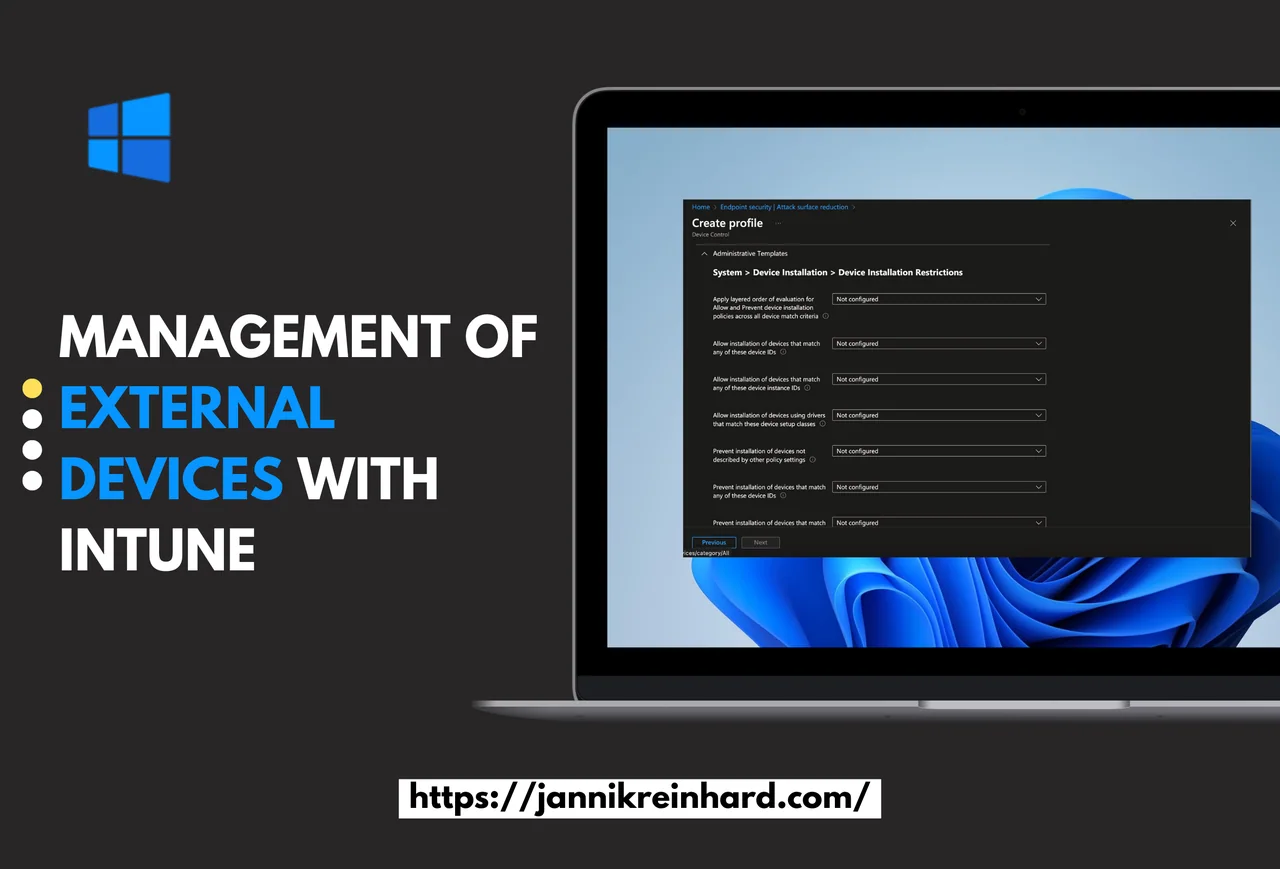
Managing external devices with Intune is one of the most effective ways to reduce the security risk of your end devices and to protect them from data loss or malicious hardware. By controlling peripherals such as USB sticks, Bluetooth accessories, and removable storage, you close a common attack vector. Intune Device Control, part of the attack surface reduction policies, has the answer for this. In this blog post we take a closer look at how to lock down external devices with Intune step by step.
Content
- Content
- Create a Device Control Policy
- Management of removable storages
- Management of Bluetooth
- Block Specific device classes
Create a Device Control Policy to manage external devices with Intune
- Open the Intune Portal
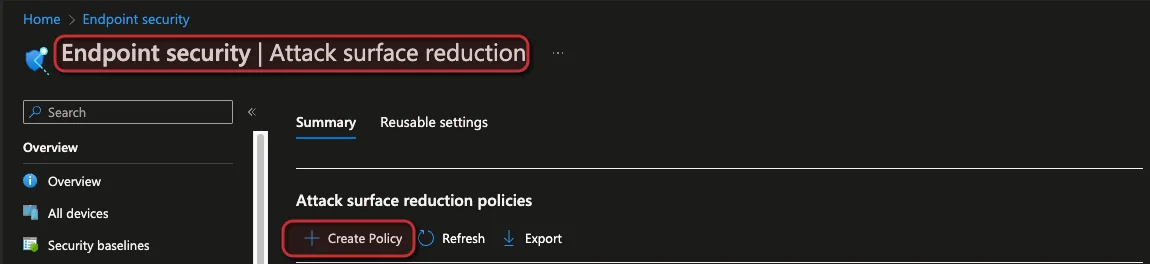
- Navigate to Endpoint security -> Attack surface reduction
- Click on + Create Policy
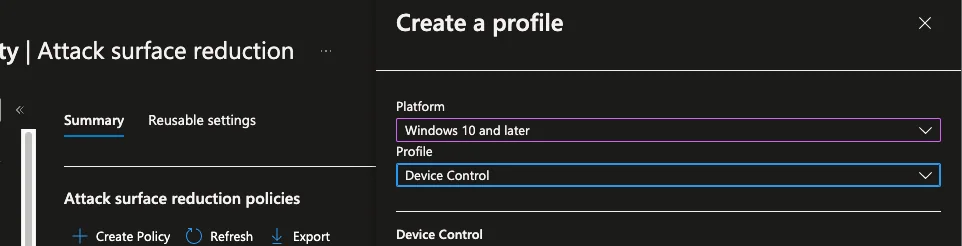
- Select Windows 10 and later as platform and Device Control as Profile
- Enter a name and click Next
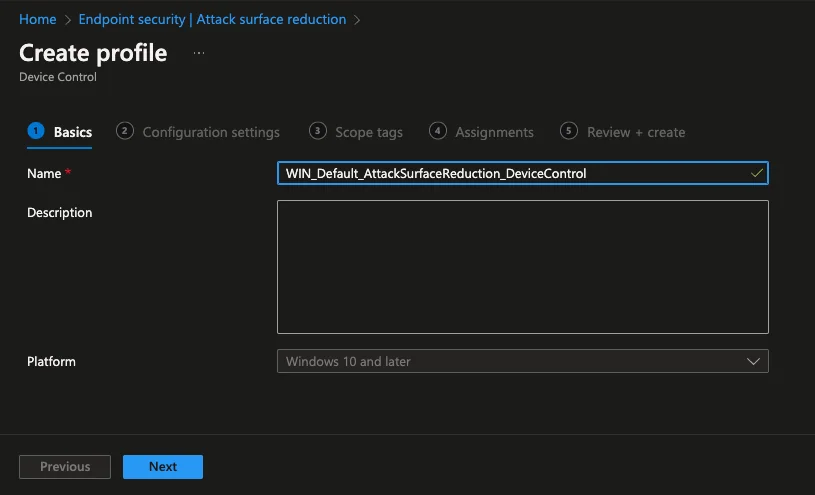
- From here we have a lot of different interesting settings. Lets look into the most interesting ones. You can find a detailed description of the different configurations in the sections below. (You can also find a list of all settings in the Microsoft documentation.)
- Once the configurations are created click Next -> Next
- Create an assignment
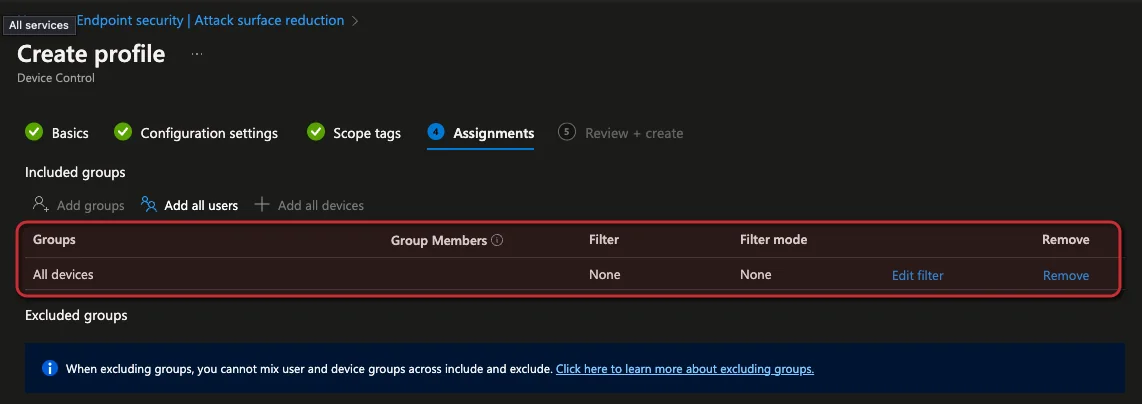
Before you create a broader assignment, test the profile carefully.
- Click Next and Create to create the profile
Management of removable storages
Block removable storages
A core part of managing external devices with Intune is controlling removable storage. If you want to block removable devices completely, you can set Removable Disk Deny Write Access to Disable. You can learn more about the underlying setting in the official Microsoft Learn documentation.

This setting does not block USB charging
Allow only specific devices
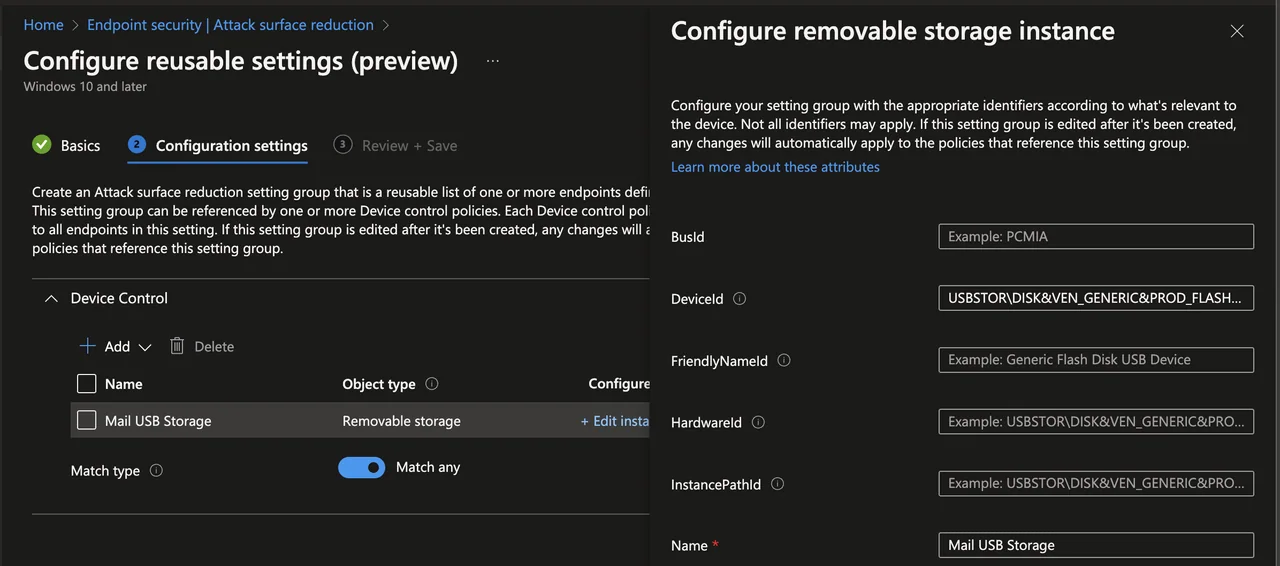
When you manage external devices with Intune you rarely want to block everything. Instead, you can define exactly which USB sticks are allowed using reusable settings. You can do this with the following steps:
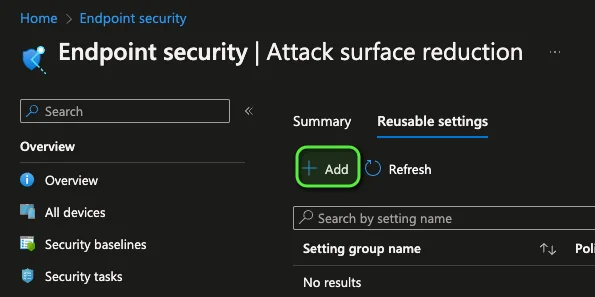
- Create a reusable setting by going back to the Attack surface reduction section and select Reusable settings
- Click +Add
- Enter a name and click Next
- Click +Add and +Edit instance
- Enter a name and an Identifier of the device. The best way is to use the DeviceId.
- You can get the DeviceId in these two ways:
- Open the Device Manager, select a device, and change to the details section.
- Run the following command:
Get-PnpDevice | Select-Object FriendlyName, DeviceID
- You can get the DeviceId in these two ways:
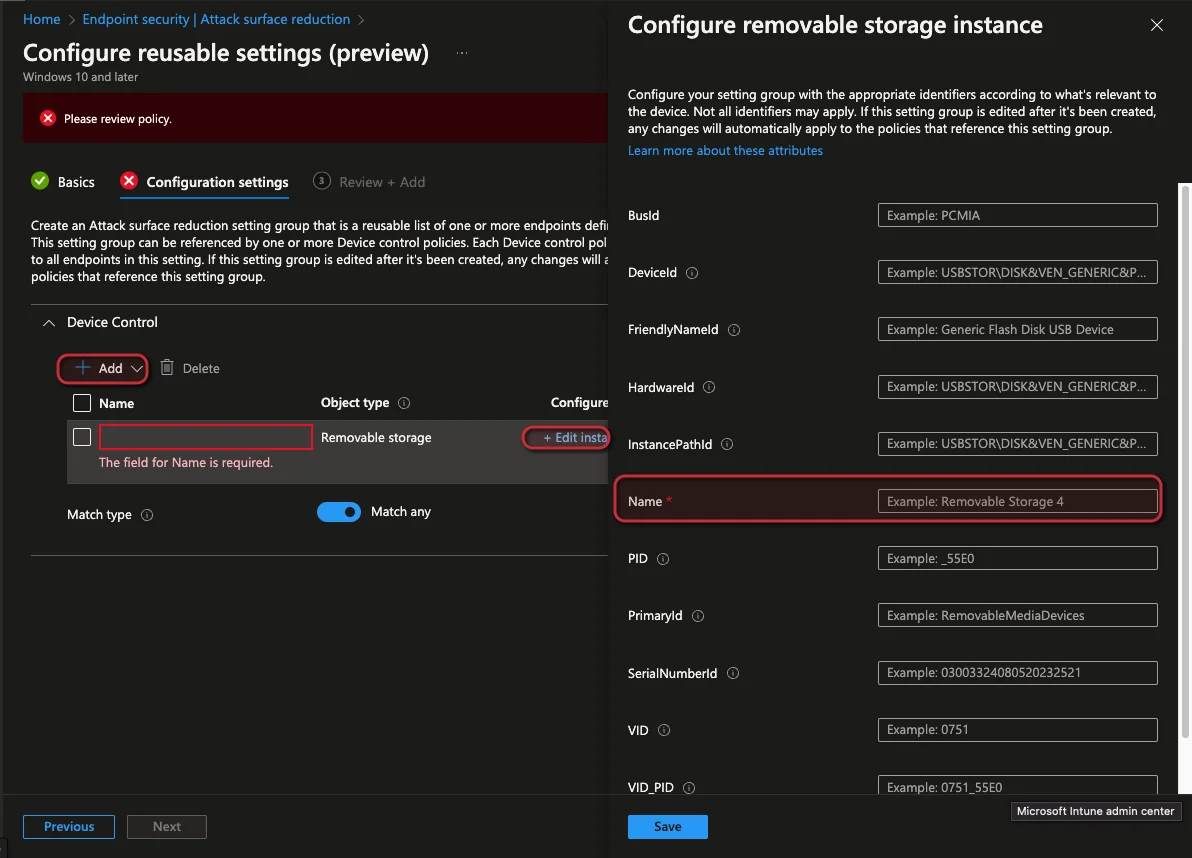
- Click Next and Add
- Go back to the Attack Surface Reduction Policy in the Device Control section
- Click +Set reusable settings and select the previous created setting
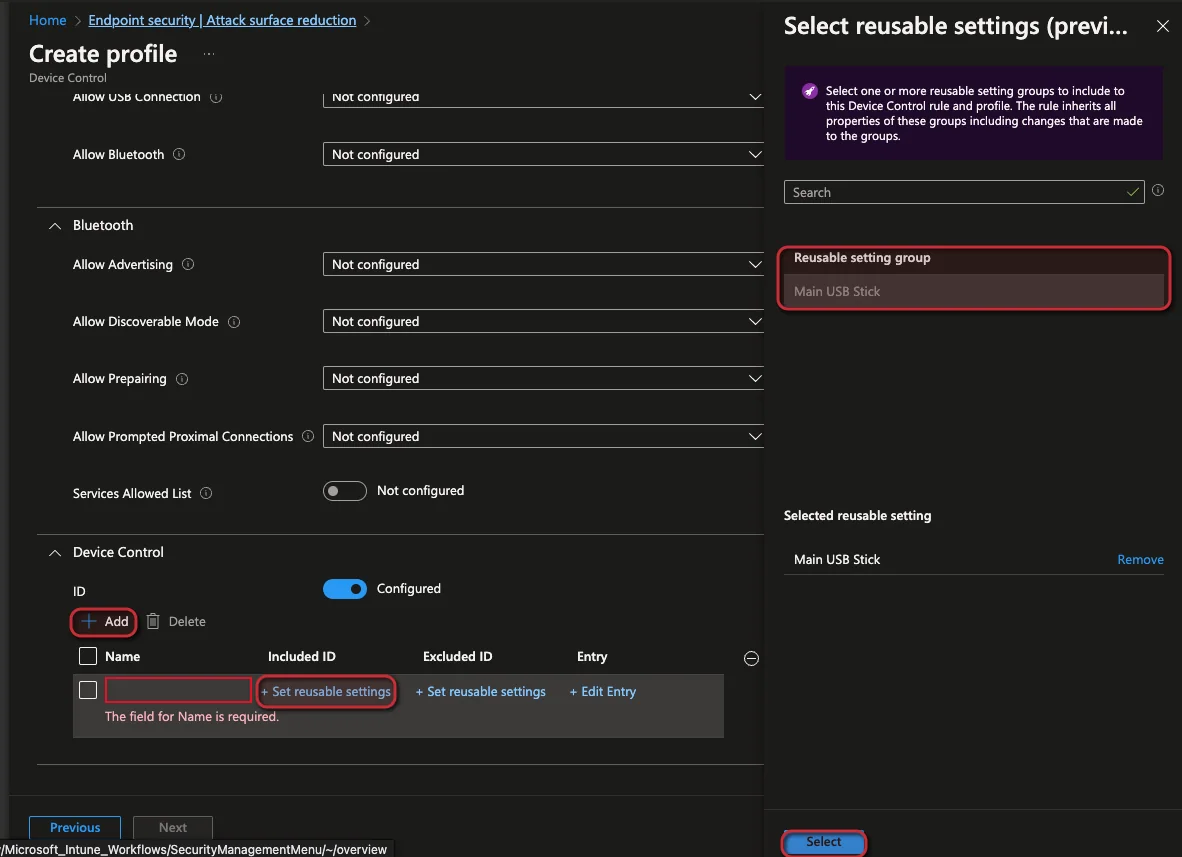
- Click +Edit Entity
- Create an Allow list and specify the Access mask.
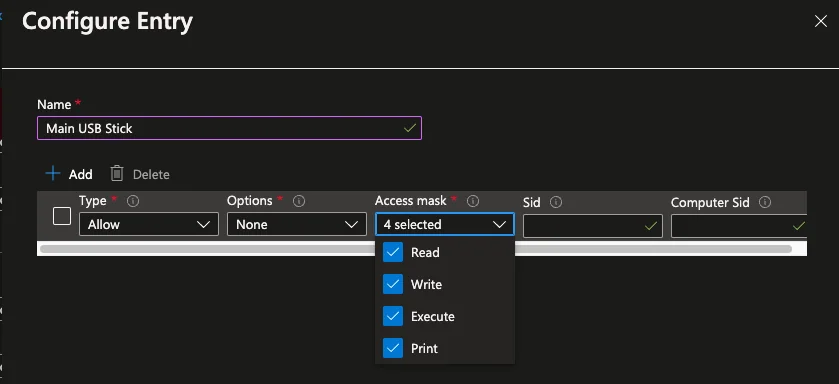
Management of Bluetooth
- Bluetooth peripherals are another important part of managing external devices with Intune. To block Bluetooth, you can set the following setting:
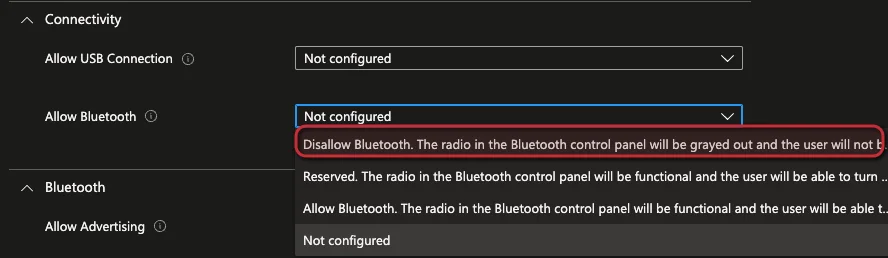
Block Specific device classes
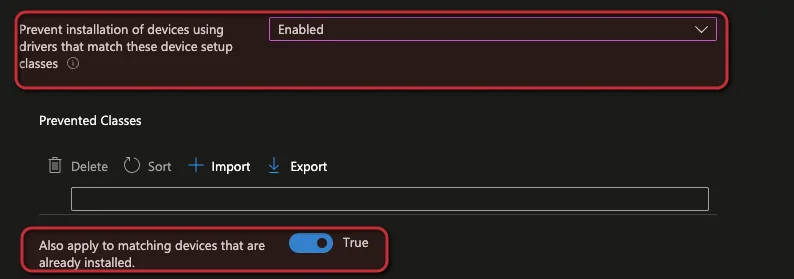
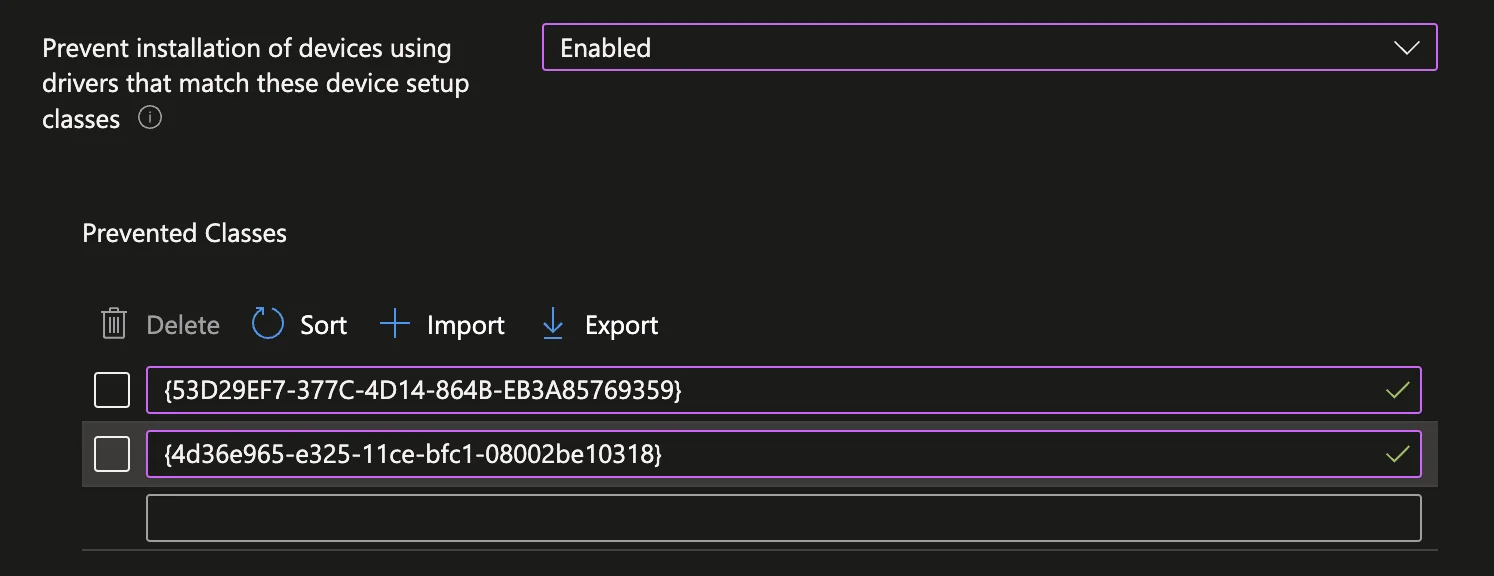
Another scenario when managing external devices with Intune is blocking whole device categories. To block specific device classes like FloppyDisk or SmartCardReader, you can set the following setting:
- Enable the Prevent installation of devices using drivers that match these device setup classes
- Set also the Also apply to matching devices that are already installed option to True
- Open the following documentation to find a list of GUIDs or run the following command
Get-PnpDevice | Select-Object FriendlyName, Class, ClassGUID - Insert the GUIDs in the Text field.
Conclusion: managing external devices with Intune
Managing external devices with Intune gives you granular control over removable storage, Bluetooth, and entire device classes from a single Device Control policy. Start small, test your assignments carefully, and roll out broadly once you are confident. If you want to go deeper into endpoint hardening, check out my other posts on the jannikreinhard.com blog, and keep the Microsoft Learn Device Control overview handy as a reference. With these settings you have a solid foundation for managing external devices with Intune across your fleet.

New posts, straight to your inbox.
Hands-on guides on Intune, AI and Azure.