
Set the Windows 10 background picture
Deploy a corporate Windows desktop background with Intune. Follow the original SharePoint-based example and verify image access and policy behavior.
Centrally controlling the Windows 10 background picture is one of those tiny tasks that produces wildly outsized political conversations in any organization — branding, compliance and end users all have opinions, and Intune gives you several ways to enforce it. This post is the short, opinionated guide I wish I’d had: how to deploy a corporate Windows 10 / 11 background image with Microsoft Intune, when to use the Settings Catalog vs. the older ADMX templates, and how to behave nicely on devices where the user has personalised their wallpaper before enrolment. I’ll also cover the gotchas that don’t appear in docs: image hosting, hi-DPI quirks, and how the policy interacts with Personalization → Background.
With Intune it is very easy to change the Windows 10 background picture across all of your managed devices from a single policy. In this blog I explain step by step how you can do this, and why hosting the image on SharePoint keeps the rollout clean and reliable.
What do you need
All you need is a SharePoint site and the picture you want to set. It is important to know that this only works with Windows 10 Enterprise or Education.
Upload the picture to SharePoint
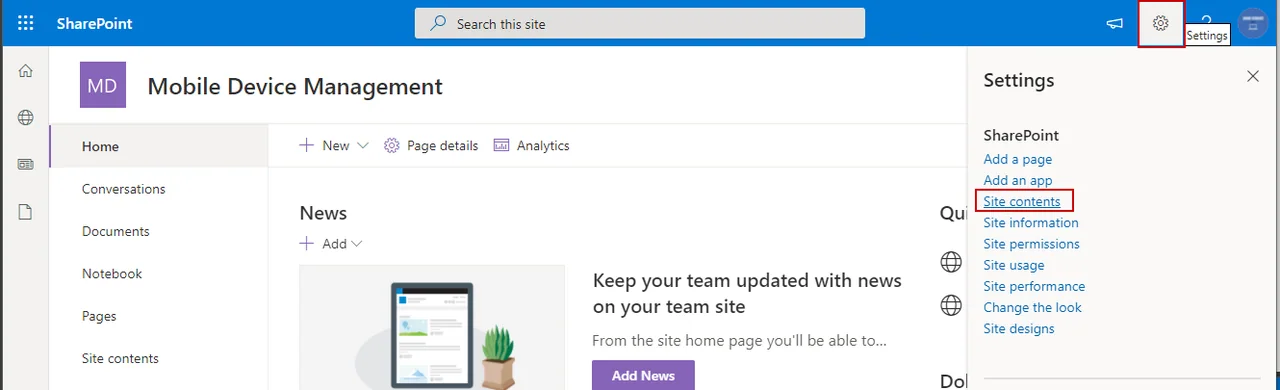
- Click on the gear icon and select site content
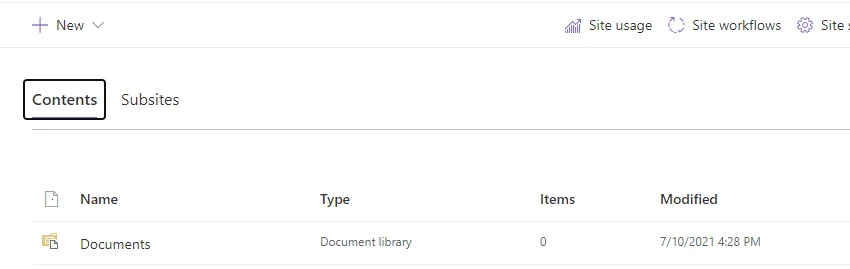
- Select Documents
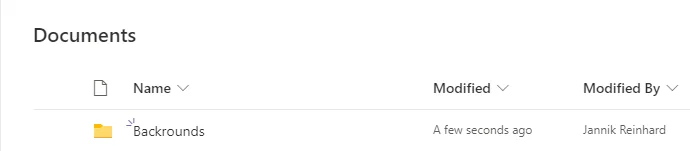
- Create a folder with the name Backgrounds
- Click Upload and select the picture you want to use
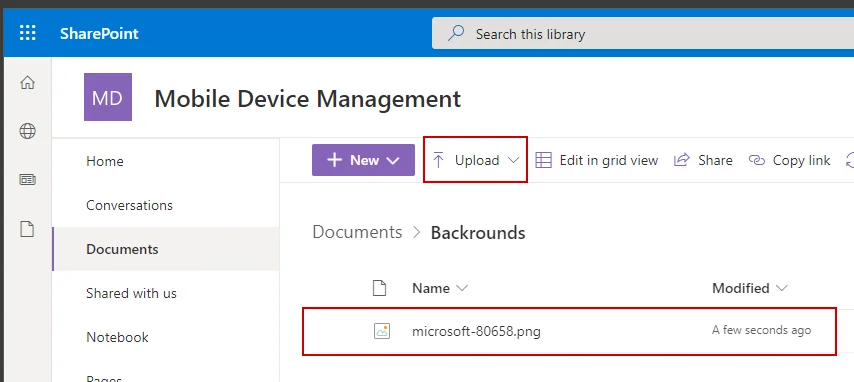
- Check that everyone else except the owners has read-only permissions
Create the policy to set the Windows 10 background picture
- Navigate in the Intune admin center to Devices-> Configuration profiles
- Click Create profile
- Select Windows 10 and later as Platform and Templates as Profile type
- Select Device restrictions
- Click Next
- Enter a name
- Click Next
- Go back to your SharePoint and copy the link
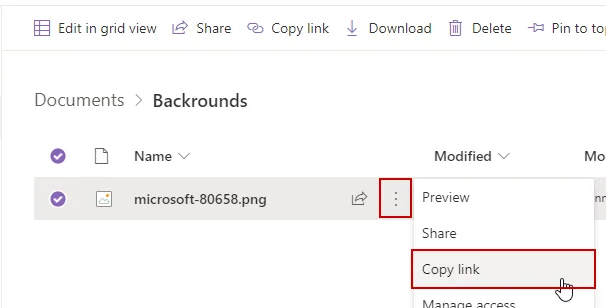
- Select Personalization and enter the URL from the SharePoint
- Click Next
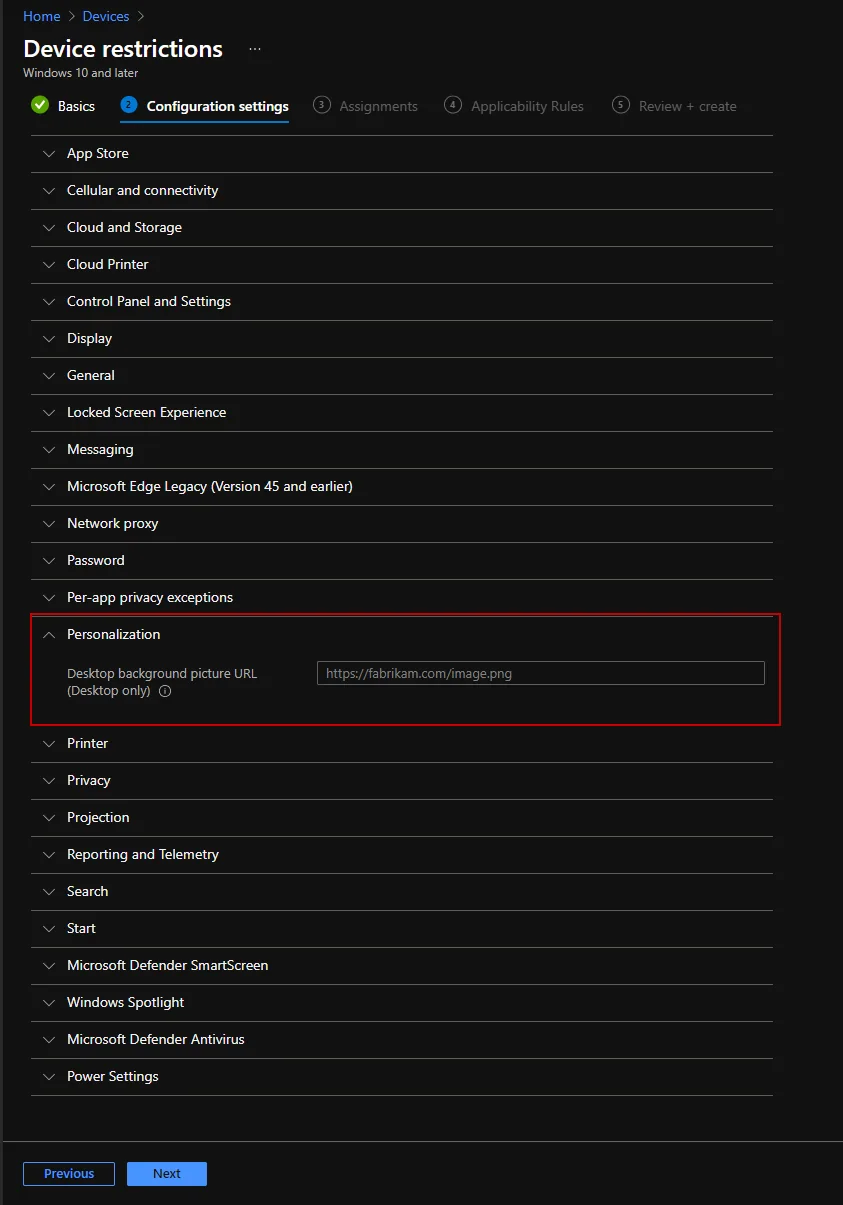
- Assign the profile to a group
- Click Next -> Next -> Create
That’s it — the Windows 10 background picture is now enforced on every device in the assigned group. If you prefer the modern approach, you can configure the same Desktop wallpaper setting through the Intune Settings Catalog instead of the Device restrictions template, which Microsoft now recommends for new profiles.
It’s so easy to change the background image! If you want to go further, check my other guide on Intune device configuration for related automation ideas.
Verify it actually applied
Don’t assume the policy worked just because Intune reports “Succeeded.” The wallpaper only lands after the device runs an MDM sync and successfully downloads the image, so test on a real enrolled device before you widen the assignment. The fastest way to confirm is to open Settings → Personalization → Background on the target machine: when the policy is in effect, the options are greyed out and a message tells the user the setting is managed by their organization.
If the wallpaper is still the user’s old choice, force a sync from Settings → Accounts → Access work or school → Info → Sync, then check the registry under HKLM\SOFTWARE\Microsoft\Windows\CurrentVersion\PolicyManager to see whether the DesktopImageUrl value arrived. Nine times out of ten a “missing” wallpaper is simply a device that hasn’t checked in yet, or a SharePoint link that requires sign-in instead of returning the file anonymously to the local System account.
Stay healthy, Cheers
Jannik
Considerations and gotchas
A few things I learned before rolling out the Windows 10 background picture broadly:
- Image hosting: Don’t drop a 30 MB raw photo on SharePoint. Use lossless WebP so first-login users aren’t waiting on the wallpaper while Wi-Fi negotiates.
- Hi-DPI and multi-monitor: A 1920×1080 asset looks soft once Windows scales it on a 4K panel or ultrawide; ship a 3840×2160 master and let the OS downscale.
- Personalization vs. policy: This only enforces the Desktop wallpaper. Lock Screen is a separate setting, and any user-overridden wallpaper is wiped on next sync, which can surprise pilot users.
- Adoption and rollback: Pilot to one ring first, and version the filename (bg-2025-q2.webp) so a rollback is a profile edit, not a SharePoint cleanup.
Get those four points right and the Windows 10 background picture rollout will stay invisible to users — which, for wallpaper, is exactly the goal.

New posts, straight to your inbox.
Hands-on guides on Intune, AI and Azure.