
Microsoft Intune Policy Sets: Group and Assign Policies
Use Intune policy sets to group and assign supported apps and profiles. Review the configuration workflow and the limits of managing assignments together.
Many companies have not only a standard service, where not all PCs have the same configuration profiles, standard apps,… have. Specialized services are often needed to meet the needs of different business areas. You can copy the configuration profiles and give them the name of the service so you know which policy belongs to which service, or you can use policy sets to build your own services. In this guide you will learn exactly how this feature works, what it can contain, and how to assign them so your Intune environment stays clean and predictable.
What are policy sets?
Policy sets are a collection of different management objects and apps that can be grouped and assigned together; if you later need to troubleshoot what reaches a specific endpoint, you can also get assignments of a device via PowerShell. The policy set is a reference to different objects you added. This feature was introduced at the end of 2019. More information can be found in the Microsoft documentation.
Instead of assigning each app, compliance policy, and configuration profile separately to a group, policy sets let you bundle everything into a single logical unit and assign it once. When you add a new object to a policy set, it is automatically delivered to every group the set is assigned to. This makes them a powerful tool for keeping large tenants consistent and reducing the manual work that usually comes with onboarding a new service.
What can be included in a policy set collection?
These following objects can be added to policy sets:
- Apps
- App configuration policies
- App protection policies
- Device configuration profiles
- Device compliance policies
- Device type restrictions
- Windows autopilot deployment profiles
- Enrollment status page
Because a single set can hold this many object types at once, they are ideal for describing a complete service in a single place. Think of a “Finance” service that needs specific apps, a compliance policy, and a configuration profile — all of those can live inside one policy set instead of being scattered across the portal.
Where can I find the policy sets
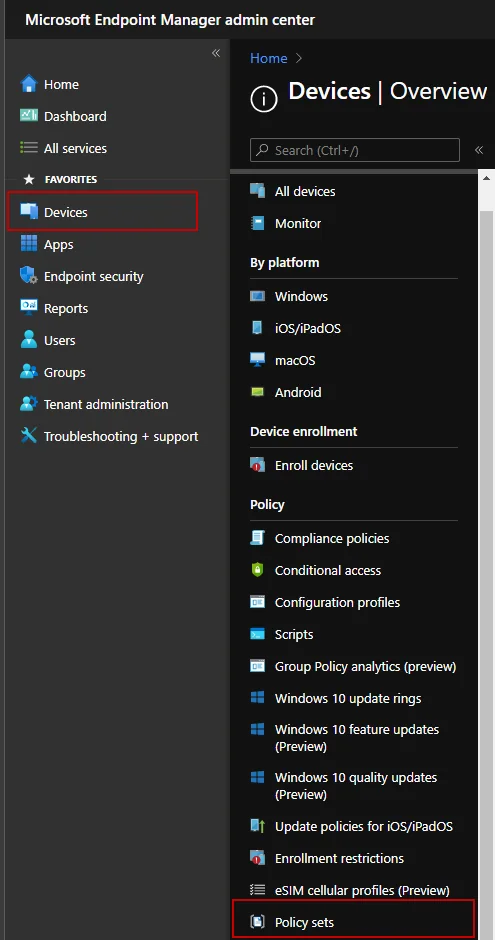
How can I create policy sets in Intune
- Click on Policy sets -> Policy sets
- Click Create
- Enter a name
A wizard guides you through the next steps. For this you have the following selection:
Application Management
- Apps
- App configuration policies
- App protection policies
Device Management — for example compliance related configurations like a custom compliance script.
- Device configuration profiles
- Device compliance policies
Device enrollment
-
Device type restrictions
-
Windows autopilot deployment profiles
-
Enrollment status pages
-
After that you can still assign the policy set. Unfortunately no assignment filters work here.
-
Click Next: Review + create
-
Click Create
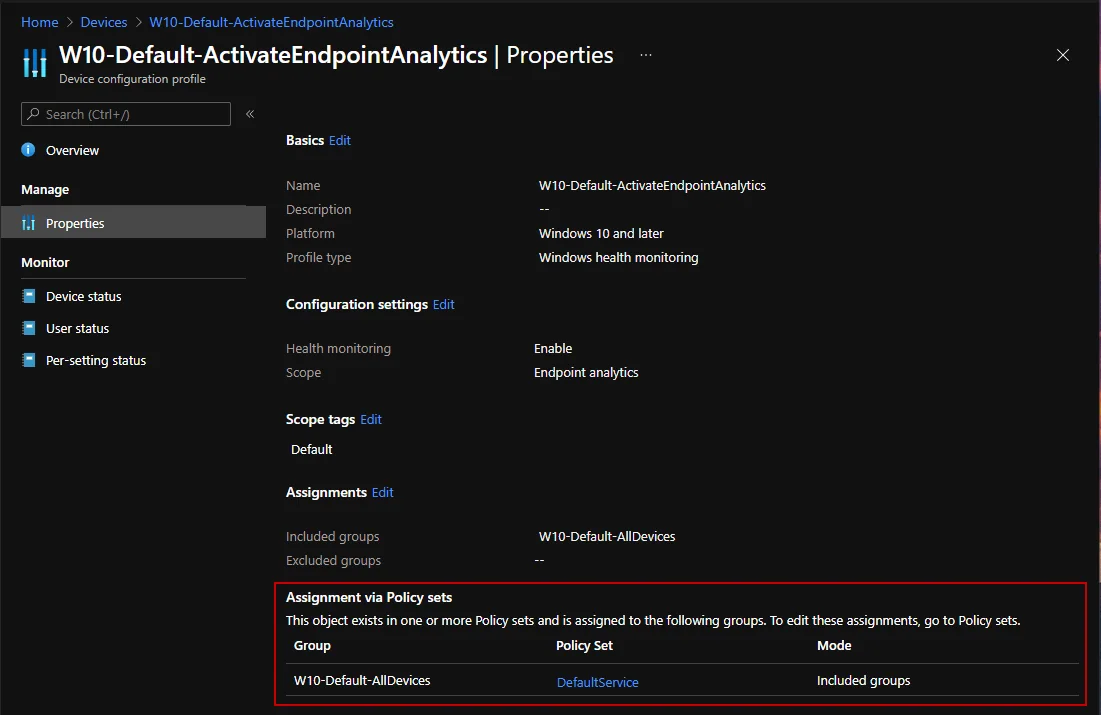
By creating the policy set, a new section “Assignment via policy sets” appears in the configuration profile. These assignments can also be combined with smart device groups for wave deployment to roll out configurations step by step.
Best practices and limitations of policy sets
Before you roll policy sets out across your whole tenant, keep a few things in mind. First, they do not support assignment filters, so plan your group strategy carefully. Second, an object can be part of multiple sets, which is great for reuse but can make troubleshooting harder if you are not documenting which set owns which object. A good practice is to use a clear naming convention, for example prefixing every policy set with the service or department name so anyone on the team can recognize its purpose at a glance.
It also helps to treat each set as the single source of truth for a service. When a new app or compliance policy is required, add it to the relevant policy set rather than assigning it directly to a group. That way your assignments stay tidy, audits are easier, and new endpoints automatically receive the complete service configuration.
Conclusion
Policy sets are a cool feature to get more order in the assignments. They help, for example, to create new device classes or to group the services of different departments such as Security, Office, or OS configurations. If you manage a growing Intune environment, they are one of the simplest ways to keep your assignments consistent, repeatable, and easy to maintain.
Stay healthy, Cheers
Jannik

New posts, straight to your inbox.
Hands-on guides on Intune, AI and Azure.