
Map a Network Drive with Intune
Map a network drive using PowerShell and Microsoft Intune. Review user context, share permissions and connectivity before assigning the script.
Map a network drive with Intune explains how to deliver a network-drive mapping from Microsoft Intune so users receive the correct shared drive without manual setup. The guide focuses on the practical Intune deployment steps, script behavior, and configuration details needed to map a network drive with Intune in a reliable way.
“Map a network drive with Intune” sounds like a 2009 problem, and yet — between hybrid file shares, M&A onboarding, line-of-business apps that hardcode UNC paths, and users who genuinely prefer drive letters to SharePoint URLs — it shows up in almost every modern endpoint project. Microsoft does not give you a clean GUI option for it, which is why a tiny PowerShell script delivered through Intune is still the most reliable answer. This post shows the exact pattern I deploy in production, including credential handling against on-prem AD, Hybrid Microsoft Entra ID vs Entra-only differences, and how to retire the mapping cleanly when the file share goes away.
In this blog I will show you a very simple way how to map a network drive with Intune.
Why map a network drive with Intune
Before we map a network drive with Intune, it helps to know why the script approach wins. Group Policy drive maps assume a domain-joined device with line of sight to a domain controller, which modern cloud-managed endpoints often do not have. With Intune you target Entra ID groups, deploy at scale, and report on success — no logon scripts or GPO required. If you are new to packaging logic like this, my other Intune guides walk through the same deployment model used here.
Create the PowerShell script
In my Git repository I have put a script to map a network drive. This is only a one-liner. You still have to enter the network address here. The official New-PSDrive documentation on Microsoft Learn covers every parameter in detail.
New-PSDrive -Name "K" -PSProvider FileSystem -Root "ADDRESSOFTHEFILESHARE" -PersistTwo parameters here matter more than they look. -Persist writes the mapping into the user’s profile so it survives a reboot and shows up in File Explorer under “This PC”, exactly the experience users expect from a real drive letter. The drive must also be created in the user context, not as SYSTEM, otherwise the letter is created in a session no one ever sees – which is why the Intune setting we pick in the next step is so important. If you need to point several teams at different shares, duplicate the one-liner with a new drive letter and root path per group rather than branching inside a single script.
Add the Script in Intune
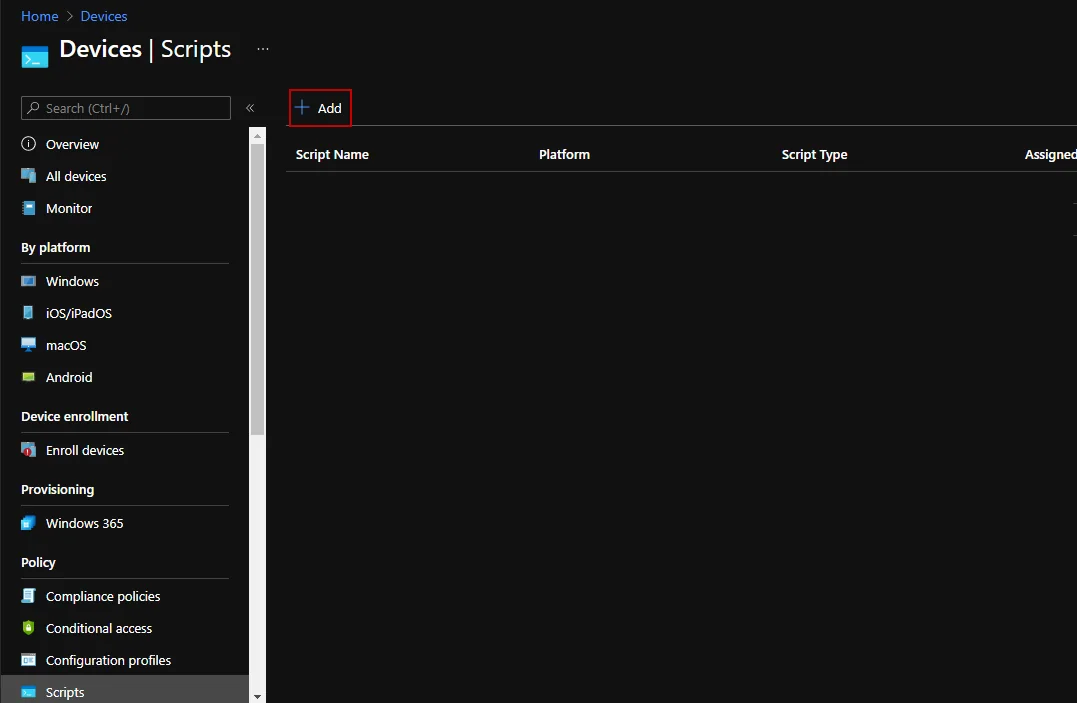
- Now we just need to deploy the scripts via Intune. To do this, we open the Intune admin center and navigate to Devices -> Scripts
- Click ADD
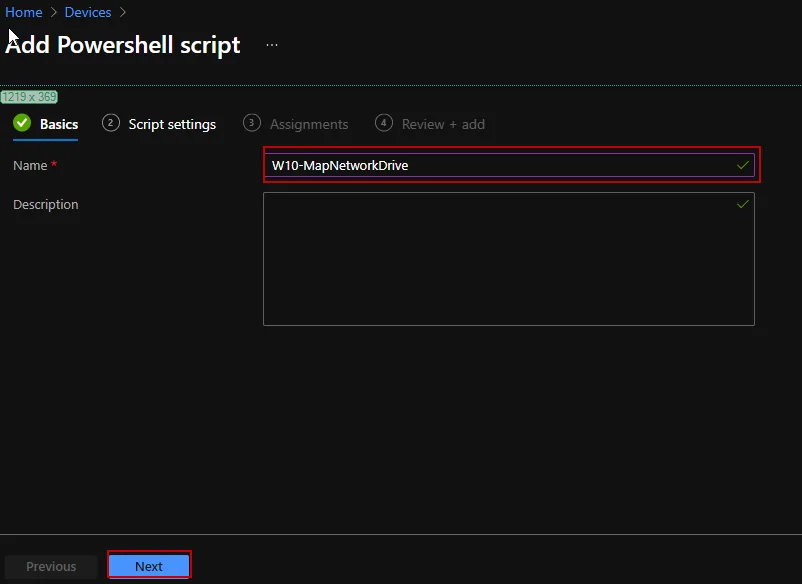
- Enter a name
- Click Next
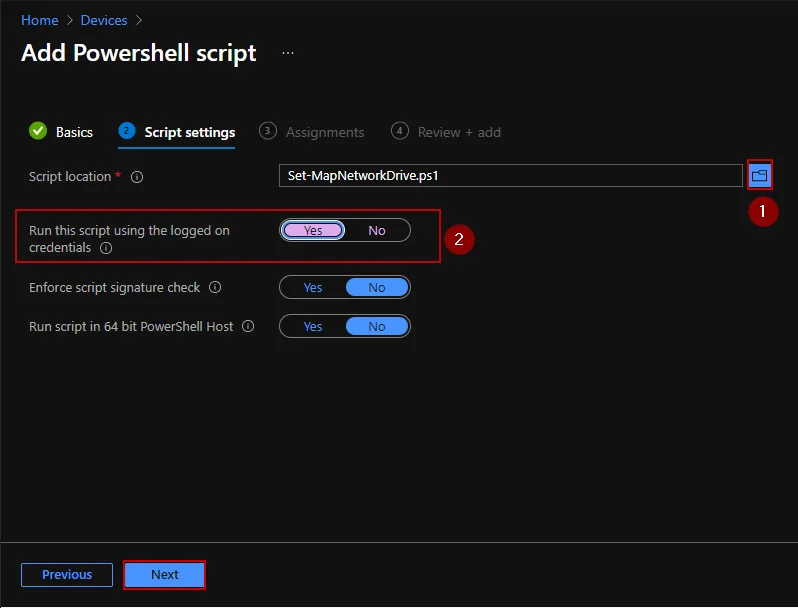
- Upload the script
- Select Yes at “Run this script using the logged on credentials“
- Click Next
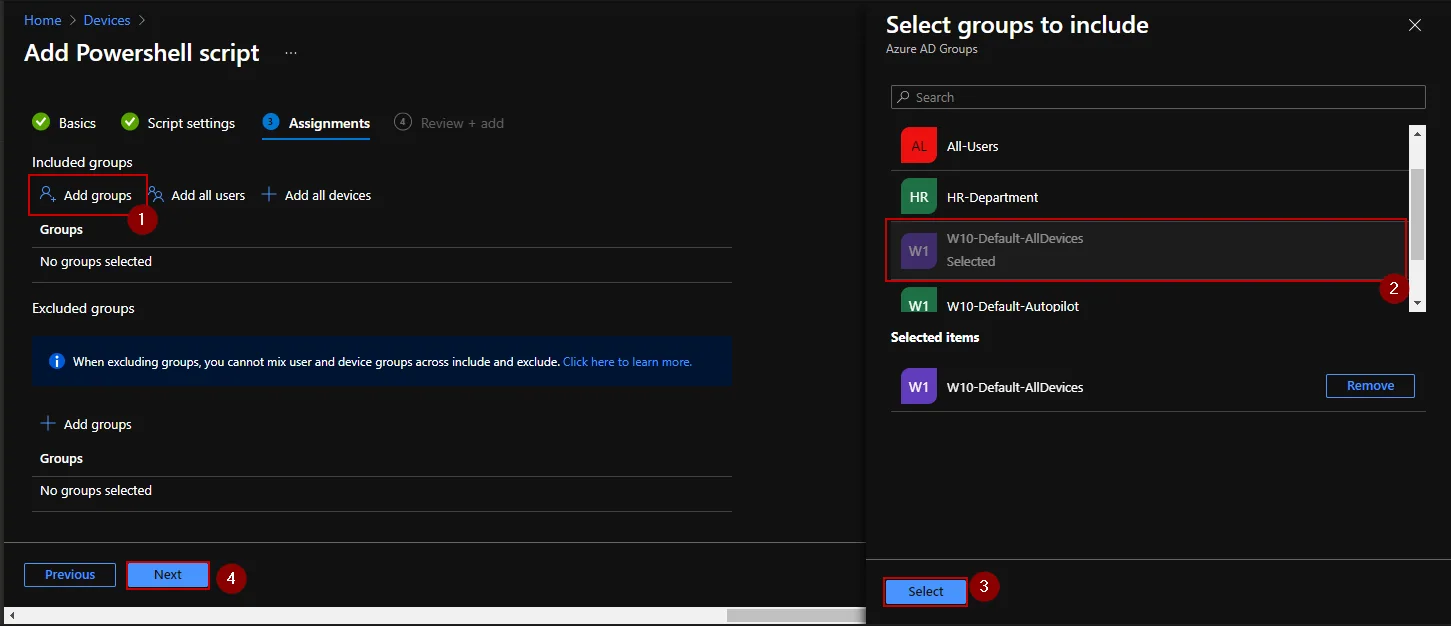
- Click Add Groups
- Select a Group and click Select
- Click Next
- Click Add
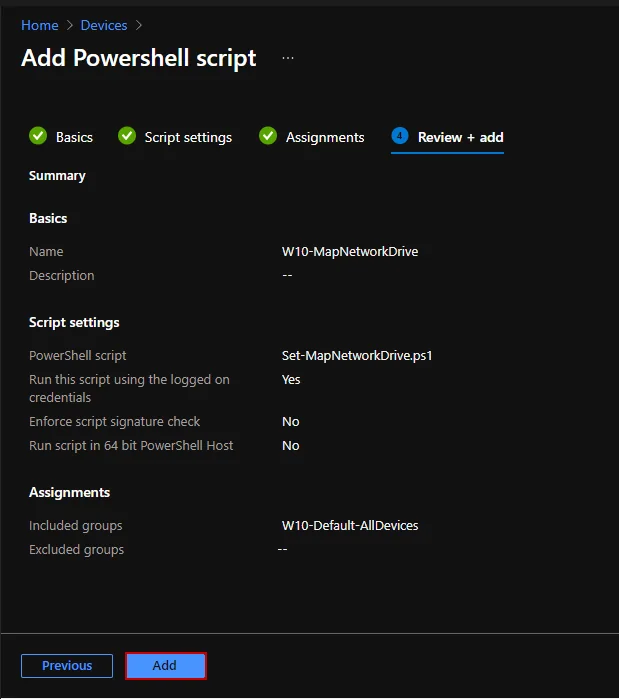
That is an easy and fast way how you can map a network drive with Intune.
Stay healthy, Cheers
Jannik
Common pitfalls when you map a network drive with Intune
On Hybrid Azure AD joined devices the user’s Kerberos ticket is available, so UNC paths authenticate transparently. On Entra-only devices you typically need Azure AD Kerberos (Cloud Kerberos Trust) configured against your on-prem domain controllers, otherwise the drive prompts for credentials or fails silently at logon.
If your shares only host user documents or team folders, consider whether OneDrive Known Folder Move or a synced SharePoint library is the better long-term answer. UNC drives still make sense for legacy LOB apps or DFS namespaces where you rely on site-aware referrals – just resolve the DFS root, not a specific server.
Audit failures via %ProgramData%\Microsoft\IntuneManagementExtension\Logs\AgentExecutor.log to catch broken credentials, blocked ports, or DFS resolution issues early. With these checks in place you can confidently map a network drive with Intune across both hybrid and cloud-only fleets.