When you connect Log Analytics with Intune, also think about how you want to query and retain the data later. A workspace can quickly become noisy if every test script writes into the same tables without a naming convention. For repeatable blog examples, use clear custom table names, keep a note of the data source, and test one sample record before enabling a larger automation workflow.
Cost control is another practical reason to set up the workspace deliberately. Retention, ingestion volume, and diagnostic settings all influence the monthly bill. For demos, keep the data small and delete unused resources after the test. For a reusable lab, define a retention period that is long enough for troubleshooting but short enough to avoid storing stale endpoint data indefinitely.
For Log Analytics scenarios, the workspace is the central location where endpoint, automation, and reporting data can be collected and queried. Many Intune articles use it to store script output, device-health information, or historical data that is not easy to analyze directly in the Intune admin center. Setting up the workspace correctly at the beginning prevents confusing query results later.
After the workspace is created, validate the region, retention settings, and access permissions. If you are following a guide that sends data from Logic Apps, Azure Automation, or a PowerShell script, confirm that the identity used by that workflow has only the required permissions. For lab work, keep the configuration simple; for production, align it with your logging, privacy, and cost-management rules.
The most common mistake is copying a workspace ID, primary key, or resource name from the wrong tenant or subscription. Keep these details in a short setup note while you work through the article. That makes it much faster to verify whether an Intune report is failing because of the query, the identity, or the destination workspace.
Azure setup instructions cover the shared cloud prerequisites that many Intune automation and reporting posts depend on. This section explains the purpose of a Log Analytics workspace, why the Azure portal is used during deployment, and how these baseline resources connect to endpoint-management reporting scenarios.
When a blog post uses Azure Monitor, Logic Apps, Microsoft Graph, or an Intune reporting workflow, the first blocker is often not the script itself but the surrounding Azure resource configuration. Use these Azure instructions as a checklist: create the workspace, confirm the correct subscription and resource group, keep naming consistent, and document the workspace details before moving back to the article.
For lab environments, I recommend keeping these resources separate from production and using clear names that include the tenant or project. That makes troubleshooting easier later, especially when multiple Intune reports, automation jobs, or device-management experiments write data into the same Azure environment.
Azure
Log Analytics
Deploy an log analytics workspace
- Log in to the Azure portal
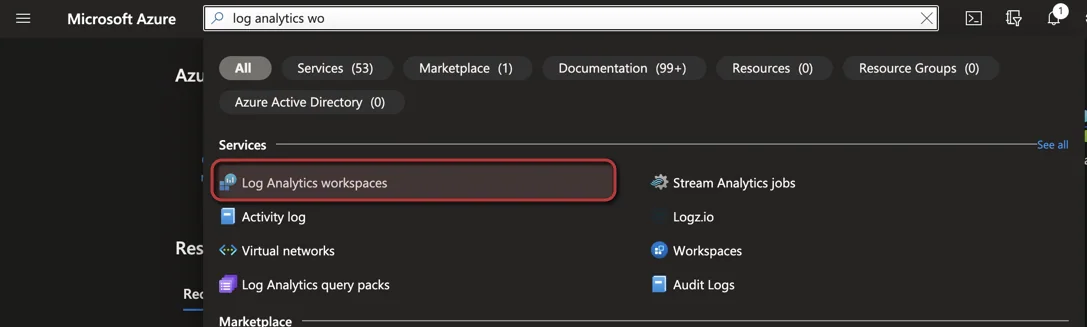
- Search for Log Analytics and select the Log Analytics workspace service
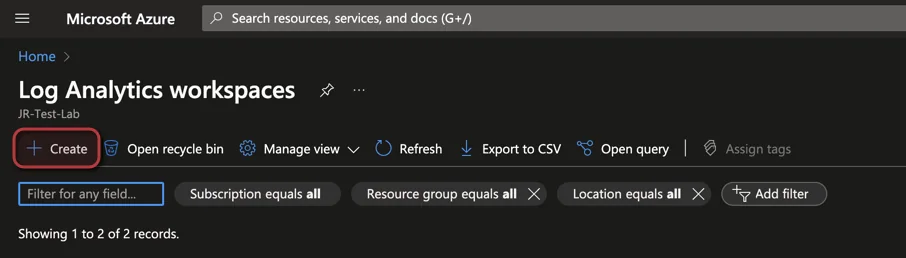
- Click + Create
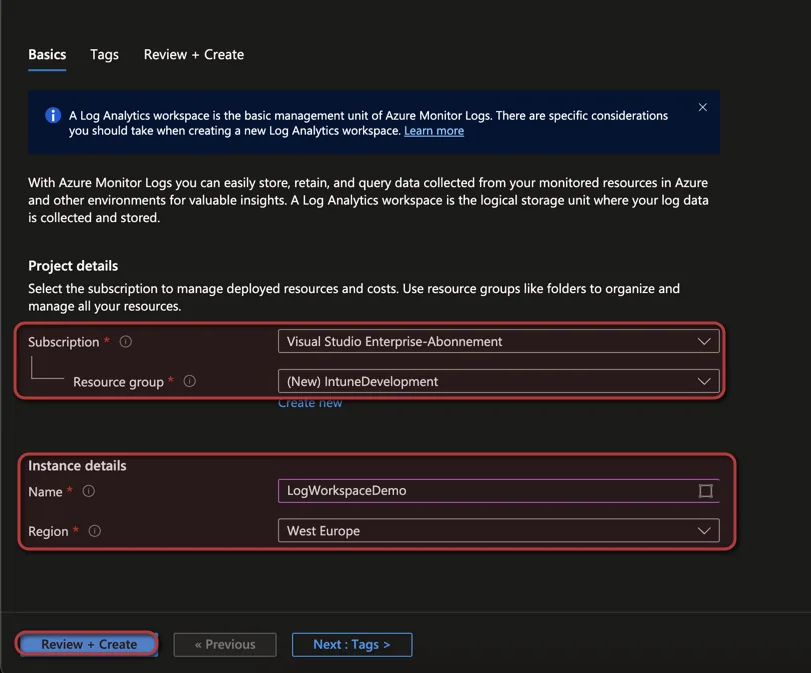
- Select the Subscription and a Resource group or create a new one
- Enter an Name for the Workspace and select a Region
- Click Review + Create
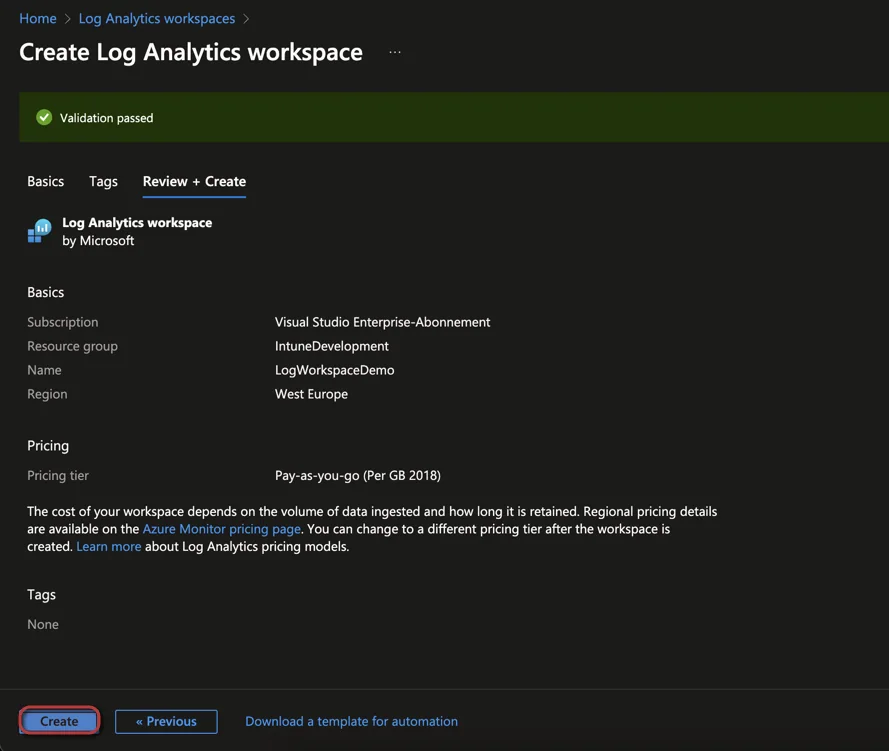
- Click Create