
For AI-based scenarios, keep the first test small and predictable. Send a short prompt, confirm that the deployed model responds, and only then connect the service to an Intune log, policy export, or Microsoft Graph workflow. This makes troubleshooting easier because you can separate model access, authentication, prompt design, and endpoint-management data handling into clear steps.
For Azure OpenAI and AI-assisted Intune tooling, the deployment details matter as much as the code. The model deployment name, region, API version, and quota limits decide whether a script or agent can run reliably. If you are testing multiple AI features, use a clear naming scheme that separates experiments from workloads you might keep long term.
Also consider what data the workflow will send to the model. Intune logs, policy names, device details, and user-related metadata can contain sensitive information. In a lab, use synthetic or low-risk data wherever possible. In a real tenant, review the data path before connecting automation to Azure OpenAI so the solution matches your governance and security expectations.
Once the resource is ready, test it with a minimal request before wiring it into a larger guide. A small validation step helps separate Azure OpenAI access issues from later problems in PowerShell, Logic Apps, Microsoft Graph permissions, or the Intune-specific workflow.
Azure OpenAI Service instructions are included for readers who follow the AI, Microsoft Graph, and Intune automation examples on this blog. Azure OpenAI is often used as the reasoning or summarization layer behind tools that explain policies, analyze logs, or turn endpoint-management data into more useful output.
Before deploying Azure OpenAI, confirm that the subscription has access to the required model region and that the workload has a clear data boundary. For Intune scenarios, avoid sending sensitive tenant or user data into a test deployment unless the governance requirements are understood. A clean lab setup with explicit model, region, and resource naming prevents confusion when multiple AI experiments exist in the same tenant.
Once the service is available, document the endpoint, deployment name, model version, and intended use case. Those values are usually referenced later by scripts, Logic Apps, web apps, or agents that connect Intune data with an AI-powered explanation or analysis step.
Azure OpenAI Service
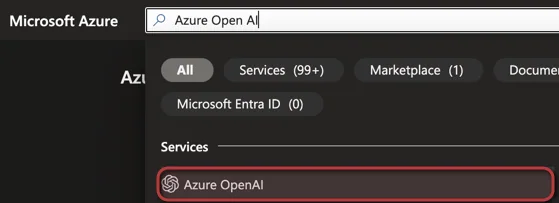
To do deploy the Azure OpenAI service, simply log in to the Azure Portal at portal.azure.com and search for 'Azure OpenAI' to proceed with the setup.
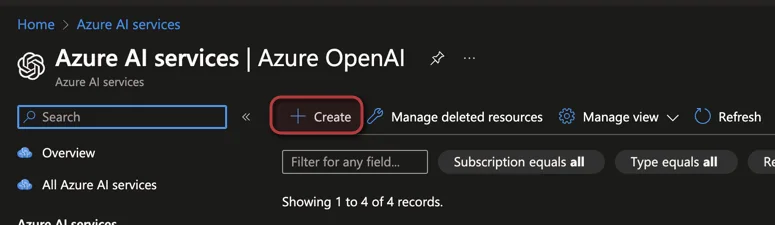
The next step in the deployment process is to click +Create to create a new Instance.
In the resource creation wizard within the Azure Portal, you'll need to select the specific subscription that you previously enabled for Azure OpenAI Services. Also, choose the resource group where you want to deploy the resource, as well as the region. Keep in mind that different models may be available in various regions, so choose accordingly. Then, enter a name for your resource. For the pricing tier, select 'Standard S0'. After these selections, click 'Next' and follow the remaining steps to complete the deployment process.