
Storage Account instructions explain the Azure storage foundation used by many automation and reporting examples. A storage account is often needed for exports, runbook artifacts, intermediate files, or long-running workflows that need a durable location outside the local device.
Before creating the resource, decide whether the storage account belongs to a disposable lab, a reusable demo tenant, or a production-adjacent reporting setup. That decision affects naming, region, access model, lifecycle rules, and how carefully you should restrict public access. For most Intune lab workflows, a private storage account in the same region as the rest of the Azure resources is the safest default.
After deployment, record the storage account name, container names, and permission model used by the related automation. If a later guide uploads scripts, reports, or exported Intune data, these details make it much easier to validate that the right workflow is writing to the right place.
Storage Account
- Log in to the Azure portal
- Search for Storage Account and select the Storage accounts service

- Click on + Create on the top
- Select the Subscription, the resource group, region and enter a name for the account.
- Click Review + create and create
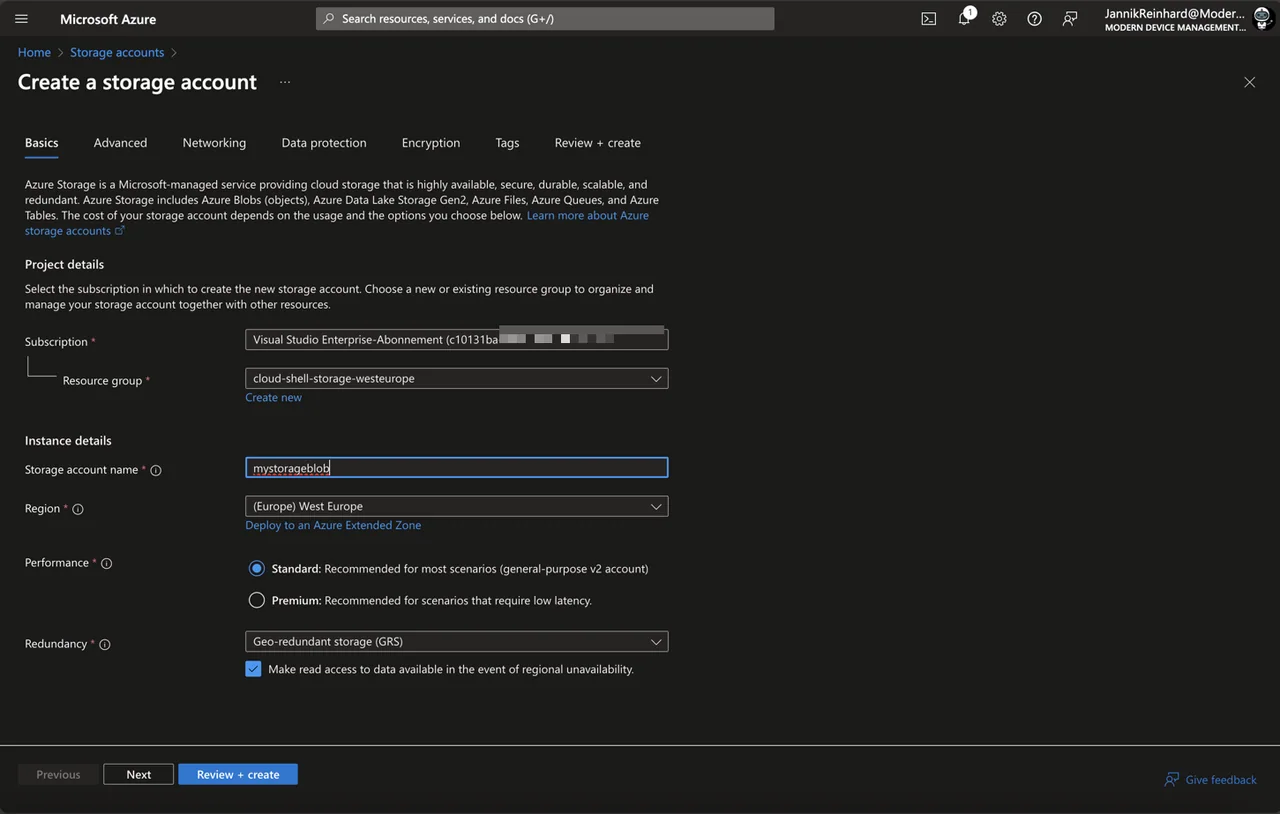
You should also check out all the other setting. (e.g. for a production environment it is recommended to put the storage in a network, enable encryption via customer managed keys as well as configure the data protection.
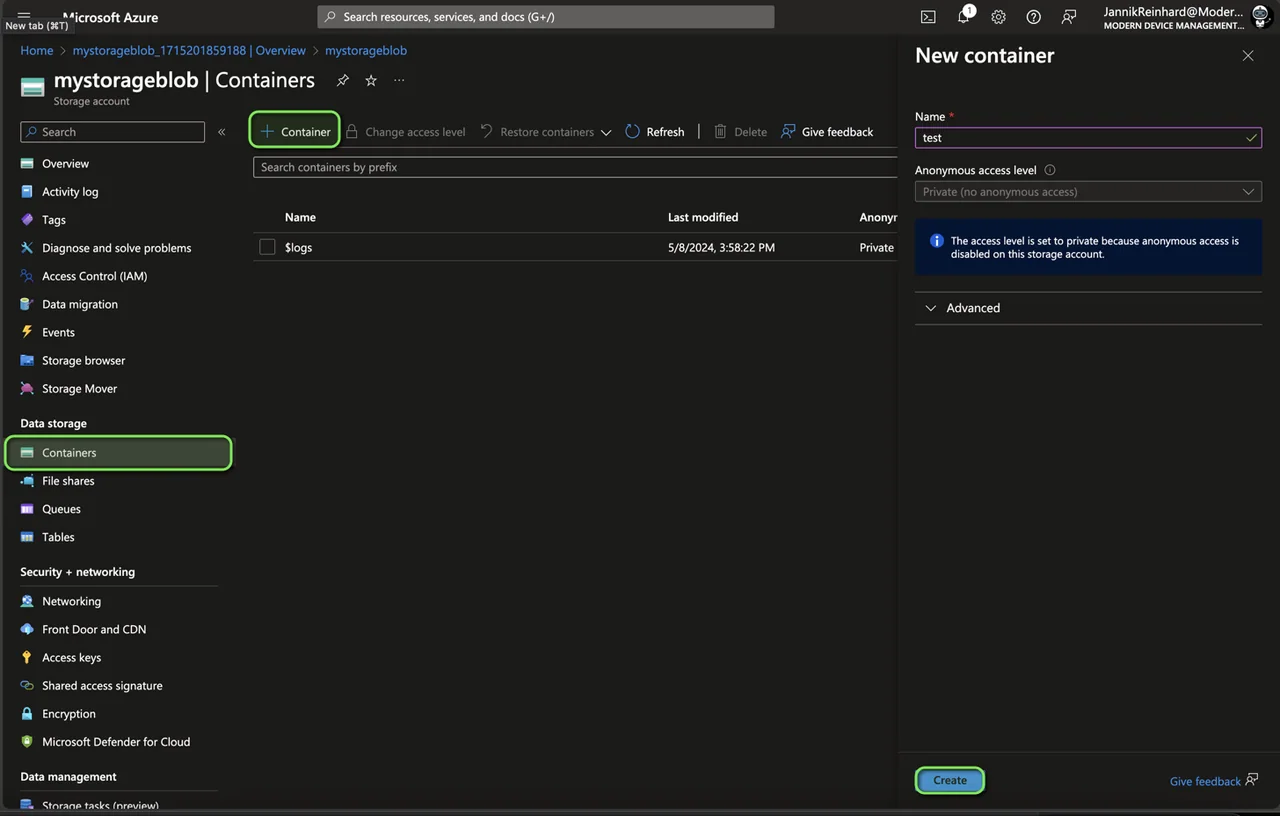
To create a container, click on + Container and enter a name
Choosing the Right Performance Tier and Redundancy
When you create a storage account that will host Win32 app payloads, scripts, custom Intune compliance frameworks, or remediation packages, the configuration choices you make at creation time are difficult to change later. The Standard performance tier with general-purpose v2 (GPv2) is the right default for almost every Intune-related workload because it offers the lowest cost per GB, full feature parity with lifecycle management, and access to the cool and archive access tiers. Premium block blob accounts only make sense for workloads needing single-digit-millisecond read latency, which is rarely a requirement for a one-shot device download.
For redundancy, locally-redundant storage (LRS) keeps three synchronous copies inside a single datacenter and is the cheapest option. Zone-redundant storage (ZRS) spreads copies across three availability zones in the same region and is recommended whenever an outage of a single datacenter would block device enrollments or app installs. Geo-redundant storage (GRS or GZRS) replicates asynchronously to a paired region and is appropriate for compliance baselines or signed installer payloads you cannot afford to re-upload after a regional disaster.
Hardening the Account Before First Use
Before placing any container in service, disable public blob access at the account level, enforce TLS 1.2 or higher as the minimum transport version, and turn off shared key authorization in favor of Microsoft Entra ID identities wherever your tooling supports it. The combination of these three settings eliminates the most common exfiltration patterns – anonymous container enumeration, downgraded-cipher man-in-the-middle attacks, and leaked account keys posted to public repositories.
Enable soft delete for blobs and containers with a 14- to 30-day retention window, and turn on blob versioning so that an accidental overwrite of a signed MSI or a remediation script can be rolled back without restoring from a separate backup. For payloads that are referenced from Intune assignment URLs, also enable change feed so you have an immutable audit trail of every PUT and DELETE operation – this is invaluable when investigating why a device suddenly stopped receiving an expected install.
Granting Access to Intune and Devices
Devices managed by Intune do not authenticate to Azure Storage with a corporate identity. The two practical options are time-bound user delegation SAS tokens generated by an Azure Function or Logic App at deployment time, or anonymous read access on a tightly scoped container that contains only non-sensitive, signed payloads. Always prefer the SAS approach for anything proprietary, set the SAS lifetime to the shortest interval that still allows slow links to finish the download, and restrict the token to the read permission and a specific IP range when devices sit behind a known egress proxy.