
How to Enroll an Ubuntu Device in Intune
Learn how to enroll a Ubuntu device in Intune with this easy step-by-step guide: install the app, sign in, and create a compliance policy fast.
2026 status update: Intune for Linux now supports additional management capabilities, including custom Bash scripts. The enrollment flow below documents the product state when this article was published. Current documentation
Since a few weeks there is a new icon in the Intune console and this is linux. The linux support is a very long awaited feature and there was good feedback from the community. Currently the feature set is still a bit limited, there is currently only the possibility to determine the compliance of the devices and apply conditional access policies.
But this is just the beginning I am sure that in the next months we will see more and more features and also config profiles, updates,… for Linux. But let’s take a look at how to enroll a Ubuntu device in Intune step by step. In this guide you will learn exactly how to enroll a Ubuntu device in Intune, from installing the OS to creating a compliance policy.
Why does this matter in practice? Even though Linux config profiles are not available yet, the compliance and Conditional Access support already lets you treat Ubuntu workstations like any other managed endpoint. That means a developer laptop running Ubuntu can be required to have disk encryption and a minimum OS version before it is allowed to reach Microsoft 365, Azure, or your internal apps. For mixed fleets this closes a real gap, because Linux machines used to sit completely outside your conditional access perimeter.
Before you can enroll a Ubuntu device in Intune, make sure the following prerequisites are in place. These requirements keep the enrollment smooth and supported by Microsoft.
Prerequisites
- Ubuntu Desktop 22.04 or 20.04 LTS (With GNOME desktop environment)
- MS recommendation: Enable disk encryption during the setup (It is easier to enable this directly during the setup)
- Microsoft Edge version >=102.X (To validate CA by accessing company resources)
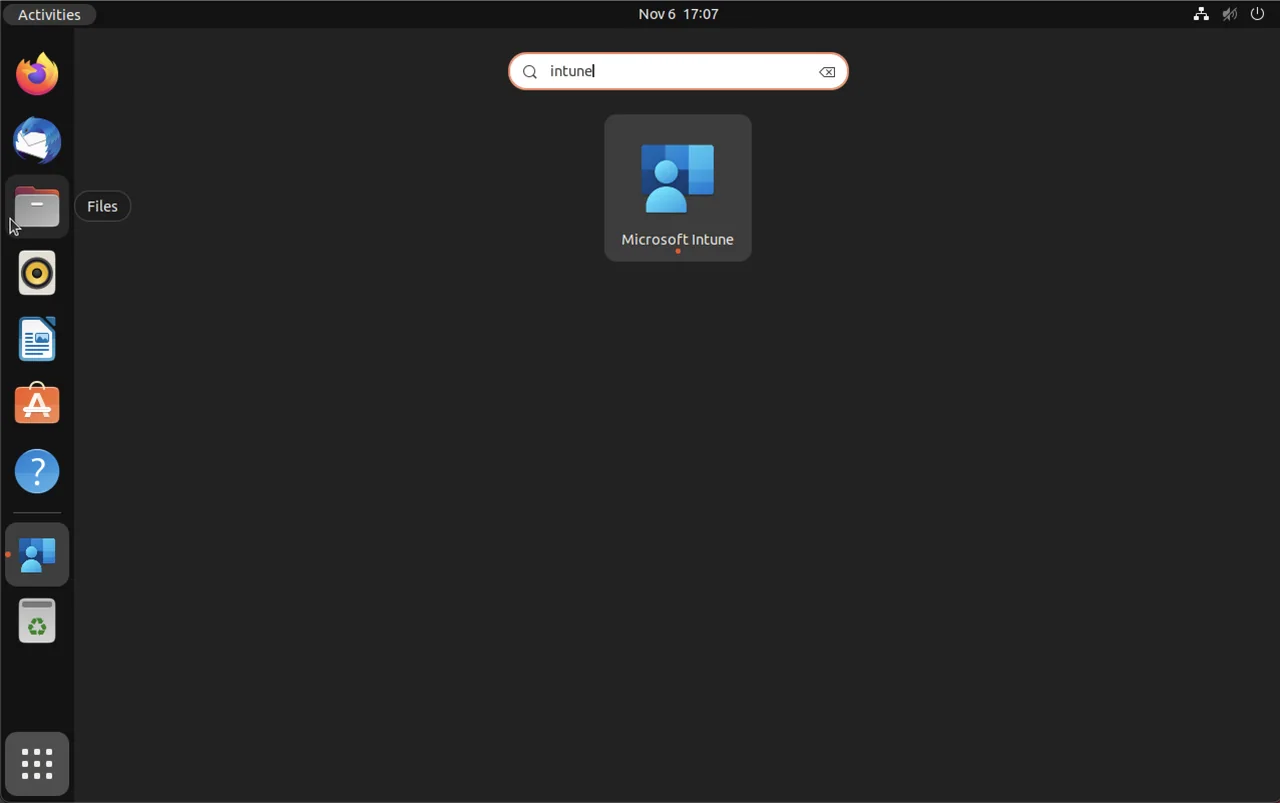
- Microsoft Intune app (Needed to enroll the device)
Install Ubuntu
-
Download Ubuntu from the official source
- The recommend system requirements: 2 GHz dual-core processor / 4 GB system memory / 25 GB of free hard drive space
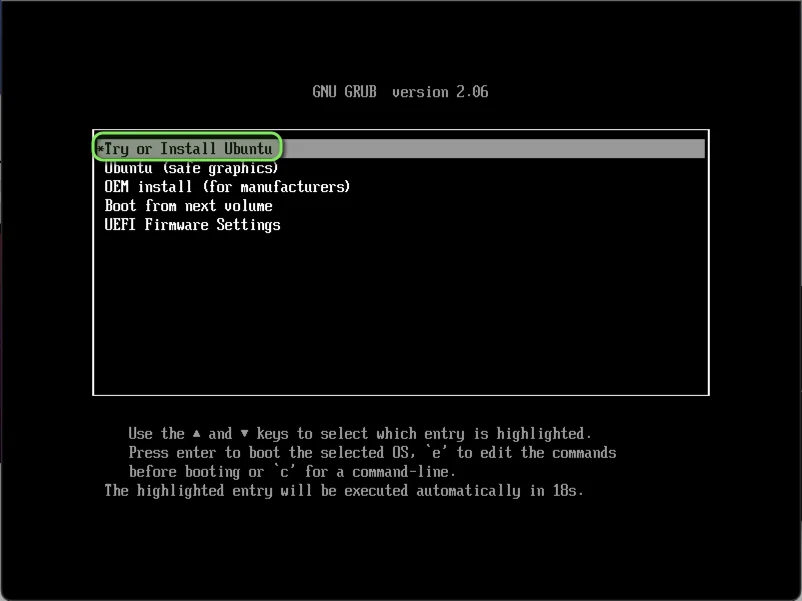
- Create a boot stick or insert the iso in a vm (in my case I use a VM)
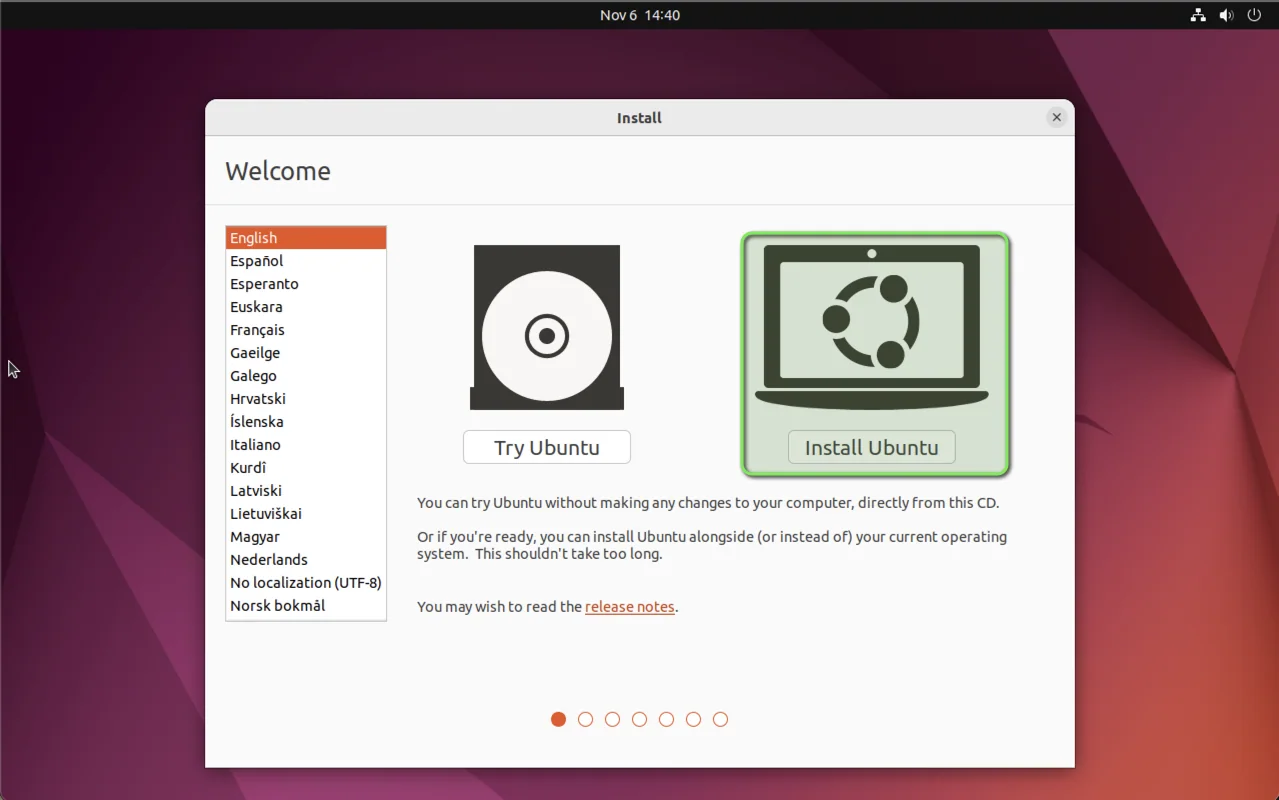
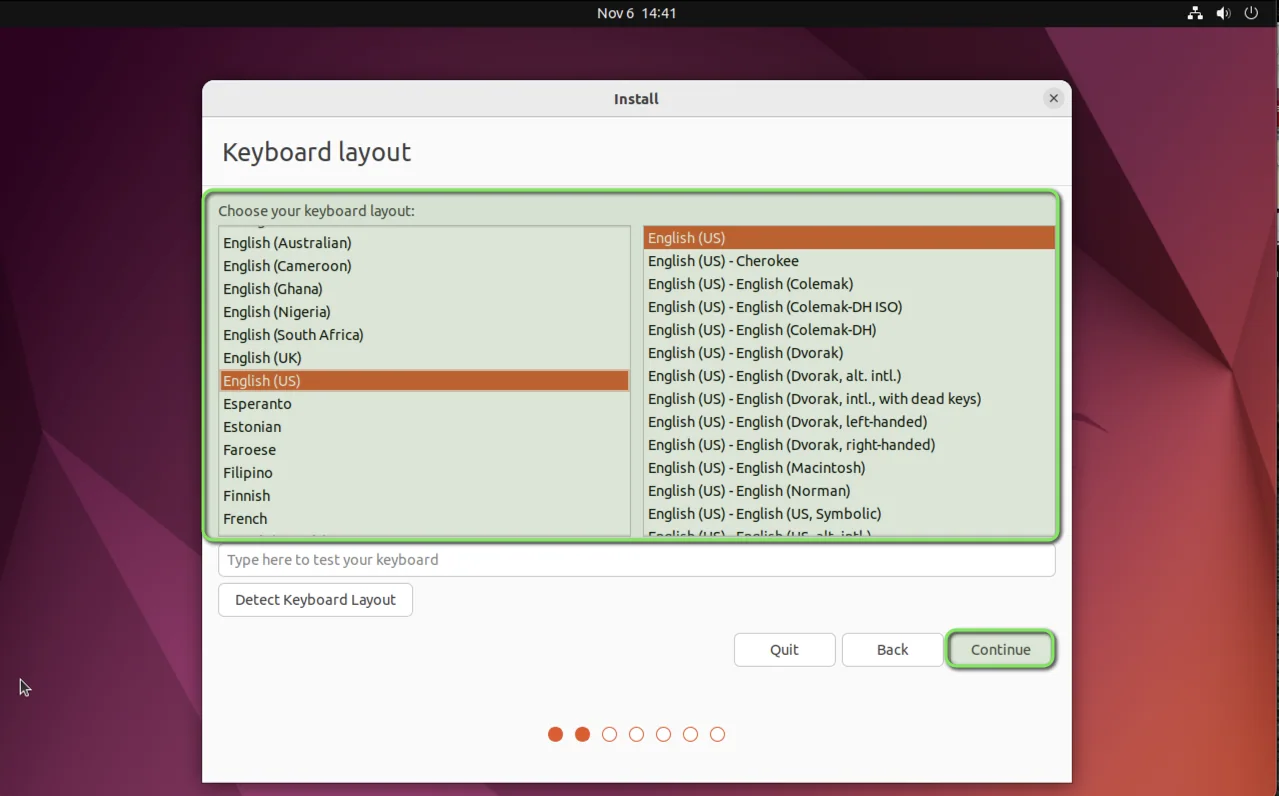
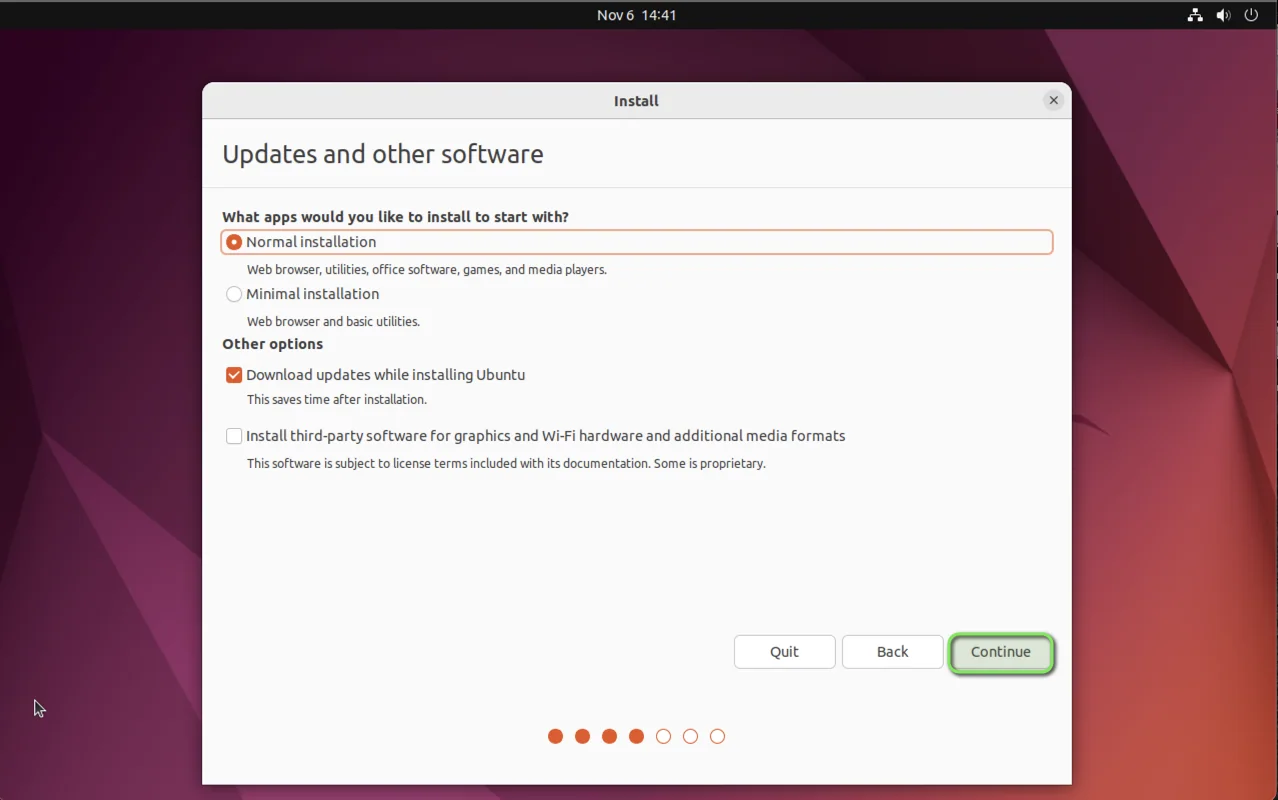
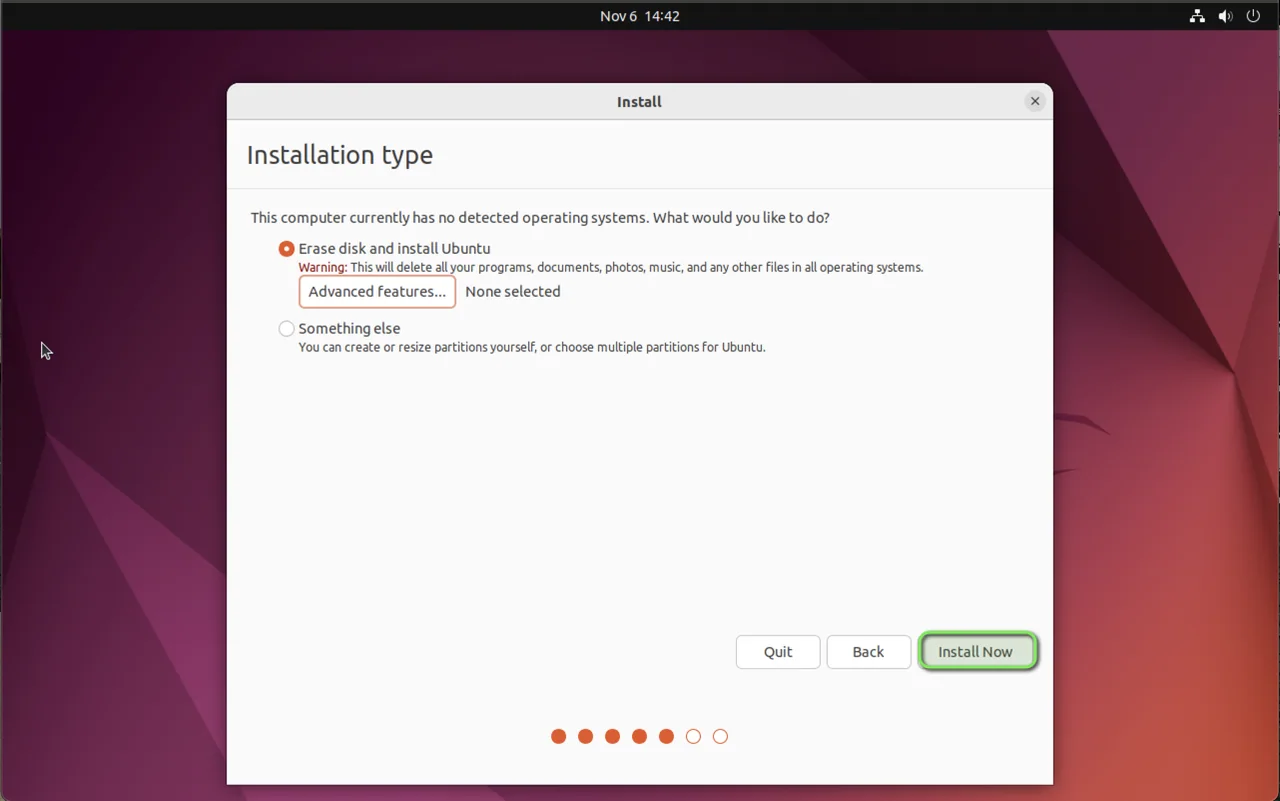
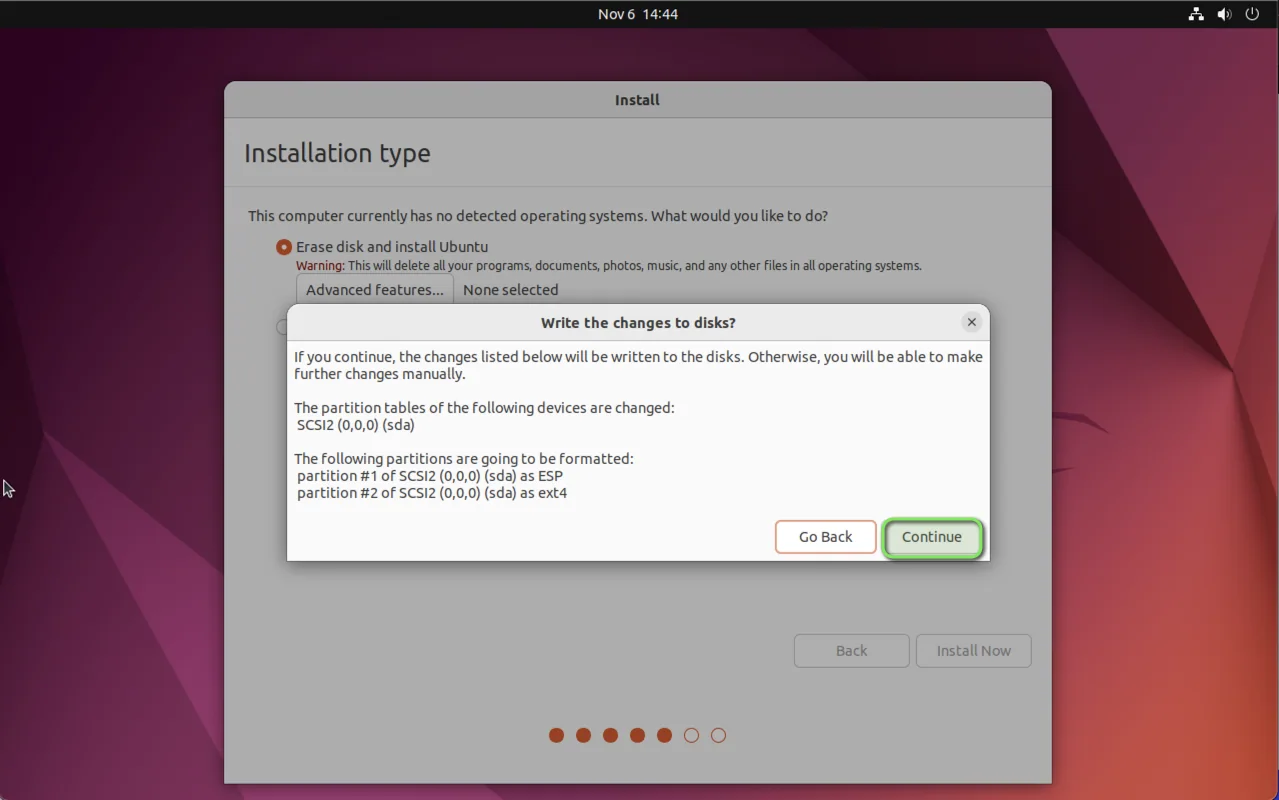
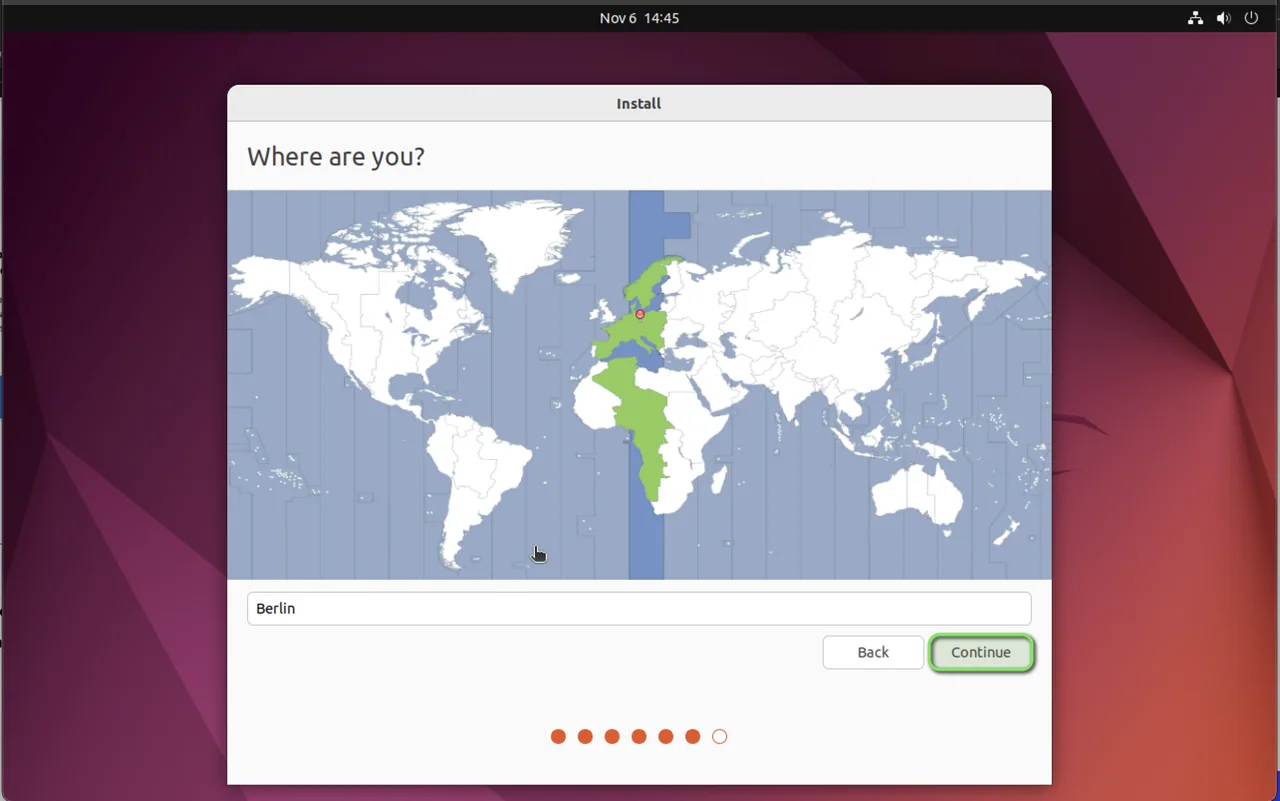
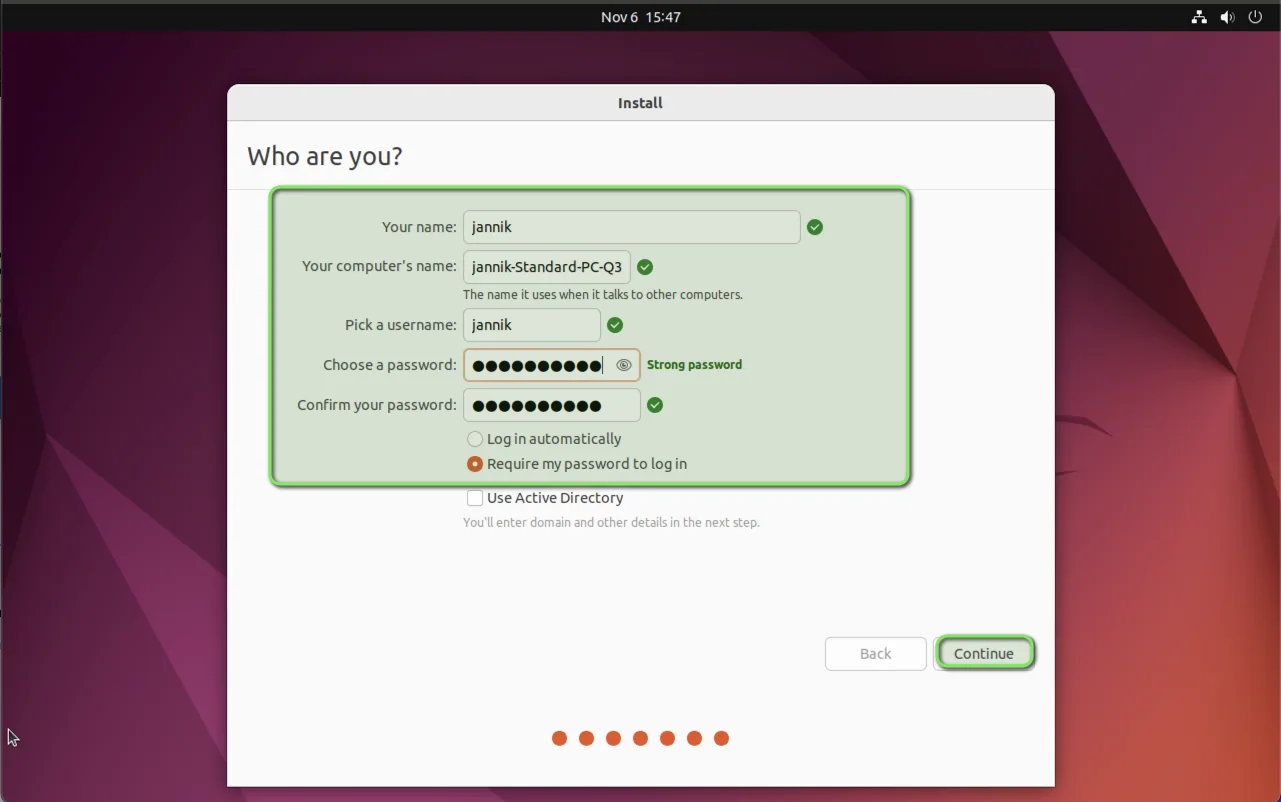
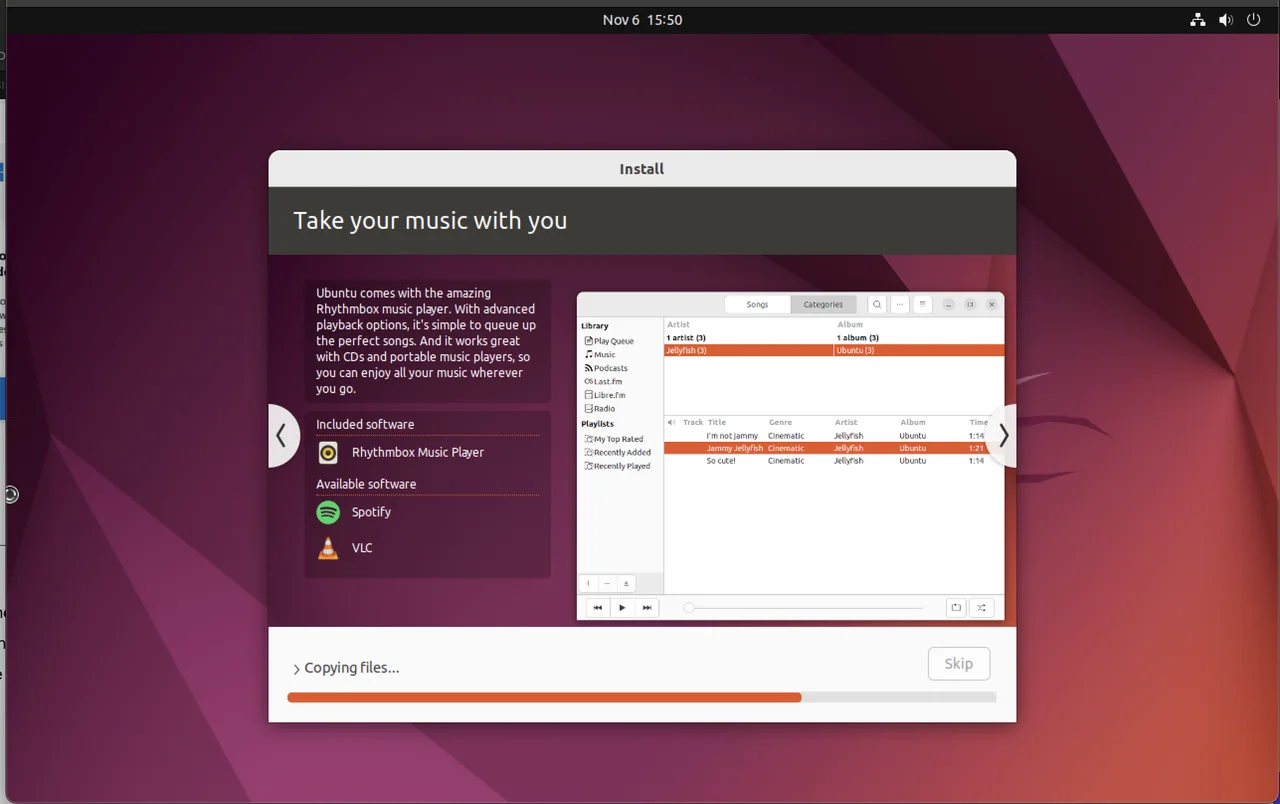
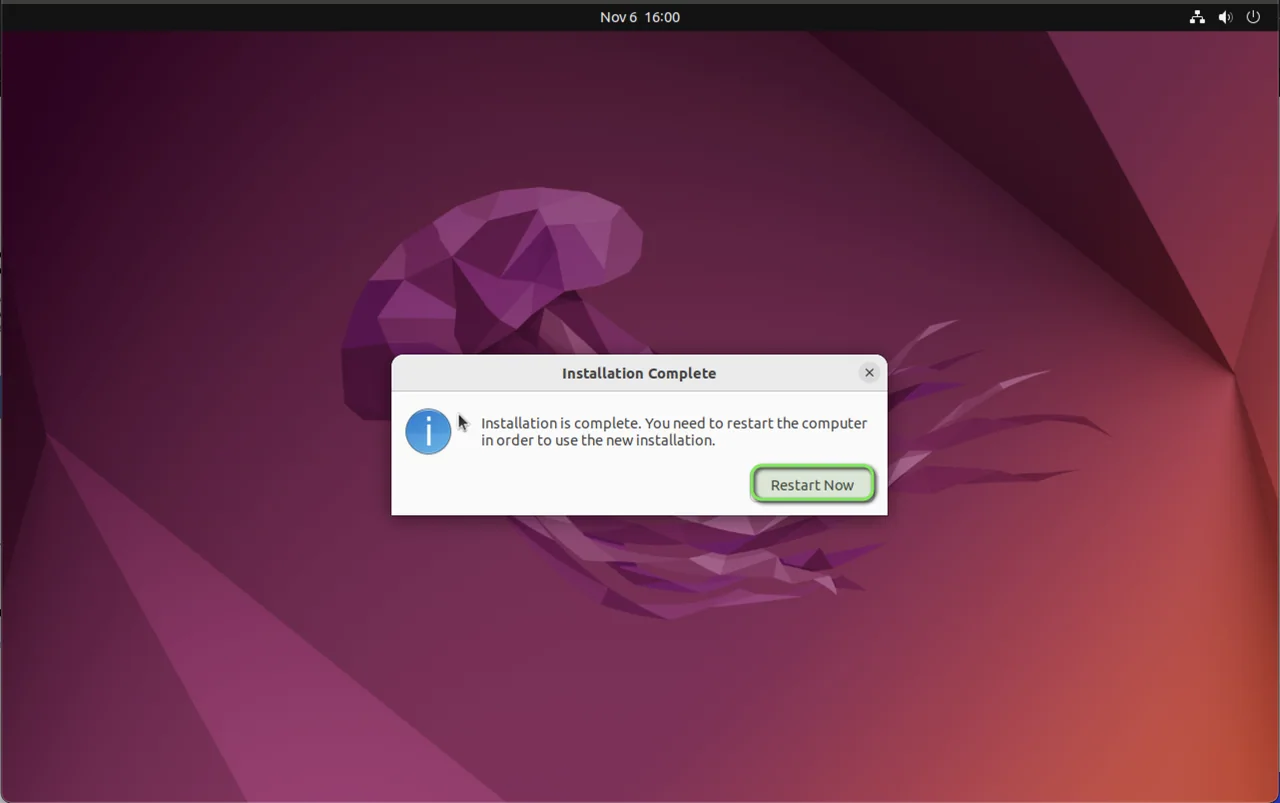
- Install Ubuntu
-
-
-
-
-
-
-
-
-
-
-
-
Install Edge on ubuntu
- Open a Terminal and execute the following commands to install the edge browser:
sudo apt install software-properties-common apt-transport-https wget
wget -q https://packages.microsoft.com/keys/microsoft.asc -O- | sudo apt-key add -
sudo add-apt-repository "deb [arch=amd64] https://packages.microsoft.com/repos/edge stable main"
sudo apt install microsoft-edge-dev
sudo apt update
sudo apt upgrade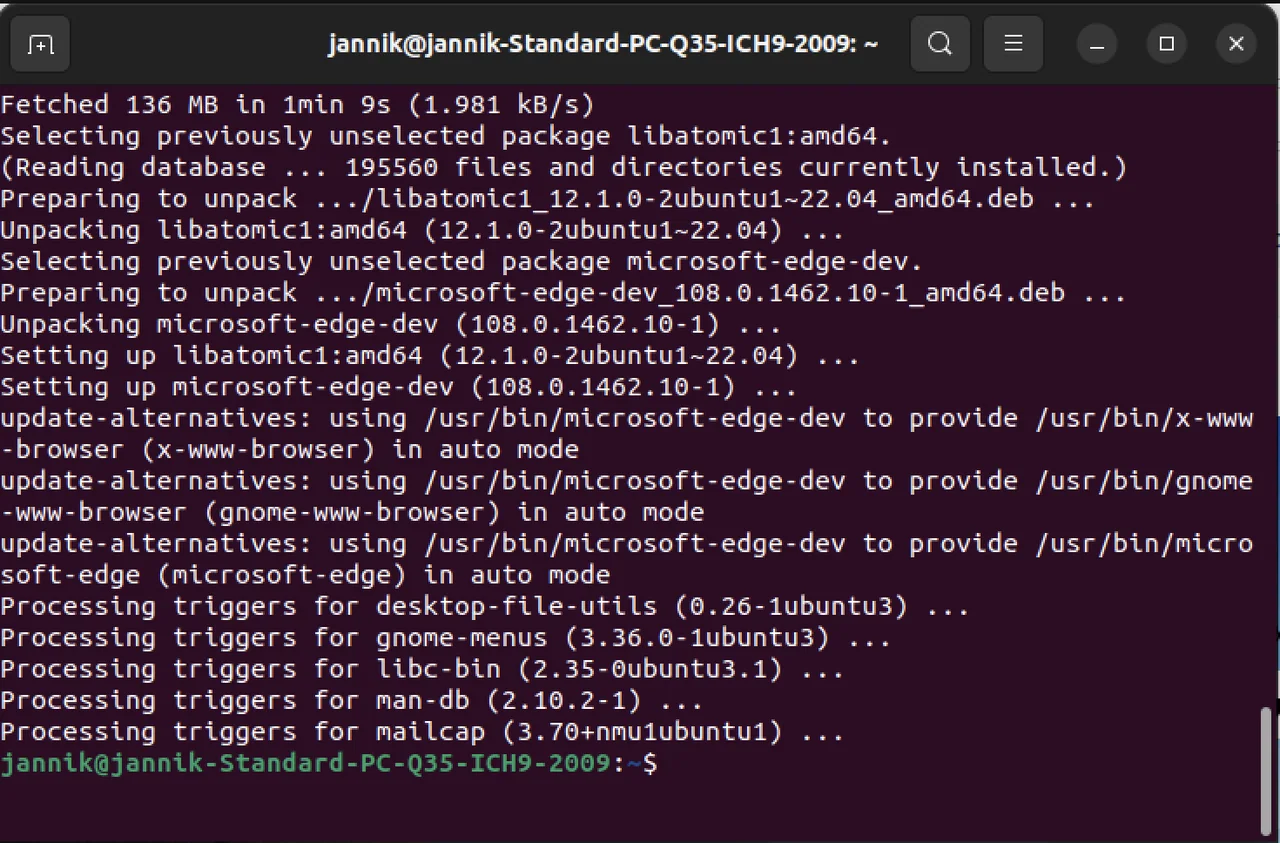
- The alternative way is to install edge via the firefox browser. You can download the package here: https://explore.microsoft.com/en-us/edge/?form=MA13FJ
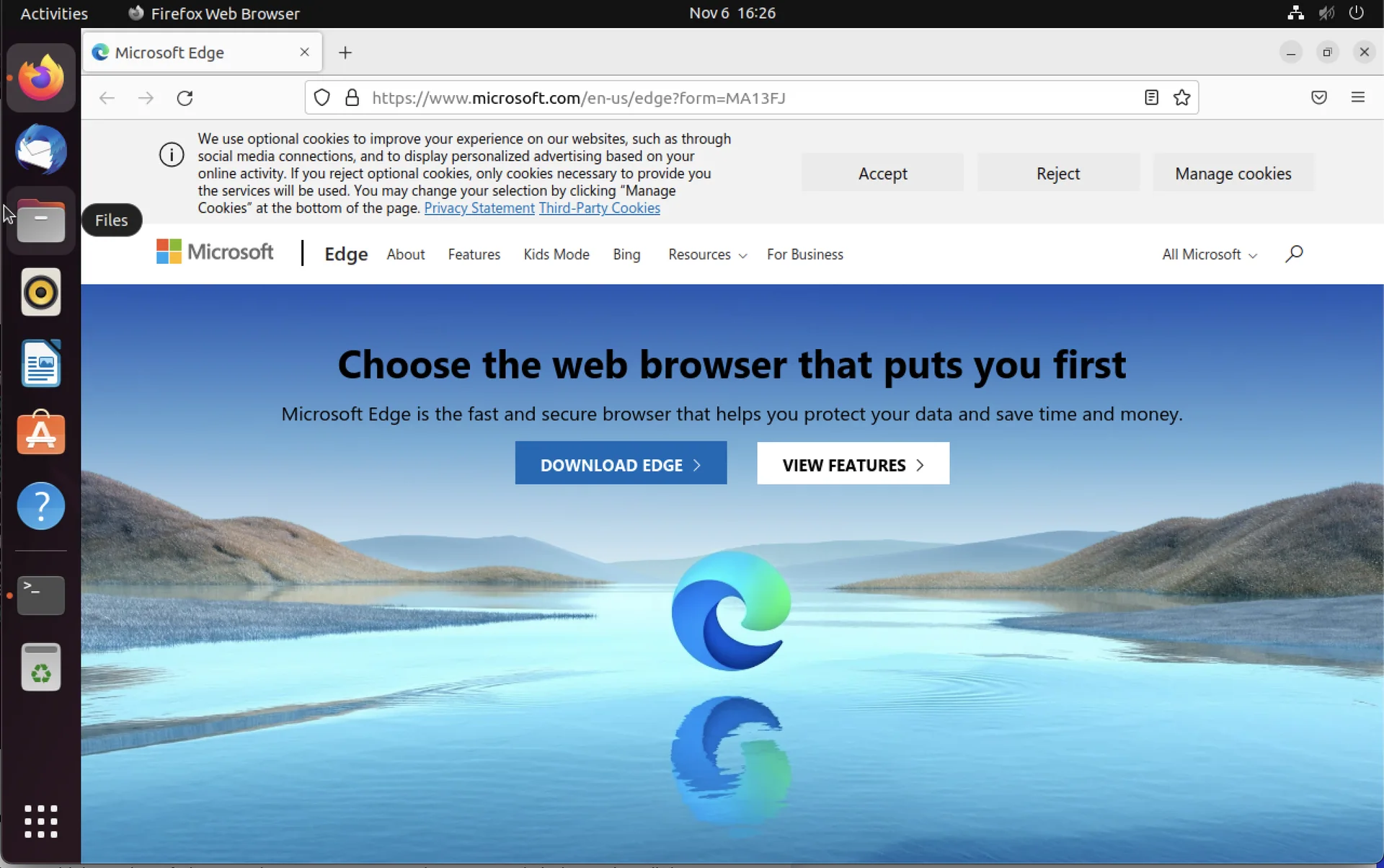
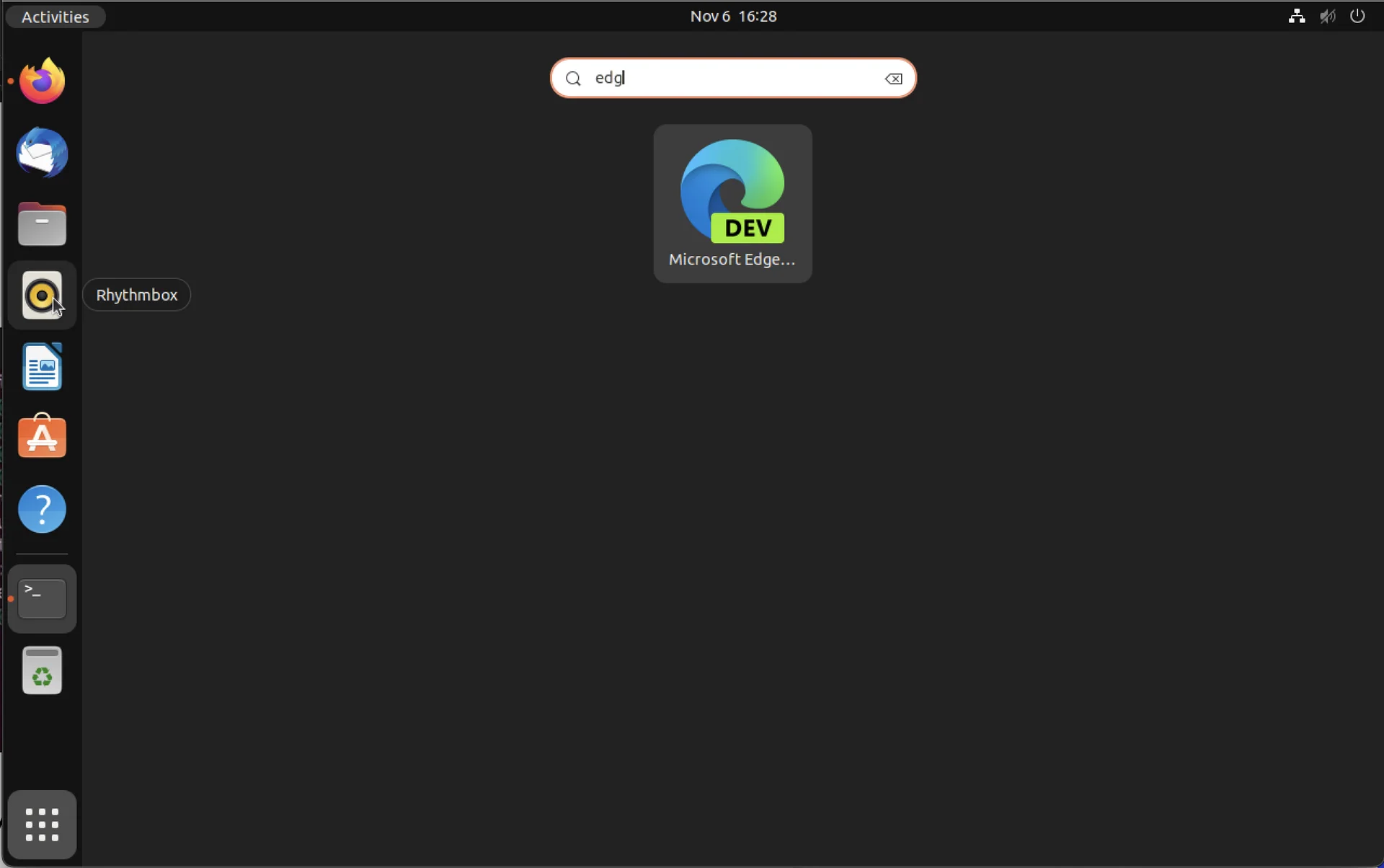
- Check if the installation was successful:
Install the Intune app on ubuntu
- Open a Terminal and execute the following command to install curl and gpg:
sudo apt install curl gpg- For ubuntu 20.04 run the following commands to install the Microsoft package signing key:
curl https://packages.microsoft.com/keys/microsoft.asc | gpg --dearmor > microsoft.gpg
sudo install -o root -g root -m 644 microsoft.gpg /usr/share/keyrings/
sudo sh -c 'echo "deb [arch=amd64 signed-by=/usr/share/keyrings/microsoft.gpg] https://packages.microsoft.com/ubuntu/20.04/prod focal main" > /etc/apt/sources.list.d/microsoft-ubuntu-focal-prod.list'
sudo rm microsoft.gpg- For ubuntu 22.04 run the following commands to install the Microsoft package signing key:
curl https://packages.microsoft.com/keys/microsoft.asc | gpg --dearmor > microsoft.gpg
sudo install -o root -g root -m 644 microsoft.gpg /usr/share/keyrings/
sudo sh -c 'echo "deb [arch=amd64 signed-by=/usr/share/keyrings/microsoft.gpg] https://packages.microsoft.com/ubuntu/22.04/prod jammy main" > /etc/apt/sources.list.d/microsoft-ubuntu-jammy-prod.list'
sudo rm microsoft.gpg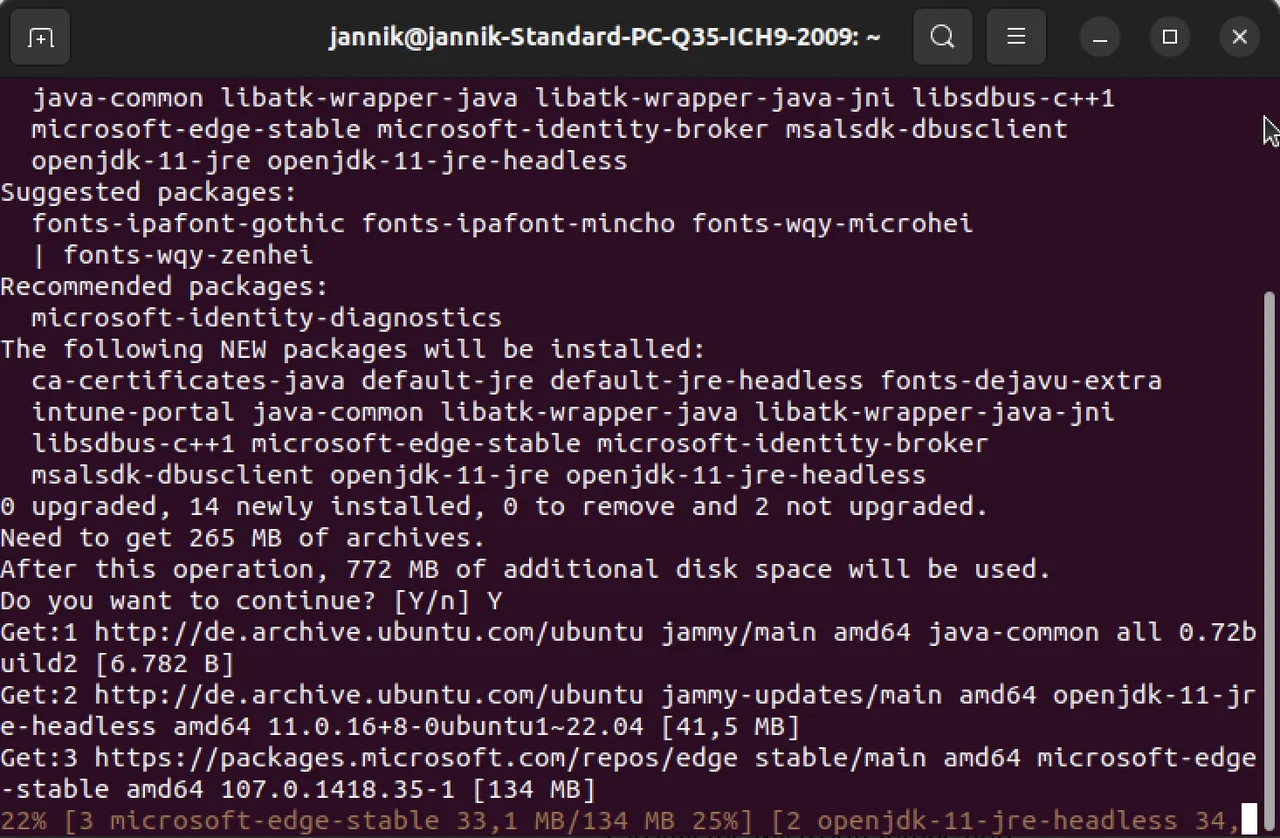
- Run the following commands to install the Intune app:
sudo apt update
sudo apt install intune-portal- Reboot the device
How to Enroll a Ubuntu Device in Intune
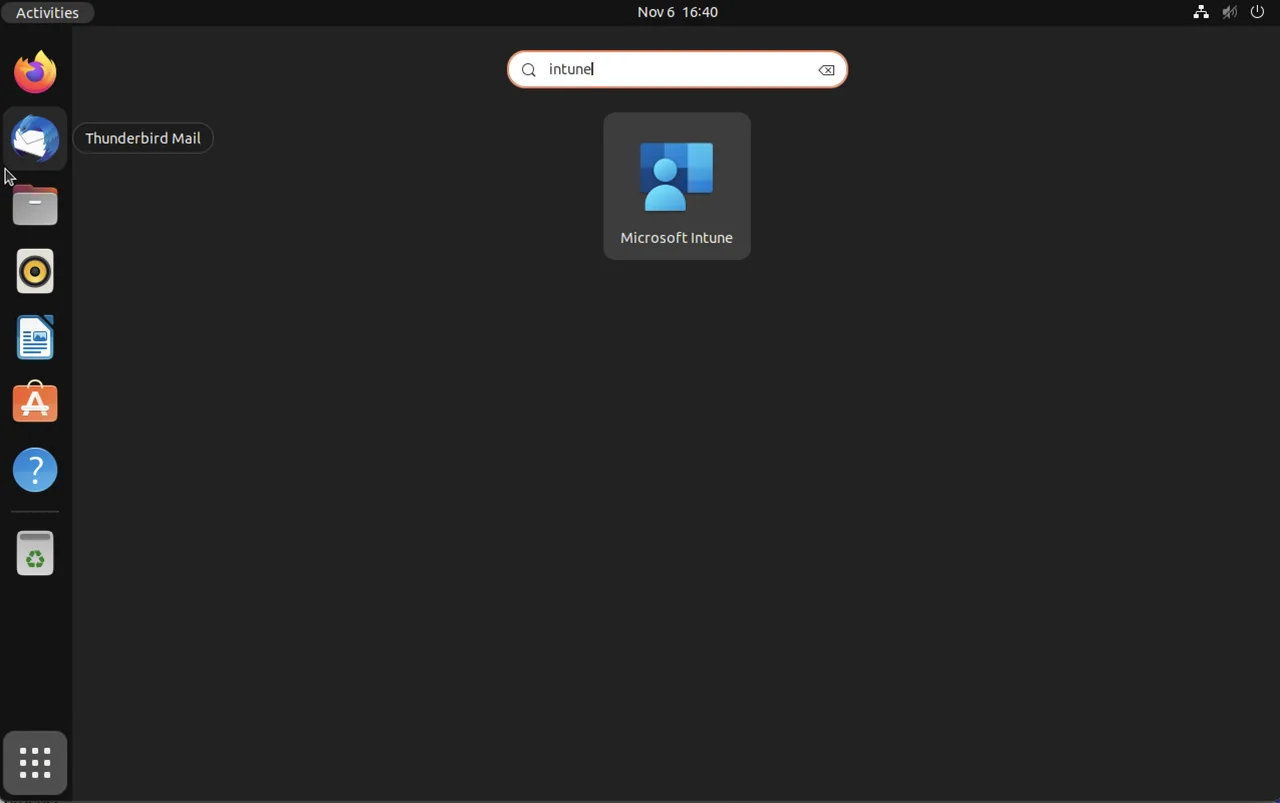
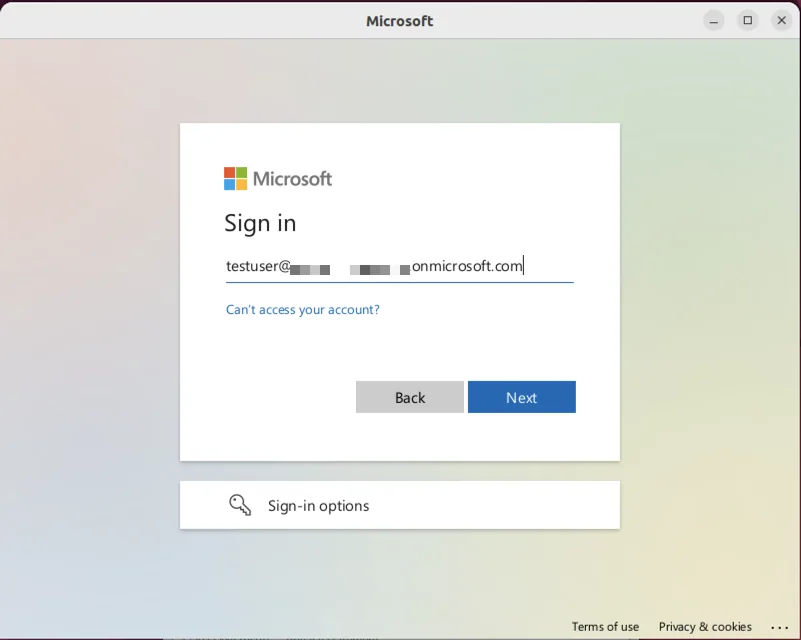
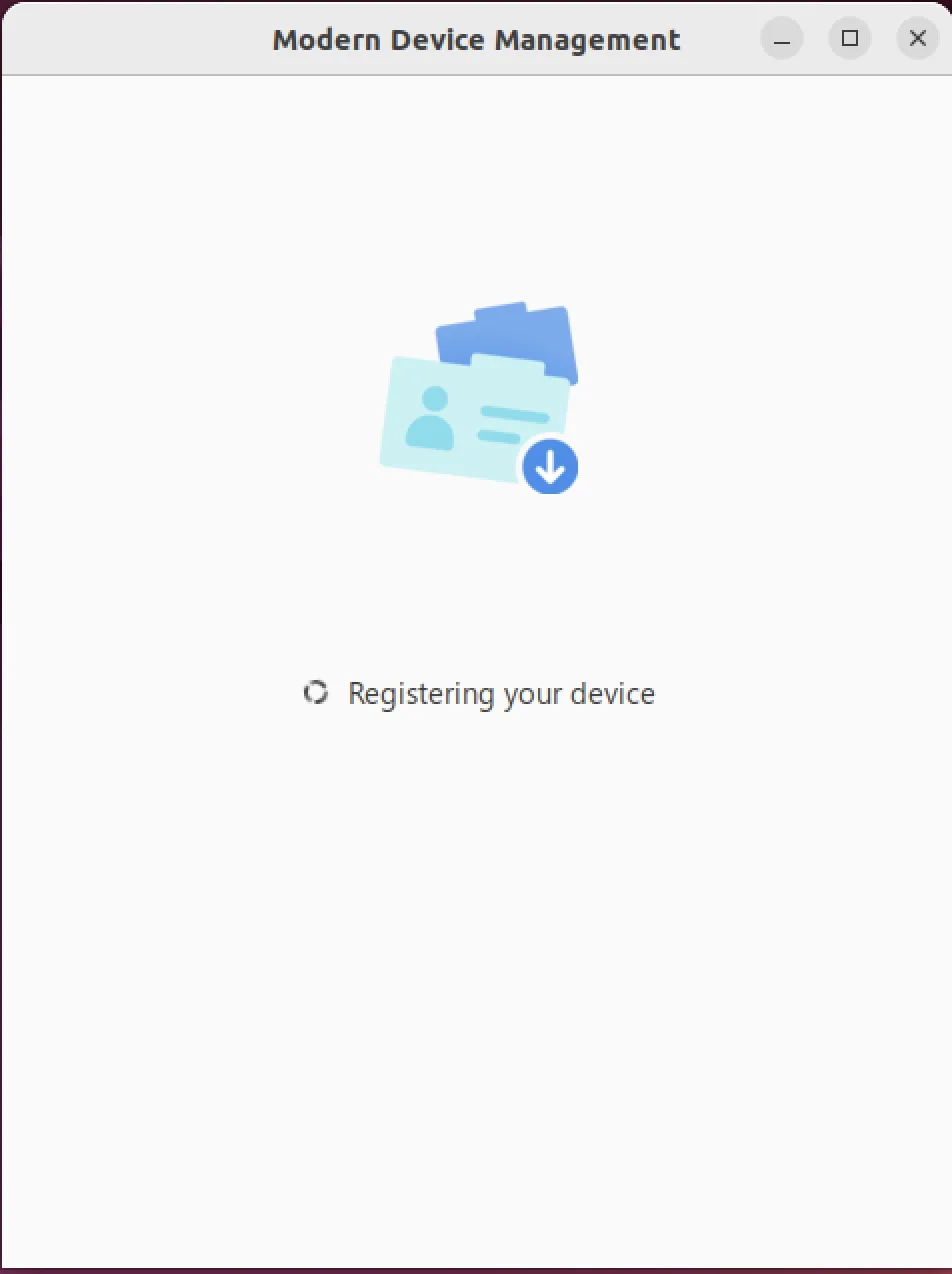
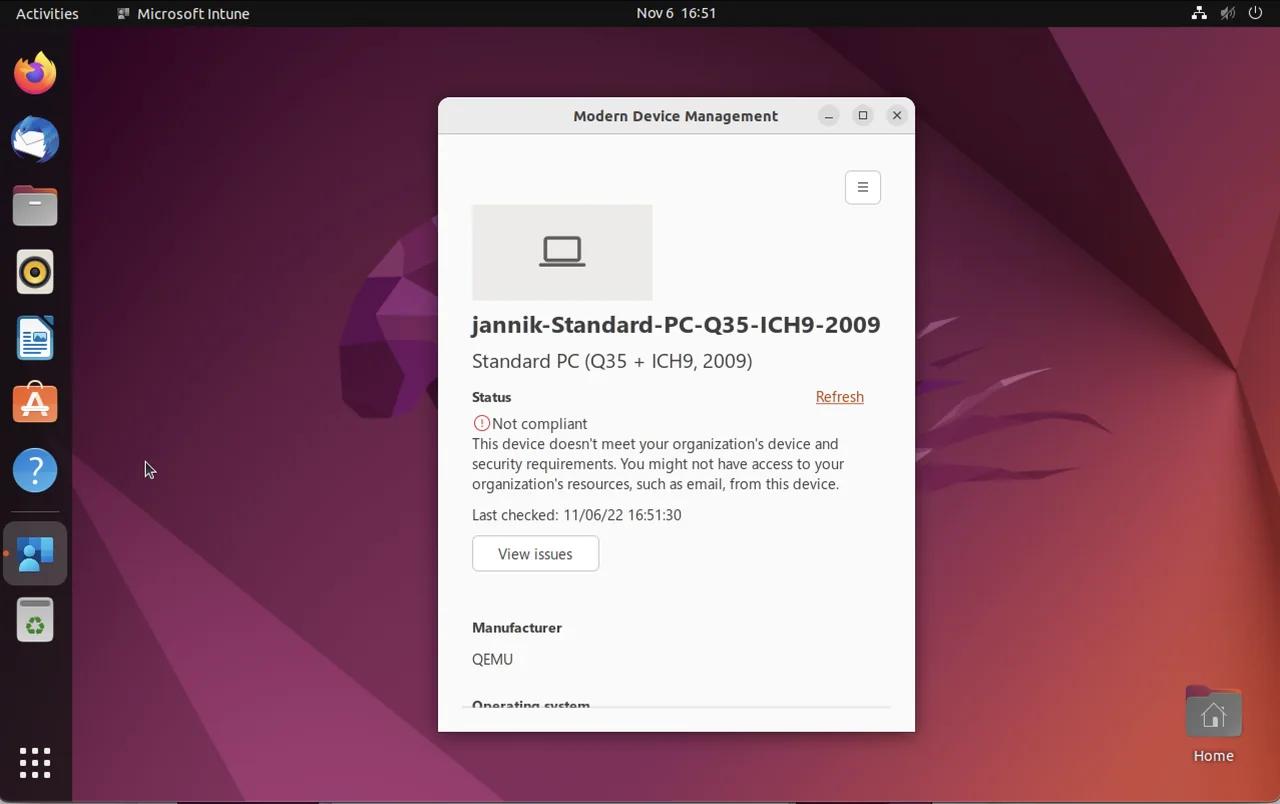
- Open the Intune App
-
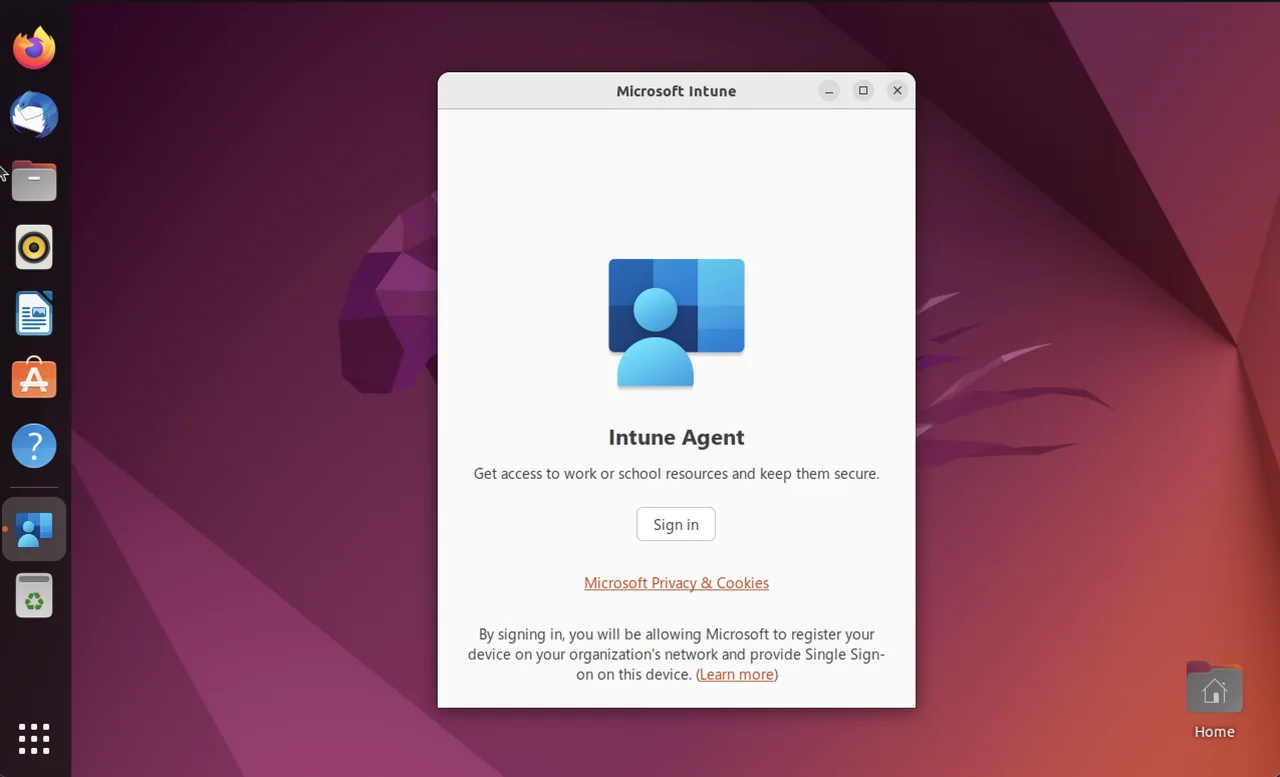
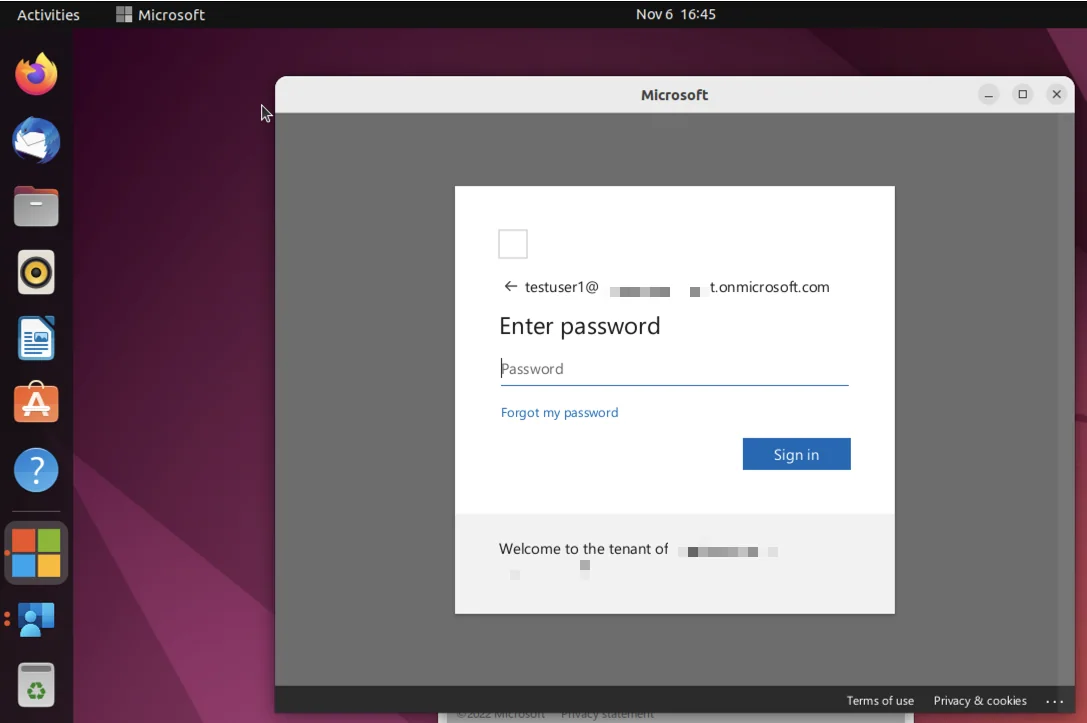
Sign in with a user account that has an Intune license assigned
-
-
-
-
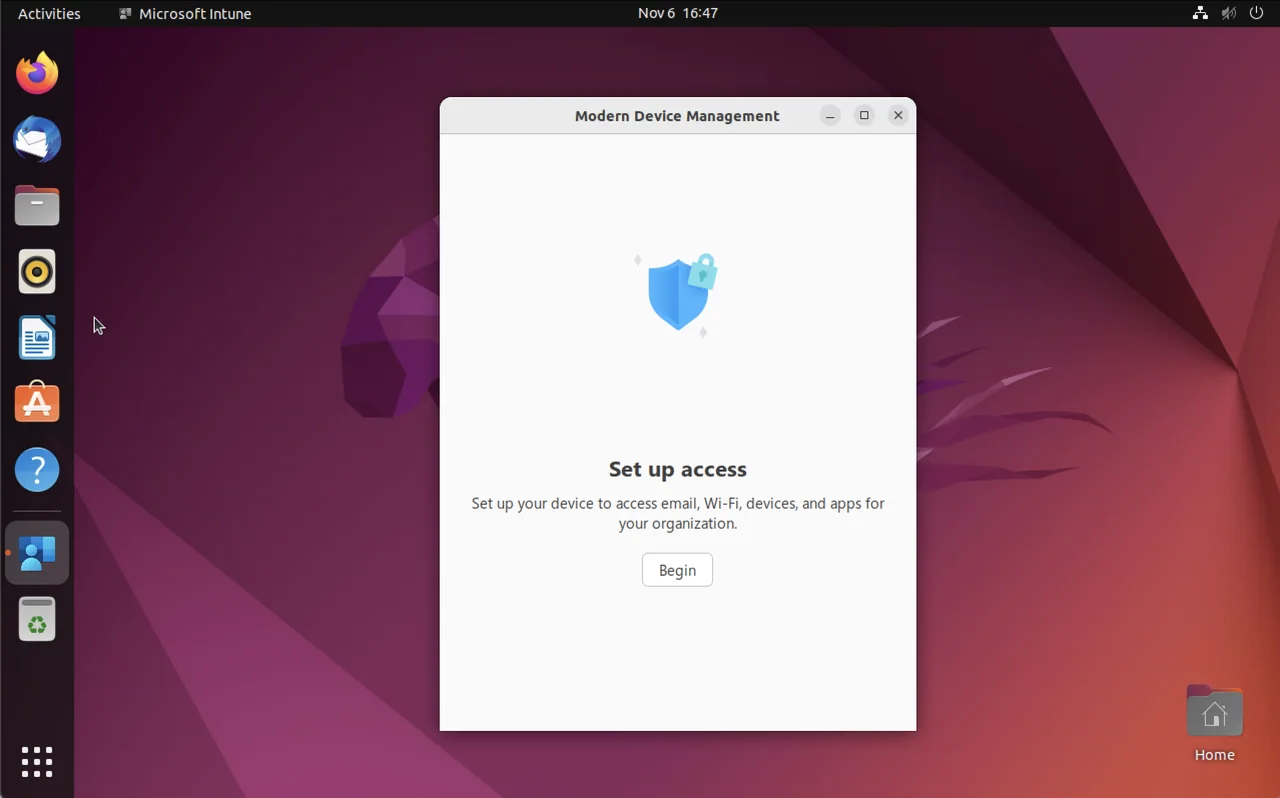
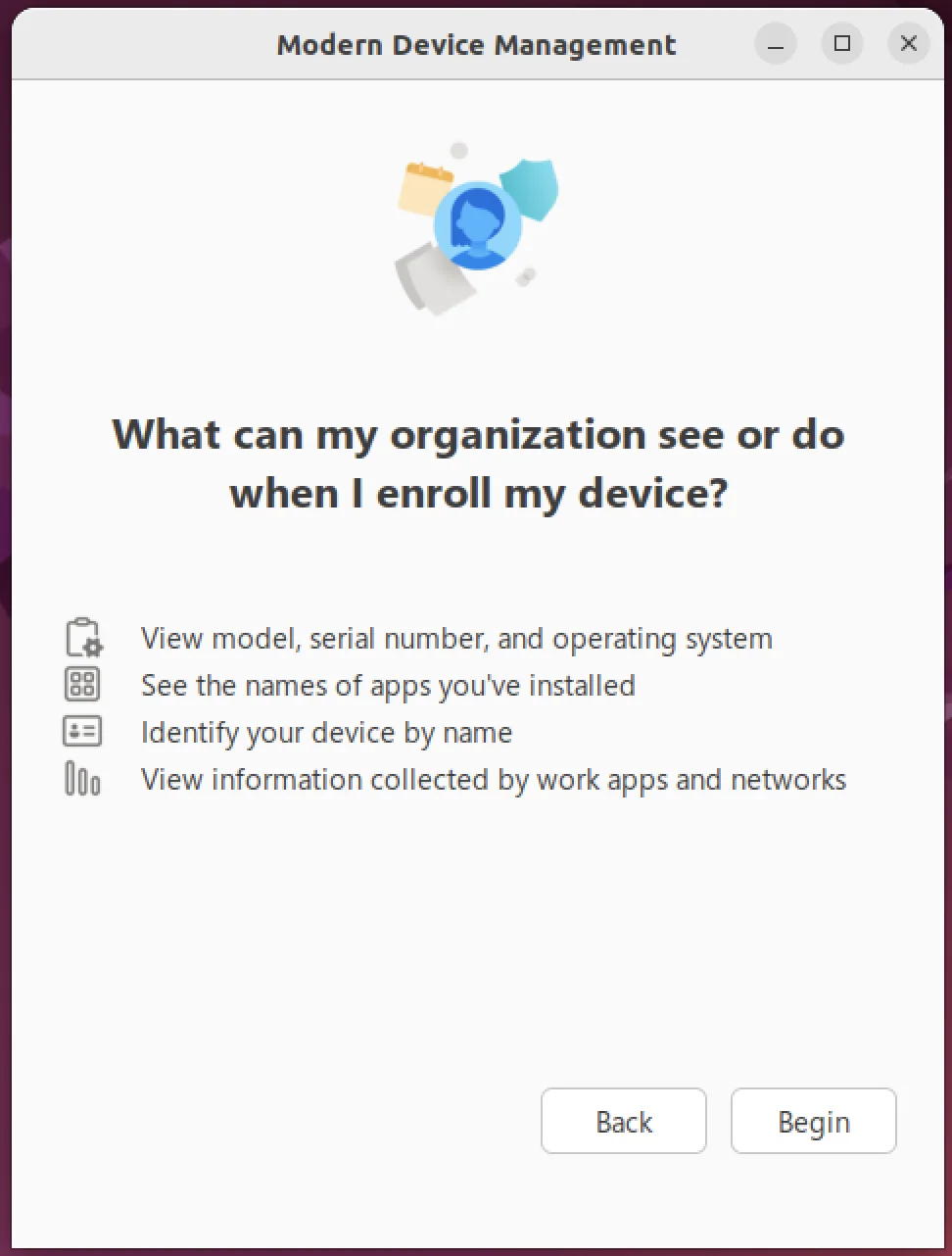
Click Begin
-
-
-
Create a compliance policy
- Open the Intune console
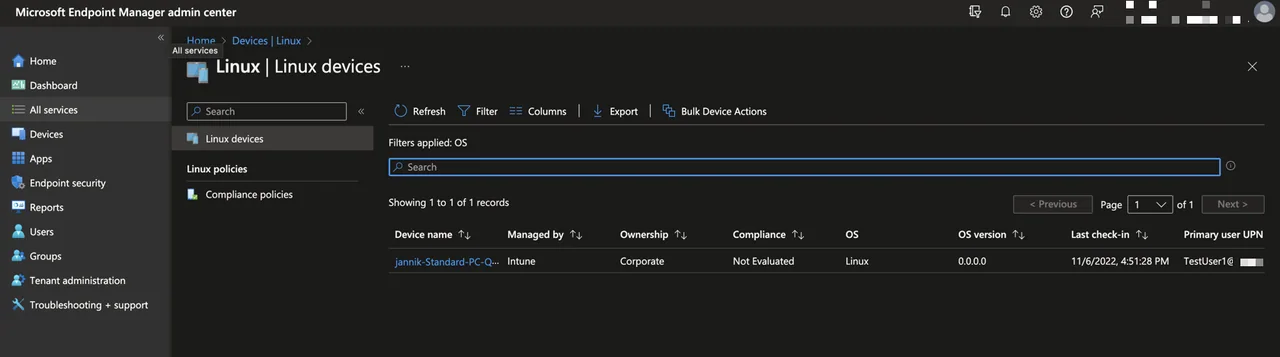
- Navigate to Devices -> Linux
- Here you can find the device
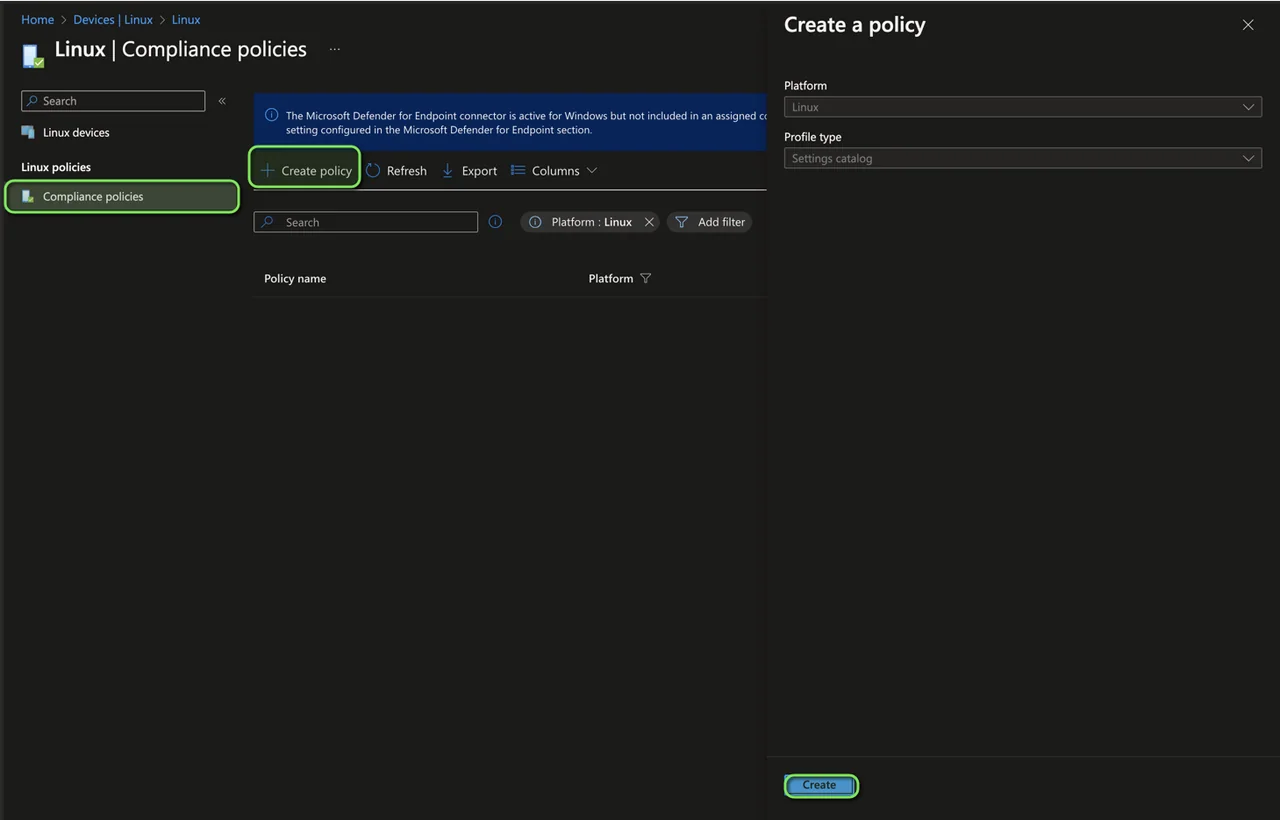
- Select compliance policies and click +Create policy
- Click Create
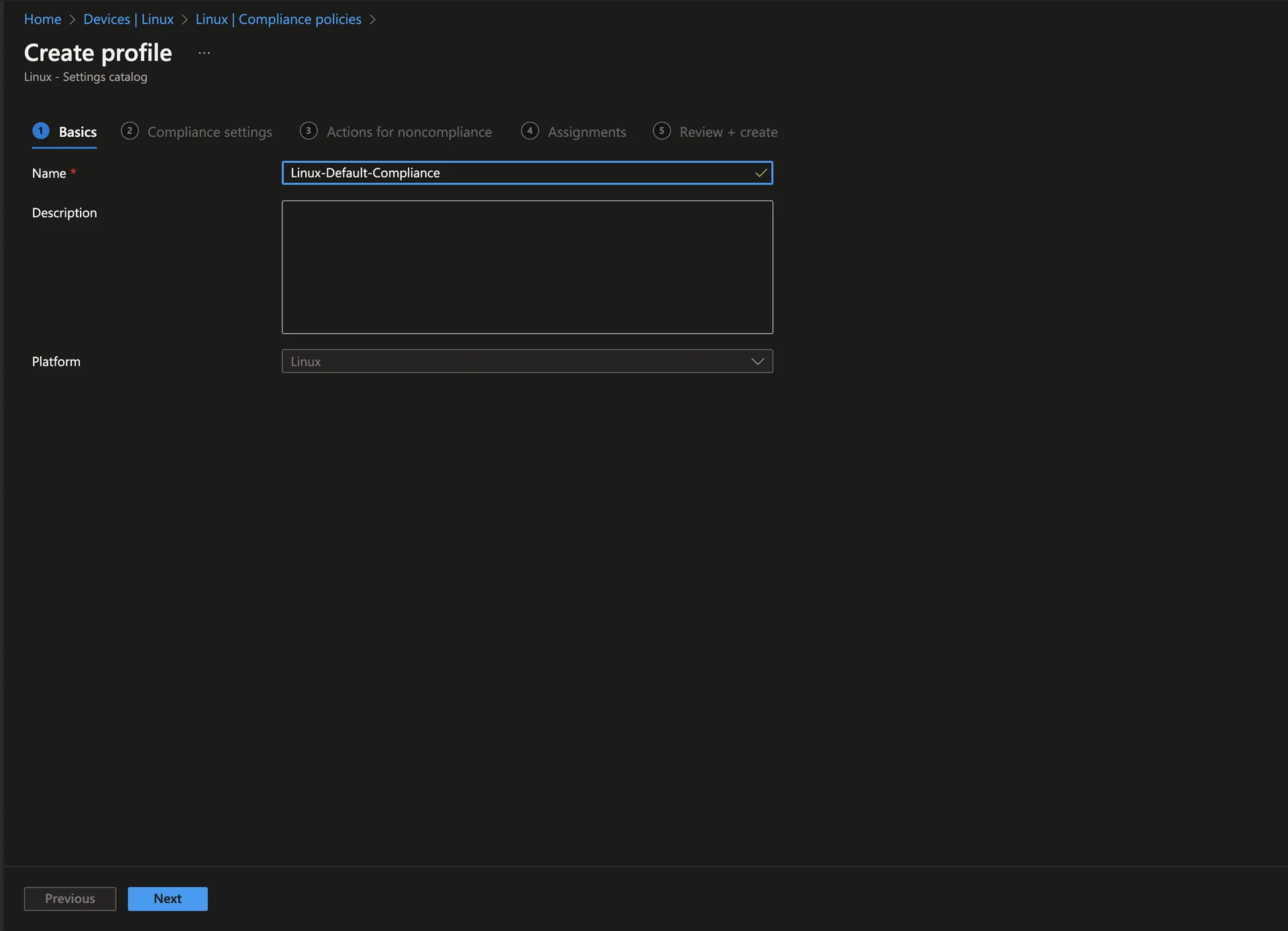
- Enter a Name
- Click Next
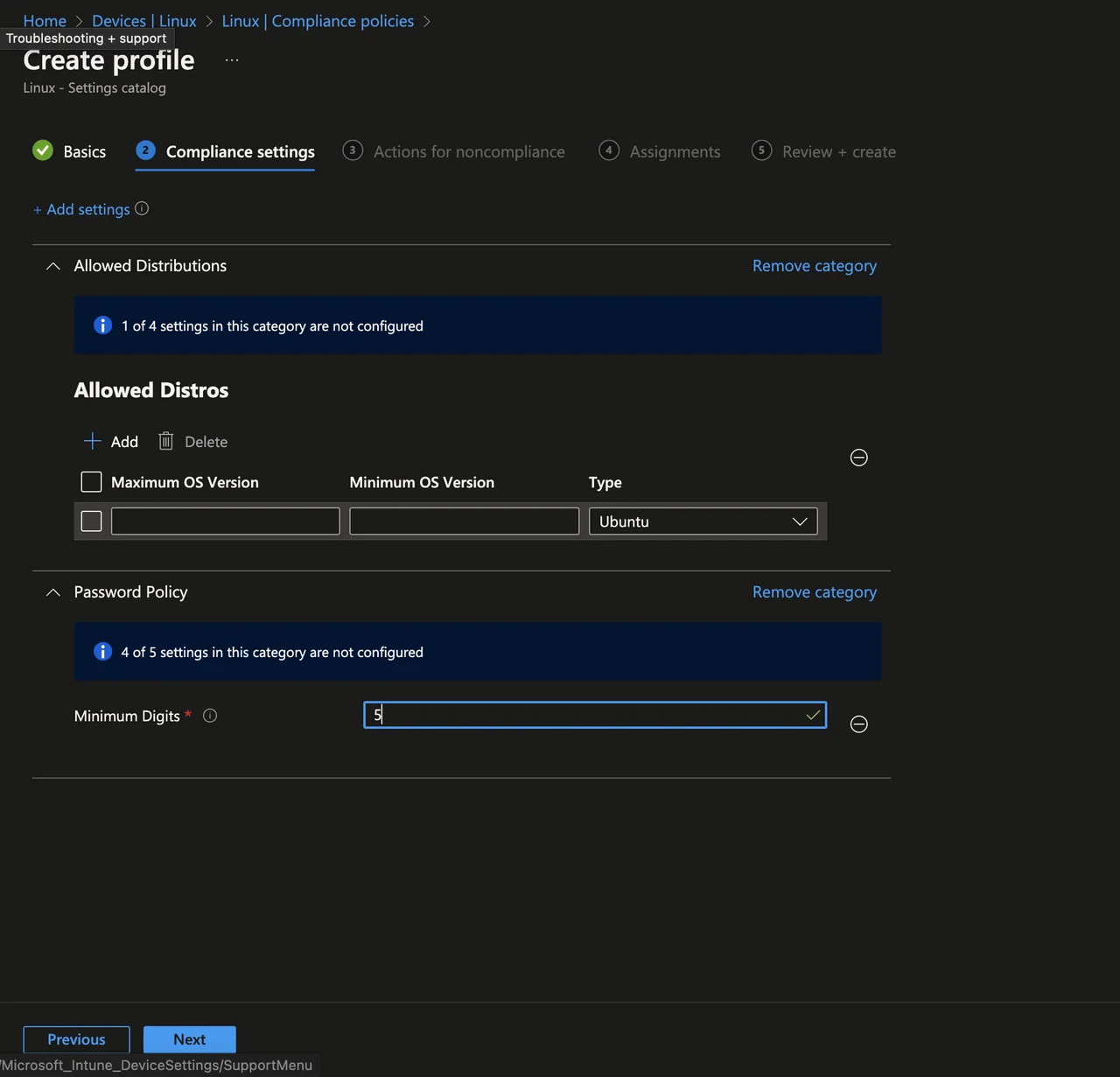
- Create the compliance checks you want (Hint: it is also possible to write a custom script)
- Click Next
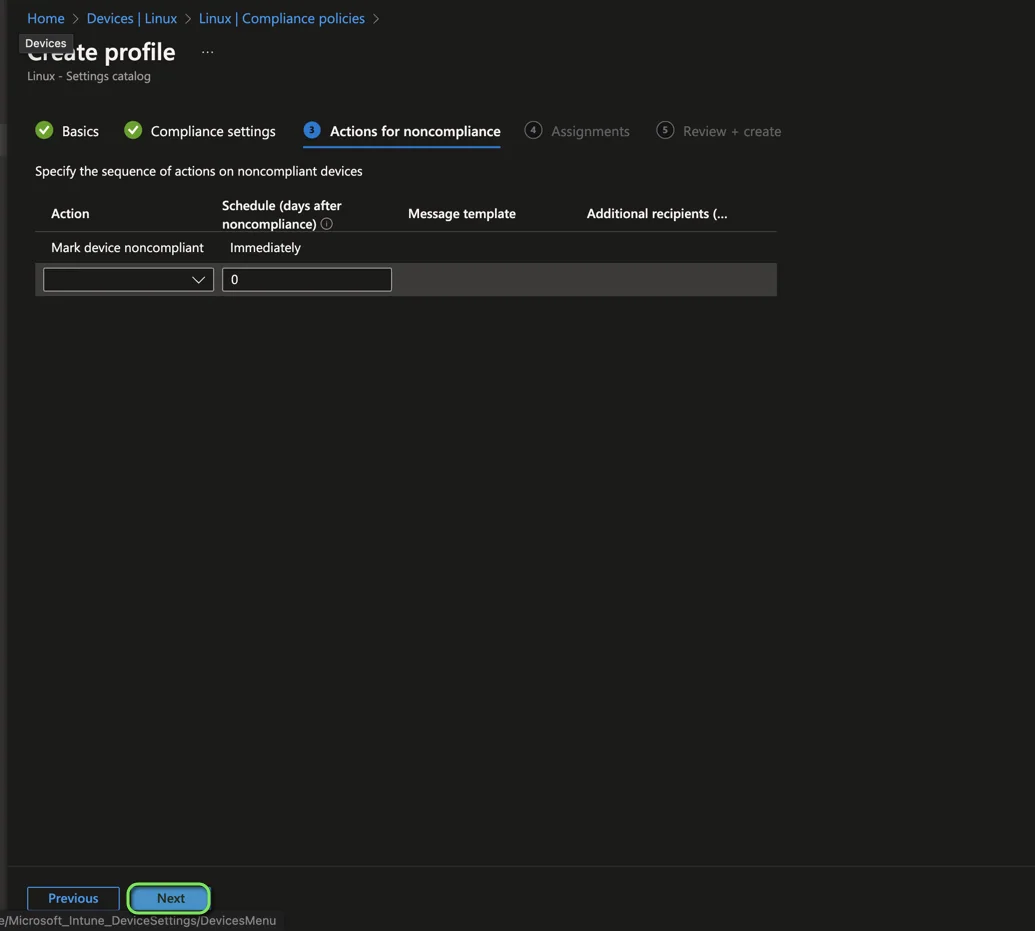
- Click Next
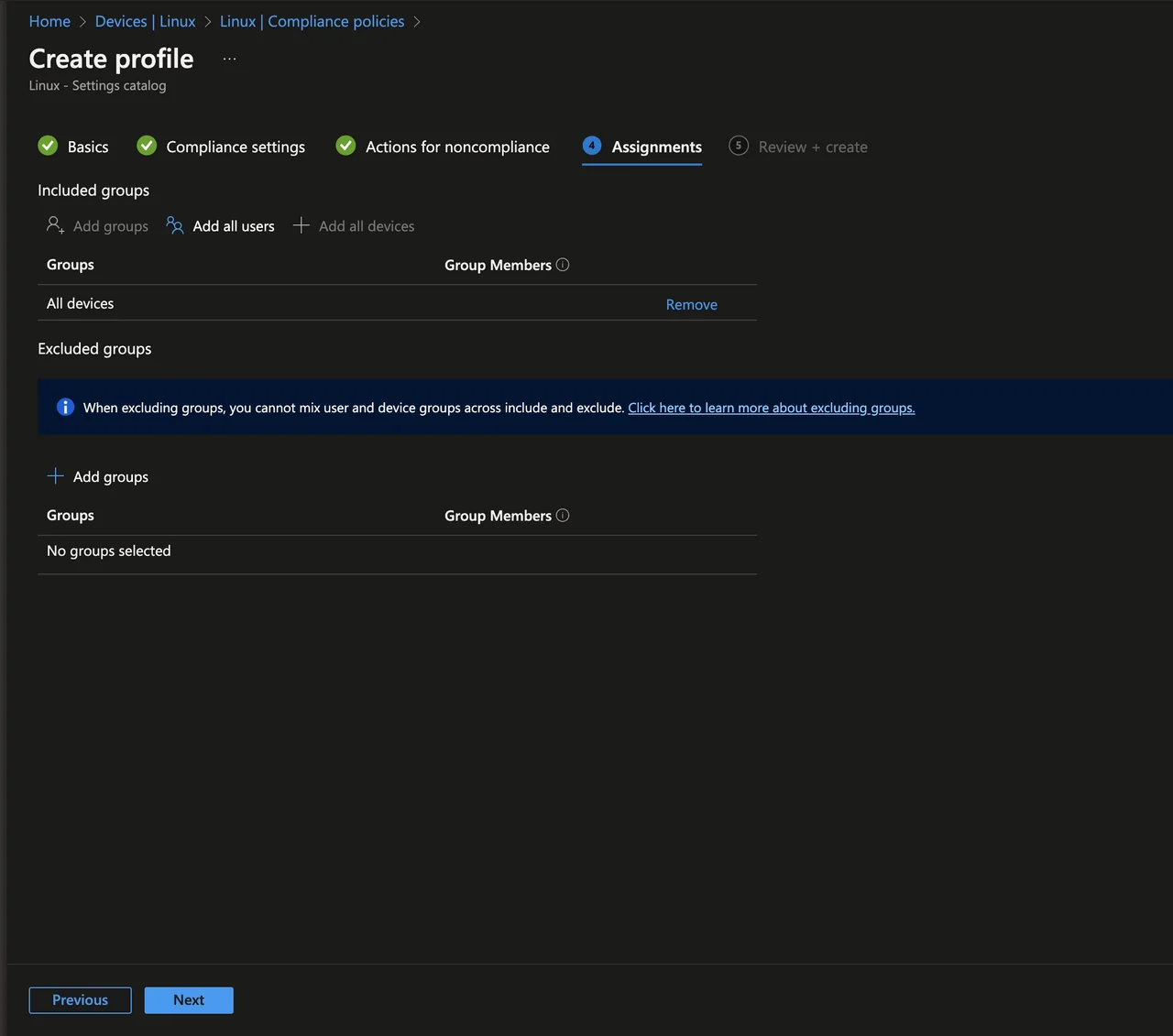
- Create an assignment and click Next
- Click Create
Common pitfalls
A few things tend to trip people up. The most common one is forgetting to enable disk encryption during the installation, because retrofitting full-disk encryption on Ubuntu afterwards is far more painful than ticking the box once at setup time. Another frequent issue is using the wrong package repository: the Microsoft signing key and source list differ between 20.04 (focal) and 22.04 (jammy), so make sure you run the commands that match your release. Finally, the device only shows up under Devices then Linux after you have signed in and clicked Begin in the Intune app, so do not panic if it is missing immediately after installing the portal.
Conclusion
That is everything you need to enroll a Ubuntu device in Intune and start managing Linux endpoints alongside Windows and macOS. Once you enroll a Ubuntu device in Intune, you can evaluate compliance and gate access with Conditional Access.
As a practical next step, build a compliance policy that requires disk encryption and a supported Ubuntu version, then pair it with a Conditional Access policy so non-compliant Linux devices are blocked from your resources. For the official reference, see the Microsoft Learn Linux enrollment guide, and if you want more Intune walkthroughs, browse my other posts on jannikreinhard.com.