
Intune Device Inventory UI
Build a powerful custom inventory with the Intune Device Inventory UI. Learn to install, authenticate and trigger device actions in just a few easy steps.
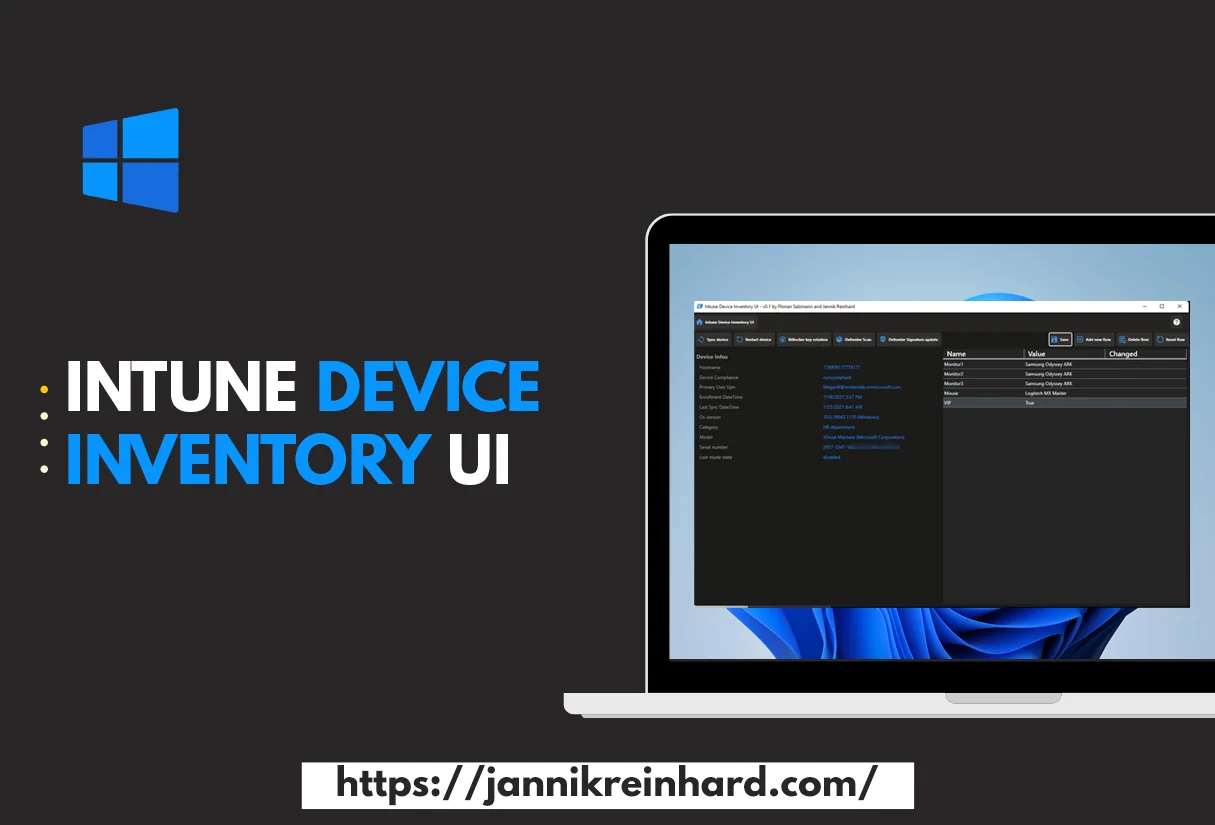
Anyone who has been working in the area of device management for a while knows that a good inventory is a very important prerequisite for good device management. With the Intune Device Inventory UI you finally get a custom inventory directly inside Intune that you can keep working with across your processes.
A very desired feature from you is to have a custom inventory directly in Intune with which you can then continue to work in certain processes. This is exactly what Florian Salzmann and I have taken up and developed a solution for you that solves exactly this problem. The Intune Device Inventory UI sits on top of the Intune Custom Inventory feature, which you can read more about in the official Microsoft Learn documentation.
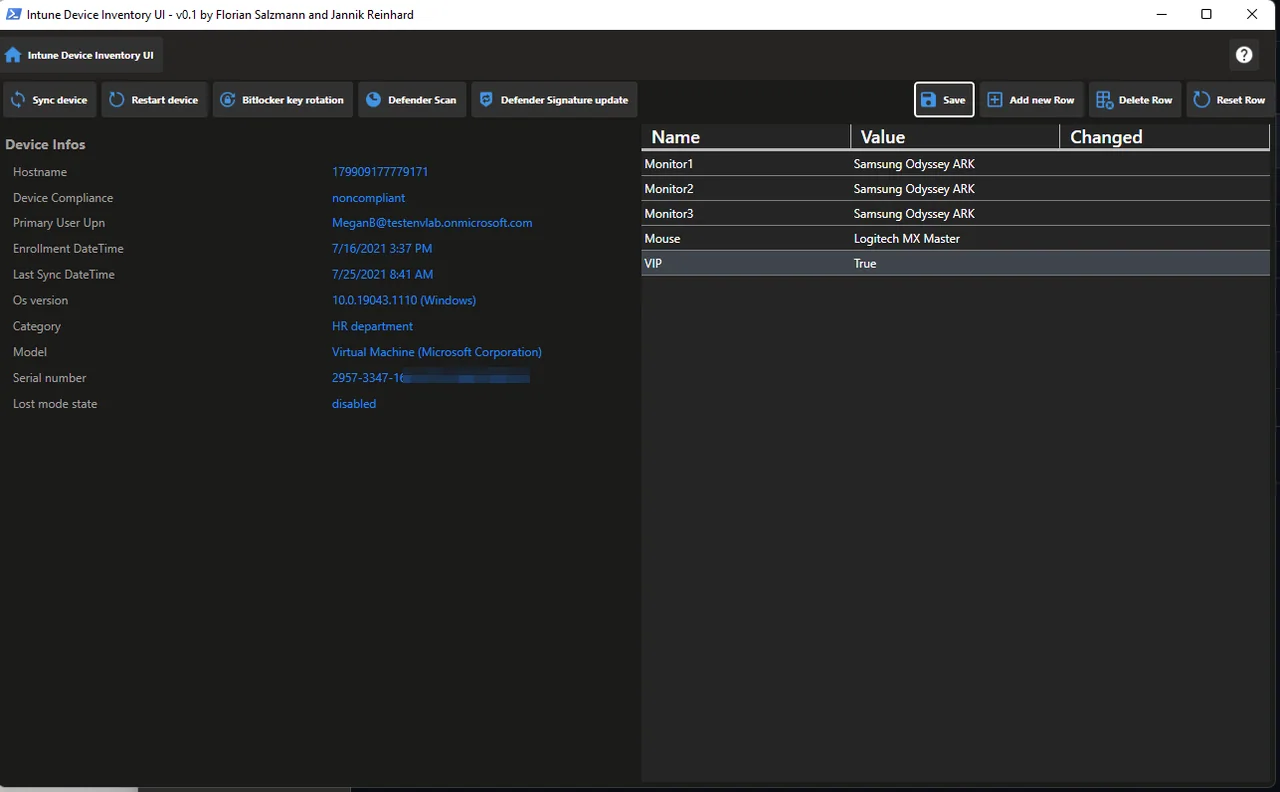
Note: Before you read this blog, check out Florian’s post that goes into more detail about the Powershell module. In this blog I mainly want to talk about the UI.
What is the Intune Device Inventory UI
If you want to change the inventory of devices or view the inventory in a structured format then the Intune Device Inventory UI is the right tool for you. In addition to the UI, you can also find the module in our repository that you can include in automations or scripts to continue working with the previously set values. The UI is based on the Intune Repository Module and gives you a very easy way to work with the module. If you already manage devices with Microsoft Intune, the Intune Device Inventory UI feels instantly familiar.
Installing the UI
We have developed an installation routine that you can run but don’t have to. You can find in the repo an installation wrapper that creates a start menu entry and unblocks the dlls. To install the Intune Device Inventory UI, follow the steps below:
- Download the repository
- Execute the setup script
Install-IntuneDeviceInventoryUI.ps1Start the UI
- If you have installed the IDIUI then search for “IntuneDeviceInventory” in the start menu
- If you have not installed the IDIUI, then make sure that the DLLs are unblocked and execute Start-IntuneDeviceInventoryUi.ps1
Authentication
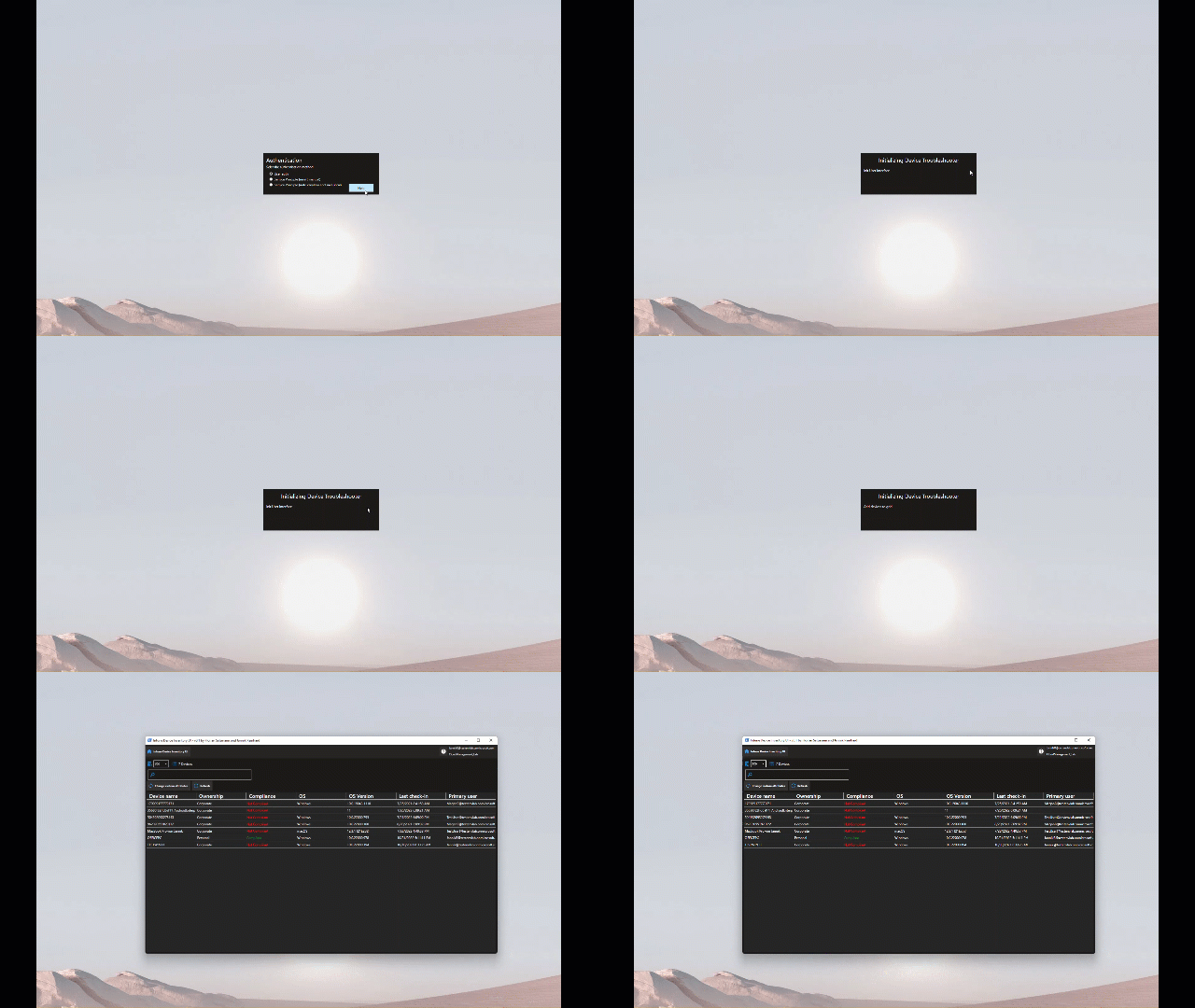
You have multiple possibilities for the authentication when you start the tool:
- User auth (Authentication with your current or other user)
- Service Principal (insert manually) (Authentication with a service principal — insert the appId, TenantId and secret manually)
- Service Principal (auto creation and save locally) (Automatic creation of a new service principal and store the connection information securely on your device to remember for the next login)
Features of the Intune Device Inventory UI
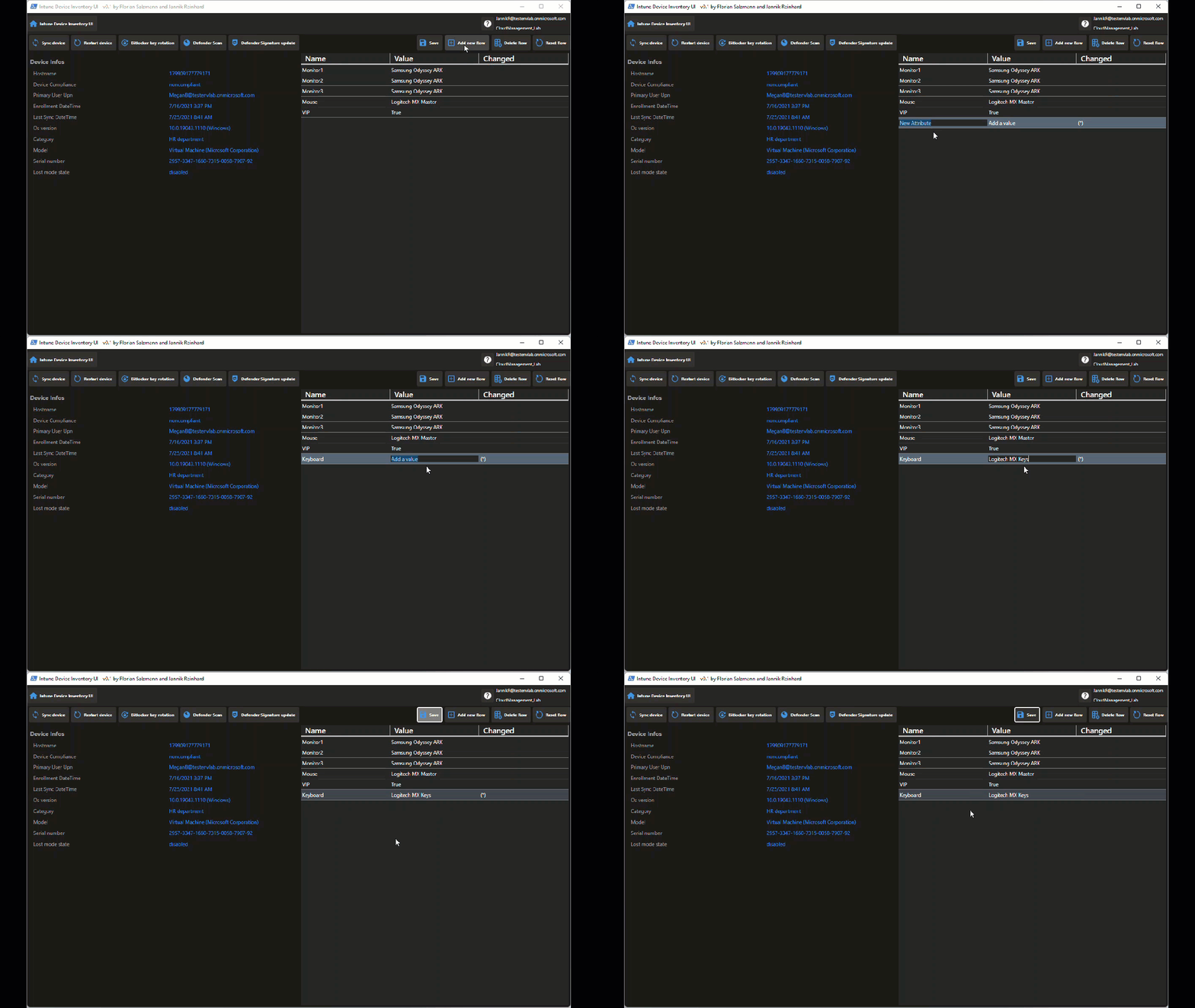
Change custom inventory attribute for single device
You can add, change and delete custom attributes for a single device
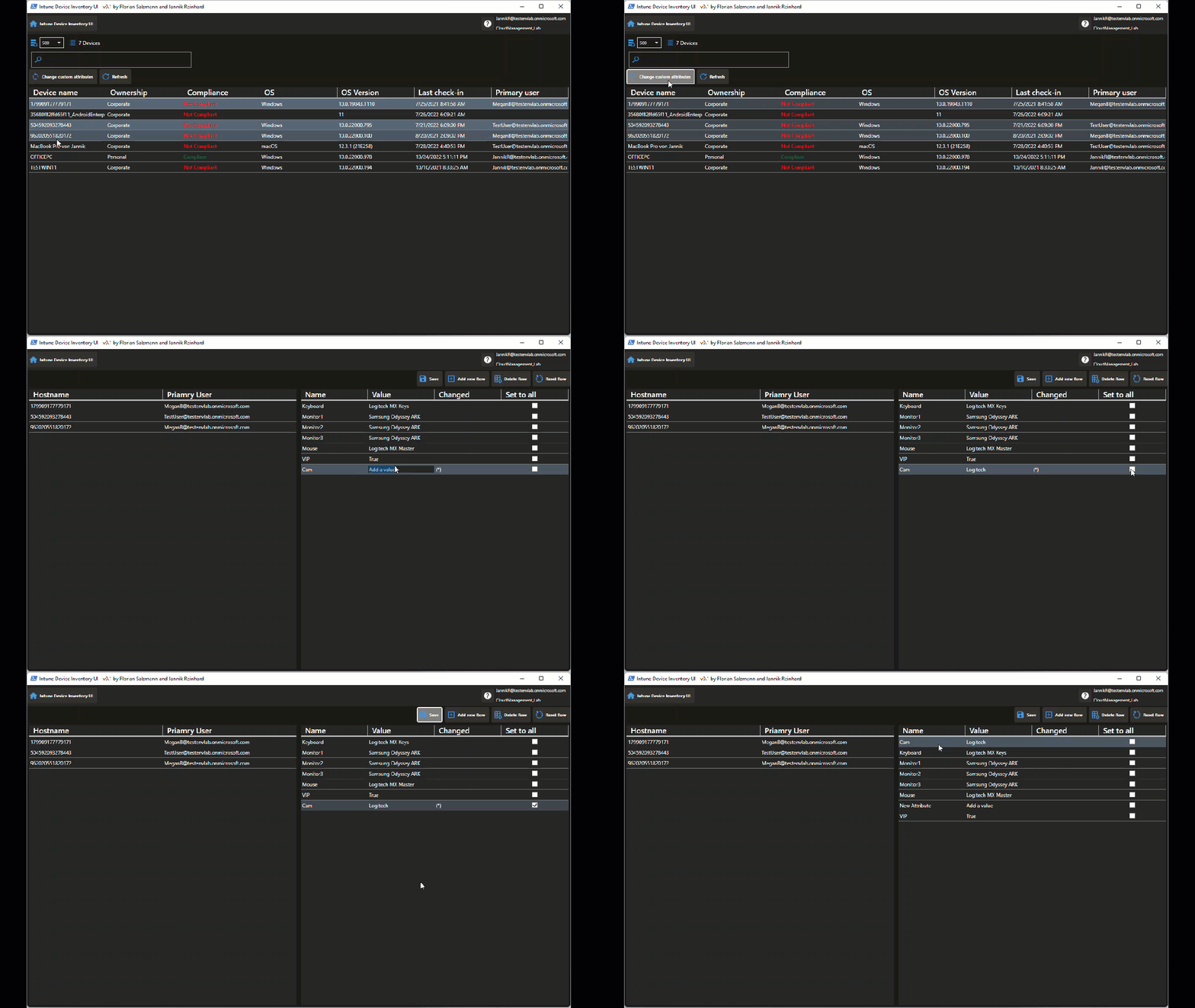
Change custom inventory attribute for multiple device
You can add, change and delete custom attributes for multiple devices
Trigger Device action
You can trigger device actions like sync, restart, bitlocker rotation, defender scan and defender signature update directly from the tool
A quick tip from practice: start with the service principal that is created and stored locally on first run. It saves you from re-authenticating every time you open the tool, and because the connection details are encrypted on your own device, it keeps day-to-day inventory work fast without compromising on security. For shared admin workstations, prefer the manual service principal option instead so that no credentials are persisted.
Conclusion
Florian and I are happy about your feedback and also to add more features to this tool. The Intune Device Inventory UI is meant to grow together with the community, so please let us know if you miss a feature or if you have an idea for further development. If you want to dive deeper into managing devices, have a look at more of my Intune guides on the blog.

New posts, straight to your inbox.
Hands-on guides on Intune, AI and Azure.