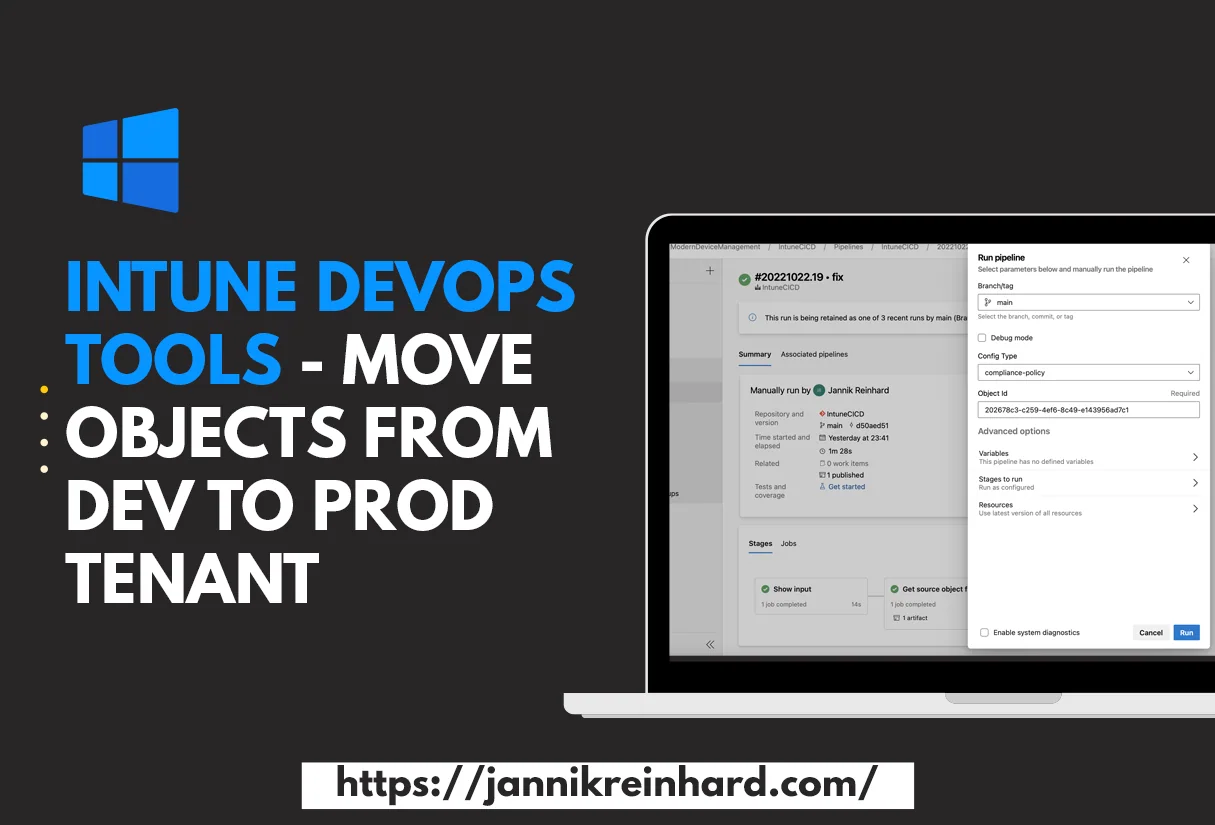
Intune DevOps Pipeline: Move Objects from Dev to Prod Tenant
Intune DevOps made easy: move objects from your Dev tenant to Prod with a proven CI pipeline. A practical step-by-step guide every admin should follow.
Read article
Intune DevOps made easy: move objects from your Dev tenant to Prod with a proven CI pipeline. A practical step-by-step guide every admin should follow.
Read articleDetect connected hardware in minutes with Intune Endpoint Analytics. Follow this proven script to inventory monitors, headsets and USB devices fast.
Read articleEndpoint Analytics makes it easy to reach users: trigger a smart, branded user dialog with a proactive remediation and target the right devices fast.
Read articlePopulate Microsoft Entra groups from local device signals using Intune scripts and Azure Automation. Review data collection, identity and membership updates.
Read articleSend Microsoft Teams alerts for the top five Intune app installation errors with Azure Automation, Log Analytics and a practical reporting workflow.
Read articleHistorical Intune BSOD anomaly detection with Azure Anomaly Detector. Review the October 2026 retirement notice before reusing this Azure Automation workflow.
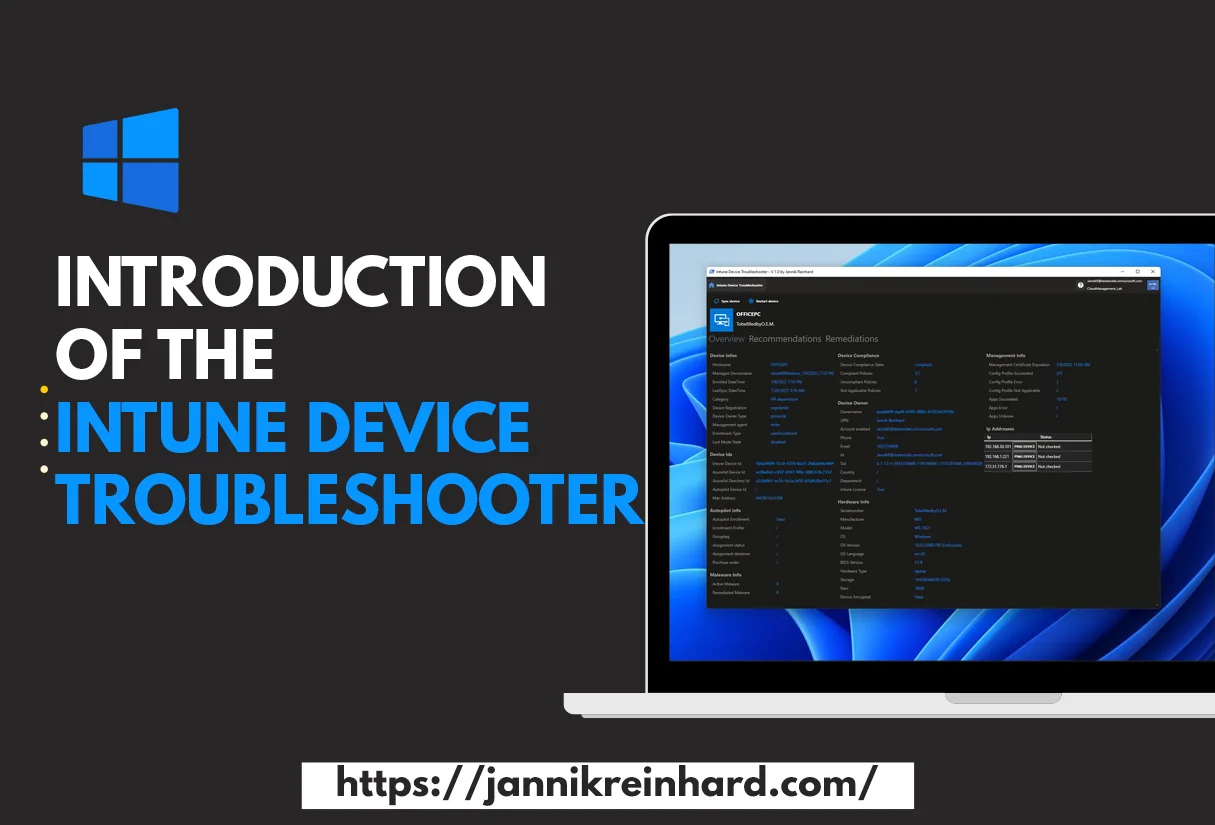
Read articleMeet the Intune Device Troubleshooter: a free PowerShell tool to check device status, run actions, and trigger remediation scripts in seconds.
Read articleAutomate the creation of Intune application assignment groups with an Azure runbook. Review the script, identity and group-naming choices before deployment.
Read articleClean up the disk on Intune devices with this proven guide: detection, remediation scripts and Storage Sense to reclaim space fast and easily.
Read articleAssignment filter setup made simple: deploy a default set of Intune filters with one PowerShell script and refine every group assignment fast.
Read articleLearn how to Sync Azure AD Group members with a kiosk config profile in Intune using Azure Automation, so logon lists stay current without manual edits.
Read articleInspect and remove Intune configuration profile applicability rules with Microsoft Graph. Review policy state and assignment filters before changing them.
Read article