
Use assignment filter for the update ring assignment
Learn how to use an assignment filter for the update ring in Intune with this easy step-by-step guide and target only the right devices fast.
With the Assignment Filter a possibility was added to Intune to make assignments more comfortable. This feature was first available for configuration profiles and then for apps. With the service release 2107 Intune has enabled the assignment filters also for update rings, so you can finally use an assignment filter for the update ring scenario as well.
What are assignment filters and how can you use them for the update ring assignments I will show you in this blog.
What are assignment filters?
Assignment Filter is a tool to assign configuration profiles, apps and update rings based on a rule. For example, you can assign a configuration profile to all users but only to devices running Windows 21H1. So you have more possibilities to make the assignments more comfortable.
Filters include the following features and benefits:
- Improve flexibility and granularity when assigning Intune policies and apps.
- Are used when assigning app, policies, and profiles. They dynamically target devices based on device properties you enter.
- Can include or exclude devices in a specific group based on criteria you enter.
- Create a query of device properties based on the device platform, including Android, iOS/iPadOS, macOS, and Windows 10.
- Can be used and reused in multiple scenarios in “Include” or “Exclude” mode.
How does the assignment filter for the update ring work?
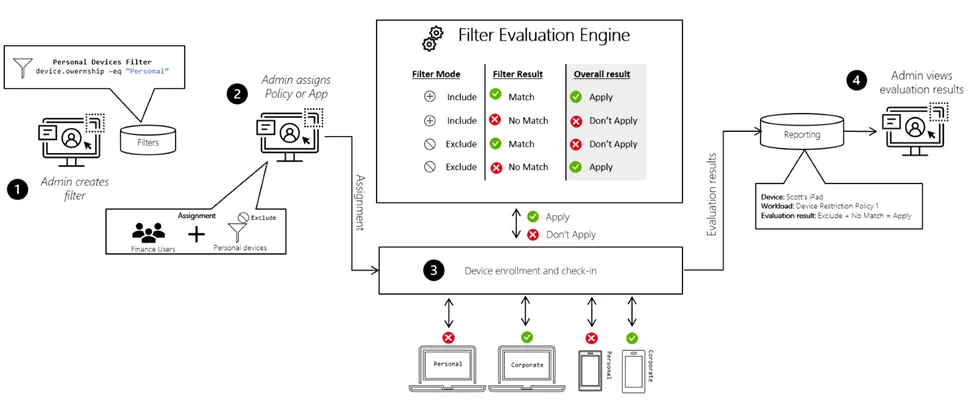
- The admin creates a filter in the Intune admin center e.g. only devices with the ownership personal
- A policy/app/update ring is assigned via a group. In addition to the group, a filter is specified to filter out only the devices that meet the condition. It is possible to use this as include or exclude rule.
- The filter is evaluated when the device enrolls, checks in with the Intune service, or at any other time a policy evaluates.
- You see the filter results based on the evaluation. For example, the app or policies applies, or it doesn’t apply.
You can find more information in the Microsoft documentation. If you want to dig deeper into Windows updates, also check out my other Intune blog posts.
How to create a filter
- Open the Intune admin center
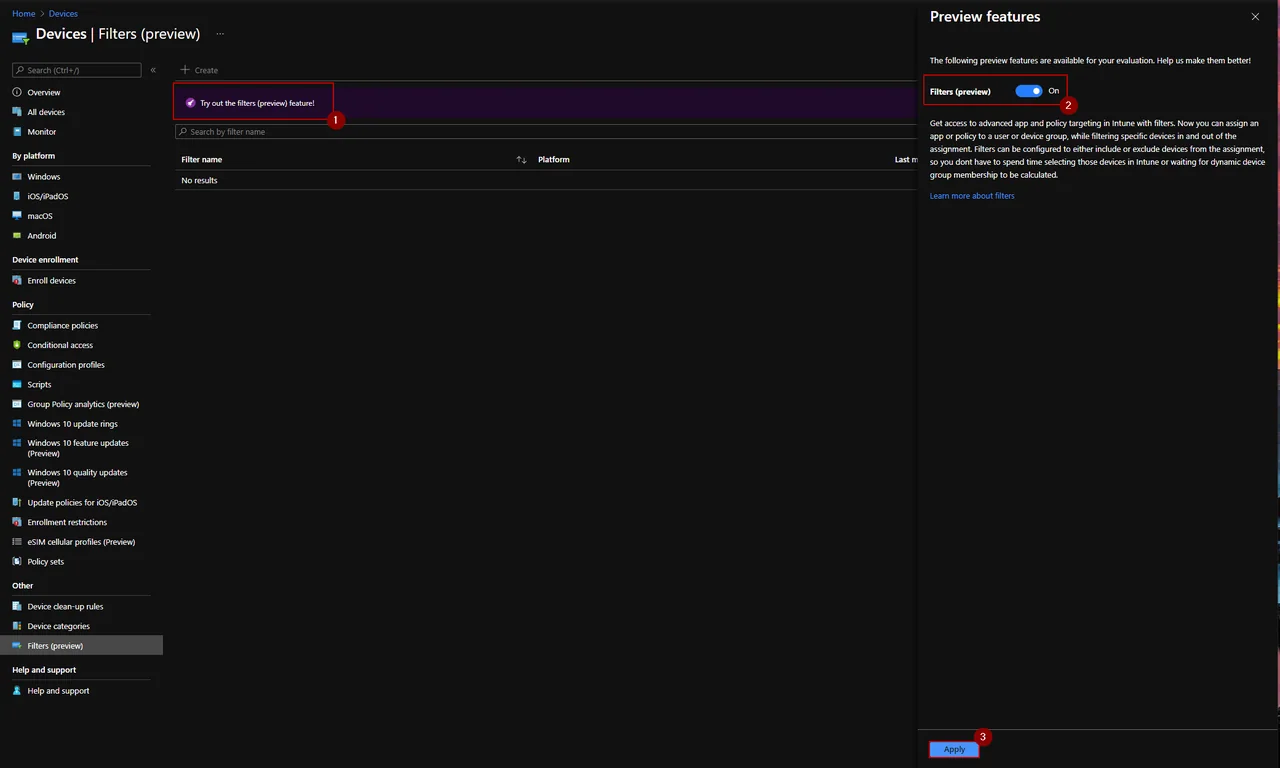
- Navigate to Devices -> Filters (preview)
- Click Try out the filters (preview) feature!
- Turn on the feature and click Apply
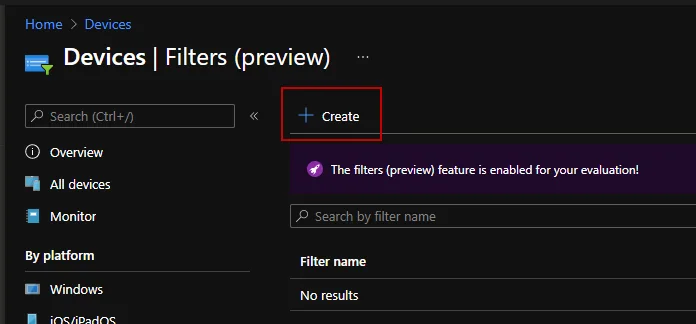
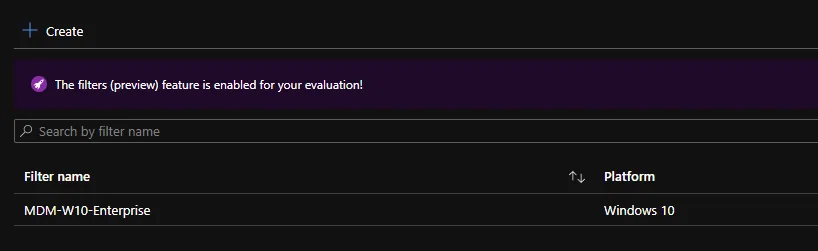
- Click Create
- Enter a Name for the filter and select a platform
- Click Next
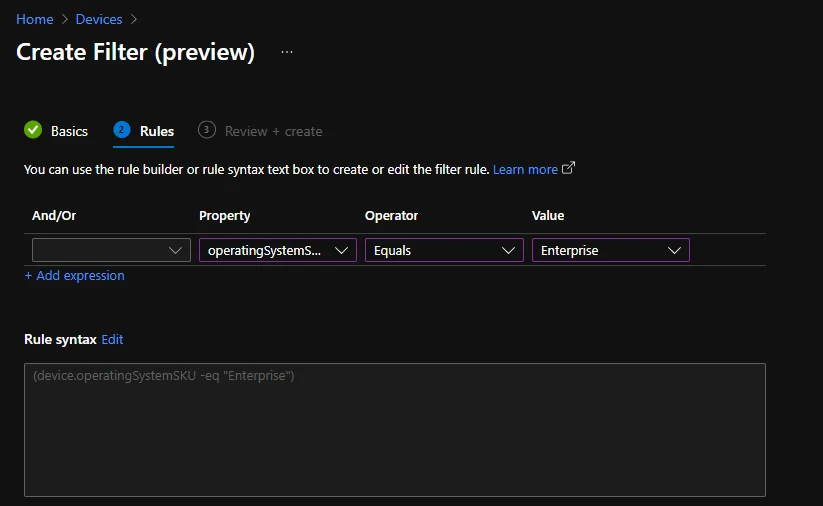
- Create a filter as you need it. I have created one to filter Windows 10 Enterprise.
- Click Create
Assign to an update ring
Now we get to the core part: applying the assignment filter for the update ring so only the targeted devices receive the policy.
- Create or open an existing update ring.
- Go to the assignment step
- Click Add Group and select the group to which the update ring should be assigned and click select

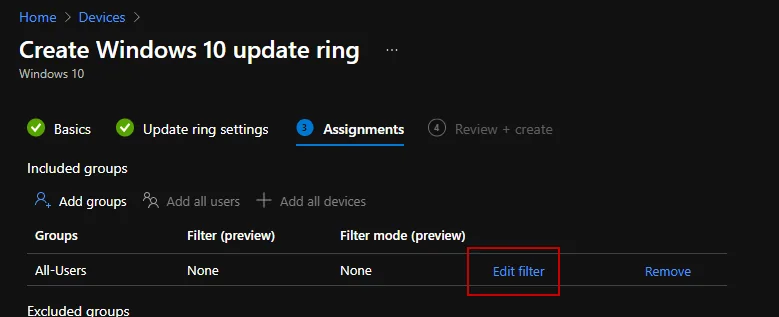
- Click Edit filter
- Here you can choose if you want to use the filter as include or exclude. In my case I want to use it as an include. Then select the created filter
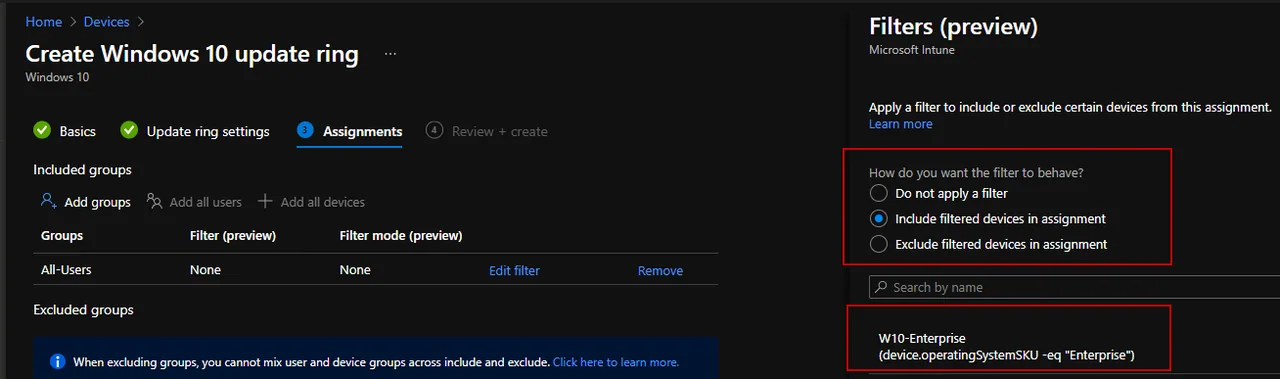
- Click Select and save the change
Common pitfalls and tips
Before you roll this out broadly, keep a few practical points in mind. A filter does not replace your group assignment, it narrows it down. The device must first be a member of the assigned group, and only then is the filter evaluated. If you target a filter against a group the device is not part of, nothing will apply, which is a common source of confusion when a policy seems to be missing.
Another point worth testing is timing. The filter is re-evaluated on every check-in, so a device that changes a property, for example its OS version after a feature update, can move in or out of scope automatically. This is powerful for update rings, but it also means a device can stop receiving a ring the moment it no longer matches the rule. Plan your filter logic so that devices are never left without any ring assigned.
Finally, prefer include filters over exclude filters when you can. Include rules are easier to reason about, and a single device can be covered by several overlapping assignments. When you mix include and exclude across multiple policies, take a few minutes to confirm the final result on a pilot device under Device -> Filters before you assign it to production.
This is how easy it is to create filters and use an assignment filter for the update ring to get a more comfortable assignment!
Stay healthy, Cheers
Jannik

New posts, straight to your inbox.
Hands-on guides on Intune, AI and Azure.