
It is a feature where a lot customer waiting since a long time. Now it is here. The possibility to uninstall apps from the company portal. In this short blog post we want to have an look how you can configure this and how the user flow looks like.

Content
- Content
- How to activate the uninstallation feature for existing apps
- How to add new apps to the company portal and activate the uninstallation feature
- User flow
Disclaimer: The uninstallation feature only works when the application is no dependency for another app.
How to activate the uninstallation feature for existing apps
- Open the Intune portal
- Navigate to Apps -> Windows
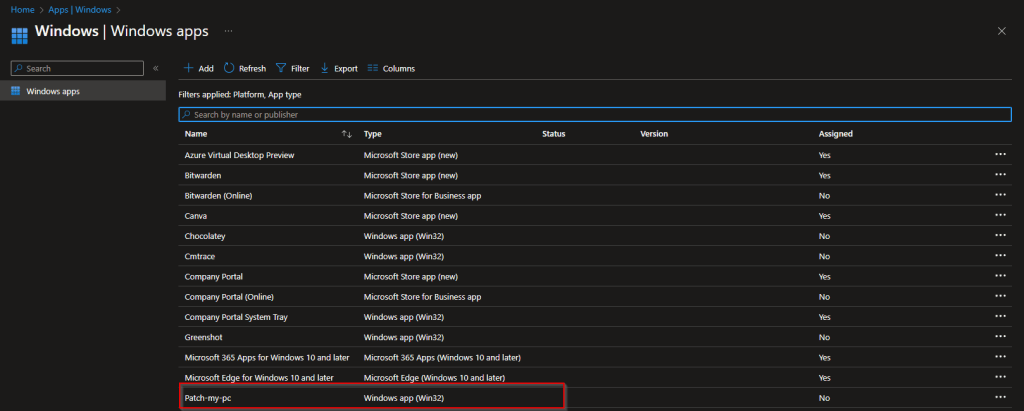
- Select the existing app for which you want to enable the deinstallation option
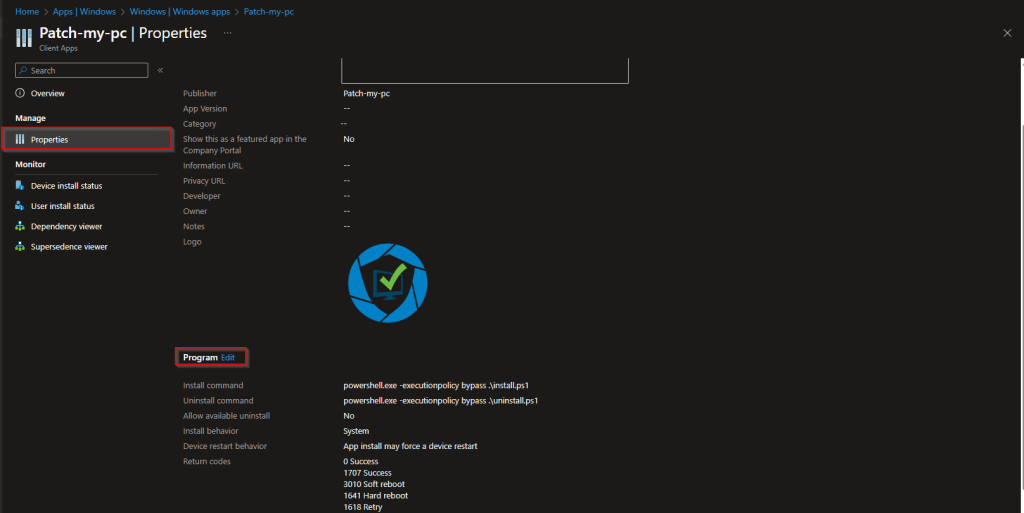
- Select Properties and Edit in the Program section
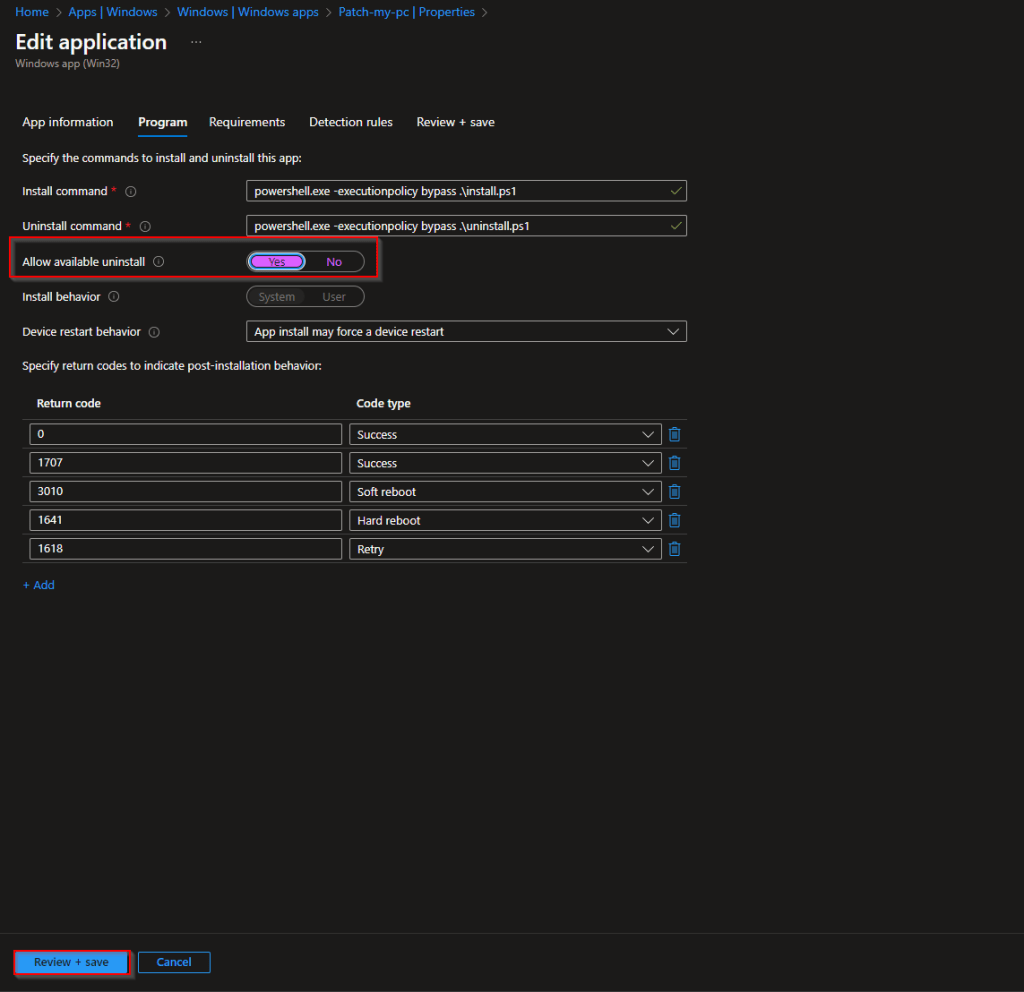
- Set the Allow available uninstallation to Yes
- Click Review + save multiple times and click save
How to add new apps to the company portal and activate the uninstallation feature
Add an Win32 app and configure uninstallation setting
- Open the Intune portal
- Navigate to Apps -> Windows
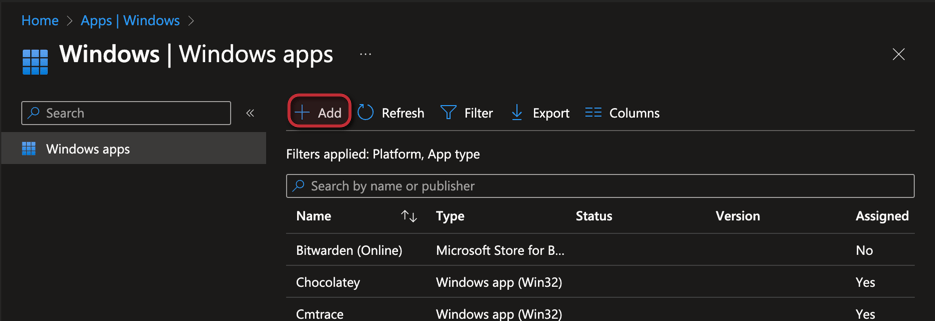
- Click + Add
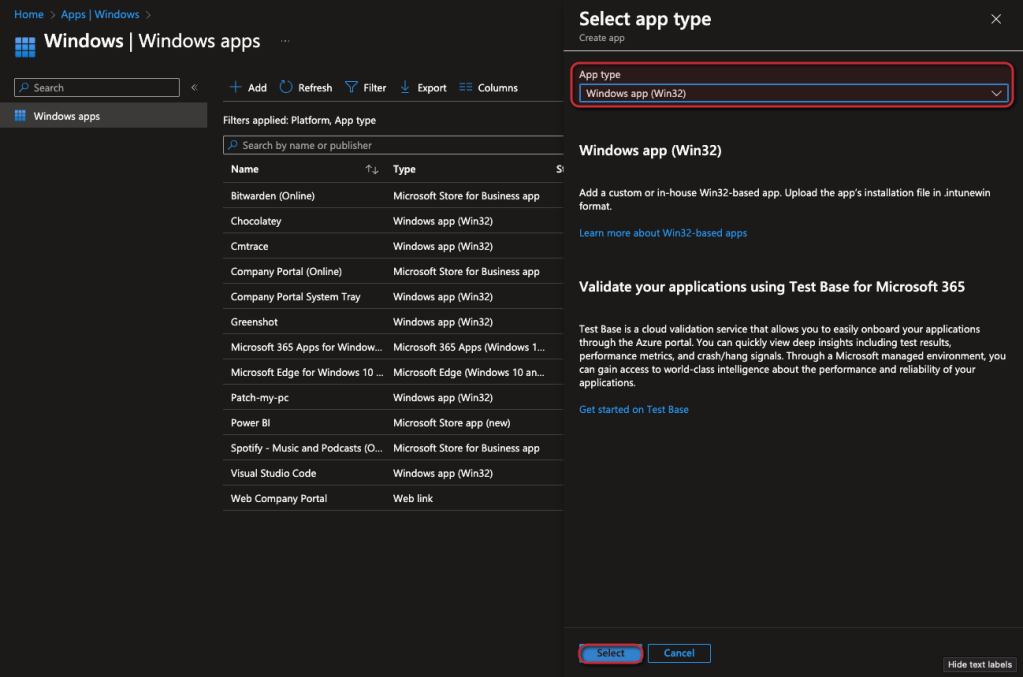
- Select Windows app (Win32) -> Click Select
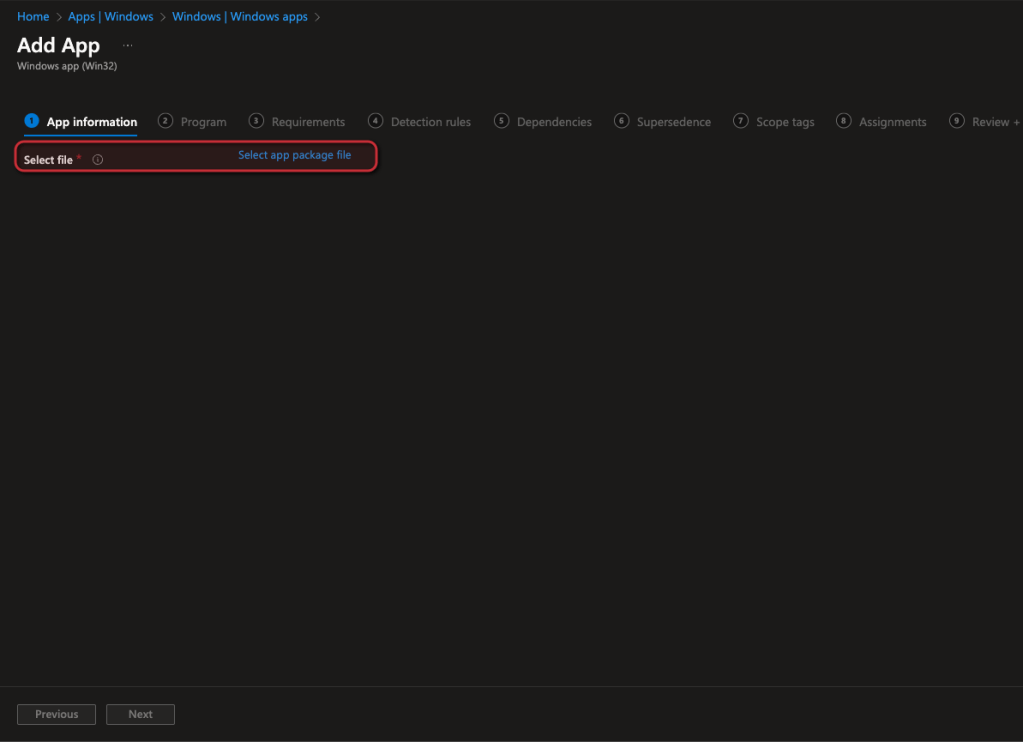
- Click select app package file
How to create a IntuneWin file is descriped here
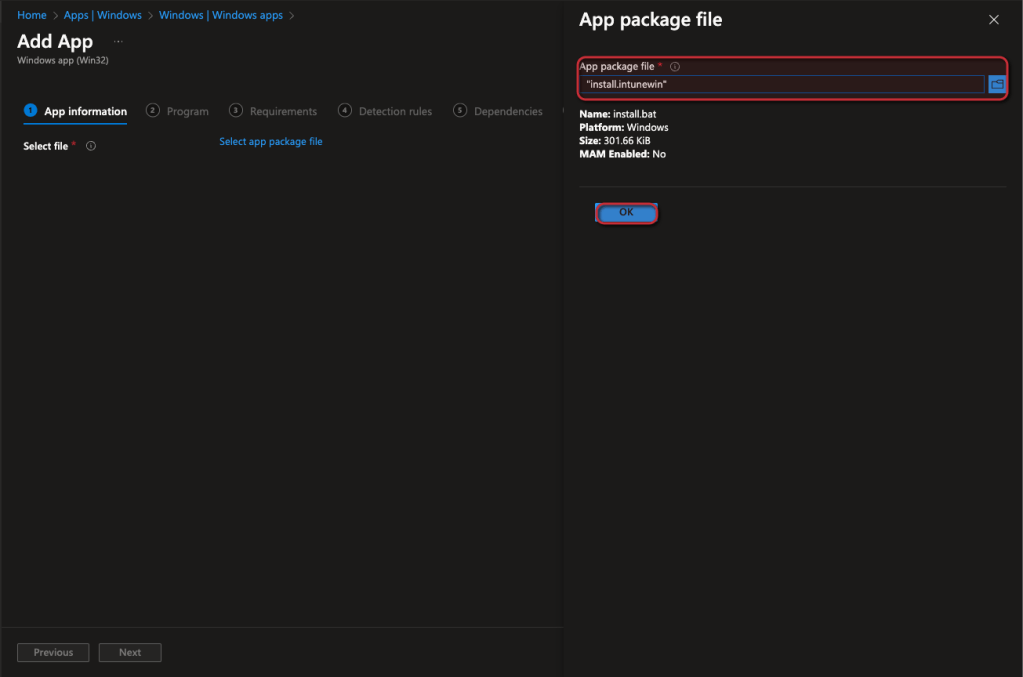
- Select the file -> Click Ok
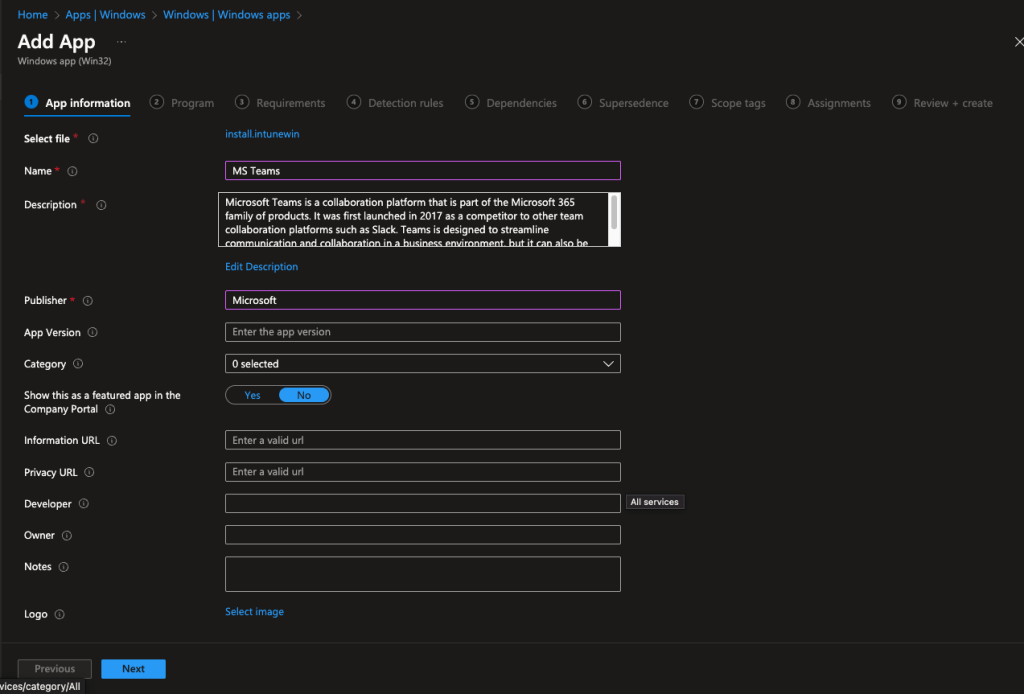
- Fill out the informations about the app
- Click Next
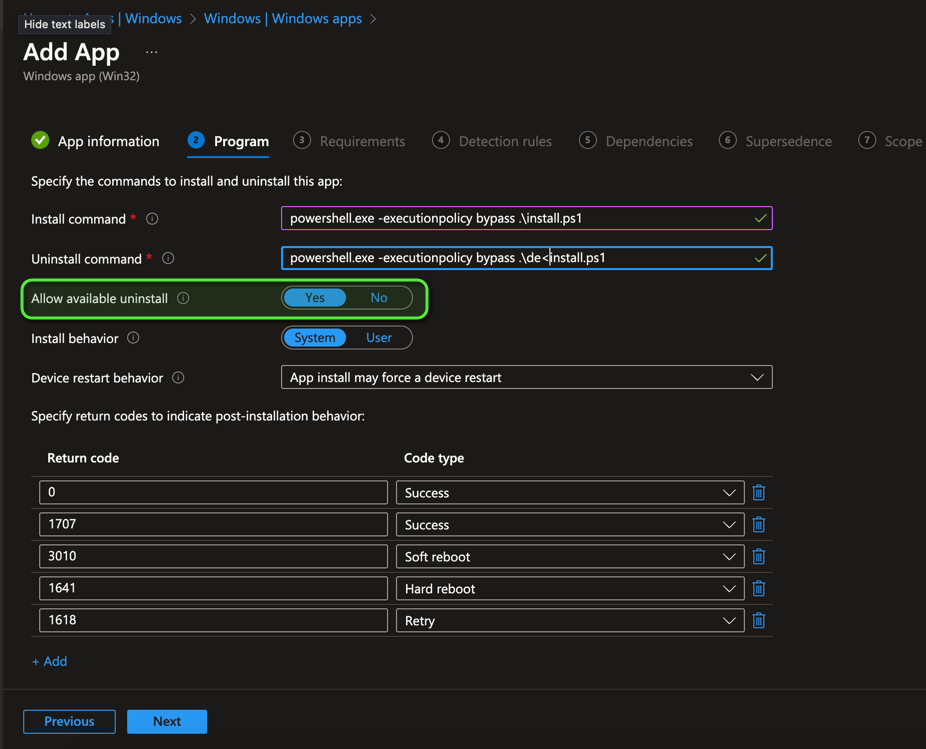
- Add the installation and deinstallation command
- Make sure that the “Allow available uninstallation” is set
- Click Next
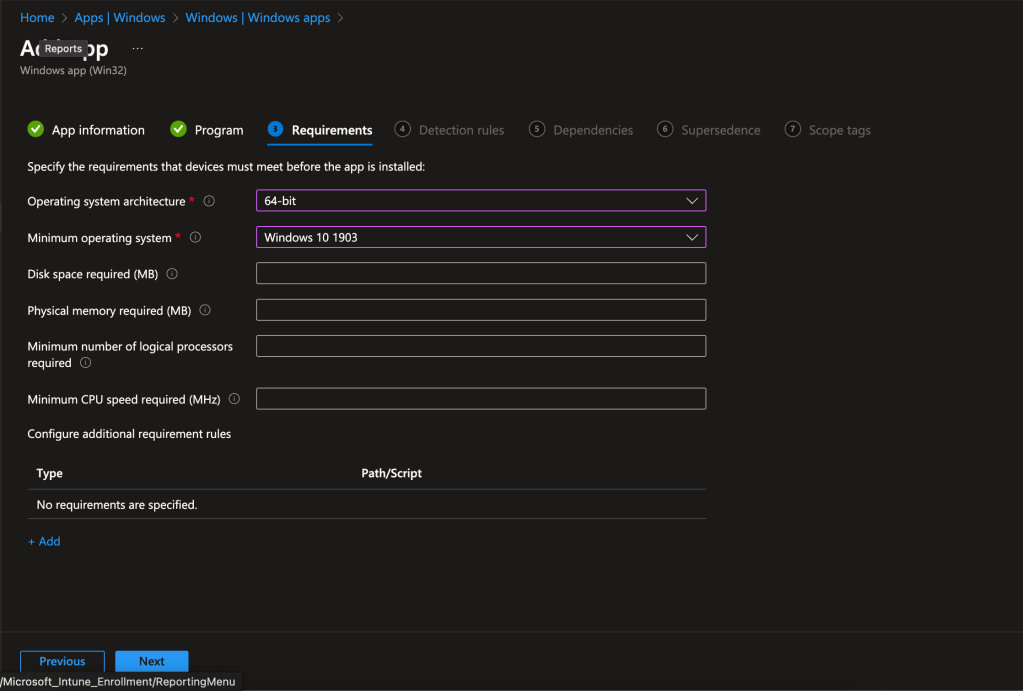
- Add here the requirements for the installation
- You can also add a custom requirements script
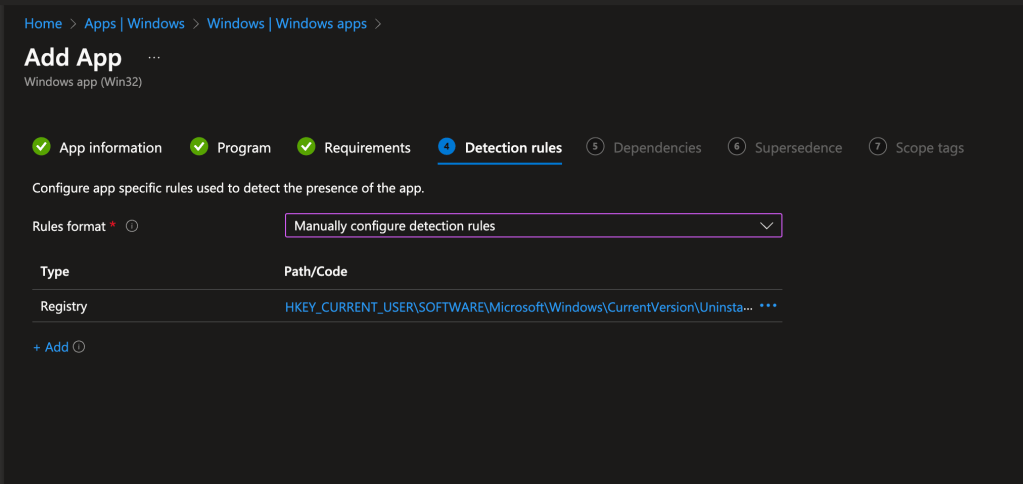
- Add the detection logic. In my case I select a registry key. But also here you can add a custom script.
- Click Next
- Add a dependency or skip the section with Next
- Same for scope tags
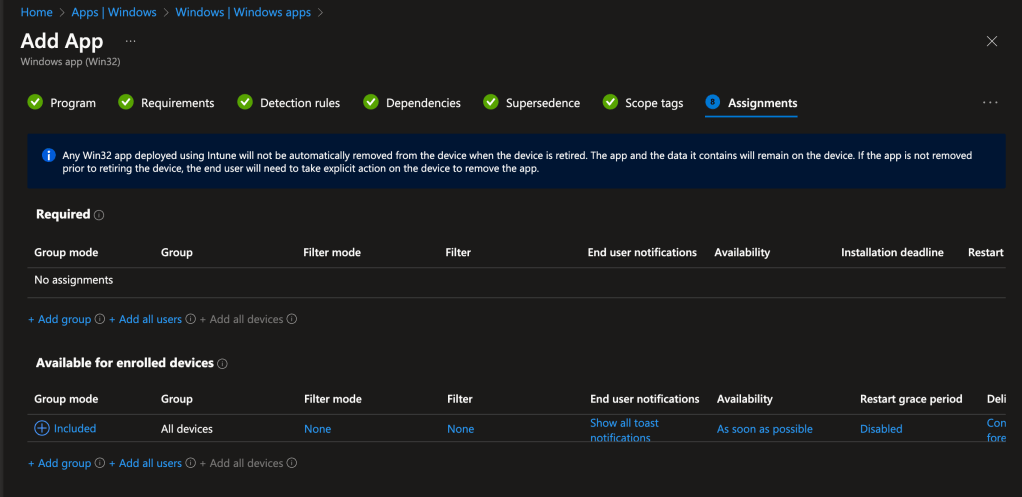
- Add a available deployment to a group or all devices
- Click Next
User flow
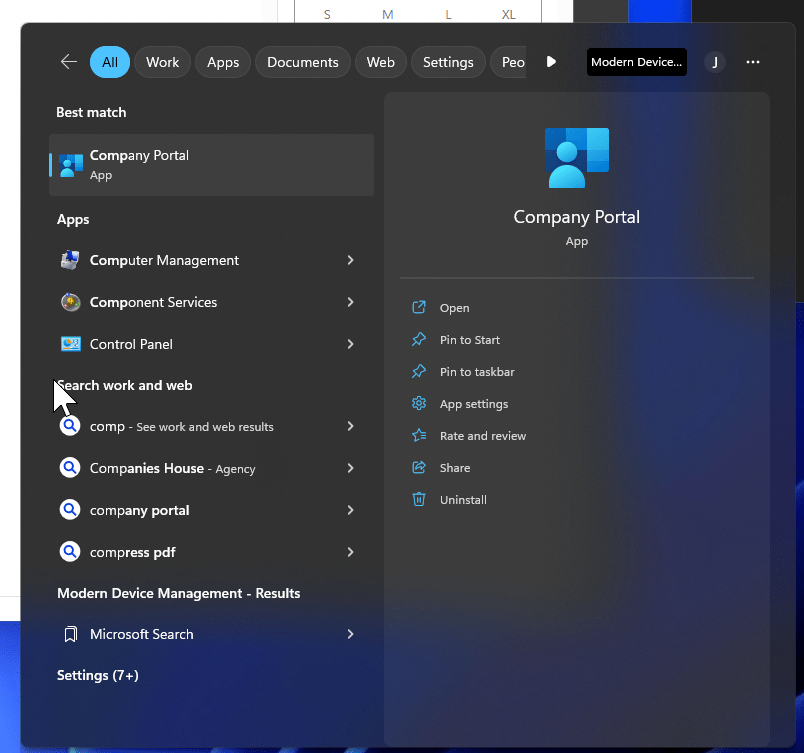
- Open the Company Portal from the start menu (The name can differ depending on the language)
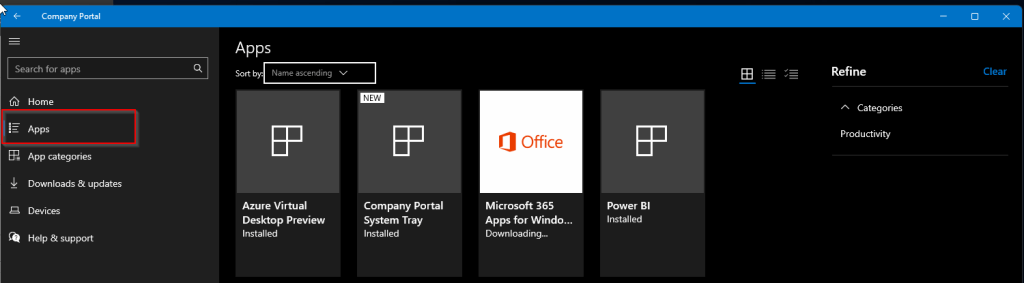
- Select Apps and select the app you want to install
- Click install to install the App
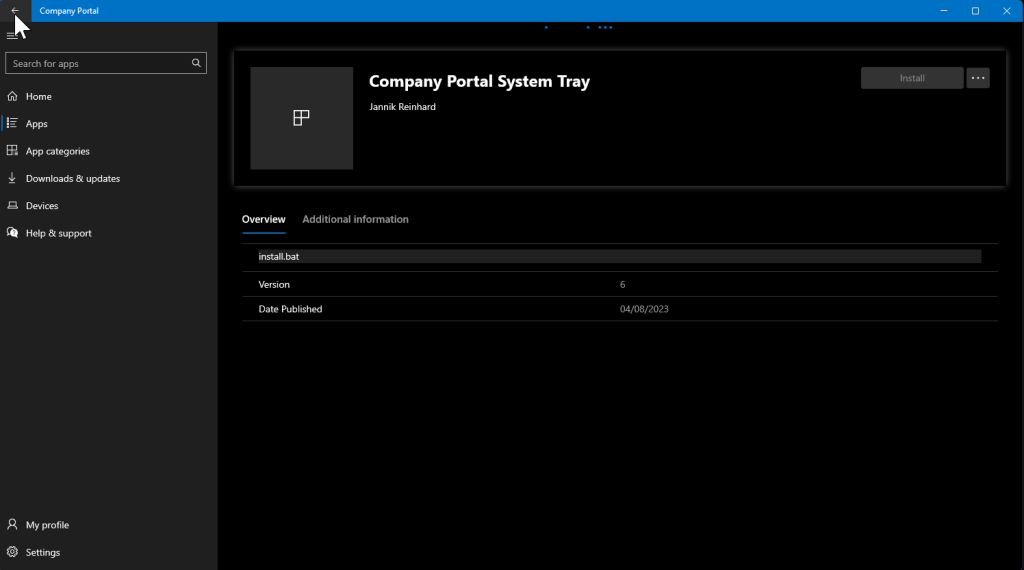
- Once the installation is done you will see the uninstallation button
 jannikreinhard.com
[…] How to activate the uninstallation feature in the Company Portal […]
LikeLike