
Allow users to uninstall managed Intune apps
Let users remove apps themselves: learn how to enable the uninstallation feature in the Company Portal in Intune with this clear, step-by-step Win32 guide.
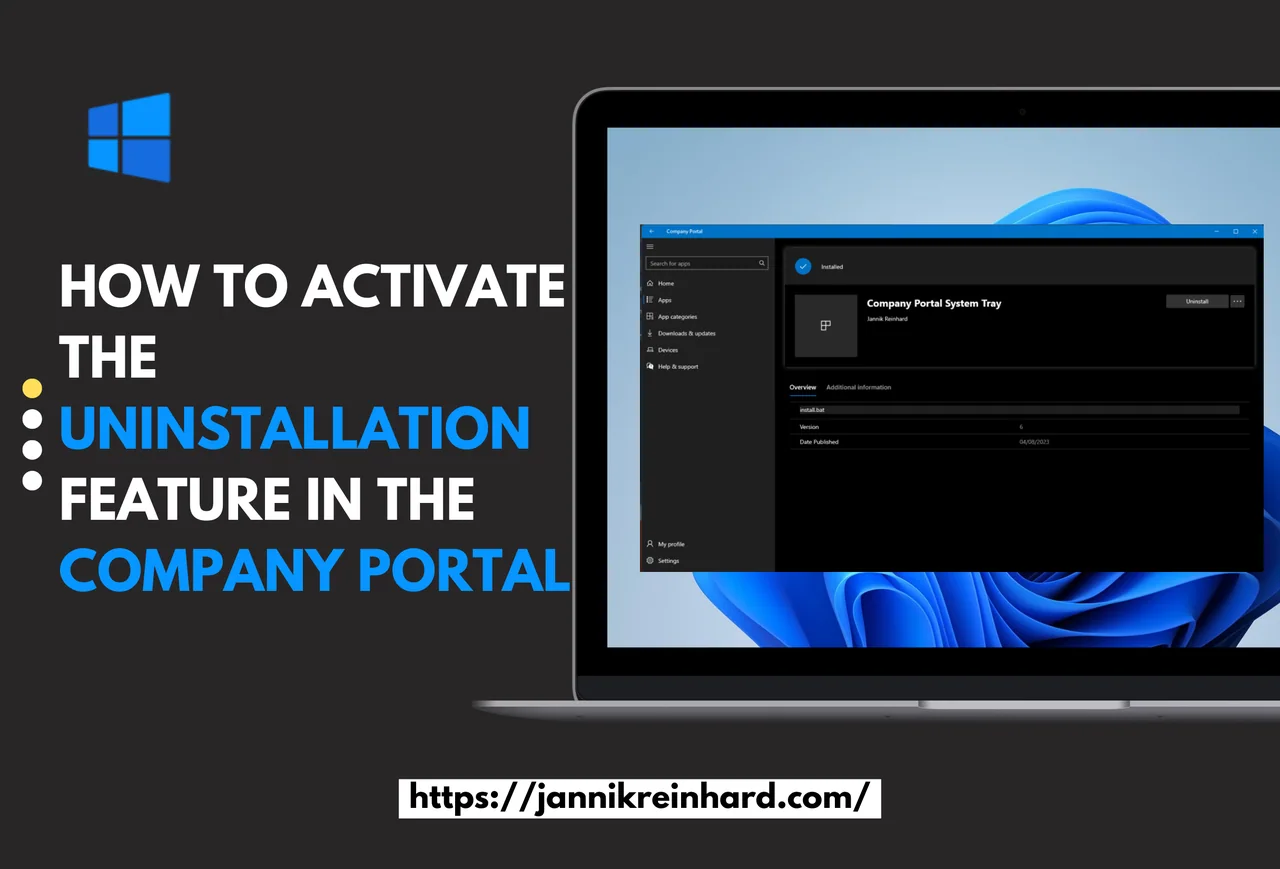
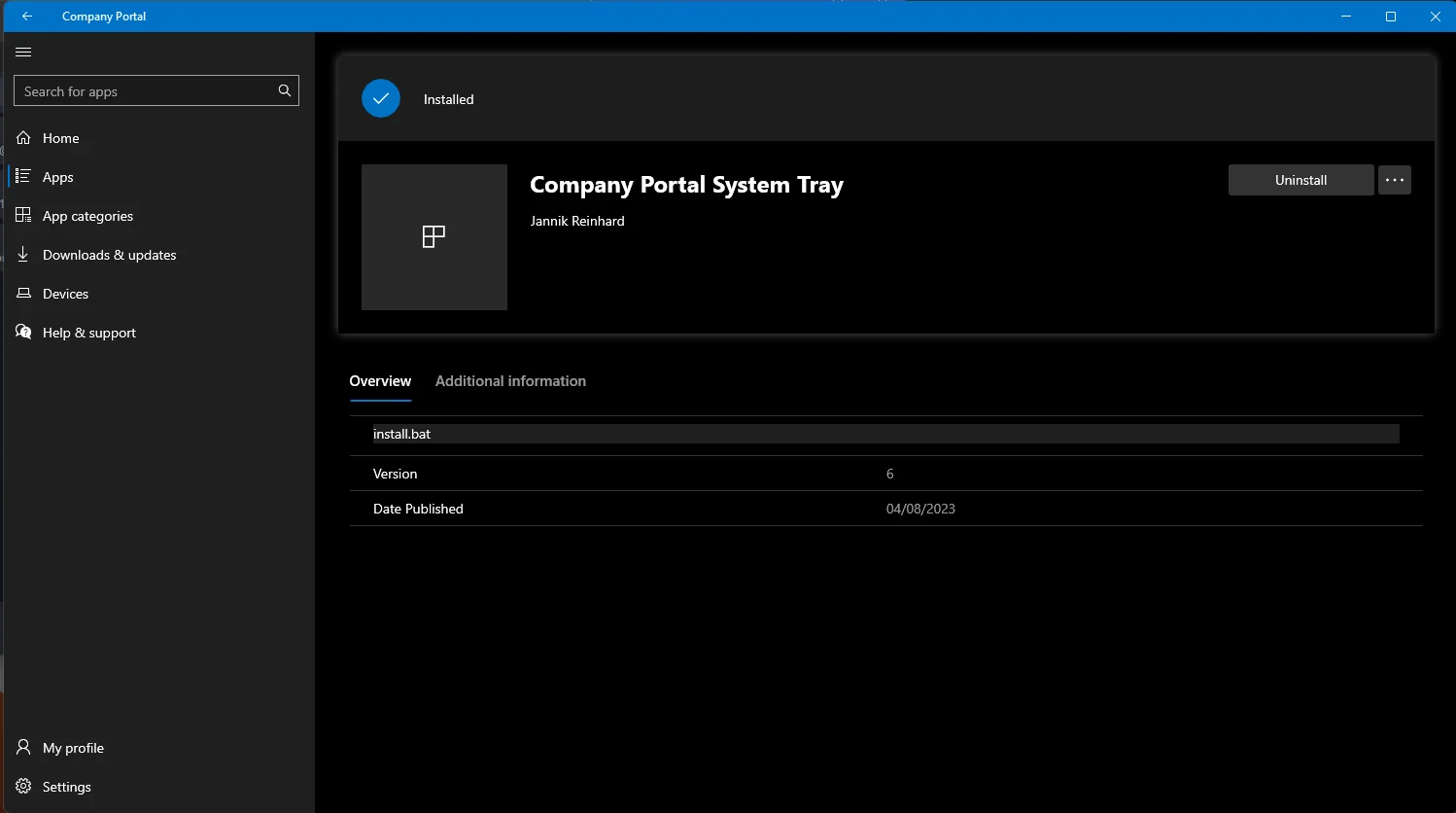
The uninstallation feature in the Company Portal is something that many customers have been waiting for a long time, and now it is finally here. With this option you can let your users uninstall apps directly from the company portal, without raising a ticket or contacting the helpdesk. In this short blog post, we want to have a look at how you can configure the uninstallation feature in the Company Portal and what the user flow looks like.
Giving end users a self-service way to remove software reduces support load and keeps devices clean from apps that are no longer needed. Before we start, it is worth understanding that the uninstallation feature in the Company Portal is built on top of the standard Win32 app deployment model in Microsoft Intune. If you want to read the official background, Microsoft documents the behavior in the Microsoft Learn Intune app documentation.
Content
- Content
- How to activate the uninstallation feature for existing apps
- How to add new apps to the company portal and activate the uninstallation feature
- User flow
Disclaimer: The uninstallation feature only works when the application is no dependency for another app.
How to activate the uninstallation feature for existing apps
If you already have Win32 apps deployed, you do not need to repackage anything to enable the uninstallation feature in the Company Portal. You simply toggle a single property on the existing app and Intune takes care of the rest. The following steps walk you through enabling the option for an app that is already in your tenant.
- Open the Intune portal
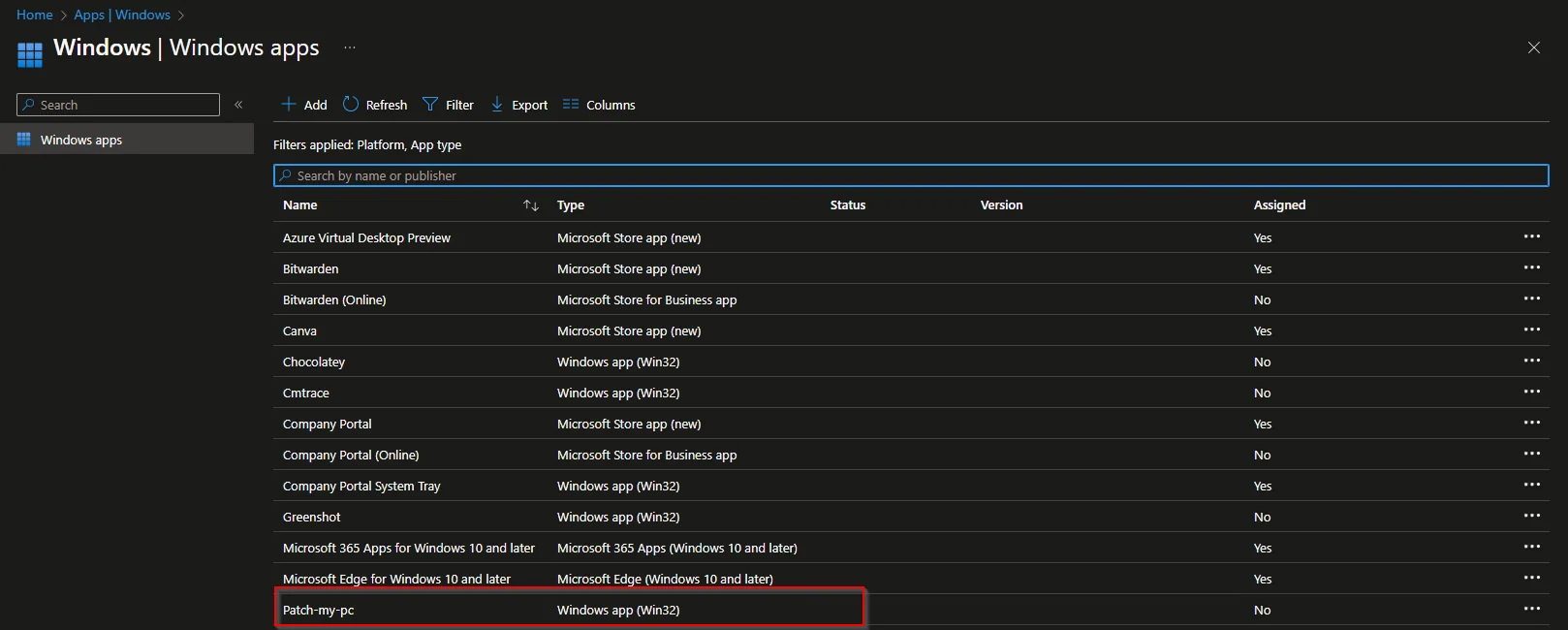
- Navigate to Apps -> Windows
- Select the existing app for which you want to enable the deinstallation option
- Select Properties and Edit in the Program section
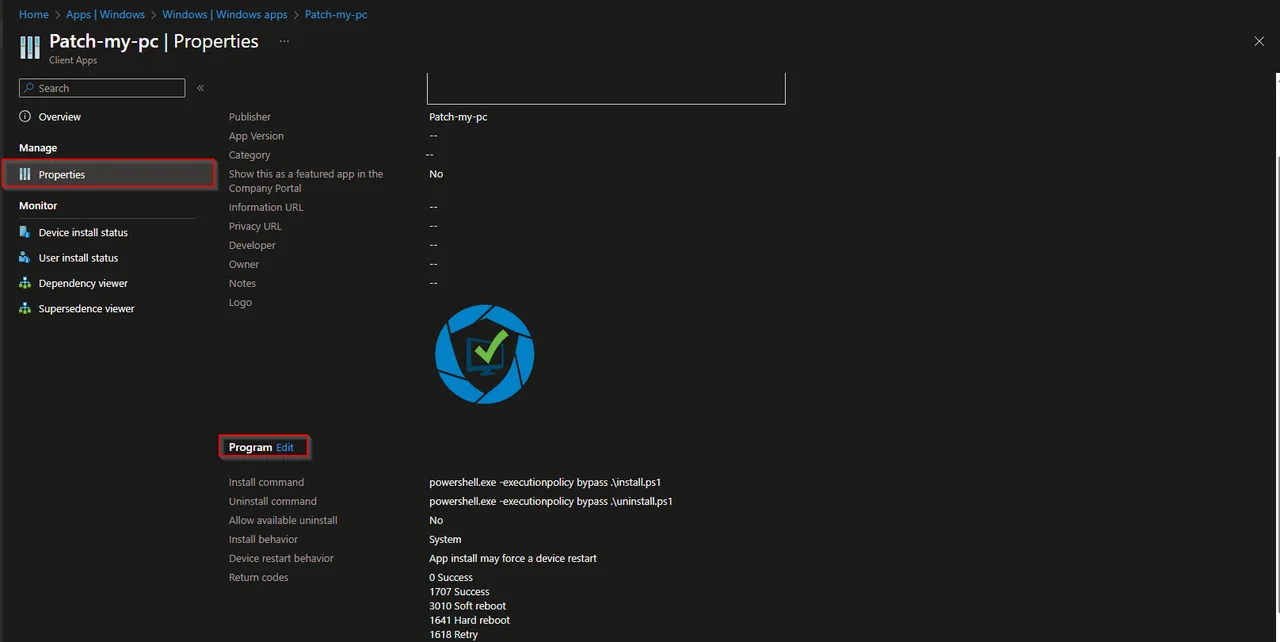
- Set the Allow available uninstallation to Yes
- Click Review + save multiple times and click save
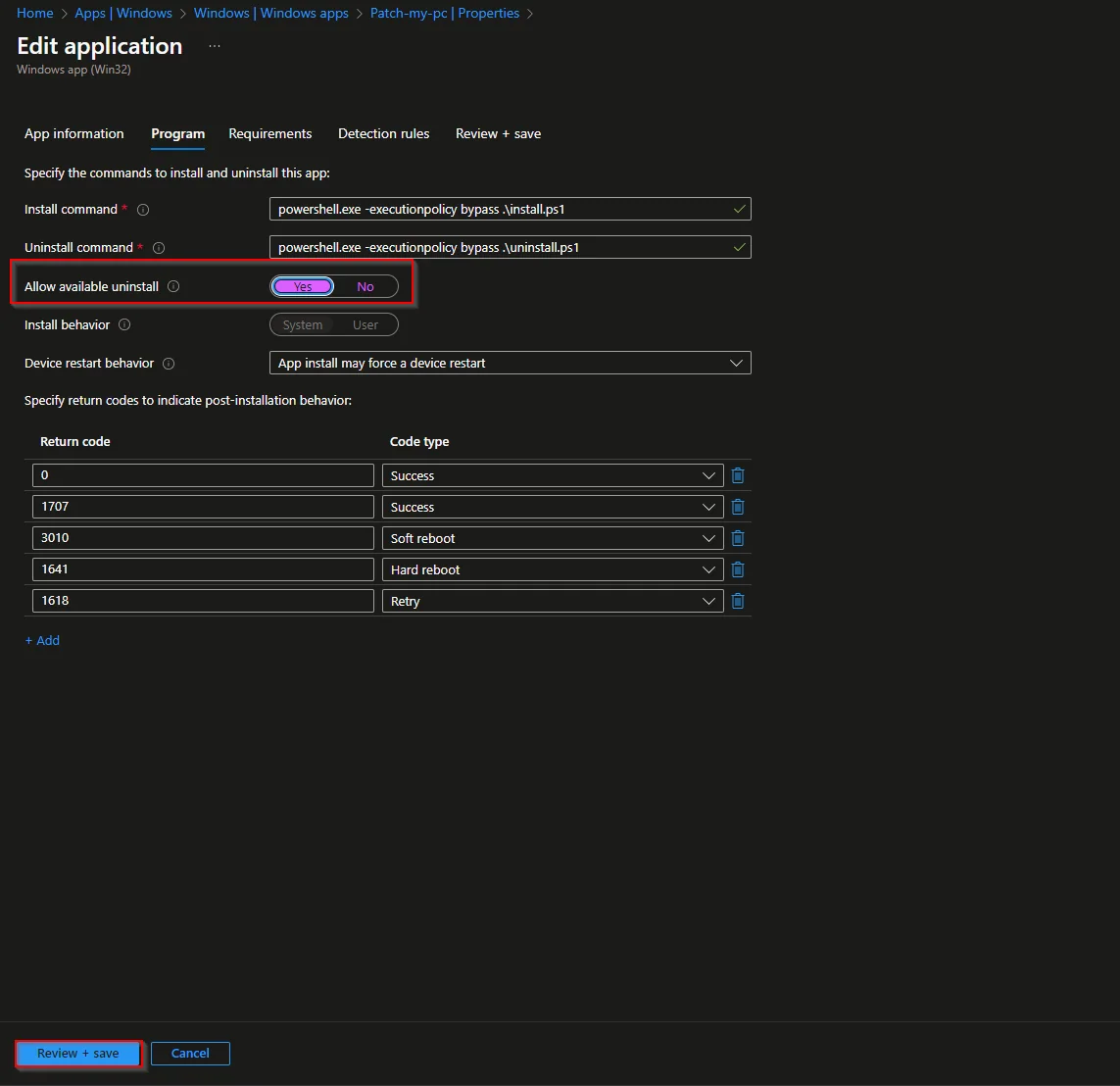
That is all that is required for existing apps. After the next policy sync, the uninstallation feature in the Company Portal becomes available to the assigned users, and they will see a clear uninstall button next to the app.
How to add new apps to the company portal and activate the uninstallation feature
When you publish a brand new application, you can enable the uninstallation feature in the Company Portal right inside the creation wizard. The key is the same Allow available uninstallation setting on the Program page, which you configure while adding the app rather than editing it afterwards.
Add a Win32 app and configure the uninstallation feature in the Company Portal
- Open the Intune portal
- Navigate to Apps -> Windows
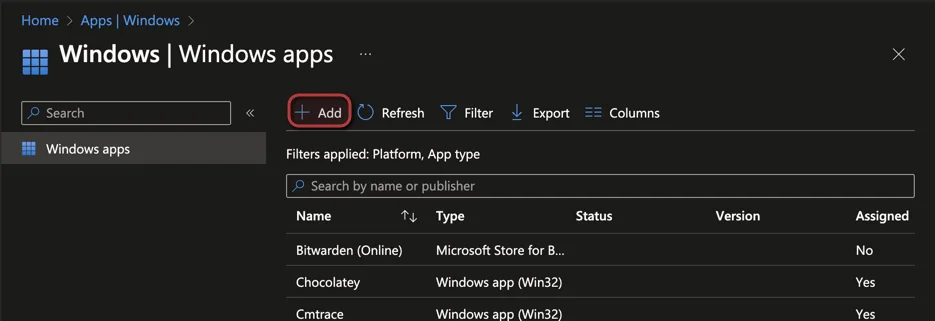
- Click + Add
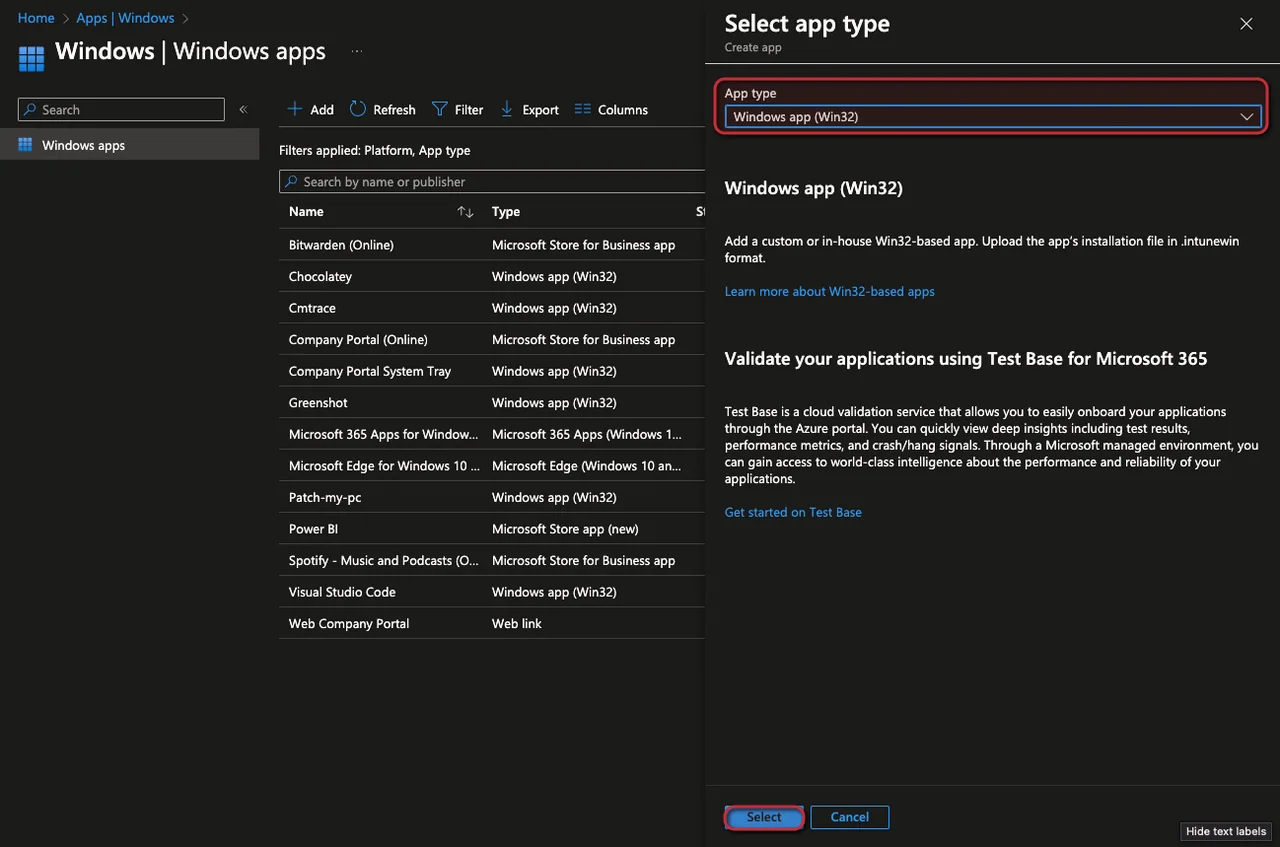
- Select Windows app (Win32) -> Click Select
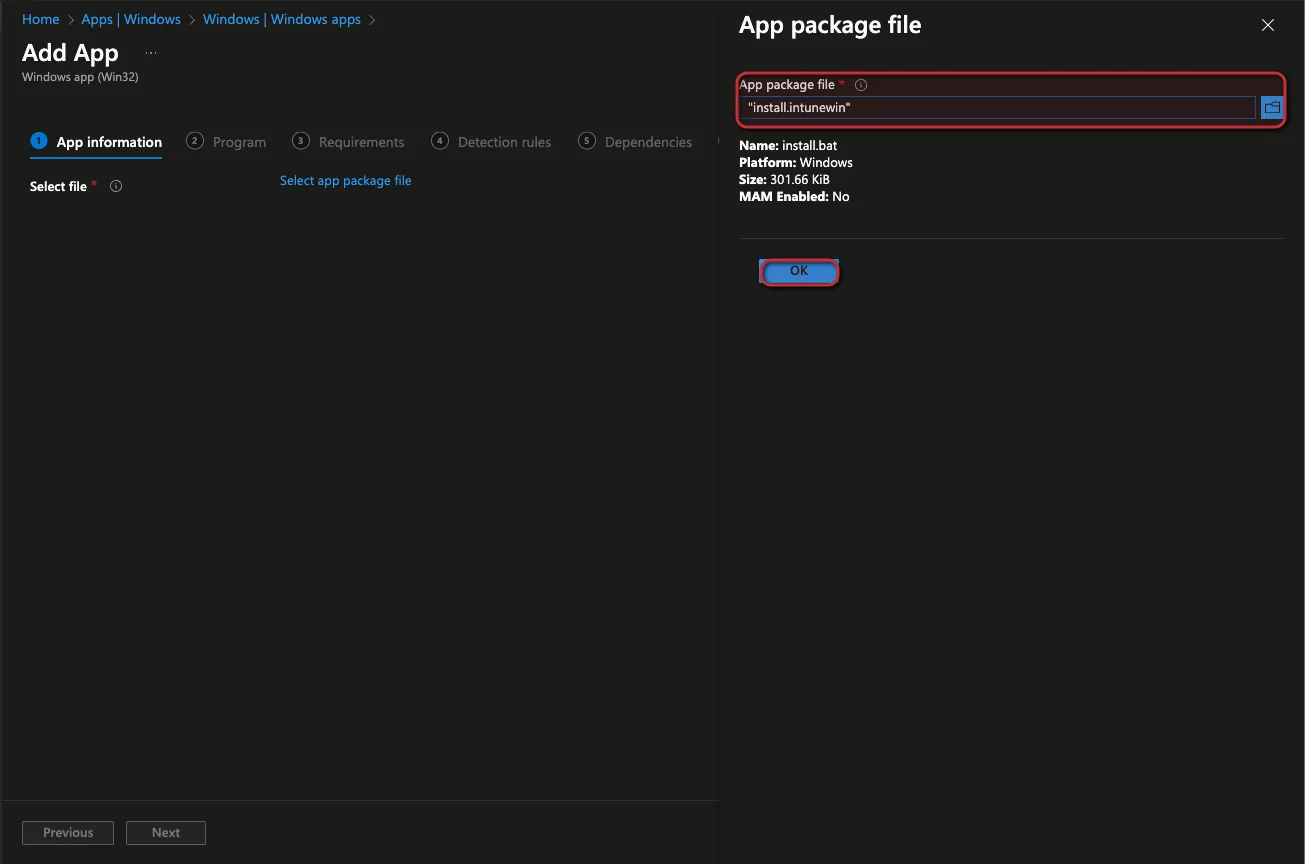
- Click select app package file
How to create an IntuneWin file is described in Win32 app packaging instructions
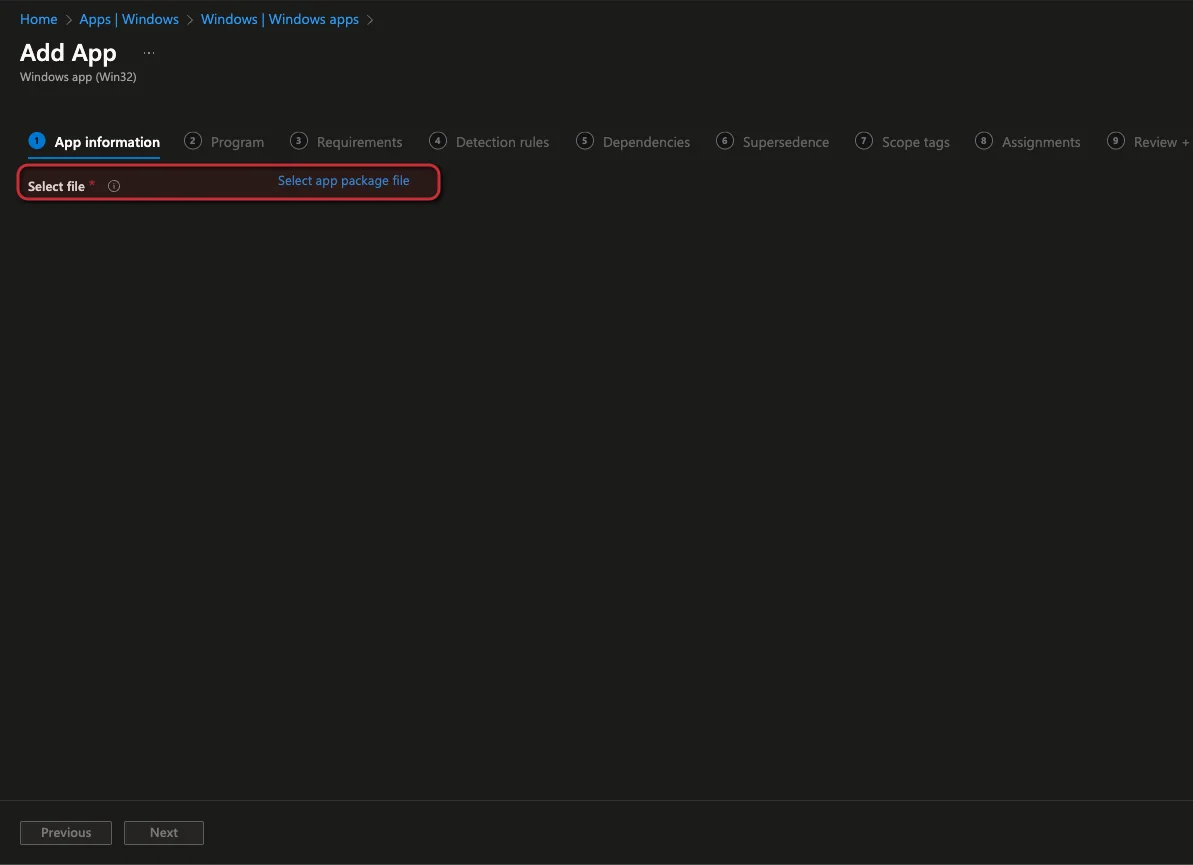
- Select the file -> Click Ok
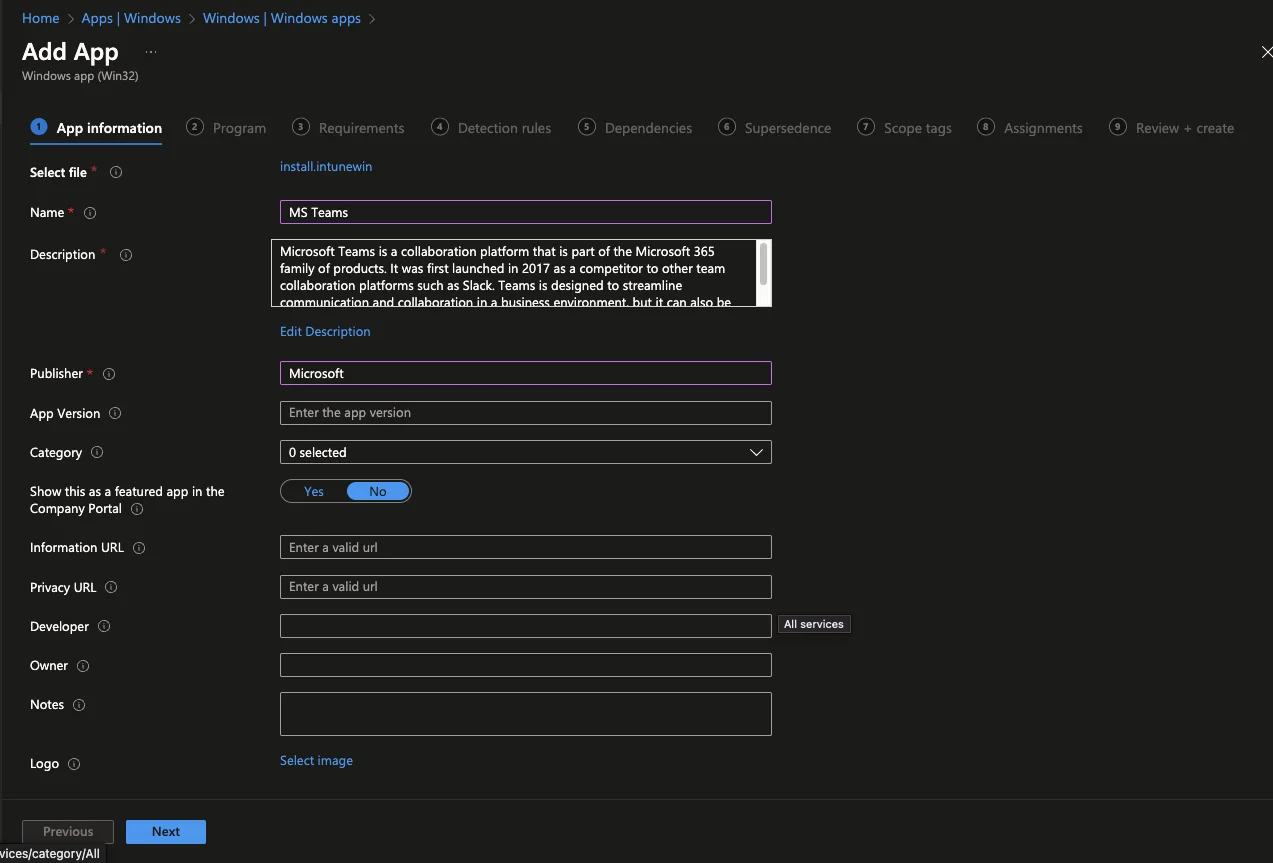
- Fill out the information about the app
- Click Next
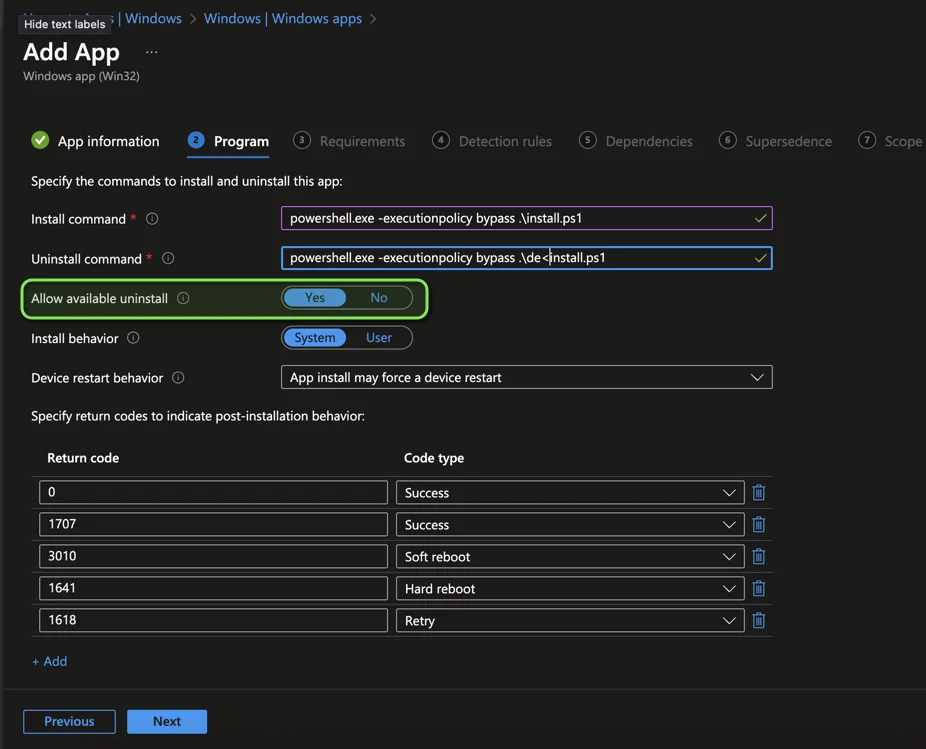
- Add the installation and deinstallation command
- Make sure that the “Allow available uninstallation” is set
- Click Next
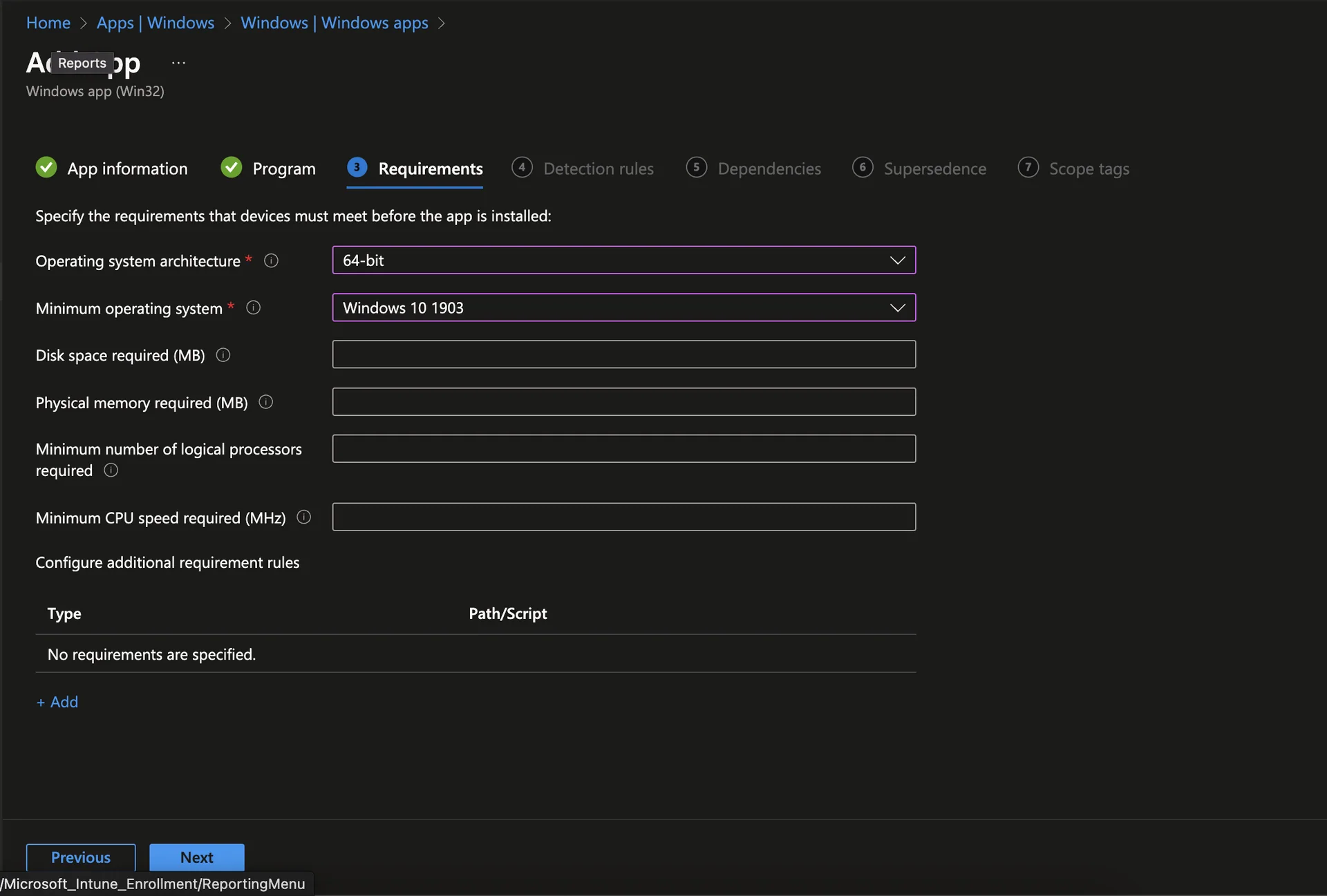
- Add here the requirements for the installation
- You can also add a custom requirements script
- Add the detection logic. In my case I select a registry key. But also here you can add a custom script.
- Click Next
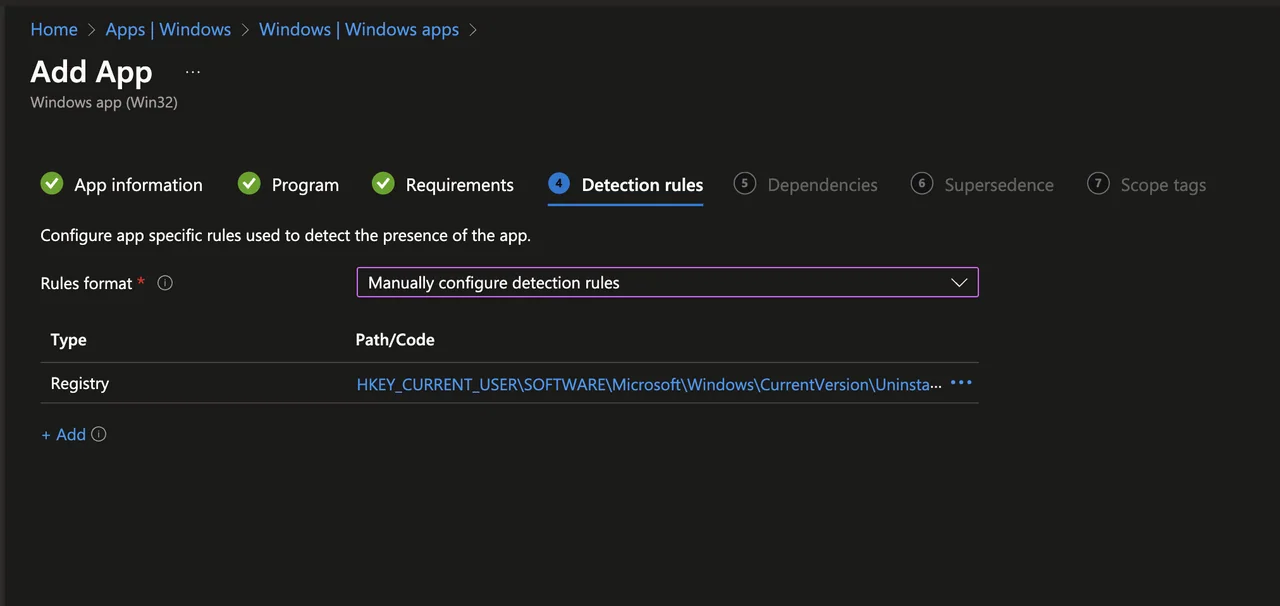
- Add a dependency or skip the section with Next
- Same for scope tags
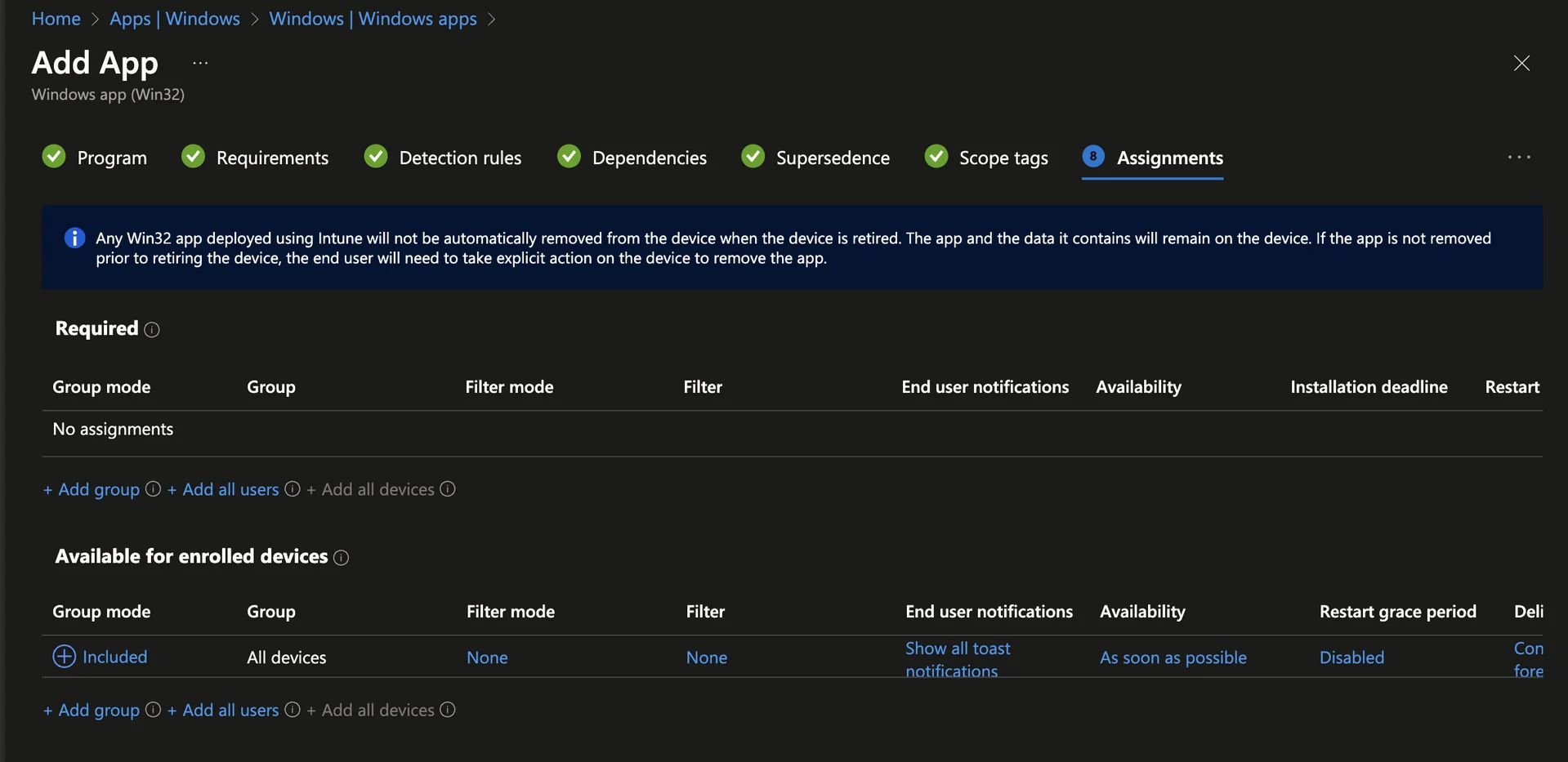
- Add an available deployment to a group or all devices
- Click Next
Keep in mind that the uninstallation feature in the Company Portal only appears for assignments of type Available. Required assignments are enforced by Intune, so an end user is intentionally not allowed to remove a mandatory application from the company portal.
User flow
Now that the configuration is done, let us look at the experience from the user side. The user flow for the uninstallation feature in the Company Portal is intentionally simple, so that no training is needed for your end users.
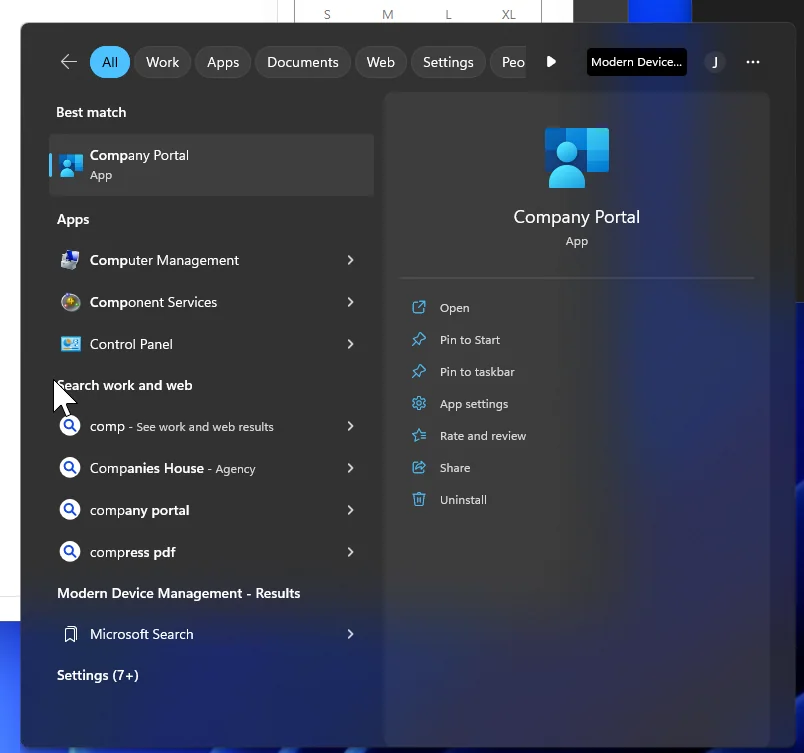
- Open the Company Portal from the start menu (The name can differ depending on the language)
- Select Apps and select the app you want to install
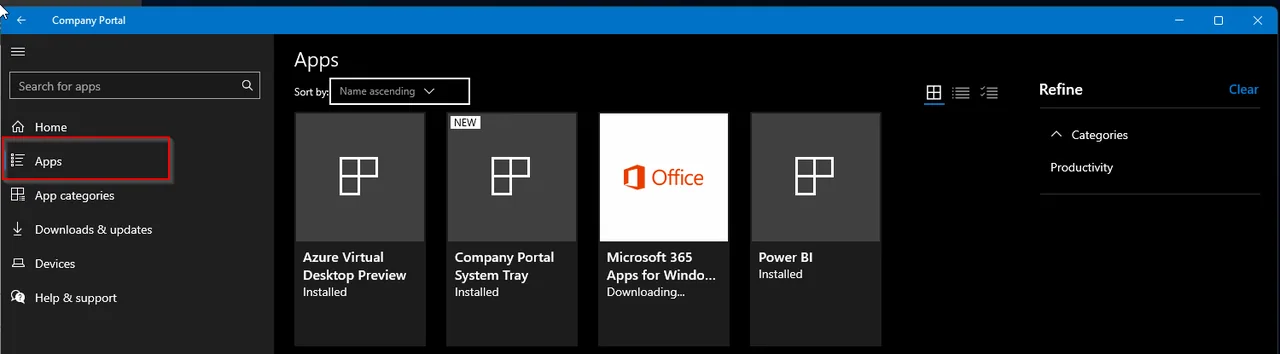
- Click install to install the App
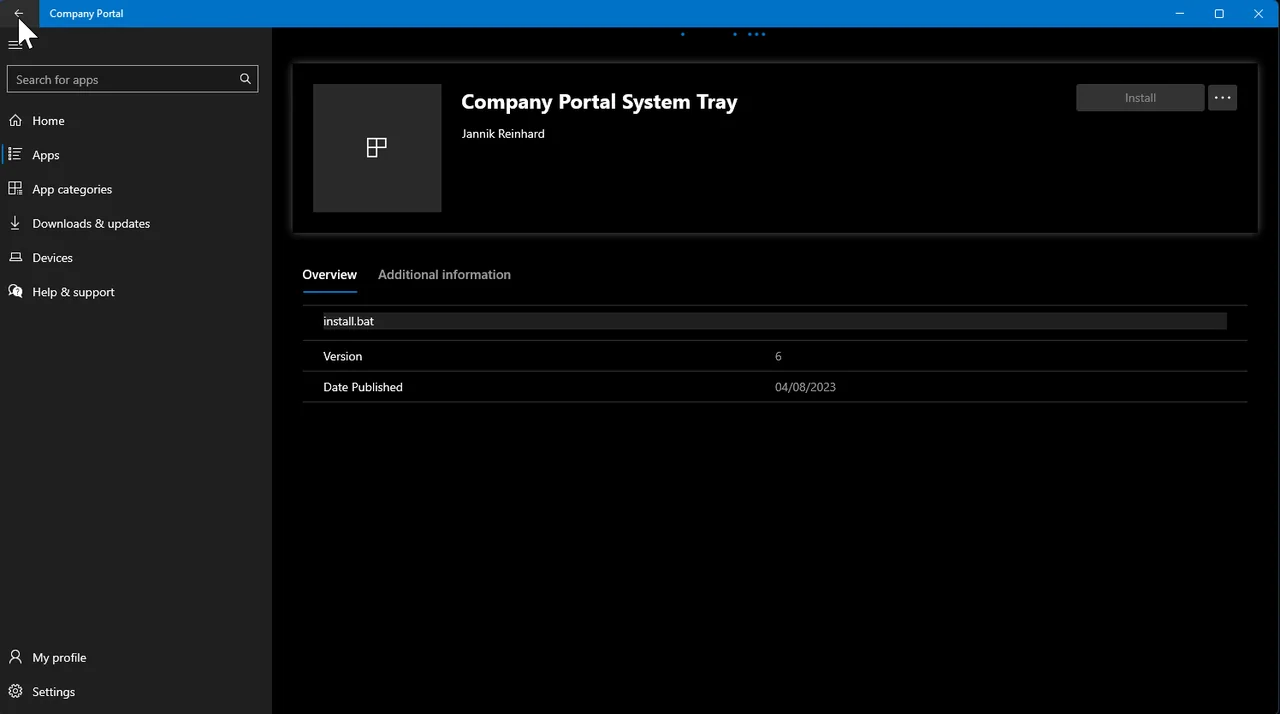
- Once the installation is done you will see the uninstallation button
That is everything you need to roll out the uninstallation feature in the Company Portal. By enabling the uninstallation feature in the Company Portal you give your users a clean self-service experience and you reduce the number of manual uninstall requests reaching your support team. If you want to go deeper into application management, check out my other Intune instructions and guides.